Archive
#ProjectServer #PS2013 access to Create Projects functionality #SP2013 #PM #Project #ProjectOnline
|
I am a Project Server and SharePoint consultant but my main focus currently is around Project Server.
I have been working with Project Server for nearly five years since 2007 for a Microsoft Gold Certified Partner in the UK, I have also been awared with the Microsoft Community Contributor Award 2011. I am also a certified Prince2 Practitioner. This article has been cross posted from pwmather.wordpress.com (original article) |
Just a quick post to detail the permissions required to be able to use the “Create Projects” button on a list in the PWA site collection. If you are not familiar with the button or functionality see the post below:
The permissions required for a user to be able to create a project from the SharePoint list in PWA when using the Project Server Permission mode are:
Global Permissions:
Manage Lists in Project Web App – this enables the button in the ribbon, without this permission the button remains greyed out / disabled even when you have an item selected in the list
New Project – this enables the user the see the form that pops up with the field mappings, without this the pop with display the message below:
Category:
Only included the Selected Projects + The User is the Project Owner or the User is the Status Manager on assignments within that Project
with Publish Project permission for that category, without the category and publish permission the create project button on the field mapping window will display the message below:

Getting started with #ProjectOnline Part 3 #PS2013 #Office365 #Project #PPM #SharePointOnline #PM
|
I am a Project Server and SharePoint consultant but my main focus currently is around Project Server.
I have been working with Project Server for nearly five years since 2007 for a Microsoft Gold Certified Partner in the UK, I have also been awared with the Microsoft Community Contributor Award 2011. I am also a certified Prince2 Practitioner. This article has been cross posted from pwmather.wordpress.com (original article) |
Part 3 of the “Getting started with Project Online” series looks at Project Professional 2013 Enterprise Global objects. Part 2 of the series looked at Project Online Enterprise Custom Fields:
Now that you have created your custom fields you need to make these visible to users. Views can be created for Project Web App (PWA) and Project Professional 2013. This post will look at the custom Project Professional 2013 Enterprise views and other custom Enterprise Global objects. These are stored in the Enterprise Global with the other default Enterprise Global objects. You do get a lot of views, groups and filters etc. with Project Professional 2013 that are stored in the local global file, these are known as local objects (views, filters etc.). The Enterprise Global is a file that is used to control what objects are standardised across the organisation for Project Professional when connecting to Project Online / Project Server 2013. When Project Professional is connected to Project Online / Project Server, the Enterprise Global and the local global file merge so that both the Enterprise objects and local default objects are available. The type of objects are views, tables, groups and filters. The next steps will create custom objects in the Enterprise Global for your environment.
Launch Project Professional 2013 and connect to the PWA instance. If you haven’t connected Project Professional to PWA before see the steps below:
- Launch Project Professional 2013
- Click File > Info > Manage Accounts
- Click Add
- Enter an account name – this is your reference
- Enter the Project Server PWA URL, it will be something like https://<tenantname>http://.sharepoint.com/sites/PWA
- Set as default account
- Click OK
- Check the box to choose an account
- Click OK then close and re-launch Project
- Now you will be prompted to choose an account
- Select the account that you just created
- Click OK
If you haven’t connected before you might be prompted for credentials, enter details for an account that has admin access to PWA. Your Project Professional client will now be connected to your Project Online PWA instance.
Once Project Professional is connected we can start the configuration of the Enterprise Global file. Close the blank Project 1 file and Click File > Info > Organiser > Open Enterprise Global
It will look like a blank project but notice the title “Checked-out Enterprise Global”:
We are now ready to add the custom enterprise objects. For the purpose of this post we will create 1 custom view that includes some of the default Project fields but also our custom RAG Planned Work field, we will also create a custom filter. Firstly we will look at creating the custom Enterprise Global view. Views are based on tables, so firstly we need to create a table, this table defines the fields and the layout in the view. In Project Professional, click the View tab then the Tables > More Tables:
Click New:
Enter a Name, I would recommend that you prefix all of the custom Enterprise Global objects with a set of characters so that you know they are custom. When you have many custom objects in the Enterprise Global you will be glad you did this! Then add the fields required, set the width and add a custom title plus any other settings you would need, see example below:
Click OK then Close. Now create the view, click Other Views > More Views on the View Tab:
Click New:
Select Single view and click OK. Single view will create just one view, a combination view will give you a split view. For example, for a combination view you might have the Gantt view at the top (Primary) and the Task Usage at the bottom (Details). For this example we will create a single view:
Give the view a name, remember the prefix tip, and select the other options as displayed below:
The Table is the name of the table we created in the previous step. Click OK then Close. That’s the view created, now lets create the custom enterprise filter. Click the Filter drop down and select More Filters:
Click New:
Enter a name then set up the filter, in this example I want the filter to display all tasks where the RAG Planned Work field has a value of “Planned Work Greater Than Baseline”:
This value is from the formula from the RAG Planned Work field.
Click Save then Close.
Now save the Checked-out Enterprise Global file, File Save. Close and check in the Enterprise Global file. Exit Project Professional then re-launch it and connect to the account we created in the first steps so that you are connected to the Project Online PWA instance. This process is required so that Project loads with the new Enterprise Global file. You will now see that the new view and filter are available:
View selected:
Notice only the fields we defined in the table are visible. The custom filter is also available:
Selecting this filter on a project will only show tasks that have more planned work than the baseline value, no filter:
Selecting the custom filter just created:
That covers the intro to custom Enterprise Global objects, in the next post we will look at further configuration entities in PWA.
Getting started with #ProjectOnline Part 2 #PS2013 #Office365 #Project #PPM #SharePointOnline #PM
|
I am a Project Server and SharePoint consultant but my main focus currently is around Project Server.
I have been working with Project Server for nearly five years since 2007 for a Microsoft Gold Certified Partner in the UK, I have also been awared with the Microsoft Community Contributor Award 2011. I am also a certified Prince2 Practitioner. This article has been cross posted from pwmather.wordpress.com (original article) |
This is part 2 of the “Getting Started with Project Online” series. If you didn’t see part one see the link below:
In summary this post covered creating the PWA site collection, we went from nothing to having a fully functional Project Online environment in around 45 minutes!
In this post we will look at what to do next now that we have a blank Project Online PWA site collection.
Before we move to the PWA site collection, there is a decision that needs to be made regarding the permission mode. With Project Server 2013 and Project Online there are two permission modes available. Either the SharePoint Permission mode or the Project Permission mode. By default the PWA site collection is provisioned using the SharePoint Permission mode. If you are just starting out with Project Online and you are not familiar with the classic Project Permission mode I would recommend you stick with the SharePoint Permission mode as this will simplify the configuration and administration. We wont go into details on the differences but to help you decide, see the following TechNet link:
Should you wish to change the permission mode if the SharePoint Permission mode doesn’t meet your organisations access security requirements, navigate to the SharePoint Admin Center. If you don’t know the URL the easiest way to access this is from the PWA site, in the top corner you will see an Admin drop down menu when logged in with an Office 365 tenant admin account:
Click SharePoint, that will take you to the SharePoint Admin Center:
From this page, select the PWA site collection (check box next to the PWA site collection) then click the Settings link under the Project Web App menu as displayed below:
This will load the Settings page for the Project Web App site:
As you can see, the SharePoint Permission Mode is already set. For the purpose of these posts, we will leave this set but this is where you can switch your PWA site collection to use the Project Permission mode. You can switch permission modes at any time but bear in mind the settings will be reset so you will need to reconfigure the permissions / add users to the PWA site collection again – best to decide the permission mode from day one to avoid a lot of work on a live system! Also another key piece of information on this page is the Project Database Usage, you get 10GB for Project Online so worth monitoring / checking this.
Now we have covered the permission mode, we can move the the PWA site collection and start the configuration. Load the PWA site collection with the PWA Administrator account that you specified on the site creation and you will see the following site as we saw in the previous post:
The first part of the configuration we need to consider is the PWA custom fields as the other configuration elements require these to be in place so lets find these. To access the PWA custom fields, navigate to the PWA Settings page. Click the settings cog in the top left corner:
Click PWA Settings and you will see the following page:
This page is where you configure all of the PWA settings. So we are looking for custom fields, under Enterprise Data you will see “Enterprise Custom Fields and Lookup Tables”, click that link and you will see the custom field page:
You will notice there are custom fields and lookup tables already in place, these are the default fields that are created with the Project Online / Project Server PWA instance. This doesn’t include the intrinsic fields, for a reference of these fields see the following link:
One thing I will point out at this stage as it is the first time we have seen any locale specific data (Last Updated column), you will notice this has the US date format. To change this to the correct locale for your users, click the settings cog again then Site Settings:
Now click Regional Settings under the Site Administration heading:
On this page select the correct locale and other region specific settings:
Then Click OK and navigate back the PWA Settings page from the site cog menu then click the “Enterprise Custom Fields and Lookup Tables” link and notice the date format is now correct for the UK:
Before we look at creating custom fields lets have an overview of the types of fields available. We can create Project, Resource and Task level fields that are one of the following types of field: Cost, Date, Duration, Flag, Number or Text. You also have Lookup Tables that can be associated with the text based custom fields if required. Customs fields based on lookup tables are used to “tag” the data with a certain value or values, this can then used for grouping, filtering and sorting in views or reports. Other fields can be used for grouping, sorting and filtering but generally the fields based on lookup tables or formulas are used as you know the possible values that are available. You can also create your own calculated fields by choosing the Formula attribute. Also you have other attributes that can be set such as the rollup for summary rows and roll down for assignment rows, this settings is only available for Resource or Task fields. There is also the option to either show the value of the field or display a graphical icon. Graphical icons would only really be set on fields that are either based on a lookup table or a formula as you know all the possible values.
Full details on custom fields can be found here:
We will now walkthrough creating a few custom fields. At this stage I would hold off creating these on your PWA environment as now is a good time to sit down with your peers and discuss / review the fields your organisation needs. The best way to start is to think about what do you want out of the system, what data do you want to capture, what data do you want to report on etc. We will continue here though and create a couple of Project, Resource and Task fields.
We will create the project level fields first, from the custom fields page click the New Field button:
The new field page will look like this:
This field is going to be a “Project Code” field to sort a project code against each of our projects. I have set the following settings:
Name: Project Code
Description: Enter the project code
Entity and Type: Entity: Project Type: Text
Custom Attributes: Single line of text
Department: NA – left empty
Behaviour: Require that this field has information: Yes | Other settings default
Before we move on I just want to mention a couple of the field attributes, Department and Behaviour. The department field is used to departmentalise the configuration and data in PWA. We aren’t going to use this functionality here but it can be very useful if you want to change what custom fields are visible to users / projects as it might be that not all fields are applicable to all users / projects. There are a few blogs out there that cover this topic quite well if you want to look at using this feature. The other attribute is Behaviour, a field can be controlled via a workflow as part of the project lifecycle, we aren’t setting up a project lifecycle workflow so will leave this unchecked.
Once the settings have been completed, click Save on the new custom field page and you will be taken back to the custom field admin page and see your new field:
The next project level field is going to be a text field based on a lookup table, the field is going to be called Programme. When you want to use a lookup table on a field the lookup table needs to be created first. Click the “New Lookup Table” button and the following page will load:
A lookup table as a few attributes, Name, Type, Code Mask and the Lookup Table. Choose the type of lookup table, the options are Cost, Date, Duration, Number and Text. The Code Mask is only applicable for text based lookup tables as these can be hierarchical with different levels, the code mask set the levels available and the separator. For this example I am using a text based lookup table with 2 levels set on the code mask then populated the table with my Programme values:
Use the toolbar functions on the lookup table to outdent, indent, delete and insert rows etc. Once you are happy with the lookup table click save. At this point the lookup table is validated against the code mask, in this example all is fine and saves ok. If you see this error on save, the code mask is not correct for the levels you need or you have enter to many characters as 255 is the limit for one value (row):
“The lookup table could not be saved due to the following reason(s): One or more code values in the lookup table either do not match the mask defined for the code or contain more than 255 characters.”
Now that we have a lookup table we can create the associated project level custom field. Click the “New Field” button. Enter the field name, leave this as a Project Text field. On the custom attributes, check the Lookup Table option:
Change the lookup table to the Programme lookup table we just created, in this example the other options for the lookup table will be left as default. We will set this field to display the data rather than an indicator and leave the behaviour attributes as default so this field is not required. Click Save and you will see the new field on the custom field table:
The final project level field we will create is a Project Status field, this will also use a lookup table. Create a new text based lookup table called “RAG Status” with 3 values Red, Amber and Green. Then create a new field called “Project Status”, in the description state this is a manually set RAG field, set the Lookup table attribute to use the “RAG Status” lookup table that was just created:
Scroll down and set the field to use graphical indicators and you will see another table appear:
Populate the table as follows:
The important part is the Test and the Value, the value must match the value in the associated lookup table otherwise the image will never be displayed. I have also set the data value to be displayed in a tooltip. Once the settings are complete, click Save. We now have 3 custom project level fields.
Next we will look at creating a Task level formula based field called RAG Planned Work, click the New Field button, set the name and select Task then Text. Check the Formula custom attribute then type the required calculation. For this example the nested if statement below will be used:
IIf([Work] = 0, "No Planned Work", IIf([Baseline Work] = 0, "No Baseline Work", IIf([Work] <= [Baseline Work], "Work Within Baseline", "Planned Work Greater Than Baseline")))
If you are new to Project formulas, notice the IIF, it is an immediate if.
This can be seen here:
For this example we will set the summary row calculation to use the formula but the assignment row calculation will be set to none. We will also set this to use graphical indicators as follows:
The values for the graphical indicators match the possible values in the formula. Once completed click Save. At this point the formula will be validated and not let you save the page if there are errors.
The final field we will create is a resource level field called Employee Contract Type, this will use a lookup table. As before, first create a text based lookup table called Contract Type with the contract values. This will include values like Full Time, Part Time, Contractor and 3rd Party as seen below:
Save the new lookup table and click the “New Field” button and set the name, then choose Resource from the Entity menu and Text from the Type menu. On the custom attributes menu select Lookup Table and choose the Contract Type lookup table:
Set the field to be required in the Behaviour section and click Save. We now have our example enterprise custom fields and lookup tables created:
Hopefully now you are comfortable with the options available to create the remaining fields your organisation requires. That brings us to the end of the first part of the configuration, in the next part we will continue with the other elements of the configuration.
Getting started with #ProjectOnline Part 1 #PS2013 #Office365 #Project #PPM #SharePointOnline #PM
|
I am a Project Server and SharePoint consultant but my main focus currently is around Project Server.
I have been working with Project Server for nearly five years since 2007 for a Microsoft Gold Certified Partner in the UK, I have also been awared with the Microsoft Community Contributor Award 2011. I am also a certified Prince2 Practitioner. This article has been cross posted from pwmather.wordpress.com (original article) |
This post is the first post from a series of posts I am going to write based on Project Online. It is very simple to get a Project Online Office 365 tenant but once the PWA site collection is there, what next? Where do you start? How do you get the most out of it? This series of posts will guide you through these steps so that hopefully you get the most out of Project Online.
Firstly I will go through creating the PWA site collection, for this you will need tenant admin access as this is created from the SharePoint Admin site on the Office 365 Admin center.
From the Office 365 Admin site below:
Click Admin > SharePoint:
On this page you can manage all the SharePoint related functionality:
As you can see, there is already one PWA site collection on this tenant, you can have up to 3 per tenant. To create a new PWA site collection click New > Private Site Collection with Project Web App
This will load a form, the completed form can be seen below:
Click OK. You will now see the new PWA site collection appear but with a spinning circle that states “The site collection is being created.”
After approximately 10 to 15 minutes the PWA site collection will be ready and accessible, notice the NEW text in green:
Clicking the new PWA site link will load the site collection properties:
Click the Site Address and the PWA site will load:
There it is, in a handful of steps you now have a fully functioning Project Online PWA site collection.
Next up we will begin configuring and customising the Project Online site collection.
#SSRS native report render issue in #SharePoint #SP2013 with #IE 9 or later #PS2013 #BI #SQL
|
I am a Project Server and SharePoint consultant but my main focus currently is around Project Server.
I have been working with Project Server for nearly five years since 2007 for a Microsoft Gold Certified Partner in the UK, I have also been awared with the Microsoft Community Contributor Award 2011. I am also a certified Prince2 Practitioner. This article has been cross posted from pwmather.wordpress.com (original article) |
This post covers an the details around an issue I came across the other day and I wanted to make you aware to help in your deployments / system design. The issue is with displaying SSRS Native mode reports on a SharePoint 2013 page using a page viewer web part when using IE 9 or later. Our preference and recommendation is to usually use SSRS Integrated mode but on occasions some of our clients use SSRS Native mode. This issue doesn’t exist for SSRS Integrated mode.
The is that the SSRS reports are not displayed correctly on the page, they are truncated:
Other standards-compliant browsers are ok, Chrome is:
IE 8 also works fine.
The page viewer web part with SSRS Native reports worked fine in SharePoint 2010 in any browser.
I have tested with the SSRS Report viewer web part (the 2008 R2 version as the SQL 2012 version doesn’t deploy to SharePoint 2013) from the RSWebParts.cab file, this has the same issue.
One of our devs had a quick look at this and it stated it was because the web part uses a table that is 3 cells wide. 2 of the cells are related to the document map while the 3rd contains the report itself. The document map cells are hidden by default.
In older versions of IE, a hidden cell in a table counted towards with width of the table, this was against the standard. Now with more standards compliant browsers, hidden cells do not count towards the width of the table.
This means that the report cell is the only cell defined for the row, so the browser forces it into the left most cell space. The end result of this is the SSRS report is truncated to the right as that is the limit of the size of that column.
So the answer going forward if your client wants to embed SSRS reports in SharePoint 2013 pages and they use IE, recommend (and use) SSRS 2012 Integrated mode.
#ProjectServer #Win8 #Apps using #Projectsiena #PS2013 #SP2013
   I am a Project Server and SharePoint consultant but my main focus currently is around Project Server.
I have been working with Project Server for nearly five years since 2007 for a Microsoft Gold Certified Partner in the UK, I have also been awared with the Microsoft Community Contributor Award 2011. I am also a certified Prince2 Practitioner. This article has been cross posted from pwmather.wordpress.com (original article) |
Microsoft have released Project Siena (Beta) to enable users to create Windows 8 apps. The tool is a Windows 8 app that can be downloaded here:
Details on Project Siena can be found here:
http://www.microsoft.com/en-us/projectsiena/default.aspx
http://blogs.technet.com/b/projectsiena/
I haven’t had much time to look at the tool but in this blog post I will walk through creating a very simple App that shows a list of projects and the percentage complete.
Once Project Siena is installed and loaded the first screen looks like this:

Click “Add a visual” and you will see all the options:

For this example, I am going to add a list box:
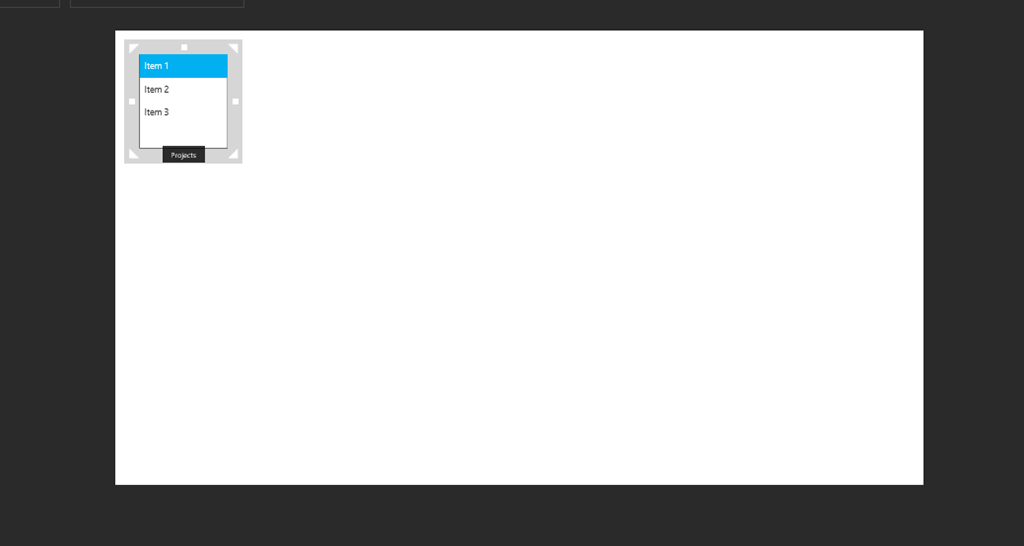
Now select the list box control and click “Items” from the bottom ribbon then click “Add Data Source”:

For this example, I have already got an Excel file that contains the projects and information I need using ODATA from my test Project Online tenant:

After clicking the add data source button you will see the following options:

For this simple example I am going to use Excel, the Excel file you can see above. As you can see,there are 5 options of data sources, but for the purpose of this post I will keep it simple and use Excel.
After adding the Excel file, you will need to select the table/s:

Then click “Import data”. You will then see the data appear:

Navigate back to the App screen and select the list box, click “Items” from the ribbon and select the table from Excel:

Once the Excel table is selected you can then chose what field appears in the list box:

In this case, it is the ProjectName field. The list box will update to display the projects from the Excel file:

Resize the List Box as required. Add a text box and a slider as displayed below:

I have updated the text and styling of the text in the text box. To updating the styling of the text, select the text box and click the “Design” button on the bottom ribbon, these options will appear:

Update as required.
The slider is used to visualise the % complete. This control needs to be linked to the data. To do this, select the slider and click the “Data” button, then “Default”. Click “Projects!Selected”:

Then click “ProjectPercentCompleted”:

The slider will now update to show the % complete for the selected project. That is it for this simple app, but gives you an idea.
You can preview the app by clicking the “Preview” button:

The preview looks like this:
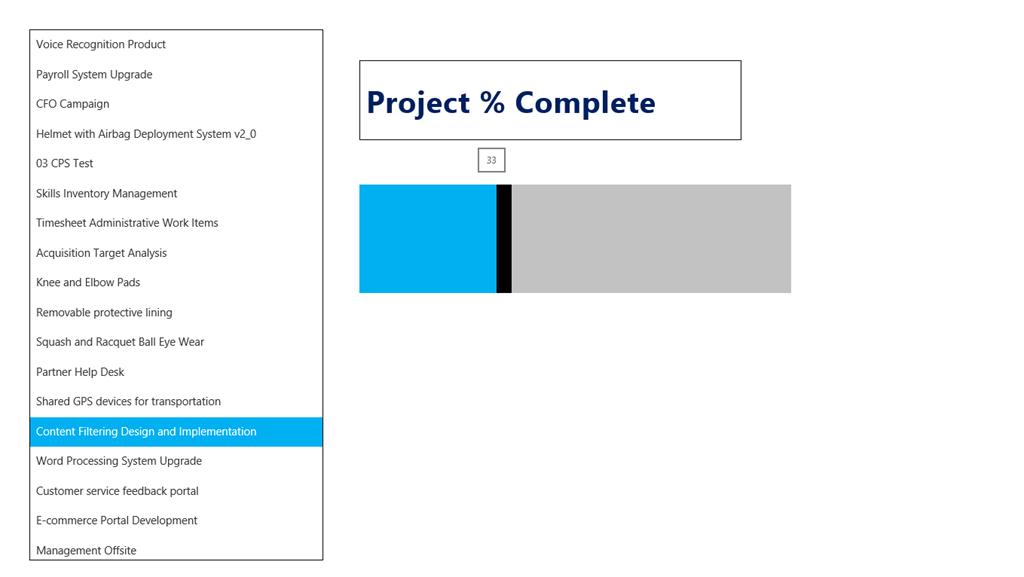
The tooltip shows the % complete.
As mentioned, this is a simple app just to introduce you to Project Siena and demonstrate how easily anyone can create an App with no coding!
Have fun 


#ProjectServer and #SharePoint 2010 / 2013 December 2013 Cumulative Update #PS2010 #SP2010 #PS2013 #SP2013 #MSProject
|
I am a Project Server and SharePoint consultant but my main focus currently is around Project Server.
I have been working with Project Server for nearly five years since 2007 for a Microsoft Gold Certified Partner in the UK, I have also been awared with the Microsoft Community Contributor Award 2011. I am also a certified Prince2 Practitioner. This article has been cross posted from pwmather.wordpress.com (original article) |
The Office 2013 December 2013 Cumulative Updates are now available, please see the links below:
http://support.microsoft.com/kb/2912738
***There is no Project Server 2013 Server Roll up package for December 2013 CU***
Project Server 2013 December 2013 CU:
http://support.microsoft.com/kb/2837668
Project 2013 December 2013 CU:
http://support.microsoft.com/kb/2837665
Also worth noting, if you haven’t done so already, install the March 2013 Public update: http://support.microsoft.com/kb/2768001 if installing the December 2013 CU.
The Office 2010 December 2013 Cumulative Updates are now available, please see the links below:
http://support.microsoft.com/kb/2911591
Project Server 2010 Server Roll up package December 2013 CU (Recommended):
http://support.microsoft.com/kb/2849972
Project Server 2010 December 2013 CU (Included in the Server Roll up package):
http://support.microsoft.com/kb/2849978 & http://support.microsoft.com/kb/2849988
Project 2010 December 2013 CU:
http://support.microsoft.com/kb/2849984
Remember SP1 or SP2 is a pre-requisite for the Office 2010 December 2013 CUs.
As always, test these updates on a replica test environment before deploying to production.
For more details see:


#ProjectOnline deployment experience #Office365 #Project #SharePoint #Cloud #PPM #EPM
|
I am a Project Server and SharePoint consultant but my main focus currently is around Project Server.
I have been working with Project Server for nearly five years since 2007 for a Microsoft Gold Certified Partner in the UK, I have also been awared with the Microsoft Community Contributor Award 2011. I am also a certified Prince2 Practitioner. This article has been cross posted from pwmather.wordpress.com (original article) |
I recently worked solely on a Project Online deployment from start to finish and wanted to share my thoughts and experiences with you. Just to be clear, this isn’t the first Project Online deployment I have worked on, I have been involved in many with CPS but this one I have seen through from the beginning to the end.
Overall the Project Online experience is very smooth and efficient. It was the perfect solution for this particular client I have just finished working for. They weren’t sure exactly what they needed or how long they were going to use the system for as another area of the business was already planning Project Server internally but these guys needed something now. Project Online was the perfect choice, no hardware needed, no internal IT involvement, no capital costs.
When working with Project Online, treat this as the separate product it is. Remember it is not Project Server online, it is Project Online. whilst these two products are similar they are different. Many of the features are very similar but you will also find some features not available in one or the other.
One of the key areas I would say you need ensure you fully understand, certainly if you have been working with Project Server for many years like myself, is the reporting side of things. Whilst the typical end user reporting in Project Online is very simple to use, you are limited by ODATA and don’t have the flexibility of the Reporting database access that we have all got used to. Remember, Project Online is a different product to Project Server 2013 on-premise, so don’t think of Project Online reporting as a limitation compared to Project Server on-premise.
For quick and simple deployments, for me, Project Online is the answer. The key advantages to consider with Project Online that can help form any business case needed are:
- The farm is maintained by Microsoft
- The farm is regularly patched with updates by Microsoft
- The system scalability is all handle by Microsoft
- The system continuity / back up is handled by Microsoft
- Any system issues are raised directly to Microsoft for resolution
- Project Online can be up and running within about 30 minutes
- No hardware required
- No capital costs
These aren’t all the advantages, just the key points i could think of at the time of writing.
Speak to your Gold PPM partner today for a free trial – you won’t be disappointed.


Free #Project 2013 App from CPS #Office365 #Office #Apps #ProjectServer #ProjectOnline
|
I am a Project Server and SharePoint consultant but my main focus currently is around Project Server.
I have been working with Project Server for nearly five years since 2007 for a Microsoft Gold Certified Partner in the UK, I have also been awared with the Microsoft Community Contributor Award 2011. I am also a certified Prince2 Practitioner. This article has been cross posted from pwmather.wordpress.com (original article) |
Just a quick post to highlight a new app that CPS have released for Project 2013, this is the Task Auditor app and can be downloaded using the link below:
http://office.microsoft.com/en-gb/store/task-auditor-WA104172076.aspx
The app can be seen below:

The home page gives a description of the app but also contains a check box to allow the use of Cookies – if you don’t allow the use of Cookies then the configuration settings will not be available and some of the checks might not be 100% accurate.
After checking the check box to allow Cookies, clicking on a task update the app to show the results for the particular task:

At this point also notice there are three tabs, Task, Configure and Help. If you don’t allow Cookies the Configure and Help Tabs will not be visible. The Task Tab displays the checks / tests results for the selected task. The Configure Tab allows the user the enter duration settings and date format:

This is to allow correct calculations for a couple of the checks. These settings are saved and only have to be updated once / as required.
The Help Tab gives details / support for the Configure Tab:

The tests carried out will depend on the type of task selected, Milestone, Summary Task, Work Task etc. The images below show a summary task selected and then a normal work task selected:
Summary Task:

Work Task:

Hovering over the checks, a tooltip gives more information on the check:

Take a look, its free 


#ProjectServer #Project Conference 2014 #ProjectOnline #ProjConf #pm #pmot #projectmanagement #PPM
|
I am a Project Server and SharePoint consultant but my main focus currently is around Project Server.
I have been working with Project Server for nearly five years since 2007 for a Microsoft Gold Certified Partner in the UK, I have also been awared with the Microsoft Community Contributor Award 2011. I am also a certified Prince2 Practitioner. This article has been cross posted from pwmather.wordpress.com (original article) |
The Project Conference 2014 is fast approaching. This is the place to be for information on Microsoft Project, Microsoft Project Server and Project Online. For details see the links below:
http://www.msprojectconference.com/
http://blogs.msdn.com/b/jkalis/archive/2013/11/20/register-for-the-project-conference-2014-now.aspx

See you there!


 SharePoint (and Project Server) Shenanigans
You must be logged in to post a comment.