Archive
#ProjectServer #PS2013 #Excel Pivot Table limitation
   I am a Project Server and SharePoint consultant but my main focus currently is around Project Server.
I have been working with Project Server for nearly five years since 2007 for a Microsoft Gold Certified Partner in the UK, I have also been awared with the Microsoft Community Contributor Award 2011. I am also a certified Prince2 Practitioner. This article has been cross posted from pwmather.wordpress.com (original article) |
Just a quick post to highlight a limitation / issue with Excel Pivot Tables that I hadn’t seen before, details below.
This particular Pivot Table uses a Data Model that contains two OData feeds from Project Server 2013, one for Project details and one for Task details. The connections can been seen below:

The relationship has been set up as follows:

I have added Programme, Project Name, Task Name and Task Start to the Pivot Table. Programme and Project Name are from the Projects table and Task Name and Task Start are from the Tasks table. The Project Name is filtered to just one project:

Looking at the Pivot Table, it looks the CPS Test project has many tasks but in fact this project only has 4 tasks:

To resolve the issue you have to add a numerical field from the Tasks table to correct the aggregation:

Hope that helps 


#ProjectServer #PS2010 / #PS2013 local master projects and tasks with no assignments
|
I am a Project Server and SharePoint consultant but my main focus currently is around Project Server.
I have been working with Project Server for nearly five years since 2007 for a Microsoft Gold Certified Partner in the UK, I have also been awared with the Microsoft Community Contributor Award 2011. I am also a certified Prince2 Practitioner. This article has been cross posted from pwmather.wordpress.com (original article) |
Something to be aware of when using local master projects in Project Server 2010 or 2013 when tasks in the sub projects have no assignments.
You will see random text / characters next to the Unassigned name as seen below:

The text / characters displayed will change depending on where you last clicked.
Repro steps below:
- Open Project Pro and connect to the server
- Create 1 project, create 3 tasks and assign an enterprise resource to all three tasks, save and publish the project.
- Close and check-in the project
- Create 1 other project, create 3 tasks and assign an enterprise resource to only 2 of the tasks leaving 1 task with no assignment, save and publish the project.
- Close and check-in the project
- Create a new project and insert both of the projects created above as read-only
- Save the master project locally as a file, when prompted hit no to all when prompted to save changes to the two insert projects
- Close the master project and again when prompted hit no to all when prompted to save changes to the two insert projects
- Close Project Pro
- Open Project Pro and connect to the server
- Open the local master project and expand the two inserted projects
- Switch to the Resource Usage view and notice the Unassigned resource name

- Make changes such as expanding the Resource Name column, increase the work etc. and see the Unassigned name update.
- After changing the Resource Name column width:

o Changing work:

o 2013:


#ProjectServer 2010 field calculation in PWA #PS2010 #MSProject #SP2010
|
I am a Project Server and SharePoint consultant but my main focus currently is around Project Server.
I have been working with Project Server for nearly five years since 2007 for a Microsoft Gold Certified Partner in the UK, I have also been awared with the Microsoft Community Contributor Award 2011. I am also a certified Prince2 Practitioner. This article has been cross posted from pwmather.wordpress.com (original article) |
A quick blog post to highlight an issue and workaround for editing plans in PWA when using custom fields that use the inbuilt fields. This post uses Finish Variance as an example. The Finish Variance field doesn’t recalculate in PWA after making edits to plans, this only updates after changes in Project Pro. This post relates to the Finish Variance field but other fields will more than likely have the same issue.
In the screen shot below you will see a simple plan with 2 tasks that was created and baselined in Project Pro. There are 3 custom fields in the view:
Finish Variance RAG, the formula is IIf([Finish Variance] > 0, "Slipped", "On schedule")
Finish Variance (Calc) RAG, the formula is IIf([Task Finish Variance] > 0, "Slipped", "On schedule")
Task Finish Variance, the formula is ProjDateDiff([Baseline Finish], [Finish]) / 480

As you can see the Finish Variance and the Task Finish Variance values are currently the same and so are the 2 RAG fields.
Edit the plan in PWA and increase the task durations, for this example double the durations. Calculate the plan then save and publish the project. Refresh the page and you will see that the Finish Variance is incorrectly 0, the Finish Variance RAG is still green as this uses the Finish Variance field. The good news is that the custom field that calculates finish variance (Task Finish Variance) shows the correct values and the Finish Variance (Calc) RAG also shows the correct RAG.

To correct the Finish Variance values and the Finish Variance RAG, open the plan in Project Pro, press F9 to recalculate then save and publish. The Finish Variance default field now shows the correct values in PWA as does the Finish Variance RAG:

To get the RAGs to calculate correctly when editing in PWA you might need to create your own custom fields to replicate the calculations used on inbuilt fields. Obviously it would not be recommended to create too many task level calculated fields due to performance issues but hopefully that little workaround helps for key RAGs.


#ProjectServer and #SharePoint 2010 / 2013 June 2013 Cumulative Update #PS2010 #SP2010 #PS2013 #SP2013 #MSProject
|
I am a Project Server and SharePoint consultant but my main focus currently is around Project Server.
I have been working with Project Server for nearly five years since 2007 for a Microsoft Gold Certified Partner in the UK, I have also been awared with the Microsoft Community Contributor Award 2011. I am also a certified Prince2 Practitioner. This article has been cross posted from pwmather.wordpress.com (original article) |
The Office 2013 June 2013 Cumulative Updates are now available, please see the links below:
http://support.microsoft.com/kb/2855356
Project Server 2013 Server Roll up package June 2013 CU (Recommended):
http://support.microsoft.com/kb/2817415 (Delayed)
Project Server 2013 June 2013 CU (Included in the Server Roll up package):
http://support.microsoft.com/kb/2817341
Project 2013 June 2013 CU:
http://support.microsoft.com/kb/2817338
Also worth noting, install the March 2013 Public update: http://support.microsoft.com/kb/2768001 if installing the June 2013 CU.
The Office 2010 June 2013 Cumulative Updates are now available, please see the links below:
http://support.microsoft.com/kb/2855357
Project Server 2010 Server Roll up package June 2013 CU (Recommended):
http://support.microsoft.com/kb/2817368
Project Server 2010 June 2013 CU (Included in the Server Roll up package):
http://support.microsoft.com/kb/2817378 & http://support.microsoft.com/kb/2817387
Project 2010 June 2013 CU:
http://support.microsoft.com/kb/2817385
Remember SP1 is a pre-requisite for the Office 2010 June 2013 CUs.
For more details please see:
http://blogs.technet.com/b/projectsupport/archive/2013/06/14/microsoft-project-server-2007-2010-and-2013-june-2013-cu-announcement.aspx
As always, test these updates on a replica test environment before deploying to production


#ProjectServer 2013 environment migration / rollover steps update #PowerShell #PS2013 #SP2013
|
I am a Project Server and SharePoint consultant but my main focus currently is around Project Server.
I have been working with Project Server for nearly five years since 2007 for a Microsoft Gold Certified Partner in the UK, I have also been awared with the Microsoft Community Contributor Award 2011. I am also a certified Prince2 Practitioner. This article has been cross posted from pwmather.wordpress.com (original article) |
Something to consider when following the rollover steps outlined in the post below.
If the target farm (Test / Dev) is a later patch level than the Content database and Project Web App database, they will need to be upgraded after mounting.
Upgrade the content database using the Upgrade-SPContentDatabase command and the Project Web App using the Upgrade-SPProjectDatabase. In 2010 the 4 PWA databases used to upgrade when provisioning the PWA site, in 2013 this process fails due to the Project Web App database being in compatibility range. The error found in the upgrade log can be seen below:
OWSTIMER (0x27C4) 0x467C SharePoint Foundation Upgrade SPUpgradeSession aloop DEBUG Entering upgrade for [ProjectSite Name=8d511428-9d61-4731-96bd-28be45bfba6b] 72be219c-e53a-b0d0-1951-87ac137d4659
OWSTIMER (0x27C4) 0x467C SharePoint Foundation Upgrade SPUpgradeSession ajxnf ERROR Cannot upgrade [ProjectSite Name=8d511428-9d61-4731-96bd-28be45bfba6b]. 72be219c-e53a-b0d0-1951-87ac137d4659
OWSTIMER (0x27C4) 0x467C SharePoint Foundation Upgrade SPUpgradeSession ajxng DEBUG Skip upgrading [ProjectSite Name=8d511428-9d61-4731-96bd-28be45bfba6b]. 72be219c-e53a-b0d0-1951-87ac137d4659
OWSTIMER (0x27C4) 0x467C SharePoint Foundation Upgrade SPUpgradeSession alooy DEBUG Exiting upgrade for [ProjectSite Name=8d511428-9d61-4731-96bd-28be45bfba6b]. Elapsed Time=[00:00:00] 72be219c-e53a-b0d0-1951-87ac137d4659


#SharePoint 2010 error setting PerformancePoint unattended account #SP2010 #PS2010 #HP
|
I am a Project Server and SharePoint consultant but my main focus currently is around Project Server.
I have been working with Project Server for nearly five years since 2007 for a Microsoft Gold Certified Partner in the UK, I have also been awared with the Microsoft Community Contributor Award 2011. I am also a certified Prince2 Practitioner. This article has been cross posted from pwmather.wordpress.com (original article) |
A short blog post to highlight a workaround to a recent issue we experienced on a Project Server 2010 deployment. When trying to set the PerformancePoint unattended account we received an error:
The account credentials for the Unattended Service Account are not valid. Verify the domain user name and password are correct and that the account is located in a Trusted Domain
We experienced the same error via the UI in Central Admin and via PowerShell. The fix / workaround was quite simple in the end. This particular client had the HP ProtectTools enabled, this blocks any passwords being sent as plain text. We added an <SE>\ tag as shown below in the password string:
Set-SPPerformancePointSecureDataValues -ServiceApplication "PerformancePoint Service Application" -DataSourceUnattendedServiceAccount (New-Object System.Management.Automation.PSCredential "domain\user", (ConvertTo-SecureString "<SE>\password" -AsPlainText -Force))
With this tag in place the HP ProtectTools ignored that fact that the password was plain text and the unattended account was set successfully. This workaround only works when setting the unattended account using the example PowerShell script above. It doesn’t work in the UI.


#ProjectServer 2013 environment migration / rollover steps #PowerShell #PS2013 #MSProject #SP2013
|
I am a Project Server and SharePoint consultant but my main focus currently is around Project Server.
I have been working with Project Server for nearly five years since 2007 for a Microsoft Gold Certified Partner in the UK, I have also been awared with the Microsoft Community Contributor Award 2011. I am also a certified Prince2 Practitioner. This article has been cross posted from pwmather.wordpress.com (original article) |
This blog post will detail the PowerShell commands required to carry out an environment rollover / migration using Windows PowerShell where possible. The steps below use the 2 database approach to rollover over the Production environment to the Test / Development environment.
As a prerequisite I would recommend taking full backups of the Test / Dev farm to enable the environment to be rolled back if required. Use your usual farm backup procedures.
Test / Dev environment Prep
Firstly connect to the Test / Dev Application server and launch the SharePoint 2013 Management shell.
Type the following:
Dismount-SPProjectWebInstance -SiteCollection <URL of Test / Dev PWA site that you want to refresh with the Production data and config>
Example:

Press Enter and then type Y and press Enter to remove the PWA instance

You can check in Central admin in the Project Server Service Application to check that the PWA site has been removed:

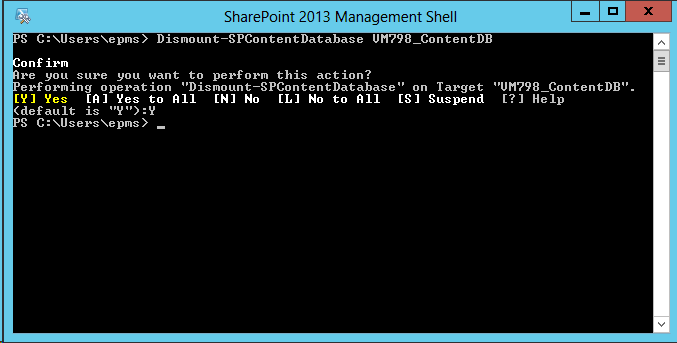
Using the SharePoint 2013 Management Shell remove the existing content database from the web application that hosted the PWA site collection that was removed in the previous step.
Type the following:
Dismount-SPContentDatabase “<Database name here>”
Example:

Press Enter and type Y to confirm then press Enter
Test / Dev environment SQL Prep
Take a backup of the 2 databases from the Production environment and copy these over to the Test / Dev SQL server and restore the databases. The databases required are:
- Content database that contains the PWA site and Project Sites
- Project Web App database
Make a note of the database names used when these databases are restored as they will be required later.
Test / Dev environment configuration
Using the SharePoint Management Shell, attach the restored content database to the web application that will host the PWA site collection.
Type the following:
Mount-SPContentDatabase “<content database name restored in previous step>” -DatabaseServer “<Test / DEV SQL Server>” –WebApplication <web application URL>
Example:

Press Enter:

Using the SharePoint 2013 Management Shell mount the restored Project Web App database to the web application.
Type the following command:
Mount-SPProjectDatabase -Name “Name of the restored Project Web App database to mount” –WebApplication “Web Application ULR that the Project Web App database will mount to” –DatabaseServer “Test / Dev SQL Server where the database was restored”
Example:

Press Enter:

Now using the SharePoint 2013 Management Shell provision the PWA site collection in the web application where the database was just attached to and using the Project Web App database that was restored previously. Please note, use the same PWA path name used in Production. For example if the instance is called /PWA in Production, use /PWA in the command below on the Test / Dev environment.
Type the following command:
Mount-SPProjectWebInstance –DatabaseName “Name of the restored Project Web App database to mount” –SiteCollection “web application URL + PWA path” –DatabaseServer “Test / Dev SQL Server where the database was restored”
Example:

Press Enter:

You can check the provisioning status of the PWA site using PowerShell or in Central admin in the Project Server Service Application to check that the PWA site has been created:
Type the following:
Get-SPProjectWebInstance –URL <PWA URL> | Select ProvisioningStatus
Example:

Or in Central Admin:

Post Provisioning
The Project Sites will need to be relinked using the “Bulk Update Connected SharePoint Sites” functionality in Central Admin on the newly provisioned Test / Dev PWA site.
The Project Server Cube settings will need to be updated – update the SQL AS server / cube name.
Any Excel services reports will need to be updated to use the ODC files from the Test / Dev environment as they will currently point to the Production ODC files. This is done by opening the Excel reports in Excel, changing the ODC file then saving the file back to the library.


Update #SharePoint list item author and editor #SP2010 #PowerShell #PS2010 #SSRS
|
I am a Project Server and SharePoint consultant but my main focus currently is around Project Server.
I have been working with Project Server for nearly five years since 2007 for a Microsoft Gold Certified Partner in the UK, I have also been awared with the Microsoft Community Contributor Award 2011. I am also a certified Prince2 Practitioner. This article has been cross posted from pwmather.wordpress.com (original article) |
Recently while working on a client deployment we had an issue relinking the SSRS reports to the data sources within the same library – SSRS was in SharePoint integrated mode. We had developed the Project Server solution internally and migrated it to the clients environment at a later date. All worked as expected apart from trying to relink the SSRS Reports to the updated data sources. The SSRS data sources had been edited to use the correct databases / PSI web services but when we tried to link the reports to the databases from the Manage Data Sources menu, SharePoint threw an error when trying to browse to the data sources. The error from the ULS log can be seen below:
Microsoft.ReportingServices.Diagnostics.Utilities.SharePointException: , Microsoft.ReportingServices.Diagnostics.Utilities.SharePointException: Report Server has encountered a SharePoint error. —> System.NullReferenceException: Object reference not set to an instance of an object.
at Microsoft.ReportingServices.SharePoint.Objects.RSSPImpUser.get_LoginName()
at Microsoft.ReportingServices.SharePoint.Utilities.CatalogItemUtilities.GetListItemUserLoginName(RSSPListItem item, String fieldName)
The cause of this error was that the user who created the SSRS objects had been removed from SharePoint when the system was cleaned up to take on to the clients environment.
There is a simple fix, that is to update the Author (Created By) and Editor (Modified By) fields with a user that exists on the SharePoint farm. The Author field can’t be updated via the UI but it can be update via the object model.
I created a simple PowerShell script that will update the author and editor for all SharePoint list items in the chosen list. To download the PowerShell script please see the link below:
http://gallery.technet.microsoft.com/scriptcenter/Update-SharePoint-list-4e6272ab
There are some variables / settings that need to be updated before running the script, these can be found below:
$newuser = "support\paulmather" This needs to be updated with the new author and editor’s user account.
$site = get-SPWeb http://vm353/pwa/ProjectBICenter This needs to be updated with the correct URL for the site that contains the list / library.
$list = $site.Lists["Test"] This needs to be updated with the name of the correct library / lists that contains the list items that need to be updated, in this example the SSRS items.
That is it, the script is then ready to run.
Please fully test on a replica test farm before running on Production.


Where is the Project Fields web part in #ProjectServer 2013? #PS2013 #SP2013
|
I am a Project Server and SharePoint consultant but my main focus currently is around Project Server.
I have been working with Project Server for nearly five years since 2007 for a Microsoft Gold Certified Partner in the UK, I have also been awared with the Microsoft Community Contributor Award 2011. I am also a certified Prince2 Practitioner. This article has been cross posted from pwmather.wordpress.com (original article) |
A quick post to highlight a minor change to the PWA web parts in 2013. I was in the process of creating a new PDP on a 2013 environment and I wanted to add certain custom fields. In 2010 the web part that enabled you to do this was the Project Fields web part:

In 2013 this web part doesn’t exist, well it does but it is no longer called Project Fields, it is now called Basic Info:

It provides exactly the same functionality as the Project Fields web part in 2010.
Hopefully that will save you hunting around for this web part 


#ProjectServer 2013 linking list items to tasks and other list items #PS2013 #SP2013
|
I am a Project Server and SharePoint consultant but my main focus currently is around Project Server.
I have been working with Project Server for nearly five years since 2007 for a Microsoft Gold Certified Partner in the UK, I have also been awared with the Microsoft Community Contributor Award 2011. I am also a certified Prince2 Practitioner. This article has been cross posted from pwmather.wordpress.com (original article) |
The linking functionality has changed in Project Server 2013, in Project Server 2010 you used to create the links on the Custom Commands tab as shown below:

In 2013 this feature has been updated and no longer exists on the new or edit forms. This blog post covers how you can links items in 2013 using the web interface.
Firstly we will look at how you do this from one of the lists, in this example we will use the Issues list. As you can see in the image below, I have 2 issues:

To link Issue 1 to a task in the project, click Issue 1 and you will see the following page:

Click Add Related Item:

Double click Tasks:

Select the task required and click Insert:

Issue 1 will now show task T1 as the related item:

Clicking T1 will load the display form for T1 and show Issue 1 as the related item:

The project schedule in PWA will show the Issue icon that links to the Issue (same as 2010):

It is the same process described above to link Issues to Risks or Risks to Issues etc.
The second method to link tasks to issues is from the Tasks list on the project site:

Click one of the tasks:

Click Show More:

Click Add Related Item and follow the same steps above to select the related item.
The third method is from the schedule page in PWA. Select the task from the grid and click the Options tab:

Click the Related Items button on the ribbon and that task will open from the task list on the project site:

Notice this time the Related Items is displaying by default. This is due to &ShowRelatedItems=1 being appended to the URL. Now follow the same steps detailed above to select the related item.
Slightly more steps to link items but very simple.


 SharePoint (and Project Server) Shenanigans
You must be logged in to post a comment.