Archive
#ProjectServer and #SharePoint 2010 / 2013 / 2016 November 2015 Cumulative Update #PS2010 #SP2010 #PS2013 #SP2013 #MSProject
|
I am a Project Server and SharePoint consultant but my main focus currently is around Project Server.
I have been working with Project Server for nearly five years since 2007 for a Microsoft Gold Certified Partner in the UK, I have also been awared with the Microsoft Community Contributor Award 2011. I am also a certified Prince2 Practitioner. This article has been cross posted from pwmather.wordpress.com (original article) |
The Office 2016 November 2015 updates and cumulative updates are now available, please see the links below:
Project 2016 November 2015 update:
http://bit.ly/1GZx2Js
The Office 2013 November 2015 updates and cumulative updates are now available, please see the links below:
Project Server 2013 November 2015 CU Server Roll up package:
http://bit.ly/1HLj8pa
Project Server 2013 November 2015 update:
http://bit.ly/1HLj9t7
Project 2013 November 2015 update:
http://bit.ly/1HLj9t8
Also worth noting, if you haven’t done so already, install Service Pack 1 http://bit.ly/1uorn2C first if installing the November 2015 CU.
The Office 2010 November 2015 updates and cumulative updates are now available, please see the links below:
Project Server 2010 November 2015 CU Server Roll up package:
http://bit.ly/1HLj8pd
Project Server 2010 November 2015 update:
<no specific Project Server 2010 update>
Project 2010 November 2015 update:
http://bit.ly/1GZx18q
SP2 is a pre-requisite for the Office 2010 November 2015 updates.
As always, fully test these updates on a replica test environment before deploying to production.

#ProjectVConf session summary for #ProjectOnline #BI #PowerBI #Excel #SSRS #JavaScript #SSIS
|
I am a Project Server and SharePoint consultant but my main focus currently is around Project Server.
I have been working with Project Server for nearly five years since 2007 for a Microsoft Gold Certified Partner in the UK, I have also been awared with the Microsoft Community Contributor Award 2011. I am also a certified Prince2 Practitioner. This article has been cross posted from pwmather.wordpress.com (original article) |
It’s been a few weeks now since the Project Virtual Conference, for those of you that missed it, sign up here: http://bit.ly/1JyMYCg and you can view the recordings.
This post will give a summary of my session on Project Online BI Made Easy:
The aim of this session was to give an overview on some of the reporting technologies available to Project Online, this included:
- Excel
- Power BI
- SSIS / SSRS
- JavaScript / HTML
Firstly I demonstrated some example Excel dashboards I created for the session, screen shots of these can be seen below:
The project report below is from my Project Online report pack found here: http://bit.ly/1sDmW66
The report below is an example portfolio dashboard showing key metrics / data:
The report below is an example portfolio type report that can filter by programme:
I then demonstrated some example Power BI reports and dashboards that I created for the sessions:
The report below contains 4 pages, the first is another example portfolio type report:
The second page shows an example Treemap visualisation for the projects in the portfolio based on the % complete:
The third page shows an example project report:
The final page displays the drill down capability in Power BI, it shows the total cost per project initially:
Clicking a project drills into show the task cost for that project:
I also put together an example dashboard containing visualisations from the reports and natural language queries from the dashboard data:
The third technology demonstrated was SSIS / SSRS. The reporting technology was SSRS (SQL Server Reporting Services) but without SSIS (SQL Server Integration Services) an SSRS report would not be possible with Project Online data. Well that isn’t strictly true but you need to extract the data out of Project Online into another data source such as SQL – SSIS can do this but so could a .NET console application using CSOM for example.
Below is an example SSRS project status / highlight report that displays data from my Project Online PWA instance:
The fourth technology was JavaScript / HTML, I put together an simple project report that displayed project information – project level data, milestones / marked tasks, issues, risks and data from a custom list on my project site called benefits. This also demonstrated the capability of rendered the HTML tags in multiline fields and accessing custom SharePoint list data from the associated project site. The report can be seen below:
I also demonstrated a reporting add-in that we use for PS+ but this was just to give another example using JavaScript / HTML:
I then covered a bit around best practice when using the Odata API regarding filtering the data at source as much as possible to minimise the data being pulled down – this means using filters and selects to only pull the information you need.
The final part I walked through creating a new Excel based report from a blank workbook and also create a new Power BI report from a blank Power BI Desktop file.
Take a look at the session for more details.
To help get started with reporting in Project Online, take a look at some of the links below:
Excel Project Online Report Pack: http://bit.ly/1l5n4MI
Blogs posts on Excel / Odata:
SSIS links:
Power BI:
JavaScript examples:
There are plenty of details out there, just have a quick search and you will find lots of helpful articles for each technology!
#ProjectOnline Resource Management Feature #PPM #PMOT #PMO #Office365 #Office2016 #PS2016 Part 2
|
I am a Project Server and SharePoint consultant but my main focus currently is around Project Server.
I have been working with Project Server for nearly five years since 2007 for a Microsoft Gold Certified Partner in the UK, I have also been awared with the Microsoft Community Contributor Award 2011. I am also a certified Prince2 Practitioner. This article has been cross posted from pwmather.wordpress.com (original article) |
This is part two of the mini series on the new Resource Management feature that is being rolled out to Project Online, the first part on upgrading / activating the feature can be seen here:
In this post we take a look at what this feature has to offer from a Project Manager and a Resource Manager point of view.
For the purpose of this demo, I have created a new simple test project called “Pauls Resource Engagements Test” that can be seen below:
I have also created two test resources, “TestRes1” and “TestRes2”, see below:
Notice only “TestRes1” has been marked as requiring an engagement – this is to demo the different behaviour. The new field “Requires Engagements” indicates this. This is set against the resource using the new resource attribute as detailed in post 1 but can be seen below:
Both these resources have been added to my project team. So firstly I am going to assigned the resources to those test tasks to see what happens. TestRes1 who requires the approval is assigned to Task1 and TestRes2 is assigned to Task2 and the project is saved and published. Notice the new icon in the indicator column for Task 1 only as TestRes2 on Task 2 doesn’t require the approved engagements:
This is telling the Project Manager that the assignment is created without an approved engagement. Right-clicking on the icon gives the ability to view a new feature, “Fix in the Engagement Inspector…”
Clicking this loads the Inspector:
Clicking the “View Engagements conflicts in Task Usage” loads the following:
Here the PM can easily create an engagement request using the “Create and save new engagement for this assignment’s resource” button under actions or assign the task to another resource using the “Assign the task to a different resource” button. These actions are also available without accessing the Inspector, right-clicking the icon in the indicator column for the assignment row gives these options:
Clicking the Create new engagement option will load this dialog box:
It will default to the Resource and the task start and finish dates. The PM then has the ability to add a description and comments plus change the allocated by options:
Clicking OK then updates the Inspector to give the ability to submit the engagement:
Clicking the “Submit my engagement for review” will then create the request for the Resource Manager to accept / reject. The Inspector then indicators that there is a proposed engagement that covers the assignment:
Putting the Resource Manager hat on I will jump to the Resource Center in PWA. I select “TestRes1” in the grid then click the “Resource Requests” button on the ribbon:
This loads the following page:
Here I can change the views, check resource assignments, check the new capacity planning feature, edit the engagement, delete the engagement, add a new engagement or accept / reject the engagement. Firstly I will look at the new Capacity planning page:
The default view here shows a heat map for the engagements but my test engagement doesn’t appear here and it is only proposed and not committed as I am yet to accept it. I can check the checkbox “Include proposed booking” and my engagement data will appear for this example assignment:
There are other configuration options on the ribbon such as units, timescales and thresholds for under and over capacity. Also on this page is the ability to change the view:
In this example I switched to the Resource Utilisation view:
The others are similar, just show the data differently. These can be exported to various other formats uing the Download option:
Now I will switch back to the Resource Requests page and Accept the engagement request by selecting it and clicking the Accept button:
The Resource Manager then has the ability to add comments:
The engagement then updates to committed:
Putting my Project Manager hat back on, I switch back to Project Pro and I see that I still have a warning:
To fix this I need to refresh the engagements in this project. To do that, change the view the the “Resource Plan” view and click the Engagements tab:
Now click the Refresh button on the ribbon:
The engagement status has now updated to Committed. Switching back to another view and the warning has been removed:
Switching back to the Resource Plan view, the Project Manager can open the engagement and see the comments:
Clicking in the Format tab the Project Manager can change the view settings:
On the Engagements tab the Project Manager can create new engagements, launch the inspector, submit engagement requests for approval or refresh the engagement data:
A new request has been created for TestRes2 called Test and the details planned using the time phased grid:
Once submitted the Resource Manager will see this in the Resource Request page for TestRes2 – this time showing the time phased view:
In this example, as the Resource Manager I will edit this request to add 8 hours for the 3rd, 5th and 6th November:
Then I will click the Accept button. As the Project Manager in Project Pro, I refresh the engagements and see the changes:
The Resource Manager can also create engagements for resources in the Resource Center using the Add Engagement button in the resource requests page:
This gives the Resource Manager the ability to create engagements for the resources selected from the resource center grid, in this is example I only had TestRes1 selected:
As before, the Project Manager would need to refresh the engagements in the project to see the updates.
Next up part 3 where we will look at some quick reporting options for engagements.
#ProjectOnline new features #Office365 #PPM #PMO
|
I am a Project Server and SharePoint consultant but my main focus currently is around Project Server.
I have been working with Project Server for nearly five years since 2007 for a Microsoft Gold Certified Partner in the UK, I have also been awared with the Microsoft Community Contributor Award 2011. I am also a certified Prince2 Practitioner. This article has been cross posted from pwmather.wordpress.com (original article) |
Just a quick post highlighting some new features being rolled out to project online:
Task Notifications in Project Online: http://bit.ly/1jG0A4v
Some links here that details this new feature:
Unique Project IDs in Project Online: http://bit.ly/1LN3zPA
To keep up to date, check the roadmap site here: http://bit.ly/1LN3A5O
Bad Onedrive Business Sync bug (SP31654) if you use it with Office 2013 – install update required
Over the past days several Office 365 client users reported a OneDrive For Business synchronisation issue, and I have to say that I usually just direct them to the IT Helpdesk but yesterday I decided that there was one too many so I went to troubleshoot it at a user’s desktop myself.
Nothing could be done to fix the random “red” icon when adding a SharePoint library to sync with user’s windows, remove the folder from OneDrive, uninstall and re-install OneDrive, none. And literally random, some files were also synchronising but still marked as red, and the Errors logs showing “please enter your credentials” but no option to enter them…
I was in a dead-end, until I found out that it is a current issue reported on the 15th October 2015 (5 days ago) and is actually clearly showing in the SHD (Office 365 Service Health Dashboard in the Admin center, see below post on Office 365 community). The resolution is to update Office 2013.
But my main take away from this is that as much as I thought that no-one would seriously read the SHD every morning (and you can’t receive them by email!), I now realised that I should have started searching through the various incidents list, so I will pay more attention in the future when an user issue comes up.
I believe we have had so much frustration over the years of not finding the answer in Microsoft provided sources that we (I) have the reflex of Googling (binging..) an issue straight away and not actually checking the official source.
Now go on your mobile device and make sure you have the mobile app to see SHD installed !

Office 365 Service Health Dashboard
This issue is now reported at Service Health Dashboard (SHD) as incident SP31654 starting at Thursday, October 15, 2015, at 3:00 PM UTC. The user experience of this incident is: Affected users are unable to sync files with OneDrive for Business. Users may see repeated prompts to enter their credentials, but entering them will not result in a successful sync. Tenant administrators can view current information and updates on SHD at the link here .
Source: Onedrive Business Sync – Credentials Required | Manage Office 365 | Microsoft Office 365 Community
via François on SharePoint & more http://bit.ly/1M7wYsZ
|
French native Sharepoint Consultant living in London. A crossway between a designer, developer and system architect. Prefers stretching the limit of out-of-the-box features rather than breaking them into code. When not working with Microsoft Sharepoint François is often found on Web2.0 News sites and related social networking tools.
This article has been cross posted from sharepointfrancois.wordpress.com/ (original article) |
#O365 #SharePoint Online–#IRM #RMS – what works, what doesn’t in a business context-Part 6
This article is part of a series:
In the first article of this series we discussed what IRM was, some scenarios and high level device supportability.
Parts 1 to 5 discuss IRM capability from a SharePoint perspective. Details:
In the second article we covered file type support.
In the third article we covered file type support in detail as well as the document library experience.
In the fourth article we covered IRM permissions in comparison with SharePoint permissions.
In the fifth article we looked at the different clients across Windows, Mac and Mobile to see how they reacted to a protected file.
So we have covered the SharePoint IRM capabilities a lot and in the conclusion to this series of articles, we shall discuss the various merits of the IRM implementation in SharePoint vs. AD RMS capabilities.
Before we do that however, we need to discuss Azure AD RMS (Active Directory Rights Management Server.
To put things into context, SharePoint IRM is essentially a subset of the functionality of Azure AD RMS (Source(s): https://technet.microsoft.com/en-us/magazine/2009.04.insidesharepoint.aspx?pr=blog, https://social.technet.microsoft.com/forums/windowsserver/en-US/d5c64cfe-0778-4a3b-a02e-4eae3ca9ac43/what-is-difference-between-ad-rms-and-irm) and in my initial interaction, the two capabilities don’t quite interact with each other in the way you would expect (the very reason this series of articles started in fact!)
Let’s get started….
What is Azure RMS?
So my biggest suggestion to answer this would be to take a look at these set of articles:
- What is Azure RM: https://technet.microsoft.com/en-us/library/jj585026.aspx
- Terminology: https://technet.microsoft.com/en-us/library/dn595132.aspx
- Azure Rights Management requirements: https://technet.microsoft.com/en-us/library/dn655136.aspx
- Compare Azure RMS with AD RMS (On-Premise): https://technet.microsoft.com/en-us/library/jj739831.aspx
High level… like the SharePoint IRM O365 solution we have been looking at in the previous articles, it would appear that Azure RMS is a superset of the SharePoint IRM functionality. By this I mean that Azure RMS is the overriding technology and SharePoint IRM is a small portion of the overall capability.
How does it work with standard office files?
Take a look at this article:
- Azure RMS client device support: https://technet.microsoft.com/en-us/library/dn655136.aspx#BKMK_SupportedDevices
Which gives us a good indication of the potential support for this solution but is the reality for users… lets take a look:
Microsoft Office Interaction (Desktop)
After you install the Azure RMS client application in Windows or Mac OSX, you have an add-in added to your Microsoft Office suite like this:

By clicking on Share Protected the following screen pops up with various options including:
- Policy selection (standard ones and corporate specific setup by your company)
- Expiration of the permissions which will lock down the document once the date has passed
- Document tracking notifications via email
- Ability to revoke permission as required.

- You can target these permissions to specific user email address and the address entered can have blacklists (for example outlook.com etc.)

Once you click send, this pops up as it works its protection voodoo magic:

Then outlook pops up with a pre-formatted message with not just a Word document but also a Protected PDF also! (This is also the case with the add-in for Excel and PowerPoint)
If you do this same option from within an Outlook email. You must have an attachment on the email, it will then run through the same process, create a Protected PDF as well and send the email.

The Microsoft Azure RMS service also sends you a follow up email straight away with confirmation of who you sent it to and details on how to track and revoke access:

Clicking on the tracking link gives you an overview of the document, with tracking details and the ability to control the access.

From this screen you can see who has access currently, when (Timeline) & Where (Map) they accessed the document. Settings also controls your notifications.
At the bottom of the screen you can get an excel report of the activity on the document as well as the ability to revoke access.
How does it work with file formats outside of Microsoft Office?
For any other file type, extensions to Windows Explorer have been added in the right click context menu of the file(s) selected. Just to note, you cannot protect a folder.

Once you select the permission type, the file is protected in place.
If you select Custom Permissions… the same dialogue appears as before whilst we were in the MS Office application allowing you to select permissions and notification options.
Now, because you are protecting a file that may not have built in support for the Azure RMS capabilities, as part of the client install for Azure RMS, you have a file viewer.
So for the Yammer Logo png that we have above, we get the following when we double click the protected file:
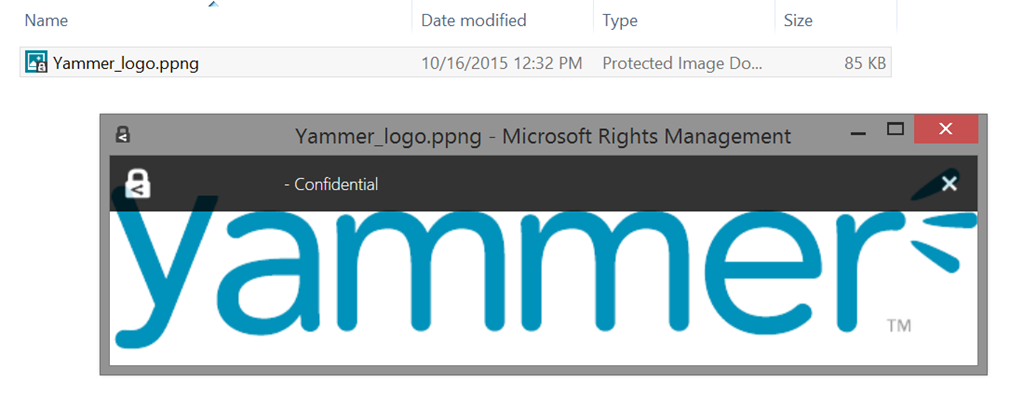
As you can see, it has changed the file extension to a ppng file type and now Windows opens it inside the Microsoft Rights Management viewer. I wrapper if you will that will check the file permissions centrally within Azure RMS before you can open the file.
How can I get this capability – Server Setup?
Start by looking here: https://technet.microsoft.com/en-us/library/dn440580.aspx
Essentially you login to your tenant admin and you can choose to use Microsoft’s security keys and activate the service.
How can I get this capability – Client Setup?
The Office add-in and the Windows Explorer options are installed using a free client available here: https://portal.aadrm.com/home/download
Next Post(s)
Ok, these posts appear to get very long as I start to delve into things… so we are splitting things up further… next up, we shall explore the permission options including revoking access to documents from a central location.
We will also, in a future post compare this solution with the SharePoint IRM capability, which we know is related but in my brief experience is not necessarily the same!
So until I find time to do the next post… stay nerdy peeps!

#ProjectOnline Resource Managements Feature #PPM #PMOT #PMO #Office365 #Office2016 #PS2016 Part 1
|
I am a Project Server and SharePoint consultant but my main focus currently is around Project Server.
I have been working with Project Server for nearly five years since 2007 for a Microsoft Gold Certified Partner in the UK, I have also been awared with the Microsoft Community Contributor Award 2011. I am also a certified Prince2 Practitioner. This article has been cross posted from pwmather.wordpress.com (original article) |
Following on from the announcement that the Resource Management feature in Project Online was being rolled out (link below), my test Project Online tenant now has this feature.
In part 1 of this short series of posts i will provide some links for articles that explain this feature then I will look at enabling this feature on my environment and show you what happens once this feature is enabled. The later posts will look at using this new feature.
Firstly some links for this new feature:
http://bit.ly/1KBXljN – lots of useful links in the article
Once this feature is available to your tenant you will see the status banner like below displayed in the Resource Center page and the PWA Setting page:
On the Additional Server Settings page you will see a check box for Activate on the “New Resource Management Features Available” setting:
Part of this post will be to see how this changes existing resource plan data, so before I tick that setting I will just detail some of the test data I have so we can see the impact of this change.
I have a test project called “PM test project” – all these years of blogging and my imagination for dummy projects (and tasks) has not improved!
I only have one task on this project that the “Admin Admin” resource is assigned to, the admin admin resource is the only resource on the project team:
In the resource plan for this project I have two other resources with work:
The ProjectData APIs have the following data – quick example put together for this project in Excel:
Assignment and Assignment Timephased data:
The rest of the Assignment Timephased data:
I will now Activate the Resource Management features. Checking the check box gives this pop up:
Click OK then click Save on the Additional Server Settings page – only do this when your organisation is ready to use the new features. Fully test this on a test PWA instance first before production.
Whilst this processes, this setting in Additional Server settings will update to show the status of the resource plan data:
Once that has completed successfully the “New Resource Management Features Available” section will disappear, we can then see what has happened to that resource plan data.
Once the process is completed, the resource plan work will be deleted as can be seen in the example report from above after refreshing the data:
That resource plan work has been created as engagement requests, see the new example report below:
The rest of the Engagement Timephased data:
As you can see the data from the resource plan has been copied to the engagements data. The proposed resource plan work is only a proposed engagement. The engagements feature has the following endpoints for the ProjectData API:
- /Engagements
- /EngagementsTimephasedDataSet
- /EngagementsComments
We will look at these in more detail in a later post when we look at Engagement reporting.
A quick look in the “PM test project” in Project Professional 2016 and we can see these engagements, change the view to the Resource Plan then click the Refresh button on the Engagements tab to update the engagements:
The engagements can also be seen in the Resource Center, select the resources then click the Resource Requests button on the ribbon:
This will load the Resource Requests grid for the selected resources:
As well the resource plan data migrating to the resource requests / engagement some other changes happen. The old Resource Plan buttons are replaced with the new Resource Plan buttons, these just open up the project in Project Pro 2016 with the Resource Plan view:
A new resource attribute will appear on the edit resource page, this is called “Resource requires approval for all project assignments”:
With this set the resource will require an approved engagement request for project assignments.
Also a new category permission is available, this is “Manage Resource Engagements”:
This controls access to the resource engagements.
There is also a new Capacity planning feature accessed from the resource center, select resources and click the Capacity Planning button:
This loads a new page with some reports / views:
That’s it for the upgrade / activation part. Next up we will look at creating new resource requests and the process around that.
#ProjectServer and #SharePoint 2010 / 2013 / 2016 October 2015 Cumulative Update #PS2010 #SP2010 #PS2013 #SP2013 #MSProject
|
I am a Project Server and SharePoint consultant but my main focus currently is around Project Server.
I have been working with Project Server for nearly five years since 2007 for a Microsoft Gold Certified Partner in the UK, I have also been awared with the Microsoft Community Contributor Award 2011. I am also a certified Prince2 Practitioner. This article has been cross posted from pwmather.wordpress.com (original article) |
The Office 2016 October 2015 updates and cumulative updates are now available, please see the links below:
Project 2016 October 2015 update:
<no Project 2016 update this month>
The Office 2013 October 2015 updates and cumulative updates are now available, please see the links below:
Project Server 2013 October 2015 CU Server Roll up package:
http://bit.ly/1RFH03s
Project Server 2013 October 2015 update:
http://bit.ly/1RFGZfO
Project 2013 October 2015 update:
http://bit.ly/1jmI156
Also worth noting, if you haven’t done so already, install Service Pack 1 http://bit.ly/1uorn2C first if installing the October 2015 CU.
The Office 2010 October 2015 updates and cumulative updates are now available, please see the links below:
Project Server 2010 October 2015 CU Server Roll up package:
http://bit.ly/1RFGZfY
Project Server 2010 October 2015 update:
<no specific Project Server 2010 update>
Project 2010 October 2015 update:
http://bit.ly/1jmI159
SP2 is a pre-requisite for the Office 2010 October 2015 updates.
As always, fully test these updates on a replica test environment before deploying to production.
#SP2013 App Model–Tenant Administrator permissions required to install app On-Premise
A very quick post to say that I am testing out an application given to me by another development team within my company that needs to contact multiple site collections and the user profile service.
It complains once the app is in the app catalog that you need to be a tenant administrator to install (Error Message: Sorry, only tenant administrators can add or give access to this app). This term makes sense in a tenant based environment (where this app was developed in Office 365)… but on-premise, unless you have set it up, the idea of a tenant doesn’t exist!

So what do we do… Well thanks to this blog:
http://www.chrisweldon.net/blog/2013/04/30/sorry-only-tenant-administrators-can-add-this-app/
The answer is to make the user or install the app as the farm admin. The result is we can install and we can go on our merry way with the rest of the implementation.

Now I suspect there is a way to do it with less permissions as suggested in the comments of the article above. However, for my purposes of testing this in a PILOT environment in the office, it will do.
Till the next time… keep SharePointin’’

Removing HTML tags from #ProjectOnline fields #PowerQuery #PowerBI #Excel
|
I am a Project Server and SharePoint consultant but my main focus currently is around Project Server.
I have been working with Project Server for nearly five years since 2007 for a Microsoft Gold Certified Partner in the UK, I have also been awared with the Microsoft Community Contributor Award 2011. I am also a certified Prince2 Practitioner. This article has been cross posted from pwmather.wordpress.com (original article) |
A quick post to highlight a simple way to remove the HTML tags in the Project Online OData reports. If you are unsure about what I mean, see the image below:
Notice the <p> tag and   tag in the Changes column above, as well as the list tags. An easy way to clean this up is to use Replace function in Power Query:
This can be seen below too:
let
Source = OData.Feed("<PWAURL>/_api/ProjectData/Projects()?$Filter=ProjectType ne 7"),
#"Removed Other Columns" = Table.SelectColumns(Source,{"ProjectName", "Changes"}),
#"Replace HTML <p>" = Table.ReplaceValue(#"Removed Other Columns","<p>","",Replacer.ReplaceText,{"Changes"}),
#"Replaced HTML </p>" = Table.ReplaceValue(#"Replace HTML <p>","</p>","",Replacer.ReplaceText,{"Changes"}),
#"Replaced HTML  " = Table.ReplaceValue(#"Replaced HTML </p>"," ","",Replacer.ReplaceText,{"Changes"}),
#"Replaced HTML <ul><li>" = Table.ReplaceValue(#"Replaced HTML  ","<ul><li>"," ",Replacer.ReplaceText,{"Changes"}),
#"Replaced HTML </li><li>" = Table.ReplaceValue(#"Replaced HTML <ul><li>","</li><li>",", ",Replacer.ReplaceText,{"Changes"}),
#"Replaced HTML </li></ul>" = Table.ReplaceValue(#"Replaced HTML </li><li>","</li></ul>"," ",Replacer.ReplaceText,{"Changes"})
in
#"Replaced HTML </li></ul>"
Then your report will look like this in Excel:
This also works for Power BI too, without the replace function:
Using the replace function:
I have only included a few of the HTML tags / mark-up that you will find but as you can see, it will be easy enough to do the rest.
This is a quick and simple way but you could look to do this in bulk for all columns and HTML tags by creating your own function if you needed to.


 SharePoint (and Project Server) Shenanigans
You must be logged in to post a comment.