Archive
#SharePoint 2010 error setting PerformancePoint unattended account #SP2010 #PS2010 #HP
   I am a Project Server and SharePoint consultant but my main focus currently is around Project Server.
I have been working with Project Server for nearly five years since 2007 for a Microsoft Gold Certified Partner in the UK, I have also been awared with the Microsoft Community Contributor Award 2011. I am also a certified Prince2 Practitioner. This article has been cross posted from pwmather.wordpress.com (original article) |
A short blog post to highlight a workaround to a recent issue we experienced on a Project Server 2010 deployment. When trying to set the PerformancePoint unattended account we received an error:
The account credentials for the Unattended Service Account are not valid. Verify the domain user name and password are correct and that the account is located in a Trusted Domain
We experienced the same error via the UI in Central Admin and via PowerShell. The fix / workaround was quite simple in the end. This particular client had the HP ProtectTools enabled, this blocks any passwords being sent as plain text. We added an <SE>\ tag as shown below in the password string:
Set-SPPerformancePointSecureDataValues -ServiceApplication "PerformancePoint Service Application" -DataSourceUnattendedServiceAccount (New-Object System.Management.Automation.PSCredential "domain\user", (ConvertTo-SecureString "<SE>\password" -AsPlainText -Force))
With this tag in place the HP ProtectTools ignored that fact that the password was plain text and the unattended account was set successfully. This workaround only works when setting the unattended account using the example PowerShell script above. It doesn’t work in the UI.


Always look at the simple things first
Recently I was asked to take a look at SPD workflow on development system that was not sending emails.
Normally this works fine as it uses the standard emailing features of the SharePoint Platform, as long as the outgoing email settings are configured.
In this instance the outgoing email settings were correct for the environment in question, so a quick test I created an alert on a list, normally this would send an email straight away saying that an alert has been created but no email arrived.
If you have access to the server console the first test is to make sure you can ping your SMTP relay server, this will be the server you have referenced in your outgoing SMTP server configured in Central Administration.
If you can ping the server try using TelNet to connect on Port 25, if telnet times out and fails to connect then you probably have a firewall issue.
In this instance we were getting:

Which was an indication that the development server was not allowed to relay email via the SMTP server, as soon as we had the development server added to the allowed SMTP relay list we could connect via TelNet and send alerts and emails from SharePoint and development continued.
So always check the simple things 1st !

#ProjectServer 2013 environment migration / rollover steps #PowerShell #PS2013 #MSProject #SP2013
|
I am a Project Server and SharePoint consultant but my main focus currently is around Project Server.
I have been working with Project Server for nearly five years since 2007 for a Microsoft Gold Certified Partner in the UK, I have also been awared with the Microsoft Community Contributor Award 2011. I am also a certified Prince2 Practitioner. This article has been cross posted from pwmather.wordpress.com (original article) |
This blog post will detail the PowerShell commands required to carry out an environment rollover / migration using Windows PowerShell where possible. The steps below use the 2 database approach to rollover over the Production environment to the Test / Development environment.
As a prerequisite I would recommend taking full backups of the Test / Dev farm to enable the environment to be rolled back if required. Use your usual farm backup procedures.
Test / Dev environment Prep
Firstly connect to the Test / Dev Application server and launch the SharePoint 2013 Management shell.
Type the following:
Dismount-SPProjectWebInstance -SiteCollection <URL of Test / Dev PWA site that you want to refresh with the Production data and config>
Example:

Press Enter and then type Y and press Enter to remove the PWA instance

You can check in Central admin in the Project Server Service Application to check that the PWA site has been removed:

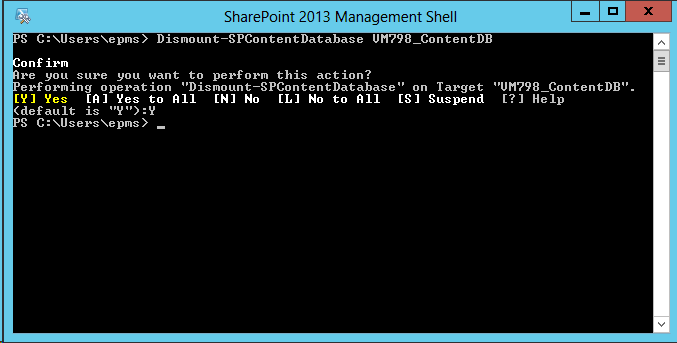
Using the SharePoint 2013 Management Shell remove the existing content database from the web application that hosted the PWA site collection that was removed in the previous step.
Type the following:
Dismount-SPContentDatabase “<Database name here>”
Example:

Press Enter and type Y to confirm then press Enter
Test / Dev environment SQL Prep
Take a backup of the 2 databases from the Production environment and copy these over to the Test / Dev SQL server and restore the databases. The databases required are:
- Content database that contains the PWA site and Project Sites
- Project Web App database
Make a note of the database names used when these databases are restored as they will be required later.
Test / Dev environment configuration
Using the SharePoint Management Shell, attach the restored content database to the web application that will host the PWA site collection.
Type the following:
Mount-SPContentDatabase “<content database name restored in previous step>” -DatabaseServer “<Test / DEV SQL Server>” –WebApplication <web application URL>
Example:

Press Enter:

Using the SharePoint 2013 Management Shell mount the restored Project Web App database to the web application.
Type the following command:
Mount-SPProjectDatabase -Name “Name of the restored Project Web App database to mount” –WebApplication “Web Application ULR that the Project Web App database will mount to” –DatabaseServer “Test / Dev SQL Server where the database was restored”
Example:

Press Enter:

Now using the SharePoint 2013 Management Shell provision the PWA site collection in the web application where the database was just attached to and using the Project Web App database that was restored previously. Please note, use the same PWA path name used in Production. For example if the instance is called /PWA in Production, use /PWA in the command below on the Test / Dev environment.
Type the following command:
Mount-SPProjectWebInstance –DatabaseName “Name of the restored Project Web App database to mount” –SiteCollection “web application URL + PWA path” –DatabaseServer “Test / Dev SQL Server where the database was restored”
Example:

Press Enter:

You can check the provisioning status of the PWA site using PowerShell or in Central admin in the Project Server Service Application to check that the PWA site has been created:
Type the following:
Get-SPProjectWebInstance –URL <PWA URL> | Select ProvisioningStatus
Example:

Or in Central Admin:

Post Provisioning
The Project Sites will need to be relinked using the “Bulk Update Connected SharePoint Sites” functionality in Central Admin on the newly provisioned Test / Dev PWA site.
The Project Server Cube settings will need to be updated – update the SQL AS server / cube name.
Any Excel services reports will need to be updated to use the ODC files from the Test / Dev environment as they will currently point to the Production ODC files. This is done by opening the Excel reports in Excel, changing the ODC file then saving the file back to the library.


Update #SharePoint list item author and editor #SP2010 #PowerShell #PS2010 #SSRS
|
I am a Project Server and SharePoint consultant but my main focus currently is around Project Server.
I have been working with Project Server for nearly five years since 2007 for a Microsoft Gold Certified Partner in the UK, I have also been awared with the Microsoft Community Contributor Award 2011. I am also a certified Prince2 Practitioner. This article has been cross posted from pwmather.wordpress.com (original article) |
Recently while working on a client deployment we had an issue relinking the SSRS reports to the data sources within the same library – SSRS was in SharePoint integrated mode. We had developed the Project Server solution internally and migrated it to the clients environment at a later date. All worked as expected apart from trying to relink the SSRS Reports to the updated data sources. The SSRS data sources had been edited to use the correct databases / PSI web services but when we tried to link the reports to the databases from the Manage Data Sources menu, SharePoint threw an error when trying to browse to the data sources. The error from the ULS log can be seen below:
Microsoft.ReportingServices.Diagnostics.Utilities.SharePointException: , Microsoft.ReportingServices.Diagnostics.Utilities.SharePointException: Report Server has encountered a SharePoint error. —> System.NullReferenceException: Object reference not set to an instance of an object.
at Microsoft.ReportingServices.SharePoint.Objects.RSSPImpUser.get_LoginName()
at Microsoft.ReportingServices.SharePoint.Utilities.CatalogItemUtilities.GetListItemUserLoginName(RSSPListItem item, String fieldName)
The cause of this error was that the user who created the SSRS objects had been removed from SharePoint when the system was cleaned up to take on to the clients environment.
There is a simple fix, that is to update the Author (Created By) and Editor (Modified By) fields with a user that exists on the SharePoint farm. The Author field can’t be updated via the UI but it can be update via the object model.
I created a simple PowerShell script that will update the author and editor for all SharePoint list items in the chosen list. To download the PowerShell script please see the link below:
http://gallery.technet.microsoft.com/scriptcenter/Update-SharePoint-list-4e6272ab
There are some variables / settings that need to be updated before running the script, these can be found below:
$newuser = "support\paulmather" This needs to be updated with the new author and editor’s user account.
$site = get-SPWeb http://vm353/pwa/ProjectBICenter This needs to be updated with the correct URL for the site that contains the list / library.
$list = $site.Lists["Test"] This needs to be updated with the name of the correct library / lists that contains the list items that need to be updated, in this example the SSRS items.
That is it, the script is then ready to run.
Please fully test on a replica test farm before running on Production.


Dr Popup: Or How I learned to stop worrying and love the modal dialog
One of the many pieces of functionality added in SharePoint 2010 was the dialog window, this is a nice little control implemented in JavaScript that allows us to display a “lightbox” style dialog, containing either another page within our site or direct HTML.
This post will explain how to pass information back and forth between the page creating the dialog and the page displayed within that dialog.
Firstly lets take a look at the JavaScript on our calling page. This could be added through any of the normal methods of inserting JavaScript into a SharePoint page.
(function() {

	// Use jQuery to wait for the DOM to be ready
	$(document).ready(function(){

		// Use SharePoint's SOD (script on demand) to wait for SharePoint to be ready
		ExecuteOrDelayUntilScriptLoaded(function() {

			//Create an options object (valid options properties reference - http://msdn.microsoft.com/en-us/library/ff410058(v=office.14).aspx):
			var options = SP.UI.$create_DialogOptions();

			options.title = "My dialog";
			options.autoSize = true;
			options.url = "/pages/myPage.aspx";

			//arguments to pass in to dialog (standard anonymous object)

			options.args = {
				someKey: "Some Value",
				someOtherKey: "Some Other Value"
			}

			//callback to handle the result from the dialog, you process the result of your
			//dialog from the origin page.

			options.dialogReturnValueCallback = function(result, arguments) {
				if (result == SP.UI.DialogResult.OK) {

					// Our arguments parameter contains the arguments originally passed to the dialog, so we could
					// reference arguments.someOtherKey here for instance and it would contain the value "Some Other Value"

					SP.UI.Notify.addNotification("OK Button clicked");

				} else if (result == SP.UI.DialogResult.Cancel) {

					SP.UI.Notify.addNotification("Cancel button clicked");

				}
			}

			// Create the dialog with options.
			SP.UI.ModalDialog.showModalDialog(options);

		}, "SP.UI.Dialog.js");

	});

})();
As you can see, there are 3 major parts to this, the options object, the args object and the callback.
The options object is created using the SP.UI.$create_DialogOptions() factory, although I have seen people using an empty object without apparent issue.
Into this you set various options affecting the way the dialog is presented, such as title, size and the url to the page to be displayed. A list of available options is posted on MSDN.
The args object is actually a property of the options object, and can be any sort of JavaScript object, be it an anonymous object like in our example above, or a closure, or a data model or anything else you may wish to send. This object will be available within the page shown in your dialog.
The last part is the callback, this is also a property set against the options object, and is a callback method executed when the DialogClose() method is called from within the parent page.
It takes two parameters, the result which should be one of the members of the SP.UI.DialogResult enumeration and the arguments, which can be any kind of variable or object returned from the dialog page.
Additionally in here you can call SP.UI.ModalDialog.RefreshPage() – this method takes a single parameter and is designed to be called using the result value from your callback. This method ensures that the page refreshes if the result is equal to SP.UI.DialogResult.OK
With these three sections we can define how our dialog looks, what data it takes in, and what happens once it is closed and how to process the data that comes back from it.
Lastly the dialog itself is opened using the call to SP.UI.ModalDialog.showModalDialog()
Now lets take a look at the other side of the coin, here’s the JavaScript code to run within the dialog page.
(function() {

	// As on the parent page, wait for the DOM and SharePoint to be ready before doing anything.
	$(document).ready(function() {
		ExecuteOrDelayUntilScriptLoaded(function() {

			// retrieve a reference to the page that called us.

			var _parent = SP.UI.ModalDialog.get_childDialog();

			// If this is false, then chances are you have browsed to the page directly rather than
			// loaded it in a modal window.
			if (_parent) {

				// Pull through the arguments sent to the dialog.
				var args = _parent.get_args();

				// set a red alert status line with our argument.
				var status = SP.UI.Status.addStatus("someKey:", args.someKey);
				SP.UI.Status.setStatusPriColor(status, "red");

				// Add handlers for our ok and cancel buttons
				$("#okButton").click(function() {
					// This closes the modal dialog and runs the callback method defined on the parent page.
					SP.UI.ModalDialog.commonModalDialogClose(SP.UI.DialogResult.OK, args);
				});

				$("#cancelButton").click(function() {
					SP.UI.ModalDialog.commonModalDialogClose(SP.UI.DialogResult.Cancel, "cancel clicked");
				});

			}

		}, "SP.UI.Dialog.js");
	});
})();
This again is fairly simple, we first of all get a reference to the calling page in the variable _parent. Then if that has been successful we pull in the args object from our options variable above.
Once at this point the world is your oyster, you can use the arguments from the parent page however you wish to display the dialog or interact with your users.
To close the dialog you can use SP.UI.ModalDialog.commonModalDialogClose(). This again takes two parameters, the first should be a member of the SP.UI.DialogResult enumeration, the second can be any object to send back, these map to the variables sent to our callback function above.
Additionally in here I have made use of some of the other neat parts of the SP.UI namespace such as the status bar and notification system. These are beyond the scope of this post but they’re pretty awesome and you should go read about them.
So there we go, by now you should be able to add true SharePoint style dialogs to your pages with minimal effort.
via Chris on SharePoint http://spchris.com/2013/04/dr-popup-or-how-i-learned-to-stop-worrying-and-love-the-modal-dialog/
 SharePoint and Project Server Consultant
This article has been cross posted from spchris.com (original article) |

Where is the Project Fields web part in #ProjectServer 2013? #PS2013 #SP2013
|
I am a Project Server and SharePoint consultant but my main focus currently is around Project Server.
I have been working with Project Server for nearly five years since 2007 for a Microsoft Gold Certified Partner in the UK, I have also been awared with the Microsoft Community Contributor Award 2011. I am also a certified Prince2 Practitioner. This article has been cross posted from pwmather.wordpress.com (original article) |
A quick post to highlight a minor change to the PWA web parts in 2013. I was in the process of creating a new PDP on a 2013 environment and I wanted to add certain custom fields. In 2010 the web part that enabled you to do this was the Project Fields web part:

In 2013 this web part doesn’t exist, well it does but it is no longer called Project Fields, it is now called Basic Info:

It provides exactly the same functionality as the Project Fields web part in 2010.
Hopefully that will save you hunting around for this web part 


#ProjectServer 2013 linking list items to tasks and other list items #PS2013 #SP2013
|
I am a Project Server and SharePoint consultant but my main focus currently is around Project Server.
I have been working with Project Server for nearly five years since 2007 for a Microsoft Gold Certified Partner in the UK, I have also been awared with the Microsoft Community Contributor Award 2011. I am also a certified Prince2 Practitioner. This article has been cross posted from pwmather.wordpress.com (original article) |
The linking functionality has changed in Project Server 2013, in Project Server 2010 you used to create the links on the Custom Commands tab as shown below:

In 2013 this feature has been updated and no longer exists on the new or edit forms. This blog post covers how you can links items in 2013 using the web interface.
Firstly we will look at how you do this from one of the lists, in this example we will use the Issues list. As you can see in the image below, I have 2 issues:

To link Issue 1 to a task in the project, click Issue 1 and you will see the following page:

Click Add Related Item:

Double click Tasks:

Select the task required and click Insert:

Issue 1 will now show task T1 as the related item:

Clicking T1 will load the display form for T1 and show Issue 1 as the related item:

The project schedule in PWA will show the Issue icon that links to the Issue (same as 2010):

It is the same process described above to link Issues to Risks or Risks to Issues etc.
The second method to link tasks to issues is from the Tasks list on the project site:

Click one of the tasks:

Click Show More:

Click Add Related Item and follow the same steps above to select the related item.
The third method is from the schedule page in PWA. Select the task from the grid and click the Options tab:

Click the Related Items button on the ribbon and that task will open from the task list on the project site:

Notice this time the Related Items is displaying by default. This is due to &ShowRelatedItems=1 being appended to the URL. Now follow the same steps detailed above to select the related item.
Slightly more steps to link items but very simple.


Collection of #Powershell Scripts for Sharepoint #ContentType #CTHub #Sites #Lists
In my current client project I had to design a Sharepoint portal with many lists and libraries that will eventually be re-usable across the organisation (ie the same lists structure will be used by several sites, sub-sites under several site collections and potentially in separate web applications), therefore using the SharePoint Content Type Hub was the obvious built-in solution to keep the Content Types centrally managed. However you will find out that using the browser to perform the tasks to edit the content types and publish them to all sites can become a major time consuming and if like me you don’t like to click twice to achieve the same thing, the need to automate those edits is paramount. Powershell to the rescue, here are the main scripts I use for manipulating Content Types, pushing them, but also others such as create new web application, new site collection, managed path, content type and more.
(click each “expand source” section to grab the scripts)- Add Sharepoint Snap-In to Powershell
Add-PsSnapin Microsoft.SharePoint.PowerShell
 [System.Reflection.Assembly]::LoadWithPartialName('Microsoft.SharePoint')
- Activate Taxonomy feature option under Site Collection Administration
# Activate Content TypeHub option under Site Collection Administration
stsadm -o activatefeature -id 73EF14B1-13A9-416b-A9B5-ECECA2B0604C -url http://MySharePointSrv.com/sites/sitecol1
- Unpublish All Content Types containing Custom Group Name
$HubUrl = “http://cthub.MySharePointSrv.com”
$HubSite = Get-SPSite $HubUrl
$HubWeb = $HubSite.RootWeb
$Publisher = New-Object Microsoft.SharePoint.Taxonomy.ContentTypeSync.ContentTypePublisher($HubSite)
$ContentTypes = $HubWeb.ContentTypes
foreach ($ContentType in $ContentTypes)
{
        $contentTypeGroup = $ContentType.Group
        $contentTypeName = $ContentType.Name

		# only publish the nMySharePointSrv Conten Types
		if ( $contentTypeGroup  -like '*MyCustomGroupName*')
		{
			 $Publisher.Unpublish($ContentType)
             echo "UNPUBLISHED [CONTENT TYPE GROUP] $contentTypeGroup, $contentTypeName"
		}
 }
$HubSite.Dispose()
- (re)Publish All Content Types containing Custom Group Name to Subscribing web application
$HubUrl = “http://cthub.MySharePointSrv.com”
$HubSite = Get-SPSite $HubUrl
$HubWeb = $HubSite.RootWeb
$Publisher = New-Object Microsoft.SharePoint.Taxonomy.ContentTypeSync.ContentTypePublisher($HubSite)
$ContentTypes = $HubWeb.ContentTypes
foreach ($ContentType in $ContentTypes)
{
        $contentTypeGroup = $ContentType.Group
        $contentTypeName = $ContentType.Name

		# only publish the nMySharePointSrv Conten Types
		if ( $contentTypeGroup  -like '*MyCustomGroupName*')
		{
			 $Publisher.Publish($ContentType)
             echo "PUBLISHED [CONTENT TYPE GROUP] $contentTypeGroup, $contentTypeName"
		}

    }

$HubSite.Dispose()
- Force the Publish content types from Content Type Hub to a target web application (instead of waiting for job to start on schedule
# http://get-spscripts.com
#Run the Content Type Hub timer job
$ctHubTJ = Get-SPTimerJob "MetadataHubTimerJob"
$ctHubTJ.RunNow()

#Run the Content Type Subscriber timer job for a specific Web Application
$ctSubTJ = Get-SPTimerJob "MetadataSubscriberTimerJob" -WebApplication http://MySharePointSrv.com
$ctSubTJ.RunNow()
 echo "Metadata Hub Job initiated"
- Read a text file that lists some files to be used as Content Types, iterates through each files and its create contents
The IMPORTFILES.TXT has this format
| doc1 – Document title1.dotx doc2 – Document title2.dotx doc3 – Document title3.dotx |
<# Create Content Type
#http://jaclynsaito.wordpress.com/2011/06/07/create-a-sharepoint-2010-content-type-using-powershell/
#>
# Set Variables
$url = "http://cthub.MySharePointSrv.com"
$cGroup = "MyContentTypes Group"
# Read list of document template to create CT
$DocumentTemplatesArray = Get-Content "C:\temp\IMPORTFILES.txt"
$CTHubSiteColl =  "http://cthub.MySharePointSrv.com"

$site = get-spsite $url

$web = $site.openweb()

$ctypeParent = $web.availablecontenttypes["Document"]

 # Loop thru the number of CT to create
$i = 0
$MaxCT = $DocumentTemplatesArray.count  # total CT to create
 write-host "--------" + $DocumentTemplatesArray.count total lines read from file + "-------"+
foreach ($line in $DocumentTemplatesArray)
{
    $templateURL = "/DocumentTemplates/" + $ctypeName   # URL of templatefile with extension
    $ctypeName = $line.replace(".doc","").replace(".xls","").replace(".vst","").replace(".xltx","")   #name of CT without extension

    Write-Host $i + ": " + $ctypeName

    $ctype = new-object Microsoft.SharePoint.SPContentType($ctypeParent, $web.contenttypes, $ctypeName)

    $web.contenttypes.add($ctype)

    # ADD CUSTOM COLUMN
     $web.fields.add(“myField”, ([Type]“Microsoft.SharePoint.SPFieldType”)::Text, $false)
     $field = $web.fields.getfield(“myField”)
     $fieldLink = new-object Microsoft.SharePoint.SPFieldLink($field)
     $ctype.fieldlinks.add($fieldLink)

    #   set the current document template file to be the document tmeplate
    $ctype.DocumentTemplate = $templateURL
    $ctype.Group = $cGroup  # give GroupName

    <# Publish Content Type  #http://www.jeffholliday.com/2011/08/powershell-script-create-content-type.html #>#
    write-Host "---- now publish to : " + $CTHubSiteColl
    $Publisher = New-Object Microsoft.SharePoint.Taxonomy.ContentTypeSync.ContentTypePublisher($CTHubSiteColl)

    $Publisher.Publish($ctype);

    #   update the content type
    $ctype.Update()
     $i++
 }

 # END OF LOOP TO CREATE CT
$web.Dispose()
$site.Dispose()
- Create a new Web Application
# Declare  Variables
$siteName = “SP - MyWebApp.sharepoint.com”
 $port = 80
 $hostHeader = “MyWebApp.sharepoint.com”
 $path = “d:\dedicateddrive\MyWebApp.sharepoint.com”
 $url = “http://MyWebApp.sharepoint.com:80”
 $appPoolName = “SP - MyWebApp.sharepoint.com”
 $managedAccount = “sharepoint\Sharepoint-WebApp-MA”
 $dbServer = “Sharepoint-SQL”
 $dbName = “Sharepoint-MyWebApp”
 $allowAnonymous = $false
 $authenticationMethod = “NTLM”
 $ssl = $false
#Create the Web app
New-SPWebApplication -Name $siteName -Port $port -HostHeader $hostHeader -Path $Path -URL $url -ApplicationPool $appPoolName -ApplicationPoolAccount (Get-SPManagedAccount “$managedAccount”) -DatabaseName $dbName -DatabaseServer $dbServer -AllowAnonymousAccess: $allowAnonymous -AuthenticationMethod $authenticationMethod -SecureSocketsLayer:$ssl
</div>
- Convert existing Web Application from classic-mode to claims-based authentication
 # http://technet.microsoft.com/en-us/library/gg251985(v=office.14).aspx

#set the specified user account as an administrator for the site
$WebAppName = "http://MySharePointSrv.com"
$wa = get-SPWebApplication $WebAppName
$wa.UseClaimsAuthentication = $true
$wa.Update()

#configure the policy to enable the user to have full access
$account = "MySharePointSrv\SPSetup"
$account = (New-SPClaimsPrincipal -identity $account -identitytype 1).ToEncodedString()
$wa = get-SPWebApplication $WebAppName
$zp = $wa.ZonePolicies("Default")
$p = $zp.Add($account,"PSPolicy")
$fc=$wa.PolicyRoles.GetSpecialRole("FullControl")
$p.PolicyRoleBindings.Add($fc)
$wa.Update()

#Migrate users
$wa.MigrateUsers($true)

$wa.ProvisionGlobally()
- Create a new Managed Path
$ManagedPath = "/teams"
$WebApplication= "http://MySharePointSrv.com"
 New-SPManagedPath -RelativeURL $ManagedPath -WebApplication $WebApplication
- Create a new Site Collection
# ---- CONFIGURATION BLOCK ----
$WebApplication= "http://MySharePointSrv.com"
$url = "http://MySharePointSrv.com"
$ContentDatabase = "SP-ContentDB1"
$WebsiteName = "MyNewWebApp"
$WebsiteDesc = ""
$Template = "STS#1"
    # STS#0 Team site
	# STS#1 Blank site
    # enter the command GET-SPWebTemplate to choose different template

# the username, display name, and email address
$PrimaryLogin = "MySharePointSrv\SPSetup"
$PrimaryDisplay = "SPSetup"
$PrimaryEmail = "Sharepoint@MySharePointSrv.com"

# Information about the secondary site collection administrator (Secondary Owner)
$SecondaryLogin = "MySharePointSrv\SPAdmin"
$SecondaryDisplay = "SPAdmin"
$SecondaryEmail = "Sharepoint@MySharePointSrv.com"

# Names of the default Members and Viewers groups
$MembersGroup = "$WebsiteName Members"
$ViewersGroup = "Viewers"
# ---- END OF VARIABLES ----

# You should not have to change any of the remaining code
# Unless you want to change the functionality of the script itself

# Create New Managed Path /
# New-SPManagedPath -RelativeURL "/site1" -WebApplication $WebApplication

Write-Host "Creating ContentDatabase "$ContentDatabase "......"
# Create new Content DB
New-SPContentDatabase -Name $ContentDatabase -WebApplication $WebApplication

Write-Host "Creating SiteCollection "$url"......"
# Create New Site Collection in same Content Database
New-SPSite -Url $url –ContentDatabase $ContentDatabase -Name $WebsiteName –Description $WebsiteDesc  -Template $Template -OwnerAlias $PrimaryLogin –OwnerEmail $PrimaryEmail -SecondaryOwnerAlias $SecondaryLogin -SecondaryEmail $SecondaryEmail

# default groups (Visitor, Members, and Owners)
$web = Get-SPWeb $url
$web.CreateDefaultAssociatedGroups($PrimaryLogin,$SecondaryLogin,"")

$PrimaryAdmin = Get-SPUser $PrimaryLogin -Web $url
$PrimaryAdmin.Name = $PrimaryDisplay
$PrimaryAdmin.Update()
$SecondaryAdmin = Get-SPUser $SecondaryLogin -Web $url
$SecondaryAdmin.Name = $SecondaryDisplay
$SecondaryAdmin.Update()

# Finish by disposing of the SPWeb object to be a good PowerShell citizen
$web.Dispose()
- Create a Sites and Sub-sites from an XML file
source: http://geekswithblogs.net/Norgean/archive/2012/04/12/creating-sharepoint-sites-from-xml-using-powershell.aspx Create the structure in websites.XML:
<Sites>
<Site Name="Test 1" Url="Test1" />
<Site Name="Test 2" Url="Test2" >
<Site Name="Test 2 1" Url="Test21" >
<Site Name="Test 2 1 1" Url="Test211" />
<Site Name="Test 2 1 2" Url="Test212" />
</Site>
</Site>
<Site Name="Test 3" Url="Test3" >
<Site Name="Test 3 1" Url="Test31" />
<Site Name="Test 3 2" Url="Test32" />
<Site Name="Test 3 3" Url="Test33" >
<Site Name="Test 3 3 1" Url="Test331" />
<Site Name="Test 3 3 2" Url="Test332" />
</Site>
<Site Name="Test 3 4" Url="Test34" />
</Site>
</Site>
Read this structure in Powershell, and recursively create the sites. with a progress dialog barre, too. (enter the command GET-SPWebTemplate to choose different template)
</pre>

$url = "http://MySharePointSrv.com"
$PathFile = "C:\Powershell\websites.xml"
$SiteTemplate = "BLANKINTERNET#2" <# BLANKINTERNET#2 #>

$snap = Get-PSSnapin | Where-Object { $_.Name -eq "Microsoft.SharePoint.Powershell" }
if ($snap -eq $null)
{
 Add-PSSnapin "Microsoft.SharePoint.Powershell"
}

function CreateSites($baseUrl, $sites, [int]$progressid)
{
 $sitecount = $sites.ChildNodes.Count
 $counter = 0
 foreach ($site in $sites.Site)
 {
 Write-Progress -ID $progressid -Activity "Creating sites" -status "Creating $($site.Name)" -percentComplete ($counter / $sitecount*100)
 $counter = $counter + 1

Write-Host "Creating $($site.Name) $($baseUrl)/$($site.Url)"
 New-SPWeb -Url "$($baseUrl)/$($site.Url)" -AddToQuickLaunch:$false -AddToTopNav:$true -Confirm:$false -Name "$($site.Name)" -Template "$SiteTemplate" -UseParentTopNav:$true
 if ($site.ChildNodes.Count -gt 0)
 {
 CreateSites "$($baseUrl)/$($site.Url)" $site ($progressid +1)
 }
 Write-Progress -ID $progressid -Activity "Creating sites" -status "Creating $($site.Name)" -Completed
 }
}
# read an xml file
$xml = [xml](Get-Content $PathFile)
$xml.PreserveWhitespace = $false

CreateSites $url $xml.Sites 1
<pre>
- Delete sites listed in XML file
source: http://geekswithblogs.net/Norgean/archive/2012/04/12/creating-sharepoint-sites-from-xml-using-powershell.aspx Create the structure in websites.XML:
<Sites>
<Site Name="Test 1" Url="Test1" />
<Site Name="Test 2" Url="Test2" >
<Site Name="Test 2 1" Url="Test21" >
<Site Name="Test 2 1 1" Url="Test211" />
<Site Name="Test 2 1 2" Url="Test212" />
</Site>
</Site>
<Site Name="Test 3" Url="Test3" >
<Site Name="Test 3 1" Url="Test31" />
<Site Name="Test 3 2" Url="Test32" />
<Site Name="Test 3 3" Url="Test33" >
<Site Name="Test 3 3 1" Url="Test331" />
<Site Name="Test 3 3 2" Url="Test332" />
</Site>
<Site Name="Test 3 4" Url="Test34" />
</Site>
</Site>
Read this structure in Powershell, and recursively delete the sites. this time from the latest down the hierarchy and up .
</pre>

$url = "http://MySharePointSrv.com"
$PathFile = "C:\Powershell\websites.xml"

$url = "http://icon-dev.norgine.com"
$PathFile = "C:\CPS\Powershell\websites.xml"

$snap = Get-PSSnapin | Where-Object { $_.Name -eq "Microsoft.SharePoint.Powershell" }
if ($snap -eq $null)
{
Add-PSSnapin "Microsoft.SharePoint.Powershell"
}

function DeleteSites($baseUrl, $sites, [int]$progressid)
{
$sitecount = $sites.ChildNodes.Count
$counter = 0
foreach ($site in $sites.Site)
{
Write-Progress -ID $progressid -Activity "Deleting sites" -status "Deleting $($site.Name)" -percentComplete ($counter / $sitecount*100)
$counter = $counter + 1

if ($site.ChildNodes.Count -gt 0)
{
DeleteSites "$($baseUrl)/$($site.Url)" $site ($progressid +1)
}
Write-Host "Deleting $($site.Name) $($baseUrl)/$($site.Url)"
		$WebSiteIdentity = "$($baseUrl)/$($site.Url)"
	   	Remove-SPWeb -Identity $WebSiteIdentity
Write-Progress -ID $progressid -Activity "Deleting sites" -status "Deleting $($site.Name)" -Completed
}
}
# read an xml file
$xml = [xml](Get-Content  $PathFile)
$xml.PreserveWhitespace = $false

DeleteSites $url $xml.Sites 1
- Change a site collection Master Page to a Custom.master
$url = "http://MySharePointSrv.com"
$Scollection = ""
$NewMasterPage = "$Scollection/_catalogs/masterpage/Custom.master"

$web = Get-SPWeb $url
Write-Host $NewMasterPage
$web.CustomMasterUrl = $NewMasterPage
$web.MasterUrl = $NewMasterPage

$web.Update()
Write-Host "...done."

$url = "http://MySharePointSrv.com/sites/sitecol1/site1"
$Scollection = "/sites/sitecol1"
$NewMasterPage = "$Scollection/_catalogs/masterpage/custom.master"

$web = Get-SPWeb $url
Write-Host $NewMasterPage
$web.CustomMasterUrl = $NewMasterPage
$web.MasterUrl = $NewMasterPage

$web.Update()
Write-Host "...done."

$url = "http://MySharePointSrv.com/teams/IT"
$Scollection = "/teams/IT"
$NewMasterPage = "$Scollection/_catalogs/masterpage/custom.master"

$web = Get-SPWeb $url
Write-Host $NewMasterPage
$web.CustomMasterUrl = $NewMasterPage
$web.MasterUrl = $NewMasterPage

$web.Update()
Write-Host "...done."

$url = "http://MySharePointSrv.com/sites/sitecol1"
$Scollection = "/sites/sitecol1"
$NewMasterPage = "$Scollection/_catalogs/masterpage/custom.master"

$web = Get-SPWeb $url
Write-Host $NewMasterPage
$web.CustomMasterUrl = $NewMasterPage
$web.MasterUrl = $NewMasterPage

$web.Update()
Write-Host "...done."

$url = "http://MySharePointSrv.com/sites/sitecol1/template"
$Scollection = "/sites/sitecol1"
$NewMasterPage = "$Scollection/_catalogs/masterpage/custom.master"

$web = Get-SPWeb $url
Write-Host $NewMasterPage
$web.CustomMasterUrl = $NewMasterPage
$web.MasterUrl = $NewMasterPage

$web.Update()
Write-Host "...done."
- Remove site columns
# Set Variables
$url = "http://cthub.MySharePointSrv.com"
$siteColumnsList = "myField"  # Specify a list of Site Column Names to be deleted, seperated by ;

$site = new-object Microsoft.SharePoint.SPSite($url)
 $array = $siteColumnsList.Split(";")

$site = get-spsite $url

$web = $site.openweb()
 # go thru each content type to remove column
    foreach ($ctype in $web.ContentTypes)
     {
        foreach($colms in $array)
         {
          try
          {
            #Get link to the columnn from the web
            $spFieldLink = New-Object Microsoft.SharePoint.SPFieldLink ($web.Fields[$colms])

            #Remove the column from the content type and update
            $ct.FieldLinks.Delete($spFieldLink.Id)
            $ct.Update()

             # below 2 lines is to delete from Site, when not in a ContentType
           # $column = $site.rootweb.Fields[$colms]
           # $site.rootweb.Fields.Delete($column)
           Write-Host $column.Title "deleted successfully."
          }
          catch [System.Exception]
          {
           Write-Host $column.Title "deleted failed."
           #Best Attempt to Remove Site Columns
          }
         }
     }
$site.Dispose()

via François on Sharepoint http://sharepointfrancois.wordpress.com/2013/04/23/collection-of-powershell-scripts-for-sharepoint-contenttype-cthub-sites-lists/
 French native Sharepoint Consultant living in London. A crossway between a designer, developer and system architect. Prefers stretching the limit of out-of-the-box features rather than breaking them into code. When not working with Microsoft Sharepoint François is often found on Web2.0 News sites and related social networking tools.
This article has been cross posted from sharepointfrancois.wordpress.com/ (original article) |

#Project #MVP Award #ProjectServer #SharePoint #PS2013# SP2013
|
I am a Project Server and SharePoint consultant but my main focus currently is around Project Server.
I have been working with Project Server for nearly five years since 2007 for a Microsoft Gold Certified Partner in the UK, I have also been awared with the Microsoft Community Contributor Award 2011. I am also a certified Prince2 Practitioner. This article has been cross posted from pwmather.wordpress.com (original article) |
I am very pleased to announce that I was awarded the MVP award for Project in April 2013. I am grateful for such recognition for doing something I really enjoy, helping out fellow Project Server community members. I have been holding off announcing the award as my surname is wrong on the award, it states Paul Mathers instead of Paul Mather. This is something that is being corrected but will take time.

I look forward to continuing helping out in the Project,Project Server and SharePoint communities. 


Using Knockout.js in a SharePoint Context
The excellent Knockout.js library is an MVVM (Model, View, ViewModel) library.
Using it you can completely abstract the logic from the presentation in your web applications, allowing dynamic and responsive UIs to be created without having to manage all of the fiddly UI updates directly.
The Knockout site has a great set of tutorials on how to use it, but I thought I would bring them into a SharePoint context.
Specifically, I am going to cover their 5th tutorial, Loading and Saving Data. In this tutorial they give the example of a simple task list that a user can update and delete dynamically. If you do not know Knockout at all, I recommend you go through this tutorial before continuing. Go ahead, I can wait.
Back with us? Excellent. Hopefully by now you have some idea of the power of Knockout, so lets try and reproduce this using a SharePoint list as the data source.
The first thing to do is to create our list. For this I am using a simple custom list named ‘My Tasks’ with an additional Completed Yes/No field, and I have pre-populated it with some entries.

Next we need to consider how we are going to create our view within our site. For my example I have chosen to simply create the view as a file in a document library, then link to it using a Content Editor Web Part. However you could do this a number of ways, you could embed your JavaScript into the master page and put your data bindings directly into a page layout, or you could create a visual web part. The possibilities are endless, this is SharePoint after all! 
I put the view, along with the script references to Knockout, the ever useful jQuery and my View Model into a single file and save it into the document library. I have also put some style information in too. Here is the view model as I created it:
<style type="text/css">
#taskContainer {
width: 500px;
}
#errorBox {
text-align: center;
border: 1px solid #600;
margin-bottom: 10px;
padding: 10px;
background: #f99;
color: #600;
}
#saveBox {
text-align: center;
border: 1px solid #060;
margin-bottom: 10px;
padding: 10px;
background: #9f9;
color: #060;
}
#taskContainer ul {
padding: 10px;
background: #eaeaea;
padding: 0;
}
#taskContainer ul li {
list-style: none;
padding: 3px;
}
#taskContainer input[type=text] {
width: 390px;
}
</style>
<div id="taskContainer">
<h3>Tasks</h3>
<div id="errorBox" data-bind="text: errorMessage, visible: errorMessage"></div>
<div id="saveBox" data-bind="text: saveMessage, visible: saveMessage"></div>
Add task: <input data-bind="value: newTaskText" placeholder="What needs to be done?"/>
<button data-bind="click: addTask">Add</button>
<ul id="myTaskBox" data-bind="foreach: tasks, visible: tasks().length > 0">
<li>
<input type="checkbox" data-bind="checked: Completed" />
<input data-bind="value: Title, disable: Completed" />
<a href="#" data-bind="click: $parent.removeTask">Delete</a>
</li>
</ul>
You have <b data-bind="text: incompleteTasks().length"> </b> incomplete task(s)
<span data-bind="visible: incompleteTasks().length == 0"> - it's beer time!</span>
<button data-bind="click: save">Save</button>
</div>
<script type="text/javascript" src="../webdevdocuments/knockout.js"></script>
<script type="text/javascript" src="../webdevdocuments/jquery-1.9.1.min.js"></script>
<script type="text/javascript" src="../webdevdocuments/ViewModel.js"></script>
Note the addition of some message boxes, the original tutorial does not include them but I felt they were nicer than simple alert boxes.
Also note that, unlike the original, I have not used a form element for the new task area. This is because form elements can cause havoc in SharePoint pages, as the entire page is wrapped in a form for post-backs.
Other than that, our view is mostly unchanged.
Now, on to the JavaScript!
The main differences here lie in the way that we send and receive data from SharePoint. In their examples they use jQuery to query and post data to REST APIs, and while SharePoint 2010 and 2013 do come with their own suite of REST / oData APIs, there are some issues in using them.
- Update and Delete calls can only update or delete one item per call, to do the bulk updating this system indicates we would have to make a request per item. Not ideal!
- Due to the way SharePoint handles concurrency, you have to pass around an eTag so that SharePoint can determine if an item has been updated since requested. While this is great for high concurrency systems with multiple people editing the same data, for a personal tasks list this is not a nice feature.
Luckily REST is not our only option. SharePoint has the wonderful Client Side Object Model (CSOM), which can do all of our loading and saving for us!
Here is my View Model, updated to use the CSOM.
(function() {

	function Task(data) {
	    this.Title = ko.observable(data.Title);
	    this.Completed = ko.observable(data.Completed);

	    // An additional reference to store the SharePoint list item id.
	    this.Id = ko.observable(data.Id);
	}

	function TaskListViewModel() {
	    // Data
	    var self = this;
	    self.tasks = ko.observableArray([]);
	    self.newTaskText = ko.observable();

	    // Additional bindings to use for error and saved messages.
	    self.saveMessage = ko.observable(false);
	    self.errorMessage = ko.observable(false);

	    self.incompleteTasks = ko.computed(function() {
	        return ko.utils.arrayFilter(self.tasks(), function(task) { return !task.Completed() && !task._destroy});
	    });

	    // Operations
	    self.addTask = function() {
	        self.tasks.push(new Task({ Title: this.newTaskText(), Completed: false, Id: "New" }));
	        self.newTaskText("");
	    };

	    self.removeTask = function(task) {
			self.tasks.destroy(task)
	    };

	    self.save = function() {

	    	for (var task in self.tasks()) {

	    		var createdTasks = [];

	    		// Build a request up to send with the CSOM.

	    		if (self.tasks()[task]._destroy) {
					// Handle deleted objects
	    			// Deleted items that are marked "new" have never been saved to SharePoint to start with,
	    			if (self.tasks()[task].Id() != "New") {
			    		var listItem = taskList.getItemById(self.tasks()[task].Id());
			    		listItem.deleteObject();
	    			}
	    		} else if (self.tasks()[task].Id() == "New") {
	    			// Handle new objects to be created.

	    			var createInfo = new SP.ListItemCreationInformation();
	    			var listItem = taskList.addItem(createInfo);

	    			listItem.set_item("Title", self.tasks()[task].Title());
	    			listItem.set_item("Completed", self.tasks()[task].Completed());

	    			listItem.update();

	    			// Save a reference to both the SP.ListItem object and the KO Object so we can update
	    			// the latter with the former's ID once the object has been created.
	    			createdTasks.push({
	    				spItem: listItem,
	    				koItem: self.tasks()[task]
	    			});

	    			ctx.load(listItem);
	    		} else {
	    			// The item is neither new nor deleted, handle it as an update.
	    			var listItem = taskList.getItemById(self.tasks()[task].Id());

	    			listItem.set_item("Title", self.tasks()[task].Title());
	    			listItem.set_item("Completed", self.tasks()[task].Completed());

	    			listItem.update();
	    		}

	    	}

			// Nowe we have built our request, send it to the server for processing.
	    	ctx.executeQueryAsync(function() {

	    		// Our save was successful. Now we need to itterate through our newly
	    		// created items and ensure that Knockout knows that the ID has changed.
	    		for(var item in createdTasks) {
	    			createdTasks[item].koItem.Id(createdTasks[item].spItem.get_id());
	    		}

	    		// Set our saved message.
	    		self.saveMessage("Saved successfully");

	    	}, function(sender, args) {

	    		// Our save failed, set the error message to show then log the actual error
	    		// to the JavaScript console if it exists.
	    		self.errorMessage("Error updating list items");
	    		if (typeof console != "undefined") {
	    			console.log(args.get_message());
	    		}
	    	});

	    };

	    // Load the data from SharePoint
		// Get a context to the current site.
	    var ctx = new SP.ClientContext(_spPageContextInfo.webServerRelativeUrl);

	    var web = ctx.get_web();
	    var taskList = web.get_lists().getByTitle("My Tasks");

	    // Limit our task list to 50 tasks.
   	    var query = new SP.CamlQuery();
   	    query.set_viewXml("<View><RowLimit>50</RowLimit></View>");

   	    var taskItems = taskList.getItems(query);

   	    // Ensure the fields we want to retrieve are returned
   	    ctx.load(taskItems, "Include(ID,Title,Completed)");

   	    // Send our query to the server for processing.
   	    ctx.executeQueryAsync(function() {
   	    	var tasks = [];
   	    	var taskItemEnumerator = taskItems.getEnumerator();

   	    	// Iterate through our retrieved data set and build an array of JSON objects containing
   	    	// the relevent properties.
   	    	while (taskItemEnumerator.moveNext()) {
   	    		tasks.push(
   	    			new Task({
	   	    			Title: taskItemEnumerator.get_current().get_item("Title"),
	   	    			Completed: taskItemEnumerator.get_current().get_item("Completed"),
	   	    			Id: taskItemEnumerator.get_current().get_item("ID")
	   	    		})
	   	    	);
   	    	}

   	    	// Update the Knockout tasks array with our data from the server.
   	    	self.tasks(tasks);
   	    });

	}


	$(document).ready(function() { // I use jQuery for this, but you could add an event listener to the document object instead.
		EnsureScriptFunc("sp.js", "SP.ClientContext", function() {
			ko.applyBindings(new TaskListViewModel());
		});
	});

})();
So there you go, once you put it all together you should end up with something looking like this:

Cool, huh? It is by no means perfect. The two biggest issues with the implementation as it stands are:
- Currently I am limiting the entire system to only showing 50 records, which is not ideal. This would be best handled by adding some pagination.
- When you hit save it updates every item in the view model, regardless of whether it needs updating or not. This would be resolvable by subscribing to the Task Knockout object and keeping track of which need updating and which do not.
Additionally you could use some jQuery animation and the animated transitions example on the Knockout site to hide the save and error boxes once they are shown. Currently once they are visible they remain visible indefinitely.
Have fun with it, it’s a neat tool and can give quite powerful results.
via Chris on SharePoint http://spchris.com/2013/04/using-knockout-js-in-a-sharepoint-context/
|
SharePoint and Project Server Consultant
This article has been cross posted from spchris.com (original article) |


 SharePoint (and Project Server) Shenanigans
You must be logged in to post a comment.