Archive
Mastering the SharePoint 2013 Suite Bar
Today I had a requirement to alter the title in the left hand side of the Suite bar in SharePoint 2013.
This is the bar appearing at the very top of the page, by default containing the word SharePoint on the left and links to things like SkyDrive, the Newsfeed and sites you follow on the right.

In this particular scenario I was interested in changing the word SharePoint to something more meaningful, preferably customisable on a per web basis, or based upon the site collection root web’s title.
My first thought on trying to change it was to look into the master page but I could find no reference to it there, so I did a little digging and found some surprising details.
- The entire bar is a delegate control
- The left hand part of the bar is stored as a property against the Web Application
- There is no way of modifying the right hand links without writing a farm solution in .NET, or adding custom JavaScript to each page to modify the links on the fly.
While these problems are not insurmountable, it left me a little nonplussed, especially the idea that it was not possible to modify the branding uniquely per site collection or per web. However I bravely fought on, as I was really quite determined to get that heading working the way I wished.
My first test was to see what the property against the web application was called, and what it contains by default. Let’s break out our trusty SharePoint Management Console and use the following bit of PowerShell.
$webApp = Get-SPWebApplication -Identity "http://mywebapplicationurl"
$webApp.SuiteBarBrandingElementHtml
<div class="ms-core-brandingText">SharePoint</div>
This seems straight forward enough, the property is a string containing the HTML for the heading, so let’s go and update it to something else using the same window from our previous example (Re-do the Get-SPWebApplication call again if you have closed it)
$webApp.SuiteBarBrandingElementHtml = '<div class="ms-core-brandingText">My Custom Branding</div>'
$webApp.Update()
Note the call to the Update() method, without this your changes will not be applied to the Web Application.
Once done, refresh your page and you will see that your branding has updated accordingly.

So to recap, we can modify this string only on the Web application level, but when we do so, we can put HTML tags in directly, and they will be rendered to the page. Interesting!
Let’s talk about JavaScript
The ECMAScript Object Model first came into its own with SharePoint 2010, and with 2013 has gone from strength to strength. Lets see if we can’t use it to meet our requirement of at least customising the Suite bar based on the current Site Collection’s root web title.
To do this is very simple in code, take a look at the following JavaScript example:
(function() {

	// Set a default title to use if we cannot retrieve one.
	var defaultTitle = 'SharePoint';

	// Ensure that both the DOM and the Object Model are ready for us
	document.addEventListener('DOMContentLoaded', function() {
		EnsureScriptFunc('sp.js', 'SP.ClientContext', function() {

			// Instantiate our renamer.
			var t = new titleBarRenamer();

		});
	});


	function titleBarRenamer() {

		// Get and load a reference to the root web of the current site collection.
		var ctx = new SP.ClientContext.get_current();
		var site = ctx.get_site();
		var rootWeb = site.get_rootWeb();

		ctx.load(rootWeb);

		// Send our query off to SharePoint.
		ctx.executeQueryAsync(function() {

			var title = false;

			// Pull the title into a variable.
			// Default to the default title if it fails.

			try {

				title = rootWeb.get_title();

				title = title || defaultTitle;

			} catch (e) {

				title = defaultTitle;

			}

			// Update our title to our results.
			document.getElementById('webTitleContainer').innerHTML = title;

		}, function() {

			// If all else fails, set the title back to our default.
			document.getElementById('webTitleContainer').innerHTML = defaultTitle;

		});

	}

})();
That’s cool, wherever this code is run it will set an HTML element with an ID of ‘webTitleContainer’ to the root web’s title.
Putting it all together
So how do we combine these two together?
Again this is pretty simple, take a look at the following PowerShell:
Add-PSSnapIn Microsoft.SharePoint.PowerShell

$containerCode = @"
<div id='webTitleContainer' class='ms-core-brandingText'></div>
<script type='text/javascript'>
(function() {

	// Set a default title to use if we cannot retrieve one.
	var defaultTitle = 'SharePoint';

	// Ensure that both the DOM and the Object Model are ready for us
	document.addEventListener('DOMContentLoaded', function() {
		EnsureScriptFunc('sp.js', 'SP.ClientContext', function() {

			// Instantiate our renamer.
			var t = new titleBarRenamer();

		});
	});


	function titleBarRenamer() {

		// Get and load a reference to the root web of the current site collection.
		var ctx = new SP.ClientContext.get_current();
		var site = ctx.get_site();
		var rootWeb = site.get_rootWeb();

		ctx.load(rootWeb);

		// Send our query off to SharePoint.
		ctx.executeQueryAsync(function() {

			var title = false;

			// Pull the title into a variable.
			// Default to the default title if it fails.

			try {

				title = rootWeb.get_title();

				title = title || defaultTitle;

			} catch (e) {

				title = defaultTitle;

			}

			// Update our title to our results.
			document.getElementById('webTitleContainer').innerHTML = title;

		}, function() {

			// If all else fails, set the title back to our default.
			document.getElementById('webTitleContainer').innerHTML = defaultTitle;

		});

	}

})();
</script>
"@

$webApp = Get-SPWebApplication -Identity "http://mywebapplicationurl"
$webApp.SuiteBarBrandingElementHtml = $containerCode
$webApp.Update()
As you can see, the bulk of this is our JavaScript code from above, with the addition of a div for our title to end up in and the required script tags for the code.
Once you have this, you can save it as a .ps1 file and execute it in PowerShell. You may need to set the execution policy to RemoteSigned before you are able to do this.
And there you go. You could do some fairly interesting things with this, particularly as it takes effect right across the entire web application. You also have to be aware that this is stored within the Configuration Database rather than the Content Database, so will not be migrated if you move content databases from one farm to another.
via Chris on SharePoint http://spchris.com/2013/04/mastering-the-sharepoint-2013-suite-bar/
   SharePoint and Project Server Consultant
This article has been cross posted from spchris.com (original article) |

Rename a workflow in SPD2010
Consider the following situation, you have a column in a list or library with a name such as “Workflow” , someone come along and creates a workflow called “Workflow” and associates it with your list, in isolation that is no problem. However you do now have 2 columns in your list / library view called “workflow” one is your column and the other is the status of your workflow.

In your list description you still only have one column called “Workflow”

But your end users are saying that when they are creating views there are 2 columns called “Workflow” and don’t know which to choose.
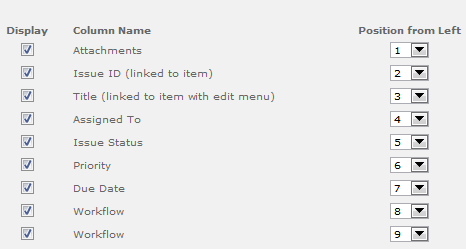
The most simple thing to do would be rename the Workflow, the only effect this should have is to change the name of your status column (personally I have not seen other side effects of doing this)
So in SPD we change the Workflow name, hit Save then Publish and nothing happens !, so we do it again and nothing happens, no changes in SharePoint, so we change the Workflow name then hit Rename then hit Save & Publish and finally it works, how odd !


Syncfusion Metro Studio #ModernUI #SharePoint #SP2013 and other products I use day to day
Now I don’t often talk about the products that I use on a day to day basis. However, I got introduced to a free product yesterday that is going to make my life sooooo much easier when creating POC work around SharePoint as well various Slide Decks I may create in the future in PowerPoint.
Anyway, this isn’t a review or an endorsement really, but it has been out for a while now (looks like almost a year) and I totally missed it, so I figured others may have missed it also.
http://www.syncfusion.com/downloads/metrostudio
 Special thanks to Oliver Stickley (CPS) for finding this gem of a tool 🙂 – It has already been used for one of our projects and POC’s
You can find out more about Oliver here: http://uk.linkedin.com/in/olistickley
Other products I use on a daily basis:
Apart from the usual SharePoint Designer, Microsoft Office and Project and Visio tools, here are some other tools that I use on a regular basis.
Nattyware – Pixie

Useful for getting the colour palette directly from a web page / application. So useful, I have this on my taskbar all the time for quick and easy access.
http://www.nattyware.com/pixie.php
U2U CAML Builder
Useful in 2007, 2010 and 2013. In a 2010 / 2013 world, I use this to create my CAML for my JavaScript CSOM work. In 2007, I use this to aid my jQuery SOAP request calls.
Expression Encoder 4 including Screen Recorder
 This is the main tool I use for recording my screen. It records the mouse pointer (as well as highlighting the pointer in a cool orange glow), can use the web cam and microphone as well as partial screen to full screen capture.
This is no where near as good Camtasia, but it is also free and easily available too 
- http://www.microsoft.com/en-gb/download/details.aspx?id=27870
- Video Codec for playback before conversion: http://www.microsoft.com/en-GB/download/details.aspx?id=10732
Windows Live Essentials 2012

I use these tools to edit the videos I create for my blog / CodePlex solutions as well as blogging itself.
- Windows Live Movie Maker (Editing Videos)
- Windows Live Writer (Blogging)
- URL: http://windows.microsoft.com/en-GB/windows-live/essentials-home
Quick image edits via the web:
Not a replacement for Photoshop or your preferred image editor, but when you’re stuck on client site, can’t install software and need to make a quick change… Pixlr to the rescue
Colour Gradient Generator
Again, another quickie although potentially out of fashion now-a-days in this bold colour Modern UI world
URL Encode / Decode
Whilst coding, I often have to URL encode or decode based on some kind of output.
I have used this site for years: http://meyerweb.com/eric/tools/dencoder/
As I gather more unusual tools I will blog again, but hopefully this post will be useful for people.
Till the next time, happy SharePoint-ing.

#ProjectServer 2013 ribbon in different browsers with different zoom levels #PS2013 #SP2013
 I am a Project Server and SharePoint consultant but my main focus currently is around Project Server.
I have been working with Project Server for nearly five years since 2007 for a Microsoft Gold Certified Partner in the UK, I have also been awared with the Microsoft Community Contributor Award 2011. I am also a certified Prince2 Practitioner. This article has been cross posted from pwmather.wordpress.com (original article) |
A quick post just to highlight how different browsers will render the ribbon differently based on the zoom level of the session. Some examples below to show the differences between IE 9 and Chrome version 26. At the default 100% all browsers render the ribbon identically. All pages / ribbons are affected.
IE 9 – Tasks Page – 125% zoom:

Chrome – Tasks Page – 125% zoom:

Notice the buttons are all grouped together.
What is interesting is if you increase the zoom to 150% in Chrome the buttons are no longer grouped:

Just something to be aware of if you have a user who raises this. Ask them to press Ctrl and 0 to set the zoom to the default 100% and the buttons should appear as normal on the ribbons.


SharePoint Evolution Conference–things to remember / learn
So today was the last of the 3 day Evolution conference that has been running at the QEII centre in Westminster. http://www.sharepointevolutionconference.com/
The whole conference has been fantastic with a very good selection of speakers
My highlights were Andrew Connell’s (http://www.andrewconnell.com/blog) Talk on single page applications or SPA’s. I am sure this will appear on his blog soon
the other was Chris O’Brien’s (http://www.sharepointnutsandbolts.com) talk on SharePoint App’s and why they make a lot of sense. He did a mock conversation, which i have gone through myself, on how SharePoint hosted apps are not powerful enough and we want to use c# in a provider hosted app which then leads down the rabbit whole of either Azure costs or the maintenance and DR of our own server. This all leads back to the question “What was wrong with SharePoint hosted apps anyway?”
The big take away from the conference was that there is not that much you cannot do with SharePoint hosted app if you really think about it. So we need to get outside of our nice comfy C# sofa and start learning JavaScript.
By this I mean REALLY learn JavaScript and not the hacking about we have been doing for the last few years. This means that we need to treat JavaScript as a real language (I realise that it is) and write the code properly using proper patterns. So that when we look at it all in a weeks time or have to show it in a demo it will make sense and that other people can actually support the code.
This seems daunting given the limited tooling that exists for JavaScript, especially when we think how lucky we are with the debugging tools we get for .NET code.
Someone, I forget who, came up with a brilliant analogy for what JavaScript is and it was “JavaScript is assembly language for the web”
When you think about it this makes a lot of sense. In the end the C# code we write is assembly when it finally gets executed.
This means that to write good JavaScript we need to use extra tools and frameworks that other people have provided.
The obvious one is jQuery which i now think is synonymous with JavaScript. If you are not using jQuery in you JS then you are just making life difficult.
The other frameworks that we should look to use and the main reason for this post are the following:
- TypeScript (http://www.typescriptlang.org/)
- TypeScript is a typed superset of JavaScript that compiles (YAY) to plain JavaScript.
- This looks very easy to write, especially as a C# person
- I am not sure there is a reason why you wouldn’t use this for everything.
- Modernizr (http://modernizr.com/)
- Modernizr is a JavaScript library that detects HTML5 and CSS3 features in the user’s browser.
- Knockout (http://knockoutjs.com/)
- Implements a MVVM pattern
- Durandal (http://durandaljs.com/)
- a Single Page App framework
- Bootstrap (http://twitter.github.io/bootstrap/index.html)
- Makes pages look nice
- Font Awesome (http://fortawesome.github.io/Font-Awesome/)
- Made for Bootstrap and provides icons and animations all through CSS and JS
- This is very cool
- LinqJS (http://linqjs.codeplex.com)
- I have actually used this in an app I have been working on and it is very useful
- Toastr (https://github.com/CodeSeven/toastr#readme)
- SharePoint style non-blocking notifications
Using some or all of the above does make the learning a little more daunting but after seeing the results this is clearly the way to move forward. When you see how little code you actually have to write it is just amazing what can be done.
As well as the extra frameworks the other key JavaScript things to learn are namespaces and promises.
Something else to note. Make sure you have the latest version of the SharePoint development tools installed and make sure you have the “Web Essentials 2012” extension installed as well. This will make life easier.
Please do not ask me for any code samples or video’s of the event as I do not have any and if I did I wouldn’t be allowed anyway.

via Buzz Blog http://paulbuzzblog.wordpress.com/2013/04/18/sharepoint-evolution-conferencethings-to-remember-learn/
 Paul is a an expert SharePoint and Project Server developer and is responsible for designing and implementing custom solutions on client systems using the latest SharePoint and .NET technologies.
Paul has extensive experience with SharePoint systems across all sizes of implementation, ranging from small to large farms and has an excellent understanding of all the elements of SharePoint. This article has been cross posted from paulbuzzblog.wordpress.com (original article) |

#Windows8 update failure during configuration
 I know it has been a while since i have posted on the blog directly myself. A lot is going on personally at the moment with Weddings and other potential big plans going on…
In the meantime, I am still working on projects at CPS and to add to the personal busy-ness, projects are going into the go-live stage as well.
Some how I have managed to find time to work with Windows 8 and Office 2013 on my day-to-day laptop, but recently I have found that my Windows Updates have been failing to install / configure.
Anyway, a quick search and the following came up:
- http://support.microsoft.com/kb/949358
- Downloaded the fix-it application and it restarted various services including the crypto + other Windows Update based services.
- Update and restart and et-voila! all is well with the world again.
More blog posts will come along soon (when I get time), as I have been working extensively with the JavaScript CSOM and the REST API’s in JavaScript.

ForeFront Identify Manager Client
The User Profile Service is an incredibly powerful part of SharePoint. When used correctly it vastly improves the experience of your users by adding a real sense of personal ownership of your sites and their content.
Unfortunately like any complex system, identifying and fixing issues can be a painful process. There is minimal information provided in the site and almost none regarding the connection between the service and Active Directory.
In SharePoint 2010, the user profile sync is controlled by the ForeFront Identity Manager service, this is a Windows service that handles the connections between Active Directory, any BDC connections defined and the SharePoint site collections and sites.
The workings of the service are somewhat impenetrable, but if you wish to see what it is doing and follow the sync process, it comes with a nice GUI interface.
This can be run directly on the server from the path X:\Program Files\Microsoft Office Servers\14.0\Synchronization Service\UIShell\miisclient.exe
When running during a sync you can see any issues encountered such as permissions problems.
via Chris on SharePoint http://spchris.com/2013/04/forefront-identify-manager-client/
|
SharePoint and Project Server Consultant
This article has been cross posted from spchris.com (original article) |

#ProjectServer and #SharePoint 2010 / 2013 April 2013 Cumulative Update #PS2010 #SP2010 #PS2013 #SP2013 #MSProject
|
I am a Project Server and SharePoint consultant but my main focus currently is around Project Server.
I have been working with Project Server for nearly five years since 2007 for a Microsoft Gold Certified Partner in the UK, I have also been awared with the Microsoft Community Contributor Award 2011. I am also a certified Prince2 Practitioner. This article has been cross posted from pwmather.wordpress.com (original article) |
The Office 2013 April 2013 Cumulative Updates are now available, please see the links below:
http://support.microsoft.com/kb/2832224
Project Server 2013 Server Roll up package April 2013 CU (Recommended):
(Delayed)
Project Server 2013 April 2013 CU (Included in the Server Roll up package):
http://support.microsoft.com/kb/2760261
Project 2013 April 2013 CU:
http://support.microsoft.com/kb/2768336
Also worth noting, install the March 2013 Public update: http://support.microsoft.com/kb/2768001 if installing the April 2013 CU.
The Office 2010 April 2013 Cumulative Updates are now available, please see the links below:
http://support.microsoft.com/kb/2832226
Project Server 2010 Server Roll up package April 2013 CU (Recommended):
http://support.microsoft.com/kb/2775426
Project Server 2010 April 2013 CU (Included in the Server Roll up package):
http://support.microsoft.com/kb/2791064 & http://support.microsoft.com/kb/2760780
Project 2010 April 2013 CU:
http://support.microsoft.com/kb/2794664
Remember SP1 is a pre-requisite for the Office 2010 April 2013 CUs.
For more details please see:
http://blogs.technet.com/b/projectsupport/archive/2013/04/11/microsoft-project-server-2007-2010-and-2013-april-2013-cu-announcement.aspx
As always, test these updates on a replica test environment before deploying to production


Adding a default image for remote served images
Quite often when working with data within a SharePoint environment, we wish to link the data to images hosted within a third party system.
This is often seen in the form of staff pictures that are hosted on a third party HR platform rather than within Active Directory, so the User Profile service images are of no use to us.
Unfortunately there is no real way of detecting if the image on the third party system actually exists, which means that rather than seeing the nice friendly missing profile image, you get a horrible missing image box.
This can be overcome with some simple JavaScript:
(function(){

    var defaultImage = "/_layouts/15/images/PersonPlaceholder.200x150x32.png";

    var profileImage = document.createElement("img");

    // Define an error handler, this will fire if there is an
    // error loading the URL for the staff image and redirect
    // it to the missing user profile image in the hive.

    profileImage.onError = function() {

        this.src = defaultImage;

    }

    // Point the image element to our staff images then attach
    // it to the DOM.

    profileImage.src = "http://hr/staffimages/" + employeeId + ".png";

    // Note that the employeeId variable referenced above is to be
    // provided externally and is beyond the scope of this post.

    var container = document.getElementById("profileImageContainer");

    if (container) {
        container.appendChild(profileImage);
    }
})();
With this code in place any missing images will automatically serve the default image instead.
This method will work anywhere you need to serve images and have no way of detecting if the image to be served exists or not.
|
SharePoint and Project Server Consultant
This article has been cross posted from spchris.com (original article) |

#ProjectServer #SSRS Report with multivalued parameters #SQL #PS2010 #SP2010
|
I am a Project Server and SharePoint consultant but my main focus currently is around Project Server.
I have been working with Project Server for nearly five years since 2007 for a Microsoft Gold Certified Partner in the UK, I have also been awared with the Microsoft Community Contributor Award 2011. I am also a certified Prince2 Practitioner. This article has been cross posted from pwmather.wordpress.com (original article) |
A quick blog post to highlight the use of one of the Project Server Reporting database functions to resolve an issue when using an SSRS multi value parameter.
There are several methods to get multi value parameters working in SQL Server Reporting Services (SSRS) including dataset filters, joining parameters and custom SQL functions – other blogs / forum posts detail these. This post demonstrates using a function that is available in the Project Server Reporting database. The function is called MSP_FN_Utility_ConvertStringListToTable. An example SQL Stored Procedure that will allow multi values can be seen below:
CREATE PROCEDURE [dbo].[SP_ProjectData] (
@ProjUID NVARCHAR (max)
)AS
BEGIN
select P.ProjectName
, T.TaskName
from MSP_EPMProject_UserView P
INNER JOIN MSP_EPMTask_UserView T
ON P.ProjectUID = T.ProjectUID
INNER JOIN MSP_FN_Utility_ConvertStringListToTable (@ProjUID) AS PU
On P.ProjectUID IS NULL or P.ProjectUID like PU.TokenVal
END
Create the SQL query as normal but instead of using a where clause to filter the Project UIDs join on to the function as shown above.


 SharePoint (and Project Server) Shenanigans
You must be logged in to post a comment.