Archive
Microsoft Office 2010 Service Pack 1 released #in #SharePoint #SP2010 #MSProject #MSOffice #ProjectServer #PS2010
Quite a day for Microsoft today. Office 365 has been released!!! (This blog may be moving to Office 365 soon – you can see a preview here: http://ghamson.sharepoint.com)
It is expected that the SharePoint and Project Server 2010 updates will be released in a matter of minutes / hours.
And of course the Microsoft Office 2010 client suite service pack has just been released!
Download Links:
32-bit: http://www.microsoft.com/download/en/details.aspx?id=26622
64-bit: http://www.microsoft.com/download/en/details.aspx?id=26617
I will post again with SharePoint 2010 / Project Server 2010 Service Pack details as soon as possible.

Project Server 2010 Project Site default fields
Getting synch errors in the Project Queue relating the Reporting WSS sync? Link to task functionality not working? Risks and issues not showing in the reminders web part on the PWA home page? If you have any of these issues then it is quite likely that you have either edited or deleted some of the default fields from the Project Site’s Risks or Issues lists. The Risks, Issues, Deliverables lists are integral to Project Server so the best advise is to leave the default fields alone and create new fields to meet your requirements. It is possible to hide the default fields if required.
One question I see quite a lot of the time is “How can we fix this issue once we have deleted or edited a default field from the Project Site?” The answer is simple but would mean data loss if you want to fix the issue on a Project Site that already had list items on the default Issues, Risks and Deliverables lists. If the issue exists in the current custom Project Site template then this can be resolved easily without any data loss. For both scenarios please see the steps below.
To fix the issue if it exists in your latest custom Project Site template, navigate to PWA and click Site Actions > New Site, select the latest custom template, add a name and URL and click create. Navigate to your new site and delete the default Risks, Issues and Deliverables lists by going to the list settings for each list / library and clicking “Delete this list”.

Click Site Actions > Site Settings > Manage Site Features, scroll down to the “Project Sites Collaboration lists”

Click “Deactivate” and click ok the the warning. Once complete the page will reload the site features, this time click “Activate” next to Project Sites Collaboration Lists.

Running through these steps will recreate the default Risks, Issues and Deliverables lists with all of the correct default fields, any custom fields or changes made to default fields will not be re-applied. Now create any custom fields / views needed on the Risks or Issues list but remember do not touch the default fields or views. Once the template is complete save the site as a template and set as the default site template in Project Server following the usual process. This would have fixed the issues mention above for new Project Sites that are created from the new custom template but the issues will still exist on current project sites.
To fix the issues on current project sites would mean that some data loss will occur. Any list items on the default Risk, Deliverables or Issues list will be lost and not recreated. To fix the issues on existing sites the same process applies as outline above but rather than creating a new site you will need to navigate to the Project site in question then delete the default Risks, Deliverables and Issues lists (remembering that the list items will be lost). If the list items are required, export the lists to Excel first, then you have a copy that can be used to create the items again manually once the lists are recreated. Once the default Risks, Deliverables and Issues lists have been deleted, click Site Actions > Site Settings > Manage Site Features. Deactivate the “Project Sites Collaboration Lists” feature then activate. As mentioned earlier this will recreate the default Risks, Deliverables and Issues lists with all of the default fields. This process will need to be repeated on all Project Sites where you want to resolve the issue and where you are happy to lose the existing Risks, Deliverables and Issues.
I would recommend that this process is carried out on test environment prior to production so that you are happy with steps outlined above.

Project Server 2010 Grid issue
I would just like to share my findings with the behaviour of the Project Server 2010 grids. I was recently investigating an issue raised on one of the Project Server forums and thought I would blog the issue and workaround in case anyone comes across this in future. The issue is that the header rows don’t load correctly if you zoom your Internet Explorer window below 99%. Each grid behaves differently, the Project Centre grid will add an extra header row on the left hand side of the grid as shown below so that the Gantt row no longer aligns with the correct Project detail rows:

On the Tasks page, an extra row is added on both sides of the divider, but the rows are not level as seen below, Process Status and Mon 13/06 are positioned mid rows:

The Resource Centre also adds an extra header row as seen below:

This behaviour can be resolved by increasing the Internet Explorer zoom level to 99% or higher.
Hopefully that will help resolve this annoyance for anyone that has come across this issue 

Content Query Web Part–Debug XSLT Template #in #SP2010 #SharePoint
Something I always forget and scramble around to find:
<xsl:template name="Debug" match="Row[@Style=’Debug’]" mode="itemstyle">
<xsl:for-each select="@*">
Property Name: <xsl:value-of select="name()"/>
Value: <xsl:value-of select="." /> <br/>
</xsl:for-each>
</xsl:template>
Original blog post is here:
http://kharlesp.blogspot.com/2008/07/getting-all-values-to-debug-xsl-in.html
I will be posting more stuff on the blog soon. Things are a bit manic at the moment 

Auto height plain text box issue fixed in InfoPath / Form Services 2010 #in #SharePoint #SP2010
A quick post to say that the InfoPath / Form Service 2010 issue I was having at one of my clients has now been fixed and is included as part of the SharePoint 2010 – April 2011 Cumulative Update.
My description of the issue can be found here: https://ghamson.wordpress.com/2010/10/17/form-services-infopath-2010-bug-found-in-multi-line-plain-text-boxes/
Microsoft KB Articles
- InfoPath Hotfix: http://support.microsoft.com/kb/2516485
- Project Server 2010 – April 2011 CU: http://support.microsoft.com/kb/2512801
- SharePoint Server 2010 – April 2011 CU: http://support.microsoft.com/kb/2516485
- SharePoint Foundation 2010 – April 2011 CU: http://support.microsoft.com/kb/2512804
I would also like to take this opportunity to thank the Microsoft support and product teams in working with us to detail the issue and come to a resolution. We are testing the go live environment with April CU 2011 as I write this and the fix will dramatically improve the UI for the custom forms that we have developed.
Minimising JavaScript files for production #in #SharePoint #SP2010 #ProjectServer #PS2010
As per my previous post, in my current project we are starting to migrate the whole solution to live.
The project I am working on is a global solution with locations in UK, USA, India, China + others. As a result of this, like many global projects, we suffer from the available connections.
This is potentially very minor in helping, but as part of the production process we are minimising the JavaScript files.
To do this, I have used the Yahoo compressor which is a java applet where you can pass in the file and output the minimised version.
Download Link: http://yuilibrary.com/downloads/#yuicompressor
How To Documentation: http://developer.yahoo.com/yui/compressor/#using
Example Command Line: java -jar yuicompressor-2.4.6.jar –nomunge –preserve-semi –disable-optimizations <input file> -o <output file>
Useful JavaScript Function – Default parameters within your JavaScript functions #in #SharePoint #SP2010 #PS2010 #ProjectServer
So it has been a while since I have posted anything on the blog.
As I am sure many of you can relate, there comes a time in all projects when you have to concentrate solely on them to ensure that all factors play out as expected. One of those times would be go live time.
The project I have been working on for the last year is about to go into trial with its first division, so it has been heads down to ensure that all bug fixes and business intelligence data is correct.
As of today, we are officially at a code freeze and we are clearing down the databases to rid them of test data ready for migration to the Production environment and the final integration testing process.
As a result, we can commence blogging again, of which I have a few topics stored up.
First up is…
Default parameters in a JavaScript function
Project Scenario: I created a generic function to contact the User Profile service and set some default global variables when the page loads for the current logged in user.
This had to be extended to cope with me passing a different AD User Name (SAMAccountName) and return the details in a JavaScript object.
So the basic mechanism was there already.
- I was passing the current user as a variable
- User Profile Service was already being queried
- Set the global variables for the current user
I wanted to extend this to take any user, but not upset the other functions that relied on the global variables I was setting in the function.
So essentially I added a setGlobal flag parameter and provided a default to the function so that existing code could work (surrounded by the newly created flag of course) and then implemented what I needed to.
This allowed my existing code to continue to function without issue, but also allowed me to reuse my User Profile functionalities for another purpose.
Examples:
The original idea came from the following blog post:
In my code, I implemented the first method. In future however I shall certainly use the second approach.
Creating a SP2010 Farm with local accounts in Server Mode #in #SP2010 #SharePoint
So, it’s the weekend and I have decided to build myself a SharePoint 2010 / Project Server 2010 development environment so I can play with some ideas at home as well as update my CodePlex projects.
Now in MOSS 2007 you used to be able to create a server farm connecting to a full SQL Server on the same box by not choosing Standalone mode during the setup.
In SharePoint 2010, it would appear that this is not the case using the GUI setup or even stsadm as it will not accept local accounts during the setup wizard
However in PowerShell you can.
The following articles have been useful during my setup process:
Blog: From The Field – http://sharepoint.microsoft.com/blogs/fromthefield/Lists/Posts/Post.aspx?ID=112
MSDN Forums: http://social.technet.microsoft.com/Forums/en/sharepoint2010setup/thread/574bb98b-7751-4b23-a71b-857c6664804b
As a basic overview (and as a reminder to myself):
- Install the pre-requisites
- Install the binaries
- Run the SharePoint 2010 Management Shall as the Server Administrator
- PS Command:New-SPConfigurationDatabase
Once you have done this, run the PSConfig GUI (Start > All Programs > Microsoft SharePoint 2010 Products > SharePoint 2010 Products Configuration) and you will find that you are connected to the farm.
Do not disconnect and click next. The standard wizard will now run and setup Central Administration for you.
This is running for me at the moment, so if I find any further gotchas I shall update this post.
Unique alphanumeric list ID’s via SPD Workflow and Calculated Columns #SharePoint #SP2010 #in
A common thing I do for most clients is to create a unique alphanumeric ID that is consistent in length with pre-filled zeros.
Risk list alphanumeric ID example:
- RSK0001
However, as has been documented many times (link); you cannot use the ID column of a list in a calculated column. To get over this issue I use a simple SharePoint Designer workflow to copy the ID value to another column (Unique Reference) and then base my calculation on the Unique Reference column.
Step One: Create a common site column for use across the Site Collection
- Column Name: Unique Reference
- Column Type: Single Line Of Text
Step Two: Create a calculated column for the alphanumeric ID
- Column Name: Risk ID
- Column Type: Calculated Column
- Formula: =”RSK” & TEXT([Unique Reference], “0000”)
NB: The TEXT function will prefill the ID with zeros
- Step Three: Add the Unique Reference and Risk ID column to your List or Content Type
Step Four: Create the SharePoint Designer Workflow
- Create a list or content type (SP2010 only) workflow
- Workflow should fire on Creation only (disable Manual and Edit)
- Use the following steps:
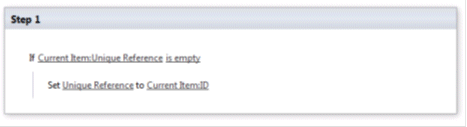
- Publish the workflow (list workflow)
OR
- Assign the workflow to the content type (if you have created a redistributable workflow in SPD 2010) and assign the content type to the list (content type workflow)
Step Five: Hide the Unique Reference column in the list / content type
- This will stop the Unique Reference column from showing to the end user.
NB: You must hide the Unique Reference column after you have created and published the workflow otherwise it will not appear in SharePoint Designer
You list items will now have a unique alpha numeric ID
NB: Please remember that automatic workflows will not fire if you are logged in as the farm account (link)

Calculated Column Formula: Probability and impact analysis for risks #SharePoint #SP2010 #ProjectServer #PS2010 #EPM #MSProject #in
Many project managers like to do risk analysis in terms of probability and impact, ultimately creating a heat map when data is rolled up at the project or programme level.
Further information about the methodology can be found here: http://www.expertprogrammanagement.com/2010/06/project-risk-management/
To aid in the creation of these roll up dashboards, we need to evaluate each risk as it is entered (and updated) and assess the probability of the risk occurring against the impact it has against the project (normally in terms of Cost, Resource or Time).
The following chart details this analysis:

NB: Numeric values have been assigned for the formulas listed below
To implement this in SharePoint (either standalone or as an extension to the standard Risks list in Project Server) we need to translate what the Project Manager / Team Members would like to state in words regarding probability & impact into a numeric value for sorting and analysis.
The following Choice columns are added to the Risk form.
User Interface Columns:
| Column | Type | Values |
| Probability of Risk | Choice | Very Low, Low, Medium, High, Very High |
| Impact of Risk | Choice | Very Low, Low, Medium, High, Very High |
Once we have the UI version of Probability and Impact, we need to use some hidden / calculated columns to convert these values in to numbers.
Once we have these values we then multiply them together:
Probability x Impact = Expected Outcome Value
Hidden Columns:
| Column | Type | Values |
| Risk Probability Value | Calculated Column | =IF([Probability of Risk]=”Very Low”,0.1,IF([Probability of Risk]=”Low”,0.3,IF([Probability of Risk]=”Medium”,0.5,IF([Probability of Risk]=”High”,0.7,IF([Probability of Risk]=”Very High”,0.9,0))))) |
| Risk Impact Value | Calculated Column | =IF([Impact of Risk]=”Very Low”,0.05,IF([Impact of Risk]=”Low”,0.1,IF([Impact of Risk]=”Medium”,0.2,IF([Impact of Risk]=”High”,0.4,IF([Impact of Risk]=”Very High”,0.8,0))))) |
| Expected Value Result | Calculated Column | =[Risk Probability Value]*[Risk Impact Value] |
Now that we have our Expected Outcome as a number, we can convert this back to a value the end user will understand, report and dashboard from.
RAG Outcome:
| Column | Type | Values |
| RAG | Calculated Column | =IF([Expected Value Result]<0.05,”Green”,IF([Expected Value Result]>0.14,”Red”,”Amber”)) |
For each risk in the list we will now have a RAG value.
Further customisations I end up doing in clients include adding a RAG indicator column showing a graphical representation of the risk using jQuery.
RAG Indicator:
| Column | Type | Values |
| RAG Indicator | Calculated Column | =”<div class=’convertToHTML’><img src=’/pwa/customisation/images/RAG” & [RAG] & “Sml.gif’ alt=”‘ & [RAG] & ‘” title=”‘ & [RAG] & ‘”></div>” |
The above formula expects three images:
- RAGGreenSml.gif
- RAGAmberSml.gif
- RAGRedSml.gif
Images in the formula are stored in a document library called:
- Customisation
with a folder inside called:
- images
Run the following jQuery function on the page with the list view on to convert the RAG Indicator calculated column string into rendered html:


 SharePoint (and Project Server) Shenanigans
You must be logged in to post a comment.