Archive
Useful Information: Determining if the web service return is a File or a Folder in GetListItems (Lists.asmx) #in #SP2010 #SharePoint
Just a useful quick tip I noticed whilst answering a question for a client the other day.
In the return of the GetListItems method of the Lists.asmx Web Service, one of the fields is:
- ows_FSObjType
This essentially allows us to determine of the return is either a File or a Folder.
The detail of the return is as follows:
- <Item ID>;#<File System Object Type>
- Example Data: 1;#0
Options for the File System Object Type:
- 0 = File
- 1 = Folder

Useful JavaScript Function: PreSaveAction #SP2010 #SharePoint #PS2010 #ProjectServer #in
Just a quick blog post to talk about a standard JavaScript function that exists in SharePoint 2007 and 2010 – PreSaveAction().
Now I have done extra validation and functions on list forms in allsorts of ways before (some of which is blogged on this site) and it is only recently that this standard function has been brought to my attention. (Thanks @GlynClough via twitter).
Once I learned about this function I of course google’d about it to see what I could find and came across the following blog articles:
- http://www.endusersharepoint.com/2008/10/07/endusersharepointcom-extending-issues-and-tasks-part-3/
- http://www.allaboutmoss.com/index.php/tag/presaveaction/
These are excellent articles that explain the function, however in the way I tend to work in my projects it posed a problem.
We are essentially overriding a standard SharePoint JavaScript function and the articles assume that you can place a Content Editor Web Part onto the page to add the functionality.
Now in SharePoint 2010 this is less of a problem, since there are very good and official ways to add web parts to list form pages, even in a Publishing Site.
However, in Microsoft Office SharePoint Server 2007 utilising publishing sites, editing newform.aspx and editform.aspx pages caused many issues.
This forced the consultant / developer to create their own new / edit forms and pages in order to insert sometimes a very small amount of code.
Since most of my projects seem to involve the Publishing feature in one way or another, I typically place JavaScript reference files in the Master Page. This means that my JavaScript code is running on every page.
So, getting to the point of this article, I have modified the general example that is supplied on other sites to take into account this method of JavaScript development by simply querying what page I am on before I run my validation tests and functions.
Code Example:
Splitting a date into Year, Quarter and Month for analysis purposes in InfoPath 2010 #SP2010 #SharePoint #in
Last week at a client I had the requirement to split a date into various parts for various uses on the form and the list for analysis purposes.
Although not a lot of hard work (it was done and dusted within 15 minutes). I thought I would share some of my findings and the formulas and rules I used to achieve my requirement.
The Starting Point – Fields and Settings
Initially we need some fields to store the data:
| Column Name | Column Type | Column Settings | Comments |
| Activity Date | Date and Time | Date Only | All other fields will be derived from this column |
| Year | Single Line Of Text | No. Characters: 4 | Stored as text |
| Quarter | Number | No. Decimals: 0 Min: 1 Max: 4 |
|
| Month | Single Line Of Text | No. Characters: 9 | For storing Month names.
Example: |
| Month No. | Number | No. Decimals: 0 Min: 1 Max: 12 |
|
| Month No. Text | Single Line Of Text | No. Characters: 2 | Value Example: – 01 – 09 – 12 To aid with sorting when combining with Year values. Example (YYYY MM): |
Formula / Default Values:
| Column Name | Formula / Default Values | Comments |
| Year |
substring(../my:Activity_x0020_Date, 1, 4) |
SharePoint stores dates in the following format to avoid regional issues:
– YYYY-MM-DDTHH-MM-SSZ Example: – 2011-01-24T22-25-00Z The formula to the left takes this into account. |
| Month No. | substring(../my:Activity_x0020_Date, 6, 2) | As a number field, this will automatically take off the preceding zero. |
| Month No. Text | substring(../my:Activity_x0020_Date, 6, 2) | As a text field, the preceding zero will be retained. |
NB: By copying and pasting the default values above, it is likely that you will need to remap the field selector(../my:Activity_x0020_Date) to accommodate the date field in your form.
Rules:
| Column Name | Condition | Action | Run Remaining Rules |
| Month No. | Month No. >= 10 | Set Quarter = 4 | No |
| Month No. >= 7 | Set Quarter = 3 | No | |
| Month No. >= 4 | Set Quarter = 2 | No | |
| Month No. >= 1 | Set Quarter = 1 | No | |
| Month No. Text | Month No. Text = “01” | Set Month = “January” | No |
| Month No. Text = “02” | Set Month = “February” | No | |
| Month No. Text = “03” | Set Month = “March” | No | |
| Month No. Text = “04” | Set Month = “April” | No | |
| Month No. Text = “05” | Set Month = “May” | No | |
| Month No. Text = “06” | Set Month = “June” | No | |
| Month No. Text = “07” | Set Month = “July” | No | |
| Month No. Text = “08” | Set Month = “August” | No | |
| Month No. Text = “09” | Set Month = “September” | No | |
| Month No. Text = “10” | Set Month = “October” | No | |
| Month No. Text = “11” | Set Month = “November” | No | |
| Month No. Text = “12” | Set Month = “December” | No |
The Result:
Using #jQuery to attach regular expression validation to a #SharePoint list form field #SP2010 #PS2010 #ProjectServer #in
On one of my current projects I have had cause to ensure that no special characters are in the Title field of a SharePoint 2010 list form.
This is because we are using the Title field as the Plan Name in a Project Create process in Project Server 2010. As a result we need to ensure that the Event Handler we are creating has validated data that the PS2010 PSI Web Service can accept for the Plan Name.
I created the following script to validate the data being entered into the Title field of the list form as it is being entered.
I manipulate the Save Buttons in the ribbon and the list form to ensure that the user cannot enter invalid data into the form.
To ensure a good user experience, I add an extra <DIV> element next to the Title field to notify the user of what is going on.
Example Code:
Found a useful post about #SharePoint Web Services #SP2010 #in
In my travels of playing with the SharePoint Web Services, I found the following post useful.
Although it is based on WSS 3.0 / MOSS 2007. Much of it is still relevant for SharePoint 2010.
http://bhavtosh.wordpress.com/2009/10/05/sharepoint-2007-web-services/
Using jQuery to return all members / users of a group #in #SP2010 #SharePoint
I’ve recently had cause to determine if a user is within a particular group in SharePoint and act upon the output.
Luckily the standard SharePoint web services allow to query for this information utilising the User Group service at location: http://<server>/_vti_bin/usergroup.asmx.
In particular the method GetUserCollectionFromGroup will provide the complete list including the Windows SAMAccountName (login name) as part of the return.
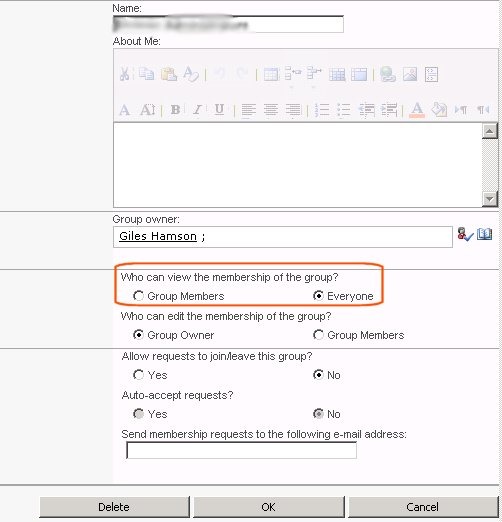
However, in this instance I was caught a little by a permissions problem. Although I could query the web service, it kept returning a status of “parsererror” and an output of “Access Denied”.
This was resolved by changing the group settings to allow “Everyone” to read the membership of the group.
Code Example
The following code utilises jQuery to access the web service:

Determining delegation mode and user via jQuery #in #ProjectServer #PS2010 #SP2010
In my current project I have recently had the requirement to determine whether Project Server 2010 was in delegation mode.
If the user was in delegation mode, we then passed the unique Display Name of the delegation user and passed it to a web service to return more data about the resource.
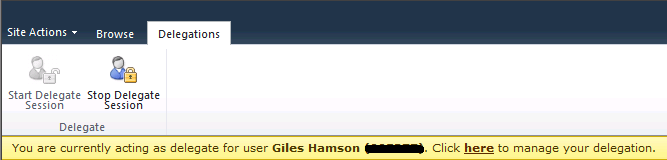
The information bar in PS2010 lets us know that we are in delegation mode and in jQuery we can interrogate this to get the information we need.
The following code uses jQuery to determine if we are in delegation mode and sets the Display Name and isDelegate variables accordingly:

Using jQuery to find the current logged in user #in #SP2010
Problem:
In MOSS 2007, we had methods to get the current logged in user by accessing some of the properties found in the Welcome Menu.
Although this is still the case in SharePoint Server 2010, there are some fundamental changes to the code and the way the Welcome Menu is rendered in SPS 2010 that means we have to do something slightly different to get the same result.
I have recently had a requirement to achieve this in my current project and thought I would share the basics with you.
Essentially we are still retrieving the information from an HTML element property in the Welcome Menu, but the menu itself is rendered in AJAX and therefore is not necessarily available as soon as the page is rendered and the DOM document ready state is set.
As a result of this, running JavaScript / jQuery on the page at either:
- $(document).ready
- _spBodyOnLoadFunctionNames
will not return the required result, since the menu elements we need to interrogate have not been rendered yet.
Solution:
- Set a timer to keep running a particular function to wait until the menu is rendered
- Stop the timer
- Interrogate the DOM as required using jQuery
Code Example:
#SP2010 Content Organizer, Incoming Email and Multi-function Printers #in #SharePoint
A very interesting post about the Content Organizer in SharePoint 2010, Incoming Email and integrating the solution with multi-function printers.
I know one day I will be dealing with this issue too.
#SharePoint Solution Installer–#SP2010 version #in
A colleague of mine has just pointed me in the direction of this:
http://netindonesia.net/blogs/andriyadi/archive/2010/02/27/sharepoint-2010-solution-installer.aspx
The SharePoint 2010 version of the SharePoint Solution Installer.
I haven’t tried it yet, but I shall re-package up my CodePlex solutions for 2010 to test them out.
Stay tuned.


 SharePoint (and Project Server) Shenanigans
You must be logged in to post a comment.