#ProjectOnline #PowerBI Currency Conversion Project Cost Report Part 1 #PPM #BI #Office365
|
I am a Project Server and SharePoint consultant but my main focus currently is around Project Server.
I have been working with Project Server for nearly five years since 2007 for a Microsoft Gold Certified Partner in the UK, I have also been awared with the Microsoft Community Contributor Award 2011. I am also a certified Prince2 Practitioner. This article has been cross posted from pwmather.wordpress.com (original article) |
Whilst Microsoft’s Office 365 PPM tool Project Online supports projects using different currencies, there is no conversion based on a currency rate. The project has a currency set and the correct currency symbol is displayed for cost data. In the reports and views there is no conversion based on an exchange rate between currencies. This blog post shows a simple way using Power BI to have a report calculate the project cost based on the defined currency as seen below:
In the steps below we walkthrough how to set up this simple example. Firstly in the Power BI Desktop client add the Projects OData feed:
- Click Get Data > OData Feed and add the Odata URL for your PWA site: <PWASite>/_api/ProjectData/Projects and click OK
- Click Edit to launch the Power BI Query Editor then click Choose Columns and uncheck Select All to deselect all the columns then select at least ProjectName, ProjectCost and ProjectType and click OK
- Click the dropdown menu on the ProjectType column and uncheck 7.
- Change the table from Query1 to Projects
The Projects table is now completed.
Now we need to create a table for the different currencies and rates we want to use.
- Click Enter Data to launch the Create Table window and create the columns “Currency” and “Rate”. Enter the data as needed and call the table Currency then click OK. I created the following:
- On my PWA instance, GBP is the currency used for this demo / blog post so this is set to 1.00 then I have a example currencies / rates for Euros and USD
The Currency table is now completed. Click Close & Apply > Close & Apply. Create a table with the project data on then a slicer for the currency values from the currency table like below:
Now right click on the Projects table in the fields pane and click New measure:
Enter the following in the formula / query bar:
This gets the selected currency from our slicer as a value in the Projects table. This is then used in the next new measure we create. Right click on the Projects table in the fields pane and click New measure again:
Enter the following in the formula / query bar:
Now add the ProjectCost_Converted field into the table with the project data and change the slicer selection and notice the ProjectCost_Converted values change, as seen below for Euros (EUR):
For Pounds (GBP):
For US Dollars (USD):
This simple version doesn’t take into account for projects that span multiple years where different rates will apply, it could be extended to support that though. In part 2 later this week we look at pre-calculating the project cost so that the portfolio cost is correct based on the currency defined by the project, look out for that towards the end of the week.

#ProjectOnline licenses now included in some #Dynamics365 Enterprise user licenses #Office365 #PPM
|
I am a Project Server and SharePoint consultant but my main focus currently is around Project Server.
I have been working with Project Server for nearly five years since 2007 for a Microsoft Gold Certified Partner in the UK, I have also been awared with the Microsoft Community Contributor Award 2011. I am also a certified Prince2 Practitioner. This article has been cross posted from pwmather.wordpress.com (original article) |
Project Online is now available in the Dynamics 365 Enterprise user licenses:
- Project Online Essentials available in Team Member, Sales, Customer Service, Field Service, Project Service Automation, Enterprise Plans 1 & 2 Dynamics 365 Enterprise User licenses
- Project Online Premium available in Project Service Automation and Enterprise Plan 1 & 2
Take a look at the licensing guide here for details: http://bit.ly/2lJ8pIy
Also fellow MVP Allan Rocha blogged about this a few days ago: http://bit.ly/2lYddwb
#ProjectServer and #SharePoint 2013 / 2016 February 2017 Cumulative Update #PS2013 #SP2013 #PS2016 #SP2016 #MSProject
|
I am a Project Server and SharePoint consultant but my main focus currently is around Project Server.
I have been working with Project Server for nearly five years since 2007 for a Microsoft Gold Certified Partner in the UK, I have also been awared with the Microsoft Community Contributor Award 2011. I am also a certified Prince2 Practitioner. This article has been cross posted from pwmather.wordpress.com (original article) |
The Office 2016 February 2017 updates and cumulative updates are now available, please see the links below:
Project 2016 February 2017 update:
http://bit.ly/2lTkoWj
SharePoint Server 2016 / Project Server 2016 February 2017 update:
http://bit.ly/2mrsUcP & http://bit.ly/2lTlwca
The Office 2013 February 2017 updates and cumulative updates are now available, please see the links below:
Project Server 2013 February 2017 CU Server Roll up package:
***No Server rollup package this month – install other SharePoint 2013 patch as required***
Project Server 2013 February 2017 update:
http://bit.ly/2mrnSwQ
Project 2013 February 2017 update:
http://bit.ly/2lTeO6b
Also worth noting, if you haven’t done so already, install Service Pack 1 http://bit.ly/1uorn2C first if installing the February 2017 CU.
For more details see: http://bit.ly/2lThYXq
As always, fully test these updates on a replica test environment before deploying to production.
#ProjectOnline #PPM #PowerBI Report Pack Publish #BI #Reporting #PowerQuery #DAX #Office365
|
I am a Project Server and SharePoint consultant but my main focus currently is around Project Server.
I have been working with Project Server for nearly five years since 2007 for a Microsoft Gold Certified Partner in the UK, I have also been awared with the Microsoft Community Contributor Award 2011. I am also a certified Prince2 Practitioner. This article has been cross posted from pwmather.wordpress.com (original article) |
Following on from my recent Project Online Power BI report pack post / release, this post looks at publishing the Report pack to the Power BI service, creating an example Dashboard and then finally creating an organisational content pack. For those of you that missed the previous post, please find a link below:
Open up the report pack in Power BI Desktop as seen below:
Click the Publish button on the Home ribbon or Click File > Publish > Publish to Power BI:
Sign in to Power BI if prompted to do so. If you have more than workspace in the Power BI Service it will prompt you to select the destination. Select the destination “My Workspace” as required and click Select, you will then see the following:
Once completed you will see:
Click Got it to close the window. Open up the browser and navigate to http://bit.ly/2l2jWEs. You will then see the published report under the Reports heading in My Workspace and also the report dataset under the Datasets heading. Click the report name under the reports heading and the published report will load:
You can then schedule a refresh of the data. Click the ellipsis next to the report under the Datasets heading:
Click Schedule Refresh. You will then see that you need to enter the credentials used for each OData endpoint used in the reports:
Click Edit credentials and select OAuth2 on the window that opens:
Click Sign In then enter the credentials / select the account as required. Repeat this for all of the OData connections.
**********NOTE: There is currently an issue with updating the credentials in Power BI when the Project Online OData URL contains [], you will probably receive the following message “Failed to update data source credentials.”
I’m not sure when this will be resolved. Alternatively, if your PWA site default language is English you could update all of the report queries to remove the /[en-US] from the OData URL. To do this, click Edit Queries > Edit Queries to open the Query Editor. Select a query from the Queries menu on the left then click Advanced Editor. This will open the Advanced Editor window. In Source remove /[en-US] from the OData URL and click Done. Repeat this for all queries that contain the PWA OData URL, once completed click Close & Apply > Close & Apply. Then follow the steps to publish the report to the Power BI service. **********
Once the credentials are all updated and correct, expand Schedule Refresh and enable this as required:
Click Apply.
Now click the report name under the Reports heading. From here you can pin visualizations on to a dashboard. See an example below:
Click the pin in the top right corner of the visualization then click New Dashboard and give the dashboard a name:
Click Pin.
Repeat this for other visualizations on other pages in the report as required but on the Pin to dashboard menu select Existing dashboard and select the dashboard you just created:
Once you have added all the visualizations you want, click on the new dashboard from the Dashboards heading:
Now you could create the organisational content pack to make this report and dashboard available to others in the organisation. This does require the Power BI Pro license.
Click the Settings Cog in the top right corner:
Click Create content pack:
Complete the form as required and upload an image if needed then select your dashboard – this will automatically include the correct report and dataset. Once completed, click Publish. You will then see a success message in the top right corner:
Other users with a Power BI Pro license will then be able to consume the content pack once logged into their Power BI workspace by clicking Get Data > My Organization > Get:
Click Get it now. It will then add the content pack to their workspace.
Before creating the content pack it would be best to wait until the data source credentials issue is resolved in the Power BI service so that the data in the content pack will update on the schedule. Or alternatively, if your PWA site default language is English, remove the /[en-US] from each dataset query as described in this post.
#ProjectServer 2016 environment migration / rollover steps #PowerShell #PS2016 #MSProject #SP2016
|
I am a Project Server and SharePoint consultant but my main focus currently is around Project Server.
I have been working with Project Server for nearly five years since 2007 for a Microsoft Gold Certified Partner in the UK, I have also been awared with the Microsoft Community Contributor Award 2011. I am also a certified Prince2 Practitioner. This article has been cross posted from pwmather.wordpress.com (original article) |
This blog post will detail the PowerShell commands required to carry out an environment rollover / migration using Windows PowerShell where possible. The steps below use the database approach to rollover the Production environment to the Test / Development environment.
As a prerequisite I would recommend taking full backups of the Test / Dev farm to enable the environment to be rolled back if required. Use your usual farm backup procedures.
Test / Dev environment Prep
Firstly connect to the Test / Dev Application server and launch the SharePoint 2016 Management shell.
Type the following:
Remove-SPSite -Identity ‘<TEST/DEV PWA Site URL>’
You can check in Central admin in the Project Server Service Application to check that the PWA site has been removed.
Using the SharePoint 2016 Management Shell, remove the existing content database from the web application that hosted the PWA site collection that was removed in the previous step.
Type the following:
Dismount-SPContentDatabase ‘<Content database name>’
Test / Dev environment SQL Prep
Take a backup of the PWA Content database from the Production environment and copy this over to the Test / Dev SQL server and restore the database. The database required is:
- Content database that contains the Production PWA site and Project Sites
Make a note of the database name used when this database is restored as it will be required later.
Test / Dev environment configuration
Using the SharePoint Management Shell, mount the restored content database to the web application that will host the PWA site collection.
Type the following:
Mount-SPContentDatabase ‘<content database name restored in previous step>’ -DatabaseServer ‘<Test / DEV SQL Server>’ –WebApplication <web application URL>
Post Provisioning
The Project Server Cube settings will need to be updated – update the SQL AS server / cube name.
Any Excel based reports in PWA will need to be updated to use the ODC files / connection strings from the Test / Dev environment as they will currently point to the Production ODC files / connection strings. This is done by opening the Excel reports in Excel, changing the ODC file / connection strings then saving the file back to the library.
All projects will need to be republished on the test / dev instance so that the project site features such as the issues and risks sync works as expected. There are other ways to fix that but republishing the projects is the easiest / safest option from what i have found.
#ProjectServer and #SharePoint 2013 / 2016 January 2017 Cumulative Update #PS2013 #SP2013 #PS2016 #SP2016 #MSProject
|
I am a Project Server and SharePoint consultant but my main focus currently is around Project Server.
I have been working with Project Server for nearly five years since 2007 for a Microsoft Gold Certified Partner in the UK, I have also been awared with the Microsoft Community Contributor Award 2011. I am also a certified Prince2 Practitioner. This article has been cross posted from pwmather.wordpress.com (original article) |
The Office 2016 January 2017 updates and cumulative updates are now available, please see the links below:
Project 2016 January 2017 update:
http://bit.ly/2ii4STb
SharePoint Server 2016 / Project Server 2016 January 201 update:
http://bit.ly/2j5Ni1X & http://bit.ly/2ii4AeY
The Office 2013 January 2017 updates and cumulative updates are now available, please see the links below:
Project Server 2013 January 2017 CU Server Roll up package:
http://bit.ly/2j5ORgo
Project Server 2013 January 2017 update:
http://bit.ly/2ii0YK7
Project 2013 January 2017 update:
http://bit.ly/2j5FFZb
Also worth noting, if you haven’t done so already, install Service Pack 1 http://bit.ly/1uorn2C first if installing the January 2017 CU.
As always, fully test these updates on a replica test environment before deploying to production.
Create DevTest Labs in Azure
Azure DevTest Labs is available in UK South and UK West as from December 2016, in addition to the other 21 regions it has supported.
The steps to create the DevTest lab are
- Login to Azure portal as administrator
- Click the green + New menu
- Type DevTest Labs into the search box
- Select DevTestLabs from the results page
- Click on Create from the Description page.
The advantages using DevTest Labs as mentioned from the Description page are
DevTest Labs helps developers and testers to quickly create virtual machines in Azure to deploy and test their applications. You can easily provision Windows and Linux machines using reusable templates while minimizing waste and controlling cost.
- Quickly provision development and test virtual machines
- Minimize waste with quotas and policies
- Set automated shutdowns to minimize costs
- Create a VM in a few clicks with reusable templates
- Get going quickly using VMs from pre-created pools
- Build Windows and Linux virtual machines
- Enter the lab name, select the subscription, select location North Europe, tick the Pin to Dashboard tick box and alternatively update the Auto-shutdown schedule.
- Click on Create.
- The dashboard is displayed with a new tile showing that the DevTest Lab is being deployed.
- The DevTest Lab page is displayed once deployment of the DevTest Lab is completed.
Instead of using the Portal, PowerShell can be used to create Azure DevTest Lab. The GitHub repository http://bit.ly/2jhNQ4t an example how it can be achieved.
The repository has a readme file, a deployment template with a corresponding parameters file and a PowerShell script to execute the deployment.
The Readme file provides a description of the resources created.
About the resources created in the Demo Lab:
The ARM template creates a demo lab with the following things:
* It sets up all the policies and a private artifact repo.
* It creates 3 custom VM images/templates.
* It creates 4 VMs, and 3 of them are created with the new custom VM images/templates.
To run the PowerShell script the subscriptionId is required. This can be obtained from the cmdlet Login-AzureRmAccount.
The PowerShell is run as below
.\ProvisionDemoLab.ps1 -SubscriptionId 41111111-1111-1111-1111-111111111111
-ResourceGroupLocation northeurope -ResourceGroupName RTestLab
The script produces the following results.
From the portal , the result shows the 4 vms.
The repositories have been created as well.
Custom images of the running machines have been created as well.
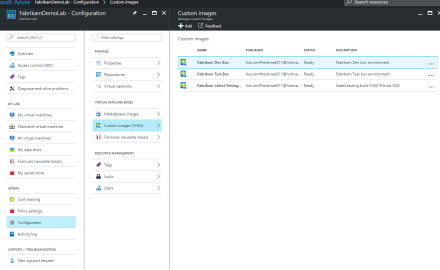
There are artifacts ready to be used though none are applied yet to the virtual machines.
You can create your own templates/parameters files in the Portal by creating a new resource and exporting instead of executing the configuration in the GitHub repository.
from reshmeeauckloo http://bit.ly/2j4Ys94
|
#ProjectOnline #PPM #PowerBI Report Pack #BI #Reporting #PowerQuery #DAX #Office365
|
I am a Project Server and SharePoint consultant but my main focus currently is around Project Server.
I have been working with Project Server for nearly five years since 2007 for a Microsoft Gold Certified Partner in the UK, I have also been awared with the Microsoft Community Contributor Award 2011. I am also a certified Prince2 Practitioner. This article has been cross posted from pwmather.wordpress.com (original article) |
Over the holiday period I started to build a Power BI Report Pack for Microsoft’s Office 365 PPM tool Project Online. I have made this publically available to download using the link below:
This Report Pack currently consists of 5 reports but will be extended in the near future with additional reports and / or changes to existing reports. In this release there are 5 reports, these can be seen below:
Portfolio Report:
Issues Report:
Risks Report:
Project Report:
Resource Demand Report:
These reports only use default intrinsic fields so it should work for all Project Online deployments.
Once downloaded, the report pack data sources will need to be updated to point to your target Project Online PWA instance. To do this you will need the Power BI desktop tool which is a free download here: http://bit.ly/2ivj0HN
Open the downloaded PWMatherProjectOnlinePowerBIReportPack.pbix file in Power BI Desktop and follow the steps below to point the data sources to your Project Online PWA instance:
- Home > Edit Queries > Edit Queries
- The Query Editor will then launch:
-
- Select the PWAURL query from the Query pane on the left hand side, then click Advanced Editor on the Home tab.
- Update the Source URL from http://bit.ly/2hLX1YJ to your target PWA URL and click Done – ensure the URL is correct.
- Repeat this for IssueData, RiskData and TaskBaselineTimephasedData. These connections are slightly different to the PWAURL query, ensure you just replace the PWA URL in the source and leave the /api/ProjectData part as is then click Done. The remaining queries will not require updating.
- On the Home tab, click Close & Apply > Close & Apply.
- You will then be prompt with the authentication options. Select Organizational account then click Sign In.
- Enter credentials for an account that has access to the OData Reporting API on the target PWA instance
- Then click Connect
- A Privacy levels window may appear, select Organisational then click Save.
- The Apply Query Changes window will appear as the data is refreshed. At this point only the three connections (Issues, Risks and TaskBaselineTimephased) will update. Now click the Refresh button on the Home tab to update all connections / queries. The Refresh window will appear while the data is refreshed.
- Once the refresh window disappears the reports will update to show the data from the target PWA instance. Click the Project Report tab and change the project filter from Project 1 to a project from your PWA instance. Save the file.
This file can either be emailed around to colleagues with details on how to update the credentials to their own or what would be better is to publish the report to your Power BI workspace can create an organisational content pack that others can add to their Power BI workspace. If the Power BI organisational content pack is the chosen option, you might want to create a Dashboard first.
In a follow up blog post to this one, I will touch on creating a dashboard once the report is published to my Power BI workspace then create an organisation content pack.
Enjoy, I hope you like it
Unable to update User Profile Property due to Policy Settings set to Disabled
The web service userprofileservice <site url>/_vti_bin/userprofileservice.asmx has to be used to update user profile properties for other users in SharePoint 2013 and SharePoint Online.
Even though the HTTP status code response returned was 200 which means successful, the user profile property was blank when the user properties was queried using the REST api method sp.userprofiles.peoplemanager/getpropertiesfor.
<site url>/_api/sp.userprofiles.peoplemanager/getpropertiesfor(@v)?@v=’i%3A0%23.f%7Cmembership%7CfirstName.LastName%40arteliauk.onmicrosoft.com’
The user profile property updated was PictureUrl , however it was showing as null
<d:PictureUrl m:null="true" />
After spending a couple of hours trying to figure out why the use profile property was not showing, I decided to review the user profiles properties for Picture property and how it is different from the other user profile properties, e.g. Job Title which was showing the updated value.
The Policy Settings on Picture property was disabled for some reason.
Disabled from Manage user profile policies in SharePoint admin center meant
The property or feature is visible only to the User Profile Service administrator. It does not appear in personalized sites or Web Parts, and it cannot be shared.
Also it meant the property was not visible when queried by REST API.
After updating the policy settings to Optional, the pictureURL property for the user is being returned by the REST API query and showing up in SharePoint sites as well.
<d:PictureUrl>siteurl/StaffDetail/js.jpg?t=63579640559</d:PictureUrl>
from reshmeeauckloo http://bit.ly/2hPZfdw
|
Unable to change Content Type of document in Library
I was trying to remove a content type from a document library which was associated with multiple content types. As a first action, I identified all documents tagged with the content type to be removed and tried to update them with another content type. However some documents were still showing the old content type despite saving it with the new content type by updating the [Content Type] field.
I tried removing the document and adding the document back to the document library, unfortunately it was still referencing the old content type.
The solution that worked for me was to open the document in desktop office and open the “Advanced Properties”.

Find and select the property ContentTypeId and click on Delete.
After deleting the ContentTypeId property I was able to update the content type property of the document and eventually remove the old content type from the document library.
from reshmeeauckloo http://bit.ly/2hZNhvL
|


 SharePoint (and Project Server) Shenanigans
You must be logged in to post a comment.