Changing the format of date parameters on SSRS 2012
Had an issue today where the date parameters were being forced into US data format and not using any of the regional settings from the OS or SharePoint.
This has apparently been fixed in SQL 2012 SP1 CU5 update but i have not confirmed this.
Has a workaround that required you to add a culture into the RSViewerPage.aspx located in
C:\Program Files\Common Files\Microsoft Shared\Web Server Extensions\14\TEMPLATE\LAYOUTS\ReportServer
or
C:\Program Files\Common Files\Microsoft Shared\Web Server Extensions\15\TEMPLATE\LAYOUTS\ReportServer
in SharePoint 2013
You need to add UICulture="en-GB"
to the end of
<%@ Page language="C#" Codebehind="RSViewerPage.aspx.cs" AutoEventWireup="false" Inherits="Microsoft.ReportingServices.SharePoint.UI.RSViewerPage,Microsoft.ReportingServices.SharePoint.UI.ServerPages,Version=11.0.0.0,Culture=neutral,PublicKeyToken=89845dcd8080cc91" %>
The full string looks like
<%@ Page language="C#" Codebehind="RSViewerPage.aspx.cs" AutoEventWireup="false" Inherits="Microsoft.ReportingServices.SharePoint.UI.RSViewerPage,Microsoft.ReportingServices.SharePoint.UI.ServerPages,Version=11.0.0.0,Culture=neutral,PublicKeyToken=89845dcd8080cc91" UICulture="en-GB"%>
If you are using Windows 2012 i had to save the updated file to a different location and then copy the file in and gain the correct permissions.


via Buzz Blog http://paulbuzzblog.wordpress.com/2014/01/10/changing-the-format-of-date-parameters-on-ssrs-2012/
   Paul is a an expert SharePoint and Project Server developer and is responsible for designing and implementing custom solutions on client systems using the latest SharePoint and .NET technologies.
Paul has extensive experience with SharePoint systems across all sizes of implementation, ranging from small to large farms and has an excellent understanding of all the elements of SharePoint. This article has been cross posted from paulbuzzblog.wordpress.com (original article) |

#SharePoint 2010 setup error: Cannot connect to database master at #sp2010 #ps2010 #sp2013
The issue occurred while running SharePoint 2010 setup, after installing pre-requisites, and following first few initial screens of setup wizard. Once reached to the point where you can enter SharePoint database server name, and credentials which can be used to talk to database server. You may see this error:
Cannot connect to database master at SQL Server at <server_name>. The database might not exist, or the current user does not have permission to connect to it.
Now if you have followed the recommended technet article to setup service accounts and permission, this error might be little misleading at the start. But root cause of the issue is completely valid.
There is already a very detailed and helpful blog is available for you to follow to start troubleshooting:
http://blogs.technet.com/b/tothesharepoint/archive/2011/01/12/troubleshooting-sharepoint-configuration-error-cannot-connect-to-database-master-at-server-name.aspx
The possible causes of that error are as follows, first 2 are available in this blog, and the 3rd is the one i found and is the reason of this post:
- Permissions of the account used to configure has correct permission within SQL based on technet article.
- SQL Server in windows firewall required port, by default its 1433, is allowed to receive traffic from SharePoint application server.
- Verify that user through which you are running setup has got permissions to login to SQL Server. Yes, its very common in production or customer environments that you use different credentials to login to server than to the one you use to for deployment. Now either allow that user login permission to SQL Server by going to SQL Server and adding that user under logins within security of SQL Server. Or, run the setup as an administrator. In fact a good practice, is to always run the setup as an administrator to avoid such glitches.
Have a good day at work.
via All about Enterprise Project Management (EPM) http://khurramjamshed.blogspot.com/2014/01/sharepoint-2010-setup-error-cannot.html
 The author of the blog has an extensive experience of working as an EPM Consultant. Currently he is located in Dubai, UAE and working for Microsoft partner organization as Project Server specialist. He has a thorough experience of providing Project Management technical/functional consultancy to all sort of organizations. He is a certified PMP, a Project Server MCITP, and also received a MS community contributor award 2011.
This article has been cross posted from khurramjamshed.blogspot.com/ (original article) |

#ProjectServer #Win8 #Apps using #Projectsiena #PS2013 #SP2013
 I am a Project Server and SharePoint consultant but my main focus currently is around Project Server.
I have been working with Project Server for nearly five years since 2007 for a Microsoft Gold Certified Partner in the UK, I have also been awared with the Microsoft Community Contributor Award 2011. I am also a certified Prince2 Practitioner. This article has been cross posted from pwmather.wordpress.com (original article) |
Microsoft have released Project Siena (Beta) to enable users to create Windows 8 apps. The tool is a Windows 8 app that can be downloaded here:
Details on Project Siena can be found here:
http://www.microsoft.com/en-us/projectsiena/default.aspx
http://blogs.technet.com/b/projectsiena/
I haven’t had much time to look at the tool but in this blog post I will walk through creating a very simple App that shows a list of projects and the percentage complete.
Once Project Siena is installed and loaded the first screen looks like this:

Click “Add a visual” and you will see all the options:

For this example, I am going to add a list box:

Now select the list box control and click “Items” from the bottom ribbon then click “Add Data Source”:

For this example, I have already got an Excel file that contains the projects and information I need using ODATA from my test Project Online tenant:

After clicking the add data source button you will see the following options:

For this simple example I am going to use Excel, the Excel file you can see above. As you can see,there are 5 options of data sources, but for the purpose of this post I will keep it simple and use Excel.
After adding the Excel file, you will need to select the table/s:

Then click “Import data”. You will then see the data appear:

Navigate back to the App screen and select the list box, click “Items” from the ribbon and select the table from Excel:

Once the Excel table is selected you can then chose what field appears in the list box:

In this case, it is the ProjectName field. The list box will update to display the projects from the Excel file:

Resize the List Box as required. Add a text box and a slider as displayed below:

I have updated the text and styling of the text in the text box. To updating the styling of the text, select the text box and click the “Design” button on the bottom ribbon, these options will appear:

Update as required.
The slider is used to visualise the % complete. This control needs to be linked to the data. To do this, select the slider and click the “Data” button, then “Default”. Click “Projects!Selected”:

Then click “ProjectPercentCompleted”:

The slider will now update to show the % complete for the selected project. That is it for this simple app, but gives you an idea.
You can preview the app by clicking the “Preview” button:

The preview looks like this:
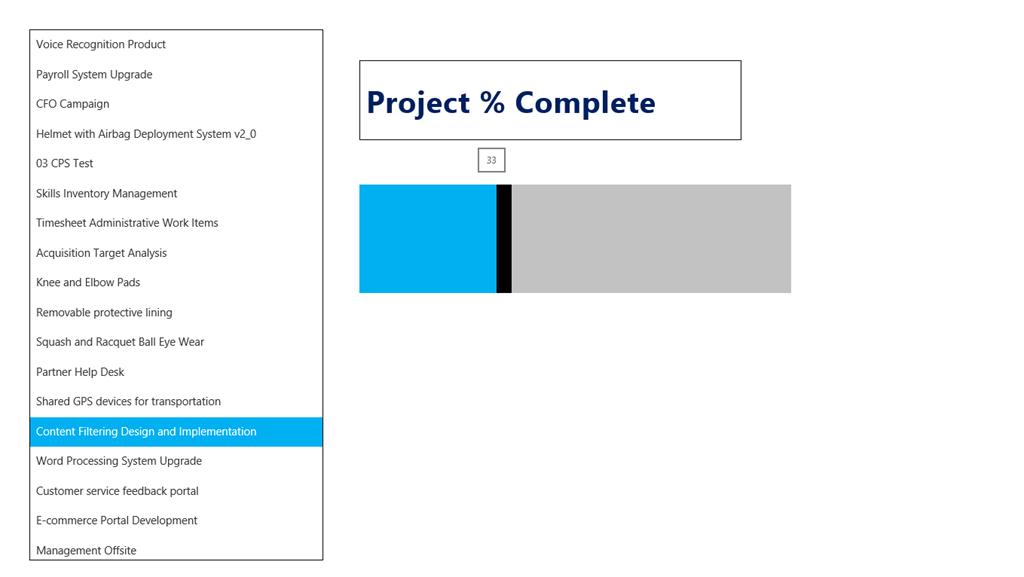
The tooltip shows the % complete.
As mentioned, this is a simple app just to introduce you to Project Siena and demonstrate how easily anyone can create an App with no coding!
Have fun 


Year 2013 Passed, A new to come..
For me the year starts with some big fireworks display, as Dubai has plan to create a world record of biggest fireworks at new year. It was fun to witness such historic moment, at the same time a little guilt that this enormous amount of money could be used to something more useful.

via All about Enterprise Project Management (EPM) http://khurramjamshed.blogspot.com/2014/01/year-2013-passed-new-to-come.html
|
The author of the blog has an extensive experience of working as an EPM Consultant. Currently he is located in Dubai, UAE and working for Microsoft partner organization as Project Server specialist. He has a thorough experience of providing Project Management technical/functional consultancy to all sort of organizations. He is a certified PMP, a Project Server MCITP, and also received a MS community contributor award 2011.
This article has been cross posted from khurramjamshed.blogspot.com/ (original article) |

#ProjectServer 2013/2010 Dec CU is available #sp2013 #ps2013
You can find the details of Project Server 2013/2010 installation package here: http://blogs.technet.com/b/projectsupport/archive/2013/12/12/microsoft-project-server-2010-and-2013-december-cu-announcement.aspx
Note, as usual, that this should be applied to test environment first prior to production. Also Mar 2013 CU is been set as baseline for all Project Sever 2013 CUs, so install Mar 2013 CU first.
Dec CU includes fix to one of the commonly encountered issue:
- Assume that you change values for fields such as Project Owner and Name on a Project Detail Page (PDP) in Project Web App. When you save and refresh the page, the values are reverted to what they were before the change.
Happy patching and Happy New Year to everyone ….
via All about Enterprise Project Management (EPM) http://khurramjamshed.blogspot.com/2013/12/projectserver-20132010-dec-cu-is.html
|
The author of the blog has an extensive experience of working as an EPM Consultant. Currently he is located in Dubai, UAE and working for Microsoft partner organization as Project Server specialist. He has a thorough experience of providing Project Management technical/functional consultancy to all sort of organizations. He is a certified PMP, a Project Server MCITP, and also received a MS community contributor award 2011.
This article has been cross posted from khurramjamshed.blogspot.com/ (original article) |

#ProjectServer and #SharePoint 2010 / 2013 December 2013 Cumulative Update #PS2010 #SP2010 #PS2013 #SP2013 #MSProject
|
I am a Project Server and SharePoint consultant but my main focus currently is around Project Server.
I have been working with Project Server for nearly five years since 2007 for a Microsoft Gold Certified Partner in the UK, I have also been awared with the Microsoft Community Contributor Award 2011. I am also a certified Prince2 Practitioner. This article has been cross posted from pwmather.wordpress.com (original article) |
The Office 2013 December 2013 Cumulative Updates are now available, please see the links below:
http://support.microsoft.com/kb/2912738
***There is no Project Server 2013 Server Roll up package for December 2013 CU***
Project Server 2013 December 2013 CU:
http://support.microsoft.com/kb/2837668
Project 2013 December 2013 CU:
http://support.microsoft.com/kb/2837665
Also worth noting, if you haven’t done so already, install the March 2013 Public update: http://support.microsoft.com/kb/2768001 if installing the December 2013 CU.
The Office 2010 December 2013 Cumulative Updates are now available, please see the links below:
http://support.microsoft.com/kb/2911591
Project Server 2010 Server Roll up package December 2013 CU (Recommended):
http://support.microsoft.com/kb/2849972
Project Server 2010 December 2013 CU (Included in the Server Roll up package):
http://support.microsoft.com/kb/2849978 & http://support.microsoft.com/kb/2849988
Project 2010 December 2013 CU:
http://support.microsoft.com/kb/2849984
Remember SP1 or SP2 is a pre-requisite for the Office 2010 December 2013 CUs.
As always, test these updates on a replica test environment before deploying to production.
For more details see:


#ProjectOnline deployment experience #Office365 #Project #SharePoint #Cloud #PPM #EPM
|
I am a Project Server and SharePoint consultant but my main focus currently is around Project Server.
I have been working with Project Server for nearly five years since 2007 for a Microsoft Gold Certified Partner in the UK, I have also been awared with the Microsoft Community Contributor Award 2011. I am also a certified Prince2 Practitioner. This article has been cross posted from pwmather.wordpress.com (original article) |
I recently worked solely on a Project Online deployment from start to finish and wanted to share my thoughts and experiences with you. Just to be clear, this isn’t the first Project Online deployment I have worked on, I have been involved in many with CPS but this one I have seen through from the beginning to the end.
Overall the Project Online experience is very smooth and efficient. It was the perfect solution for this particular client I have just finished working for. They weren’t sure exactly what they needed or how long they were going to use the system for as another area of the business was already planning Project Server internally but these guys needed something now. Project Online was the perfect choice, no hardware needed, no internal IT involvement, no capital costs.
When working with Project Online, treat this as the separate product it is. Remember it is not Project Server online, it is Project Online. whilst these two products are similar they are different. Many of the features are very similar but you will also find some features not available in one or the other.
One of the key areas I would say you need ensure you fully understand, certainly if you have been working with Project Server for many years like myself, is the reporting side of things. Whilst the typical end user reporting in Project Online is very simple to use, you are limited by ODATA and don’t have the flexibility of the Reporting database access that we have all got used to. Remember, Project Online is a different product to Project Server 2013 on-premise, so don’t think of Project Online reporting as a limitation compared to Project Server on-premise.
For quick and simple deployments, for me, Project Online is the answer. The key advantages to consider with Project Online that can help form any business case needed are:
- The farm is maintained by Microsoft
- The farm is regularly patched with updates by Microsoft
- The system scalability is all handle by Microsoft
- The system continuity / back up is handled by Microsoft
- Any system issues are raised directly to Microsoft for resolution
- Project Online can be up and running within about 30 minutes
- No hardware required
- No capital costs
These aren’t all the advantages, just the key points i could think of at the time of writing.
Speak to your Gold PPM partner today for a free trial – you won’t be disappointed.


Bulk Import tool – (401) Unauthorized error #ProjectServer #PS2010 #SP2010
Before i proceed, please note that Bulk Import tool was released along with the release of Project Server 2010 and to be used with Project Server 2010. Till date, i am not sure, if Bulk Import tool without modification will work with Project Server 2013. This issue, and its resolution, is for Project Server 2010 environment.
Some time back Andrew Lavinsky had discuss Bulk Import tool feature in great detail through his blog, a blog worth every minute of your time. Please go through these blog posts if you are interested to use Bulk Import tool:
My post is to highlight the following issue you may come across while trying validating Site URL:
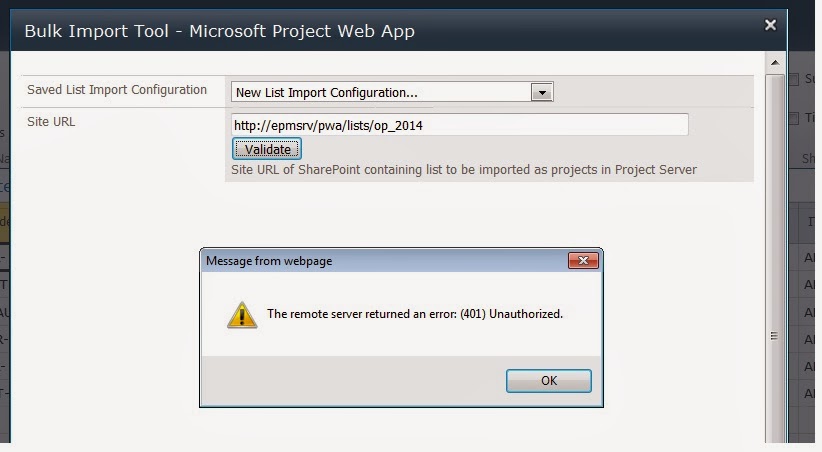
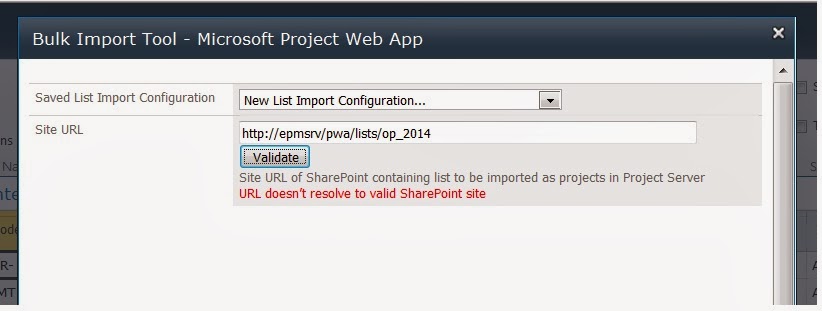
via All about Enterprise Project Management (EPM) http://khurramjamshed.blogspot.com/2013/12/bulk-import-tool-401-unauthorized-error.html
|
The author of the blog has an extensive experience of working as an EPM Consultant. Currently he is located in Dubai, UAE and working for Microsoft partner organization as Project Server specialist. He has a thorough experience of providing Project Management technical/functional consultancy to all sort of organizations. He is a certified PMP, a Project Server MCITP, and also received a MS community contributor award 2011.
This article has been cross posted from khurramjamshed.blogspot.com/ (original article) |

Free #Project 2013 App from CPS #Office365 #Office #Apps #ProjectServer #ProjectOnline
|
I am a Project Server and SharePoint consultant but my main focus currently is around Project Server.
I have been working with Project Server for nearly five years since 2007 for a Microsoft Gold Certified Partner in the UK, I have also been awared with the Microsoft Community Contributor Award 2011. I am also a certified Prince2 Practitioner. This article has been cross posted from pwmather.wordpress.com (original article) |
Just a quick post to highlight a new app that CPS have released for Project 2013, this is the Task Auditor app and can be downloaded using the link below:
http://office.microsoft.com/en-gb/store/task-auditor-WA104172076.aspx
The app can be seen below:

The home page gives a description of the app but also contains a check box to allow the use of Cookies – if you don’t allow the use of Cookies then the configuration settings will not be available and some of the checks might not be 100% accurate.
After checking the check box to allow Cookies, clicking on a task update the app to show the results for the particular task:

At this point also notice there are three tabs, Task, Configure and Help. If you don’t allow Cookies the Configure and Help Tabs will not be visible. The Task Tab displays the checks / tests results for the selected task. The Configure Tab allows the user the enter duration settings and date format:

This is to allow correct calculations for a couple of the checks. These settings are saved and only have to be updated once / as required.
The Help Tab gives details / support for the Configure Tab:

The tests carried out will depend on the type of task selected, Milestone, Summary Task, Work Task etc. The images below show a summary task selected and then a normal work task selected:
Summary Task:

Work Task:

Hovering over the checks, a tooltip gives more information on the check:

Take a look, its free 


Sharepoint 2013 “mark task complete”
A great new feature in 2013 is the ability for a user to “mark task complete” straight from the task list without having to edit the item and click.
Screenshot below illustrates what this is

The issue I had today is that -somehow- the column to tick that task was actually not showing anymore from the task views. The list is definitely a Tasks list but the content type although originally inheriting from the out-of-the-box Task parent Site Collection CT has some custom columns in the site Content Type level.
Cause of issue (why the column was gone): not found yet, may be the “completed” column was edited by a user with design rights, but the formula inside was correct.
Solution: that’s the bad news.
- Re-adding the column again didn’t work as it would not show the column as a Check Box magically but as a value “Yes/No” .. not useful.
- Recreating the view and making it exactly like an out-of-the-box task view did not work, same as above.
- Only solution was to re-create the list fully, and re-add the Custom Task Content Type, then remove the default “Task” Content Type. Once done task can be copy across if needed, as long as there no workflow in progress users will not be disturb as you may even change the URL to the original list later on.
Not a great finding on this feature I am afraid, but since nothing came up on a quick internet search I thought I would share it.
Have you ever wondered how to re-use this “mark as complete” in a fully customised list (not tasks App originally) ? One would think it’s the whole point of having such column, to be able to re-use it somewhere else, right. I could not.
Anyone ?

via François on Sharepoint http://sharepointfrancois.wordpress.com/2013/12/05/sharepoint-2013-mark-task-complete/
 French native Sharepoint Consultant living in London. A crossway between a designer, developer and system architect. Prefers stretching the limit of out-of-the-box features rather than breaking them into code. When not working with Microsoft Sharepoint François is often found on Web2.0 News sites and related social networking tools.
This article has been cross posted from sharepointfrancois.wordpress.com/ (original article) |


 SharePoint (and Project Server) Shenanigans
You must be logged in to post a comment.