How do I: Implement $().SPServices.SPCascadeDropdowns
Documentation for $().SPServices.SPCascadeDropdowns

In my opinion, the tricky part to this is the third list “CascadeExample”. It was unclear to me after reading the documentation on the SPServices website that the two columns “Country” & “Region” in the “CascadeExample” list need to be lookup columns. It might be obvious to everyone else.

Hiding/Showing InfoPath 2010 form element using jQuery
Get the code / Look for the highlight area
InfoPath 2010 is a great tool. However, while building forms in InfoPath it’s only a matter of time when you have a user requirment that InfoPath alone simply will not do. In that case you might have a few options. You could add custom code using VSTA, which means you will need to publish them as an administrator approved form template.You could ditch InfoPath completely and build your forms in Visual Studio 2010 using asp.net. You could build them using the client object model. Lots to think about. In addtion, you could manipulate some form element using jQuery. The video demonstrates a simple way to hide/show a textbox element using jQuery.

Quick Powershell to delete all items in my Sharepoint list
A quick post with a simple script I gathered a while back that comes in handy for data cleansing before releasing a site:
– how to delete the 100s of items in my list without doing it from the web interface (limited to the maximum displayed in a view)
Use the #powershell script below.
Warning: do this at your own risk, don’t get the wrong site/list or you will regret it 
<strong>
</strong> # script starts here…</div>
<div>[System.Reflection.Assembly]::Load(“Microsoft.SharePoint, Version=12.0.0.0, Culture=neutral, PublicKeyToken=71e9bce111e9429c”) | out-null
$oContentService = [Microsoft.SharePoint.Administration.SPWebService]::ContentService;
[Microsoft.SharePoint.Administration.SPWebApplicationCollection]$waColl = $oContentService.WebApplications;
$siteUrl = “http://SharepointSite”
$webName = “”
$spSite = new-object Microsoft.SharePoint.SPSite($siteurl)
$spWeb = $spSite.OpenWeb($webName)
$spList = $spWeb.Lists["List Name"]
foreach ($item in $spList.items)
{
$deaditem=$splist.GetItemById($item.ID)
$deaditem.Delete()
}</div>
<div>


via François on Sharepoint http://sharepointfrancois.wordpress.com/2012/10/31/quick-powershell-to-delete-all-items-in-my-sharepoint-list/
   French native Sharepoint Consultant living in London. A crossway between a designer, developer and system architect. Prefers stretching the limit of out-of-the-box features rather than breaking them into code. When not working with Microsoft Sharepoint François is often found on Web2.0 News sites and related social networking tools.
This article has been cross posted from sharepointfrancois.wordpress.com/ (original article) |
Using jQuery to hide form elements based on checkbox value
Let’s say you wanted to hide/show a specific textbox only if a specific checkbox has been selected. You can use jQuery to do this via SharePoint Designer 2010
How can I validate a textbox using the PreSaveAction()
How do I: Create a simple form to collect data in SharePoint 2010
How can I hide/show a textbox based on a radio button selection?
Practice makes Perfect Part 8 – Customizing the Ribbon
 I have been working with Microsoft Project for a decent amount of time now and I go to a lot of clients during my Project Server implementations. One thing I noticed with the average Project Manager that they never use the feature to customize their ribbon. For the people that do not know what the ribbon is, it is the action bar where all the buttons reside in Office products.

While most buttons you use in Project are already present in the ribbon, they sometimes are not in the place you like them to be. It is my experience that when working on your project plan you mostly use the “Task” tab in your ribbon. What I like to do, is to add a few buttons I use on regular basis in the other tabs to have them in available in the “Task” tab.
Because I work with Project Server a lot I always like to have the “Publish” button in my ribbon, the same goes for the “Set Baseline”, “Entire Project” and “Team planner” buttons.
So how do you do this?
That is the easy part. Go to “File” and select “Options”. In the options menu you can find “Customize Ribbon” and “Quick Access Toolbar”. For this post I will only customize my ribbon.

When you selected the “Customize Ribbon” option you are able to add button to all tabs. Here we will customize the “Task” tab.

Expand the “Task” tab. Now I advise you to make a custom tab for the buttons you want to add. To do this click on “New Group”.


So that is the group. Now that we have our group lets populate it with the extra buttons we want shall we.

Select the button you want to add in my case that is “Publish” and press add. Now select other buttons you want and press ok. Go back to the tab you customized to see the result.

It is that easy. Above the result. Having these buttons all in the “Task” tab saves me the hassle to go the other tabs for them. Everything you need one click away.

via SpeakingSilent » Robin Kruithof http://speakingsilent.wordpress.com/2012/11/01/practice-makes-perfect-part-8-customizing-the-ribbon/
 I am Robin Kruithof. I am working at CXS in the Netherlands as a Microsoft Project Consultant. My passion lies in Project Management and everything in the Project Management domain.
This article has been cross posted from speakingsilent.wordpress.com/ (original article) |

#SP2013 #PS2013 and Business Intelligence TechNet links
Just a few useful links from the newly released / updated TechNet articles around SharePoint, Project Server and BI in 2013
SharePoint 2013
- Hardware planning support: http://technet.microsoft.com/en-us/library/cc262485(v=office.15).aspx
- Browser support including activex controls http://technet.microsoft.com/en-us/library/cc263526(v=office.15).aspx
- Mobile device support: http://technet.microsoft.com/en-us/library/fp161353(v=office.15).aspx
- Software Boundaries and Limitations: http://technet.microsoft.com/en-us/library/cc262787(v=office.15).aspx
- Capacity / Performance Management: http://technet.microsoft.com/en-us/library/ff758647(v=office.15).aspx
- IPv4 / IPv6 Guidelines: http://technet.microsoft.com/en-us/library/cc748826(v=office.15).aspx
Project Server 2013
- Hardware and Software requirements: http://technet.microsoft.com/en-us/library/ee683978(v=office.15).aspx
- Performance and Capacity: http://technet.microsoft.com/en-us/library/ff646967(v=office.15).aspx
- Plan User Access
- Good overview video of the two different permission models and why you would use one over the other: http://technet.microsoft.com/en-us/library/fp161361(v=office.15).aspx
Business Intelligence within SharePoint 2013
- Software Requirements: http://technet.microsoft.com/en-us/library/jj219634(v=office.15).aspx
Excel Services
- Remember with Office Web Apps as a seperate SKU and install, things are a little different this time around…http://technet.microsoft.com/en-us/library/ee424405(v=office.15).aspx
- BI functionality within Excel Services for SharePoint 2013, SharePoint Online and interestingly, SkyDrive: http://technet.microsoft.com/en-us/library/jj219751(v=office.15).aspx
PerformancePoint
- PerformancePoint 2013 overview including migration!!!: http://technet.microsoft.com/en-us/library/ee424392(v=office.15).aspx
- PerformancePoint Strategy Maps: http://technet.microsoft.com/en-us/library/ff535783(v=office.15).aspx
Visio Services
- http://technet.microsoft.com/en-us/library/ee663482(v=office.15).aspx
- Download: http://www.microsoft.com/en-us/download/details.aspx?id=30375
- NB: Remember this is not for production environments yet.
Reporting Services / Power View / PowerPivot
Reporting Services 2012 SP1 CTP3 or higher required for PowerPivot functionality
2012 SP1 CTP4 is out and RS2012 installation details here:
SQL Server 2012 BI – includes links to Report Builder, Power View and PowerPivot help
Reporting Services 2012 Developers Reference
Hardware and Software requirements for Reporting Services and Power View
Supported Reporting Services with SharePoint combinations
Reporting Services add-in locations
Feature support for rs2012 Native vs. SharePoint
Reporting Services 2012 feature availability comparison with different SQL Server 2012 editions
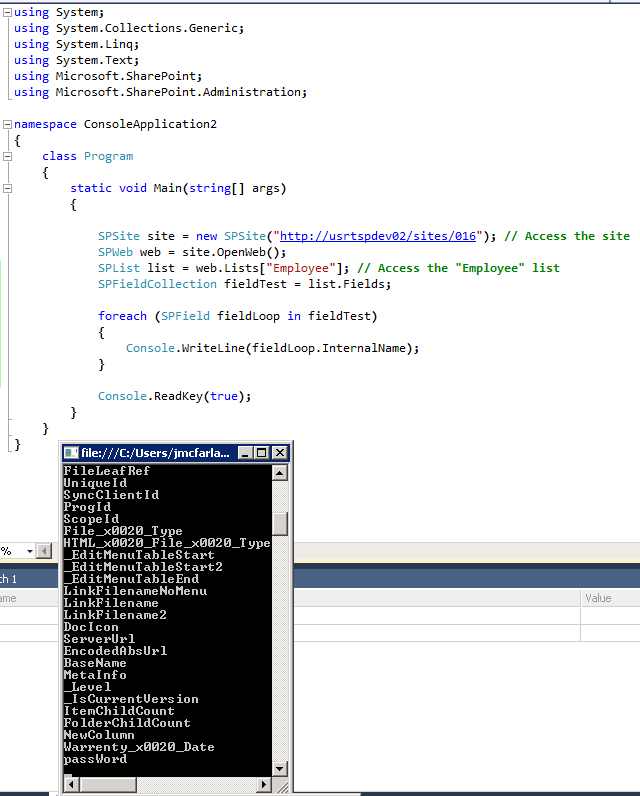
Why can’t I access the column in my SharePoint list programatically?
The answer might be simple. The first time a column is created and you title it “Column1” the database records that. If you (or someone else) later changes the column title to “Column2” your application will break. Why? Because behind the scenes that column is still “Column1”

How do I: Create a FAQ page in SharePoint 2010
How do I: Create a simple form to collect data in SharePoint 2010
This was done using a SharePoint Online site.
There is an important piece of JavaScript code that allows you to re-direct your page once the “Save” button is click:
<input type=”button” value=”Save” class=”btnStyle” name=”btnSave” onclick=”javascript: {ddwrt:GenFireServerEvent(‘__commit;__redirect={http://sharepointsource123-web.sharepoint.com/CRT005/SitePages/RedirectLanding1.aspx}’)}” />
SharePoint Online: Video Streaming
The following video demonstrates how to add streaming video to a SharePoint Online private site collection.
Please note: this will not work on a SharePoint Online public website


 SharePoint (and Project Server) Shenanigans
You must be logged in to post a comment.