Second session new release of Microsoft Project
 After a vacation of both authors we are back and recharged and ready for whatever the last two months of 2012 can throw at us. Blogs will start popping up again in a sort of regular fashion. To start this of, I would like to announce that I am again giving a Dutch presentation at Microsoft in the Netherlands about the new release of Microsoft Project on the 1ste of November.
I am really pleased that I can do this again. I will be giving a overview on what is new in Project Professional 2013 and show you the cloud based version of Microsoft Project Server “Project Online” This session will give you a good overview of the new enhancements and features in the new release that will help anyone that works with Microsoft Project.
It is a free session so if you are interested you can sign up at the link below. Please keep in mind this session is in the Netherlands and will be given in Dutch.
First Look new release of Microsoft Project

Hope to see you there


via SpeakingSilent » Robin Kruithof http://speakingsilent.wordpress.com/2012/10/22/second-session-new-release-of-microsoft-project/
   I am Robin Kruithof. I am working at CXS in the Netherlands as a Microsoft Project Consultant. My passion lies in Project Management and everything in the Project Management domain.
This article has been cross posted from speakingsilent.wordpress.com/ (original article) |

Resetting a windows user password
I recently had to help a friend across the pond (Houston, TX) blindly over the phone to reset the administrator password on their laptop.
I came across the following excellent article to aid the situation:
http://4sysops.com/archives/forgot-the-administrator-password-the-sticky-keys-trick/
However, as usual, the situation was never quite as per the article.
She didn’t know how to boot from CD and the bios wasn’t showing it as a device available in the boot options (F12 on a Dell XPS M1530).
So talking her through the bios setup to enable the CD/DVD boot device, we got there in the in end, popped in the Windows Vista disk and booted into Recovery mode:
- Next on the language screen
- On the install now screen, click repair this install
- Let it find the install on the hard drive and click next
- Select command prompt and run through the options below (taken straight from the site above)
- Please note the instructions below work on the following operating systems:
– Windows XP (requires the admin password, so not much use here)
– Windows Vista
- – Windows 7
TO RESET A FORGOTTEN ADMINISTRATOR PASSWORD, FOLLOW THESE STEPS:
1. Boot from Windows PE or Windows RE and access the command prompt.
2. Find the drive letter of the partition where Windows is installed. In Vista and Windows XP, it is usually C:, in Windows 7, it is D: in most cases because the first partition contains Startup Repair. To find the drive letter, type C: (or D:, respectively) and search for the Windows folder. Note that Windows PE (RE) usually resides on X:.
3. Type the following command (replace “c:” with the correct drive letter if Windows is not located on C:):
copy c:\windows\system32\sethc.exe c:\
This creates a copy of sethc.exe to restore later.
4. Type this command to replace sethc.exe with cmd.exe:
copy /y c:\windows\system32\cmd.exe c:\windows\system32\sethc.exe
Reboot your computer and start the Windows installation where you forgot the administrator password.
5. After you see the logon screen, press the SHIFT key five times.
6. You should see a command prompt where you can enter the following command to reset the Windows password (see screenshot above):
net user your_user_name new_password
If you don’t know your user name, just type net user to list the available user names.
7. You can now log on with the new password.
8. Once you have logged on and you are happy that you can access what you need, we need to revert our changes.
I recommend that you replace sethc.exe with the copy you stored in the root folder of your system drive in step 3. For this, you have to boot up again with Windows PE or RE because you can’t replace system files while the Windows installation is online. Then you have to enter this command:
copy /y c:\sethc.exe c:\windows\system32\sethc.exe
Hopefully this account of resetting the password helps others as well and thank you to Michael Pietroforte for his article. My friend can access her business files again and all up and running.

Populating a drop-down with list values using C# for SharePoint 2010
- Finds the list “My Tasks”
- Gets all items from the “Title” column in the “My Task” lists
- Uses a foreach loop to add all of the “Title” columns values to a drop-down.
Watch the video to see how it works.


Moving repeating table values to another list using a Visual Web Part in C#
InfoPath 2010 repeating tables are useful and sometimes even essential to the project requirements. However, they carry with them some problems. For one thing when multiple values are entered into an InfoPath 2010 form all of the values become crammed into one SharePoint 2010 column. This will cause all kinds of problem down the road if you ever need to access that Info and/or filter it etc. So the following example shows how to move the repeating table values to a separate list where the values can be more efficiently managed.
- I’ve created a Visual Studio 2010 visual web part that fires the code on page load
- You must have a delimiter to separate the values. In this case I have used a ;
- Do NOT add a ; to the last repeating table entry. If you do you will have and extra record in the new list.

How does it work? View the Video below:

Chart Web Part SharePoint 2010
The SharePoint 2010 Chart Web Part is a very useful tool. It has lots of capablity out-of-the box. You can extract data from and Excel sheet and display that data via graphs on a SharePoint 2010 page. This videos shows you how.
Note: the Excel file must be uploaded to a SharePoint document library.
#Office2013 reaches RTM #ProjectServer # PS2013 #SharePoint # SP2013
 I am a Project Server and SharePoint consultant but my main focus currently is around Project Server.
I have been working with Project Server for nearly five years since 2007 for a Microsoft Gold Certified Partner in the UK, I have also been awared with the Microsoft Community Contributor Award 2011. I am also a certified Prince2 Practitioner. This article has been cross posted from pwmather.wordpress.com (original article) |
Quick post to highlight that Office 2013 has reached RTM! For more details see:
http://blogs.office.com/b/office-news/archive/2012/10/11/office-reaches-rtm.aspx


How do I: Setup Visual Studio 2010 Console application to work with SharePoint 2010
Sooner or later the time will come when you will need to use a console application to complete
some type of task in SharePoint 2010. For instance you might need to merge data from
one list into another list using C#. However before you can start coding you need to set up the
the console app to interact with SharePoint 2010. The following video demonstrates how.
NOTE: This will not work for SharePoint Online
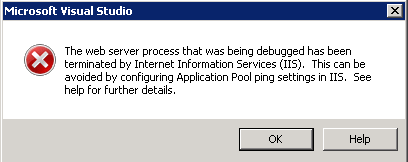
The web server process that was being debugged has been terminated by Internet Information Services (IIS)
Recently I was working on a project that required some debugging. I found myself getting the following error. Watch the video to see how I “fixed” the problem.

Client Object Model: SP.UI.ModalDialog.showModalDialog(options)
SharePoint 2010 has introduced a client object model. Now you can use JavaScript to access SharePoint data. Visit MSDN to have a look at the JavaScript API
http://msdn.microsoft.com/en-us/library/ee538253.aspx


 SharePoint (and Project Server) Shenanigans
You must be logged in to post a comment.