Practice makes Perfect Part 7 – Groups and Filters
 In my post Practice makes Perfect Part 3 – Views I explained how you can make your own view. In that post I promised to also show how you can make your own groups and filters. While I expect a lot of people find this easy or just use the default groups and filters it is still useful for beginners.
I will also take the time to go trough the default filters and groups and might be useful on a daily basis.
And again I will be using the preview version of Project Professional 2013 for this post. This is not the final product and changes may still occur. If you are curios about the new version of Microsoft Project go here and try it out for yourself.
So where can I find groups and filters?
There are actually two ways to use groups and filters in your project. When you are in you project select the view tab.


The other ways is in your Gantt Chart and go to Task Name and expand it (Dropdown). As you can see in the image below you are able to select Group By and Filters.

What groups and filters are there?
There are a lot of built in groups and filters. These are very useful to any Project Manager. Some good groups include: Auto scheduled v. Manually scheduled, Status, Milestones and Complete and Incomplete task. These groups are great way to get the information out of your project plan fast.
Some good filters include: Completed tasks, Critical, Incomplete tasks, Late tasks and Milestones. Like groups this is a great way to filter all the data in your project plan.
Using groups and filters is a timesaver when you are working with big project plans and you have to get to the data you want quickly.
How can I make my own Group?
Go to the view tab and select the groups. Expand it and select “New Group By”.

In the next screen you be able to make your group. In the image below I made a easy selection. I will group by milestone to see all the tasks that are milestones. In the order I selected descending to force tasks that are milestones to appear on top. I also have changed the cell background to light blue. Here you also have the ability to show the summary task where the milestones resides just to give you more information. As you can see you also have the ability to group the data by more then one field.

Grouping this way will give you this result.

As you can see this is a really easy way to group your data really quickly. Making this group took me about 1 minute. And if you are a Project Manager that 1 minute will properly save you 15 minutes if you would have to look for all the milestones in a big project plan. Next how to filter.
How can I make my own Filter?
Making your own filter on the same way you made a group. Go to the view tab and select the filter. Expand it and select “New filter” For this exercise I made a quick filter that filters on my own custom field Progress and show the tasks that equals the value Yellow. This basically filters my project plan on tasks that have a yellow smiley.

The image below show the outcome of the filter.

Using Groups and Filters is really easy and can save you a lot of time when working with big project plans. Both the group and filter have been made in about 1 minute.
I hope this post demonstrates how to make groups and filters and how easy it is. When working with big project plans and especially custom fields where you don’t have a filter or group for it is a must to know how to do this so you can access your data fast.
This is it for me. In the next post of Practice makes Perfect will be talking about Costs and Budgets in your project plan.


via SpeakingSilent » Robin Kruithof http://speakingsilent.wordpress.com/2012/09/20/practice-makes-perfect-part-7-groups-and-filters/
   I am Robin Kruithof. I am working at CXS in the Netherlands as a Microsoft Project Consultant. My passion lies in Project Management and everything in the Project Management domain.
This article has been cross posted from speakingsilent.wordpress.com/ (original article) |

#ProjectServer and #SharePoint 2010 August 2012 Cumulative Update #PS2010 #SP2010 #MSProject
 I am a Project Server and SharePoint consultant but my main focus currently is around Project Server.
I have been working with Project Server for nearly five years since 2007 for a Microsoft Gold Certified Partner in the UK, I have also been awared with the Microsoft Community Contributor Award 2011. I am also a certified Prince2 Practitioner. This article has been cross posted from pwmather.wordpress.com (original article) |
The Office 2010 August 2012 Cumulative Updates are now available, please see the links below:
http://support.microsoft.com/kb/2730388
Project Server 2010 Server Roll up package August 2012 CU (Recommended):
http://support.microsoft.com/KB/2687354
Project Server 2010 August 2012 CU (Included in the Server Roll up package):
http://support.microsoft.com/kb/2687390
Project 2010 August 2012 CU:
http://support.microsoft.com/kb/2687386
Remember SP1 is a pre-requisite for the August 2012 CUs.
As always, test these updates on a test environment before deploying to production


SharePoint 2013 certifications
Not posted in a while and this is a very short post.
the post here http://jussionsharepoint.com/index.php/2012/09/14/the-definitive-guide-to-sharepoint-2013-certifications/
has an overview of some of the new exams for SharePoint 2013

via Buzz Blog http://paulbuzzblog.wordpress.com/2012/09/17/sharepoint-2013-certifications/
 Paul is a an expert SharePoint and Project Server developer and is responsible for designing and implementing custom solutions on client systems using the latest SharePoint and .NET technologies.
Paul has extensive experience with SharePoint systems across all sizes of implementation, ranging from small to large farms and has an excellent understanding of all the elements of SharePoint. This article has been cross posted from paulbuzzblog.wordpress.com (original article) |

#ProjectServer optimisations for #SQL Server and #PS2010 databases #SP2010 #MSProject
|
I am a Project Server and SharePoint consultant but my main focus currently is around Project Server.
I have been working with Project Server for nearly five years since 2007 for a Microsoft Gold Certified Partner in the UK, I have also been awared with the Microsoft Community Contributor Award 2011. I am also a certified Prince2 Practitioner. This article has been cross posted from pwmather.wordpress.com (original article) |
A quick blog post to show the recommended SQL Server and database settings for optimal performance of your Project Server environment. See the SQL queries below along with the TechNet documents for reference.
SQL CLR:
sp_configure ‘clr enabled’, 1
go
reconfigure
go
Print ‘CLR Enabled’
http://technet.microsoft.com/en-us/library/ee662108.aspx#section3
SQL Server MAX Degree of Parallelism (Specific for SharePoint 2010):
sp_configure ‘show advanced options’, 1;
GO
RECONFIGURE WITH OVERRIDE;
GO
sp_configure ‘max degree of parallelism’, 1;
GO
RECONFIGURE WITH OVERRIDE;
GO
Print ‘Max degree of parallelism set to 1′
http://technet.microsoft.com/en-us/library/cc298801.aspx#Section6_3
Server-wide default fill factor:
sp_configure ‘show advanced options’, 1;
GO
RECONFIGURE;
GO
sp_configure ‘fill factor’, 70;
GO
RECONFIGURE;
GO
PRINT ‘Default server-wide fill factor set to 70 %, restart the SQL Service’
Auto_Close and Auto_update_statistics_async:
Update the database names for your Project Server PWA databases.
Alter Database VM353_PWA_Archive
Set AUTO_CLOSE OFF, AUTO_UPDATE_STATISTICS_ASYNC ON
Alter Database VM353_PWA_Draft
Set AUTO_CLOSE OFF, AUTO_UPDATE_STATISTICS_ASYNC ON
Alter Database VM353_PWA_Published
Set AUTO_CLOSE OFF, AUTO_UPDATE_STATISTICS_ASYNC ON
Alter Database VM353_PWA_Reporting
Set AUTO_CLOSE OFF, AUTO_UPDATE_STATISTICS_ASYNC ON
PRINT ‘Project Server databases auto close set to off and auto update stats asynchronous set to on ‘
http://technet.microsoft.com/en-us/library/ee662107.aspx
Please note, if copying and pasting the SQL queries from this post you may need to delete and re-enter the apostrophes.
Also remember the database maintenance plans:
Project Server 2010: http://technet.microsoft.com/en-us/library/cc973097.aspx
SharePoint 2010: http://technet.microsoft.com/en-us/library/cc262731.aspx


Practice makes Perfect Part 6 – Team planner
 I rarely use team planner in my day to day activities what is a shame as it cool be valuable tool for anyone that regularly works with resources. In this post I will try to explain team planner and how you can use it. I will for instance show how resource leveling works and of course all the other options that are available.
Again I will be using Project Professional 2013 for this post. This is still in the preview version and it is not the final product. If you are curious about Project Professional 2013 you can go here and try it out for yourself.
Team planner what is it?
The new feature team planner was added in Project Professional 2010. This feature lets you plan your tasks for resources in a kind of roster. It is also great to spot over allocations and resolving these over allocations. As you can see in the image below you can see that Molly Dempsey is over allocated because she has to do two tasks at once.

Team planner here allows you to move your tasks to solve this over allocation. In this case above you have two options. 1. Reschedule your task or 2. Assign the task to someone else, and this is easy, you can just drag and drop the task.
Within team planner you have also the ability to use resource leveling. Resource leveling does exactly how it sounds. It will automatically solve (reschedule tasks) the over allocations you have your project. While this sounds cool I should also warn you that I might not always does what you want to do. Treat carefully when using this feature. As you can see in the image below I leveled the resource Molly Dempsey.  Microsoft Project will automatically solve the over allocation by placing one task behind the other. This solved the over allocation. However some tasks that have dependencies have been delayed. Like I said be carefully as this will not always do what you want it to do. This is mostly because of dependencies and constraints of a task you didn’t think about.
Always carefully inspect what Microsoft Project has done to your project. A good way to do this is set a baseline before you level. It is a great way to keep track of the changes made in your project. If you don’t know how to make a baseline and use it here is a early post I have made about baselines. Practice makes Perfect Part 2 – Baseline

You have four options when using resource leveling. Level resource will level the selected resource. Level All will level all of your resources in your project. Luckily you have the option to use Clear Leveling if you don’t like what leveling did to your project. Then you also have the ability to play around with the Leveling Options. I am not going to highlight these options here as they are pretty straight forward. Just look at them and play around with some settings.
There are some more things you can do with team planner like adding a note to a resource, great for reminding you what you did with a particular resources. You see check the information of the resource and you can even create a new resource in the team planner view.
The last thing I want to talk about is the details view. I recommend you turn this on all the time. This will give you all the information on the selected resource like what the resource is working ect. This information can be really useful when rescheduling tasks.
I hope this will give you a bit more insight in what you are able to do with the team planner feature and how you can use it when you want to handle over allocations in your project plan.
Up next in the Practice makes Perfect series – Groups and Filters.

via SpeakingSilent » Robin Kruithof http://speakingsilent.wordpress.com/2012/09/12/practice-makes-perfect-part-6-team-planner/
|
I am Robin Kruithof. I am working at CXS in the Netherlands as a Microsoft Project Consultant. My passion lies in Project Management and everything in the Project Management domain.
This article has been cross posted from speakingsilent.wordpress.com/ (original article) |

Project Online – The Timeline in Project Web Access

With the Project Preview that started in July I had the time to test out Project Online. For people that do not know what Project Online is, it is basically Project Server 2013 in the cloud.
Previously made a post about the Project Professional Timeline and how you can use it. That post you can find here and this post is a little addition as Project Online has the Timeline in Project Web Access. I personally really like this addition to Project Web Access as it gives you a nice graphical presentation of your project. However there is a little more in Project Online.
Project Online is still in the preview version this is not the final product so changes can still be made.
So what is it?
Next to the normal functionality of the timeline what is now available in Project Web Access you have the added ability to add projects to the timeline. This enables you to make a graphical presentation of all your projects over time or just a subset of your projects whatever you prefer. So you are basically able to make your own Project Calendar pretty neat right?
So how does it work?
The timeline view in Project Web Access work the same as it does in Project Professional. Go to your project and select the task you want to add to the timeline.

Click add to timeline and you are done. From here you have the options to give them any color you want, make callout tasks and so on.

How can I do this for Projects?
When you are in project center you can select a project and in your projects menu you can select add project. If you want you can even add tasks to that view from a selected project.

When your done adding your projects to the timeline you can create something like this.

Pretty cool I would say. With just a few mouse clicks you can make a graphical presentation of your entire portfolio. If you click on a specific project in the timeline you can even open de project directly from the there.
Microsoft really tried to make Project Web Access as good as it can get. All these little features really make it easy for a project manager to do most of his work just from his browser.

via SpeakingSilent » Robin Kruithof http://speakingsilent.wordpress.com/2012/09/04/project-online-the-timeline-in-project-web-access/
|
I am Robin Kruithof. I am working at CXS in the Netherlands as a Microsoft Project Consultant. My passion lies in Project Management and everything in the Project Management domain.
This article has been cross posted from speakingsilent.wordpress.com/ (original article) |

First Look session on the new release of Microsoft Project
 Next week on the 6th of September Ill be giving a Dutch presentation at Microsoft in the Netherlands about the new version of Microsoft Project. Ill be giving a overview on Microsoft Project Professional 2013 and Project Online. I will demonstrate all the new features that are available in the new version.
This session will give you a good overview of what’s new and coming your way and how to use the new version of Project in your business.
There are still places left for this free session so if you are interested you can sign up here. Please keep in mind this session is in the Netherlands and will be given in dutch.
First Look new release of Microsoft Project
Hope to see you there.


via SpeakingSilent » Robin Kruithof http://speakingsilent.wordpress.com/2012/08/31/first-look-session-on-the-new-release-of-microsoft-project/
|
I am Robin Kruithof. I am working at CXS in the Netherlands as a Microsoft Project Consultant. My passion lies in Project Management and everything in the Project Management domain.
This article has been cross posted from speakingsilent.wordpress.com/ (original article) |

SharePoint 2007 Patching, SharePoint 2010 Site Usage Confirmation
A couple of patching issues have come up recently that are worth sharing.
Security Update for WSS 3.0 Patch, July 2012
http://support.microsoft.com/kb/2596911
We saw this coming through a customers WSUS system, and almost approved it but I decided to take a look at the KB article, the thing that caught my eye was .
After you install this security update, PSCONFIG may run automatically.
From bitter experience we know that this is a bad thing….the WSUS installer will not have any SQL permissions, so this can leave you in a position with different binaries versions on your servers to the schema versions in your databases, so either install by hand or use the PATCH_ARGS=runupgrade=no switch on the command line and deal with PSConfig in a more controlled manner.
SharePoint Site use Confirmation and deletion.
As from the June 2012 CU for SharePoint 2010 the sites deleted by the usage confirmation job will now appear in the recycle bin, so if your using site usage confirmation get the June 2012 installed.
http://sharepoint.microsoft.com/Blogs/fromthefield/Lists/Posts/Post.aspx?ID=149
Update #ProjectServer lookup tables using #PowerShell #PS2010 #SP2010 #MSProject
|
I am a Project Server and SharePoint consultant but my main focus currently is around Project Server.
I have been working with Project Server for nearly five years since 2007 for a Microsoft Gold Certified Partner in the UK, I have also been awared with the Microsoft Community Contributor Award 2011. I am also a certified Prince2 Practitioner. This article has been cross posted from pwmather.wordpress.com (original article) |
I recently wrote a PowerShell script that updates a Project Server lookup table with values from a text file. The script is available to download, I have uploaded it to the Microsoft Script Center below:
http://gallery.technet.microsoft.com/scriptcenter/Update-Server-Lookup-table-bb1ae14f
This post will detail what needs to be updated in the script, the text file and a walkthrough of using the script.
Firstly lets take a look at the text file containing the values that I want to add to my lookup table. Worthing noting is that it can either be an empty lookup table or a lookup table that already contains values. The values I am going to add can be see below:

This script does assume that the lookup table values are all level 1.
As mentioned there are variables / lines in the script that will need to be updated, these can be seen below:
- $values = Get-Content "C:\Lookupvaluestoadd.txt" – This line will need to be updated to reference the filename and path for the text file that contains the lookup table values.
- $lookupTablename = "Test Lookup Table" – This variable will need to be updated to reference the lookup table you wish to update
- $svcPSProxy = New-WebServiceProxy -uri "http://vm353/pwa/_vti_bin/PSI/LookupTable.asmx?wsdl" – This line will need to be updated to reference your Project Server PWA URL, replace http://vm353/pwa with your PWA URL
The following methods will need to be updated to reference to correct local ID, the script currently uses 1033:
- ReadLookupTables
- ReadLookupTablesbyUids (used twice)
- UpdateLookupTables
Now that we have the lookup table values ready in the text file and the lookup table exists, in this example the lookup table is call “Test Lookup Table”, we are ready to execute the script. Also make sure the lookup table is checked in.
As you can see below, currently the “Test Lookup Table” is empty:

After closing the lookup table (the lookup table needs to be checked in), we will execute the PowerShell script to insert the values from the text file. Open Windows PowerShell with a Project Server administrator account and navigate to the location of the script, in this case it is on the desktop:

Press enter to execute:

The script states that everything was successful, now see the lookup table:

I have created some other PowerShell scripts working with lookup tables, I will upload these in the next week or so.
As always, this script is provided as is with no warranties etc. use at your own risk and test on a test environment before using on a production environment.


UK Phone numbers in InfoPath 2010
I was working with a client recently who wanted to be able to submit InfoPath forms with a UK style phone number field of 5 numeric+space+6numeric format, ‘01234 123456’.
I had to do a fair amount of looking around in InfoPath and the web , but finally came across a quite neat solution of pattern matching.
Firstly I had to make the text box accept the data type Text (string)
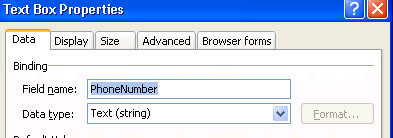
I then created a validation rule for the PhoneNumber control, for the condition I used “PhoneNumber” “does not match pattern”

and selected “Select a pattern…” in the final box, this brings up the Data Entry Pattern dialog box.

From this you can now choose “Custom pattern” I used pattern \d\d\d\d\d \d\d\d\d\d\d to format my input.

With the addition of a screen tip the validation rule is complete


 SharePoint (and Project Server) Shenanigans
You must be logged in to post a comment.