Playing Flash Shockwave video in SharePoint 2010
I recently had a request from a client to help out with a problem they were having getting a Flash video to play in the browser.
The issue here is the AllowedInlineDownloadedMimeTypes list, this is predefined list of files that SharePoint considers safe for displaying in the browser.
If your file extension is not in this list then SharePoint 2010 will not open it in the browser.
You can change the file handling from strict to permissive on your Web App to address this issue, but as we had already updated the list for PDF’s we decided to do the same for Flash Shockwave files.
https://spandps.com/2012/07/06/hardware-load-balancing-aams-and-a-few-other-bits-of-fun/
Three simple lines of PowerShell does the trick
$webApp = Get-SPWebApplication("http://webappurl")
$webApp.AllowedInlineDownloadedMimeTypes.Add("application/x-shockwave-flash")
$webApp.Update()
If you then call the AllowedInlineDownloadedMimeTypes list again without .Add parameter, you will see the extra file type appended to the bottom of the list.

Once that was done we could use the content link property of a editor web part to call a simple piece of HTML saved as text to wrapper our video.
The final step was a add a shockwave icon to SharePoint and update the DOCICON file.
Job Done.
Happy SharePointing
Follow @NeilKing41
Error when accessing ServiceJobDefinitions.aspx page from Central Admin
So i went to manage a timer job and was presented with the following screen.

The ULS logs didn’t reveal too much information other than a nullreference exception.
There is however some more information in the widows application event log
There was an exception loading job definition "Microsoft.Office.Project.Server.Administration.ServerScheduledTimerJob" (id "48a2075b-37ac-4866-b498-997374621326"). Object reference not set to an instance of an object.

To fix the issue some PowerShell is needed to remove the job.
Run the following PowerShell script
$job = Get-SPTimerJob <guid of job>
$job.Delete()
The job definitions pages now loads 


via Buzz Blog http://paulbuzzblog.wordpress.com/2012/08/24/error-when-accessing-servicejobdefinitions-aspx-page-from-central-admin/
   Paul is a an expert SharePoint and Project Server developer and is responsible for designing and implementing custom solutions on client systems using the latest SharePoint and .NET technologies.
Paul has extensive experience with SharePoint systems across all sizes of implementation, ranging from small to large farms and has an excellent understanding of all the elements of SharePoint. This article has been cross posted from paulbuzzblog.wordpress.com (original article) |

#SharePoint 2007 / 2010 and #ProjectServer 2007/ 2010 #BI Reporting made easy #SP2010 #PS2010 #businessintelligence #SQL
 I am a Project Server and SharePoint consultant but my main focus currently is around Project Server.
I have been working with Project Server for nearly five years since 2007 for a Microsoft Gold Certified Partner in the UK, I have also been awared with the Microsoft Community Contributor Award 2011. I am also a certified Prince2 Practitioner. This article has been cross posted from pwmather.wordpress.com (original article) |
Following from my previous post where I briefly introduced a new product from CPS called SharePoint ReportLink, as promised, this post demonstrates the ease of use and ease of reporting on SharePoint data when using SharePoint ReportLink.
For the purpose of this blog post, I have already deployed the solution to my test VM. Worth noting at this point, the version I have installed / used for this blog post is not the final release so you will see CPS DataMart referenced as this was the original product name. Functionally the version I have installed on my VM is probably 99% identical. Firstly I need to activate the feature on the site collection, in this case it is one of my PWA site collections. Once the feature is activated a new heading / menu appears on the Site Settings page for that site collection:

You will see CPS DataMart with four links, Application Settings, List Configuration, List Column Mappings and Logging. We will take a look at each page in turn, firstly the Application Settings page:

I didn’t set any database server or database name, as this is has been activated against a PWA site collection the feature automatically populates the database server with the Project Server Reporting SQL Server name and the name of the Project Server reporting database – pretty cool! You can of course update the settings to use a different database server and custom database. If this feature is activated against a normal SharePoint site collection you will see the following on the Application Settings page:

As you can see there is also a logging level, by default this is set to Information but can be updated:

The SharePoint ReportLink will log events to a custom list to ease diagnostics.
Let’s take a look at the next two page pages together, List Configuration and List Column Mappings.
List Configuration:

List Column Mappings:

As you can see these are just standard SharePoint lists, at this point you need to know what lists and what columns on those list you wish to report on. For the purpose of this blog post I will report on the Issues, Risks and Lessons Learned from my projects sites:

See below the populated / configured List Configuration and List Column Mapping lists:


Once the CPS SharePoint ReportLink is activated and configured on the site collection, any items on the lists configured will be synchronised to the SharePoint ReportLink database tables in real time. This includes, new items created, existing items modified and items deleted from those configured lists across all webs within that site collection.
After setting the List Column Mappings, custom tables will be created in the specified SharePoint ReportLink database, in this case the Project Server Reporting database:
Tables:

Issues list columns:

If those lists already contain items, after setting the column mappings the existing SharePoint items will be created in the SharePoint ReportLink tables.
I then created a few new items on the lists (on PM 1 and PM 2 sites, other items already existed), as you can see from below, the data is available in the custom tables in the reporting database:
Issues:

Lessons Learned:

As you can see, you can quickly and easily access the SharePoint list data from multiple sites using T-SQL. Also notice the Project_UID, this enables you to easily link the SharePoint ReportLink data to your Project Server data. If SharePoint ReportLink reads data from a non Project Server project site, the Project_UID column will contain an empty GUID.
The final menu we haven’t seen yet is the logging list, this can be seen below:

The warnings are logged above as the new custom list, Lessons Learned, doesn’t exist on the majority of my test project sites.
Now that the SharePoint data is easily accessible using T-SQL, reporting could not be simpler using your preferred reporting tool, SSRS, Excel etc. SharePoint BI made easy!
In case you didn’t see the first post, I have included links to the product below:
http://www.cps.co.uk/What-We-Do/Pages/SharePoint-ReportLink.aspx
http://www.cps.co.uk/What-We-Do/Documents/SharePoint%20ReportLink.pdf
I will follow up with a third post and create an SSRS report including the SharePoint ReportLink data in the near future.


Practice makes Perfect Part 5 – Microsoft Project Resource Pool
 I was triggered to make this post about the Resource Pool functionality because I see a lot of questions about it popping up from clients and forums I am involved in.
In this post I will give a quick overview of how you create and use a resource pool.
Note that I am talking about Project Professional here and not the Project Server Enterprise resource pool functionality. I hope this post will give some insight in how you can use this functionality without having the luxury of Project Server.
Again I will be using Microsoft Project Professional 2013 to demonstrate this. However this is the preview version and not the final product changes may still occur.
What is a resource pool?
A resource pool is used to centralize the company resources in a Microsoft Project file. So in essence this Microsoft Project file will contain every employee that can be assigned to a project. The project file can then be saved to a file share so that everyone can access it or it can be saved locally if you only want to use it for yourself. When it is saved you can connect your project plans to the resource pool and gain access to the resources.
Note this file cannot reside on SharePoint. Project Professional won’t allow you to connect to the resource pool that is located on SharePoint.
So what can a resource pool mean for me?
With your project plans connected to the resource pool you can access and assign resource to your projects. When multiple projects share the same resource pool you will get a good view of the allocation of the company resources. This also allows you to see over-allocated resources where you have the ability to act on it.
So how do I create a resource pool?
The first thing you need to do is open Microsoft Project Professional and save the file to the location where you want your resource pool to reside. Give it a clear name that it is the resource pool. For this post I will call mine CXS Resource Pool.
When you created the file and saved it, you have to start filling it with your resources. Depending on how many resources you need to fill in this could take a while. A little trick to make it easy. If you happen to have a excel fill with employees names you can just copy it into the resource sheet.
Note: Make sure you have a name convention in place. Project doesn’t see the difference between R. Kruithof or Robin Kruithof. This could lead to duplicate resource in your resource pool and we don’t want that.
Ok now that we saved are resource pool and filled it with resources let’s see what it does, shall we.

Now that I have created my resource pool, how do I use it?
Before I tell you how to use it I have to tell you about the catch. To use the resource pool with your project it also need to be opened. This however can be in read-only mode as long as you have it open. Otherwise your project is not able to get the resource information out of the resource pool. Now that’s out of the way let’s continue.
Create your project and go to the resource tab. Click on Resource Pool and then Share Resources.

Select Use resources (requires at least one open resource pool) and select your resource pool file. Also make sure that Pool takes precedence and press OK.

Note: When you link a project to the resource pool Microsoft Project will recognize the project file as a resource pool. Whenever you open the resource pool you will get the following message.

My advice is if you don’t need to edit always open read-only. Additionally, once a project is linked to the resource pool it will ask you if it should open it. When clicking ok it will open the resource pool in read-only mode.
Now that you have linked the project to the resource pool we can start using it. As you can see in the image below I am able to select the resources residing in the resource pool.

For this post I made two projects: Project A and Project B. Both of these projects are linked to the resource pool. Let’s see what happens when I start assigning resource to my task. For good measure I will also create some over-allocation.

As you can see in the image above the project now has a over-allocation (The red man icon identifies over-allocations). This information is gathered from the resource pool.
Ok now to see where the over-allocation resides. You can either see this from the resource pool or from the project itself.
Let’s go to the Resource Usage sheet to see where the over allocation occurs.
Tip: In the Resource Usage view add the column “Project” and open the details view as well to get a clear indication which task of which projects are creating the over allocation.

As you can see in the image above the project gives you a clear indication on where the over- allocation resides. And because you know were the conflicts are you are able to act on it by using the team planner for example.

In the image above I have three options. One: delay the task of Project B. Two: delay the task of Project A or, Three: hand over the task to Alex running as he seems to have time. This example all depends on the priority of the projects and the ability of Alex Running to take over a task from Tim Mouse.
A resource pool gives you great insight on the resource utilization over multiple projects. Add this with the ability to make reports and you have a great way to see which resource is doing what and plan accordingly.
After playing around some more with over-allocations and reports I created the following report see image below. I love the new report functionality in Microsoft Project Professional 2013.
Note: When you want to create a report always do this in your project. The reason behind it is that while the resource pool has your resource information most reports are based on tasks even for resources. Because this information is located in the project plan you won’t be able to create a report with the information in the resource pool file itself.
I hope this gives a bit more insight in how to create a resource pool and how you can use it. It is great functionality for organizations that does not have Project Server but still want to do centralized resource management. Using the resource pool will take some time to get used to and to use it effectively. But in the end it is worth it.

via SpeakingSilent » Robin Kruithof http://speakingsilent.wordpress.com/2012/08/21/practice-makes-perfect-part-5-microsoft-project-resource-pool/
 I am Robin Kruithof. I am working at CXS in the Netherlands as a Microsoft Project Consultant. My passion lies in Project Management and everything in the Project Management domain.
This article has been cross posted from speakingsilent.wordpress.com/ (original article) |

#SharePoint 2007 / 2010 Reporting #SP2010 #PS2010 #ProjectServer #BI #businessintelligence #SQL
|
I am a Project Server and SharePoint consultant but my main focus currently is around Project Server.
I have been working with Project Server for nearly five years since 2007 for a Microsoft Gold Certified Partner in the UK, I have also been awared with the Microsoft Community Contributor Award 2011. I am also a certified Prince2 Practitioner. This article has been cross posted from pwmather.wordpress.com (original article) |
A quick blog post to highlight a new product that CPS have released. The product is called SharePoint ReportLink. Details for the product can be found below:

http://www.cps.co.uk/What-We-Do/Pages/SharePoint-ReportLink.aspx
http://www.cps.co.uk/What-We-Do/Documents/SharePoint%20ReportLink.pdf
This product enables end users to easily create reports on SharePoint data using their favourite reporting technology without having to use the SharePoint web services. The product is an easily installable SharePoint solution (WSP file). Once the solution is installed, configuration is very simple too, users specify what lists and fields in those lists they wish to report on. The data is then available in real time in a specified reporting database. This enables users to create reports on SharePoint data using T-SQL to the custom reporting database rather having to use the SharePoint web services to access the data. This is particularly useful for Project Server programme level reports where you want to read data from multiple project sites in the one report.
Look out for a full blog post very soon where I will demo the configuration and usage to show you how powerful and simple to use this product is.


gantt charts in SSRS
This is just a quick post while I am in a meeting on how to create gantt charts within SSRS.
http://pnarayanaswamy.blogspot.co.uk/2010/09/range-bar-chart-gantt-chart-using-ssrs.html
I hope to expand on this post in the future with my own experiences.

via Buzz Blog http://paulbuzzblog.wordpress.com/2012/08/17/gantt-charts-in-ssrs/
|
Paul is a an expert SharePoint and Project Server developer and is responsible for designing and implementing custom solutions on client systems using the latest SharePoint and .NET technologies.
Paul has extensive experience with SharePoint systems across all sizes of implementation, ranging from small to large farms and has an excellent understanding of all the elements of SharePoint. This article has been cross posted from paulbuzzblog.wordpress.com (original article) |

Practice makes Perfect Part 4 – Indicators
 Not so long ago I was talking to a friend of mine who said that while he likes indicators in his project plan he just doesn’t have the time to figure out how to make them. So hé why not blog about it because he is probably not the only one that works with project on a day to day basis and want to get something more out of his plan.
To start of you need to know about the limitations. In standard Project Professional you are only able to make two types of indicators. One for Tasks and one for Resources. If you happen to work for a company that has Project Server you are also able to make indicators for Projects. This feature is mostly used to make nice dashboards.
In this post I am going to focus on what you can do in Project Professional without a connection to Project Server. Ill discuss and make a indicator for a Task.
Ill be using Project Professional 2013 for this exercise. Like always this is still the preview version so changes may still occurred. (My gut says that their won’t be but hé I still need to point it out.)
Let’s start shall we.
So how do I make a indicator?
When you started up Project Professional go to Project and select Custom Fields.

When you click on Custom Field you will be presented by the screen below.

In the top you can see which field you are making something for. Default setting is Task but you can also make one for resources. For this exercise I will be using the field Text1.
For the indicator I renamed the field Text1 to Progress. When you rename the field Text1 it will be displayed like this Text1 (Progress). In essence this will mean that for Project the field Text1 is still there but will display a different name.
As you can see I can do multiple things with this field like a lookup field or just a text field. But for now I am going to stick to making a Indicator. For this indicator I need formula and I am going to use this one:
IIf([Baseline Finish]=ProjDateValue(“NA”);”No Baseline”;IIf([Finish]<=[Baseline Finish]+5;”Green”;IIf([Finish]<=[Baseline Finish]+10;”Yellow”;”Red”)))
The above formula basically does the following: When no Baseline is set it will display “No Baseline”, if a baseline is set and the finish date of the task and the finish date of the baseline is on time with a slack of 5 days it will display the text green. If the task finish date is later then 5 days with a slack to 10 days it will display the text yellow. If it is later then 10 days it will display the text Red.
The reason behind this formula is that I don’t want to have a yellow or red smiley if I am one day late on my task. Because that is not a good representation of the project.

To make indicators I am going to map the text output to a Indicator. No Baseline equals a question mark. Green equals a green smiley. Yellow equals a Yellow smiley and Red equals a Red smiley.
The next thing you need to do is add the new field to your view. In Practice makes Perfect Part 3 – Views I showed how to do this.
However in this post I will just add the column to the default view. To add the field to the view you need to insert a new column. Be aware that you need to add the column Text1 instead of whatever name you gave to your field. When done it will look something like this.

As you can see I didn’t set a baseline yet for this project plan. Let’s change that shall we.

As you can see, after I changed my baseline and modified some days all indicator come out nicely.
This is just one indicator but depending on your needs you can make a few more. If you also seen Practice makes Perfect Part 3 – Views and know how to build a view you can actually make a dashboard with multiple indicators. This you could use to show management for example.
So it is easy to create indicators?
The hardest part of making a indicator is deciding what you want to see. After you decided what do see you have to make the formula. For more then one Project Manager this will be difficult. My advice is to ask around your own department or IT department that knows something about scripting or programming (it is really easy for them).
You can also look onto the internet their is a lot information about formula’s and how to create them.
I hope this post gives a little insight on how to create a indicators for your project. It can be really useful like said for a dashboard or to give a overall indications on your project.

via SpeakingSilent » Robin Kruithof http://speakingsilent.wordpress.com/2012/08/16/practice-makes-perfect-part-4-indicators/
|
I am Robin Kruithof. I am working at CXS in the Netherlands as a Microsoft Project Consultant. My passion lies in Project Management and everything in the Project Management domain.
This article has been cross posted from speakingsilent.wordpress.com/ (original article) |

Embedding PDF files with the Content Editor Web Part #SP2010 #SP2013 #MSProject
Whilst working on a proof of concept for a knowledge portal. We had the need to embed PDF documents into a web page and do some fancy jiggery pokery ™ around expanding the PDF view to full screen dynamically etc..
Anyway, along my travels I came across the query string API when referencing PDF documents for embedding purposes and figured it might useful for others as well. So without further ado…
Blog post on the Adobe site:
File Download: PDF Open Parameters
Just for my own reference:
After the file name start with a #, then each parameter uses an &.
My Personal Example:
Code Example:
To demonstrate this, I added a Content Editor Web Part with some code to show the PDF file inside an iFrame.
For the purposes of my client who wanted to see if the PDF would scale if we resized the screen, I then wrapped some jQuery around it to resize the div and iFrame.
Code Download
Options:
- http://example.org/doc.pdf#Chapter6
- http://example.org/doc.pdf#page=3
- http://example.org/doc.pdf#page=3&zoom=200,250,100
- http://example.org/doc.pdf#zoom=50
- http://example.org/doc.pdf#page=72&view=fitH,100
- http://example.org/doc.pdf#pagemode=none
- http://example.org/doc.pdf#pagemode=bookmarks&page=2
- http://example.org/doc.pdf#page=3&pagemode=thumbs
- http://example.org/doc.pdf#collab=DAVFDF@http://review_server/Collab/user1
- http://example.org/doc.pdf#page=1&comment=452fde0e-fd22-457c-84aa-2cf5bed5a349
- http://example.org/doc.pdf#fdf=http://example.org/doc.fdf
- Further examples from the documentation:
| Syntax | Description |
| nameddest=destination | Specifies a named destination in the PDF document. |
| page=pagenum | Specifies a numbered page in the document, using an integer value. The document’s first page has a pagenum value of 1. |
| comment=commentID | Specifies a comment on a given page in the PDF document. Use the page command before this command. For example:#page=1&comment=452fde0e-fd22-457c-84aa-2cf5bed5a349 |
| collab=setting | Sets the comment repository to be used to supply and store comments for the document. This overrides the default comment server for the review or the default preference. The setting is of the form store_type@location, where valid values for store_type are:lDAVFDF (WebDAV)lFSFDF (Network folder)lDB (ADBC)
For example: #collab=DAVFDF@http://review_server/Collab/user1 For more information on comment repositories, see Acrobat Online Collaboration: Setup and Administration. |
| zoom=scalezoom=scale,left,top | Sets the zoom and scroll factors, using float or integer values. For example, a scale value of 100 indicates a zoom value of 100%.Scroll values left and top are in a coordinate system where 0,0 represents the top left corner of the visible page, regardless of document rotation. |
| view=Fitview=FitHview=FitH,topview
=FitVview =FitV,leftview =FitBview =FitBHview =FitBH,topview =FitBVview=FitBV,left |
Set the view of the displayed page, using the keyword values defined in the PDF language specification. For more information, see the PDF Reference.Scroll values left and top are floats or integers in a coordinate system where 0,0 represents the top left corner of the visible page, regardless of document rotation.Use the page command before this command.Note:This parameter is not supported on the command line. |
| viewrect=left,top,wd,ht | Sets the view rectangle using float or integer values in a coordinate system where 0,0 represents the top left corner of the visible page, regardless of document rotation.Use the page command before this command.Note:This parameter is not supported on the command line. |
| pagemode
=bookmarkspagemode =thumbspagemode =none (default) |
Displays bookmarks or thumbnails. |
| scrollbar=1|0 | Turns scrollbars on or off. |
| search=wordList | Opens the Search panel and performs a search for any of the words in the specified word list. The first matching word is highlighted in the document.The words must be enclosed in quotation marks and separated by spaces. For example:#search=”word1 word2″You can search only for single words. You cannot search for a string of words. |
| toolbar=1|0 | Turns the toolbar on or off. |
| statusbar=1|0 | Turns the status bar on or off. |
| messages=1|0 | Turns the document message bar on or off. |
| navpanes=1|0 | Turns the navigation panes and tabs on or off. |
| highlight=lt,rt,top,btm | Highlights a specified rectangle on the displayed page. Use the page command before this command.The rectangle values are integers in a coordinate system where 0,0 represents the top left corner of the visible page, regardless of document rotation. |
| fdf=URL | Specifies an FDF file to populate form fields in the PDF file being opened. For example:#fdf=http://example.org/doc.fdfNote:The fdf parameter should be specified last in a URL. |
SharePoint 2010 #RSS Feeds
One of the SharePoint configuration items that I tend to asked about is getting external RSS feeds to work, there are quite a few articles and blogs on the web that talk through specific problems, but I thought I would share my experiences with SharePoint & RSS.
So what is an RSS feed and why might we want to consume it, simply put and RSS (Really Simple Syndication) feed is a way used to publish often updated content in standard format that can be easily consumed. To find out if a site publishes an RSS feed, simply go to it and look for the RSS Feed symbol in Internet Explorer turn from Grey  to Orange
then just click on the feed button to view the feed address ( examples below use BBC News)

and then then view and subscribe to the feed.

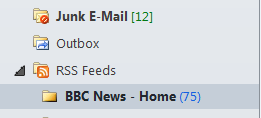
Also if you are using Outlook and sync with the Common Feed List (the one that Internet Explorer keeps)

then the feed will appear in your mailbox as well.
What does all this have to do with SharePoint I hear you ask, in a perfect world you would go to your SharePoint site, edit a page, add the RSS viewer webpart, edit the RSS Feed URL property…

… and as if by magic the shopkeeper appeared, no sorry wrong story, as if by magic your feed will be displayed…

but more often then not you get the error below… or something similar.

or if you are using the free and rather excellent Bamboo Solutions World Clock and Weather web part http://store.bamboosolutions.com/ps-55-5-world-clock-and-weather-web-part.aspx you might see the error below.

This is normally caused by one of 2 problems
Location of Proxy
Type of Windows Authentication used
Location of Proxy
If your SharePoint Web servers are located behind a proxy, they will need to know where the proxy is that traffic needs to go through, to do this updated your web.config for the site in question (if you have multiple WFE’s don’t forget to update each one)
Backup, then edit the <defaultProxy> section to make it look like this.
<defaultProxy useDefaultCredentials="false">
<proxy proxyaddress=”http://YourProxyServer” bypassonlocal="true" />
</defaultProxy>
Type of Windows Authentication
Once you have the settings about in place, the type of authentication in use at the web application level comes into play. If you are using NTLM, then you still may have a problem as your client side credentials will not be passed on your proxy server due the ‘double hop’ issue of NTLM so you can either set a bypass rule on your proxy to allow unauthenticated traffic out or configure your web app to use Kerberos authentication, once that is resolved your web parts should work as per below.


SharePoint List\Project Workspace list datasheet view edit problem.
 This is a bit more technical post then you are used to. But I find it important to do some of these from time to time.
One of my clients had a problem about editing a list in the datasheet view in a Project Workspace. I also seen this issue coming up on the MSDN forums. A good opportunity for me to make a small post how to correct this.
In SharePoint 2010 or in this case the Project Server 2010 Project Workspace it is possible to edit a list in the datasheet view.
Now my client really wanted to edit the column “Comments” however this was for some reason not possible. The datasheet view didn’t let you edit the column and looked like it was only read-only. Here is what I did to fix this problem.
Go to the list you want to be able to edit in the datasheet view. Go to List Settings.

Go to the columns you want to change and edit it.

As you can see in the picture below it has been set to enriched text.

The only thing you need to do is set it to Plain text.
Now go back to the list and go to the datasheet view. Now go to the column you want to edit. As you can see you are now able to enter text. Just a quick fix if you ever run into this problem.
This is it for me for now up to the next post Practice makes Perfect Part 4 – Indicators.

via SpeakingSilent » Robin Kruithof http://speakingsilent.wordpress.com/2012/08/13/sharepoint-listproject-workspace-list-datasheet-view-edit-problem/
 I am Robin Kruithof. I am working at CXS in the Netherlands as a Microsoft Project Consultant. My passion lies in Project Management and everything in the Project Management domain.
This article has been cross posted from speakingsilent.wordpress.com/ (original article) |


 SharePoint (and Project Server) Shenanigans
You must be logged in to post a comment.