Archive
#ProjectServer 2013 Project Center view failed to load #PS2013 #SP2013
   I am a Project Server and SharePoint consultant but my main focus currently is around Project Server.
I have been working with Project Server for nearly five years since 2007 for a Microsoft Gold Certified Partner in the UK, I have also been awared with the Microsoft Community Contributor Award 2011. I am also a certified Prince2 Practitioner. This article has been cross posted from pwmather.wordpress.com (original article) |
I have seen this issue a few times now in Project Server 2013 where users see the error “View Failure The view failed to load. Press OK to reload this view with the default settings. Press Cancel to select another view”

Clicking OK gives another error: “You don’t have permissions to view any projects”

This isn’t the case in this example.
There are two scenarios that I know of that cause this particular issue, these are described below:
Note: My farm is in the Project Server permission mode.
For an existing user:
• Log in as User A, access the Project Center, access “View A” – all works great
• Change the permissions so that User A no longer has access to “View A” or delete “View A”
• Log in as User A, access the Project Center, User A will see the View failed to load error
For a new user – never accessed the farm before:
• Prevent access to the default Project Center “Summary” view for the Team Members Group but allow access to other Project Center views
• Create a new user (User B) that is only in the Team Members Group
• Log in as User B (a new user on the farm), access the Project Center, User B will see the View failed to load error
The ULS logs gives the following error:
Error is: GeneralSecurityAccessDenied. Details: User does not have permission to this view. . Standard Information: PSI Entry Point: Project User: i:0#.w|support\userb Correlation Id: 2f5e74c7-c751-e311-9419-00155d15d154 PWA Site URL: http://vm753/PWA SA Name: ProjectServer PSError: GeneralSecurityAccessDenied (20010), LogLevelManager Warning-ulsID:0x347A6230 has no entities explicitly specified. ea70589c-4f64-e059-ef52-a016cf63c1ed
InitViewReportInfo ViewUid:63d3499e-df27-401c-af58-ebb9607beae8 is not found. ea70589c-4f64-e059-ef52-a016cf63c1ed
The remote command PWAProjectGetProjectCenterProjectsForGridJsonRemoteCommand encountered an unexpected exception. ea70589c-4f64-e059-ef52-a016cf63c1ed
If you have removed the default Project Center Summary view, either removed access to it or deleted it (new user scenario), or removed any other Project Center views that users may have accessed last (existing user scenario), the known workaround at this point is as follows. Click the Projects Tab, select a view from the view menu then refresh the page. At this point the view will load and the Project Center will continue to load successfully.


When upgrading #ProjectServer #PS2010 to #PS2013, consider any custom project site templates #SP2013 #SharePoint
|
I am a Project Server and SharePoint consultant but my main focus currently is around Project Server.
I have been working with Project Server for nearly five years since 2007 for a Microsoft Gold Certified Partner in the UK, I have also been awared with the Microsoft Community Contributor Award 2011. I am also a certified Prince2 Practitioner. This article has been cross posted from pwmather.wordpress.com (original article) |
I have seen this posted quite often on the Project Server forums so I thought I would write a quick blog post.
When upgrading from Project Server 2010 to Project Server 2013, you will need to recreate the customised Project Site templates. Project Server 2013 doesn’t recognise the Project Server 2010 project site templates. Project Server 2013 project sites now have a template name / ID of PROJECTSITE#0, Project Server 2010 project sites use PWS#0. This can be seen below:
2013:

2010:

When recreating the new site template in 2013, start with the “Project Site” template on the Collaboration tab found on the new SharePoint site page.


How to check the #ProjectOnline database usage #ProjectServer #PS2013 #SP2013 #SharePoint #SharePointOnline #Office365
|
I am a Project Server and SharePoint consultant but my main focus currently is around Project Server.
I have been working with Project Server for nearly five years since 2007 for a Microsoft Gold Certified Partner in the UK, I have also been awared with the Microsoft Community Contributor Award 2011. I am also a certified Prince2 Practitioner. This article has been cross posted from pwmather.wordpress.com (original article) |
A quick blog post to detail how you can check the Project DB size in Project Online. With Project Online, each Project Web App site collection can have a 10 GB Project database:
To check Project database usage for Project Online, access your SharePoint Admin page in Office 365. On the Site Collections page, select the PWA site collection, then click Settings from the Project Web App menu as shown below:

This will display the Project Database Usage:


Should I display duration fields on the #ProjectServer PDPs? #PS2010 #PS2013 #SP2010 #SP2013 #SharePoint #ProjectOnline #MSProject
|
I am a Project Server and SharePoint consultant but my main focus currently is around Project Server.
I have been working with Project Server for nearly five years since 2007 for a Microsoft Gold Certified Partner in the UK, I have also been awared with the Microsoft Community Contributor Award 2011. I am also a certified Prince2 Practitioner. This article has been cross posted from pwmather.wordpress.com (original article) |
The answer to this question in my opinion is no. In this blog post I will explain why using an example.
Firstly I have created a new test duration field on my test Project Server 2013 environment, this is called _duration.

For the purpose of this post, I also have a new Project Detail Page (PDP) that only displays the _duration field. A new project is created, the schedule it not important here, just the value you specify in the _duration field. As you can see below, I have entered 10 days:

Save and publish this to Project Server and take a look at the project in PWA. You can see the project in PWA as shown below:
Project Center:

Notice the _duration field correctly shows the 10 days.
PDP:

Notice the _duration field correctly shows the 10 days.
All ok at this point. Before we move on, I just want to show the project options for this project, specifically the hours per day:

Notice this is set to the default 8 hours per day. Update this to 7 hours per day. You will then notice that the _duration field correctly updates to 11.43 days:

Reset this back to 10 days then save and publish the project again.
The Project Center still display 10 days in the _duration field:

The PDP will show the incorrect duration in the _duration field:

The PDP’s assume the default 8 hours per day is used for each project. At this point the PM will probably think, lets correct the 8.75 days to 10 days. So lets do this, this is now correct in the PDP:

Great. Not quite, now take a look in the Project Center:

Notice the 11.43 days. Also check the Project Information in Project:

I was aware of this issue in Project Server 2010 but only just came across the same thing in Project Server 2013.
Hopefully that explains why I answered “no” to displaying duration fields on the Project Server PDP’s, it will save a lot of confusion with your Project Managers! As with all answers there is normally an exception to the rule and you can probably guess what that is. Displaying duration fields on PDP’s will be fine if your projects are 8 hour days 


#ProjectServer #PS2013 #Project Site permission sync clarification #SP2013 #SharePoint #ProjectOnline
|
I am a Project Server and SharePoint consultant but my main focus currently is around Project Server.
I have been working with Project Server for nearly five years since 2007 for a Microsoft Gold Certified Partner in the UK, I have also been awared with the Microsoft Community Contributor Award 2011. I am also a certified Prince2 Practitioner. This article has been cross posted from pwmather.wordpress.com (original article) |
Just a quick post to make you aware of a design change in the Project Server 2013 project site sync when in Project Server permission mode. The only issue is that you may find project team members without assignments are granted edit access to the associated project site rather than read access – this is now by design.
In Project Server 2010 if a user / resource was added to the project team but not assigned to any tasks they were added to the Readers (Microsoft Project Server) SharePoint group on the associated project site. This is different in Project Server 2013, when the users / resources are added to the project team but not assigned to tasks they are added to the Team Members (Project Web App Synchronized) SharePoint group rather than an equivalent Readers (Microsoft Project Web App) group. This is working as designed as there are now only two SharePoint groups on the Project Sites used in the permission sync:
Project Managers (Project Web App Synchronized)
Users who have published this project or who have Save Project permission in Microsoft Project Web App.
Team Members (Project Web App Synchronized)
Users who have assignments in this project in Microsoft Project Web App.
This could be misleading if you used 2010 and also if you view the SharePoint permission level descriptions. The Project Server 2013 Project Site permission levels can be seen below:

The “Readers (Microsoft Project Web App)” states “Users who have been added to this project in Microsoft Project Web App, but not assigned to tasks.”
Also the “Team Members (Project Web App Synchronized)” SharePoint group permission description is not quite accurate as it should states that it also includes project team members without assignments:
“Users who have assignments in this project in Microsoft Project Web App”

Hope that helps.


Changing #SharePoint Central Admin Regional Settings stops the #PowerPivot Dashboard timer job #SP2013 #PS2013
|
I am a Project Server and SharePoint consultant but my main focus currently is around Project Server.
I have been working with Project Server for nearly five years since 2007 for a Microsoft Gold Certified Partner in the UK, I have also been awared with the Microsoft Community Contributor Award 2011. I am also a certified Prince2 Practitioner. This article has been cross posted from pwmather.wordpress.com (original article) |
Take care when updating the Central Admin regional settings as certain things stop working. The link to update the region settings doesn’t exist on the Site Settings menu probably for this reason but you can type the URL manually and access the page. Just add _layouts/15/regionalsetng.aspx to the URL.
Central Admin region settings were updated to English (United Kingdom), which is ID 2057.
An example of functionality that stops working is the PowerPivot Dashboard Processing Timer Job:

For the benefit of the search engines:
‘The Execute method of job definition Microsoft.AnalysisServices.SPAdding.UsageProcessingTimerJob(ID 5144359a-e86d-429f-8a5c-8c06cca109ee) threw an exception’
The following error is thrown in the URL logs:

For the benefit of the search engines:
Failed to load ‘http://sp13:15000/PowerPivot%20Management/567b4062-7a0b-4b24-a7f5-994bbed90cf1/2057/Server%20Health.xlsx’ with error: ‘The workbook does not exist at the specified location’
This error lead us to the fix. Notice the 2057 in the URL. Navigating the the PowerPivot Management library, there was no 2057 folder, only a 1033 folder.
A 2057 folder doesn’t exist, on 1033 – for English (United States):

At this point you can either create a a new folder for the correct locale in this case 2057 for English (United Kingdom), then copy the 3 documents shown below from the 1033 folder to the 2057 folder:

The timer job will now run successfully and the dashboard will update. The other option is to set the regional settings for Central Admin back to English (United States) – probably the recommended fix!
The the Dashboard will update and show data:


Take care when deleting the #Project Ideas list in #ProjectServer #PS2013 #SP2013 #SharePoint #ProjectOnline #PPM
|
I am a Project Server and SharePoint consultant but my main focus currently is around Project Server.
I have been working with Project Server for nearly five years since 2007 for a Microsoft Gold Certified Partner in the UK, I have also been awared with the Microsoft Community Contributor Award 2011. I am also a certified Prince2 Practitioner. This article has been cross posted from pwmather.wordpress.com (original article) |
Just a quick blog post to ensure you take care when deleting the project ideas list and to let you know of potential issues with deleting projects that were created via the deleted project ideas list.
This post covers the issues you will see when trying to delete a project from Project Server that was created from a project ideas list after the list was deleted.
Example Project Ideas list:

Project created in Project Server from the Project Ideas list above:

Delete the Project Ideas list from the “List Settings” > “Delete this list” option.
Now try to delete the project that was initiated from the Project Ideas list, in this example delete the PM Test Project from the Delete Enterprise Objects menu in server settings. Navigate to the Project Server queue and you will notice that Project Delete job fails:

The key error is:
Microsoft.Office.Project.Server.BusinessLayer.QueueMsg.RemoveIdeaListLinkMessage‘ messageID=’8′ stage=” blocking=’Undefined’
You will see the the project still exists in the Project Center:

But trying to access the project details gives an error:

Checking the Delete Enterprise Objects page shows that the project is not visible when selecting “Delete draft and published projects”:

Change to “Delete only published projects” shows the project:

Attempting the delete again throws the same error.
My advice at this stage is to recover the deleted Project Ideas lists if possible. In this example I still had the Project Ideas list in the PWA site recycle bin. After restoring this deleted list, the subsequent delete job for the “PM Test Project” completed successfully.
With this in mind, I would recommend that you do not delete any PWA lists that have been used to create projects in Project Server.


Project Challenge 2013 #ProjectServer #PS2013 #SP2013 #projchallenge #pmot
|
I am a Project Server and SharePoint consultant but my main focus currently is around Project Server.
I have been working with Project Server for nearly five years since 2007 for a Microsoft Gold Certified Partner in the UK, I have also been awared with the Microsoft Community Contributor Award 2011. I am also a certified Prince2 Practitioner. This article has been cross posted from pwmather.wordpress.com (original article) |
Just a quick post to let you know that we (CPS) will have a stand at Project Challenge 2013. We will be on stand 72. CPS are also presenting, details below:
Wednesday 16 October 2013 – 14.00
Title: Portfolio management – how do I even get this on the executive agenda?
Speaker: David Dunning, Professional Services Director, CPS
http://www.projchallenge.com/case_studies_expertise.cfm
Tuesday 15 October 2013 – 11.30
Title: Microsoft Portfolio and Project Management made simple! Discover how effortless online and on-premise deployments are now a reality
Speaker: Ivan Lloyd, Product Lead, Corporate Project Solutions
Wednesday 16 October 2013 – 12.30
Title: Microsoft Portfolio and Project Management made simple! Discover how effortless online and on-premise deployments are now a reality
Speaker: Ivan Lloyd, Product Lead, Corporate Project Solutions
http://www.projchallenge.com/presentations.cfm
I will also be around at the exhibition on Wednesday – come and say hello 


Improvise #ProjectServer 2013 #CU installation time #SP2013 #PS2013 #CU
Just before this blog, a normal time i have experienced to install any CU on Project Server 2013 servers, were some where between 4-5 hrs and some time more than that as well 😦 and this duration is for 1 CU only, imagine if you have to install more than 1 CU which is common as March CU is a pre-requiste for any new CUs to be installed.
Which means, that either you plan to start the installation at day end, so that next day when you will resume work you only have to wait for configuration wizard to be finished
you can sit idle and stare at that progress bar on your screen, moving as slowly as any slowest turtle exist on planet earth, and curse yourself that why have you started the installation at this time.
I have been look for ways to improvise the duration of installation of CU, and the good news is that there is a way to install the same CU with the duration time of between 30-45 mins … yea you are reading it rite, its mins NOT hrs 🙂
Credit for this goes to Russ Maxwell, who brought this solution forward. And i am re-posting this good to spread to Project server community, because its equally painful for us as well 🙂
From the start the suspect in this whole case, i.e. why CU takes so long, are the SharePoint services running on the server such as App fabric/search etc. As they consume most part of CPU, and push windows installer to a lower priority to consume CPU time.
So here is a Power-Shell script to automate and speed up the installation process by disabling SharePoint server services gracefully. The scirpts performs the following steps:
- Disable the IISAdmin and SPTimerV4 service
- Shut down IIS Admin and Timer Services if they are running
- Give you the option to Pause the Search Service Application (see search notes below)
- Stop Search Services (see search notes below)
- Install the patch in passive mode (No user interaction required but will witness the patch install in the UI). Note: Power Shell should remain open in the background while patch is running.
- Upon completion of the patch, the Power Shell script, services in step 1 are set to Automatic
- Starts up IIS Admin and Timer Services
- Starts up Search Services
- Resume the Search Service Application if it was paused
- Finally, the script will display the Start Time and End Time for patch install
The script can be downloaded from the script gallery below:
http://gallery.technet.microsoft.com/scriptcenter/Server-2013-automate-and-833aeb0b
A walkthrough using the script is below:
Copy the script and CU in the same folder, note that only one CU should be placed in the folder and file extension should be .exe.
Open the power shell and run the script, i recommend to pause search service application here by choosing 1. The screen shots below are of Project Server 2013 JUN CU installation on my server:
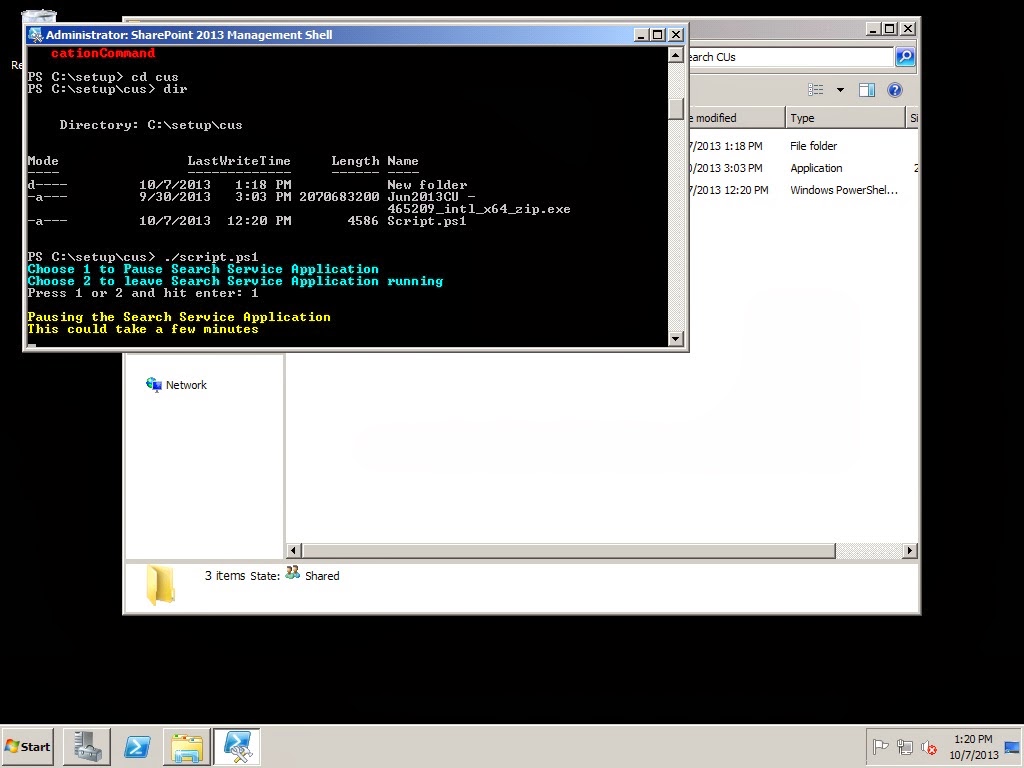
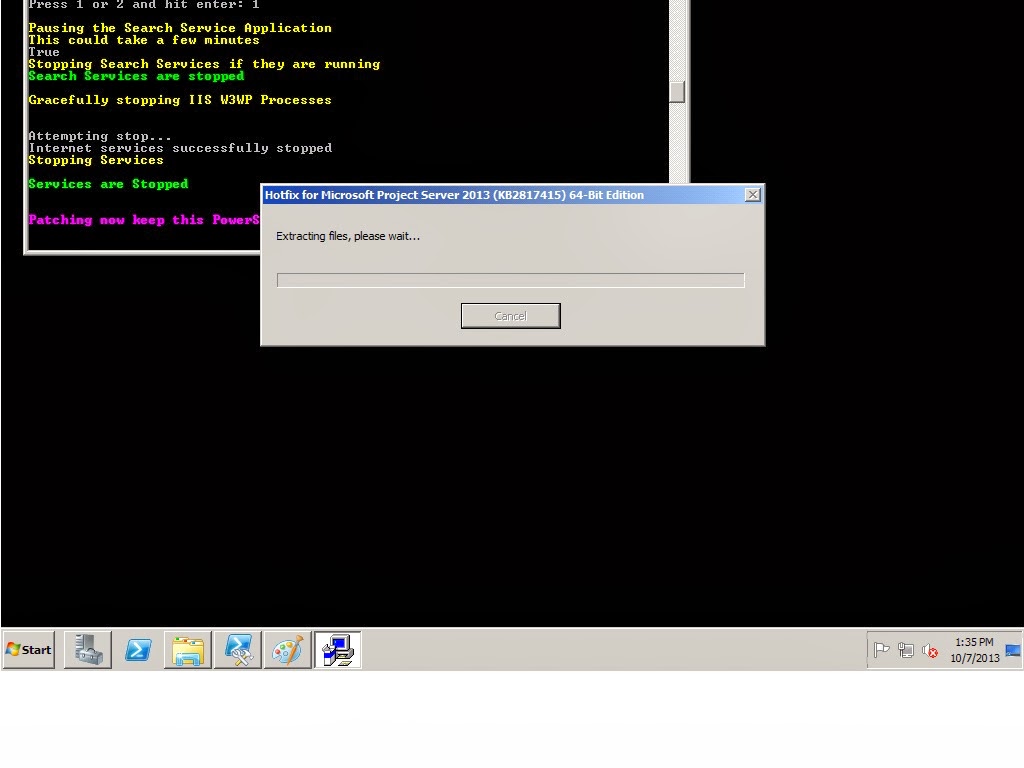
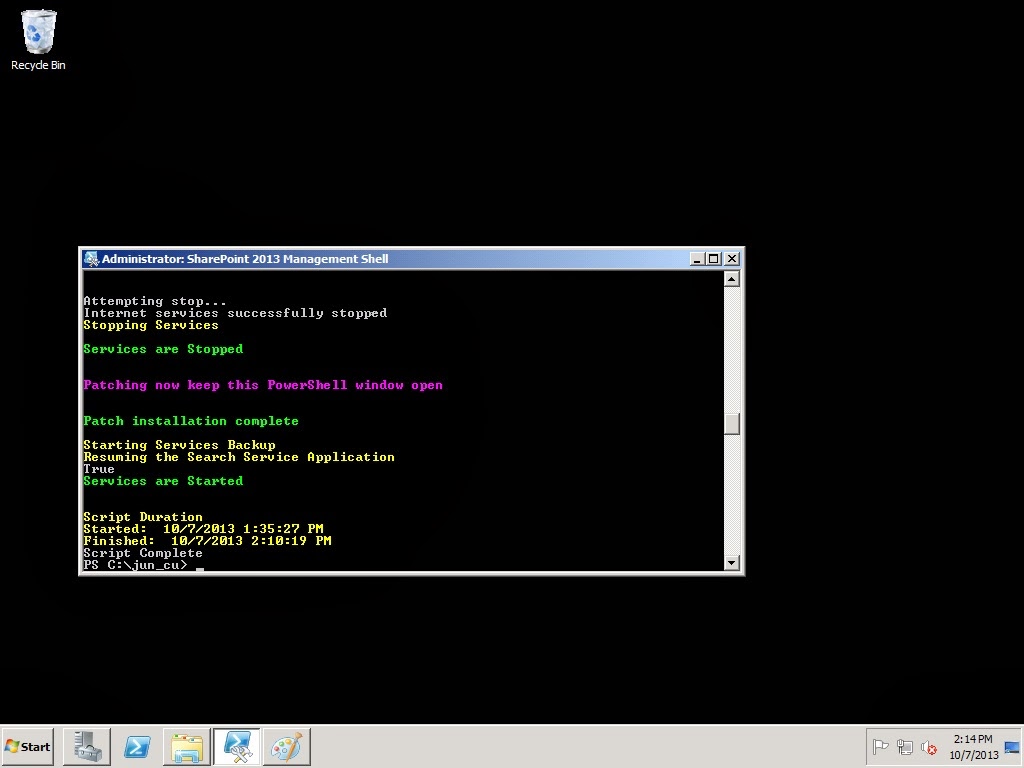
Notice the installation time of JUN CU, 35 mins, voila 🙂
Happy patching.
via All about Enterprise Project Management (EPM) http://khurramjamshed.blogspot.com/2013/10/improvise-projectserver-2013-cu.html
 The author of the blog has an extensive experience of working as an EPM Consultant. Currently he is located in Dubai, UAE and working for Microsoft partner organization as Project Server specialist. He has a thorough experience of providing Project Management technical/functional consultancy to all sort of organizations. He is a certified PMP, a Project Server MCITP, and also received a MS community contributor award 2011.
This article has been cross posted from khurramjamshed.blogspot.com/ (original article) |

#ProjectServer and #SharePoint 2010 / 2013 October 2013 Cumulative Update #PS2010 #SP2010 #PS2013 #SP2013 #MSProject
|
I am a Project Server and SharePoint consultant but my main focus currently is around Project Server.
I have been working with Project Server for nearly five years since 2007 for a Microsoft Gold Certified Partner in the UK, I have also been awared with the Microsoft Community Contributor Award 2011. I am also a certified Prince2 Practitioner. This article has been cross posted from pwmather.wordpress.com (original article) |
The Office 2013 October 2013 Cumulative Updates are now available, please see the links below:
http://support.microsoft.com/kb/2887714
Project Server 2013 Server Roll up package October 2013 CU (Recommended):
***Delayed***
Project Server 2013 October 2013 CU (Included in the Server Roll up package):
http://support.microsoft.com/kb/2825659 & http://support.microsoft.com/kb/2760465
Project 2013 October 2013 CU:
http://support.microsoft.com/kb/2825651
Also worth noting, if you haven’t done so already, install the March 2013 Public update: http://support.microsoft.com/kb/2768001 if installing the October 2013 CU.
The Office 2010 October 2013 Cumulative Updates are now available, please see the links below:
http://support.microsoft.com/kb/2887713
Project Server 2010 Server Roll up package October 2013 CU (Recommended):
http://support.microsoft.com/kb/2825793
Project Server 2010 October 2013 CU (Included in the Server Roll up package):
http://support.microsoft.com/kb/2825816 & http://support.microsoft.com/kb/2825803
Project 2010 October 2013 CU:
http://support.microsoft.com/kb/2825812
Remember SP1 or SP2 is a pre-requisite for the Office 2010 October 2013 CUs.
As always, test these updates on a replica test environment before deploying to production.


 SharePoint (and Project Server) Shenanigans
You must be logged in to post a comment.