Archive
Testing a new #ProjectServer project site template #PS2010 #MSProject #EPM #SP2010 #SharePoint
   I am a Project Server and SharePoint consultant but my main focus currently is around Project Server.
I have been working with Project Server for nearly five years since 2007 for a Microsoft Gold Certified Partner in the UK, I have also been awared with the Microsoft Community Contributor Award 2011. I am also a certified Prince2 Practitioner. This article has been cross posted from pwmather.wordpress.com (original article) |
If you are not aware already, deleting or modifying the default lists and fields in Project Server 2007 and Project Server 2010 can break some default functionality on Project Server. For example updating the Issue and Risk Status field choices, particular the “(1) Active” value will prevent the active Issues and Risks displaying in the Reminders web part on the PWA homepage. Other changes can cause the Reporting WSS sync job to fail in the Project Server queue which causes the WSS Project Sites data not to be current in the Reporting database and OLAP Cube. If you do have any of these issues I did write about a fix around a year ago now, this can be found here: http://pwmather.wordpress.com/2011/06/20/project-server-2010-project-site-default-fields/
Below is a useful set of tests that can be used to test a new Project Server 2010 project site to confirm the default functionality with Project Server still works:
· Create a test project with a few tasks and a project site
· Check you can create a new Issue, set the status to Active and assign to a Project Manager account that has access to the Project Site
· Return to PWA homepage using the Project Manager account and ensure you see 1 active issue assigned
· Click on the new Issue and make sure all links function correctly and you can see the Issue on the Project Site
· Check you can create a new Risk, set the status to Active and assign to a Project Manager account that has access to the Project Site
· Return to PWA homepage using the Project Manager account and ensure you see 1 active risk assigned
· Click on the new Risk and make sure all links function correctly and you can see the Risk on the Project Site
· Edit an Issue and link it to a Project task
· Return to PWA Project Centre, does the Issue indicator appear
· View the Project Details page, does the Issue indicator appear next to the task
· Edit a Risk and link it to a Project task
· Return to PWA Project Centre, does the Risk indicator appear
· View the Project Details page, does the Risk indicator appear next to the task
· Can you upload a document
· Edit a Project Document and link it to a Project task
· Return to PWA Project Centre, does the Document indicator appear
· View the Project Details page, does the Document indicator appear next to the task
· Publish the Project Plan
· Check Reporting job is successful in the Project Server queue
· Build the Project Server OLAP Cube, create a report based on the OlapProjectSharePoint template and confirm the issues and risks appear
· Open the IssuesandRisks sample report and confirm the issues and risks appear
· Check you can delete workspace for the test project
· Check can create a new workspace for the test Project
· Publish the Project Plan
· Check the workspace synchronisation is successful – no errors in the queue
To test other functions in Project Server 2010, take a look at this TechNet link:
http://technet.microsoft.com/en-us/library/gg502592.aspx


#ProjectServer and #SharePoint 2010 June 2012 Cumulative Update #PS2010 #SP2010 #MSProject
|
I am a Project Server and SharePoint consultant but my main focus currently is around Project Server.
I have been working with Project Server for nearly five years since 2007 for a Microsoft Gold Certified Partner in the UK, I have also been awared with the Microsoft Community Contributor Award 2011. I am also a certified Prince2 Practitioner. This article has been cross posted from pwmather.wordpress.com (original article) |
The Office 2010 June 2012 Cumulative Updates are now available, please see the links below:
http://support.microsoft.com/kb/2712235
Project Server 2010 Server Roll up package June 2012 CU (Recommended):
http://support.microsoft.com/kb/2598355
Project Server 2010 June 2012 CU (Included in the Server Roll up package):
http://support.microsoft.com/kb/2598375
Project 2010 June 2012 CU:
http://support.microsoft.com/kb/2598351
For more details please see: http://blogs.technet.com/b/projectadministration/archive/2012/06/29/microsoft-project-server-and-sharepoint-server-2007-and-2010-june-2012-cu-announcement.aspx
As always, test these updates on a test environment before deploying to production


Move a #SharePoint 2010 sub site to a different location on the same farm #SP2010 #PS2010 #PowerShell
|
I am a Project Server and SharePoint consultant but my main focus currently is around Project Server.
I have been working with Project Server for nearly five years since 2007 for a Microsoft Gold Certified Partner in the UK, I have also been awared with the Microsoft Community Contributor Award 2011. I am also a certified Prince2 Practitioner. This article has been cross posted from pwmather.wordpress.com (original article) |
Recently a query came up on the Project Server forums asking how to move a SharePoint site from the PWA site collection to another site collection. Please note this was not a Project Site. For this question I created a simple PowerShell script that will export the site and import it into the specified location. Even though this example is for a site in the PWA site collection, it will work for a site in any SharePoint 2010 site collection providing the same site templates, features etc. are available.
The script is available to download from the Microsoft Script Center:
http://gallery.technet.microsoft.com/scriptcenter/Move-a-SharePoint-2010-sub-f7774baa
Below is a walkthrough on using and executing the script.
Firstly download the script and set the variables:
# set variables
$exportfolder = "C:\Site exports" – Specify the folder to be created, this is where the export files will be created
$exportfile = "\site_export.cmp" – Specify the export file name
$exportsite = "http://vm353/PWA/PAULMATHERTESTSITE" – Specify the URL of the site that you want to move
$exportlocation = $exportfolder+$exportfile – This does not need to be updated
$importlocation = "http://vm353/PAULMATHERTESTSITE" – Specify the location where you want the site to be imported
The next part of the script gets the exported site’s template as this is needed to create the placeholder site later on:
#get export site’s template
$web = Get-SPWeb $exportsite
$webTemp = $web.WebTemplate
$webTempID = $web.Configuration
$webTemplate = "$webTemp#$webTempID"
$web.Dispose()
Worthing noting is that you need to use the Configuration property as the template ID rather than the WebTemplateID property as the WebTemplateID will always contain the original ID for the first template Microsoft created. For example a Team Site template ID is STS#0, but the WebTemplateID property for a Team Site will contain a 1, the Configuration property will contain the correct ID, in this case a 0.
The final part of the script is does the export and import, the comments above each line advise what that part of the script is doing.
#create export folder
$null = New-Item $exportfolder -type directory
#export site
Export-SPWeb $exportsite –Path $exportlocation -IncludeUserSecurity -IncludeVersions 4
Write-host "$exportsite has been exported to $exportlocation"
#create new site ready for import
$null = New-SPWeb $importlocation -Template "$webTemplate"
Write-host "$importlocation created ready for import"
#import site
Import-SPWeb $importlocation –Path $exportlocation -IncludeUserSecurity –UpdateVersions 2
Write-host "$exportsite has been imported to $importlocation" -foregroundcolor "Green"
Now lets have a walkthrough and move a site, in the example I have a Team site called “PAULMATHERTESTSITE” that is below the PWA site collection, I want to move this to the top level root site collection. For this example the variables above are correct. Open PowerShell on the Application server and navigate to the location of the ps1 file, in this case it is on my desktop:

Press Enter to execute the script:

A copy of the site should now exist in the new location.
As always, this script is provided as is with no warranties etc. use at your own risk and test on a test environment before using on a production environment.


#ProjectServer save from Project Professional failed #PS2010 #SP2010 #MSProject
|
I am a Project Server and SharePoint consultant but my main focus currently is around Project Server.
I have been working with Project Server for nearly five years since 2007 for a Microsoft Gold Certified Partner in the UK, I have also been awared with the Microsoft Community Contributor Award 2011. I am also a certified Prince2 Practitioner. This article has been cross posted from pwmather.wordpress.com (original article) |
Just a quick post as a reminder, I was recently at a client where projects failed to save to Project Server. The key error shown in Project Professional and in the Project Server queue was:
error id =”12005”
error= System.Data.SqlClient.SqlException: Execution of user code in the .Net Framework is disabled. Enable “clr enabled” configuration option
The error states the exact issue, CLR needed to be enabled on the SQL Server. The steps to enable CLR are documented here:
http://technet.microsoft.com/en-us/library/ee662108.aspx#section3


TechEd Europe Day One #TEE12
So I am here in Amsterdam having completed day one of TechEd Europe 2012 and once again, the conference is an awesome experience. There is one major difference however…
Now I actually know some people from the last conference I went to (MSPC12). So I am catching up with some colleagues (Alex Burton – Nintex and Ben Howard – Applepark) as well as getting to know new colleagues (Robin Kruithof – CXS and Mike Wϋbbold – SolutionTime).
The focus of the conference is very much about the cloud:
- Innovations in Windows Server 2012 to support private and public clouds
- Windows Azure advances with websites, Hyper-V, SSRS to truly support private and public cloud infrastructure in anyway you can imagine.
- And of course Office 365 incorporating SharePoint Online, Exchange Online and Lync Online
Day One Keynote
The keynote was an impressive site with equally bold statements on how Microsoft are not only in the cloud, but mature in the cloud with innovation on how it should be done!!!

Very bold statements indeed but with one difference… evidence!
Discussions on how Microsoft have achieved the scalability of Azure through the use of automation technologies such as PowerShell.
How Microsoft have worked with storage and network vendors to ensure optimum throughput on the Windows Server 2012 platform.

Copying a 10GB file is seconds across the network in seconds! I couldn’t take a picture fast enough…
And lastly, how Hyper-V has come of age as a true competitor to VMWare in the virtualisation market with IOPS stats they can only dream of…

That’s 1,026,020.31 IOPS and only limited by current hardware, not the software!
Azure Reporting Services
Moving on from this and after catching up with colleagues. I moved into Azure SSRS which was launched at the North America TechEd event at the beginning of June.
SQL Server Reporting Services is now available in the cloud and we can finally say that Business Intelligence is starting to become available in a public cloud environment.
Some key things to note:
The API interfaces of SSRS are available:

However, some restrictions to the current launch do apply:
|
 |
These are some serious limitations, but we are assured that this is being worked on and we will see improvement in future.
No word or official comment on integration with Office 365 but it wouldn’t surprise me if SharePoint Online integration is not coming down the line.
Staffing the Microsoft Project – Technical Learning Centre (TLC)
To gain attendance to one of the biggest Microsoft conferences, some of us have to pay our way in kind. 🙂
This humble bloggers approach is through presentations (more on that tomorrow…) and staffing the Microsoft Project booth at TechEd to help customers understand how Microsoft Project 2010 and Microsoft Project Server 2010 fit into the Office Server eco-system with SharePoint and other products.
We also provide help to anyone who would like to pose us with problems… almost like a live MSDN forum answer session.
It is also a good opportunity to catch up fellow colleagues in the EPM space and discuss approaches to client implementations etc…:

Ben, Mike, Robin and me
As part of the TLC Office stand some other cool and geeky items:
The Azure datacentre in Lego.
 |
 |
 |
A cool Office 365 Lego giveaway…

and the most elaborate Microsoft Flight Simulator you will ever see…

And towards the end of the day I caught up with the Nintex crew to discuss Nintex Workflow for Project Server.

Thanks for the catch up guys.
So that just about wraps up day one. Presentations and flights home tomorrow… till the next post – Good evening – Goedenavond

Permissions delay when using Kerberos and Security Groups #SP2010 #SharePoint #in
At one of our clients recently we had a support issue concerning a delay in permissions being applied in a SharePoint 2010 environment.
Environment Details:
- SharePoint Server 2010 – Enterprise: SP1 – Dec 2011 CU
- Authentication: Kerberos
Scenario
- Site Administrators add an Active Directory security group into a SharePoint group for permissions.
- The security group has 9 users and permissions are applied accordingly.
- Later down the line a system admin adds a users into the security group giving it 10 members instead.
- No changes have been made to the SharePoint group security.
Problem
The 10th member is not immediately given the rights of the SharePoint group. However, after some time has passed (with no changes being made), the permissions are applied to the 10th member.
The amount of time is not fixed but is definitely no more than a standard working day.
Solution
After investigation and replicating the issue back at the office, we found this:
http://technet.microsoft.com/en-us/library/cc738673(v=ws.10).aspx
In particular, we found these settings:
| Maximum lifetime for user ticket | Determines the maximum amount of time (in hours) that a user’s TGT can be used. When a user’s TGT expires, a new one must be requested or the existing one must be renewed. By default, the setting is ten hours. |
| Maximum lifetime for user ticket renewal | Determines the longest period of time (in days) that a TGT can be used if it is repeatedly renewed. By default, the setting is seven days. |
So the issue is that the Kerberos token is being cached therefore the permissions are not being enforced until the token has expired.
Now, 10 hours to wait is a very long time but given that this is a forest wide setting, should we be changing this setting? In this case we also realised that the token is re-issued whenever a user logs back in.
So when these issues occur and a support issue comes in we ask them to just log off and log back in again and then we are back to where we should be!
All sorted then…
To see this in action, we took a video to prove the scenario:

Updating resource rates
Due to possible differences in calendars between EPM (Enterprise Calendars) and Microsoft Project (local project settings), resource rate changes using an effective from date may not be applied from the beginning of the working day. At one client in particular, where all resources in the Enterprise Resource Pool received an updated (increased) rate from the first of the financial year, this caused project financial information to be out by a couple of hundred to a few thousand pounds. Given that this particular client uses timesheet and therefore project actual work and cost figures to update their financial system for client billing, this is quite a big problem.
This article describes how to set the effective from time for the resource rate in order to ensure that it is applied from the beginning of the working day.
Setting Project Options
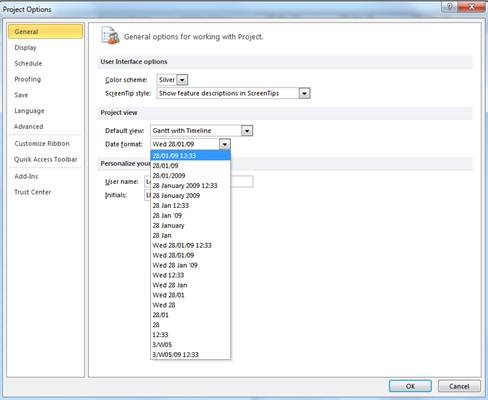
Open Microsoft Project and click on File > Options. Under the General tab, change the Date format to include the time, as below, and then click OK.
Updating resources
For resources that require a rate change, navigate to Resource Center in PWA. Select the resources for which the rates should be updated and click Open:

This will open the selected resources in Microsoft Project. To update the resource rate, double click on the resource and click on the Costs tab. The Effective Date will contain the time as well as the date. Ensure that the time is set to the same as the Enterprise Calendar for the start of the day.
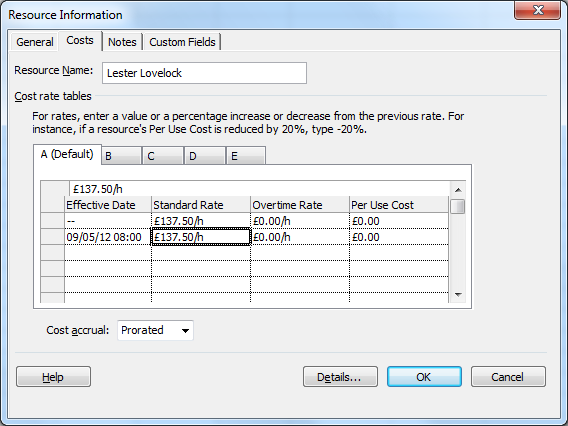
Repeat for all resources as required. When complete, save the changes to enterprise resources (File > Save) and close Microsoft Project.
If required, change the date display setting back to show only the date by repeating the steps above.

Project Server – "An unknown error has occurred"
I recently had an issue at a client where the Project Center was failing to load and returning “An unknown error has occurred” on the page. We have seen this behaviour before and it’s usually some corrupt Project data that causes it, but I’ve never had the time to get to the bottom of the problem. Fortunately, today I had a bit more free time to investigate.
This particular issue is caused by custom fields that are linked single value (read: not multi-select) lookup tables erroneously getting multiple values assigned to them. How this occurs is as-yet unclear, but it appears to be symptomatic only in the published database – the draft and reporting databases are unaffected.
So, what’s the fix?
There are a couple of things that can be done, depending on your level of access and technical capability. Firstly, we need to identify the plans that are causing the issue. The fastest way of doing this is with a little piece of SQL code (change <Published_DB_name> to your actual Project Server published database name):
USE <Published_DB_name>
SELECT
(SELECT proj.PROJ_NAME FROM dbo.MSP_PROJECTS proj WHERE pcf.PROJ_UID = proj.PROJ_UID) as ProjectName
,(SELECT pcfv.[MD_PROP_NAME] FROM [dbo].[MSP_CUSTOM_FIELDS] pcfv WHERE pcfv.[MD_PROP_UID] = pcf.MD_PROP_UID) as CustomFieldName
,count(*)
FROM [dbo].[MSP_PROJ_CUSTOM_FIELD_VALUES] pcf
GROUP BY PROJ_UID, MD_PROP_UID
HAVING COUNT(*) > 1
ORBER BY ProjectName, CustomFieldName
(credit to Jan @ Piet Remen’s blog for the above query – http://pietremen.blogspot.co.uk/2012/01/project-centre-unknown-error-has.html)
This will return a list of projects, custom fields and the number of times that the custom field has been populated. If any project appears as an output of this script, you can view view the issue by taking a look at the Project Information through PWA. Affected custom fields will appear comma separated – e.g. Project Priority: Low, Low, Low, Low – where they should only appear as a single value.
The fix is quite a simple one – republish the project. This pushes the values from the draft database back to the published database and overwrites the broken custom field values. Check in PWA > Project Information, or re-run the above query to check that the plan is now fixed in the published database. I have seen a couple of instances where this did not fix the problem, and we had to delete the published version of the plan, and re-publish from the draft version.
It is still unclear how long the project will remain “fixed”, we have had a couple of plans reproduce the issue after being republished.
Microsoft have identified the issue, and released a fix, which can be found here: http://support.microsoft.com/kb/2598251
This KB is also included in the roll-up package (http://support.microsoft.com/kb/2597152) though it’s not documented.
These KB’s will prevent the issue occurring in the future, but will not fix existing problems – be sure to follow the above steps to ensure that the plans are fixed. As always – be sure you have database backups before applying updates!
#SharePoint Web Front-End HTTP 404 Response but no errors in the log #SP2010 #PS2010 #MSProject #ProjectServer #in
Recently we had to restore a content database from back up at a client. We were working on APP1 of a 2 WFE + Database configuration.
We followed the usual steps:
- Restore database into SQL Server from backup as a different name (<ServerName>_ContentDB_20111028)
- Log into Central Administration
- Go to Manage Content Databases
- Remove the existing Content Database
- Add the newly restored database (<ServerName>_ContentDB_20111028)
- Restart IIS (not required but just for good measure)
After doing this, APP1 worked find, but APP2 however kept giving the HTTP Response Error: 404.
We checked the usual places:
- ULS Logs
- Windows Event Logs
- IIS Logs
No other errors apart from the 404 Not Found error.
To try and force an error we went to some the standard SharePoint pages on the file system such as:
- /_layouts/settings.aspx
- /_layouts/create.aspx
This forced the following error to appear in the ULS logs:
- Unexpected System.NullReferenceException: Object reference not set to an instance of an object
A quick Google and the following came up:
The steps below are slightly modified from the one mentioned in the post but it ultimately resolved the issue:
- Stop the OWSTIMER service on the problem SharePoint WFE server in the farm.
- On the problem server, navigate to:
Server 2003 location: Drive:\Documents and Settings\All Users\Application Data\Microsoft\SharePoint\Config\GUID and delete all the XML files from the directory.
Server 2008 location: Drive:\ProgramData\Microsoft\SharePoint\Config\GUID and delete all the XML files from the directory. - Delete all the XML file in the directory. NOTE: ONLY THE XML FILES, NOT THE .INI FILE.
- Open the cache.ini with Notepad and reset the number to 1. Save and close the file.
- Start the OWSTIMER service on the server and wait for XML files to begin to reappear in the directory.
- IIS Reset (just for good measure)
Took us a good couple of hours to resolve this one, so hopefully it can help you too.
Full Log Example:
10/28/2011 09:30:41.30 w3wp.exe (0x1508) 0x1204 SharePoint Foundation Runtime tkau Unexpected System.NullReferenceException: Object reference not set to an instance of an object. at Microsoft.SharePoint.SPSite.PreinitializeServer(SPRequest request) at Microsoft.SharePoint.SPWeb.InitializeSPRequest() at Microsoft.SharePoint.WebControls.SPControl.EnsureSPWebRequest(SPWeb web) at Microsoft.SharePoint.WebControls.SPControl.SPWebEnsureSPControl(HttpContext context) at Microsoft.SharePoint.ApplicationRuntime.SPRequestModule.GetContextWeb(HttpContext context) at Microsoft.SharePoint.ApplicationRuntime.SPRequestModule.PostResolveRequestCacheHandler(Object oSender, EventArgs ea) at System.Web.HttpApplication.SyncEventExecutionStep.System.Web.HttpApplication.IExecutionStep.Execute() at System.Web.HttpApplication.ExecuteStep(IExecutionStep step, Boolean& complet… 97bd5397-9665-4f46-82ed-c5e702f8ccd0
10/28/2011 09:30:41.30* w3wp.exe (0x1508) 0x1204 SharePoint Foundation Runtime tkau Unexpected …edSynchronously) 97bd5397-9665-4f46-82ed-c5e702f8ccd0
Community #SharePoint and #ProjectServer application is fully compatible with #iOS5 on #iPhone and #iPad #SP2010 #PS2010 #MSProject
Just a quick post to say that the mobile app SharePoint (and Project Server) Shenanigans is fully compatible with iOS 5 on the iPad and iPhone.
As far as I am aware, it was not responsible for this: http://thenextweb.com/apple/2011/10/13/demand-for-ios-5-and-icloud-was-so-high-apple-almost-broke-the-internet/
 Have fun!


 SharePoint (and Project Server) Shenanigans
You must be logged in to post a comment.