Archive
Useful JavaScript Function – Default parameters within your JavaScript functions #in #SharePoint #SP2010 #PS2010 #ProjectServer
So it has been a while since I have posted anything on the blog.
As I am sure many of you can relate, there comes a time in all projects when you have to concentrate solely on them to ensure that all factors play out as expected. One of those times would be go live time.
The project I have been working on for the last year is about to go into trial with its first division, so it has been heads down to ensure that all bug fixes and business intelligence data is correct.
As of today, we are officially at a code freeze and we are clearing down the databases to rid them of test data ready for migration to the Production environment and the final integration testing process.
As a result, we can commence blogging again, of which I have a few topics stored up.
First up is…
Default parameters in a JavaScript function
Project Scenario: I created a generic function to contact the User Profile service and set some default global variables when the page loads for the current logged in user.
This had to be extended to cope with me passing a different AD User Name (SAMAccountName) and return the details in a JavaScript object.
So the basic mechanism was there already.
- I was passing the current user as a variable
- User Profile Service was already being queried
- Set the global variables for the current user
I wanted to extend this to take any user, but not upset the other functions that relied on the global variables I was setting in the function.
So essentially I added a setGlobal flag parameter and provided a default to the function so that existing code could work (surrounded by the newly created flag of course) and then implemented what I needed to.
This allowed my existing code to continue to function without issue, but also allowed me to reuse my User Profile functionalities for another purpose.
Examples:
The original idea came from the following blog post:
In my code, I implemented the first method. In future however I shall certainly use the second approach.

Unique alphanumeric list ID’s via SPD Workflow and Calculated Columns #SharePoint #SP2010 #in
A common thing I do for most clients is to create a unique alphanumeric ID that is consistent in length with pre-filled zeros.
Risk list alphanumeric ID example:
- RSK0001
However, as has been documented many times (link); you cannot use the ID column of a list in a calculated column. To get over this issue I use a simple SharePoint Designer workflow to copy the ID value to another column (Unique Reference) and then base my calculation on the Unique Reference column.
Step One: Create a common site column for use across the Site Collection
- Column Name: Unique Reference
- Column Type: Single Line Of Text
Step Two: Create a calculated column for the alphanumeric ID
- Column Name: Risk ID
- Column Type: Calculated Column
- Formula: =”RSK” & TEXT([Unique Reference], “0000”)
NB: The TEXT function will prefill the ID with zeros
- Step Three: Add the Unique Reference and Risk ID column to your List or Content Type
Step Four: Create the SharePoint Designer Workflow
- Create a list or content type (SP2010 only) workflow
- Workflow should fire on Creation only (disable Manual and Edit)
- Use the following steps:
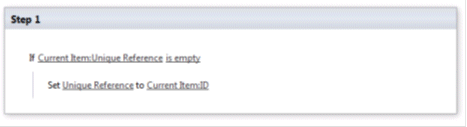
- Publish the workflow (list workflow)
OR
- Assign the workflow to the content type (if you have created a redistributable workflow in SPD 2010) and assign the content type to the list (content type workflow)
Step Five: Hide the Unique Reference column in the list / content type
- This will stop the Unique Reference column from showing to the end user.
NB: You must hide the Unique Reference column after you have created and published the workflow otherwise it will not appear in SharePoint Designer
You list items will now have a unique alpha numeric ID
NB: Please remember that automatic workflows will not fire if you are logged in as the farm account (link)

Calculated Column Formula: Probability and impact analysis for risks #SharePoint #SP2010 #ProjectServer #PS2010 #EPM #MSProject #in
Many project managers like to do risk analysis in terms of probability and impact, ultimately creating a heat map when data is rolled up at the project or programme level.
Further information about the methodology can be found here: http://www.expertprogrammanagement.com/2010/06/project-risk-management/
To aid in the creation of these roll up dashboards, we need to evaluate each risk as it is entered (and updated) and assess the probability of the risk occurring against the impact it has against the project (normally in terms of Cost, Resource or Time).
The following chart details this analysis:

NB: Numeric values have been assigned for the formulas listed below
To implement this in SharePoint (either standalone or as an extension to the standard Risks list in Project Server) we need to translate what the Project Manager / Team Members would like to state in words regarding probability & impact into a numeric value for sorting and analysis.
The following Choice columns are added to the Risk form.
User Interface Columns:
| Column | Type | Values |
| Probability of Risk | Choice | Very Low, Low, Medium, High, Very High |
| Impact of Risk | Choice | Very Low, Low, Medium, High, Very High |
Once we have the UI version of Probability and Impact, we need to use some hidden / calculated columns to convert these values in to numbers.
Once we have these values we then multiply them together:
Probability x Impact = Expected Outcome Value
Hidden Columns:
| Column | Type | Values |
| Risk Probability Value | Calculated Column | =IF([Probability of Risk]=”Very Low”,0.1,IF([Probability of Risk]=”Low”,0.3,IF([Probability of Risk]=”Medium”,0.5,IF([Probability of Risk]=”High”,0.7,IF([Probability of Risk]=”Very High”,0.9,0))))) |
| Risk Impact Value | Calculated Column | =IF([Impact of Risk]=”Very Low”,0.05,IF([Impact of Risk]=”Low”,0.1,IF([Impact of Risk]=”Medium”,0.2,IF([Impact of Risk]=”High”,0.4,IF([Impact of Risk]=”Very High”,0.8,0))))) |
| Expected Value Result | Calculated Column | =[Risk Probability Value]*[Risk Impact Value] |
Now that we have our Expected Outcome as a number, we can convert this back to a value the end user will understand, report and dashboard from.
RAG Outcome:
| Column | Type | Values |
| RAG | Calculated Column | =IF([Expected Value Result]<0.05,”Green”,IF([Expected Value Result]>0.14,”Red”,”Amber”)) |
For each risk in the list we will now have a RAG value.
Further customisations I end up doing in clients include adding a RAG indicator column showing a graphical representation of the risk using jQuery.
RAG Indicator:
| Column | Type | Values |
| RAG Indicator | Calculated Column | =”<div class=’convertToHTML’><img src=’/pwa/customisation/images/RAG” & [RAG] & “Sml.gif’ alt=”‘ & [RAG] & ‘” title=”‘ & [RAG] & ‘”></div>” |
The above formula expects three images:
- RAGGreenSml.gif
- RAGAmberSml.gif
- RAGRedSml.gif
Images in the formula are stored in a document library called:
- Customisation
with a folder inside called:
- images
Run the following jQuery function on the page with the list view on to convert the RAG Indicator calculated column string into rendered html:

Using jQuery to return the Managed Metadata Term GUID #SP2010 #SharePoint #in
For a completely different client who is using SharePoint 2010 for their company intranet we needed to implemented a UI web part which allowed end users to click on keywords which would then pre-filter search.
Keywords were entered in using the new Managed Metadata feature of SharePoint 2010.
However, during development we found that SharePoint Search for Managed Metadata does not use just the standard ?k= query string parameter to run the search query.
A new query string parameter is available especially for Managed Metadata:
- &r=
And the expected format is similar to the following:
- “ManagedMetadataTerm:TermGUID”
NB: I will probably explain the above in more detail in a later post
Anyway, when querying the lists.asmx web service and returning managed metadata columns, only the values are returned, not the GUID’s which poses us a problem for restricting search.
So after some research I came up with the following jQuery function calling the taxonomyClientService.asmx web service introduced in SharePoint 2010.
It’s is pretty basic at the moment but suits the requirement for my client in their setup:
Code Example:
Links I found useful during my research:
- TaxonomyClientService.asmx MSDN Reference:
- GetTermsByLabel MSDN Reference:
- Blog Post 1 – .NET Examples:
- Blog Post 2 – .NET Examples + Analysis of the XML output:
Useful findings whilst learning Reporting Services with #SP2010 #SharePoint #PS2010 #ProjectServer
So the first phase of the project I have been on for the last year is starting to move into the closing phases. The information architecture is in place, most of the custom development is complete and mapped to the project lifecycle / business processes of my client.
The project takes data from multiple places including:
- SAP (Resource, cost rate, metadata and product contract information)
- Project Server 2010 (Timesheets, Plans, Project / Task / Assignment data)
- SharePoint 2010 (Risks, Issues, Actions, Documents etc.)
- Custom database (Snapshot data)
I’ve learnt a lot about SharePoint 2010 and Project Server 2010 since I started this project (pre public beta). So now that we have all this data, the time has come to bring it all together with Business Intelligence dashboards and UI design.
Once of the main tools we are using for this is Reporting Services in SharePoint Integration mode and although I have lead projects involving SSRS in the past, actually getting my hands dirty and creating reports myself is something of a novelty.
However, time and resource pressures have meant that I have had to setup the SSRS infrastructure, development environments and test reports to ensure that the data can be utilised in the required way. As part of this setup I am also training my client on the business intelligence studio interface and deployment of reports in to SharePoint environment.
So getting to the point of this post, below is a list of useful links, findings and discoveries I have made during this setup process this week to serve as a reminder to me and will hopefully help others too.
Reporting Services Web Part – Firefox Compatibility (Windows, Linux – 3.6.13)
- Turn off Asynchronous data (Edit Web Part Settings > View Section)
NB: If this setting is left to its default, the loading screen does not go away until you hit the refresh button on the Web Part toolbar.
SharePoint Integration Mode – Linking to pages within SharePoint
It would appear that the Reporting Services web part in SP2010 disables links where the target URL is within SharePoint itself (“/pages/default.aspx” for example).
This blog post suggested a useful workaround:
However the suggested approach was good if you had a definitive URL such as default.aspx, but if you wanted to add a query string parameter based on the data returned, adding as action directly to the image did not allow me to select the appropriate date.
To get round this, I added a calculated field to the data set using the same process suggested in the post:
NB: Since working this out, I have extended it to use a standard JavaScript function that is running from the Master Page to make links in the reports more generic.
Then for the action on the image I was able to select “Go to URL” and select my calculated field.
This doesn’t work in the designer preview (or any exports of the report), however it works a treat when you are using the report as part of a dashboard with drill down features.
Interactive Column Sorting
Another useful blog post:
Although the instructions are for SSRS 2005, it is still relevant today.
- Right click on the column header field
- Select Properties
- Interactive Sort Tab
- Select the appropriate sort field
- Click OK
Alternating Row Colours
Always a popular choice for tabular based reports.
Highlight the data row and under the properties pane for the background color, use the following expression:
MSDN Documentation Links
- Support Features for SharePoint Integration Mode: http://msdn.microsoft.com/en-us/library/bb326290(v=SQL.100).aspx
- Reporting Services Features: http://msdn.microsoft.com/en-us/library/ms159273(v=SQL.100).aspx
- Tutorials: http://msdn.microsoft.com/en-us/library/bb522859(v=SQL.100).aspx
- Design Guidance: http://msdn.microsoft.com/en-us/library/ms159734(v=SQL.100).aspx
- Designing and Implementing Reports Using Report Designer: http://msdn.microsoft.com/en-us/library/ms159253(v=SQL.100).aspx
- Development Topics (High Level): http://msdn.microsoft.com/en-us/library/bb522683(v=SQL.100).aspx
- Report Builder Information: http://technet.microsoft.com/en-us/ff657833.aspx
- How to publish a report to a SharePoint Library: http://msdn.microsoft.com/en-us/library/bb283155.aspx
NB: Although a lot of the above links are for SSRS 2008, there is an option at the top of the page to make the content relevant for SSRS 2008 R2 also.
New vacancy at my company – CPS: Pre-Sales Consultant #in #SP2010 #SharePoint #EPM #PS2010
Job Title: Pre-sales Consultant
Industry: IT
Job-Type: Permanent
Location: Marlow, England
Salary: £45000 per annum Car Allowance
Please send CV’s to Victoria Kyle (victoria.kyle@cps.co.uk)
About Corporate Project Solutions (http://www.cps.co.uk)
Corporate Project Solutions partners with organisations to bring demonstrable improvements to their project and business performance through the provision of Portfolio, Programme and Project Management consultancy, the delivery of tailored training, the supply of talented resources and the implementation of the appropriate, class-leading Microsoft EPM and SharePoint technologies.
As a full-service consultancy and one of the UK’s leading implementation specialists, CPS can provide organisations with a complete end-to-end solution delivered on time and on budget.
With over fourteen years’ experience and a client list of more than 700 of the world’s most successful companies, CPS manages all projects in-line with Best Practice methodologies to deliver consistent and repeatable results.
CPS is an APMG Accredited Consulting Organisation.
Presales Technical Consultant
Applies technical/solution knowledge to qualify opportunities and identify requirements
Develops solutions that meet customer requirements, ensure seamless deployment, and advance the sale.
Leverages technical sales experience and information resources to educate sales teams, peers, and customers.
Education and experience
- Typically 5-8 years pre-sales and technical selling experience
- Technical and or solution experience in vertical industry
Knowledge and Skills Required
Demonstrates a solid knowledge of CPS’ breadth of solutions
- SharePoint 2007 / 2010
- CRM
- EPM
The ideal candidate will demonstrate deep technical capabilities in assigned area of specialisation and an awareness in competitive solutions knowledge. They will understand data business components and how IT is used to address business needs.
- Demonstrates current understanding of technical innovations & trends and their impact on solving customer business problems.
- Demonstrated ability to work as the lead for components of large complex projects
-
Has demonstrated hands-on level skills with SharePoint technologies.
Understands and applies basic financial and accounting concepts as well as capital investment concepts and applies them appropriately in positioning.
- Applies understanding of the customer’s value chain and business requirements when designing and proposing solutions:
- Communicates the value of the solution in terms of financial return and impact on customer business goals (future)
- Solid level of industry acumen; keeps current with trends and able to converse with client on issues and challenges
- Demonstrates solid questioning techniques and related communications skills with customer managers
- Demonstrates understanding of the competition as well as good positioning & strategy
- Gathers and assesses customer needs both business and technical
- Identifies related needs (lead generation opportunity expansion)
- Identifies site specific parameter and constraints that impact the solution
- Identifies required project steps
- Identifies likely problems areas that require attention
- Identifies probable competition and product roll-out data/ training needs.
- Architects an appropriate technical solution to meet the customers’ requirements
- Investigates and optimizes a solution to meet the requirements of an opportunity
- Adapts solution design to new requirements
- Establishes the validity of a solution and its components
- Identifies the growth path and scalability options of a solution and includes these in design activities
- Creates the appropriate test plan as required
- Anticipates some of the potential challenges for the proposed project plan
- Assesses likely competitive threats
- Assists with requests for expertise from peers
- Maintains excellent communications with customer management
- Represents CPS as technical expert with customers; shares knowledge in area of expertise
- Advances opportunities through the use of effective consultative selling techniques (future)
- Builds customer loyalty through being a trusted advisor
- Partners effectively with others in the account to ensure problem resolution and customer satisfaction
- Communicates and articulates the details of their component roles in a proposed customer solution
- Actively supports the account team with solution advice, proposals, presentations, and other customer communications
- Transfers knowledge to Presales peers via contributing participation in education programs
- Identifies overlooked opportunities within the account
- Analyses and provides support to deals in the pipeline where needed
- Facilitates smooth transition from sales to implementation by orienting the appropriate teams to the solution design
- Understands the roles and affectively engages other teams and resources within CPS and partners
- Contributes to the presales direction
- Has a high level understanding of the CPS product roadmaps


 SharePoint (and Project Server) Shenanigans