Archive
Why there is no such thing as a free lunch (with Microsoft Flow;-)
Creating a flow for a client recently, where we have to loop through 8,000+ Excel rows, check the values in some columns and import them or skip into a SharePoint list.
The issue was the … well, Flow doesn’t let us read more than 5,000 entries by default. And increasing that limit is not allowed.

Except, that one of our developer accounts was able to break that limitation(!).
It turns out that the free Flow license limits the threshold to 5000 whereas buying a Flow Plan 2 license allowed us to go over the threshold.

Here you go, now you know how to break one limit: buy the license!
This blog post is also useful to highlight some other limitations:
Microsoft Flow – This is the limit! – My Microsoft SharePains
via François on SharePoint, Office 365 and more technologies http://bit.ly/2MejfXR
   French native Sharepoint Consultant living in London. A crossway between a designer, developer and system architect. Prefers stretching the limit of out-of-the-box features rather than breaking them into code. When not working with Microsoft Sharepoint François is often found on Web2.0 News sites and related social networking tools.
This article has been cross posted from sharepointfrancois.com (original article) |

Sync #MSProject #Roadmap Row Item Status with #ProjectOnline Task Status using #MicrosoftFlow #CDS #PowerPlatform #MSFlow #REST #SharePoint #WorkManagement #Office365
 I am a Project Server and SharePoint consultant but my main focus currently is around Project Server.
I have been working with Project Server for nearly five years since 2007 for a Microsoft Gold Certified Partner in the UK, I have also been awared with the Microsoft Community Contributor Award 2011. I am also a certified Prince2 Practitioner. This article has been cross posted from pwmather.wordpress.com (original article) |
At the recent Microsoft PPM Summit in Prague last week, Chris Boyd from the Microsoft Project Product team demonstrated syncing the Roadmap row item status with the task status from the Project Online schedule. This was done using compiled code in a console application which worked well. I set myself a little challenge to do something similar but all from Microsoft Flow. Being a public holiday here in the UK, I found an hour spare today to tackle this. In this blog post I walkthrough the Flow actions required to do this. A summary image can be seen below:

As you can see, this flow is triggered on a Project Online Project Publish. I then execute a REST query on the Project Data API using the send an HTTP request to SharePoint action:

I pass in the published project ID and select the TaskID and the custom field I’m using to set the Roadmap row item status. I created a custom field called “Roadmap Health” that was a lookup with the same status values as Roadmap but you can use any field and values, just update the query and Flow Switch action as needed.
I then create a new variable called “Health” and set the Type to an Integer:

I then add an Apply to each action and pass in the body(‘GetTaskHealth’)[‘value’] expression to use the output from my REST call:

I then have a condition check action to check for null values in the Roadmap Health field, the expression for the field is items(‘Apply_to_each’)[‘RoadmapHealth’] then null is also added via an expression:

You could remove the need for the condition check by filtering out the nulls in the REST call. If this is false, nothing happens as there is no status to sync, if this true the next action is a Switch, the field I’m using in the switch is referenced using the expression: items(‘Apply_to_each’)[‘RoadmapHealth’]

Then for each possible value from the task level custom field you are using, map this to one of the Roadmap status’ by setting the Health variable, for example, when the Roadmap Health task field value is equal to “On Track” I set the variable to 0:

The Roadmap status enumerations are below:
- On Track = 0
- Potential Problem = 1
- At Risk = 2
- Complete = 10
- Not Set = 100
Once that is completed for all possible outcomes, the next action is the List records Common Data Service action:

Here the Flow returns the Roadmap Item Link record for the TaskId passed in, the TaskId is referenced using the following expression: items(‘Apply_to_each’)[‘TaskId’]
The next action is another Apply to each action, Flow does this automatically as the List records would typically return more than one record:

The output used for this action is the default List records value from the Dynamic Content option. Then the final action within the Flow is the Common Data Service Update a record:

This action updates the Roadmap Items, I then pass in the List records Roadmap Item value from the Dynamic content panel, this is the Roadmap Item Id value. I also pass in the Health variable in the “Health Status Value” field. The flow will loop through all Project tasks and update the equivalent Roadmap row item status, pretty simple for a no / low code solution using only Microsoft Flow!
Over the next few days I will publish a short video for this Flow on my YouTube channel and also probably provide a download link for this Flow template to help as a solution starter.

#SPC19 Assignment Scheduler for your team @SPConf #O365
This year I am lucky enough to be going to the SharePoint Conference NA 2019 in Las Vegas with a number of my colleagues. Internally this raised the question of how do we gather as much information as possible within the team to share within our company.

The official schedule PDF came out late last week and to facilitate our need, I have converted it into an Excel spreadsheet which covers the 3 main days of the conference with spaces to assign the various members of my team
Then in true “new” technology mode, I saved the spreadsheet in my OneDrive, used the share link to my various colleagues then opened up a 7 way chat in Microsoft Teams to communicate the details and get assignments going… as well as talking about what else we are going to do in Vegas 🙂
Anyway, I figured this would be useful for others… so if you are in the same situation you can download the spreadsheet below:
On another note, if you find yourself at the conference and want to reach out and say hello… mention me on Twitter (@ghamson) :-). Perhaps we can share some sessions etc.
Keep SharePoint’n…

#Microsoft #Planner Tasks in #ToDo #Office365 #WorkManagement #TaskManagement #PPM #Project
  I am a Project Server and SharePoint consultant but my main focus currently is around Project Server.
I have been working with Project Server for nearly five years since 2007 for a Microsoft Gold Certified Partner in the UK, I have also been awared with the Microsoft Community Contributor Award 2011. I am also a certified Prince2 Practitioner. This article has been cross posted from pwmather.wordpress.com (original article) |
A quick blog post to highlight a new feature in Microsoft Planner and Microsoft To-Do, you can now sync your Planner tasks into Microsoft To-Do!
When you access Microsoft To-Do you will see a notification in the bottom left corner asking if you want to track tasks assigned to you in Planner as seen below:

Click Show list, this then adds the “Assigned to Me” list:

Ignore the test planner tasks I have assigned, this is from one of my example Flows for Project Online!
Clicking a task will load the task details pane on the right hand side:
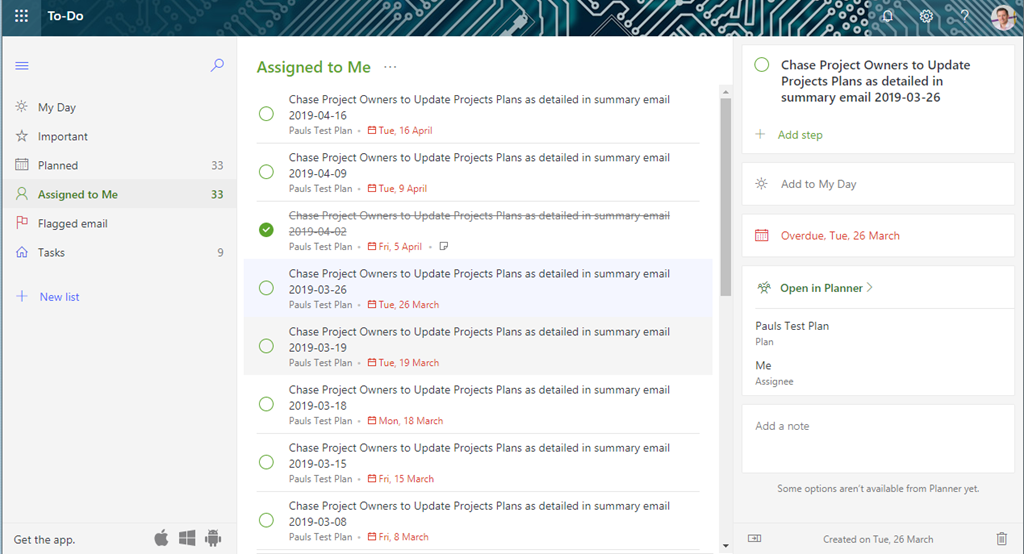
From here I can mark the task as complete, update the Due Date, add notes or click the link to open the task directly in Planner. Marking as complete, updating the due date or adding notes from To-Do updates the task in Planner so you can manage your tasks all from To-Do without leaving!
Another awesome update from Microsoft!


 SharePoint (and Project Server) Shenanigans
You must be logged in to post a comment.