Archive
#O365 #SharePoint Online–#IRM #RMS – what works, what doesn’t in a business context-Part 6
This article is part of a series:
In the first article of this series we discussed what IRM was, some scenarios and high level device supportability.
Parts 1 to 5 discuss IRM capability from a SharePoint perspective. Details:
In the second article we covered file type support.
In the third article we covered file type support in detail as well as the document library experience.
In the fourth article we covered IRM permissions in comparison with SharePoint permissions.
In the fifth article we looked at the different clients across Windows, Mac and Mobile to see how they reacted to a protected file.
So we have covered the SharePoint IRM capabilities a lot and in the conclusion to this series of articles, we shall discuss the various merits of the IRM implementation in SharePoint vs. AD RMS capabilities.
Before we do that however, we need to discuss Azure AD RMS (Active Directory Rights Management Server.
To put things into context, SharePoint IRM is essentially a subset of the functionality of Azure AD RMS (Source(s): https://technet.microsoft.com/en-us/magazine/2009.04.insidesharepoint.aspx?pr=blog, https://social.technet.microsoft.com/forums/windowsserver/en-US/d5c64cfe-0778-4a3b-a02e-4eae3ca9ac43/what-is-difference-between-ad-rms-and-irm) and in my initial interaction, the two capabilities don’t quite interact with each other in the way you would expect (the very reason this series of articles started in fact!)
Let’s get started….
What is Azure RMS?
So my biggest suggestion to answer this would be to take a look at these set of articles:
- What is Azure RM: https://technet.microsoft.com/en-us/library/jj585026.aspx
- Terminology: https://technet.microsoft.com/en-us/library/dn595132.aspx
- Azure Rights Management requirements: https://technet.microsoft.com/en-us/library/dn655136.aspx
- Compare Azure RMS with AD RMS (On-Premise): https://technet.microsoft.com/en-us/library/jj739831.aspx
High level… like the SharePoint IRM O365 solution we have been looking at in the previous articles, it would appear that Azure RMS is a superset of the SharePoint IRM functionality. By this I mean that Azure RMS is the overriding technology and SharePoint IRM is a small portion of the overall capability.
How does it work with standard office files?
Take a look at this article:
- Azure RMS client device support: https://technet.microsoft.com/en-us/library/dn655136.aspx#BKMK_SupportedDevices
Which gives us a good indication of the potential support for this solution but is the reality for users… lets take a look:
Microsoft Office Interaction (Desktop)
After you install the Azure RMS client application in Windows or Mac OSX, you have an add-in added to your Microsoft Office suite like this:

By clicking on Share Protected the following screen pops up with various options including:
- Policy selection (standard ones and corporate specific setup by your company)
- Expiration of the permissions which will lock down the document once the date has passed
- Document tracking notifications via email
- Ability to revoke permission as required.

- You can target these permissions to specific user email address and the address entered can have blacklists (for example outlook.com etc.)

Once you click send, this pops up as it works its protection voodoo magic:

Then outlook pops up with a pre-formatted message with not just a Word document but also a Protected PDF also! (This is also the case with the add-in for Excel and PowerPoint)
If you do this same option from within an Outlook email. You must have an attachment on the email, it will then run through the same process, create a Protected PDF as well and send the email.

The Microsoft Azure RMS service also sends you a follow up email straight away with confirmation of who you sent it to and details on how to track and revoke access:

Clicking on the tracking link gives you an overview of the document, with tracking details and the ability to control the access.

From this screen you can see who has access currently, when (Timeline) & Where (Map) they accessed the document. Settings also controls your notifications.
At the bottom of the screen you can get an excel report of the activity on the document as well as the ability to revoke access.
How does it work with file formats outside of Microsoft Office?
For any other file type, extensions to Windows Explorer have been added in the right click context menu of the file(s) selected. Just to note, you cannot protect a folder.

Once you select the permission type, the file is protected in place.
If you select Custom Permissions… the same dialogue appears as before whilst we were in the MS Office application allowing you to select permissions and notification options.
Now, because you are protecting a file that may not have built in support for the Azure RMS capabilities, as part of the client install for Azure RMS, you have a file viewer.
So for the Yammer Logo png that we have above, we get the following when we double click the protected file:
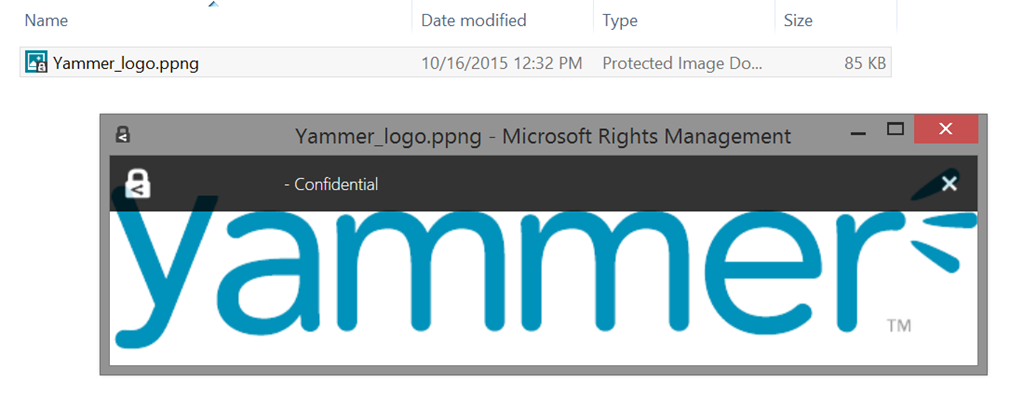
As you can see, it has changed the file extension to a ppng file type and now Windows opens it inside the Microsoft Rights Management viewer. I wrapper if you will that will check the file permissions centrally within Azure RMS before you can open the file.
How can I get this capability – Server Setup?
Start by looking here: https://technet.microsoft.com/en-us/library/dn440580.aspx
Essentially you login to your tenant admin and you can choose to use Microsoft’s security keys and activate the service.
How can I get this capability – Client Setup?
The Office add-in and the Windows Explorer options are installed using a free client available here: https://portal.aadrm.com/home/download
Next Post(s)
Ok, these posts appear to get very long as I start to delve into things… so we are splitting things up further… next up, we shall explore the permission options including revoking access to documents from a central location.
We will also, in a future post compare this solution with the SharePoint IRM capability, which we know is related but in my brief experience is not necessarily the same!
So until I find time to do the next post… stay nerdy peeps!

#ProjectOnline Resource Managements Feature #PPM #PMOT #PMO #Office365 #Office2016 #PS2016 Part 1
|
I am a Project Server and SharePoint consultant but my main focus currently is around Project Server.
I have been working with Project Server for nearly five years since 2007 for a Microsoft Gold Certified Partner in the UK, I have also been awared with the Microsoft Community Contributor Award 2011. I am also a certified Prince2 Practitioner. This article has been cross posted from pwmather.wordpress.com (original article) |
Following on from the announcement that the Resource Management feature in Project Online was being rolled out (link below), my test Project Online tenant now has this feature.
In part 1 of this short series of posts i will provide some links for articles that explain this feature then I will look at enabling this feature on my environment and show you what happens once this feature is enabled. The later posts will look at using this new feature.
Firstly some links for this new feature:
http://bit.ly/1KBXljN – lots of useful links in the article
Once this feature is available to your tenant you will see the status banner like below displayed in the Resource Center page and the PWA Setting page:
On the Additional Server Settings page you will see a check box for Activate on the “New Resource Management Features Available” setting:
Part of this post will be to see how this changes existing resource plan data, so before I tick that setting I will just detail some of the test data I have so we can see the impact of this change.
I have a test project called “PM test project” – all these years of blogging and my imagination for dummy projects (and tasks) has not improved!
I only have one task on this project that the “Admin Admin” resource is assigned to, the admin admin resource is the only resource on the project team:
In the resource plan for this project I have two other resources with work:
The ProjectData APIs have the following data – quick example put together for this project in Excel:
Assignment and Assignment Timephased data:
The rest of the Assignment Timephased data:
I will now Activate the Resource Management features. Checking the check box gives this pop up:
Click OK then click Save on the Additional Server Settings page – only do this when your organisation is ready to use the new features. Fully test this on a test PWA instance first before production.
Whilst this processes, this setting in Additional Server settings will update to show the status of the resource plan data:
Once that has completed successfully the “New Resource Management Features Available” section will disappear, we can then see what has happened to that resource plan data.
Once the process is completed, the resource plan work will be deleted as can be seen in the example report from above after refreshing the data:
That resource plan work has been created as engagement requests, see the new example report below:
The rest of the Engagement Timephased data:
As you can see the data from the resource plan has been copied to the engagements data. The proposed resource plan work is only a proposed engagement. The engagements feature has the following endpoints for the ProjectData API:
- /Engagements
- /EngagementsTimephasedDataSet
- /EngagementsComments
We will look at these in more detail in a later post when we look at Engagement reporting.
A quick look in the “PM test project” in Project Professional 2016 and we can see these engagements, change the view to the Resource Plan then click the Refresh button on the Engagements tab to update the engagements:
The engagements can also be seen in the Resource Center, select the resources then click the Resource Requests button on the ribbon:
This will load the Resource Requests grid for the selected resources:
As well the resource plan data migrating to the resource requests / engagement some other changes happen. The old Resource Plan buttons are replaced with the new Resource Plan buttons, these just open up the project in Project Pro 2016 with the Resource Plan view:
A new resource attribute will appear on the edit resource page, this is called “Resource requires approval for all project assignments”:
With this set the resource will require an approved engagement request for project assignments.
Also a new category permission is available, this is “Manage Resource Engagements”:
This controls access to the resource engagements.
There is also a new Capacity planning feature accessed from the resource center, select resources and click the Capacity Planning button:
This loads a new page with some reports / views:
That’s it for the upgrade / activation part. Next up we will look at creating new resource requests and the process around that.

#ProjectServer and #SharePoint 2010 / 2013 / 2016 October 2015 Cumulative Update #PS2010 #SP2010 #PS2013 #SP2013 #MSProject
|
I am a Project Server and SharePoint consultant but my main focus currently is around Project Server.
I have been working with Project Server for nearly five years since 2007 for a Microsoft Gold Certified Partner in the UK, I have also been awared with the Microsoft Community Contributor Award 2011. I am also a certified Prince2 Practitioner. This article has been cross posted from pwmather.wordpress.com (original article) |
The Office 2016 October 2015 updates and cumulative updates are now available, please see the links below:
Project 2016 October 2015 update:
<no Project 2016 update this month>
The Office 2013 October 2015 updates and cumulative updates are now available, please see the links below:
Project Server 2013 October 2015 CU Server Roll up package:
http://bit.ly/1RFH03s
Project Server 2013 October 2015 update:
http://bit.ly/1RFGZfO
Project 2013 October 2015 update:
http://bit.ly/1jmI156
Also worth noting, if you haven’t done so already, install Service Pack 1 http://bit.ly/1uorn2C first if installing the October 2015 CU.
The Office 2010 October 2015 updates and cumulative updates are now available, please see the links below:
Project Server 2010 October 2015 CU Server Roll up package:
http://bit.ly/1RFGZfY
Project Server 2010 October 2015 update:
<no specific Project Server 2010 update>
Project 2010 October 2015 update:
http://bit.ly/1jmI159
SP2 is a pre-requisite for the Office 2010 October 2015 updates.
As always, fully test these updates on a replica test environment before deploying to production.
#SP2013 App Model–Tenant Administrator permissions required to install app On-Premise
A very quick post to say that I am testing out an application given to me by another development team within my company that needs to contact multiple site collections and the user profile service.
It complains once the app is in the app catalog that you need to be a tenant administrator to install (Error Message: Sorry, only tenant administrators can add or give access to this app). This term makes sense in a tenant based environment (where this app was developed in Office 365)… but on-premise, unless you have set it up, the idea of a tenant doesn’t exist!

So what do we do… Well thanks to this blog:
http://www.chrisweldon.net/blog/2013/04/30/sorry-only-tenant-administrators-can-add-this-app/
The answer is to make the user or install the app as the farm admin. The result is we can install and we can go on our merry way with the rest of the implementation.

Now I suspect there is a way to do it with less permissions as suggested in the comments of the article above. However, for my purposes of testing this in a PILOT environment in the office, it will do.
Till the next time… keep SharePointin’’

Removing HTML tags from #ProjectOnline fields #PowerQuery #PowerBI #Excel
|
I am a Project Server and SharePoint consultant but my main focus currently is around Project Server.
I have been working with Project Server for nearly five years since 2007 for a Microsoft Gold Certified Partner in the UK, I have also been awared with the Microsoft Community Contributor Award 2011. I am also a certified Prince2 Practitioner. This article has been cross posted from pwmather.wordpress.com (original article) |
A quick post to highlight a simple way to remove the HTML tags in the Project Online OData reports. If you are unsure about what I mean, see the image below:
Notice the <p> tag and   tag in the Changes column above, as well as the list tags. An easy way to clean this up is to use Replace function in Power Query:
This can be seen below too:
let
Source = OData.Feed("<PWAURL>/_api/ProjectData/Projects()?$Filter=ProjectType ne 7"),
#"Removed Other Columns" = Table.SelectColumns(Source,{"ProjectName", "Changes"}),
#"Replace HTML <p>" = Table.ReplaceValue(#"Removed Other Columns","<p>","",Replacer.ReplaceText,{"Changes"}),
#"Replaced HTML </p>" = Table.ReplaceValue(#"Replace HTML <p>","</p>","",Replacer.ReplaceText,{"Changes"}),
#"Replaced HTML  " = Table.ReplaceValue(#"Replaced HTML </p>"," ","",Replacer.ReplaceText,{"Changes"}),
#"Replaced HTML <ul><li>" = Table.ReplaceValue(#"Replaced HTML  ","<ul><li>"," ",Replacer.ReplaceText,{"Changes"}),
#"Replaced HTML </li><li>" = Table.ReplaceValue(#"Replaced HTML <ul><li>","</li><li>",", ",Replacer.ReplaceText,{"Changes"}),
#"Replaced HTML </li></ul>" = Table.ReplaceValue(#"Replaced HTML </li><li>","</li></ul>"," ",Replacer.ReplaceText,{"Changes"})
in
#"Replaced HTML </li></ul>"
Then your report will look like this in Excel:
This also works for Power BI too, without the replace function:
Using the replace function:
I have only included a few of the HTML tags / mark-up that you will find but as you can see, it will be easy enough to do the rest.
This is a quick and simple way but you could look to do this in bulk for all columns and HTML tags by creating your own function if you needed to.
#Office2016 for Mac and #Outlook 2011 for mac having issues with the El Capitan update to #OSX
Just a quick and dirty post to warn users of compatibility issues with Office 2016 for Mac on the latest El Capitan update to OS X. Issues have also been found with Outlook for Mac 2011.
I came across this as part of my IRM research I have been doing.
Full details here:

#O365 #SharePoint Online–Information Rights Management #IRM–what works, what doesn’t in a business context-Part 5
This article is part of a series:
In the first article of this series we discussed what IRM was, some scenarios and high level device supportability.
In the second article we covered file type support.
In the third article we covered file type support in detail as well as the document library experience.
In the fourth article we covered IRM permissions in comparison with SharePoint permissions.
Ok, next up is the client experience. We all work in a connected world with multiple devices from mobile to desktop to web.
Let’s take a look at the experience people get across the various devices. The devices I shall be looking at are:
- Windows
- Mac OSX
- iOS – iPhone
- iOS – iPad
- Android
- Windows Mobile
- Web
For this test, I have a Word document which had its IRM rights applied last week with an expiry set to 1 day.
This is an example of the settings I am using against my list:

So without further ado:
Windows – Microsoft Word 2016
As per Word 2013 on windows, Word 2016 asks you to login to your work account to proceed.

Windows – Microsoft Word 2013
As we showed in earlier posts – expired content asks for it to be re-authenticated when off the network where the document came from.

Interestingly, if you are already on the same network, it re-authenticates in the background and it just opens the document.
Windows – Microsoft Word – Universal App
Now that we have Windows 10 upon us and the new rules around the Microsoft Office Mobile Apps being free (screens 10.1” or under), this feels likes a perfect opportunity to try this out on my HP Stream 7 running Windows 10 with the Microsoft Word Universal App.
As you can see, it recognizes the file and is prompting for the credentials to open the file! Editing is not supported yet, but with the appropriate credentials it can call home and you can view the content.

Windows – Word Pad
The hacker in me likes to try other, non-standard avenues… WordPad doesn’t know what to do with the document…
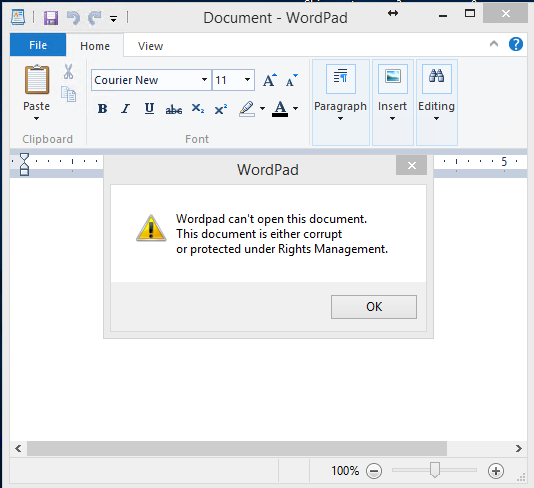
Windows – Open Office
OpenOffice (Apache Foundation – 4.1.1 – latest) doesn’t know what to do either. It doesn’t recognize the file format.
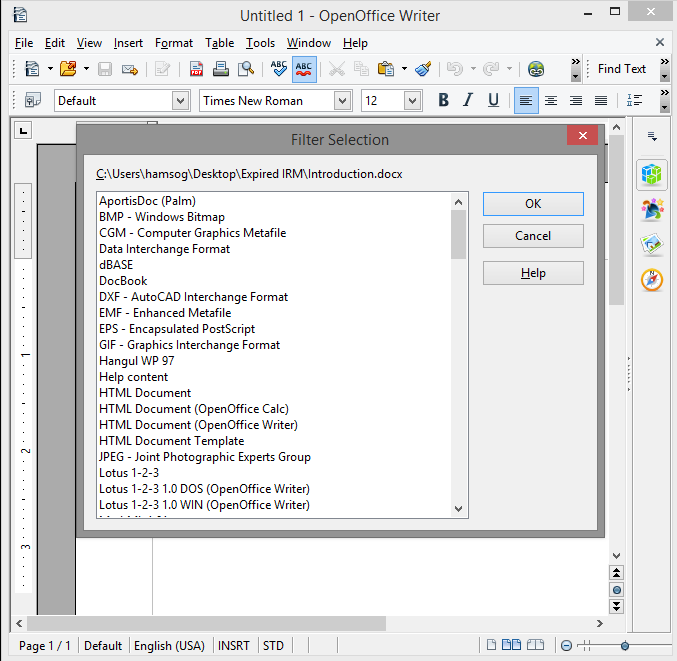
Windows – Libre Office
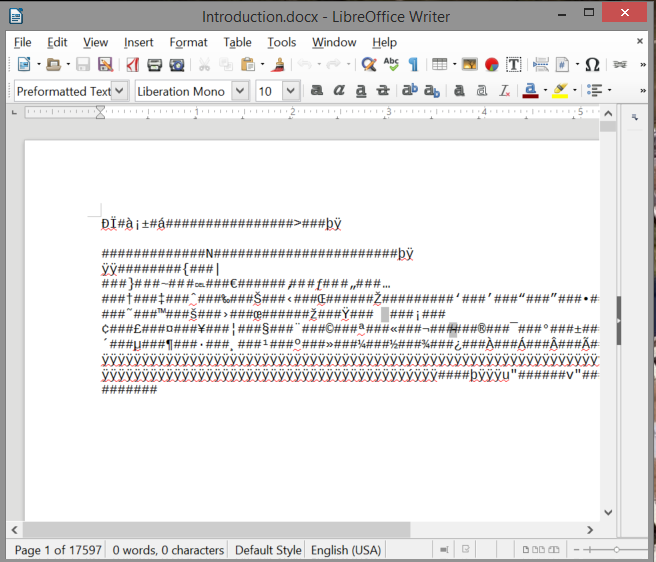
Libre Office, also based on Open Office, opens the file and it appears corrupted. You cannot tell any of the original contents.
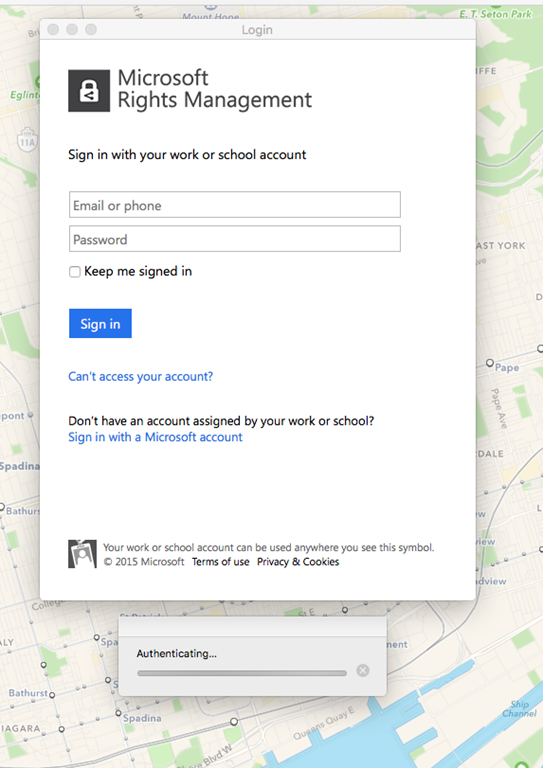
Mac OSX – Microsoft Word 2016
With the 2016 revision you can see it fully recognizes the file format and gives the ability to login with your work account!
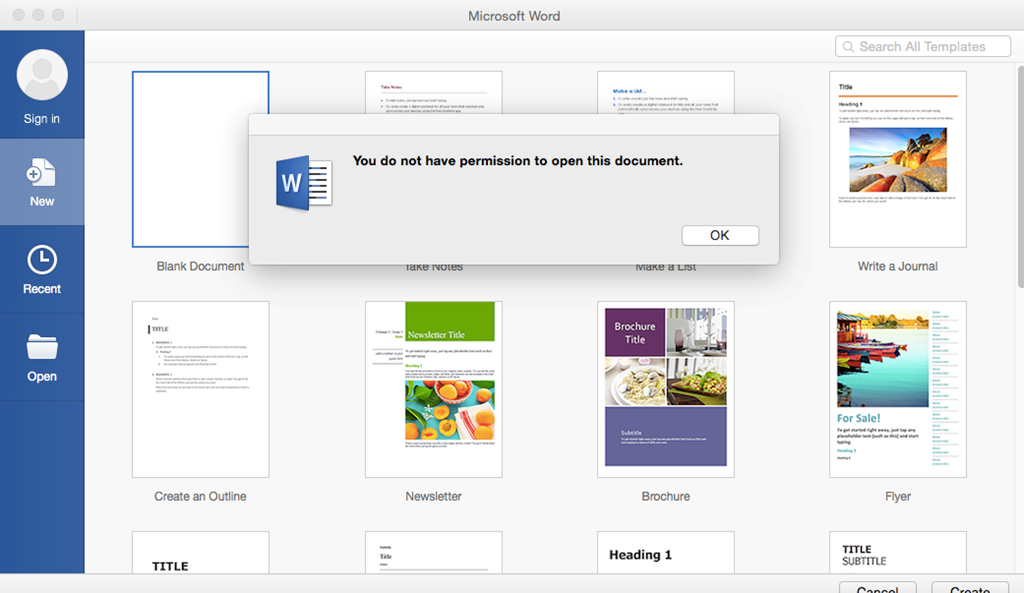
Mac OSX – Word 2013
In Word 2013 on the Apple Mac, we can see that the document is protected but we do not have the ability to open with our work account.
iOS iPhone – Microsoft Word
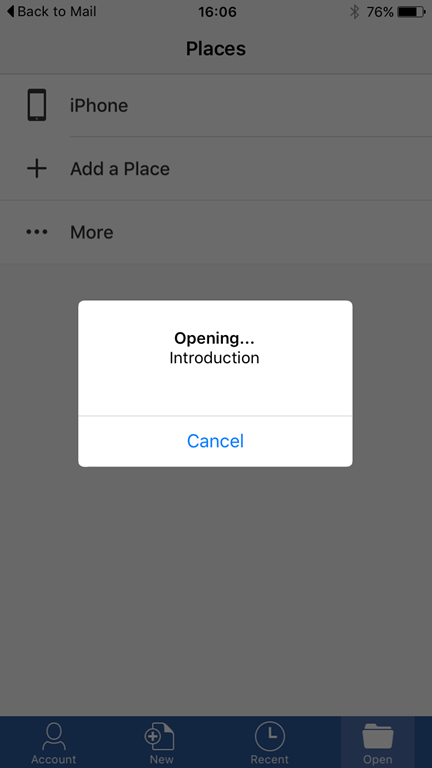
Word on the iPhone supports IRM protection and in this scenario, I was off the network using my non-company account.
As you can see, it tries to load, tells me there’s a problem and states that it is under rights management. Exactly the experience you would hope for from the Microsoft suite of applications.
I suspect a future release will expand on this area.
 |
 |
 |
iOS iPhone – Documents Free (Mobile Office Suite)
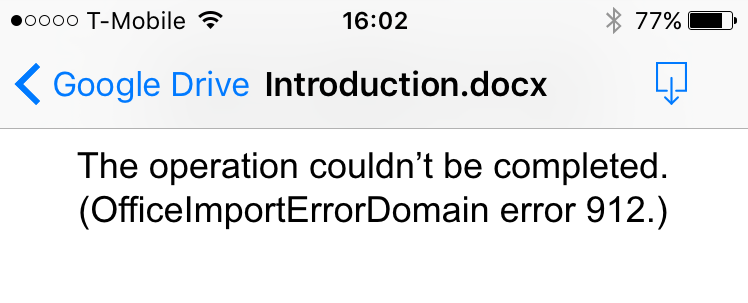
No support for IRM on a free MS Word alternative on the App Store. Further proving that the protection is in the file as expected!
iOS iPad – Microsoft Word
As per the iPhone app, we get the same experience. In a future release I suspect we will see a more expansive feature set when it comes to IRM.

iOS iPad – Documents Free (Mobile Office Suite)
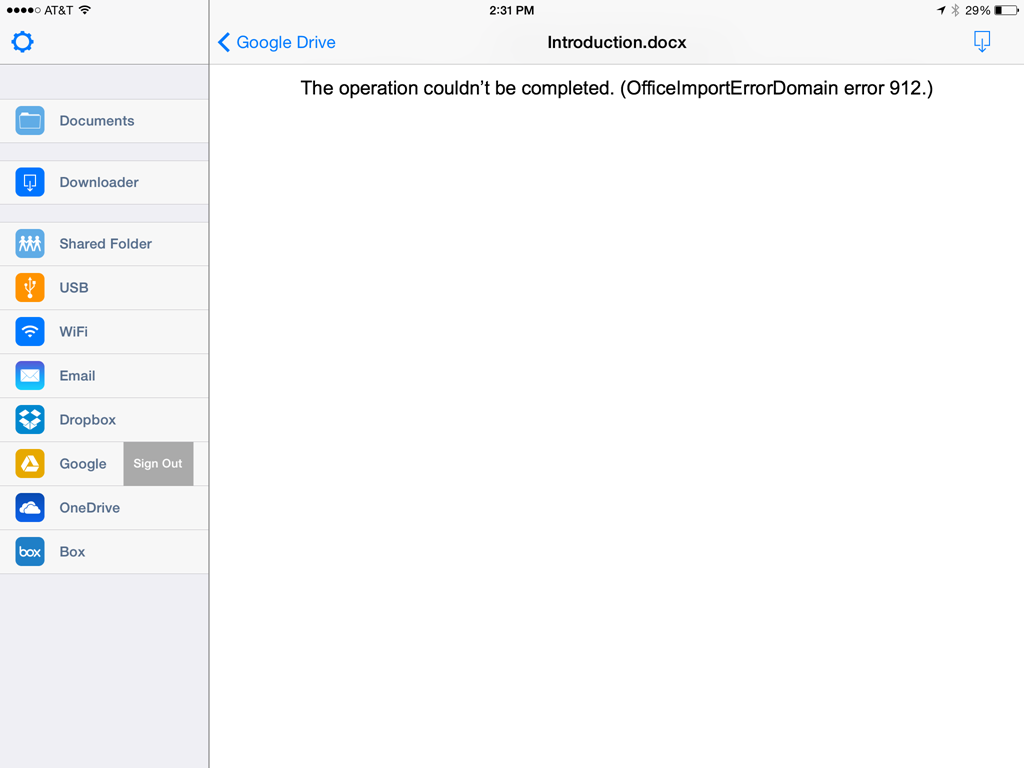
No support for IRM on a free MS Word alternative on the App Store. Further proving that the protection is in the file as expected!
Android – Microsoft Word
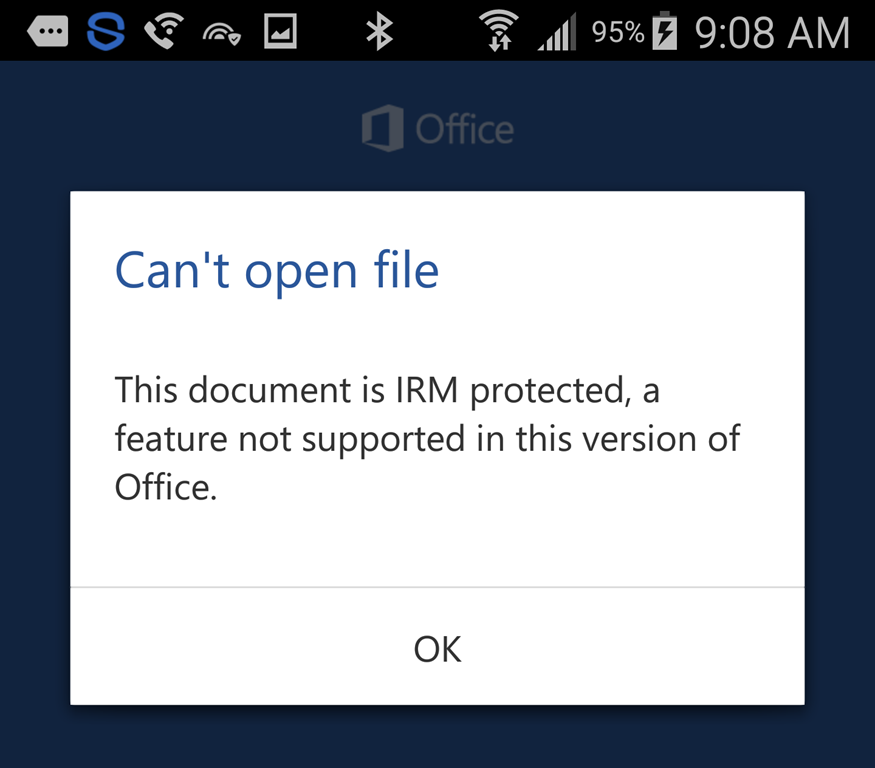
As you can see, the Android version of Office also supports IRM in terms of detection, but not in terms of opening or editing. I suspect this will appear in a future release.
Windows Mobile 8.1 – Microsoft Word
As we can see, Word on Windows Mobile as expected doesn’t open the protected file, but rather than recognizing that it is protected with IRM, we get this…

Web – Office Online – Microsoft Word
Office Online understands that it is protected by IRM and stops access.

Interestingly however you cannot edit IRM protected documents online, which means you have to use the desktop application to update the documents.
You get a clue when you try to preview the document from within the library:

Then when you open it in Word Online, you have no option to edit:
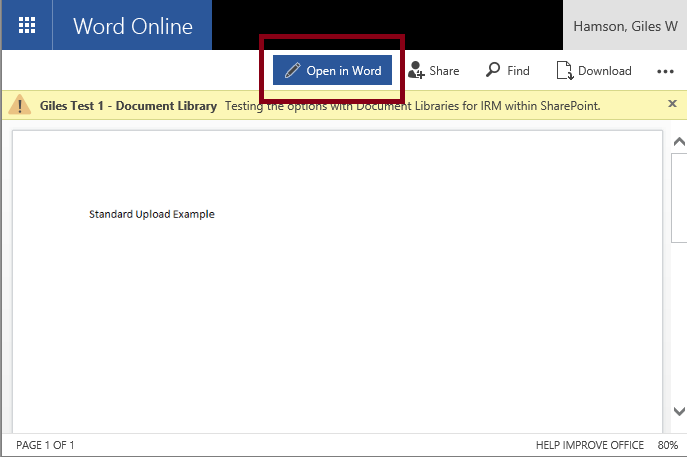
From a usability point of view, I will be recommending to my users to always ensure that this setting is enabled to avoid confusion:

This will stop the preview of the document showing and it will only open in Microsoft Word
Web – Google Docs
We just get an unknown error from Google Docs…

Conclusions
So there you have it. Although this doesn’t consider all applications, it covers most common and some uncommon applications across the majority of platforms (Sorry Blackberry users… just didn’t have the platforms around to test.).
It is fair to say that whether the application supports the SharePoint implementation of IRM or not, you are protected. It is also fair to say that really you should limit your experience of updating files to the Microsoft Office suite.
To summarize the above findings; take a look at the table below:
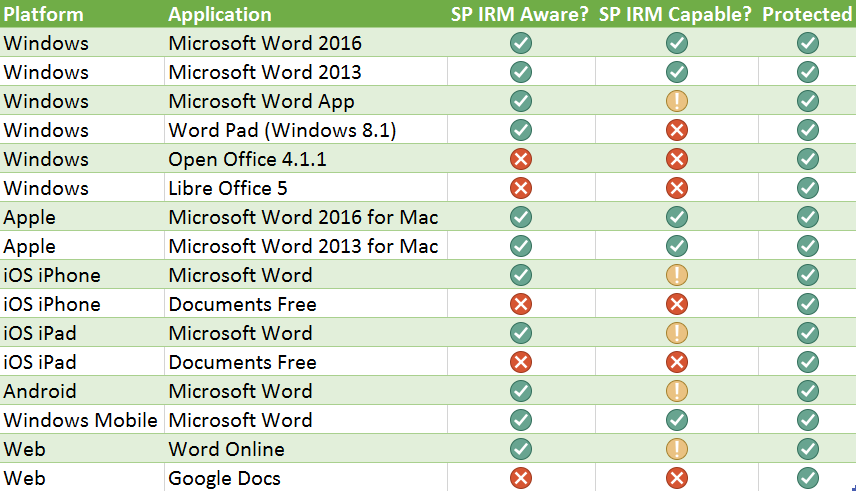
Although I focused on the Word application in this post, Excel and PowerPoint on the core platforms (Windows, Apple OSX) work in the same way.
We are assured that the mobile apps that Microsoft produce for iOS, Android and Windows Mobile will support IRM properly soon, but no timeline has been given at the time of writing for this article. (Please note we will be looking at Azure RMS support in the next few articles where mobile capabilities are available with latest releases)
Next Post(s)
I think we have covered the SharePoint IRM enough… Let’s take a look at Microsoft RMS (Rights Management Server) in Azure next. It is a similar technology but not the same as IRM (Information Rights Management).
After we have had a look at that, I’ll compare and contrast against my scenarios here at work!
Till the next time… stay nerdy!

I am speaking – Project Virtual Conference #ProjectOnline #BI
|
I am a Project Server and SharePoint consultant but my main focus currently is around Project Server.
I have been working with Project Server for nearly five years since 2007 for a Microsoft Gold Certified Partner in the UK, I have also been awared with the Microsoft Community Contributor Award 2011. I am also a certified Prince2 Practitioner. This article has been cross posted from pwmather.wordpress.com (original article) |
Quick post to reference my session for the Project Virtual Conference on 22nd October 2015:
See some of the great reporting options for Project Online.
For the full schedule see: http://bit.ly/1Vspllo
To register for this great free event (no travel expenses either!): http://bit.ly/1GnVUof
Applying the Concepts of the SharePoint App Model to SharePoint 2010
Legacy Code Is Still Out There
The SharePoint 2016 Preview was released in August and many companies are already moving toward the cloud and SharePoint Online. However, a good number of enterprises still have SharePoint 2010 (and perhaps older) farms hanging around. It’s likely those on premise 2010 farms host highly-customized SharePoint solutions and perhaps require occasional enhancements. This is the case in our organization.
Our development team was approached and asked to enhance a SharePoint 2010 solution so that our site could display news feeds from an external vendor. The site must cache feeds so that the page displays correctly even if the remote site is unavailable at the time of page load. Naturally, we asked our SharePoint 2010 developer to devise a solution to this problem. A short while later the developer delivered a technical approach that is steeped in SharePoint tradition.
The SharePoint Way of Doing Things can be Expensive, Time Consuming and Disruptive
The solution proposes to provision content types, site columns, and lists during in the usual way, via feature activation. These two lists would hold the remote URL (feed) and the fetched content from the remote feed. A timer job would read from the feed configuration list and fetch the data storing the results into a second SharePoint list. Lastly, a custom (server side) web part would be created to read and display the contents of the retrieved news feeds list on the page with all the appropriate sorting, formatting, and style our users expect.
On the surface, this seems like a perfectly reasonable solution for the task at hand. The use of a full-trust deployed solution to create needed plumbing such as content-types and lists was how it should be done in those heady, salad days of SharePoint 2010. The proposed solution can confidently claim that it adheres to the best practices of SharePoint 2010.
However, there are drawbacks to going with a traditional SharePoint-based solution. Before the advent of the sand-boxed solution in 2010 it was very easy for a poorly written SharePoint solution to adversely affect the farm on which it was installed. Custom code has caused many a SharePoint admin sleepless nights. We don’t want to introduce new code to the farm if it’s not completely necessary.
Our team employs both SharePoint developers as well as .NET developers. Our contract SharePoint developers command a higher hourly rate than our “run of the mill” .NET developers. As our industry is extremely cost sensitive right now it would be great if we could avoid the use of specialized SharePoint developers for this one off project.
This last bit could be unique to our organization and may not be applicable to yours. We have a stringent process for SharePoint deployments. Suffice it to say, from the first request to have code promoted to test that a minimum of two weeks must pass before the code is deployed to production. Content updates, such as adding web parts and editing pages is not subject to this testing period. The ideal solutions would avoid an “formal” SharePoint development.
Why the SharePoint App Model is Cool!
The SharePoint app model was introduced with Office and Sharepoint 2013. With the app model, Microsoft no longer recommended that developers create solutions that are deployed directly on the SharePoint farm. Rather, developers create “apps” that are centrally deployed from an app catalog and run in isolation from SharePoint processes. SharePoint App Model code runs entirely on the client (browser) or in a separate web application on a remote server. Apps’ access to SharePoint internals are funneled to a restricted and constricted RESTful API.
The app model prevents even the worst behaving application from affecting the SharePoint farm. This means the farm is more stable. Additionally, applications written using the App Model do not require a deployment to the farm or not the type of deployment that would necessitate taking farm into maintenance or resetting IIS. Under the App Model SharePoint remains up even as new applications are made available. Customers are happy you can quickly pound out their requests and make them available and admins are happy because your custom code isn’t taking down their farm (allegedly).
Sadly, the app model doesn’t exist for SharePoint 2010, or does it? While specific aspects of the App Model do not exist in SharePoint 2010 you can still embrace the spirit of the App Model! The very heart of the SharePoint App Model concept is running custom code in isolation away from SharePoint. In our case we really only need to interact with SharePoint at the list level. Fortunately, SharePoint 2010 provides a REST API for reading and writing to lists.
Let’s re-imagine our solution and apply App Model-centric concepts in place of traditional SharePoint dogma.
First let’s use PowerShell scripts to create our Site Columns, Content Types, and lists rather than having a solution provision these objects on feature activation.
Next, let’s replace the SharePoint timer job with a simple windows console application that can be scheduled as a Windows scheduled task or kicked off by an agent such as Control-M. This console app will read a SharePoint list using the REST API, then run out to fetch the content from the Internet writing the results back to a second list using the REST API.
Finally, we can substitute our server-side web part with a Content Editor Web Part that uses JavaScript/Jquery to access our news feed list via, you guessed it, the REST API. The contents can then be styled with HTML and CSS and displayed to the user.
It’s noteworthy to mention that the UI aspect of this project could potentially suffer from the lack of a formal App Model and where a true Farm deployment may be superior. In a true App Model scenario apps are deployed to a central App Catalog and can be deployed to sites across site collections. In order to deploy this Content Editer Part to multiple site collections we would need to manually upload the HTML, CSS, and Javascript to the Style Library of each site collection. Imagine having dozens or even hundreds of site collections. An actual solution deployment would have afforded us the ability to place common files in the _layouts folder where they would be available across site collections. Fortunately for us the requirement is only for a single site collection.
By cobbling together a set of non-SharePoint components we have, essentially, created an App Model-like solution for SharePoint 2010; a poor-man’s App Model if you will.
In my opinion, this solution is superior to the SharePoint way of doing things in the following ways:
- Ease of Maintenance / Confidence – Using PowerShell to create columns, content-types, and list is better because scripts can be tested and debugged easily. Deployments that provision sites are more complicated and time consuming. From the perspective of a SharePoint admin PowerShell is likely a known entity. Admins can examine exactly what this code will be doing to their farm for themselves and perhaps gain a highly level of confidence in the new software being deployed.
- Lower Development Cost / Ease of Maintenance A Windows console app is superior to a timer job because you don’t need to pay an expensive SharePoint developer to create or support a solution on a depreciated platform (SP 2010). Maintaining a console application requires no specific SharePoint experience or knowledge. In our case, we have an entire team that ensures timed jobs have run successfully and can alert on failure as needed.
- Reliability / Availability – There is no custom code running within the SharePoint process. This means there is NO chance of unintended consequences of misbehaving code created for this solution affecting your Farm.
- Standards Based – HTML, JavaScript, and CSS are basically universal skills among modern developers and standard technologies.
- No Deployment Outage – This solution can be implemented without taking down the SharePoint farm for a deployment. Adding a simple content editor web part does not interrupt business operations.
- Ease of Portability / Migration – Our solution, using a console app, HTML, and Javacript works just as well on SharePoint 2013 and Office 365 as it will with SharePoint 2013. Whereas a traditional SharePoint solution cannot be directly ported to the cloud.
Conclusion
There is a lot of legacy SharePoint 2010 out there, especially in large enterprises where the adoption and migration to newer platforms can take years. Occasionally, these older solutions need enhancements and support. However, you want to spend as little time and money as possible on supporting outdated platforms.
We needed a solution that had the following characteristics:
- We didn’t want to continue to write new server-side code for SharePoint 2010.
- We wanted a solution that didn’t require an experienced SharePoint developer to create and maintain.
- We wanted code that was modular and easily migrated to Office 365.
- We wanted to avoid a formal SharePoint deployment and its associated outage.
A traditional SharePoint solution was not going to get us there. Therefore, we took the best parts of the SharePoint App Model (isolation, unobtrusive client side code, and RESTful interfaces to SharePoint) and created a holistic solution that fulfilled the customers’ expectations.
-Chris
|
I am a senior software developer and development team lead in Houston Texas. I am passionate about the “art” of software development. I am particularly interested in software design patterns and the principles of SOLID object-oriented code. I am an evangelist for test driven development. I love to think and write about my day-to-day experiences in the trenches of enterprise IT. I relish the opportunity to share my experiences with others.
From the wire to the presentation, I am holistic solutions guy. I have broad experience in client side technologies such as Javascript, Ajax, AngularJS, Knockout, and Bootstrap. I have extensive experience with MVC, MVVM, and ASP.NET Web Forms. I am strong in SQL Databases, performance tuning, and optimization. I also have a background in network engineering, wide-area and inter-networking. This article has been cross posted from jcclements.wordpress.com/ (original article) |
#O365 #SharePoint Online–Information Rights Management #IRM–what works, what doesn’t in a business context-Part 4
This article is part of a series:
In the first article of this series we discussed what IRM was, some scenarios and high level device supportability.
In the second article we covered file type support.
In the third article we covered file type support in detail as well as the document library experience.
So we have talked about what IRM in SharePoint is, file type support and limitations, document library experiences etc. lets get down to permissions. What can you restrict…
A good place to start is here: https://support.office.com/en-us/article/Apply-Information-Rights-Management-to-a-list-or-library-3bdb5c4e-94fc-4741-b02f-4e7cc3c54aa1
To quote specifically from the site:
How IRM can help protect content
IRM helps to protect restricted content in the following ways:
- Helps to prevent an authorized viewer from copying, modifying, printing, faxing, or copying and pasting the content for unauthorized use
- Helps to prevent an authorized viewer from copying the content by using the Print Screen feature in Microsoft Windows
- Helps to prevent an unauthorized viewer from viewing the content if it is sent in e-mail after it is downloaded from the server
- Restricts access to content to a specified period of time, after which users must confirm their credentials and download the content again
- Helps to enforce corporate policies that govern the use and dissemination of content within your organization
How IRM cannot help protect content
IRM cannot protect restricted content from the following:
- Erasure, theft, capture, or transmission by malicious programs such as Trojan horses, keystroke loggers, and certain types of spyware
- Loss or corruption because of the actions of computer viruses
- Manual copying or retyping of content from the display on a screen
- Digital or film photography of content that is displayed on a screen
- Copying through the use of third-party screen-capture programs
- Copying of content metadata (column values) through the use of third-party screen-capture programs or copy-and-paste action
So seems pretty straight forward and of course this applies to the file types mentioned in the previous posts on this subject.
- Word
- Excel
- PowerPoint
- XPS
Interestingly, this Microsoft article mentions InfoPath but at the time of writing for this article, that did not appear to be the case in SharePoint Online (2015-09-23)
At the bottom of the article is starts talking about how list / library permissions compare to IRM permissions. Again to quote from the site (just for completeness):

So I hear what you are saying… come on Giles… now you are just copying content from a web site and re-purposing it. To a degree that is true… but lets put the above into something that makes more sense to the standard Business User that doesn’t really know what permission levels mean etc.
So we can essentially translate the above to the following:

Now it makes a bit more sense.
So lets get some users together in these groups and see what effect that has on the IRM permissions when you open a document…
Owner:
So we can see as an owner of the site, I own the document and have full permissions to Copy, Print, Save, Export etc.
If you notice, I also have no expiry on this document either. Which means downloading the document offline means that the permissions will stay with me as long as I am on a domain controlled PC logged in as the user mentioned in the pop up.

Member:
As a member, we can View, Edit, Copy, Print and Save. This makes sense since as a member you are likely to be creating documentation in the first place.

Remember you can also control who can see versions of documents within SharePoint as well as the ability to control if you can only see your only content.
You can find these configurations in the Library Settings under Versioning Settings:

So what we are seeing here is IRM permissions layered on top of SharePoint’s standard permissions working hand in hand!
Also notice that the expiry for these permissions come into effect on Thursday, September 24, 2015. At this point, the document (if it is offline from SharePoint), will be entirely locked down, even if you are authorized and you would have to go back to the source library to get a new copy.
When something has expired, this is what you see in the application:

Visitor:
Lastly, as a Visitor to my site, you can only view the document. Now as mentioned earlier, it does not control any other application. So you could still print screen potentially or use a tool like Snag It to capture the information. The rules below only pertain to the application implementing the IRM rights.
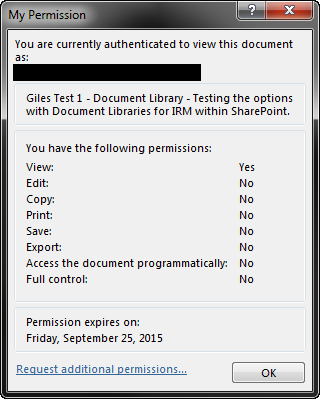
Conclusions
On a high level, it would appear IRM really comes into its own when you want to prevent your content from leaving the organization. It stops the content being shown to unauthorized users and since this is implemented at a file level, USB drives and Email Attachments cannot circumvent the protection in place.
However, at the end of the day, if you have an authorized user that wants to be malicious then they can open the documentation, copy the content from the screen and re-produce it in an un-protected form. So just to confirm, this isn’t a magic bullet to solve all your IP protection woes and lets not forget, content is created in an unprotected form first and is only protected once it is uploaded into SharePoint.
Next Post(s):
- The Client Experience. Windows, OSX (if I can find a mac), Mobile, Web – you name it, I will endeavor to try it
- Unsupported Files – A look at the desktop RMS client and how that works with SharePoint
Useful Links:
Apply IRM to a list or library: https://support.office.com/en-us/article/Apply-Information-Rights-Management-to-a-list-or-library-3bdb5c4e-94fc-4741-b02f-4e7cc3c54aa1


 SharePoint (and Project Server) Shenanigans
You must be logged in to post a comment.