Archive
Don’t be fooled by InfoPath login prompt
A short sharing since I was amazed of the quality of feedback I received today from InfoPath and could have spent hours on this.
Steps:
- Create an infopath form (here 2013, but may be the same in previous versions as it hasn’t moved that much at all since 2007)
- Publish it to Sharepoint (2013) as a Content Type
- Bang ! Infopath prompts for a login/password for the Webs.asmx web service

- Entering any login still fails.
After a bit of thinking I went back a few step on that Publishing dialog box and noticed that I pasted some text that my client wanted to see displayed and it was just that: InfoPath didn’t like to transform the Description of the form or Sharepoint refused it because some characters were incorrectly formatted.

So don’t be fooled by InfoPath / Sharepoint, the error doesn’t always lays where you think it is.


via François on Sharepoint http://sharepointfrancois.wordpress.com/2013/10/18/dont-be-fooled-by-infopath-login-prompt/
   French native Sharepoint Consultant living in London. A crossway between a designer, developer and system architect. Prefers stretching the limit of out-of-the-box features rather than breaking them into code. When not working with Microsoft Sharepoint François is often found on Web2.0 News sites and related social networking tools.
This article has been cross posted from sharepointfrancois.wordpress.com/ (original article) |

Take care when deleting the #Project Ideas list in #ProjectServer #PS2013 #SP2013 #SharePoint #ProjectOnline #PPM
 I am a Project Server and SharePoint consultant but my main focus currently is around Project Server.
I have been working with Project Server for nearly five years since 2007 for a Microsoft Gold Certified Partner in the UK, I have also been awared with the Microsoft Community Contributor Award 2011. I am also a certified Prince2 Practitioner. This article has been cross posted from pwmather.wordpress.com (original article) |
Just a quick blog post to ensure you take care when deleting the project ideas list and to let you know of potential issues with deleting projects that were created via the deleted project ideas list.
This post covers the issues you will see when trying to delete a project from Project Server that was created from a project ideas list after the list was deleted.
Example Project Ideas list:

Project created in Project Server from the Project Ideas list above:

Delete the Project Ideas list from the “List Settings” > “Delete this list” option.
Now try to delete the project that was initiated from the Project Ideas list, in this example delete the PM Test Project from the Delete Enterprise Objects menu in server settings. Navigate to the Project Server queue and you will notice that Project Delete job fails:

The key error is:
Microsoft.Office.Project.Server.BusinessLayer.QueueMsg.RemoveIdeaListLinkMessage‘ messageID=’8′ stage=” blocking=’Undefined’
You will see the the project still exists in the Project Center:

But trying to access the project details gives an error:

Checking the Delete Enterprise Objects page shows that the project is not visible when selecting “Delete draft and published projects”:

Change to “Delete only published projects” shows the project:

Attempting the delete again throws the same error.
My advice at this stage is to recover the deleted Project Ideas lists if possible. In this example I still had the Project Ideas list in the PWA site recycle bin. After restoring this deleted list, the subsequent delete job for the “PM Test Project” completed successfully.
With this in mind, I would recommend that you do not delete any PWA lists that have been used to create projects in Project Server.


Project Challenge 2013 #ProjectServer #PS2013 #SP2013 #projchallenge #pmot
|
I am a Project Server and SharePoint consultant but my main focus currently is around Project Server.
I have been working with Project Server for nearly five years since 2007 for a Microsoft Gold Certified Partner in the UK, I have also been awared with the Microsoft Community Contributor Award 2011. I am also a certified Prince2 Practitioner. This article has been cross posted from pwmather.wordpress.com (original article) |
Just a quick post to let you know that we (CPS) will have a stand at Project Challenge 2013. We will be on stand 72. CPS are also presenting, details below:
Wednesday 16 October 2013 – 14.00
Title: Portfolio management – how do I even get this on the executive agenda?
Speaker: David Dunning, Professional Services Director, CPS
http://www.projchallenge.com/case_studies_expertise.cfm
Tuesday 15 October 2013 – 11.30
Title: Microsoft Portfolio and Project Management made simple! Discover how effortless online and on-premise deployments are now a reality
Speaker: Ivan Lloyd, Product Lead, Corporate Project Solutions
Wednesday 16 October 2013 – 12.30
Title: Microsoft Portfolio and Project Management made simple! Discover how effortless online and on-premise deployments are now a reality
Speaker: Ivan Lloyd, Product Lead, Corporate Project Solutions
http://www.projchallenge.com/presentations.cfm
I will also be around at the exhibition on Wednesday – come and say hello 


Improvise #ProjectServer 2013 #CU installation time #SP2013 #PS2013 #CU
Just before this blog, a normal time i have experienced to install any CU on Project Server 2013 servers, were some where between 4-5 hrs and some time more than that as well 😦 and this duration is for 1 CU only, imagine if you have to install more than 1 CU which is common as March CU is a pre-requiste for any new CUs to be installed.
Which means, that either you plan to start the installation at day end, so that next day when you will resume work you only have to wait for configuration wizard to be finished
you can sit idle and stare at that progress bar on your screen, moving as slowly as any slowest turtle exist on planet earth, and curse yourself that why have you started the installation at this time.
I have been look for ways to improvise the duration of installation of CU, and the good news is that there is a way to install the same CU with the duration time of between 30-45 mins … yea you are reading it rite, its mins NOT hrs 🙂
Credit for this goes to Russ Maxwell, who brought this solution forward. And i am re-posting this good to spread to Project server community, because its equally painful for us as well 🙂
From the start the suspect in this whole case, i.e. why CU takes so long, are the SharePoint services running on the server such as App fabric/search etc. As they consume most part of CPU, and push windows installer to a lower priority to consume CPU time.
So here is a Power-Shell script to automate and speed up the installation process by disabling SharePoint server services gracefully. The scirpts performs the following steps:
- Disable the IISAdmin and SPTimerV4 service
- Shut down IIS Admin and Timer Services if they are running
- Give you the option to Pause the Search Service Application (see search notes below)
- Stop Search Services (see search notes below)
- Install the patch in passive mode (No user interaction required but will witness the patch install in the UI). Note: Power Shell should remain open in the background while patch is running.
- Upon completion of the patch, the Power Shell script, services in step 1 are set to Automatic
- Starts up IIS Admin and Timer Services
- Starts up Search Services
- Resume the Search Service Application if it was paused
- Finally, the script will display the Start Time and End Time for patch install
The script can be downloaded from the script gallery below:
http://gallery.technet.microsoft.com/scriptcenter/Server-2013-automate-and-833aeb0b
A walkthrough using the script is below:
Copy the script and CU in the same folder, note that only one CU should be placed in the folder and file extension should be .exe.
Open the power shell and run the script, i recommend to pause search service application here by choosing 1. The screen shots below are of Project Server 2013 JUN CU installation on my server:
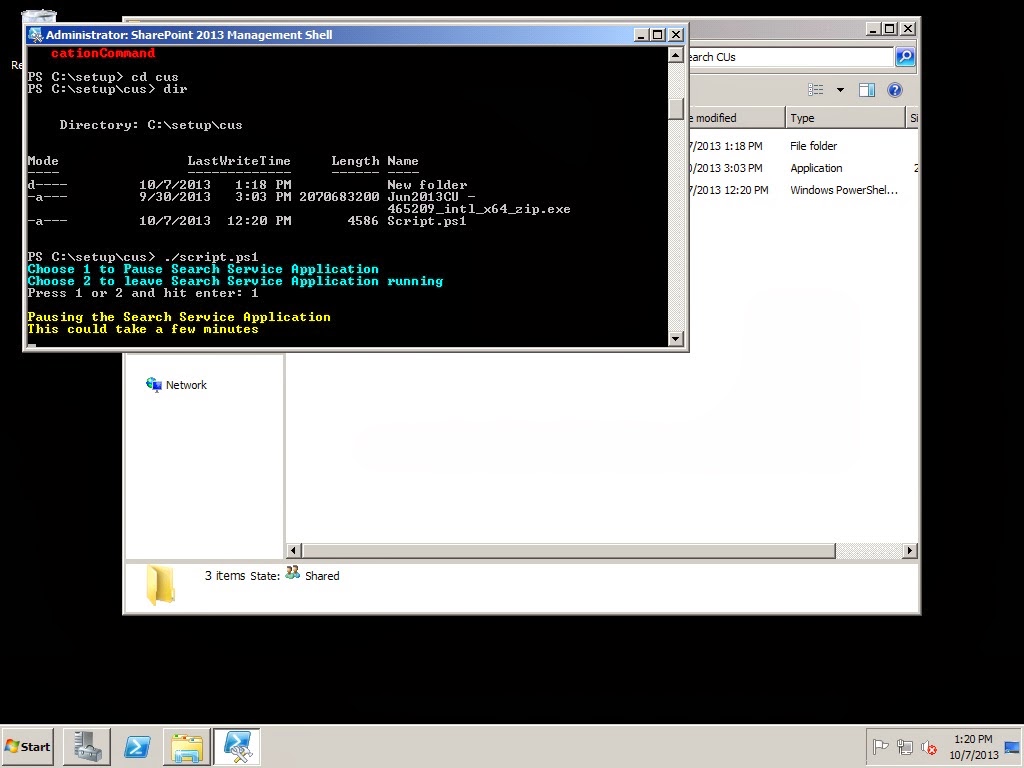
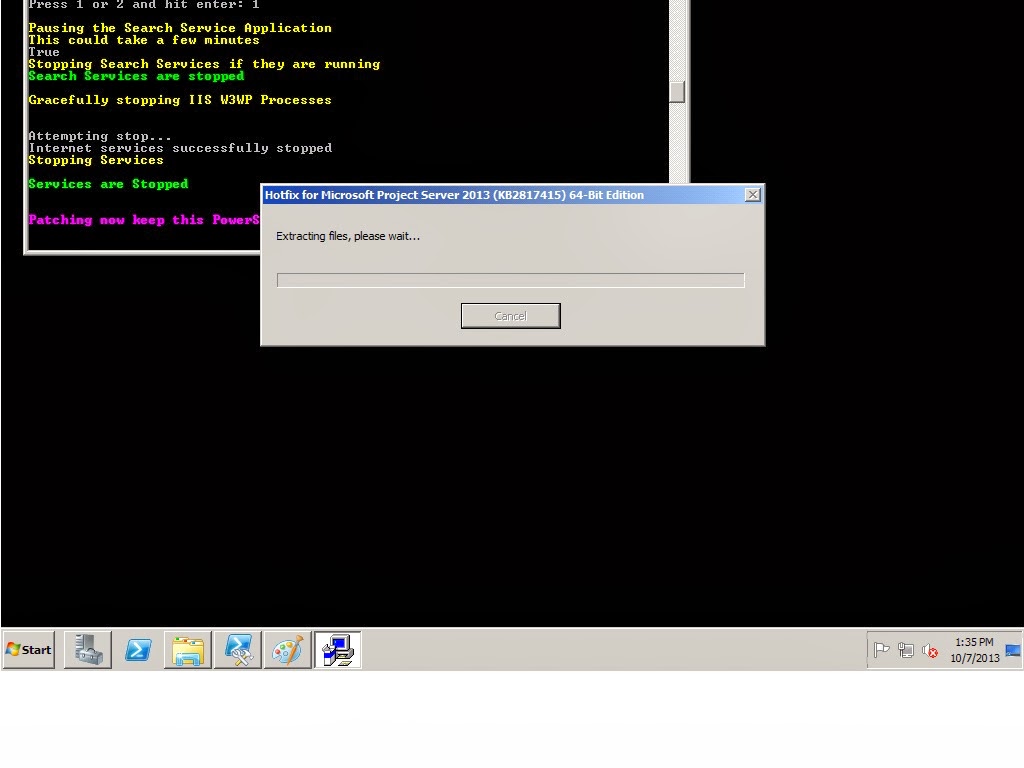
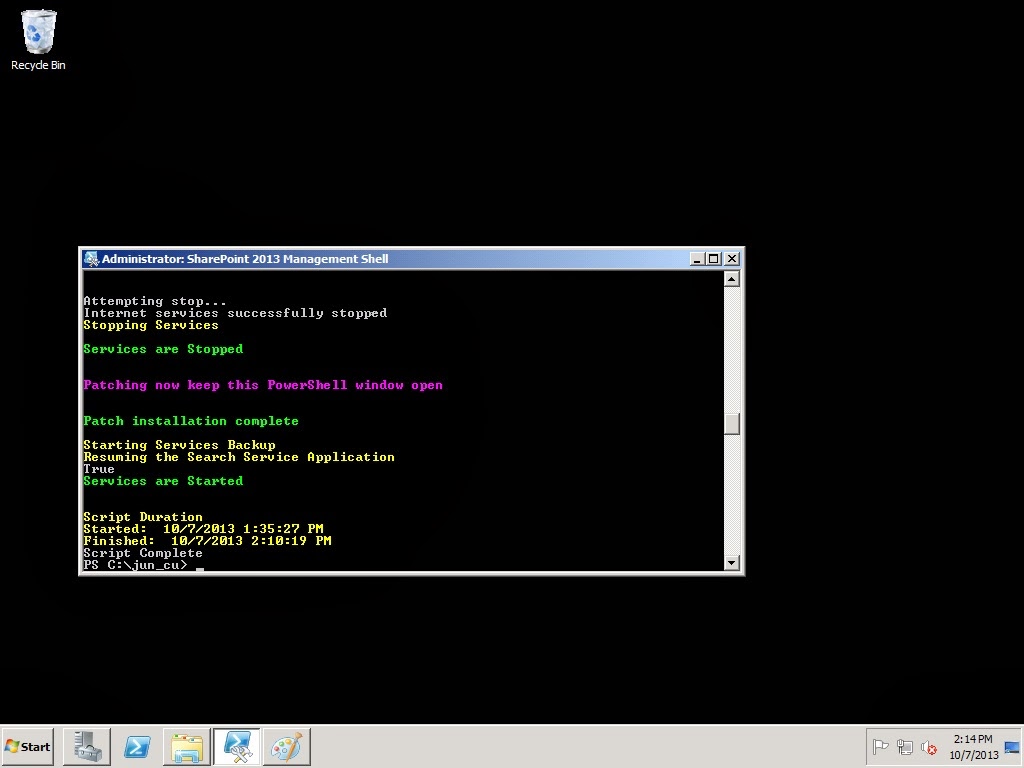
Notice the installation time of JUN CU, 35 mins, voila 🙂
Happy patching.
via All about Enterprise Project Management (EPM) http://khurramjamshed.blogspot.com/2013/10/improvise-projectserver-2013-cu.html
 The author of the blog has an extensive experience of working as an EPM Consultant. Currently he is located in Dubai, UAE and working for Microsoft partner organization as Project Server specialist. He has a thorough experience of providing Project Management technical/functional consultancy to all sort of organizations. He is a certified PMP, a Project Server MCITP, and also received a MS community contributor award 2011.
This article has been cross posted from khurramjamshed.blogspot.com/ (original article) |

#ProjectServer and #SharePoint 2010 / 2013 October 2013 Cumulative Update #PS2010 #SP2010 #PS2013 #SP2013 #MSProject
|
I am a Project Server and SharePoint consultant but my main focus currently is around Project Server.
I have been working with Project Server for nearly five years since 2007 for a Microsoft Gold Certified Partner in the UK, I have also been awared with the Microsoft Community Contributor Award 2011. I am also a certified Prince2 Practitioner. This article has been cross posted from pwmather.wordpress.com (original article) |
The Office 2013 October 2013 Cumulative Updates are now available, please see the links below:
http://support.microsoft.com/kb/2887714
Project Server 2013 Server Roll up package October 2013 CU (Recommended):
***Delayed***
Project Server 2013 October 2013 CU (Included in the Server Roll up package):
http://support.microsoft.com/kb/2825659 & http://support.microsoft.com/kb/2760465
Project 2013 October 2013 CU:
http://support.microsoft.com/kb/2825651
Also worth noting, if you haven’t done so already, install the March 2013 Public update: http://support.microsoft.com/kb/2768001 if installing the October 2013 CU.
The Office 2010 October 2013 Cumulative Updates are now available, please see the links below:
http://support.microsoft.com/kb/2887713
Project Server 2010 Server Roll up package October 2013 CU (Recommended):
http://support.microsoft.com/kb/2825793
Project Server 2010 October 2013 CU (Included in the Server Roll up package):
http://support.microsoft.com/kb/2825816 & http://support.microsoft.com/kb/2825803
Project 2010 October 2013 CU:
http://support.microsoft.com/kb/2825812
Remember SP1 or SP2 is a pre-requisite for the Office 2010 October 2013 CUs.
As always, test these updates on a replica test environment before deploying to production.


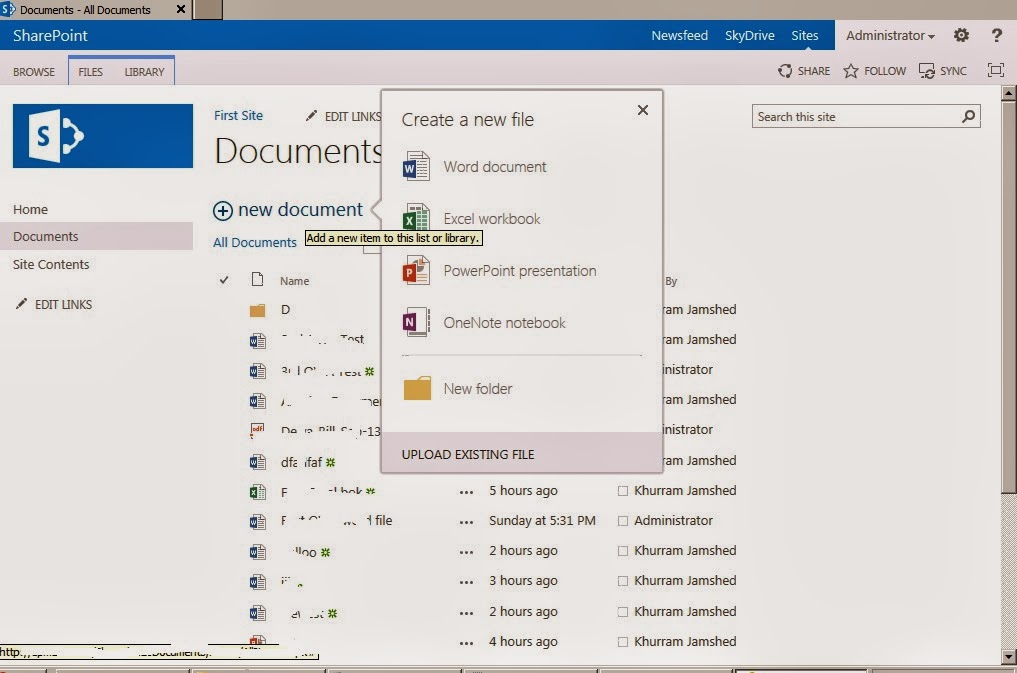
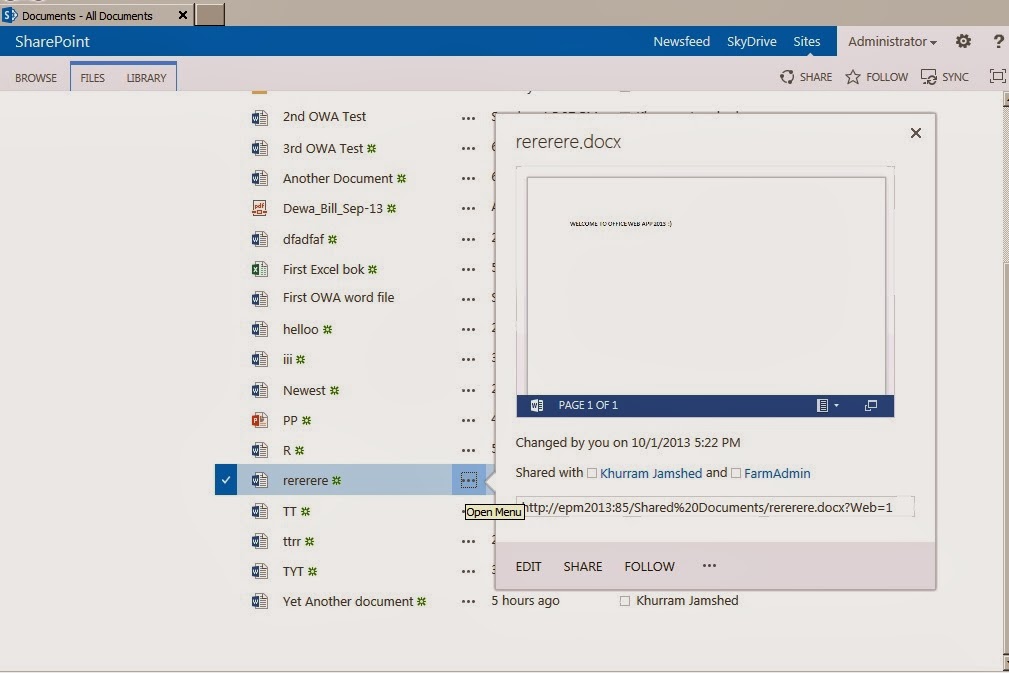
Office Web Apps Server 2013 – Unable to preview/create/edit through web #SP2013 #PS2013 #OWA2013
Follow these very detailed and helpful TechNet article in order to prepare Office Web App server , and then bind it with your SharePoint server later to make it work.
- Plan office Web Apps Server
- Deploy Office Web Apps Server
- Configure SharePoint 2013 to use Office Web App Server
via All about Enterprise Project Management (EPM) http://khurramjamshed.blogspot.com/2013/10/office-web-apps-server-2013-unable-to.html
|
The author of the blog has an extensive experience of working as an EPM Consultant. Currently he is located in Dubai, UAE and working for Microsoft partner organization as Project Server specialist. He has a thorough experience of providing Project Management technical/functional consultancy to all sort of organizations. He is a certified PMP, a Project Server MCITP, and also received a MS community contributor award 2011.
This article has been cross posted from khurramjamshed.blogspot.com/ (original article) |

Better logging in SharePoint
Just a very quick post so i can remember this post which describes 5 different approaches to custom logging within SharePoint.
http://spdevlab.com/2013/06/21/5-suggestions-to-implement-a-better-logging-in-sharepoint/

via Buzz Blog http://paulbuzzblog.wordpress.com/2013/10/01/better-logging-in-sharepoint/
 Paul is a an expert SharePoint and Project Server developer and is responsible for designing and implementing custom solutions on client systems using the latest SharePoint and .NET technologies.
Paul has extensive experience with SharePoint systems across all sizes of implementation, ranging from small to large farms and has an excellent understanding of all the elements of SharePoint. This article has been cross posted from paulbuzzblog.wordpress.com (original article) |

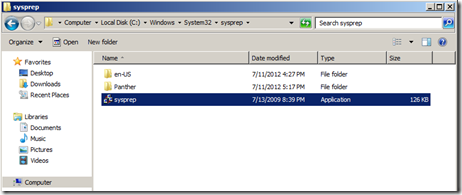
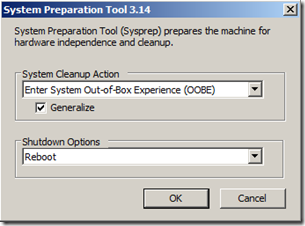
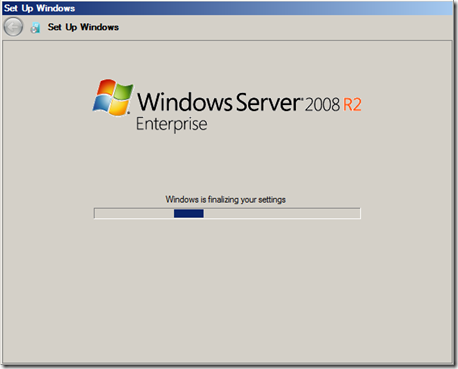
Virtual Machine – Duplicate SID issue #VM #Clonning #SID #SP2013 #PS2013
No mapping between account name and security SIDs was done


via All about Enterprise Project Management (EPM) http://khurramjamshed.blogspot.com/2013/09/virtual-machine-duplicate-sid-issue-vm.html
|
The author of the blog has an extensive experience of working as an EPM Consultant. Currently he is located in Dubai, UAE and working for Microsoft partner organization as Project Server specialist. He has a thorough experience of providing Project Management technical/functional consultancy to all sort of organizations. He is a certified PMP, a Project Server MCITP, and also received a MS community contributor award 2011.
This article has been cross posted from khurramjamshed.blogspot.com/ (original article) |

Recursive rules in InfoPath–How to prevent
A while ago I had a scenario in an InfoPath form where the user could either enter an amount or a percentage value. This value would then get added to a total already in the form. The requirement is that the user enters either value and the form then calculates the other one.
So if I enter a number then the percentage gets calculated. If I entered the percentage then the number value gets calculated.
So I quickly setup some rules so that when the value changed the percentage or the whole numbers gets calculated and updates the relevant field. This creates a loop of continually updated fields.
I had hoped that some clever InfoPath “stuff” would just make this work and I wouldn’t have to worry about the issue. This didn’t work and caused the form to fail or the fields would not update correctly.
The solution to this problem is that you need a third field to control the updates. Mine is called “Calculating” and is a simple Boolean field.
Now in the rules for Field1 (number) and Field2 (percentage) the first thing to do is to check that calculating = 0 then set calculating = 1 and then set your field. At the end set Calculating back to 0.
This is just a very simple implementation of a lock but it stops the InfoPath rules going crazy.

Pictures explain everything

via Buzz Blog http://paulbuzzblog.wordpress.com/2013/09/24/recursive-rules-in-infopathhow-to-prevent/
|
Paul is a an expert SharePoint and Project Server developer and is responsible for designing and implementing custom solutions on client systems using the latest SharePoint and .NET technologies.
Paul has extensive experience with SharePoint systems across all sizes of implementation, ranging from small to large farms and has an excellent understanding of all the elements of SharePoint. This article has been cross posted from paulbuzzblog.wordpress.com (original article) |

Programmatically Disable Event Firing on List Item Update in SharePoint 2010
All credit to the original post here
The short version for my future reference is
Create a simple class
public classEventFiring : SPItemEventReceiver
    {
       public void DisableHandleEventFiring()
        {
           this.EventFiringEnabled =false;
        }

       public void EnableHandleEventFiring()
        {
           this.EventFiringEnabled =true;
        }
    }
Then use this to disable events
 using (SPWeb web = site.OpenWeb())
                {
                    SPList list = web.Lists.TryGetList("Custom");
                    SPListItem item = list.GetItemById(34);
                    item["Title"] ="Updated Successfully";
                    EventFiring eventFiring = newEventFiring();
                    eventFiring.DisableHandleEventFiring();
                    item.Update();
                    eventFiring.EnableHandleEventFiring();
                    Console.WriteLine("Updated Successfully");
                    Console.ReadLine();
                }
            }

via Buzz Blog http://paulbuzzblog.wordpress.com/2013/09/19/programmatically-disable-event-firing-on-list-item-update-in-sharepoint-2010/
|
Paul is a an expert SharePoint and Project Server developer and is responsible for designing and implementing custom solutions on client systems using the latest SharePoint and .NET technologies.
Paul has extensive experience with SharePoint systems across all sizes of implementation, ranging from small to large farms and has an excellent understanding of all the elements of SharePoint. This article has been cross posted from paulbuzzblog.wordpress.com (original article) |


 SharePoint (and Project Server) Shenanigans
You must be logged in to post a comment.