Archive
Populate a drop-down list using SharePoint Client Object Model
This video will demonstrate how to populate an HTML drop down list control with SharePoint list column values. I’ve created a visual web part in Visual Studio 2010 and used the client object model to demonstrate this. Why would I need to use the client object model? When developing for sandboxed solutions, the whole server object model is not open for use. In some cases, such as developing for SharePoint Online, client object model will be useful if not absolutely necessary. However, you can populate a drop down list with the server object model if you prefer.

Populating a drop-down with list values using C# for SharePoint 2010
- Finds the list “My Tasks”
- Gets all items from the “Title” column in the “My Task” lists
- Uses a foreach loop to add all of the “Title” columns values to a drop-down.
Watch the video to see how it works.


Moving repeating table values to another list using a Visual Web Part in C#
InfoPath 2010 repeating tables are useful and sometimes even essential to the project requirements. However, they carry with them some problems. For one thing when multiple values are entered into an InfoPath 2010 form all of the values become crammed into one SharePoint 2010 column. This will cause all kinds of problem down the road if you ever need to access that Info and/or filter it etc. So the following example shows how to move the repeating table values to a separate list where the values can be more efficiently managed.
- I’ve created a Visual Studio 2010 visual web part that fires the code on page load
- You must have a delimiter to separate the values. In this case I have used a ;
- Do NOT add a ; to the last repeating table entry. If you do you will have and extra record in the new list.

How does it work? View the Video below:

Chart Web Part SharePoint 2010
The SharePoint 2010 Chart Web Part is a very useful tool. It has lots of capablity out-of-the box. You can extract data from and Excel sheet and display that data via graphs on a SharePoint 2010 page. This videos shows you how.
Note: the Excel file must be uploaded to a SharePoint document library.
How do I: Setup Visual Studio 2010 Console application to work with SharePoint 2010
Sooner or later the time will come when you will need to use a console application to complete
some type of task in SharePoint 2010. For instance you might need to merge data from
one list into another list using C#. However before you can start coding you need to set up the
the console app to interact with SharePoint 2010. The following video demonstrates how.
NOTE: This will not work for SharePoint Online
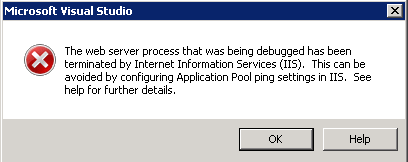
The web server process that was being debugged has been terminated by Internet Information Services (IIS)
Recently I was working on a project that required some debugging. I found myself getting the following error. Watch the video to see how I “fixed” the problem.

Client Object Model: SP.UI.ModalDialog.showModalDialog(options)
SharePoint 2010 has introduced a client object model. Now you can use JavaScript to access SharePoint data. Visit MSDN to have a look at the JavaScript API
http://msdn.microsoft.com/en-us/library/ee538253.aspx
Extracting the value of a SharePoint 2010 DateTimeControl using JavaScript
The Type or namespace name “DateTimeControl” does not exist in the namespace “Microsoft.SharePoint.WebControls”
If you create an empty SharePoint 2010 project in Visual Studio 2010 and then add a visual Web Part (Sandboxed) you will get an error when you try to debug.
The Type or namespace name “DateTimeControl” does not exist in the namespace “Microsoft.SharePoint.WebControls”
However you can add the DateTimeControl to a farm solution visual web part.
Create a SharePoint 2010 list using JavaScript client object model
Create a SharePoint 2010 list using JavaScript client object model. Get the .wsp here.


 SharePoint (and Project Server) Shenanigans
You must be logged in to post a comment.