Archive
SharePoint 2013 Visio Services
One of the services that I hardly ever look at is Visio, so i decided to provision an instance on my SP2013 beta test server and take a look
Within Central Admin the provisioning process is pretty much the same as 2010.

For this Service Application I created a new managed account and app pool and provisioned the Service Application,
At first the service wouldn’t display a Visio web diagram (.vdw)
Not a very handy error
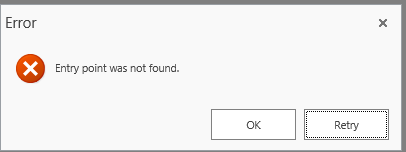
but the Event Log sheds more light on this

Go to Services on Server and start the Visio Service (it really bugs me that SharePoint 2010 doesn’t do this, looks like 2013 is the same)

After trying again, another error

Once again the event log shows what happened here, the managed account I created for the Visio Service Application has no access to the content db where the Visio diagram is.

so the same fix as SharePoint 2010 is needed here.
$webApp = Get-SPWebApplication http://teams
$webApp.GrantAccessToProcessIdentity("SP\SPSrvAcc")
A look in SQL shows that the Service Account SP\SrvAcc now has the SPDataAccess role on the database WSS_Content_Teams database

Finally we have a Visio Web Diagram available in the browser.

so not much different from 2010 from this Point of view.
Happy SharePointing.

SharePoint 2010 install Problem, iPad BI, #ipad #sp2010
SharePoint 503 error
Working on a recent SharePoint 2010 install for a client, I came across a quite strange with the install.
As I had no direct access to the servers, I had to download all the Prerequisites, Binaries, Service Pack and latest CU and slipstream them all together to make a media set.
I ran the installers on both servers, got everything patched and working, opened the CA and Portal and site everything was fine, rebooted the servers and disaster !, nothing would work.
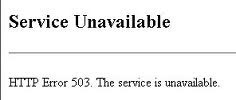
The CA site was giving 503 Service Unavailable error, checked in IIS manager and the CA and Token Service App pools were both stopped, so restarted them and reloaded the pages in IE, and WHAM 503 error again, checked in IIS and the app pools were stopped again.
Checked the SharePoint Windows Services and both the Timer and and Admin service were stopped, when trying to start all I got was the general windows message.
“The Service did not respond to the start or control request in a timely fashion”.
The window Application log was stuffed full of SharePoint Foundation errors, but none of them seemed to shed any light, after several hours of head scratching and rechecking I finally out the problem in the Windows security log. Each time I tried to start a service or app pool there was a login failure in the Windows security log for the Farm account with a
“Logon failure: the user has not been granted the requested logon type for this computer”
A quick check in the local computer security policy showed that none of the service accounts had the “Log on as a batch job” or “Log on as a service” right, after a quick word with the local domain admin it turned out that these rights were being overridden by Group Policy setting, after adding the accounts to a specific AD security group and rebooting the servers all was well again, a more full explanation is here
iPad BI issue
We have been working with a client getting the BI features running, one of the features introduced with the Dec 2011 CU for SharePoint was support for the iPad navigating a dashboard http://technet.microsoft.com/en-us/library/hh697482.aspx
The issue we found here is that for some iPads the navigation would work properly and not on others. Further investigation showed that the iPad having the problem was running iOS6 Safari browser, not 5, a nasty little gotch and tricky to spot.
Happy SharePointing.

SharePoint 2007 Patching, SharePoint 2010 Site Usage Confirmation
A couple of patching issues have come up recently that are worth sharing.
Security Update for WSS 3.0 Patch, July 2012
http://support.microsoft.com/kb/2596911
We saw this coming through a customers WSUS system, and almost approved it but I decided to take a look at the KB article, the thing that caught my eye was .
After you install this security update, PSCONFIG may run automatically.
From bitter experience we know that this is a bad thing….the WSUS installer will not have any SQL permissions, so this can leave you in a position with different binaries versions on your servers to the schema versions in your databases, so either install by hand or use the PATCH_ARGS=runupgrade=no switch on the command line and deal with PSConfig in a more controlled manner.
SharePoint Site use Confirmation and deletion.
As from the June 2012 CU for SharePoint 2010 the sites deleted by the usage confirmation job will now appear in the recycle bin, so if your using site usage confirmation get the June 2012 installed.
http://sharepoint.microsoft.com/Blogs/fromthefield/Lists/Posts/Post.aspx?ID=149

UK Phone numbers in InfoPath 2010
I was working with a client recently who wanted to be able to submit InfoPath forms with a UK style phone number field of 5 numeric+space+6numeric format, ‘01234 123456’.
I had to do a fair amount of looking around in InfoPath and the web , but finally came across a quite neat solution of pattern matching.
Firstly I had to make the text box accept the data type Text (string)
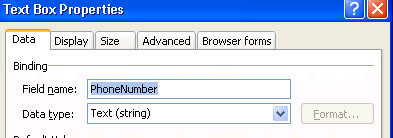
I then created a validation rule for the PhoneNumber control, for the condition I used “PhoneNumber” “does not match pattern”

and selected “Select a pattern…” in the final box, this brings up the Data Entry Pattern dialog box.

From this you can now choose “Custom pattern” I used pattern \d\d\d\d\d \d\d\d\d\d\d to format my input.

With the addition of a screen tip the validation rule is complete


Playing Flash Shockwave video in SharePoint 2010
I recently had a request from a client to help out with a problem they were having getting a Flash video to play in the browser.
The issue here is the AllowedInlineDownloadedMimeTypes list, this is predefined list of files that SharePoint considers safe for displaying in the browser.
If your file extension is not in this list then SharePoint 2010 will not open it in the browser.
You can change the file handling from strict to permissive on your Web App to address this issue, but as we had already updated the list for PDF’s we decided to do the same for Flash Shockwave files.
https://spandps.com/2012/07/06/hardware-load-balancing-aams-and-a-few-other-bits-of-fun/
Three simple lines of PowerShell does the trick
$webApp = Get-SPWebApplication("http://webappurl")
$webApp.AllowedInlineDownloadedMimeTypes.Add("application/x-shockwave-flash")
$webApp.Update()
If you then call the AllowedInlineDownloadedMimeTypes list again without .Add parameter, you will see the extra file type appended to the bottom of the list.

Once that was done we could use the content link property of a editor web part to call a simple piece of HTML saved as text to wrapper our video.
The final step was a add a shockwave icon to SharePoint and update the DOCICON file.
Job Done.
Happy SharePointing
Follow @NeilKing41
SharePoint 2010 #RSS Feeds
One of the SharePoint configuration items that I tend to asked about is getting external RSS feeds to work, there are quite a few articles and blogs on the web that talk through specific problems, but I thought I would share my experiences with SharePoint & RSS.
So what is an RSS feed and why might we want to consume it, simply put and RSS (Really Simple Syndication) feed is a way used to publish often updated content in standard format that can be easily consumed. To find out if a site publishes an RSS feed, simply go to it and look for the RSS Feed symbol in Internet Explorer turn from Grey  to Orange
then just click on the feed button to view the feed address ( examples below use BBC News)

and then then view and subscribe to the feed.

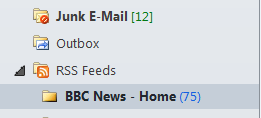
Also if you are using Outlook and sync with the Common Feed List (the one that Internet Explorer keeps)

then the feed will appear in your mailbox as well.
What does all this have to do with SharePoint I hear you ask, in a perfect world you would go to your SharePoint site, edit a page, add the RSS viewer webpart, edit the RSS Feed URL property…

… and as if by magic the shopkeeper appeared, no sorry wrong story, as if by magic your feed will be displayed…

but more often then not you get the error below… or something similar.

or if you are using the free and rather excellent Bamboo Solutions World Clock and Weather web part http://store.bamboosolutions.com/ps-55-5-world-clock-and-weather-web-part.aspx you might see the error below.

This is normally caused by one of 2 problems
Location of Proxy
Type of Windows Authentication used
Location of Proxy
If your SharePoint Web servers are located behind a proxy, they will need to know where the proxy is that traffic needs to go through, to do this updated your web.config for the site in question (if you have multiple WFE’s don’t forget to update each one)
Backup, then edit the <defaultProxy> section to make it look like this.
<defaultProxy useDefaultCredentials="false">
<proxy proxyaddress=”http://YourProxyServer” bypassonlocal="true" />
</defaultProxy>
Type of Windows Authentication
Once you have the settings about in place, the type of authentication in use at the web application level comes into play. If you are using NTLM, then you still may have a problem as your client side credentials will not be passed on your proxy server due the ‘double hop’ issue of NTLM so you can either set a bypass rule on your proxy to allow unauthenticated traffic out or configure your web app to use Kerberos authentication, once that is resolved your web parts should work as per below.


SharePoint 2010 #Web.Config Errors
Working with a client recently, they wanted to have a look at some of the BI options offered by SharePoint, so we created a site from the BI template and looked at Excel Services and the Performance Point sample pages, Excel Services worked fine but Performance Point gave the error below that is mentioned elsewhere on this fine blog 
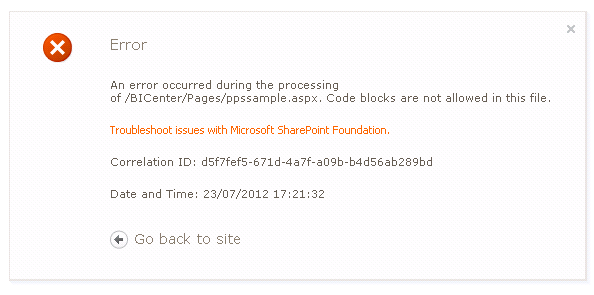
So a quick change to the web.config files was in order for the 2 web servers in the farm.
I went to the 1st server, backed up the web.config file, the made the change and all was good.
Went to the 2nd server, backed up the web.config file, the made the change and BANG internal error
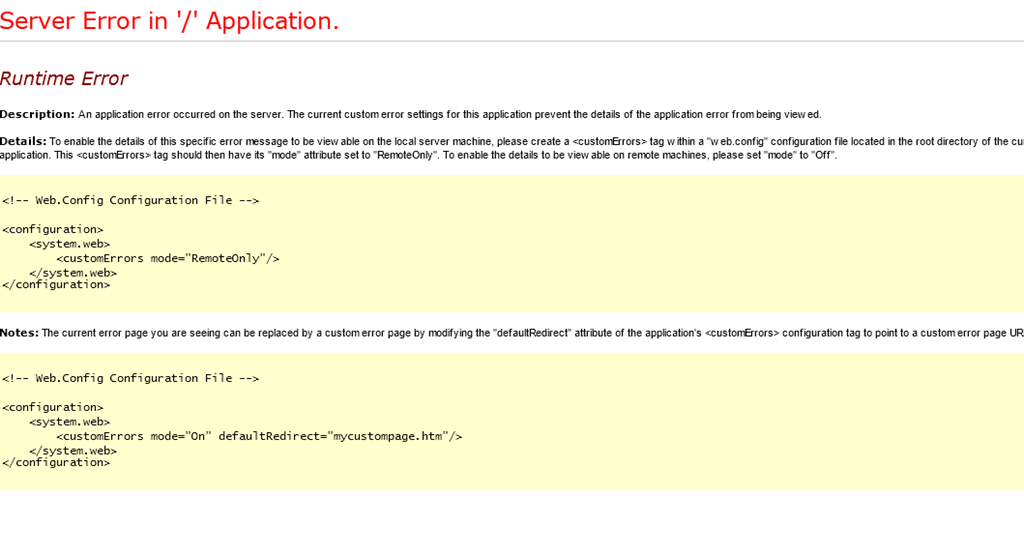
I backed out the change, same error, put back the previous web.config, same error..hmm not good…. did a few IIS Resets, same error…hmm not good at all..
Finally looked at the servers event log and spotted the following text in the event

It is an error to use a section registered as allowDefinition=’MachineToApplication’ beyond application level. This error can be caused by a virtual directory not being configured as an application in IIS. (C:\inetpub\wwwroot\wss\VirtualDirectories\<Portal Site\app_globalresources\web.config line 355)
The path looked a bit odd so I checked in the app_globalresources folder and I had indeed somehow managed to copy a version the web.config file in to it. Deleted the file and SharePoint sprang back into life.. so the moral of the story is always read the error..
Happy SharePointing.

#SharePoint 2010 #List does not exist #Server Error
While working on a customers development system I was quite surprised to get the error below while working with a list.

I was creating a custom list and wanted to add a lookup to an existing site list, as soon as I selected the ‘Lookup’ radio button, BANG – SharePoint errored.

Normally when you select Lookup, the Addition Column Settings pane show all the lists available on your site in the Get Information from dropdown.

When we checked the list of lists from All Site Content, a couple of the lists would not open, the <SiteName>/Lists/ListName/AllItems.aspx page was giving a 404 error

It was clear we had a couple of duff lists on our hands, we tried deleting them via SharePoint Designer, Stsadm & PowerShell, none of which would work. I even tried running an stsadm –o databaserepair with the deletecorruption switch, but still no joy.
Finally I decided to take a look in SQL, normally you would never do this, and certainly never on a live system, but as this was development I thought it would be okay.
The first thing to do was run a quick backup just in case !, then break open the database, fortunately all the lists in a contentDB are entries in the table AllLists 
So as a starter Select * from dbo.AllLists order by tp_Title

Shows the references to all the lists in your ContentDB in name order

also quite fortunately you can search by list name which is the tp_title field


so was quite easy to track down which lists were the ones in question, all the entries looked okay, so I took the rather brave (so I thought)decision to simply delete the entries in question as we had a SQL backup to fall back to.
Once deleted, the references to the duff lists disappeared from All Site Content and we could carry on with our work, albeit now several hours behind schedule.
If this had been a production system it might have needed a call into Microsoft Premier Support, even then I suspect the answer may have been similar.
Happy SharePointing !

SharePoint 2010 #Information Management Policy
Working with a client recently, we had a requirement to develop a solution to allow process documents to be expired every six months and sent for approval to ensure that the process is still current.
As the client was running SharePoint 2010 this seemed a good opportunity to see what could be achieved with the Information Management Policy.
The IM Policy allows a number of different actions to taken on different types of content, the actions can be things like
- Run a workflow
- Delete an item
- Transferring to another location
- Declaring an item to be a record
- Delete all previous versions or drafts.
To get these settings, you can either go to Site Collection Administration, –> Site Collection Policies, to see the site collection level policies

or from a library go to Library setting –> Information management Policy settings

to see policies for an individual library or list.
In this instance we used a library level policy attached to a custom content type.

Then set a retention policy stage, to cause the document to expire after a set amount of time and run a custom workflow I created in SharePoint Designer.
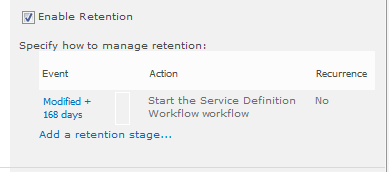
The workflow was a simple one that kicked off an approval for the content owner value set in the library.

The only thing that caught us out was the testing. We tested the workflow manually on a document and it worked fine, then forced a document to expire and nothing happened, we waited overnight and still nothing happened, nothing in the logs, just plain nothing, I checked and rechecked the settings, still nothing.
According to the SharePoint 2010 Timer Job Reference on technet http://technet.microsoft.com/en-us/library/cc678870.aspx, the Information Management Policy job runs Daily, but we finally noticed that this job was configured to run Weekly, and once it had run the solution worked fine !
Checking a few other client systems those were configured to run weekly as well, so a nice little Gotch there !
Happy SharePointing
Follow @NeilKing41
Hardware Load Balancing #AAM’s and a few other bits of fun.
On a recent client site we installed a 4 server SharePoint 2010 farm using normal HTTP and Kerberos authentication, the client wanted to use SSL as well.
For this particular install we had the opportunity to use a CISCO ACE (Application Control Engine) appliance to perform the Load balancing http://www.cisco.com/en/US/prod/collateral/contnetw/ps5719/ps7027/Data_Sheet_Cisco_ACE_4710.html
A couple of the features we used on the ACE were Hardware SSL Termination and Acceleration and HTTP to HTTPS translation. This allow us to run HTTPS traffic to and from the Load Balancer and HTTP from the load balancer to the farm.
This worked out really well we didn’t need to worry about SSL certificates or Ports on the SharePoint servers, the ACE takes care of all that.
The only extra item we needed to configure in SharePoint were the AAM’s for the Web Apps we had created.
Our testing showed the some of the normal SharePoint functions coming from Core.js stopped working, things like the ECB menu for a document stopped appearing on a client over SSL but worked okay on the servers behind the ACE, to resolve this we added some AAMs for the default zone for http to https and https to https.

A good CICSO article is here
As we were wrapping up this project a couple of other little jobs were taken care of
Open PDF’s in the Browser.
By default in SP2010 PDF’s no longer open in the browser, the user is prompted to download the file before opening. To resolve this we added the PDF Application type to the AllowedInlineDownloadMimeType list with a small piece of PowerShell
$webApp = Get-SPWebApplication("http://webappurl")
$webApp.AllowedInlineDownloadedMimeTypes.Add("application/pdf")
$webApp.Update()
As this setting is per webapp you may have to run more than once
An excellent article explaining why you use the method above is here.
The local farm is not accessible. Cmdlets with FeatureDependencyId are not registered
The error above really bugs me!, even if you are a Farm and Server Admin, the SharePoint management shell still wont play nicely due to you not having the SharePoint_Shell_Access role on the config database.

Some folk would have you go and change the permissions directly on the db via SQL Management Studio, but personally I think the best way is to use the Add-SPShellAdmin Cmdlet, you will have to logon as the Farm Account then delegate the permission to yourself or who ever the chosen admin is.
Darrin Bishop has an excellent write up of the steps needed here
Happy SharePointing.
Follow @NeilKing41


 SharePoint (and Project Server) Shenanigans
You must be logged in to post a comment.