Archive
#ProjectServer 2013 Administrator Manual #PS2013 #Project #SP2013

The guide also includes the SharePoint Central Administration PWA settings.
The guide can be downloaded from here.
Happy downloading.
via All about Enterprise Project Management (EPM) http://khurramjamshed.blogspot.com/2013/05/projectserver-2013-administrator-manual.html
   The author of the blog has an extensive experience of working as an EPM Consultant. Currently he is located in Dubai, UAE and working for Microsoft partner organization as Project Server specialist. He has a thorough experience of providing Project Management technical/functional consultancy to all sort of organizations. He is a certified PMP, a Project Server MCITP, and also received a MS community contributor award 2011.
This article has been cross posted from khurramjamshed.blogspot.com/ (original article) |

#ProjectServer 2013 PWA more integrated with Project Sites #PS2013 #SP2013
Since long i have been vocal about the distant connection between Project sites and PWA, formerly known as Project Work spaces in PS2007. Although project sites are meant to be a second home, other then PWA, to project team for their project activities.
However this distance some how comes in a way while convincing users to use project site associated with project to manage artifacts such as documents, issues and etc. One of the common request received in this case was, how to show projects tasks or project status on project site? and since there is no OOB way of achieving this in PS2010, then you have to come up with all these brilliant ideas of developing different custom solutions to accommodate such requests.
But it comes as a pleasant surprise in PS2013 that Project Sites are now more seamlessly connected with PWA. Though still the distant feeling exist, but was overcome to some extent to give user a more connected feel of Project site with their projects.
Your first experience: Project site link do not exist on ribbon anymore, its from with the Project now.
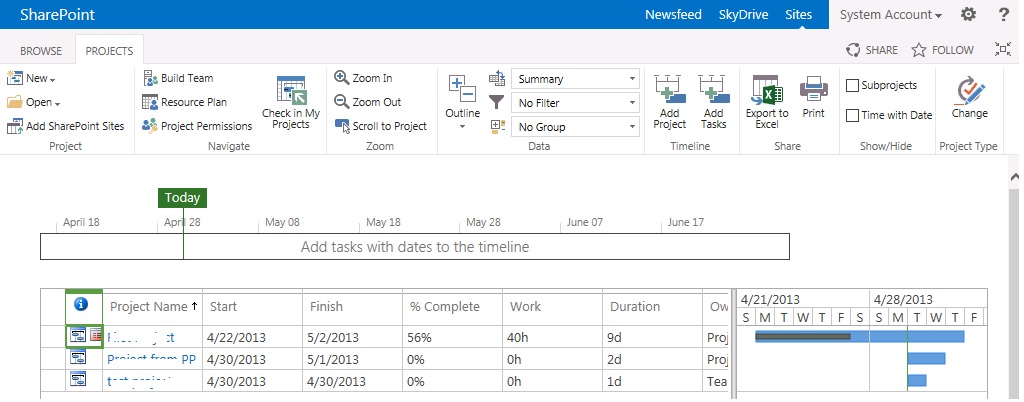
click on Project Name, and you will see the Project Site link along with PDPs.
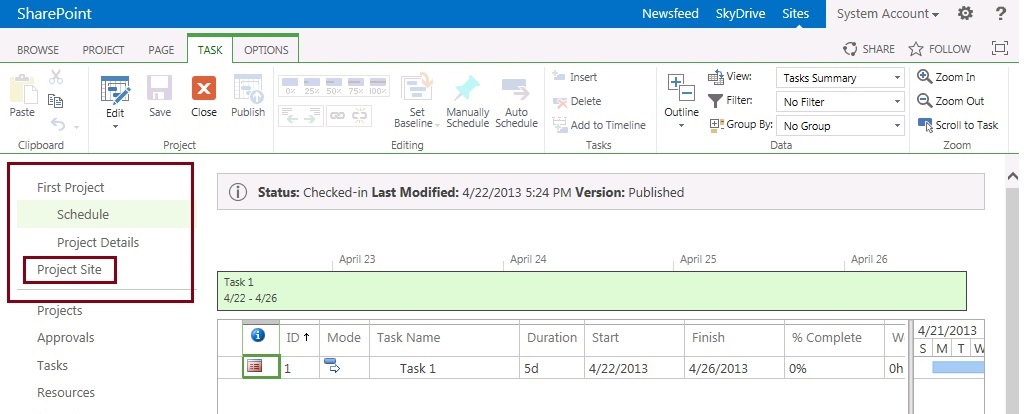
click on Project Site link, and it will NOT open in separate window as new site like old times: (unless you prefer, and use any of the trick to open in new window 🙂 )
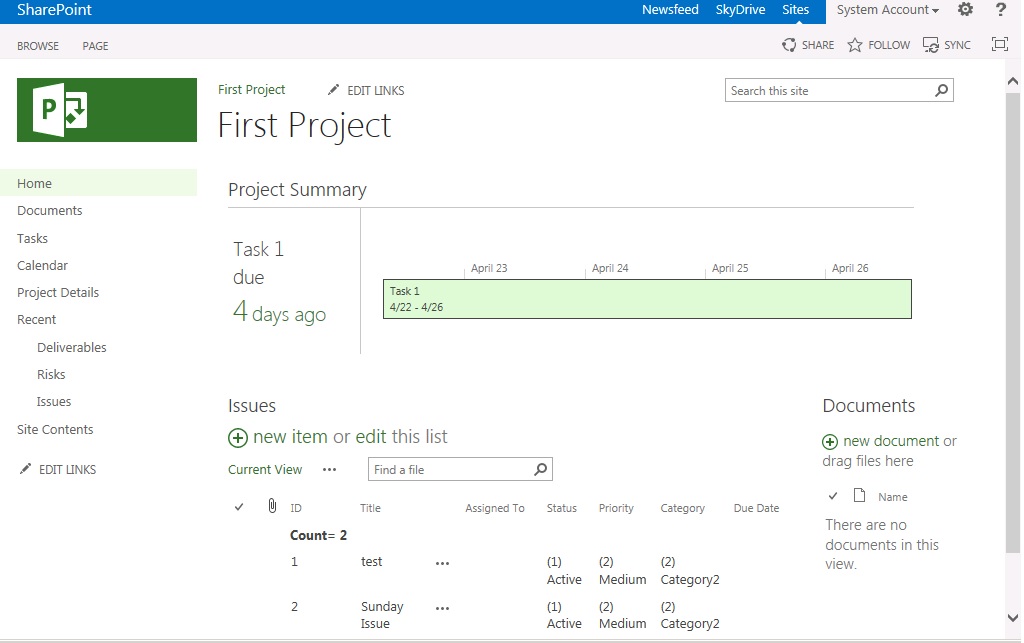
(some whistles.. please 🙂 )
my first impression was WOW, the home page by-default shows the status including Project Timeline and Alert alert that you are behind schedule.
Deliverable/Issues and Risks lists are the same, in fact Paul Mather few days back wrote about the change of functionality of linking tasks along with issues/risks and documents here and took the opportunity away from me since i was also planning to write the same 🙂
(ok, ready for more good things …. :), here you go )
Tasks link until PS2010 was of no good in most cases, in fact i used to rename it as “Team Tasks OR Personal Tasks” for customers to avoid the confusion of mixing these tasks as project schedule tasks.
But now these alternates are not required any more. Lets click on Tasks link:
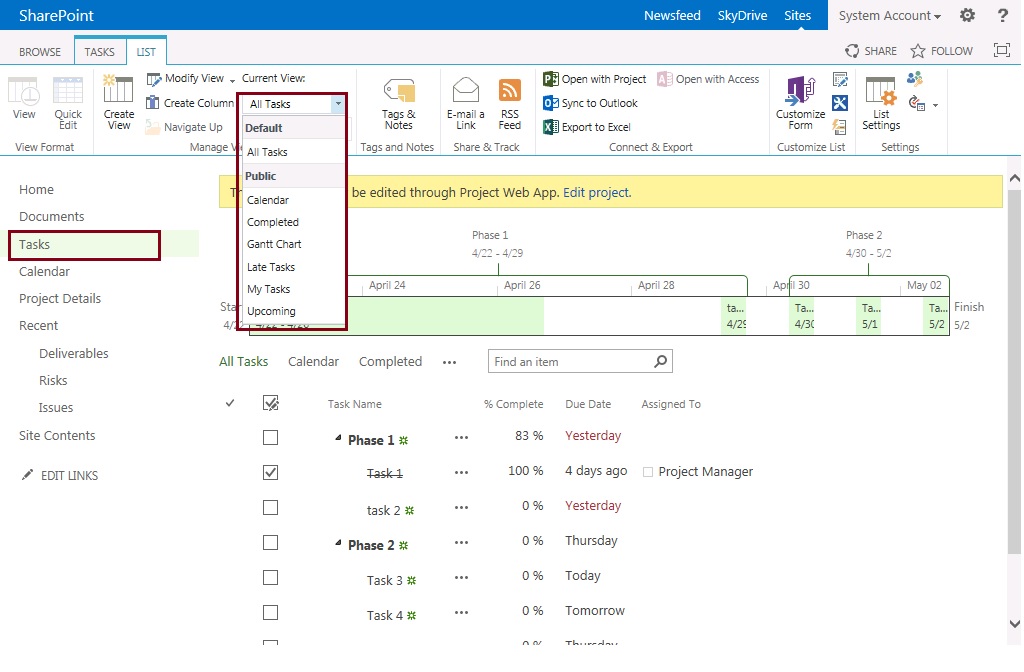
Your project tasks are displayed here to be shared with team, and of course you can change the view of tasks page to show you only Yours Tasks or etc. However you cannot edit the values of tasks here, such as %complete, it will take you back to project schedule for the editing which i believe is pretty logical.
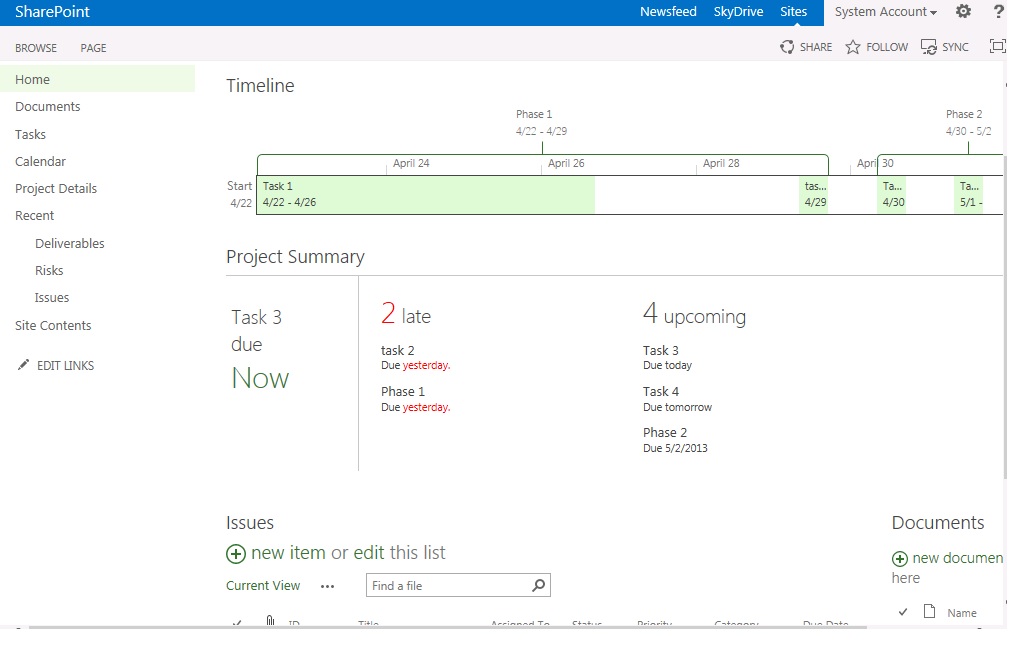
Before we wind up, a quick hint to show that you can also add a famous Timeline web-part to your project site home page to show timeline alone. And also you can modify the existing Project Summary web-part to reflect information minus timeline.
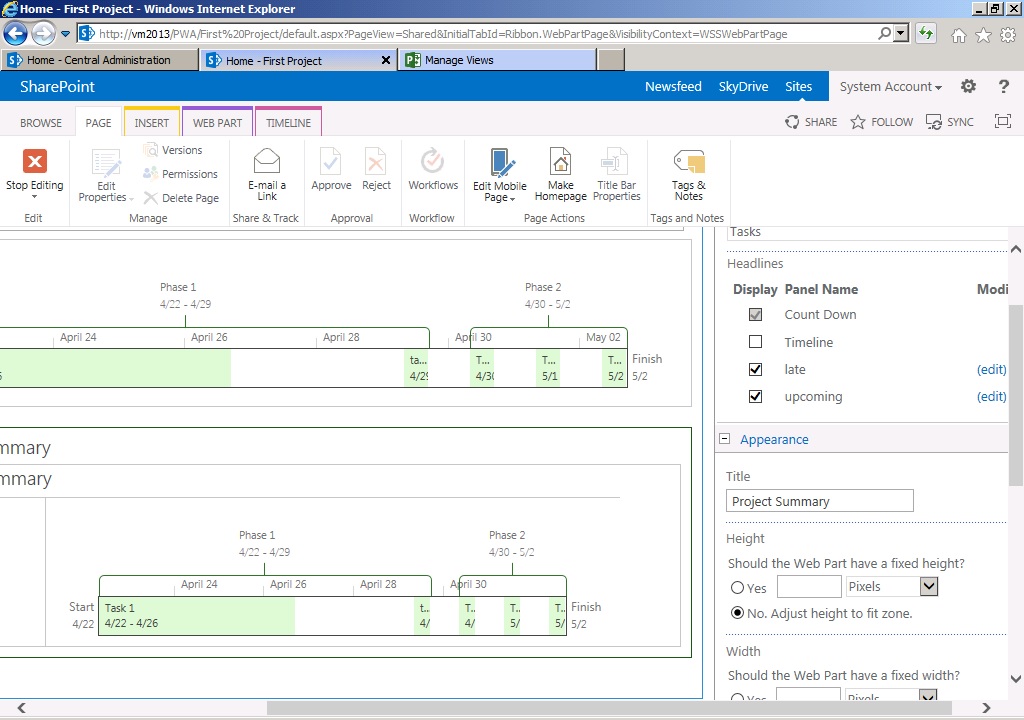
Here you go:
And now last but not the least, in order to go back to PWA, no need to look for navigation link on project site. Simply click on Project Details link to access project details:
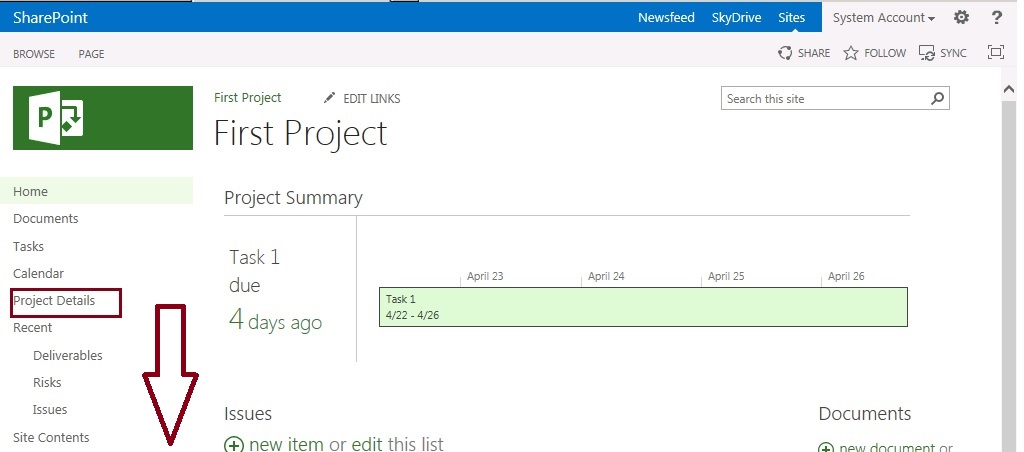 |
| Fig-1 |
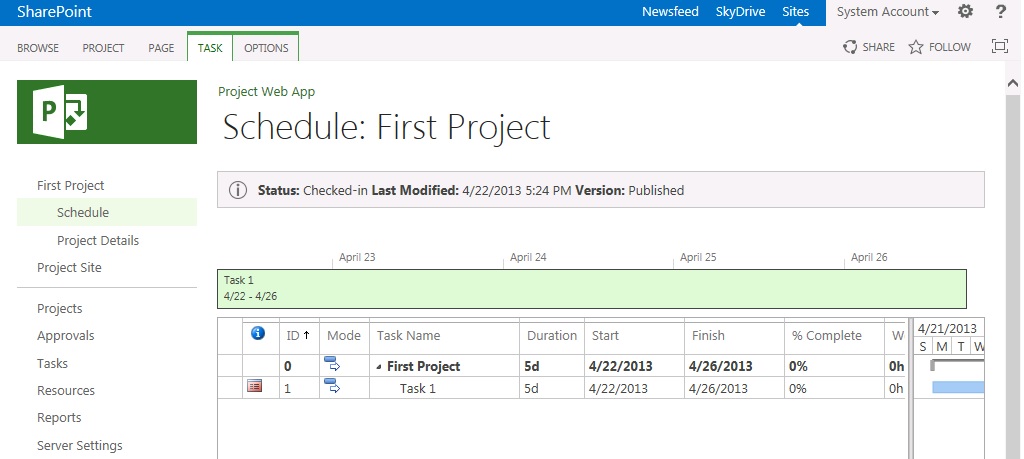
This is it for now, we have seen enough good things – now lets get back to the real work issues 🙂
via All about Enterprise Project Management (EPM) http://khurramjamshed.blogspot.com/2013/05/projectserver-2013-pwa-more-integrated.html
|
The author of the blog has an extensive experience of working as an EPM Consultant. Currently he is located in Dubai, UAE and working for Microsoft partner organization as Project Server specialist. He has a thorough experience of providing Project Management technical/functional consultancy to all sort of organizations. He is a certified PMP, a Project Server MCITP, and also received a MS community contributor award 2011.
This article has been cross posted from khurramjamshed.blogspot.com/ (original article) |

Switch to #ProjectServer #Permission mode from #SharePoint permission mode
This post will help you to find key feature of Project Server 2013, Security Settings in Project Server 2013, that used to be under server settings of Project Server 2010.
With the introduction to new security mode in Project Server 2013, i.e. :SharePoint Permission mode, your new PWA by default will provision with SharePoint permission mode and hence you will find Security section missing from PWA server settings page.
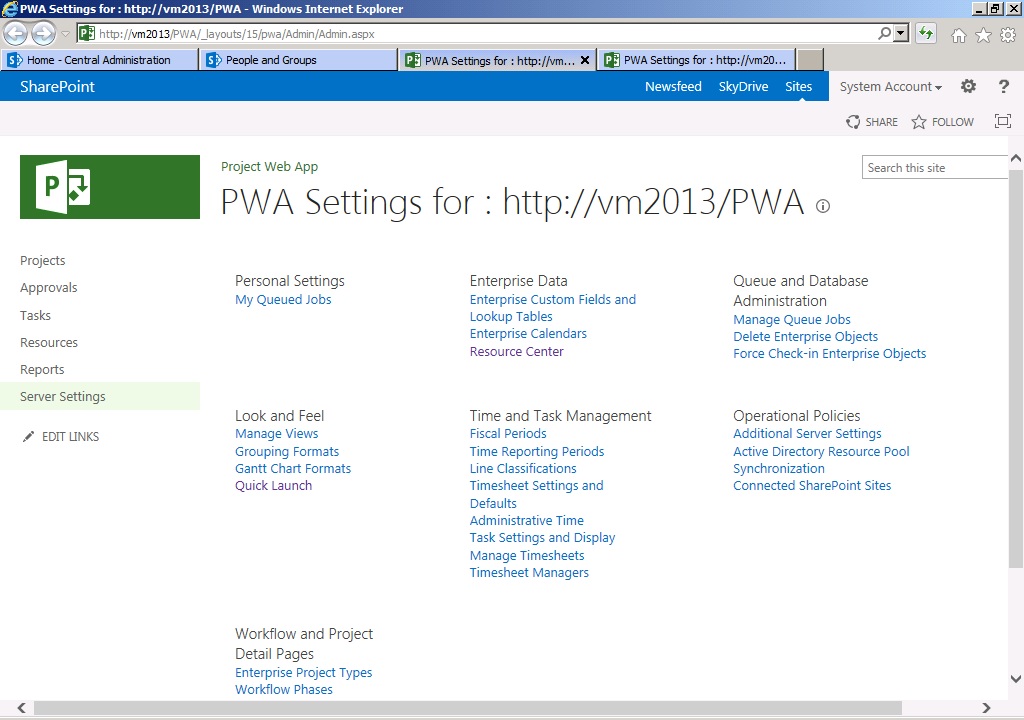
Advantages, and what is enabled and what is not, while staying with SharePoint security mode are detailed here: http://technet.microsoft.com/en-us/library/fp161361.aspx
Out of the above article, and with R&D i have done so far, the major features you were not be able to use in SharePoint security mode are as follows:
- Unable to edit default permission of groups
- RBS
- categories
- Delegation
-
Administrator
-
Portfolio Managers
-
Portfolio Viewers
-
Project Managers
-
Resource Managers
-
Team Leads
-
Team Members
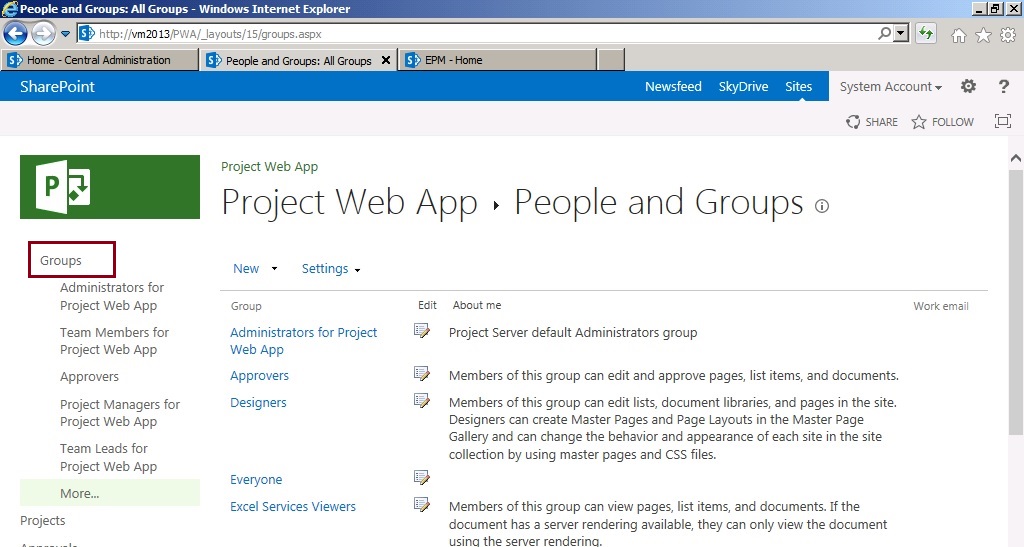
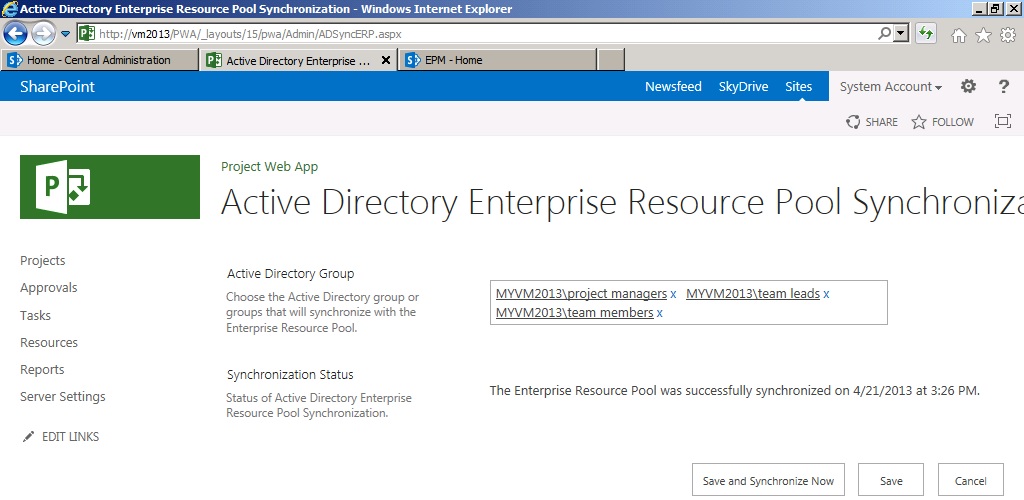
In order to switch the permission mode back to Project mode, use the following windows powershell cmdlet:
Set-SPProjectPermissionMode [-Url] <Uri> [-Mode] <SharePoint | ProjectServer | UninitializedSharePoint | UninitializedProjectServer> [[-AdministratorAccount] <String>] [-AssignmentCollection <SPAssignmentCollection>]
For detail of above cmdlet, see this technet article:: http://technet.microsoft.com/en-us/library/jj219486.aspx
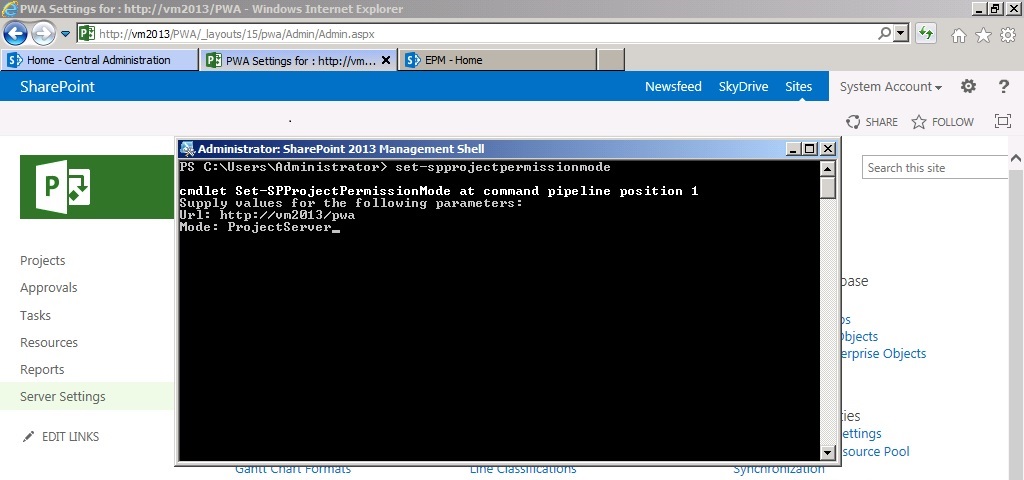
Once the prompt will be back after execution, refresh the PWA server settings page to see the Security group available to be used.

Note that Switching security modes deletes all permissions configuration information for the specified Project Web App instance and reverts to the default settings for the specified mode. You need to be carefully planning this well in advance that which security mode you have to configure.
via All about Enterprise Project Management (EPM) http://khurramjamshed.blogspot.com/2013/04/switch-to-projectserver-permission-mode.html
|
The author of the blog has an extensive experience of working as an EPM Consultant. Currently he is located in Dubai, UAE and working for Microsoft partner organization as Project Server specialist. He has a thorough experience of providing Project Management technical/functional consultancy to all sort of organizations. He is a certified PMP, a Project Server MCITP, and also received a MS community contributor award 2011.
This article has been cross posted from khurramjamshed.blogspot.com/ (original article) |

Sign-in as different user on #SharePoint Server 2013 or #ProjectServer 2013
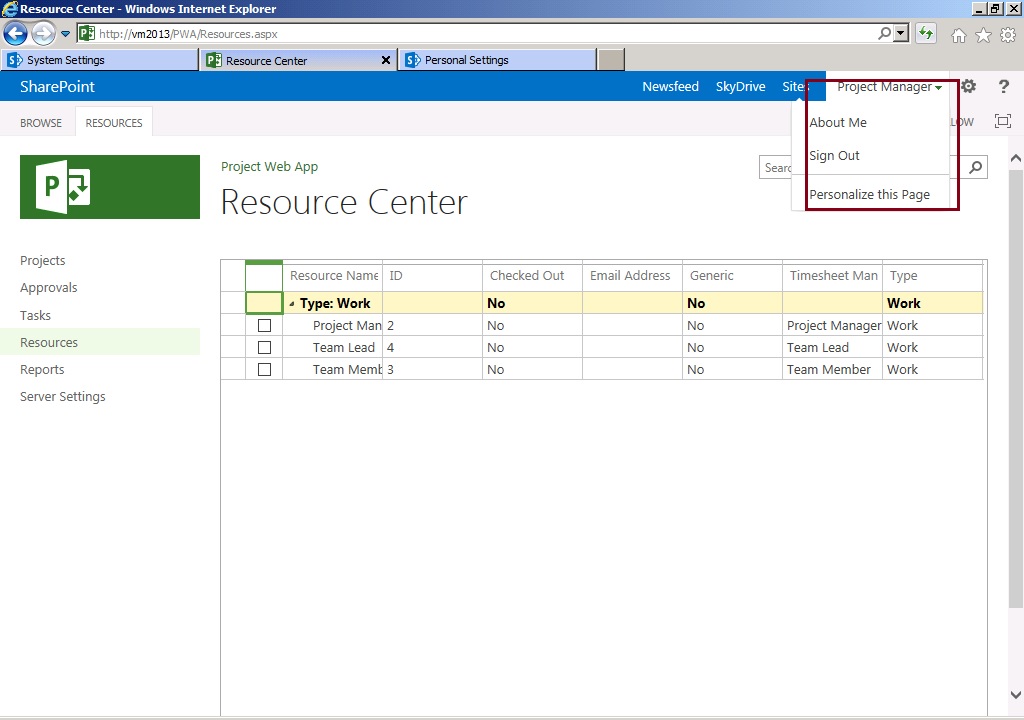
- Caching Problems
- Documents opened in external applications are saved with an unexpected user account
- Page content shows information from the previous user due to cached information
- Session variables contain information from previous user as the cookies are not cleared
- Locate and then open the following file in a text editor: C:\Program Files\Common Files\Microsoft Shared\Web Server Extensions\15\TEMPLATE\CONTROLTEMPLATES\welcome.ascx

- Open the file in Notepad and add the following lines to the file: also see the screen shot for this modification.
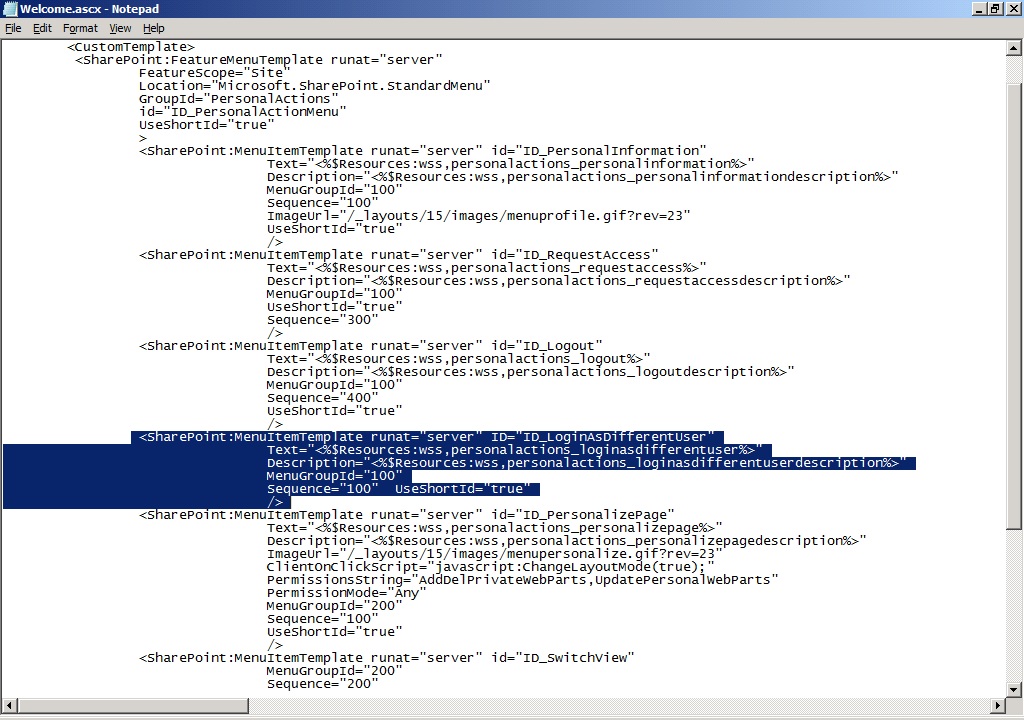
- As a final step, refresh the page and the option will apparently start appearing for you to be used.

via All about Enterprise Project Management (EPM) http://khurramjamshed.blogspot.com/2013/04/sign-in-as-different-user-on-sharepoint.html
|
The author of the blog has an extensive experience of working as an EPM Consultant. Currently he is located in Dubai, UAE and working for Microsoft partner organization as Project Server specialist. He has a thorough experience of providing Project Management technical/functional consultancy to all sort of organizations. He is a certified PMP, a Project Server MCITP, and also received a MS community contributor award 2011.
This article has been cross posted from khurramjamshed.blogspot.com/ (original article) |

#ProjectServer and #SharePoint server 2010/2013/2007 April 2013 #CU released
You can find the details of the updates here: http://blogs.technet.com/b/projectsupport/archive/2013/04/11/microsoft-project-server-2007-2010-and-2013-april-2013-cu-announcement.aspx
Note that March 2013 Public update of Project Server 2013 was set as baseline requirement for all the future updates of Project Server 2013, however there was an issue with running the SharePoint Configuration Wizard after applying March 2013 update on a server with Project Server 2013 installed and this is fixed by applying the April CU – so a good practice would be to load the March PU, then the April CU and then run the configuration wizard.
Detail of March 2013 update issue can be seen here: http://blogs.technet.com/b/projectsupport/archive/2013/04/11/project-server-2013-march-public-update-problems-running-the-sharepoint-configuration-wizard.aspx
Also note that there is a slight delay in Project Server 2013 roll out package, the package includes SharePoint server fixes as well since Project Server 2013 is based on SharePoint platform and Microsoft recommends to apply the update package on your environment.
Due to the issue with the March PU and running the Configuration Wizard, you could consider loading the individual Project Server patch which does not include the SharePoint updates http://support.microsoft.com/kb/2760261 if you need to get the configuration of the March PU completed. If you haven’t yet loaded the March PU then I would suggest waiting for the roll-up package for the April CU.
And as usual, always try the patches to test servers prior to apply to productions environment.
via All about Enterprise Project Management (EPM) http://khurramjamshed.blogspot.com/2013/04/projectserver-and-sharepoint-server.html
|
The author of the blog has an extensive experience of working as an EPM Consultant. Currently he is located in Dubai, UAE and working for Microsoft partner organization as Project Server specialist. He has a thorough experience of providing Project Management technical/functional consultancy to all sort of organizations. He is a certified PMP, a Project Server MCITP, and also received a MS community contributor award 2011.
This article has been cross posted from khurramjamshed.blogspot.com/ (original article) |

#ProjectServer 2013 upcoming #Exams #Certifications #MCP
- 74-343 Managing Projects with Microsoft Project 2013
- 74-344 Managing Programs and Projects with Project Server 2013
The high level details of the skills going to be measured for each of the above exams are as follows:.
- Initialize a Project
- Create a new project.
- Create and maintain calendars.
- Create custom fields.
- Customize option settings.
- Create a Task-Based Schedule
- Set up project information.
- Create and modify a project task structure.
- Build a logical schedule model .
- Create a user-controlled schedule.
- Manage multiple projects.
- Manage Resources and Assignments
- Enter and edit resource information.
- Create and edit resource assignments.
- Manage resource allocation.
- Manage resource allocations by using Team Planner.
- Model project costs
- Track and Analyze a Project
- Set and maintain baselines.
- Update actual progress.
- Compare progress against a baseline.
- Resolve potential schedule problems.
- Display Critical Path information
- Communicate Project Information
- Apply and customize views.
- Share data with other applications.
- Configure and display reports and dashboards.
- Connect and share data with SharePoint.
- Extend Project 2013.
- Create Enterprise Projects and Portfolios
- Define strategic alignment.
- Optimize portfolios.
- Create a new enterprise project.
- Create a program with master projects and sub-projects
- Plan Enterprise Projects and Resources
- Manage resources and teams.
- Build a resource plan.
- Build a project team.
- Resolve resource over allocations across projects.
- Baseline enterprise projects
- Track and Collaborate on an Enterprise Project
- Select a tracking method.
- Manage task assignments.
- Update tasks and time-sheets.
- Approve tasks and time-sheets.
- Update a project schedule.
- Manage Configurable Enterprise Objects
- Customize Project Web App views and reports.
- Manage and extend Project Online and Project Server.
- Manage risks, issues, and deliverable.
- Customize a project site
via All about Enterprise Project Management (EPM) http://khurramjamshed.blogspot.com/2013/03/projectserver-2013-upcoming-exams.html
|
The author of the blog has an extensive experience of working as an EPM Consultant. Currently he is located in Dubai, UAE and working for Microsoft partner organization as Project Server specialist. He has a thorough experience of providing Project Management technical/functional consultancy to all sort of organizations. He is a certified PMP, a Project Server MCITP, and also received a MS community contributor award 2011.
This article has been cross posted from khurramjamshed.blogspot.com/ (original article) |

#ProjectServer 2013 Feb #CU released with March Public Update
Please see the links below for more details:
Project Server 2013 March Update (includes Feb CU as well):
http://support.microsoft.com/kb/2768001
Project Professional 2013 or Project Standard 2013 Feb Update:
http://support.microsoft.com/kb/2738031
Also see the Brian Smith’s post for details: http://blogs.msdn.com/b/brismith/archive/2013/03/18/project-server-2013-february-2013-cumulative-update-delivered-with-march-2013-public-update.aspx
Also note that any future Project Server 2013 CU or update requires this March update as prerequisite.
The deployment of the server update is the same as previous Project Server updates. Find the link below to know more about SharePoint server 2013 update process: http://technet.microsoft.com/en-us/library/ff806331.aspx
Happy Patching 🙂
via All about Enterprise Project Management (EPM) http://khurramjamshed.blogspot.com/2013/03/projectserver-2013-feb-cu-released-with.html
|
The author of the blog has an extensive experience of working as an EPM Consultant. Currently he is located in Dubai, UAE and working for Microsoft partner organization as Project Server specialist. He has a thorough experience of providing Project Management technical/functional consultancy to all sort of organizations. He is a certified PMP, a Project Server MCITP, and also received a MS community contributor award 2011.
This article has been cross posted from khurramjamshed.blogspot.com/ (original article) |

#SharePoint2010: Error 7043 Load control template file /_controltemplates/TaxonomyPicker.ascx failed
Load control template file /_controltemplates/TaxonomyPicker.ascx failed: Could not load type ‘Microsoft.SharePoint.Portal.WebControls.TaxonomyPicker’ from assembly ‘Microsoft.SharePoint.Portal, Version=14.0.0.0, Culture=neutral, PublicKeyToken=71e9bce111e9429c’.

Although i cannot find any particular reason for this error, neither it will affect any of your services, but it would be better if you can find a solution and resolve it, so that it wont bother you while looking to your event log 🙂
Eventually i have found cause to this error from Microsoft support site as:
To get rid of this error, follow the simple steps:
- Navigate to /14/TEMPLATE/ControlTemplates/TaxonomyPicker.ascx user control
- Open the user control in a text editor and locate the first line
- Find the character string , and replace with a comma ‘,’ (without quotes).
- Save the user control.
Hope this helps.
via All about Enterprise Project Management (EPM) http://khurramjamshed.blogspot.com/2013/01/sharepoint2010-error-7043-load-control.html
|
The author of the blog has an extensive experience of working as an EPM Consultant. Currently he is located in Dubai, UAE and working for Microsoft partner organization as Project Server specialist. He has a thorough experience of providing Project Management technical/functional consultancy to all sort of organizations. He is a certified PMP, a Project Server MCITP, and also received a MS community contributor award 2011.
This article has been cross posted from khurramjamshed.blogspot.com/ (original article) |


 SharePoint (and Project Server) Shenanigans