Archive
Creating and adding Projects to #ProjectServer 2013 #PS2013 #SP2013 #Office365 Part 2
   I am a Project Server and SharePoint consultant but my main focus currently is around Project Server.
I have been working with Project Server for nearly five years since 2007 for a Microsoft Gold Certified Partner in the UK, I have also been awared with the Microsoft Community Contributor Award 2011. I am also a certified Prince2 Practitioner. This article has been cross posted from pwmather.wordpress.com (original article) |
Following on from Part 1, this post will look into the SharePoint Task List and Connected SharePoint sites. As mentioned in part 1, I did create a post on this for the Preview release of Project Server 2013.
For those of you that missed Part 1:
This post will revisit the SharePoint Task List and Connected SharePoint site functionality. Similar but simpler SharePoint Task List functionality does exist in Project Server 2010 with the New > From SharePoint List option in the Project Centre. This functionality has been improved and extended in Project Server 2013.
In Project Server 2010 you had to create the SharePoint task list before adding the project to Project Server, in Project Server 2013 this has changed and improved. Clicking the New > SharePoint Tasks List from the Project Centre button will now prompt you for a project name:


Clicking Create will create the SharePoint site, with a Tasks list and then take you to the newly created tasks list.
As you can see the project now exists in the Project Centre also:

Clicking the project name from the Project Centre view will take you to the tasks list on the SharePoint site, as you can see I have created two tasks:

You can also import other SharePoint sites to Project Server 2013 using the Add SharePoint Sites button on the Project tab in the Project Centre:

Clicking this button will load a new window displaying all SharePoint sites within the PWA site collection that contain a Tasks list:

In this example I am going to add the “Design new theme” site, the tasks can be seen below:

At this point it is worth noting that Paul Mather already exists in the Project Server resource pool but User H doesn’t. Also there are only 5 Apps on this site:

I will now select the “Design new theme” project and click Add, the pop will now advise you that the project is being created:

After a short amount of time you will see the project is in the Project Centre:

Now this project is in Project Server, you will notice any users that were assigned to tasks on the tasks list that didn’t previously exist in the Project Server resource pool now exist as resources in the enterprise resource pool. Also the other thing I highlighted, the Apps on the site. After adding the SharePoint site to Project Server you will see the familiar lists from the Project Site:

This is because the Project Web App Connectivity site feature is activated when the site is added to Project Server.
Using both methods to add SharePoint Task lists to Project Server will sync the task list data with Project Server. At the time you add a SharePoint task list site to Project Server, that data will be synchronised instantly. Additional changes to the tasks on the tasks lists such as adding new tasks, updating % complete etc. is not updated in Project Server instantly. This synchronisation is triggered by a SharePoint Timer Job called “Project Server: Task List Synchronizer for SharePoint Tasks List Projects job for Project Services Application”

Once changes have been made to the connected SharePoint sites and the timer job has run, all data in Project Server will be correct and in sync with the task list. This includes the resource assignments / availability views, Project Centre Gantt charts and the Reporting tables / views in the Project Server database.
The connected SharePoint site task lists can either be updated from the sites using the web browser or using Project Professional 2013. When using Project Professional 2013, connected SharePoint site projects are opened the same way as a full Enterprise Project. When editing a connected SharePoint site in Project Pro you only have the option to save, no publish. Saving this type of project from Project Professional automatically fires off a publish job keeping the data in the system in synch – you don’t have to wait for the Timer Job.
Connected SharePoint sites can become full Enterprise Projects and full Enterprise Projects can become just a SharePoint task list connected site. This is update in Server Settings > Connected SharePoint Sites:

Converting a SharePoint Task list project to an Enterprise Project will disable editing of the tasks list from the SharePoint site, the tasks can only be modified via the Project Web App or Project Professional 2013. Converting an Enterprise Project to a SharePoint Task list project will disable editing of the schedule in PWA and enable tasks to be edited in a SharePoint task list or Project Professional.
Overall a great way to manage simple lightweight projects and gain visibility of these projects in Project Server! 


Creating and adding Projects to #ProjectServer 2013 #PS2013 #SP2013 #Office365 Part 1
|
I am a Project Server and SharePoint consultant but my main focus currently is around Project Server.
I have been working with Project Server for nearly five years since 2007 for a Microsoft Gold Certified Partner in the UK, I have also been awared with the Microsoft Community Contributor Award 2011. I am also a certified Prince2 Practitioner. This article has been cross posted from pwmather.wordpress.com (original article) |
As you are all hopefully aware Project Server 2013 is available to Volume Licensing, TechNet and MSDN accounts. No doubt you have seen may posts already about the great new features, some of which I have also previously blogged about. This post will look at the various options you have for creating and adding projects to Project Server 2013. In this series of posts I won’t cover the options of creating projects programmatically or the options that exist in Project Server 2010 already. These posts will look at the new options in Project Server 2013.
The first option I will cover in this post is creating projects from a list within PWA. For this example I have created a normal SharePoint custom list called Project Ideas with a Title field and Description field as shown below:

As you can see I have already created an example project idea. If I click on the Items tab and select the new project idea,notice the Create Projects button is enabled:

Click the Create Projects button and a new window will appear:

As you can see here I can map my Project Ideas columns with the Project Server fields. As this is an example I have only added a Description to the Project Ideas list and only have the default Project Server fields. These are mapped below:

The next option is to select the Enterprise Project Type. Again, I haven’t created any additional EPTs for this example:

I will set this project to be an Enterprise Project.
On there form there are additional options to create new Project Server custom fields, new EPTs and to reload the form with the new fields. Once the options are completed, click Create Project. The form will refresh to show that the project has been created:

Clicking View Details will display the project name:

Click Close and navigate to the Project Centre, you will see the new project ready to be scheduled:

The Project Details PDP shows the correct description from the Project Ideas list:

A nice and simple approach to transition project ideas to full Enterprise projects.
I will now create another Project Idea but this time select SharePoint Task List, see below.
New Project Idea selected:

Click Create Projects, notice the fields are already mapped:

Update the Enterprise Project Type to SharePoint Task List:

Click Create Project. Navigate to the Project Centre and you will see the new project:

Notice the different icon to indicate it is not an Enterprise Project. Clicking on this project will take you to the SharePoint site Task list:

The project tasks can be created in the task list, this is then synchronised back to Project Server using the “Project Server: Task List Synchronizer for SharePoint Tasks List Projects job for Project Services Application” Timer job.
In the next post I will take a look at the SharePoint Task list and Connected SharePoint sites in more detail. I did write a post on this for the preview version of Project Server 2013, that post can be found here:
I will expand on / review this post for the RTM version of Project Server 2013.


Missing options in Central Admin #SharePoint 2013 #SP2013 #PS2013
|
I am a Project Server and SharePoint consultant but my main focus currently is around Project Server.
I have been working with Project Server for nearly five years since 2007 for a Microsoft Gold Certified Partner in the UK, I have also been awared with the Microsoft Community Contributor Award 2011. I am also a certified Prince2 Practitioner. This article has been cross posted from pwmather.wordpress.com (original article) |
A quick post to highlight an issue that you might run into. Mange Services on Server link missing in Central Admin when running Internet Explorer on the App / Web Server? New Service Application button disabled?
Missing Manage Services on Server link:

New Service Application button disabled:

Run Central Admin as an Administrator and these options will be available. 


#ProjectServer 2010 #Excel Services Reports fail to Refresh #Office2013 #SP2010
|
I am a Project Server and SharePoint consultant but my main focus currently is around Project Server.
I have been working with Project Server for nearly five years since 2007 for a Microsoft Gold Certified Partner in the UK, I have also been awared with the Microsoft Community Contributor Award 2011. I am also a certified Prince2 Practitioner. This article has been cross posted from pwmather.wordpress.com (original article) |
A quick post to highlight an issue you may face if you have upgraded to Office / Excel 2013. I recently created some Excel reports for Project Server 2010 using Excel 2013. These reports failed to refresh in Excel Services. After a quick check on the connection string in Excel, the provider is MSOLAP.5 rather than the usual MSOLAP.4 provider when using Excel 2010. See below
Excel 2010:

Excel 2013:

The ULS log error is:
The workbook ‘http://vm730:81/pwa/ProjectBICenter/Reports/Actual Work.xlsx’ attempted to access external data using the unsupported provider ‘Provider=MSOLAP.5
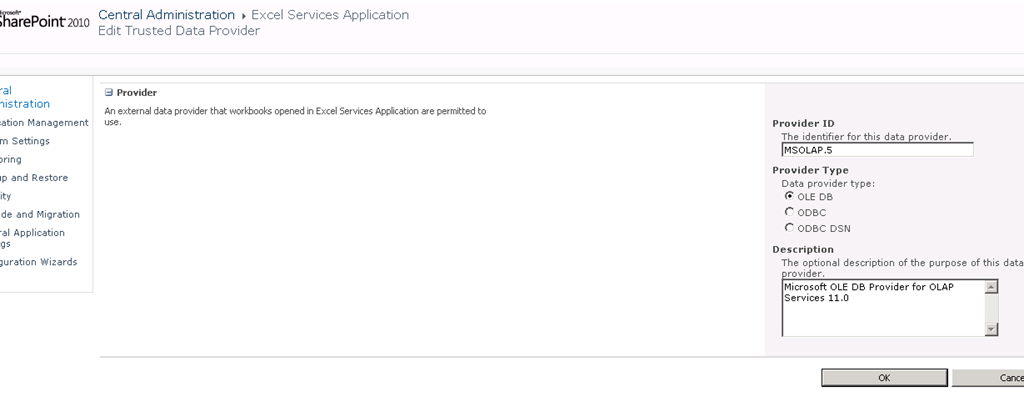
The fix is very simple, navigate to Central Admin > Manager Service Applications > Excel Services > Trusted Data Providers then add the MSOLAP.5 provider as below:


#ProjectServer and #SharePoint 2010 October 2012 Cumulative Update #PS2010 #SP2010 #MSProject
|
I am a Project Server and SharePoint consultant but my main focus currently is around Project Server.
I have been working with Project Server for nearly five years since 2007 for a Microsoft Gold Certified Partner in the UK, I have also been awared with the Microsoft Community Contributor Award 2011. I am also a certified Prince2 Practitioner. This article has been cross posted from pwmather.wordpress.com (original article) |
The Office 2010 October 2012 Cumulative Updates are now available, please see the links below:
http://support.microsoft.com/kb/2757117
Project Server 2010 Server Roll up package October 2012 CU (Recommended) – delayed for a couple of weeks:
http://support.microsoft.com/kb/2687565
Project Server 2010 October 2012 CU (Included in the Server Roll up package):
http://support.microsoft.com/kb/2687615
Project 2010 October 2012 CU:
http://support.microsoft.com/kb/2687612
Remember SP1 is a pre-requisite for the October 2012 CUs.
For more details please see:
http://blogs.technet.com/b/projectadministration/archive/2012/11/05/microsoft-project-server-and-sharepoint-server-2007-and-2010-october-2012-cu-announcement.aspx
As always, test these updates on a test environment before deploying to production


Publish specified Projects in #ProjectServer using #PowerShell #MSProject #PS2010 #SP2010
|
I am a Project Server and SharePoint consultant but my main focus currently is around Project Server.
I have been working with Project Server for nearly five years since 2007 for a Microsoft Gold Certified Partner in the UK, I have also been awared with the Microsoft Community Contributor Award 2011. I am also a certified Prince2 Practitioner. This article has been cross posted from pwmather.wordpress.com (original article) |
There have been several requests for publishing projects listed in a text file, this follows on from my post / publish all projects script found below:
http://gallery.technet.microsoft.com/scriptcenter/Server-2010-Publish-all-45ba385b
This script allows you to specify a list of projects in a text, then only those projects will be sent for publishing. For the purpose of this post I have a text file called projectstobepub.txt that contains a list of my test projects to be published:

The PowerShell script will need to be updated to reference the text file containing the list of projects that you wish to publish and also update the Project Server PWA URL. Comments have been added in the screen shot below to show what lines need to to be updated:

The script has my test PWA instance URL as highlighted below:
New-WebServiceProxy -uri “http://vm353/pwatest/_vti_bin/PSI/Project.asmx?wsdl” –useDefaultCredential
The strikethrough text will need to be updated with the correct URL for your environment.
The script can be downloaded from the Script Center following the link below:
http://gallery.technet.microsoft.com/scriptcenter/Server-2010-Publish-537857d8
Once the script has been executed, the projects listed in the text file will be sent for publishing.
The script can either be executed on demand or set on a schedule using Windows Tasks Scheduler. Execute the script with an account that has access to the projects listed in the text file.


#Office2013 reaches RTM #ProjectServer # PS2013 #SharePoint # SP2013
|
I am a Project Server and SharePoint consultant but my main focus currently is around Project Server.
I have been working with Project Server for nearly five years since 2007 for a Microsoft Gold Certified Partner in the UK, I have also been awared with the Microsoft Community Contributor Award 2011. I am also a certified Prince2 Practitioner. This article has been cross posted from pwmather.wordpress.com (original article) |
Quick post to highlight that Office 2013 has reached RTM! For more details see:
http://blogs.office.com/b/office-news/archive/2012/10/11/office-reaches-rtm.aspx


#ProjectServer 2010 Bulk update project site issue #PS2010 #MSProject #SP2010 #SharePoint
|
I am a Project Server and SharePoint consultant but my main focus currently is around Project Server.
I have been working with Project Server for nearly five years since 2007 for a Microsoft Gold Certified Partner in the UK, I have also been awared with the Microsoft Community Contributor Award 2011. I am also a certified Prince2 Practitioner. This article has been cross posted from pwmather.wordpress.com (original article) |
I had a recent query from a colleague regarding the bulk update project site functionality in Project Server 2010. In this scenario my colleague had taken pre-configured databases from an environment at our offices and restored these 5 databases to the clients production environment. They then created some test projects / updated configuration etc. A test environment was also created for this client, part of this assignment was to rollover production to test, this included running the bulk update project sites functionality to update the test project sites. When looking at the list of previous site path web applications they could not see the clients web application in the list. All that was present were URLs from various test machines from the CPS environment, this can be seen below:
Bulk Update Project Sites:

Having seen this myself before but never had the opportunity to investigated it, I decided to look into the issue further.
Firstly I executed the MSP_Web_PWS_ReadProjectSiteBaseURLS stored procedure which I believe is called to populate the drop down menu above. This reads data from the MSP_Web_Applications table and MSP_Projects table.
Project Site Base URLs:

As you can see, the SQL output above matches the URLs displayed in the previous path drop down in the first screen shot. Notice 3 different URLs, these PWA databases have been linked to various PWA sites.
I then checked the WSTS Server UID for the project sites in the database, the test site server UID matched the http://vm662 server UID in the MSP_Web_Applications table:

I then checked the PWA site collection ID in the connect database:
PWA site ID:
ID: FAB47C15-A360-4AA8-9461-D3A9713200DD

So this all linked up as expected but with the incorrect URL, http://vm662 and not the clients server URL. http://vm662 was the VM that was used at the CPS office to create this clients initial config.
I believe the reason for this issue with the URL is that when using the 5 database restore process the PWA site is not recreated. The provisioning process just links to the existing PWA site collection in the restored content database. The URL doesn’t get updated in the MSP_Web_Applications tables as the site ID remains the same so Project Server doesn’t think there is a new URL. If you take only the 4 PWA databases and create a new PWA site, the URL is displayed correctly in the scenario described above. This is just a display issue, all functionality works correctly once the bulk update project site process has run.
Hopefully that will help to explain why you might be experiencing the same issue as seen / described above.


#ProjectServer 2010 Resource assignments display issue #PS2010 #SP2010 #PS2013 #SP2013
|
I am a Project Server and SharePoint consultant but my main focus currently is around Project Server.
I have been working with Project Server for nearly five years since 2007 for a Microsoft Gold Certified Partner in the UK, I have also been awared with the Microsoft Community Contributor Award 2011. I am also a certified Prince2 Practitioner. This article has been cross posted from pwmather.wordpress.com (original article) |
Recently I was reminded of a minor issue that I thought I would share with you. While working with a client for a recent migration from Project Server 2007 to Project Server 2010, a query was raised regarding material resources and the resource assignment view in PWA. Material resources show a work and remaining work value with an hours ‘h’ label in 2010, in 2007 this displayed the material resource label. This is only a display issue, the underlying data is still correct in the Reporting database, so your reports will be correct. An example in PWA 2010 can be seen below:

I have a material resource named ‘material resource’ (sorry about the poor names used on my test system, I should really use some imagination!), I have assigned this material resource to two tasks, one task has 10 units and the other has 5 units. As you can see from the screen shot above, this displays 10h and 5h rather than 10 material resource and 5 material resource as you would have seen in 2007. Example shown below for PWA 2007:

As mentioned the Reporting data is still correct, see the example SQL output below:

The assignment work column correctly shows 0 and the assignment material work shows 10 and 5.
This is also an issue with the Project Server 2013 preview.
Just a minor display issue that I thought I would share in case anyone else came across this 


#ProjectServer and #SharePoint 2010 August 2012 Cumulative Update #PS2010 #SP2010 #MSProject
|
I am a Project Server and SharePoint consultant but my main focus currently is around Project Server.
I have been working with Project Server for nearly five years since 2007 for a Microsoft Gold Certified Partner in the UK, I have also been awared with the Microsoft Community Contributor Award 2011. I am also a certified Prince2 Practitioner. This article has been cross posted from pwmather.wordpress.com (original article) |
The Office 2010 August 2012 Cumulative Updates are now available, please see the links below:
http://support.microsoft.com/kb/2730388
Project Server 2010 Server Roll up package August 2012 CU (Recommended):
http://support.microsoft.com/KB/2687354
Project Server 2010 August 2012 CU (Included in the Server Roll up package):
http://support.microsoft.com/kb/2687390
Project 2010 August 2012 CU:
http://support.microsoft.com/kb/2687386
Remember SP1 is a pre-requisite for the August 2012 CUs.
As always, test these updates on a test environment before deploying to production


 SharePoint (and Project Server) Shenanigans
You must be logged in to post a comment.