Archive
#ProjectServer optimisations for #SQL Server and #PS2010 databases #SP2010 #MSProject
   I am a Project Server and SharePoint consultant but my main focus currently is around Project Server.
I have been working with Project Server for nearly five years since 2007 for a Microsoft Gold Certified Partner in the UK, I have also been awared with the Microsoft Community Contributor Award 2011. I am also a certified Prince2 Practitioner. This article has been cross posted from pwmather.wordpress.com (original article) |
A quick blog post to show the recommended SQL Server and database settings for optimal performance of your Project Server environment. See the SQL queries below along with the TechNet documents for reference.
SQL CLR:
sp_configure ‘clr enabled’, 1
go
reconfigure
go
Print ‘CLR Enabled’
http://technet.microsoft.com/en-us/library/ee662108.aspx#section3
SQL Server MAX Degree of Parallelism (Specific for SharePoint 2010):
sp_configure ‘show advanced options’, 1;
GO
RECONFIGURE WITH OVERRIDE;
GO
sp_configure ‘max degree of parallelism’, 1;
GO
RECONFIGURE WITH OVERRIDE;
GO
Print ‘Max degree of parallelism set to 1′
http://technet.microsoft.com/en-us/library/cc298801.aspx#Section6_3
Server-wide default fill factor:
sp_configure ‘show advanced options’, 1;
GO
RECONFIGURE;
GO
sp_configure ‘fill factor’, 70;
GO
RECONFIGURE;
GO
PRINT ‘Default server-wide fill factor set to 70 %, restart the SQL Service’
Auto_Close and Auto_update_statistics_async:
Update the database names for your Project Server PWA databases.
Alter Database VM353_PWA_Archive
Set AUTO_CLOSE OFF, AUTO_UPDATE_STATISTICS_ASYNC ON
Alter Database VM353_PWA_Draft
Set AUTO_CLOSE OFF, AUTO_UPDATE_STATISTICS_ASYNC ON
Alter Database VM353_PWA_Published
Set AUTO_CLOSE OFF, AUTO_UPDATE_STATISTICS_ASYNC ON
Alter Database VM353_PWA_Reporting
Set AUTO_CLOSE OFF, AUTO_UPDATE_STATISTICS_ASYNC ON
PRINT ‘Project Server databases auto close set to off and auto update stats asynchronous set to on ‘
http://technet.microsoft.com/en-us/library/ee662107.aspx
Please note, if copying and pasting the SQL queries from this post you may need to delete and re-enter the apostrophes.
Also remember the database maintenance plans:
Project Server 2010: http://technet.microsoft.com/en-us/library/cc973097.aspx
SharePoint 2010: http://technet.microsoft.com/en-us/library/cc262731.aspx


Update #ProjectServer lookup tables using #PowerShell #PS2010 #SP2010 #MSProject
|
I am a Project Server and SharePoint consultant but my main focus currently is around Project Server.
I have been working with Project Server for nearly five years since 2007 for a Microsoft Gold Certified Partner in the UK, I have also been awared with the Microsoft Community Contributor Award 2011. I am also a certified Prince2 Practitioner. This article has been cross posted from pwmather.wordpress.com (original article) |
I recently wrote a PowerShell script that updates a Project Server lookup table with values from a text file. The script is available to download, I have uploaded it to the Microsoft Script Center below:
http://gallery.technet.microsoft.com/scriptcenter/Update-Server-Lookup-table-bb1ae14f
This post will detail what needs to be updated in the script, the text file and a walkthrough of using the script.
Firstly lets take a look at the text file containing the values that I want to add to my lookup table. Worthing noting is that it can either be an empty lookup table or a lookup table that already contains values. The values I am going to add can be see below:

This script does assume that the lookup table values are all level 1.
As mentioned there are variables / lines in the script that will need to be updated, these can be seen below:
- $values = Get-Content "C:\Lookupvaluestoadd.txt" – This line will need to be updated to reference the filename and path for the text file that contains the lookup table values.
- $lookupTablename = "Test Lookup Table" – This variable will need to be updated to reference the lookup table you wish to update
- $svcPSProxy = New-WebServiceProxy -uri "http://vm353/pwa/_vti_bin/PSI/LookupTable.asmx?wsdl" – This line will need to be updated to reference your Project Server PWA URL, replace http://vm353/pwa with your PWA URL
The following methods will need to be updated to reference to correct local ID, the script currently uses 1033:
- ReadLookupTables
- ReadLookupTablesbyUids (used twice)
- UpdateLookupTables
Now that we have the lookup table values ready in the text file and the lookup table exists, in this example the lookup table is call “Test Lookup Table”, we are ready to execute the script. Also make sure the lookup table is checked in.
As you can see below, currently the “Test Lookup Table” is empty:

After closing the lookup table (the lookup table needs to be checked in), we will execute the PowerShell script to insert the values from the text file. Open Windows PowerShell with a Project Server administrator account and navigate to the location of the script, in this case it is on the desktop:

Press enter to execute:

The script states that everything was successful, now see the lookup table:

I have created some other PowerShell scripts working with lookup tables, I will upload these in the next week or so.
As always, this script is provided as is with no warranties etc. use at your own risk and test on a test environment before using on a production environment.


#SharePoint 2007 / 2010 and #ProjectServer 2007/ 2010 #BI Reporting made easy #SP2010 #PS2010 #businessintelligence #SQL
|
I am a Project Server and SharePoint consultant but my main focus currently is around Project Server.
I have been working with Project Server for nearly five years since 2007 for a Microsoft Gold Certified Partner in the UK, I have also been awared with the Microsoft Community Contributor Award 2011. I am also a certified Prince2 Practitioner. This article has been cross posted from pwmather.wordpress.com (original article) |
Following from my previous post where I briefly introduced a new product from CPS called SharePoint ReportLink, as promised, this post demonstrates the ease of use and ease of reporting on SharePoint data when using SharePoint ReportLink.
For the purpose of this blog post, I have already deployed the solution to my test VM. Worth noting at this point, the version I have installed / used for this blog post is not the final release so you will see CPS DataMart referenced as this was the original product name. Functionally the version I have installed on my VM is probably 99% identical. Firstly I need to activate the feature on the site collection, in this case it is one of my PWA site collections. Once the feature is activated a new heading / menu appears on the Site Settings page for that site collection:

You will see CPS DataMart with four links, Application Settings, List Configuration, List Column Mappings and Logging. We will take a look at each page in turn, firstly the Application Settings page:

I didn’t set any database server or database name, as this is has been activated against a PWA site collection the feature automatically populates the database server with the Project Server Reporting SQL Server name and the name of the Project Server reporting database – pretty cool! You can of course update the settings to use a different database server and custom database. If this feature is activated against a normal SharePoint site collection you will see the following on the Application Settings page:

As you can see there is also a logging level, by default this is set to Information but can be updated:

The SharePoint ReportLink will log events to a custom list to ease diagnostics.
Let’s take a look at the next two page pages together, List Configuration and List Column Mappings.
List Configuration:

List Column Mappings:

As you can see these are just standard SharePoint lists, at this point you need to know what lists and what columns on those list you wish to report on. For the purpose of this blog post I will report on the Issues, Risks and Lessons Learned from my projects sites:

See below the populated / configured List Configuration and List Column Mapping lists:


Once the CPS SharePoint ReportLink is activated and configured on the site collection, any items on the lists configured will be synchronised to the SharePoint ReportLink database tables in real time. This includes, new items created, existing items modified and items deleted from those configured lists across all webs within that site collection.
After setting the List Column Mappings, custom tables will be created in the specified SharePoint ReportLink database, in this case the Project Server Reporting database:
Tables:

Issues list columns:

If those lists already contain items, after setting the column mappings the existing SharePoint items will be created in the SharePoint ReportLink tables.
I then created a few new items on the lists (on PM 1 and PM 2 sites, other items already existed), as you can see from below, the data is available in the custom tables in the reporting database:
Issues:

Lessons Learned:

As you can see, you can quickly and easily access the SharePoint list data from multiple sites using T-SQL. Also notice the Project_UID, this enables you to easily link the SharePoint ReportLink data to your Project Server data. If SharePoint ReportLink reads data from a non Project Server project site, the Project_UID column will contain an empty GUID.
The final menu we haven’t seen yet is the logging list, this can be seen below:

The warnings are logged above as the new custom list, Lessons Learned, doesn’t exist on the majority of my test project sites.
Now that the SharePoint data is easily accessible using T-SQL, reporting could not be simpler using your preferred reporting tool, SSRS, Excel etc. SharePoint BI made easy!
In case you didn’t see the first post, I have included links to the product below:
http://www.cps.co.uk/What-We-Do/Pages/SharePoint-ReportLink.aspx
http://www.cps.co.uk/What-We-Do/Documents/SharePoint%20ReportLink.pdf
I will follow up with a third post and create an SSRS report including the SharePoint ReportLink data in the near future.


#SharePoint 2007 / 2010 Reporting #SP2010 #PS2010 #ProjectServer #BI #businessintelligence #SQL
|
I am a Project Server and SharePoint consultant but my main focus currently is around Project Server.
I have been working with Project Server for nearly five years since 2007 for a Microsoft Gold Certified Partner in the UK, I have also been awared with the Microsoft Community Contributor Award 2011. I am also a certified Prince2 Practitioner. This article has been cross posted from pwmather.wordpress.com (original article) |
A quick blog post to highlight a new product that CPS have released. The product is called SharePoint ReportLink. Details for the product can be found below:

http://www.cps.co.uk/What-We-Do/Pages/SharePoint-ReportLink.aspx
http://www.cps.co.uk/What-We-Do/Documents/SharePoint%20ReportLink.pdf
This product enables end users to easily create reports on SharePoint data using their favourite reporting technology without having to use the SharePoint web services. The product is an easily installable SharePoint solution (WSP file). Once the solution is installed, configuration is very simple too, users specify what lists and fields in those lists they wish to report on. The data is then available in real time in a specified reporting database. This enables users to create reports on SharePoint data using T-SQL to the custom reporting database rather having to use the SharePoint web services to access the data. This is particularly useful for Project Server programme level reports where you want to read data from multiple project sites in the one report.
Look out for a full blog post very soon where I will demo the configuration and usage to show you how powerful and simple to use this product is.


#SharePoint 2010 Missing Server side dependencies Central Admin Help site orphaned #SP2010 #PS2010 #PowerShell
|
I am a Project Server and SharePoint consultant but my main focus currently is around Project Server.
I have been working with Project Server for nearly five years since 2007 for a Microsoft Gold Certified Partner in the UK, I have also been awared with the Microsoft Community Contributor Award 2011. I am also a certified Prince2 Practitioner. This article has been cross posted from pwmather.wordpress.com (original article) |
Whilst working on a client site today to deploy the June 2012 CU to their SharePoint / Project Server 2010 farm I came across an issue in the pre-update health check. The issue was identified by the SharePoint health analyser as Missing server side dependencies. This particular missing dependency was an orphaned site in the Central Administration content database. The Help site was present in the central admin content database but not in the farm configuration. The exact error for search engines is below:
[SiteOrphan] Database [EPM2010_AdminContentDB] contains a site (Id = [d2df5cfd-26fc-419f-bd23-07b61d805bbd], Url = [/sites/Help]) that is not found in the site map. Consider detach and reattach the database. The orphaned sites could cause upgrade failures. Try detach and reattach the database which contains the orphaned sites. Restart upgrade if necessary.

The reason why this site was not created successfully or potentially orphaned after the install is unknown.
Anyway enough about the error, what about the fix? As the explanation suggestions the first option I tried was to detach and reattach the content database. I was a bit caution of doing this as it was the farm central admin content database, so I tested this on my own farm first.
Running the Dismount-SPContentdatabase command failed with the error below, probably because this content database is attached to an SPAdministrationWebApplication web application rather than a normal SPWebApplication.

Next I tried combining the Get-SPContentDatabase command and piping this to the Dismount command and that worked successfully. The example command is below:
get-spcontentdatabase -webapplication http://vm353:15000 | dismount-SPcontentdatabase
Then I ran the normal Mount-SPContentDatabase command to attach the same content database that was detached above:
Mount-SPContentdatabase -name EPM2010_AdminContentDB -DatabaseServer vm353 -Webapplication http://vm353:15000
The Central admin site opened (good start  ), I then accessed the http://vm353:15000/sites/help site which prompted me to set the template. After setting the template for the site I was able to access the site without any issues. When the farm was installed I think part of the help site provisioning failed to set the site template for some unknown reason which caused the site creation to be incomplete. I then reanalysed the missing server side dependencies error and the issue was resolved, the June 2012 CU also deployed successfully.
I would strongly recommend having full SQL database backups of all farm databases and SharePoint server snapshots / images before attempting this fix.
Hopefully this will help out anyone else who comes across this error.


Extract logs from #SharePoint ULS logs #ProjectServer #PS2013 #SP2013
|
I am a Project Server and SharePoint consultant but my main focus currently is around Project Server.
I have been working with Project Server for nearly five years since 2007 for a Microsoft Gold Certified Partner in the UK, I have also been awared with the Microsoft Community Contributor Award 2011. I am also a certified Prince2 Practitioner. This article has been cross posted from pwmather.wordpress.com (original article) |
This post follows on from my previous post regarding the new log level manager functionality in Project Server 2013: http://pwmather.wordpress.com/2012/07/26/projectserver-ps2013-log-level-manager-sp2013-sharepoint-msproject-powershell/
Once configured, all activity on the farm for that particular entity, depending on the logging level set, is logged in the SharePoint ULS logs.
As mentioned in my last post, I said that I would create a simple PowerShell script that will extract the Project Server 2013 log level manager logs into a custom file to make it easier for viewing.
The script is available from the Microsoft Script Center below:
http://gallery.technet.microsoft.com/scriptcenter/Extract-logs-from-09b0e7bb
The script can be seen below with comments for configuration options:
# set the required date, below will set today, other days / dates can be
# used. For example, to get yesterdays logs use
# $Date = get-date -format "yyyyMMdd" (get-date).AddDays(-1)
$Date = get-date -format "yyyyMMdd"
# if you want logs from a specified date, remove the $Date variable from the where object
# and specify the string, for example for 27/07/2012 use:
# where-object {$_ -like "*20120727*"}
$files = Get-ChildItem "C:\Program Files\Common Files\Microsoft Shared\Web Server Extensions\15\LOGS" | where-object {$_ -like "*$Date*"}
foreach ($file in $files)
{
# this script will copy any row that contains LogLevelManager!, to copy other
# logs, update the string in the where object, for example you could use the entity UID
get-content -path "C:\Program Files\Common Files\Microsoft Shared\Web Server Extensions\15\LOGS\$file" | where-object { $_ -match ‘LogLevelManager!’} | Out-File C:\PSLog$Date.txt -append
}
Running the script:

Creates a new text file in the specified location, in this example, the root of the C drive:

Whilst this script is aimed at extracting the Project Server log level manager logs, it could also be used to extract logs for other SharePoint applications. For example, you might have an issue with Excel Services and may want all of the Excel Services logs into a separate file while you investigate the issue.


#ProjectServer #PS2013 Log Level Manager #SP2013 #SharePoint #MSProject #PowerShell
|
I am a Project Server and SharePoint consultant but my main focus currently is around Project Server.
I have been working with Project Server for nearly five years since 2007 for a Microsoft Gold Certified Partner in the UK, I have also been awared with the Microsoft Community Contributor Award 2011. I am also a certified Prince2 Practitioner. This article has been cross posted from pwmather.wordpress.com (original article) |
There is new feature in Project Server 2013 called the Log Level Manager that enables you to track certain entities such as Projects, Resources and Tasks etc. Once configured, all activity on the farm for that particular entity, depending on the logging level set, is logged in the SharePoint ULS logs.
More details can be found here:
http://technet.microsoft.com/en-us/library/ff631142(office.15).aspx#section16
The log level manager is configured using PowerShell, the Project Server 2013 preview PowerShell commands can be found here:
http://technet.microsoft.com/en-us/library/ee890097(office.15).aspx
For the purpose of this blog post I have enabled logging for one test project, the project is called PMPSTest1 and the project GUID is 35cafba6-38d6-e111-9923-4c809328175b. Below you can see the PowerShell commands used to set up the logging for this one project:

Notice the refresh command, this is required to update the cached list of entities to watch.
As mentioned above the log level manager writes the logs into the SharePoint ULS logs, an example can be seen below:

An example entry:
LogLevelManager!PWA:http://vm657/PWAClassic, ServiceApp:Project Server Service Application, User:i:0#.w|cps\paulmather, PSI: Start checkout of project ’35cafba6-38d6-e111-9923-4c809328175b’ by resource ‘f8a06617-38d6-e111-bf72-00155d1463b9′ to store ‘WorkingStore’. Project:35cafba6-38d6-e111-9923-4c809328175b Original TraceLevel:Medium 9f6fbd9b-85f6-e003-5b7a-17f60ec5f059
The SharePoint ULS logs aren’t the nicest of log files to look through at the best of times, never mind trying to look for logs regarding the specific Project Server entities that you are tracking. I will create a simple PowerShell script to take all of the log level manager entries from the ULS logs and place these into a new text file/s. This will enable you to view all of the Project Server log level manager entries without the other SharePoint entries.
The log level manager is very useful for auditing / tracking activity for a certain project, task or timesheet etc. It would not be recommended to enable verbose logging for all entities in Project Server though!


#SharePoint #SP2013 Project Site visibility in #ProjectServer 2013 #Office365 #PS2013
|
I am a Project Server and SharePoint consultant but my main focus currently is around Project Server.
I have been working with Project Server for nearly five years since 2007 for a Microsoft Gold Certified Partner in the UK, I have also been awared with the Microsoft Community Contributor Award 2011. I am also a certified Prince2 Practitioner. This article has been cross posted from pwmather.wordpress.com (original article) |
In this post I will look at the new functionality that allows you to have visibility of the SharePoint 2013 project sites / SharePoint sites that have a Task list in Project Server 2013. I mentioned this functionality in a previous post last week: http://pwmather.wordpress.com/2012/07/19/first-look-at-projectserver-online-office365-ps2013-sp2013/
The SharePoint 2013 Project Site template by default has a Task list so these will be available to add to Project Server, if you add the Task list to other SharePoint 2013 sites in the PWA site collection these will also be available to add to Project Server 2013.
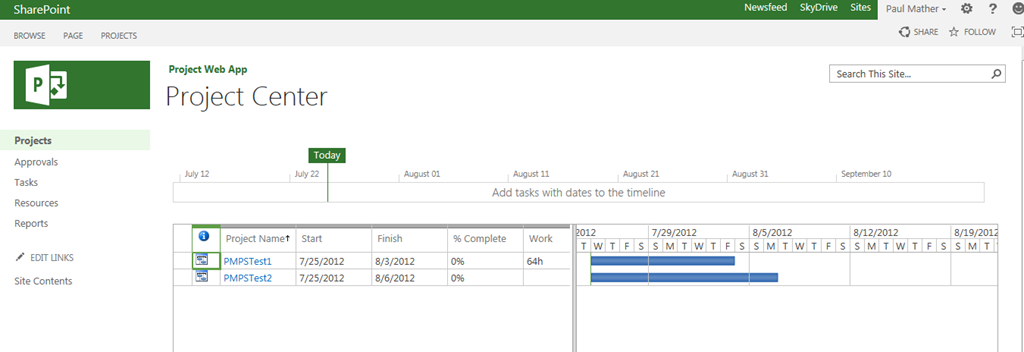
For the purpose of this post I have a couple of test projects that are managed by Project Server, these are called PMPSTest1 and PMPSTest2. I also have 2 SharePoint Project Sites that contain tasks ready to be added to Project Server, these are called PMSharePointTest1 and PMSharePointTest2.
Firstly lets take a look at the project centre, here we can see the two Project Server projects as mentioned above.
Below are the two SharePoint 2013 sites created from the Project Site template:
Project Site template:

Project Sites:

Notice one task is assigned to Lee Mather – he is not currently a resource in Project Server.

Lets take a look at the Project Server Project Sites, we will use PMPSTest1 for this. As you can see below the tasks from the project plan do not appear in the Tasks list on the associated project site as this project is managed via PWA:


Notice the message stating that this project is managed by Project Server Project Web App.
Before we add any SharePoint sites to Project Server I just want to show the projects in the reporting tables from the ProjectServer database:

Now we will look at adding a SharePoint site, see the steps below:
Navigate to the Project Centre, click the Projects tab > Add SharePoint Sites:


Notice the three SharePoint sites, two are created from the project site template the there site is a team site with the Task list added.
Select PMSharePointTest1 and click Add:

Click Close
Below is a screen shot of the Project Server queue showing all of the successful jobs for adding this SharePoint site task list to Project Server:

Once the jobs have completed successfully, refresh the Project Centre and you will see the SharePoint site:

Clicking the PMSharePointTest1 project takes you to the Task list on the site:

Notice the quick launch on the site now has a Project Details link, this gives you access to the Project Detail pages for this project:

As this is not an enterprise Project Server project you cannot edit the tasks from the PDP.
Looking at the resource centre, you can see that Lee Mather has been automatically added as a resource to Project Server as he was assigned the task SPTask3 on the SharePoint task list:

Looking at the Resource assignments for my account, you will see that all tasks (from both enterprise projects and the SharePoint task list) are displayed:

The SharePoint task list project (PMSharePointTest1) will also be available in Project Professional 2013:

Project Professional synchronises with the SharePoint task list, new tasks can be added using Project Professional and these are synched back to the SharePoint task list on the PMSharePointTest1 site:

Saving the project will sync the tasks back to the Task list:


Running the same SQL query against the Reporting tables / views in the ProjectServer database now includes the tasks from the SharePoint site that was added. This enables reports to be easily created using Excel / SSRS etc.:

Notice the ProjectVisibilityMode column, for the SharePoint project site the value is 1, for enterprise projects the value is 0.
The data is also available in the Project Server OLAP cube, example below looking at the MSP Portfolio Analyser cube:

The SharePoint task list can be removed from Project Server using the normal delete enterprise object functionality – if you want to keep the SharePoint site do not check the box “Delete the connected SharePoint sites”!
The SharePoint task list can be converted to fully managed enterprise project using the active button on the Connected SharePoint Sites page:

After clicking Activate, the project will appear and function as a normal enterprise Project Server project and set the SharePoint task list to read only. Deactivating will set the project back to a SharePoint task list managed project.
Projects created in Project Server can also be deactivated and managed via the Task list.
This new functionality is great for organisations that want the visibility of lightweight projects in Project Server. This enables both types of projects, enterprise projects and task lists, to be visible in one central location and also make use of the full reporting capability of Project Server.
For more details see the links below:
http://technet.microsoft.com/en-us/library/ff631142(office.15).aspx#section5
http://technet.microsoft.com/en-us/library/ff631142(office.15).aspx#section10


#ProjectServer 2013 online change permission mode #Office365 #PS2013 #SP2013
|
I am a Project Server and SharePoint consultant but my main focus currently is around Project Server.
I have been working with Project Server for nearly five years since 2007 for a Microsoft Gold Certified Partner in the UK, I have also been awared with the Microsoft Community Contributor Award 2011. I am also a certified Prince2 Practitioner. This article has been cross posted from pwmather.wordpress.com (original article) |
Quick post to detail the steps to change permission mode for Project Server 2013 online. The default permission mode is the SharePoint permission mode, to change this to Classic permission mode (Project Server mode) see the steps below:
Open PWA and click Admin > Project:

Select the PWA site and click Project Web App > Settings from the ribbon:

Check the Classic permission management radio button, specify an administrator and click OK.

Please note, switching between permission modes deletes all security related settings.


First Look at #ProjectServer online #Office365 #PS2013 #SP2013
|
I am a Project Server and SharePoint consultant but my main focus currently is around Project Server.
I have been working with Project Server for nearly five years since 2007 for a Microsoft Gold Certified Partner in the UK, I have also been awared with the Microsoft Community Contributor Award 2011. I am also a certified Prince2 Practitioner. This article has been cross posted from pwmather.wordpress.com (original article) |
As you are probably all aware the preview for next version of Office was released earlier this week. http://pwmather.wordpress.com/2012/07/16/projectserver-2013-preview-sharepoint2013-msproject/
In this post I will give a brief intro to the new version of Project Server 2013. I will cover the look and feel and highlight some of the new features. The screen shots from the post are from the Project online version as I haven’t got around to installing the on-premise version yet. For this example I have created a simple example project called PM Test Project 1.
Firstly lets take a look at the default PWA homepage:

The reminders web part has been updated with the cool new metro style “Track your work” web part to summarise your work. Clicking one of the icons takes you to that page to see the details, for example the Tasks page:

This page looks the same as it did in 2010.
The project centre now has the timeline view available:

You will also see a new button on the Projects tab, Add SharePoint sites:

When you click this button a new window will pop up populated with a list of the SharePoint sites based on the SharePoint Project Site template, below you can see the example site I created on the PWA site collection.

Once these SharePoint project sites are added they are visible in Project server but I will create a separate post for this soon!
The Project sites have nice new Project Summary web part where you can switch between the timeline or upcoming and late tasks:


All the project task are visible but not editable on the project site in the Tasks list:

There is also a notebook on the project site, this uses OneNote:

Project 2013:

The built in reports have been updated, take a look at the Project Overview report:

The report is editable, with new charts and tables etc.


The existing charts are all editable:

These are just a few examples of the new features in Project Server 2013 and Project 2013. I will be posting more details in the coming weeks.


 SharePoint (and Project Server) Shenanigans
You must be logged in to post a comment.