Archive
#ProjectServer 2013 preview #SharePoint2013 #MSProject
   I am a Project Server and SharePoint consultant but my main focus currently is around Project Server.
I have been working with Project Server for nearly five years since 2007 for a Microsoft Gold Certified Partner in the UK, I have also been awared with the Microsoft Community Contributor Award 2011. I am also a certified Prince2 Practitioner. This article has been cross posted from pwmather.wordpress.com (original article) |
The next version of Project Server is now available as a preview, see the links below:
Project Server 2013 preview:
http://technet.microsoft.com/en-gb/evalcenter/hh973403.aspx
Project Professional 2013 preview:
http://technet.microsoft.com/en-gb/evalcenter/hh973401.aspx
Other links:
http://technet.microsoft.com/en-gb/projectserver/fp123546
http://technet.microsoft.com/en-gb/projectserver/default
http://www.microsoft.com/project/en-gb/preview/


#ProjectServer Active Issues and Risks on PWA Reminders Web Part #PS2010 #SP2010 #SharePoint
|
I am a Project Server and SharePoint consultant but my main focus currently is around Project Server.
I have been working with Project Server for nearly five years since 2007 for a Microsoft Gold Certified Partner in the UK, I have also been awared with the Microsoft Community Contributor Award 2011. I am also a certified Prince2 Practitioner. This article has been cross posted from pwmather.wordpress.com (original article) |
The Project Server reminders web part contains key information relating to all projects that the logged on user is involved in. This includes new task assignments, timesheet information, pending approvals and active issues and risks assigned to the logged on user. This post focuses on the issues and risks count as I have seen a number of queries relating to the issues and risks not showing on the reminders web part.
Firstly I will detail where this web part gets the data from and then show working / non working examples. This web part reads data from the Project Server Reporting database, two stored procedures create the dataset for the web part then the code on the web part counts how many of those issues and risks are active. The status value is key to the issues and risks count on the reminders web part, this will be shown in the examples later on. In the image below you can see that I have 3 active risks and 2 active issues assigned to me on my test system:

Lets now take a look what the two stored procedures return from the Reporting database. Firstly I need to get my ResourceUID to pass into the stored procedures using the simple query below against the Reporting database:

The two stored procedures are MSP_WSS_ReadResourceIssues and MSP_WSS_ReadResourceRisks. These two stored procedures require a RES_UID value, in this example I will use my ResourceUID C5733575-2C0A-4B40-A367-E33B82A1CB33 as shown below:

As you can see I have 3 risks and 4 issues assigned to me. Notice on the PWA reminders web part it shows 3 active risks which matches the SQL dataset and 2 active issues which doesn’t match the SQL dataset. The issues SQL dataset returns four issues, 3 of which are active in the lists and one which is postponed.
For active issues and risks to appear on the reminders web part it is key that the Status value is (1) Active, notice that the 4th issue has a value of Active without the (1).
If I change the issue list settings for the PM Testing Assn project site so that the Status choice value includes (1) Active then edit the item, the reminders web part will correctly show 3 active issues.
The current Status choice values on the PM Testing Assn project site are shown below:

Once this choice list has been updated to include the correct Active value and the issues edited the SQL dataset will contain the correct values and therefore so will the reminders web part. The choice values updated to the correct values shown below:
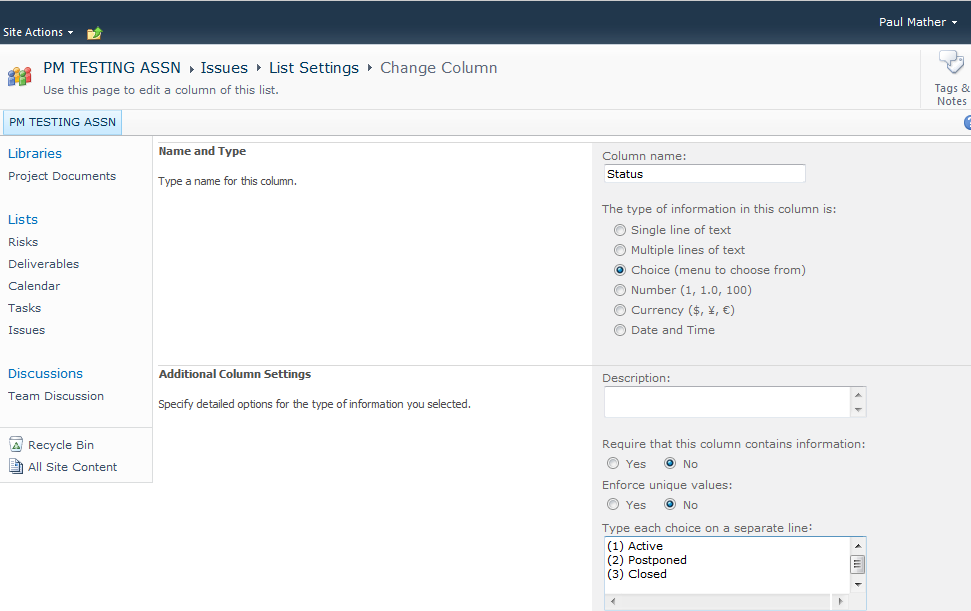
Now after editing the issue item the correct active Status value will appear:

The SQL stored procedures return the correct values after the Reporting (Project Sync) job has successfully completed in the Project Server queue:

Refreshing the PWA homepage now also shows the correct count on active issues and risks:

So the keys things to remember to make sure the reminders web part shows the correct counts for the active issues and risks are:
- ensure the Issues and Risks list default status values are not updated
- ensure the Reporting (Project Sync) jobs completed successfully
When updating the project site template it might be worth testing all default functionality, a useful project site smoke test can be found here:


Check all #SharePoint lists and libraries for specified column type in a site collection #SP2010 #PS2010 #ProjectServer #PowerShell
|
I am a Project Server and SharePoint consultant but my main focus currently is around Project Server.
I have been working with Project Server for nearly five years since 2007 for a Microsoft Gold Certified Partner in the UK, I have also been awared with the Microsoft Community Contributor Award 2011. I am also a certified Prince2 Practitioner. This article has been cross posted from pwmather.wordpress.com (original article) |
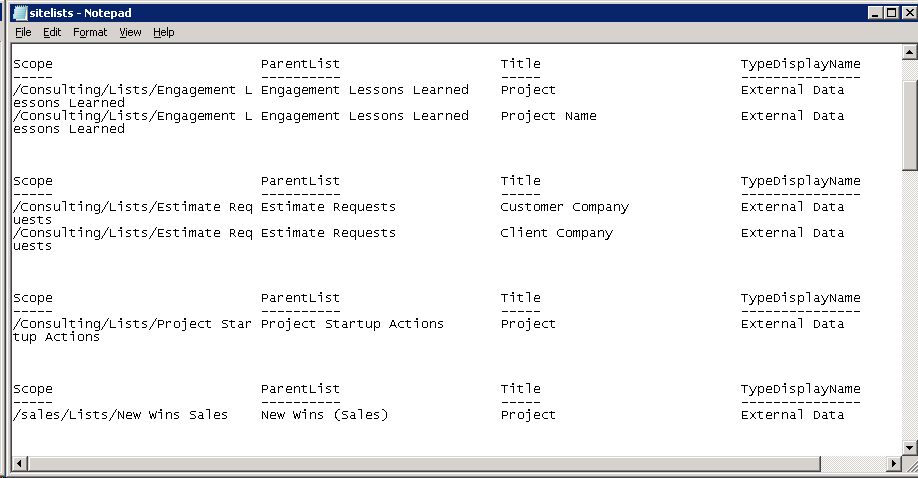
Recently we were carrying out an internal review of our SharePoint 2010 intranet system at CPS and needed to see where the BCS applications were used in the site collection on all sites. Rather than clicking on the list or library settings for each list / library to check for the External Data type on the column settings, I wrote a simple PowerShell script to check this.
The script is available from the Microsoft Script Center below:
http://gallery.technet.microsoft.com/scriptcenter/Check-all-lists-for-8689d3a9
To run the script, update the $siteCollection variable with the correct site collection URL and specify the column type, in our case this was External Data.
Once executed, the script will output the data to a text file called sitelists.txt. An example output can be seen below:


Testing a new #ProjectServer project site template #PS2010 #MSProject #EPM #SP2010 #SharePoint
|
I am a Project Server and SharePoint consultant but my main focus currently is around Project Server.
I have been working with Project Server for nearly five years since 2007 for a Microsoft Gold Certified Partner in the UK, I have also been awared with the Microsoft Community Contributor Award 2011. I am also a certified Prince2 Practitioner. This article has been cross posted from pwmather.wordpress.com (original article) |
If you are not aware already, deleting or modifying the default lists and fields in Project Server 2007 and Project Server 2010 can break some default functionality on Project Server. For example updating the Issue and Risk Status field choices, particular the “(1) Active” value will prevent the active Issues and Risks displaying in the Reminders web part on the PWA homepage. Other changes can cause the Reporting WSS sync job to fail in the Project Server queue which causes the WSS Project Sites data not to be current in the Reporting database and OLAP Cube. If you do have any of these issues I did write about a fix around a year ago now, this can be found here: http://pwmather.wordpress.com/2011/06/20/project-server-2010-project-site-default-fields/
Below is a useful set of tests that can be used to test a new Project Server 2010 project site to confirm the default functionality with Project Server still works:
· Create a test project with a few tasks and a project site
· Check you can create a new Issue, set the status to Active and assign to a Project Manager account that has access to the Project Site
· Return to PWA homepage using the Project Manager account and ensure you see 1 active issue assigned
· Click on the new Issue and make sure all links function correctly and you can see the Issue on the Project Site
· Check you can create a new Risk, set the status to Active and assign to a Project Manager account that has access to the Project Site
· Return to PWA homepage using the Project Manager account and ensure you see 1 active risk assigned
· Click on the new Risk and make sure all links function correctly and you can see the Risk on the Project Site
· Edit an Issue and link it to a Project task
· Return to PWA Project Centre, does the Issue indicator appear
· View the Project Details page, does the Issue indicator appear next to the task
· Edit a Risk and link it to a Project task
· Return to PWA Project Centre, does the Risk indicator appear
· View the Project Details page, does the Risk indicator appear next to the task
· Can you upload a document
· Edit a Project Document and link it to a Project task
· Return to PWA Project Centre, does the Document indicator appear
· View the Project Details page, does the Document indicator appear next to the task
· Publish the Project Plan
· Check Reporting job is successful in the Project Server queue
· Build the Project Server OLAP Cube, create a report based on the OlapProjectSharePoint template and confirm the issues and risks appear
· Open the IssuesandRisks sample report and confirm the issues and risks appear
· Check you can delete workspace for the test project
· Check can create a new workspace for the test Project
· Publish the Project Plan
· Check the workspace synchronisation is successful – no errors in the queue
To test other functions in Project Server 2010, take a look at this TechNet link:
http://technet.microsoft.com/en-us/library/gg502592.aspx


#ProjectServer and #SharePoint 2010 June 2012 Cumulative Update #PS2010 #SP2010 #MSProject
|
I am a Project Server and SharePoint consultant but my main focus currently is around Project Server.
I have been working with Project Server for nearly five years since 2007 for a Microsoft Gold Certified Partner in the UK, I have also been awared with the Microsoft Community Contributor Award 2011. I am also a certified Prince2 Practitioner. This article has been cross posted from pwmather.wordpress.com (original article) |
The Office 2010 June 2012 Cumulative Updates are now available, please see the links below:
http://support.microsoft.com/kb/2712235
Project Server 2010 Server Roll up package June 2012 CU (Recommended):
http://support.microsoft.com/kb/2598355
Project Server 2010 June 2012 CU (Included in the Server Roll up package):
http://support.microsoft.com/kb/2598375
Project 2010 June 2012 CU:
http://support.microsoft.com/kb/2598351
For more details please see: http://blogs.technet.com/b/projectadministration/archive/2012/06/29/microsoft-project-server-and-sharepoint-server-2007-and-2010-june-2012-cu-announcement.aspx
As always, test these updates on a test environment before deploying to production


Move a #SharePoint 2010 sub site to a different location on the same farm #SP2010 #PS2010 #PowerShell
|
I am a Project Server and SharePoint consultant but my main focus currently is around Project Server.
I have been working with Project Server for nearly five years since 2007 for a Microsoft Gold Certified Partner in the UK, I have also been awared with the Microsoft Community Contributor Award 2011. I am also a certified Prince2 Practitioner. This article has been cross posted from pwmather.wordpress.com (original article) |
Recently a query came up on the Project Server forums asking how to move a SharePoint site from the PWA site collection to another site collection. Please note this was not a Project Site. For this question I created a simple PowerShell script that will export the site and import it into the specified location. Even though this example is for a site in the PWA site collection, it will work for a site in any SharePoint 2010 site collection providing the same site templates, features etc. are available.
The script is available to download from the Microsoft Script Center:
http://gallery.technet.microsoft.com/scriptcenter/Move-a-SharePoint-2010-sub-f7774baa
Below is a walkthrough on using and executing the script.
Firstly download the script and set the variables:
# set variables
$exportfolder = "C:\Site exports" – Specify the folder to be created, this is where the export files will be created
$exportfile = "\site_export.cmp" – Specify the export file name
$exportsite = "http://vm353/PWA/PAULMATHERTESTSITE" – Specify the URL of the site that you want to move
$exportlocation = $exportfolder+$exportfile – This does not need to be updated
$importlocation = "http://vm353/PAULMATHERTESTSITE" – Specify the location where you want the site to be imported
The next part of the script gets the exported site’s template as this is needed to create the placeholder site later on:
#get export site’s template
$web = Get-SPWeb $exportsite
$webTemp = $web.WebTemplate
$webTempID = $web.Configuration
$webTemplate = "$webTemp#$webTempID"
$web.Dispose()
Worthing noting is that you need to use the Configuration property as the template ID rather than the WebTemplateID property as the WebTemplateID will always contain the original ID for the first template Microsoft created. For example a Team Site template ID is STS#0, but the WebTemplateID property for a Team Site will contain a 1, the Configuration property will contain the correct ID, in this case a 0.
The final part of the script is does the export and import, the comments above each line advise what that part of the script is doing.
#create export folder
$null = New-Item $exportfolder -type directory
#export site
Export-SPWeb $exportsite –Path $exportlocation -IncludeUserSecurity -IncludeVersions 4
Write-host "$exportsite has been exported to $exportlocation"
#create new site ready for import
$null = New-SPWeb $importlocation -Template "$webTemplate"
Write-host "$importlocation created ready for import"
#import site
Import-SPWeb $importlocation –Path $exportlocation -IncludeUserSecurity –UpdateVersions 2
Write-host "$exportsite has been imported to $importlocation" -foregroundcolor "Green"
Now lets have a walkthrough and move a site, in the example I have a Team site called “PAULMATHERTESTSITE” that is below the PWA site collection, I want to move this to the top level root site collection. For this example the variables above are correct. Open PowerShell on the Application server and navigate to the location of the ps1 file, in this case it is on my desktop:

Press Enter to execute the script:

A copy of the site should now exist in the new location.
As always, this script is provided as is with no warranties etc. use at your own risk and test on a test environment before using on a production environment.


 SharePoint (and Project Server) Shenanigans