Archive
#ProjectServer and #SharePoint 2010 / 2013 May 2015 Cumulative Update #PS2010 #SP2010 #PS2013 #SP2013 #MSProject
|
I am a Project Server and SharePoint consultant but my main focus currently is around Project Server.
I have been working with Project Server for nearly five years since 2007 for a Microsoft Gold Certified Partner in the UK, I have also been awared with the Microsoft Community Contributor Award 2011. I am also a certified Prince2 Practitioner. This article has been cross posted from pwmather.wordpress.com (original article) |
The Office 2013 May 2015 Cumulative Updates are now available, please see the links below:
Project Server 2013 May 2015 Server Roll up package:
http://bit.ly/1QLs5oe
Project Server 2013 May 2015 CU:
http://bit.ly/1A1UeDn
Project 2013 May 2015 CU:
http://bit.ly/1QLs4As
Worth noting is that the SharePoint 2013 and Project Server 2013 updates are in Windows Updates: http://bit.ly/1A1UeDr
Also worth noting, if you haven’t done so already, install Service Pack 1 http://bit.ly/1uorn2C first if installing the May 2015 CU.
The Office 2010 May 2015 Cumulative Updates are now available, please see the links below:
Project Server 2010 May 2015 Server Roll up package:
http://bit.ly/1A1UeDs
Project Server 2010 May 2015 CU:
http://bit.ly/1QLs5oh
Project 2010 May 2015 CU:
http://bit.ly/1A1Ucvi
SP2 is a pre-requisite for the Office 2010 May 2015 CUs.
For more details on these patches see: http://bit.ly/1QLs4Ay
As always, fully test these updates on a replica test environment before deploying to production.

#ProjectOnline / #ProjectServer 2013 Access #SharePoint lists on PDPs #JavaScript #jQuery #Office365
|
I am a Project Server and SharePoint consultant but my main focus currently is around Project Server.
I have been working with Project Server for nearly five years since 2007 for a Microsoft Gold Certified Partner in the UK, I have also been awared with the Microsoft Community Contributor Award 2011. I am also a certified Prince2 Practitioner. This article has been cross posted from pwmather.wordpress.com (original article) |
A common requirement is to see and access the Issues and Risks lists on the Project Detail Pages in the PWA site for the associated project. Previously I wrote a script that displayed the Issue and Risks data in a table but this was read-only. This can be seen here: http://bit.ly/1ctq4xK
This new script will display the Issues and Risks (or any other list for that matter – slight code change / update required) on the PDP but will allow you to create / edit the lists items providing you have the permissions of course. Martin did something similar here. The script can be downloaded from the script gallery below:
To get the script to work you will need to download the following jQuery library: jquery-2.1.1.min.js – jQuery download Another version of this library may work but this was the one I used / tested with. Upload this library to your PWA site collection then update the script file with the correct location. I uploaded this file to the style library as you can see in the code below:
Alternatively you can reference a CDN if preferred.
Once the script is downloaded, upload this to the PWA site collection, in this example it was uploaded to the shared documents library. Choose what PDP you want the script to be accessed, in this example I created a PDP called SharePoint Data, added a content editor web part on the new page then referenced the uploaded script using the content editor web part:
Once loaded, the page will look like this:
Don’t worry about the message – this is because there is no project UID available here.
Add the new PDP to the require Enterprise Project Types then navigate to the Project Center and access one of those projects from that EPT. Click the new PDP and you should see:
Click one of the buttons and that list should load:
You can also change the behaviour of the list form and use modal pop ups for a better experience:
This currently includes Risks and Issues but can easily be updated to include other SharePoint lists.
The script is provided "As is" with no warranties etc.
#Microsoft #MSIgnite Day 5 #Office365 #Cloud #SharePoint #ProjectOnline
|
I am a Project Server and SharePoint consultant but my main focus currently is around Project Server.
I have been working with Project Server for nearly five years since 2007 for a Microsoft Gold Certified Partner in the UK, I have also been awared with the Microsoft Community Contributor Award 2011. I am also a certified Prince2 Practitioner. This article has been cross posted from pwmather.wordpress.com (original article) |
The last day of the Microsoft Ignite conference I lined up three sessions, one on why trust Microsoft Enterprise cloud with your data, the next session was on auditing in Office 365 and the final session before we make our way home back to the UK was the Project Online / Project Server support.
The session on Office 365 and why trust Microsoft is a big topic and one with split views, Microsoft are working very hard to make customers data secure and also make the customers know their data is secure. There is lots of information on how Microsoft do this and the compliance standards etc. here: http://bit.ly/1ALekfP. I believe the data is probably more secure in the Microsoft cloud than it is in your own network – obviously there would be some exceptions to this for government / highly secure sites etc. Also a key take away from that session was that it isn’t the cloud that isn’t secure, it is the devices that the end users use each day (connecting to on-prem or cloud). Microsoft do monitor unusual activity from devices and make this information available to the admins.
The second session was on auditing options in Office 365. This covered the compliance center, the audit activity reports, the API available to for activity management and the centralised compliance auditing store. All the work Microsoft are doing around auditing shows how seriously they are taking security and how they are making this data available to admins.
The final session of the day was the Project Online / Project Server support session by Brian Smith. This was a great session and gave good insights on how the Project escalation engineers support project. Brian blogged about this session earlier: http://bit.ly/1zKFsR6
Time for me to head to the airport now to head home back to the UK. It’s been a great week here in Chicago with lots of things to understand and digest. Top marks for Microsoft, a great conference 🙂
#Microsoft #MSIgnite Day 4 #Office365 #Cloud #SharePoint #ProjectOnline #ITPro
|
I am a Project Server and SharePoint consultant but my main focus currently is around Project Server.
I have been working with Project Server for nearly five years since 2007 for a Microsoft Gold Certified Partner in the UK, I have also been awared with the Microsoft Community Contributor Award 2011. I am also a certified Prince2 Practitioner. This article has been cross posted from pwmather.wordpress.com (original article) |
Day 4 of the Microsoft Ignite conference was spent at the following sessions. The first was on how to strategically evolve your role as an IT pro, then a session on best practices on design and performance for SharePoint Online, the next session was on BI for Project Online and Project Server 2013. The session after that was around the experiences Microsoft IT had in migrating from on-prem to Office 365 and the final session of the day was the Project Online customisation best practices.
I didn’t know what to expect from the first session of the day as it wasn’t really a specific technology session but it was a very good session and one I’m glad I went to. This covered how the role of the IT Pro is changing and the role will continue to evolve. As you can imagine this is a big topic and one with many split views. In summary, in my opinion the role of an IT Pro is evolving to more of a business / IT strategic role – I guess an internal IT consultant to the business.
The second session of the day was best practices for design and performance for SharePoint Online. I felt this was a good session as the concepts for SharePoint are applicable PWA. Firstly the branding was side of things was covered. This summarised every thing from the very basic changes such as the composed looks / theme, the next level up with the designer and CSS and to the higher end with custom master pages and layouts. The very basics have a low impact with upgrades etc. where as the more complex changes can be high impact and the customisation may stop working with updates to SharePoint Online etc. With customising the UI /UX one key factor is to think about the users and devices, make the designs responsive, an example can be found here for making Seattle.master responsive: http://bit.ly/1H3Ya65
If you are not familiar with custom master pages, a good place to start is here: http://bit.ly/1zKlkhZ
The next part of this session covered performance considerations. The top 5 reasons for slow loading sites are: site structure and navigation (publishing sites), content roll up (expensive queries), large files (large high res images and videos), lots of different requests on the pages (JavaScript, CSS, images etc.) and lots of different web parts on pages. The session then gave some ideas and examples of pages load times by make changes. Some of the changes included: Navigation optimisation using search etc., Content by search web part for content roll up instead of content by query, Optimise images – correct resolution etc., Load content that is displayed on the visible part of the page rather than the whole page, download remaining images etc. as the user scrolls the page and those images need to be visible. Look to use CDNs for jQuery etc. For guidance see the Performance Tuning guides: http://aka.ms/tune
The third session after lunch on BI for Project Online / Project Server, this was a great session demonstrating the tools available, Excel, Power Pivot, Power Query and Power BI. There were some announcements around performance improvements to OData, things like increasing the row limit for timephased data from 200 rows to 2000 rows which has increased performance – other endpoints have also been optimised and Microsoft will continue to monitor and optimise the service.
The fourth session was around the experiences that Microsoft had when migrating from On-prem to Office 365. This discussed some approaches that they used with some tools and custom PowerShell scripts.
The last session of the day was the Project Online customisation session which followed a similar theme to the SharePoint design and best practices. Consider what is displayed on the pages, only have web parts you need, only have columns in the views that you need etc. It was also mentioned that Microsoft are constantly monitoring performance logs and optimising the service, many improvements are in the service already and more will be coming. The changes will also be in Project Server 2016, one interesting overhead / improvement Microsoft have made is to drop the Project Service Application in SharePoint as this was an overhead that has been re-engineered. Project Server 2016 will still have the windows services (queue, event, calculation) etc. For performance considerations for Project Online see: http://bit.ly/1H3Ya66
Lastly I dropped by the Ignite party to grab a beer and have a chat with some familiar faces. Another great day at the Ignite conference. 🙂
Yammer Roadmap Session #msignite
A small post to go over the Yammer Roadmap session and to highlight the key parts.
New Features:
Single Sign On (Future)
A major investment coming soon is Single Sign On with the rest of Office 365. You can already link your Active Directory accounts but currently Single Sign On is not implement. Watch out for this feature soon.
External Messaging (Available Now)
You can now invite any external user into your Yammer conversations by simply adding their email address as part of your post (section at the bottom).
- When you do this, a small yellow dot icon is next to the name to signify that it is external
- The post button has a small globe next to it to show that it is now interacting with external users.
Once you post the message it appears in the external users yammer private message inbox (assuming they have one) and an email is sent to their inbox with the ability to sign up if they need to.
They can reply via email or via the yammer private message system.
The author of the conversation has the ability to take the external user out of the conversation at any point. The private messages are deleted out of the users inbox and they can no longer reply.
If you wish, you can stop external messaging across your organizations Yammer tenant within Administration settings.
Compliance (Future)
Currently Microsoft is working hard to move Yammer into their own infrastructure and once it has done, compliance will be a priority.
Group Focus (Future – Coming Soon)
Improved focus on Groups within Yammer (not to be confused with Office 365 Groups)
- Navigation for creation of groups as well existing groups has moved from the Top Navigation to the Side Navigation.
- New users will be able to search for new groups as soon as they sign up, helping to improve the overall experience.
Delve Cards (Mostly available now / when Delve is in your tenant)
Watch for a different post on what Delve is… but in the meantime…
Yammer “signals” are built into the Delve boards, allowing you to start a discussion from any article or item that appears within Delve.
Next to the icon, notification counts show others discussing the item in Delve within Yammer (Please note this relies upon Single Sign On being implemented in the future)
 |
 |
Mobile App Improvements (Coming Soon)
- Notifications are being added to iOS and Android clients with swipe actions to take you straight into the discussion within the app
- Inline @mentions within the discussion rather than a separate list at the bottom of the discussion post
- Photo publisher within the app with annotation capability
- New mobile experience and UI will surface important content first by group (with number of items not seen). This is designed to ensure you always see the latest content without missing a thing!

Office 365 Group Sync (Far Future)
Towards the end of the session a number of people asked about integration with Office 365 Groups. It was mentioned that this is in the road map but not timeline could be confirmed as they are working hard at bringing Yammer into the Microsoft infrastructure.

Download all the PowerPoint and Videos from #msignite
Just a quick post to spread the word. This awesome PowerShell script (which is currently running on my server!) downloads all the content from this years Microsoft Ignite 2015 conference.
Blog Announcement: http://absolute-sharepoint.com/2015/05/the-ultimate-script-to-download-microsoft-ignite-videos-and-slides.html
Script Download: https://gallery.technet.microsoft.com/all-the-Ignite-Videos-and-b952f5ac
Thanks goes to Vlad Catrinescu…
Enjoy!
Using your phone to take notes at #msignite or the conference / meeting of your choice
Ok… so you’re at a conference… you need to take notes and capture your thoughts as the presentations go.
Yes, you can download the Presentations and Video’s later but what do you do, when you are in the moment, listening to the presentation.
Pen and paper I guess is a possibility, but we are techies! There has to be a better way… and there is! (Besides, I don’t know about you but the more I work in IT, my handwriting has got worse and worse…)
OneNote coupled with Office Lens!
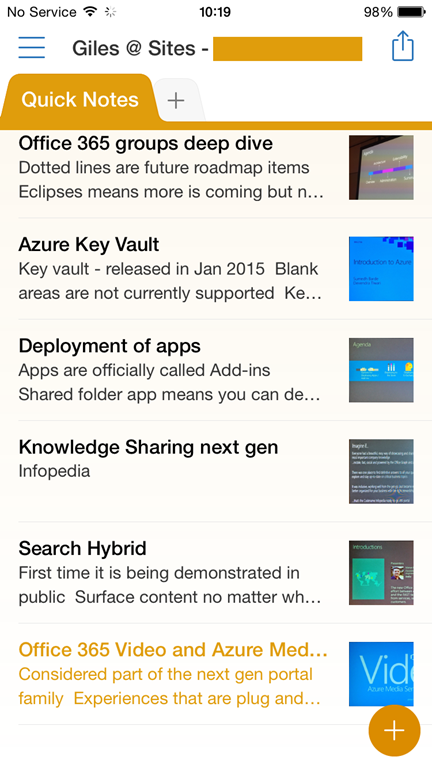
Now that Microsoft is supporting multiple platforms, I use my trusty iPhone 6 with OneNote to write the notes and I use Office Lens to take screenshots of the presentation on the screen. The results are impressive! Very impressive.
OneNote is of course excellent at taking notes and synchronizes back to your OneDrive / OneDrive for Business
 |
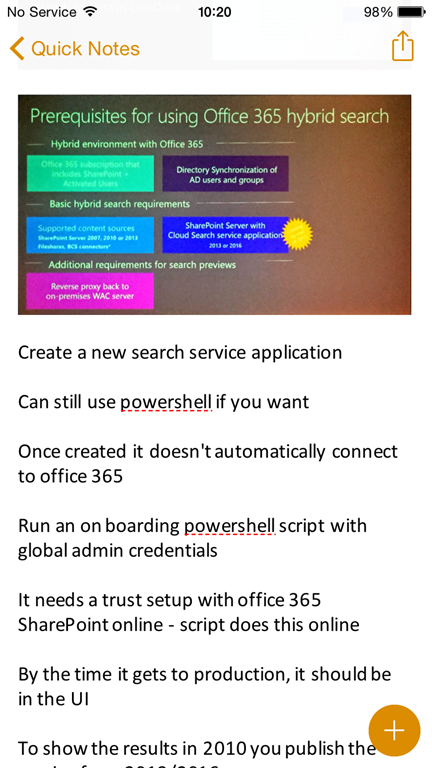 |
OneNote is of course excellent at taking notes and synchronizes back to your OneDrive / OneDrive for Business
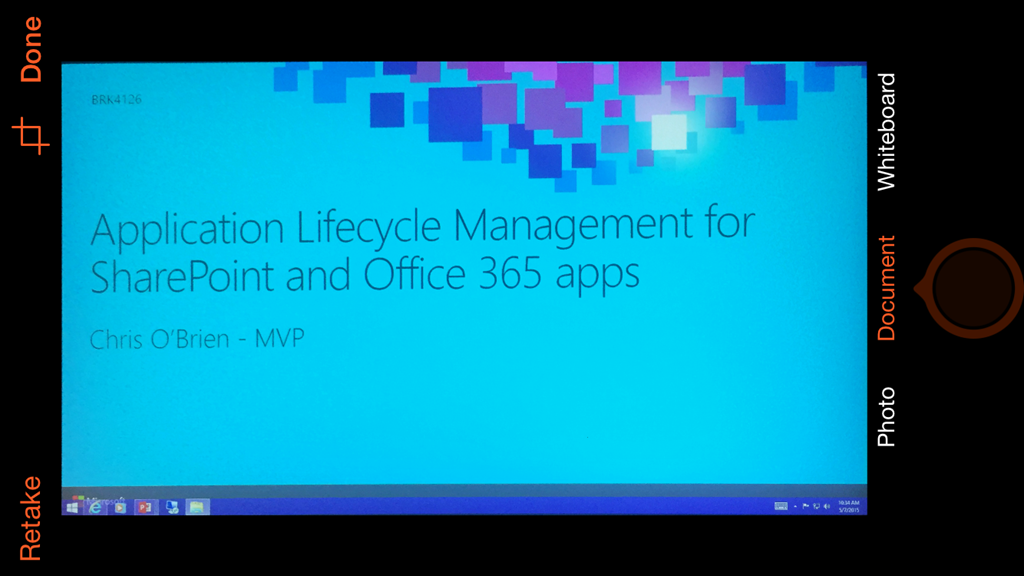
Office Lens allows you to take photos at different angles (use the document feature against the presentation screen) and it sorts it all our for you.
 |
 |
 |
Import into OneNote and you are done! (I tend to save in my phone’s photo library and import exactly where I want it in my notes)
 |
 |
So there you have it… easy notes that sync back home and ready to send out to people when you get back to work!
Office Lens links:
Overview: http://research.microsoft.com/en-us/news/features/officelens-031714.aspx
You can download from all modern app stores (iOS, Android & Windows Phone)
Till the next time…

#Microsoft #MSIgnite Day 3 #Office365 #Cloud #SharePoint #ProjectOnline #Apps / #Add-ins
|
I am a Project Server and SharePoint consultant but my main focus currently is around Project Server.
I have been working with Project Server for nearly five years since 2007 for a Microsoft Gold Certified Partner in the UK, I have also been awared with the Microsoft Community Contributor Award 2011. I am also a certified Prince2 Practitioner. This article has been cross posted from pwmather.wordpress.com (original article) |
Day 3 of Microsoft’s Ignite conference I went to sessions covering what’s next for SharePoint 2016 for an IT Pro, a session on App /Add-in provisioning and deployment, planning for Internet performance and capacity, how to deploy Project: online and server and the final session was on a developer session for Project.
The first session of the day was on what’s was new for SharePoint 2016 for an IT Pro covered all of the new features and changes in SharePoint 2016 that will improve the performance, deployment and availability of SharePoint. As most of you know, my focus is Project / Project Server / Project Online (the site title gives that away :)) so I was keen to hear about what was going to change in the SharePoint world as that will directly impact Project Server too. All of these great new features that the SharePoint product team are introducing in SharePoint 2016, Project Server 2016 also benefits from these.
The key changes mentioned this morning were that SharePoint 2016 requires Windows Server 2012 R2 or Windows Server 10 for the OS and SQL Server 2014 SP1 x64 or SQL Server vNext x64. SharePoint 2016 no longer supports a standalone install using SQL Express, SQL Server will need to be installed on the box. The upgrade path from previous version is the database upgrade approach. If the SharePoint farm is earlier than 2013, the databases will need to be upgraded to SP 2013 before SP 2016.
SharePoint 2016 uses a MinRole approach for User roles / services, Robot services and cache services. The user services are for all user generated requests such as page loads, project, excel and one note etc. The robot service all for all system generated requests such as timer jobs and provisioning. I’m sure you can guess what the cache role is for 🙂. The roles are setup on the install using the configuration wizard, you can choose whether the server is a web front end, application server, search, distributed cache or a specialised role. The specialised role option enables you to determine the server role by starting / stopping the services running on the farm (like 2007, 2010 and 2013). There is a new health analyser for the MinRole feature. This health rule will check that the correct services are running on that server based on the role selected on the install. If the specialised role is selected that particular server will be ignored by the new health check.
Patching of SharePoint 2016 has greatly been improved as mentioned here. There is now zero down time for build to build patches with SharePoint 2016 as this a an online process where as before the process took services offline. The patches are also a lot smaller, with a lot less MSI and MSP files so the patching process is quicker.
The software boundaries have not yet been confirmed but will be increased, the indicated boundaries are content DBs in the Terabytes, 100,000 site collections per content DB, the list threshold will be great than 5000, the max file size has been increased to 10 GB and character limit restrictions removed, index items increased to 500 million items.
Other key changes include, a change to the user profile service to remove the built in FIM service, this is now possible to use an external FIM server. The Project Server database has been merged into the SharePoint content DB but it is still licensed separately. Links are now durable so that if a link to a document is emailed to a colleague then at a later date the document name changes or the document is moved in 2013 the link would be broken but in 2016 the link would still work as the links are based on resource ID based URLs. There are options to view how the systems is used, browsers, sites accessed etc. to give you insight and have a better understanding of trends. There are improvements to the “Follow” functionality so that it works across on-premise and online. Hybrid deployment configuration is now possible via the UI rather than PowerShell.
The second session I went to was around app / add-in provisioning and deployment, nothing new here in the technology just an overview of what can currently be done. Only new (ish) change is the name, apps are now known as add-ins.
The third session I went to was planning for Internet performance and capacity with Office 365. This session covered the things your network admins should be aware of. If migrating from on-prem to Office 365 (or any cloud based solution for that matter), it is key that you have good baseline information for the network bandwidth usage so that you can work out if you need a more bandwidth. For Exchange / Outlook: http://bit.ly/1DTlD5j for Skype for Business (Lync): http://bit.ly/1zNKIUf for OneDrive for Business: http://bit.ly/1DTlD5m. Other general recommendations for SharePoint are around caching with proxies, also considering using WAN accelerators and for working with documents using the Office Web App rather than the rich clients. For Outlook it is recommended to use Cache mode and by pass any proxies and also use the latest version of the Outlook client.
The fourth session was on Project Online and Project Server – an intro into deployment for both environments.
The last session of the day for me was the developer session for project. This covered general best practice for developing add-ins for Project and Project Online. A demo of the new Project client JavaScript APIs that now allow you to write back to the project plan from the task pane – a great improvement for the task pane add-ins for Project. You can also get all tasks in one go too which is.
This evening finished with an MVP social event at the House of Blues which was great.
That’s it for today.
We found a specialist in the battle between #sharepoint and #yammer social!!! #msignite


The #msignite experience from the view of a customer–SharePoint 2016
Putting things in context…
If you have followed this blog over the last few years, you will know that I am no longer part of the Microsoft Partner Network and I now find myself working on the other side of the fence.
Rather than looking for the very latest technologies and keeping myself up to speed to aid my customer’s requirements, I now have a specific customer in mind, with specific requirements.
Right now I manage a team of .NET and SharePoint developers and contractors with a heavy emphasis on wanting to know how to develop in cloud based technologies such as Office 365, Azure etc.
Anyway, so lets talk about the sessions (multiple blog posts to come) and discussions at the Office Expo area (vendor stands)
SharePoint 2016 Roadmap and New Features
Delve and the Office Graph API
So they are bring SharePoint 2016 to the On-Premise environment with the key feature that Microsoft is bringing down is Delve and along with that the office graph API.
For those not in the know… Delve has been around for little in the Office 365 space but this will be the first time bringing the technology to the On-Premise environment and if you are to believe the hype in the conference… Delve and more to the point the Office Graph technology is the future in bringing disparate information to the end user from most technologies in the Microsoft Online space.
So lets talk about the Office Graph API… essentially it is the API to their machine learning engine behind the scenes, designed to bring together the information that is relevant to you!
Delve is the current front-end view of this API that surfaces the information from SharePoint, OneDrive, Search, Office 365 Video, & Exchange for now… but the API is in place for you to add your own custom apps!
New Blog Experience / Next Gen Portals
Along for the ride is new terminology called Next Gen Portals. Designed to be a single consistent experience for a particular piece of functionality.
For example,
- Blogs with the ability to drag images into the page that automatically get uploaded and stored
- Knowledge Management portals
- You Tube like Video Portals (O365 Video API’s are coming we are told!)
- New Personal Profile (as part of Delve) – the Me Contact Card
The theme being very much, why do all this customization to your portals, the 1st class experience is available out of the box and will be available On-Premise as well as on Office 365.
Hybrid Cloud Search
Introduced with the 2016 release will be a new Managed Service that will allow us to combine Office 365 Search and On-Premise Search into a single set of results (yes, all refiners will work across both indexes!). This is to help with Office 365 adoption in hybrid scenarios.
This coupled with the fact that the Office Graph API (built on top of search) essentially means you can inject search results and have them surface up in delve makes the whole proposition very powerful.
This hybrid Managed Service capability is also coming to SharePoint 2013 later this year!
Document ID’s
The Document ID is no longer limited to a Site Collection and now works across the Farm. This is now known as Durable Links.
The User Profile Service is dead! long live the User Profile Service!
So what on earth do I mean by that? Well it will no longer be a Managed Service within SharePoint 2016. AD Import will still exist within SharePoint but if you want to still use the User Profile service, you will need to setup FIM (Forefront Identity Manager) as a separate server outside of the SharePoint Farm.
Personally I believe this is a good thing… FIM was cut down within SharePoint caused no end of troubles!
Testing / Reliability
Also highlighted was the amount of testing that has gone into SharePoint 2016. It is clear that this version is only a step change compared to SharePoint 2013 but as a result, we have better experiences that are well tested from the various learning and implementations of the Office 365, SharePoint Online solutions.
Distributed Cache has been vastly improved in reliability.
As part of this, there is a solemn promise that One Drive for Business Sync will be improved with a brand new version coming soon. (Thank goodness for that – no more Groove / SharePoint Workspace related products please!)
Installation and setup changes
You can now build servers with specific roles from the Product Config Wizard… this includes roles such as:
- Web Front-end
- Search
- Application
- Distributed Cache
- As well as other, depending on your need.
This is designed to minimize workloads for specific purposes and although you could do this before… it certainly makes life easier!
Zero downtime patching
It has been recognized that patching is a nightmare nowadays with the bi-monthly patches often being bigger than SharePoint’s initial install to allow for differences in patch versions.
Install’s are long and the farm is out of commission whilst doing so.
It is also recognized that patches need to be tested thoroughly still, due to the amount of changes inside them.
So to help improve this situation for On-Premise… they introduced the idea of Zero downtime patching with SharePoint 2016. Patches can be applied without downtime of the servers.
Not too much more was said about this during the roadmap session but I suspect to learn more throughout the week!
Release Schedule
Lastly, what we all really wanted to know and confirm! The release schedule for SharePoint 2016
- SharePoint 2016 Beta 1 – Q4 2015
- SharePoint 2016 Release Candidate – Q1 2016
- SharePoint 2016 RTM (Release To Manufacturing) – Q2 2016
Ok that’s it… more to follow when I get time…


 SharePoint (and Project Server) Shenanigans
You must be logged in to post a comment.