Archive
OLAP Cube Error – Cannot process the Project custom field
Just a quick note to let you know about an error I came across today.
In Project Server 2010, I had a field called “Objective”. This was associated with a lookup table of the same name, which was single-value select. This field was added to the Project OLAP cube, which built successfully. So far so good!
I then changed the field type to multi-select, and left the cube to build overnight. Came back the next day to a failed OLAP build. The exact error I got in the queue was this:
- CBS message processor failed:
- CBSMetadataProcessingFailure (17005) – InitCustomFieldDimensions cannot process the Project custom field ‘Objective’. Details: id=’17005′ name=’CBSMetadataProcessingFailure’ uid=’c69b0459-5d1f-4d78-a410-f56cd32eca97′ QueueMessageBody=’Setting UID=00007829-4392-48b3-b533-5a5a4797e3c9 ASServerName=<SQLServer> ASDBName=OLAPCube ASExtraNetAddress= RangeChoice=0 PastNum=1 PastUnit=0 NextNum=1 NextUnit=0 FromDate=10/30/2012 00:00:00 ToDate=10/30/2012 00:00:00 HighPriority=True’ Error=’InitCustomFieldDimensions cannot process the Project custom field ‘Objective”.
Hmmm…OK, must be the change I made to the field. I need this field to be multi-value, but I don’t necessarily need it in the cube for reporting. So, I went to remove the field from the cube but it wasn’t listed. Weird. I thought re-saving the OLAP configuration and re-building it would just flush out the field since it was no longer listed in the cube configuration. I got the same error in the queue again.
The only fix I found for this was to re-create the OLAP cube with all of the same settings as previously, minus the “Objective” field, which I couldn’t add anyway as multi-value fields aren’t available to add to the cube.
Hope this helps you out if you come across this error in the future.
Lester
Edit: it seems that this was a known issue back in 2011, which hasn’t yet been fixed. More info on Brian Smith’s blog here: http://blogs.msdn.com/b/brismith/archive/2011/02/04/project-server-2010-take-care-changing-custom-fields-to-allow-multiple-values.aspx

Fun with SharePoint CUs and Language Packs
I was recently involved with helping a client expand a 2010 farm by adding 2 more servers to an existing environment.
It should have have been a straight forward task to install the SP2010 binaries, Service Pack etc and join the new servers to the existing farm.
Checking the documentation for the existing farm I could that the following build was in use
SharePoint 2010 RTM & SP1 & Feb 2012 CU & June 2012 CU & Brazil Portuguese Language Pack & Language Pack SP1 & Office Web Apps.
I gathered all the media together and settled down for a day of watching the blue bar.
After all the installs I planned to run the Configuration Wizard up to the PassPhrase step to ensure the servers were ready to be joined at a later point.
Running the Configuration Wizard on one of the ‘New’ servers I was able to connect to the Configuration database but the Configuration Wizard was stopping at the Patch screen reporting a patch mismatch between the current farm servers and the new server.
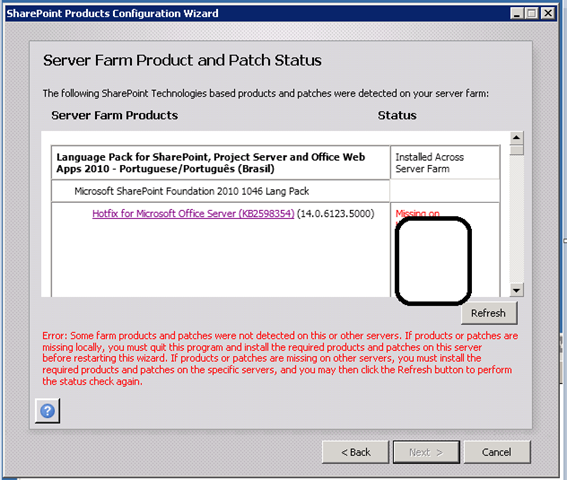
The Patch status was reporting that the June 2012 CU was not installed on any of the other servers, even thought it clearly was !.
After much head scratching and chatting to colleagues I was at bit of a loss as to what the issue could be, I was thinking about running a PsConfig b2b on one the ‘live’ servers, but decided to keep looking around and finally found a discrepancy in Control Panel –> Programs –> View Installed Updates, comparing the new server with one of the current servers I noticed a difference in the installed updates for the Language Pack, the ‘new’ server was showing 13 updates for the Language Pack compared to existing servers that were only showing 1


After another chat with one of my colleagues we established that in the current live environment the Language Pack had been installed after the June 2012 CU, where as when i built the ‘New’ servers I had installed the Language Pack before the CU, and as the CU’s are multilingual a number of extra Hotfixes had been installed.
The solution in this case was simply remove and reapply the Language Pack over the CU, now the new servers could be added to the current farm.

#ProjectServer #PS2010 / #PS2013 local master projects and tasks with no assignments
   I am a Project Server and SharePoint consultant but my main focus currently is around Project Server.
I have been working with Project Server for nearly five years since 2007 for a Microsoft Gold Certified Partner in the UK, I have also been awared with the Microsoft Community Contributor Award 2011. I am also a certified Prince2 Practitioner. This article has been cross posted from pwmather.wordpress.com (original article) |
Something to be aware of when using local master projects in Project Server 2010 or 2013 when tasks in the sub projects have no assignments.
You will see random text / characters next to the Unassigned name as seen below:

The text / characters displayed will change depending on where you last clicked.
Repro steps below:
- Open Project Pro and connect to the server
- Create 1 project, create 3 tasks and assign an enterprise resource to all three tasks, save and publish the project.
- Close and check-in the project
- Create 1 other project, create 3 tasks and assign an enterprise resource to only 2 of the tasks leaving 1 task with no assignment, save and publish the project.
- Close and check-in the project
- Create a new project and insert both of the projects created above as read-only
- Save the master project locally as a file, when prompted hit no to all when prompted to save changes to the two insert projects
- Close the master project and again when prompted hit no to all when prompted to save changes to the two insert projects
- Close Project Pro
- Open Project Pro and connect to the server
- Open the local master project and expand the two inserted projects
- Switch to the Resource Usage view and notice the Unassigned resource name

- Make changes such as expanding the Resource Name column, increase the work etc. and see the Unassigned name update.
- After changing the Resource Name column width:

o Changing work:

o 2013:


#ProjectServer 2010 field calculation in PWA #PS2010 #MSProject #SP2010
|
I am a Project Server and SharePoint consultant but my main focus currently is around Project Server.
I have been working with Project Server for nearly five years since 2007 for a Microsoft Gold Certified Partner in the UK, I have also been awared with the Microsoft Community Contributor Award 2011. I am also a certified Prince2 Practitioner. This article has been cross posted from pwmather.wordpress.com (original article) |
A quick blog post to highlight an issue and workaround for editing plans in PWA when using custom fields that use the inbuilt fields. This post uses Finish Variance as an example. The Finish Variance field doesn’t recalculate in PWA after making edits to plans, this only updates after changes in Project Pro. This post relates to the Finish Variance field but other fields will more than likely have the same issue.
In the screen shot below you will see a simple plan with 2 tasks that was created and baselined in Project Pro. There are 3 custom fields in the view:
Finish Variance RAG, the formula is IIf([Finish Variance] > 0, "Slipped", "On schedule")
Finish Variance (Calc) RAG, the formula is IIf([Task Finish Variance] > 0, "Slipped", "On schedule")
Task Finish Variance, the formula is ProjDateDiff([Baseline Finish], [Finish]) / 480

As you can see the Finish Variance and the Task Finish Variance values are currently the same and so are the 2 RAG fields.
Edit the plan in PWA and increase the task durations, for this example double the durations. Calculate the plan then save and publish the project. Refresh the page and you will see that the Finish Variance is incorrectly 0, the Finish Variance RAG is still green as this uses the Finish Variance field. The good news is that the custom field that calculates finish variance (Task Finish Variance) shows the correct values and the Finish Variance (Calc) RAG also shows the correct RAG.

To correct the Finish Variance values and the Finish Variance RAG, open the plan in Project Pro, press F9 to recalculate then save and publish. The Finish Variance default field now shows the correct values in PWA as does the Finish Variance RAG:

To get the RAGs to calculate correctly when editing in PWA you might need to create your own custom fields to replicate the calculations used on inbuilt fields. Obviously it would not be recommended to create too many task level calculated fields due to performance issues but hopefully that little workaround helps for key RAGs.


SP2010 Docs opening as Read-Only.
When you have been working with SharePoint for a while, you get a feeling for when an issue is with SharePoint and when its not, and you can generally tell which it is within a few minutes.
So when we started getting reports of users unable to edit documents or save edits back to SharePoint, I immediately though it’s just a single user or a faulty workstation, but when we started getting more and more reports I did begin to wonder it it was a SharePoint issue after all.
The symptoms seemed to be, a user could open a document from SharePoint, edit it and save the edits, but the all subsequent documents would open in [Read-Only] mode, without the normal “Edit Document” message bar appearing in the office client application.


To get back to normal functionality the user would have to close all browser sessions and relaunch, no amount of changing browser or office settings would return office to normal working.
Further investigations showed that almost all the workstations were running Windows 7 and Office 2010, but all had Lync 2013 installed, finally we we tried running an Office 2010 client repair from Windows Control Panel and bingo, normal document editing was resumed.
So once again not a true SharePoint issue, but as the presentation layer SharePoint normally gets the blame.
Happy SharePointing
Follow @NeilKing41
#ProjectServer and #SharePoint 2010 / 2013 June 2013 Cumulative Update #PS2010 #SP2010 #PS2013 #SP2013 #MSProject
|
I am a Project Server and SharePoint consultant but my main focus currently is around Project Server.
I have been working with Project Server for nearly five years since 2007 for a Microsoft Gold Certified Partner in the UK, I have also been awared with the Microsoft Community Contributor Award 2011. I am also a certified Prince2 Practitioner. This article has been cross posted from pwmather.wordpress.com (original article) |
The Office 2013 June 2013 Cumulative Updates are now available, please see the links below:
http://support.microsoft.com/kb/2855356
Project Server 2013 Server Roll up package June 2013 CU (Recommended):
http://support.microsoft.com/kb/2817415 (Delayed)
Project Server 2013 June 2013 CU (Included in the Server Roll up package):
http://support.microsoft.com/kb/2817341
Project 2013 June 2013 CU:
http://support.microsoft.com/kb/2817338
Also worth noting, install the March 2013 Public update: http://support.microsoft.com/kb/2768001 if installing the June 2013 CU.
The Office 2010 June 2013 Cumulative Updates are now available, please see the links below:
http://support.microsoft.com/kb/2855357
Project Server 2010 Server Roll up package June 2013 CU (Recommended):
http://support.microsoft.com/kb/2817368
Project Server 2010 June 2013 CU (Included in the Server Roll up package):
http://support.microsoft.com/kb/2817378 & http://support.microsoft.com/kb/2817387
Project 2010 June 2013 CU:
http://support.microsoft.com/kb/2817385
Remember SP1 is a pre-requisite for the Office 2010 June 2013 CUs.
For more details please see:
http://blogs.technet.com/b/projectsupport/archive/2013/06/14/microsoft-project-server-2007-2010-and-2013-june-2013-cu-announcement.aspx
As always, test these updates on a replica test environment before deploying to production


SharePoint 2010 AD update failing.
Getting the AD update feature working in SharePoint 2010 / 2013 can be a challenge as you need to ensure the the permissions you set on the synchronization account are exactly correct as per the following TechNet article.
http://technet.microsoft.com/en-us/library/hh296982#RDCchild
Even following these to the letter you can still come across problems as I recently discovered.
I was asked to take a look at client system where the AD update for the telephone number was failing, checking in SharePoint I could see that attribute was set to ‘Export’

but the Telephone number for a ‘Test User’ was not being set, checking in the FIM client tool we could see a permissions error for the object update.
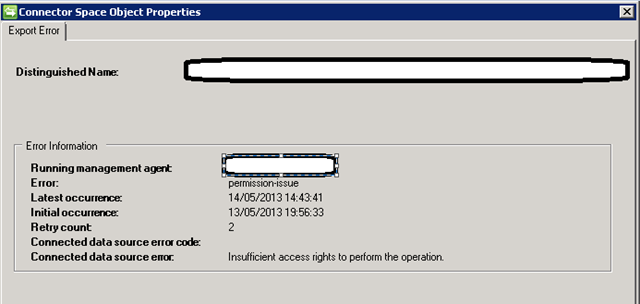
Rechecking the permissions that the AD sync account has showed that the update permission had been removed from the AD object and AD Inheritance had been removed.
After some serious investigation by a colleague ( Big Respect to Chris V ), we discovered an AD feature called “Protected Groups” whereby if you are a member of a specific AD group such as Administrators, Account Operators, Server Operators etc the following could happen.
http://support.microsoft.com/kb/817433
As soon as we tested the AD feature for a ‘normal’ user it worked as exactly as expected , so a nice little ‘feature’ to watch out for that is not documented from the SharePoint side.
Happy SharePointing
Follow @NeilKing41
Useful List based InfoPath form information
So as I continue my research, I have found a couple more interesting facts.
- You can use InfoPath 2013 against SharePoint 2010 to create, edit and update List based InfoPath forms.
- You can also save that List with the InfoPath form as a template and the XSN file comes along with it, whether you check the “with content” box or not.
- This also works across site collections
Have fun! Till the next time…
Exporting Admin Approved #InfoPath Forms. #SP2007 to #SP2010
Just a quick blog to remind myself for some research I am doing.
We need to export existing Administrator Approved InfoPath forms and I came across this article:
In short, use STSADM to export a CAB and reimport using PowerShell.
As it is an older article soooo… just in case I lose it. The details are below:
Admin approved form from MOSS 2007 get deployed as features within the 12 features hive under folders named with GUIDs. These need special handling to be moved to SharePoint 2010. The following steps need to be performed.
a) Export the Admin approved IP templates using stsadm command.
using stsadm -o exportipfsadminobjects command export the IP forms to a CAB file.
b) Import this into the SharePoint 2010 environment using the Windows PowerShell 2.0 Import-SPInfoPathAdministrationFiles cmdlet.
c) Check if the files are imported correctly by browsing to the Central Admin –> Manage Infopath Form Templates.
Other useful resources I found in my research on this topic:
Details further usage and includes updating of data connection files associated with InfoPath forms.
The Update-SPInfoPathUserFileUrl Command will allow you to updates your data connections in InfoPath form templates (.xsn files) and universal data connections (.udcx files) where references in the current farm should be updated when content is migrated to a different farm URL.
Upgrade resource links SP2007 to SP2010 from Microsoft
PowerShell CMDLets for importing into SharePoint 2010
Import-SPInfoPathAdministrationFiles
Imports Microsoft InfoPath 2010 form templates and .udcx files that are located on the SharePoint Central Administration Web site.
Update-SPInfoPathAdminFileUrl
Updates InfoPath form templates (.xsn files) and universal data connections (.udcx files), including all .xsn files and .udcx files that were deployed by an administrator.
Update-SPInfoPathUrl
Runs a Microsoft InfoPath 2010 .xsn/.udc fix-up on Microsoft SharePoint Foundation 2010.
Update-SPInfoPathFormTemplate
Upgrades all Microsoft InfoPath form templates on the farm.
Till the next time…
#CSS Change the style of the View Selector in lists/libraries breadcrumb
As part of a site branding exercise the breadcrumbs that is displayed when a list or library is open on a view was causing issue. When hovering the current view name its font was bigger and the CSS was not obvious to target.
not good hover:

good hover:

Having spent a good hour on that single issue and Googled for solution, here is my finding for later reference.
/* keep same font and position when hovering on view name  */
.ms-ltviewselectormenuheader .ms-viewselector{
 padding-bottom:0px;
 padding-left:5px;
 padding-right:3px;
 padding-top:2px;
 margin-right:0px;
}
.ms-ltviewselectormenuheader .ms-viewselectorhover A{
 border:0px !important;
 font-family: Verdana, Helvetica ;
 color: #0060ad;
 font-weight: normal;
 background-color: transparent;
 font-size: 9px;
 text-decoration: underline !important;
 background-image: none;
 padding-bottom:0px;
 padding-left:0px;
 padding-right:3px;
 padding-top:2px;
 margin-right:0px;
}
/* down arrow to select view */
.ms-ltviewselectormenuheader .ms-viewselector-arrow{
margin:0px 5px 2px 0px !important;
}
References:
- http://sharepoint.stackexchange.com/questions/27507/disabling-javascript-from-overriding-breadcrumb-navigation-styling
- http://www.ericjochens.com/2012/11/css-style-sharepoint-2010-branding.html
- http://sharepointexperience.com/csschart/csschart.html

via François on Sharepoint http://sharepointfrancois.wordpress.com/2013/06/06/css-change-the-style-of-the-view-selector-in-listslibraries-breadcrumb/
 French native Sharepoint Consultant living in London. A crossway between a designer, developer and system architect. Prefers stretching the limit of out-of-the-box features rather than breaking them into code. When not working with Microsoft Sharepoint François is often found on Web2.0 News sites and related social networking tools.
This article has been cross posted from sharepointfrancois.wordpress.com/ (original article) |


 SharePoint (and Project Server) Shenanigans
You must be logged in to post a comment.