Archive
Practice makes Perfect Part 2 – Baselines
 When I was in a Prince2 Practitioner refresh course the other week I asked around who uses Project Professional to plan their projects. Only a few did, then I asked who uses baselines in their plans. None of them responded. This gave me the incentive to make a post about baseline usage in Project Professional.
For this post I will again use Project Professional 2013. As always this is not the finished product and images do not represent the final version. Things might change.
What is a baseline?
A baseline within project is basically a snapshot of your plan. Almost like taking a photo. This is very handy as every Project Manager knows a project plan is subject to a lot of changes. Using baselines give you a good opportunity to track what has changed in your plan.
The first thing you need to determine is “when am I making my first baseline”. In large organizations this is mostly handled by a PMO (Project Management Office) or by the Project Manager. In small organizations the Project Manager is generally responsible for setting the first baseline. If we take PRINCE2 for example your first baseline could be set at the end of the process Initiating a Project.
It is also relevant to know that Project Professional gives you 11 baselines per project. Baseline (0) to Baseline 10. When you have determined when your first baseline has to be set you have to decide which baseline to set. I recommend to always use Baseline 10. The reason behind this is that baseline (0) is easier to override by accident than baseline 10 is.
Where can I set the baseline for a project?
In Project Professional you can set the baseline under Project > Set Baseline Schedule.

As you can see in the image below you got a few options. You can select which baseline to set, Set interim plan. Set a baseline for Entire Project or Selected tasks. For this exercise I will set my first baseline for the Entire Project.

When you go back to the same screen you can see on which date you last saved your baseline. So what can you do with that? You can make it visible in your project plan. Go to Format > Baseline and select the baseline you have set. In my case this is Baseline 10. A other option is to set your Gantt view to Tracking Gantt.

When you selected this option or a tracking Gantt a bar is added in your Gantt Chart which represents the baseline. In the image below it is the grey bar.

During a project you are able to make multiple baselines to track where you are delayed or even ahead of schedule and why. I recommend you make a new baseline when you start the next phase of your project. By doing so you can so by the end of the Project where delays have occurred. These delays can then be added to your lessons learned report.
After making baseline 10 I made some modifications to the plan by increasing duration of some tasks. I also added the baseline10 Duration column to my screen to show you what I actually had planned and where the delays have occurred.
As you can see by the grey bars in my chart my project has a significant delay. This also gives you a good overview where the delays occurred. Pretty useful when reporting to the Project Board.

Reporting of baseline data within Project Professional 2013
In the image below I made a report displaying the scheduled duration vs. duration of baseline 9 and 10. This report is made by the new functionality of Project Professional 2013. (Yeah I know this is really cool!)

Being able to see where your project plan is delayed or ahead of schedule can help any Project Manager. In the case of a delay he/she can take corrective measures. For example the Project Manager could request an extra resource for a specific task to make it finish earlier and by doing so getting back on track.
The usage of baselines in a Microsoft Project plan is one of the most useful tools you can have during a project. It can really help you out. As always experiment with baselines in Project and see for yourself. I hope this gave a little insight in the use of baselines.


via SpeakingSilent » Robin Kruithof http://speakingsilent.wordpress.com/2012/08/06/practice-makes-perfect-part-2-baselines/
   I am Robin Kruithof. I am working at CXS in the Netherlands as a Microsoft Project Consultant. My passion lies in Project Management and everything in the Project Management domain.
This article has been cross posted from speakingsilent.wordpress.com/ (original article) |

Infopath “The following form template cannot be upgraded because it is not currently uploaded on this farm” #sp2010
So what i was trying to do is upload a new form template to a clients QA system. Something that has been done tens of time since the system went live. But today I get.

Now i have never seen this message before so i instantly start googling to try and save the day.
I have to say not a lot of stuff around this error is available but there are a couple of MSDN forum posts that got me in the right direction.
The SharePoint farm in question has recently had some more servers added to the farm and what i suspect has happened is that the form files have not correctly deployed to the new servers. But to prove this i need the feature GUID that is created when you first upload a InfoPath form.
I found the quickest way to get this is to navigate to the site collection the form exists on. Go to Site settings and under Site collection Administrators select the Site Collection Features in the list you will see a feature that maps to the name of the XSN file.
Click on the Deactivate button (don’t worry there is a confirmation step). Now in the query string the feature GUID is shown. Copy this as you will need it later. You don’t need to deactivate the solution so can close the page if you wish.
I was then able to see, under Solution Management within central admin the WSP called the same GUID. Clicking on the WSP showed me that the wsp had not been deployed to all the servers in the farm. For some reason all of the other WSP in the list had all been deployed. I guess i was just lucky that this was the only one.
Now to fix the issue you need to run an STSADM command
stsadm -o uninstallfeature –id <the feature GUID you got from the query string> –force
This will remove the feature and i guess some other magic that fixes stuff.
Now the form can be upgraded without an error. Once the form has upgraded the feature is reactivated automatically (did for me anyway)
And YAY it all works again. 5 minutes job only took an hour
Hope this helps someone

 Paul is a an expert SharePoint and Project Server developer and is responsible for designing and implementing custom solutions on client systems using the latest SharePoint and .NET technologies.
Paul has extensive experience with SharePoint systems across all sizes of implementation, ranging from small to large farms and has an excellent understanding of all the elements of SharePoint. This article has been cross posted from paulbuzzblog.wordpress.com (original article) |

Getting Project Server database information via C# / How to run PowerShell command in C#
For a long time now I have had a few scenario’s where it would be helpful for me to know what the database server and database names are of a Project Server instance. The PSI does not provide this information but there is a PowerShell command that will give you the information.
Get-SPProjectWebInstance –url <URL>
This gives me all the info a want about the instance.

So now I know I can get the info i need i just need a way of getting this within c# code.
Helpfully you can use System.Automation to execute PowerShell scripts within .NET
We start with a simple method that will execute PowerShell commands
private string RunScript(string scriptText)
        {
            string addWss = "Add-PSSnapin microsoft.sharepoint.powershell";
            Runspace runspace = RunspaceFactory.CreateRunspace();
            runspace.Open();
            Pipeline pipeline = runspace.CreatePipeline();
            pipeline.Commands.AddScript(addWss);

            pipeline.Commands.AddScript(scriptText);
            pipeline.Commands.Add("Out-String");
            var results = pipeline.Invoke();

            runspace.Close();

            StringBuilder stringBuilder = new StringBuilder();
            foreach (PSObject obj in results)
            {
                stringBuilder.AppendLine(obj.ToString());
            }

            return stringBuilder.ToString();
        }
The above code needs
using System.Management.Automation;
using System.Management.Automation.Runspaces;
NOTE: You’ll need to add a reference to the version of PowerShell you have installed in your GAC to the Visual Studio project file. To do so, you’ll open the project file as a text file and add the following line into the <ItemGroup> section:
<Reference Include=”System.Management.Automation” />
I was able to cheat and “browse” to the assembly using the following path
C:\Windows\assembly\GAC_MSIL\System.Management.Automation\1.0.0.0__31bf3856ad364e35\System.Management.Automation.dll
Now that we have the helper method I can actually get the info I want.
string answer = RunScript("Get-SPProjectWebInstance -url http://vm641/pwa2");
string reportingDatabaseServer = string.Empty;
string reportingDatabaseName = string.Empty;

var output = answer.Split(new string[] {Environment.NewLine}, StringSplitOptions.RemoveEmptyEntries).Cast<string>();

reportingDatabaseServer = (from x in output where x.StartsWith("ReportingServer") select x).First().ToString();
reportingDatabaseName = (from x in output where x.StartsWith("ReportingDatabase") select x).First().ToString();

reportingDatabaseServer = reportingDatabaseServer.Replace("ReportingServer", "").Replace(":", "").Trim();
reportingDatabaseName = reportingDatabaseName.Replace("ReportingDatabase", "").Replace(":", "").Trim();
Bingo I have the name of the reporting server and the database name.
I needed this months ago to auto configure a PSI extension that was written but i need it now to auto configure a feature when it is deployed.
I’ll wrap all the above code into a single class that accepts the instance URL in its constructor and then expose properties with the information.
using System;
using System.Collections.Generic;
using System.Linq;
using System.Management.Automation.Runspaces;
using System.Management.Automation;
using System.Text;

public class ProjectWebInstanceInformation
{
    #region Fields and Properties
    public string ReportingServer { get; private set; }
    public string ReportingDatabase { get; private set; }
    #endregion

    #region Constructor
    protected ProjectWebInstanceInformation()
    {
    }

    public ProjectWebInstanceInformation(string Url)
    {
        try
        {
            string answer = RunScript(string.Format("Get-SPProjectWebInstance -url {0}", Url));
            string reportingDatabaseServer = string.Empty;
            string reportingDatabaseName = string.Empty;

            var output = answer.Split(new string[] { Environment.NewLine }, StringSplitOptions.RemoveEmptyEntries).Cast<string>();

            ReportingServer = (from x in output where x.StartsWith("ReportingServer") select x).First().ToString().Replace("ReportingServer", "").Replace(":", "").Trim();
            ReportingDatabase = (from x in output where x.StartsWith("ReportingDatabase") select x).First().ToString().Replace("ReportingDatabase", "").Replace(":", "").Trim();
        }
        catch { }

    }

    #endregion

    #region Methods
    private string RunScript(string scriptText)
    {
        string addWss = "Add-PSSnapin microsoft.sharepoint.powershell";
        Runspace runspace = RunspaceFactory.CreateRunspace();
        runspace.Open();
        Pipeline pipeline = runspace.CreatePipeline();
        pipeline.Commands.AddScript(addWss);

        pipeline.Commands.AddScript(scriptText);
        pipeline.Commands.Add("Out-String");
        var results = pipeline.Invoke();

        runspace.Close();

        StringBuilder stringBuilder = new StringBuilder();
        foreach (PSObject obj in results)
        {
            stringBuilder.AppendLine(obj.ToString());
        }

        return stringBuilder.ToString();
    }
    #endregion
}

|
Paul is a an expert SharePoint and Project Server developer and is responsible for designing and implementing custom solutions on client systems using the latest SharePoint and .NET technologies.
Paul has extensive experience with SharePoint systems across all sizes of implementation, ranging from small to large farms and has an excellent understanding of all the elements of SharePoint. This article has been cross posted from paulbuzzblog.wordpress.com (original article) |

Office 2013 Preview Client Requirement #Office365 #MSProject #PS2013 #SP2013
As we gear up further here at CPS with the Office 2013 Preview and what it means for our clients, we started to look client requirements.
Now many of our larger clients are still running Windows XP and looking at the confirmed clients requirements for the Office 2013 Preview, it would appear Windows 7 and higher now the new standard with Internet Explorer 8 or above.
In Microsoft’s defence, Windows XP is a very old operating system and we can’t expect them to support it forever.
To work out when mainstream support ends for your versions of Office and Windows, you and go to the Microsoft Product Lifecycle – Support Home:
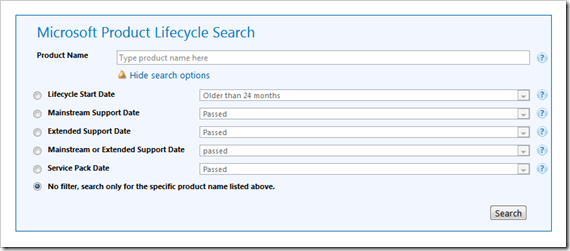
http://support.microsoft.com/lifecycle/search/default.aspx
Anyway, on with some of the details I came across:
Office 2013 Preview App-V (Streaming) Client Requirements
For those of you using the Office 365 Preview, the Office 2013 / Project 2013 clients that stream down via App-V (Application Virtualisation). The preview also uses a new version of App-V, version 5.0 beta 2 of which the minimum requirements is also Windows 7 or higher.
App-V 5.0 Beta 2
Supported operating systems:
- Windows 7
- Windows 8 Release Preview
- Windows Server 2008 R2
- Windows Server 2012 Release Candidate
App-V Packages + Requirements: http://www.microsoft.com/en-us/download/details.aspx?id=30423
Office 2013 Preview Client Requirements
Details of the requirements are below. Specific details by product are at the MSDN link below:
| Component | Requirement |
| Computer and Processor | 1 gigahertz or faster x86- or x64-bit processor with SSE2 instruction set |
| Memory (RAM) | 1 gigabyte (GB) RAM (32 bit); 2 gigabytes (GB) RAM (64 bit) |
| Hard disk | 3.0 gigabytes (GB) available |
| Display | Graphics hardware acceleration requires a DirectX10 graphics card and 1024 x 576 resolution |
| Operating System | Windows 7, Windows 8, Windows Server 2008 R2, or Windows Server 2012 |
| Browser | Microsoft Internet Explorer 8, 9, or 10; Mozilla Firefox 10.x or a later version; Apple Safari 5; or Google Chrome 17.x |
| .NET version | 3.5, 4.0, or 4.5 |
| Multi-touch | A touch-enabled device is required for any multi-touch functionality. However, all features and functionality are always available by using a keyboard, mouse, or other standard or accessible input device. Note that new touch features are optimized for use with Windows 8. |
System Requirements:

Extract logs from #SharePoint ULS logs #ProjectServer #PS2013 #SP2013
 I am a Project Server and SharePoint consultant but my main focus currently is around Project Server.
I have been working with Project Server for nearly five years since 2007 for a Microsoft Gold Certified Partner in the UK, I have also been awared with the Microsoft Community Contributor Award 2011. I am also a certified Prince2 Practitioner. This article has been cross posted from pwmather.wordpress.com (original article) |
This post follows on from my previous post regarding the new log level manager functionality in Project Server 2013: http://pwmather.wordpress.com/2012/07/26/projectserver-ps2013-log-level-manager-sp2013-sharepoint-msproject-powershell/
Once configured, all activity on the farm for that particular entity, depending on the logging level set, is logged in the SharePoint ULS logs.
As mentioned in my last post, I said that I would create a simple PowerShell script that will extract the Project Server 2013 log level manager logs into a custom file to make it easier for viewing.
The script is available from the Microsoft Script Center below:
http://gallery.technet.microsoft.com/scriptcenter/Extract-logs-from-09b0e7bb
The script can be seen below with comments for configuration options:
# set the required date, below will set today, other days / dates can be
# used. For example, to get yesterdays logs use
# $Date = get-date -format "yyyyMMdd" (get-date).AddDays(-1)
$Date = get-date -format "yyyyMMdd"
# if you want logs from a specified date, remove the $Date variable from the where object
# and specify the string, for example for 27/07/2012 use:
# where-object {$_ -like "*20120727*"}
$files = Get-ChildItem "C:\Program Files\Common Files\Microsoft Shared\Web Server Extensions\15\LOGS" | where-object {$_ -like "*$Date*"}
foreach ($file in $files)
{
# this script will copy any row that contains LogLevelManager!, to copy other
# logs, update the string in the where object, for example you could use the entity UID
get-content -path "C:\Program Files\Common Files\Microsoft Shared\Web Server Extensions\15\LOGS\$file" | where-object { $_ -match ‘LogLevelManager!’} | Out-File C:\PSLog$Date.txt -append
}
Running the script:

Creates a new text file in the specified location, in this example, the root of the C drive:

Whilst this script is aimed at extracting the Project Server log level manager logs, it could also be used to extract logs for other SharePoint applications. For example, you might have an issue with Excel Services and may want all of the Excel Services logs into a separate file while you investigate the issue.


Project Professional 2013 Reports
 With the preview version out I was able to play around with Project Professional 2013. Like always this is the preview version so things might change.
When playing around with Project Professional 2013 I came by a new feature that I just had to blog about. Reports in Project Professional were not always of best use. They had their uses but in my experience I hardly used them.
In Project Professional 2013 however Microsoft decided to do something cool.
They basically made a report dashboard. There are a few pre-defined reports to choose from:
- Project Overview
- Work Overview
- Burndown
- Cost Overview
And much more…
One option in particular is very cool. Creating your own report by the use of a pivot table mechanism. This makes it very easy to create a report in a few clicks. Add that with all the different options available to you, you have the ability to create a really useful reports in mere minutes.

This for me personally is a major improvement on Project Professional 2010. It enhances the ability of Project Managers to get good and valuable reports. In this dashboard you can do some cool actions. Like for instance, adding your company logo to your report.

This report capability also gives you the ability to rearrange all the fields. This is very handy for any Project Manager. How many times have you been fiddling with a report to fit everything on one page. This time is has been made really easy.

Next to that you have the option to add charts, table and textboxes and much more…
Next to that you have the option to add charts, table and textboxes and much more…
All in all too much to sum up in a small blog post. I would say experiment with it. In my opinion this greatly increases the usability of Project Professional 2013 for any Project Manager. A really good use for these reports would be a Checkpoint Report or Highlight Report.
I am really impressed by this feature, and what it can do, and what it means for anyone that needs to report on a project. The easy to use prebuilt reports already cover the most of report a Project Manager needs.
I am off to see what else Project Professional 2013 has in store for me. But for now consider me impressed.

via SpeakingSilent » Robin Kruithof http://speakingsilent.wordpress.com/2012/07/30/project-professional-2013-reports/
|
I am Robin Kruithof. I am working at CXS in the Netherlands as a Microsoft Project Consultant. My passion lies in Project Management and everything in the Project Management domain.
This article has been cross posted from speakingsilent.wordpress.com/ (original article) |

#ProjectServer #PS2013 Log Level Manager #SP2013 #SharePoint #MSProject #PowerShell
|
I am a Project Server and SharePoint consultant but my main focus currently is around Project Server.
I have been working with Project Server for nearly five years since 2007 for a Microsoft Gold Certified Partner in the UK, I have also been awared with the Microsoft Community Contributor Award 2011. I am also a certified Prince2 Practitioner. This article has been cross posted from pwmather.wordpress.com (original article) |
There is new feature in Project Server 2013 called the Log Level Manager that enables you to track certain entities such as Projects, Resources and Tasks etc. Once configured, all activity on the farm for that particular entity, depending on the logging level set, is logged in the SharePoint ULS logs.
More details can be found here:
http://technet.microsoft.com/en-us/library/ff631142(office.15).aspx#section16
The log level manager is configured using PowerShell, the Project Server 2013 preview PowerShell commands can be found here:
http://technet.microsoft.com/en-us/library/ee890097(office.15).aspx
For the purpose of this blog post I have enabled logging for one test project, the project is called PMPSTest1 and the project GUID is 35cafba6-38d6-e111-9923-4c809328175b. Below you can see the PowerShell commands used to set up the logging for this one project:

Notice the refresh command, this is required to update the cached list of entities to watch.
As mentioned above the log level manager writes the logs into the SharePoint ULS logs, an example can be seen below:

An example entry:
LogLevelManager!PWA:http://vm657/PWAClassic, ServiceApp:Project Server Service Application, User:i:0#.w|cps\paulmather, PSI: Start checkout of project ’35cafba6-38d6-e111-9923-4c809328175b’ by resource ‘f8a06617-38d6-e111-bf72-00155d1463b9′ to store ‘WorkingStore’. Project:35cafba6-38d6-e111-9923-4c809328175b Original TraceLevel:Medium 9f6fbd9b-85f6-e003-5b7a-17f60ec5f059
The SharePoint ULS logs aren’t the nicest of log files to look through at the best of times, never mind trying to look for logs regarding the specific Project Server entities that you are tracking. I will create a simple PowerShell script to take all of the log level manager entries from the ULS logs and place these into a new text file/s. This will enable you to view all of the Project Server log level manager entries without the other SharePoint entries.
The log level manager is very useful for auditing / tracking activity for a certain project, task or timesheet etc. It would not be recommended to enable verbose logging for all entities in Project Server though!


#SharePoint #SP2013 Project Site visibility in #ProjectServer 2013 #Office365 #PS2013
|
I am a Project Server and SharePoint consultant but my main focus currently is around Project Server.
I have been working with Project Server for nearly five years since 2007 for a Microsoft Gold Certified Partner in the UK, I have also been awared with the Microsoft Community Contributor Award 2011. I am also a certified Prince2 Practitioner. This article has been cross posted from pwmather.wordpress.com (original article) |
In this post I will look at the new functionality that allows you to have visibility of the SharePoint 2013 project sites / SharePoint sites that have a Task list in Project Server 2013. I mentioned this functionality in a previous post last week: http://pwmather.wordpress.com/2012/07/19/first-look-at-projectserver-online-office365-ps2013-sp2013/
The SharePoint 2013 Project Site template by default has a Task list so these will be available to add to Project Server, if you add the Task list to other SharePoint 2013 sites in the PWA site collection these will also be available to add to Project Server 2013.
For the purpose of this post I have a couple of test projects that are managed by Project Server, these are called PMPSTest1 and PMPSTest2. I also have 2 SharePoint Project Sites that contain tasks ready to be added to Project Server, these are called PMSharePointTest1 and PMSharePointTest2.
Firstly lets take a look at the project centre, here we can see the two Project Server projects as mentioned above.
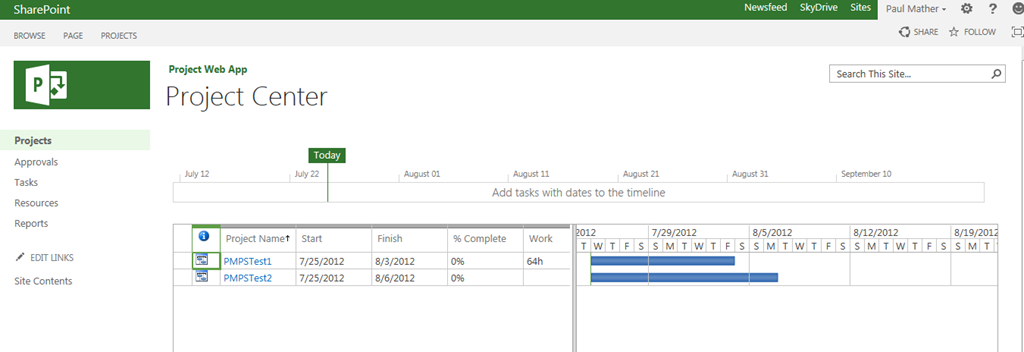
Below are the two SharePoint 2013 sites created from the Project Site template:
Project Site template:

Project Sites:

Notice one task is assigned to Lee Mather – he is not currently a resource in Project Server.

Lets take a look at the Project Server Project Sites, we will use PMPSTest1 for this. As you can see below the tasks from the project plan do not appear in the Tasks list on the associated project site as this project is managed via PWA:


Notice the message stating that this project is managed by Project Server Project Web App.
Before we add any SharePoint sites to Project Server I just want to show the projects in the reporting tables from the ProjectServer database:

Now we will look at adding a SharePoint site, see the steps below:
Navigate to the Project Centre, click the Projects tab > Add SharePoint Sites:


Notice the three SharePoint sites, two are created from the project site template the there site is a team site with the Task list added.
Select PMSharePointTest1 and click Add:

Click Close
Below is a screen shot of the Project Server queue showing all of the successful jobs for adding this SharePoint site task list to Project Server:

Once the jobs have completed successfully, refresh the Project Centre and you will see the SharePoint site:

Clicking the PMSharePointTest1 project takes you to the Task list on the site:

Notice the quick launch on the site now has a Project Details link, this gives you access to the Project Detail pages for this project:

As this is not an enterprise Project Server project you cannot edit the tasks from the PDP.
Looking at the resource centre, you can see that Lee Mather has been automatically added as a resource to Project Server as he was assigned the task SPTask3 on the SharePoint task list:

Looking at the Resource assignments for my account, you will see that all tasks (from both enterprise projects and the SharePoint task list) are displayed:

The SharePoint task list project (PMSharePointTest1) will also be available in Project Professional 2013:

Project Professional synchronises with the SharePoint task list, new tasks can be added using Project Professional and these are synched back to the SharePoint task list on the PMSharePointTest1 site:

Saving the project will sync the tasks back to the Task list:


Running the same SQL query against the Reporting tables / views in the ProjectServer database now includes the tasks from the SharePoint site that was added. This enables reports to be easily created using Excel / SSRS etc.:

Notice the ProjectVisibilityMode column, for the SharePoint project site the value is 1, for enterprise projects the value is 0.
The data is also available in the Project Server OLAP cube, example below looking at the MSP Portfolio Analyser cube:

The SharePoint task list can be removed from Project Server using the normal delete enterprise object functionality – if you want to keep the SharePoint site do not check the box “Delete the connected SharePoint sites”!
The SharePoint task list can be converted to fully managed enterprise project using the active button on the Connected SharePoint Sites page:

After clicking Activate, the project will appear and function as a normal enterprise Project Server project and set the SharePoint task list to read only. Deactivating will set the project back to a SharePoint task list managed project.
Projects created in Project Server can also be deactivated and managed via the Task list.
This new functionality is great for organisations that want the visibility of lightweight projects in Project Server. This enables both types of projects, enterprise projects and task lists, to be visible in one central location and also make use of the full reporting capability of Project Server.
For more details see the links below:
http://technet.microsoft.com/en-us/library/ff631142(office.15).aspx#section5
http://technet.microsoft.com/en-us/library/ff631142(office.15).aspx#section10


SharePoint 2010 and 2013 WSP
Nice post here about creating a WSP for both 2010 and 2013. Or i should say upgrading your 2010 WSP to work on both
http://www.danlarson.com/sharepoint-2010-and-2013-wsp-compatibility/

via Buzz Blog http://paulbuzzblog.wordpress.com/2012/07/25/sharepoint-2010-and-2013-wsp/
|
Paul is a an expert SharePoint and Project Server developer and is responsible for designing and implementing custom solutions on client systems using the latest SharePoint and .NET technologies.
Paul has extensive experience with SharePoint systems across all sizes of implementation, ranging from small to large farms and has an excellent understanding of all the elements of SharePoint. This article has been cross posted from speakingsilent.wordpress.com/ (original article) |

SPandPS.com huh? what’s that all about?
Over the past year, I have been adding various site authors to the blog originally known as Giles’ SharePoint (and Project Server) Shenanigans. However, as more and more people have come on board, the blog has become less about my posts and more of a group effort.
Introducing SPandPS.com…

To reflect the group effort of Site Authors and Cross Posters, I have rebranded the blog as SPandPS.com and the transformation is almost complete with the following new features:
 Email (Contact Form)
- Facebook Page
- RSS
- Twitter Account
- YouTube Channel
- CodePlex Projects

I will still be posting at my normal frequency and to the same quality you have come to expect and the site authors / cross posters contributing articles as and when they come up with content.
I hope you all enjoy the new content and if you have any suggestions or would like to guest blog or become a site author… get in contact.
PS. You can still access the blog using the original URL and feed (https://ghamson.wordpress.com & https://ghamson.wordpress.com/feed)


 SharePoint (and Project Server) Shenanigans
You must be logged in to post a comment.