Archive
Manually adding users to Project Workspace / Project Site in #ProjectServer #PS2010 #PS2007 #EPM
This post will detail the errors seen when trying to add or edit items in a Project Site / Project Workspace in Project Server when adding users manually to a Project Site when they don’t have the correct permission in Project Server. For the purpose of this guide I will base this on Project Server 2010 but the same applies for Project Server 2007.
A bit on the background information to start with so that it makes it clear later on in the post why you see these errors. Project Server has its own permission model that works differently to the SharePoint permission model. Users are added to Project Server via the PWA > Server Settings > Manage Users interface and not the SharePoint Site Actions > Site Permissions interface. This is because users will be added to the PWA site based on their Project Server permissions, to an extent the same can be said for the Project Sites. Although Project Sites appear and function the same as a normal SharePoint site, certain lists / document libraries work very differently to standard SharePoint lists / libraries. The Project Documents library, Risks list and Issues list link back to Project Server so therefore when editing / adding items, firstly the SharePoint permissions will be checked, then the Project Server permissions will be checked. If the user doesn’t have the correct permissions in Project Server, then they will see errors, even if they have full control on the Project Site. Each error is shown below.
In this example I have added a user directly to the Project Site, the user has Full Control of this Project Site, also this user does not have any access to PWA.
Project Documents:
When adding a document to the Project Documents library the user will see this error pop up once they click OK to add the document:

When they click, “Go back to Site” they will see that document has still been uploaded:
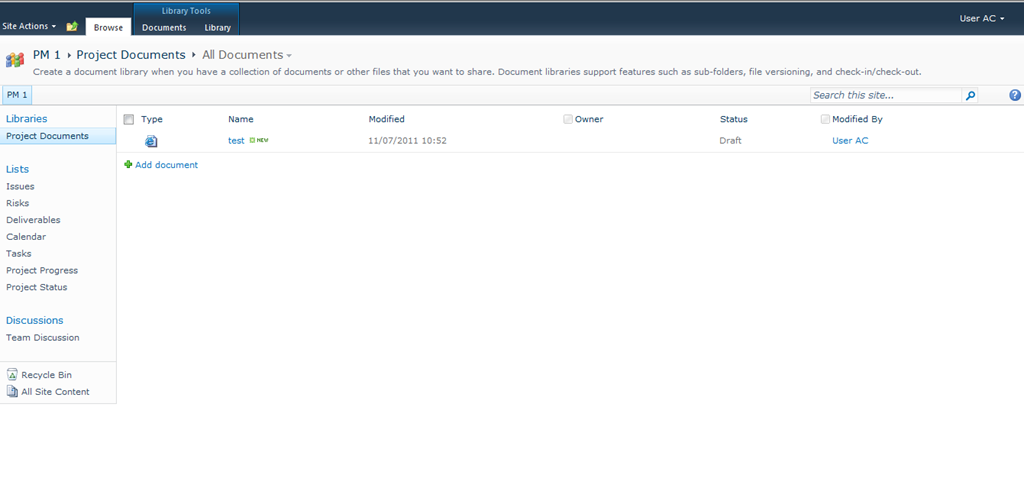
The error is thrown when the Project Server permissions are validated. The error below can be seen in the SharePoint ULS logs:
System.Web.Services.Protocols.SoapException: ProjectServerError(s) LastError=GeneralSecurityAccessDenied Instructions: Pass this into PSClientError constructore to access all error information at Microsoft.Office.Project.Server.WebServiceProxy.Security.CheckUserProjectPermission(Guid projectUid, Guid categoryPermissionUid) at Microsoft.Office.Project.PWA.CustomFieldWebControls.CustomPWALinkField.OnLoad(EventArgs e)
As you can see from the error above, it fails when checking the Custom PWA Link field as this is used to link the Document back to a task in the Project. As this user doesn’t have access to Project Server the error is thrown.
Risks and Issues lists:
Users will not be able to create an item on the risks or issues list if they do not have the correct permissions in Project Server, they will see the error below when clicking New Item:

The error below can be seen in the SharePoint ULS logs:
System.Web.Services.Protocols.SoapException: ProjectServerError(s) LastError=GeneralSecurityAccessDenied Instructions: Pass this into PSClientError constructore to access all error information at Microsoft.Office.Project.Server.WebServiceProxy.Security.CheckUserProjectPermission(Guid projectUid, Guid categoryPermissionUid) at Microsoft.Office.Project.PWA.CustomFieldWebControls.CustomPWALinkField.OnLoad(EventArgs e)
As a minimum, users will need permission in Project Server to use these lists, I would also recommend that you let Project Server control the users permissions to the Project Sites. To do this check the box “…automatically synchronize Project Web App users with Project Sites when they are created…”, on the PWA > Server Settings > Project Site Provisioning Settings page.

This will synch the users to the Project Site when the Project is published, it will add users to the Project Sites based on their Project Server permissions and therefore less of an administration overhead. The permission the users get on the Project Site can be seen below:
- Project managers who have published a project or who have Save Project permissions on a project are added to the Project Managers (Microsoft Project Server) site group.
- Team members with assignments in a project are added to the Team members (Microsoft Project Server) site group.
- Other Project Server users who have View Project Site permission on a project are added to the Readers (Microsoft Project Server) site group.
Hopefully that explains why you see these errors on the Project Sites.

How to check the SharePoint 2010 and Project Server 2010 service pack / patch level #PS2010 #ProjectServer #SharePoint #SP2010
This article will show how to check the farm version for SharePoint Foundation 2010, SharePoint Server 2010 and Project Server 2010.
The farm patch level can be check in the Central Administration site, click “Upgrade and Migration” then “Check Product and Patch Installation Status”

The patch level of all farm components will be detailed here, as you can see below, Project Server is listed at the bottom:

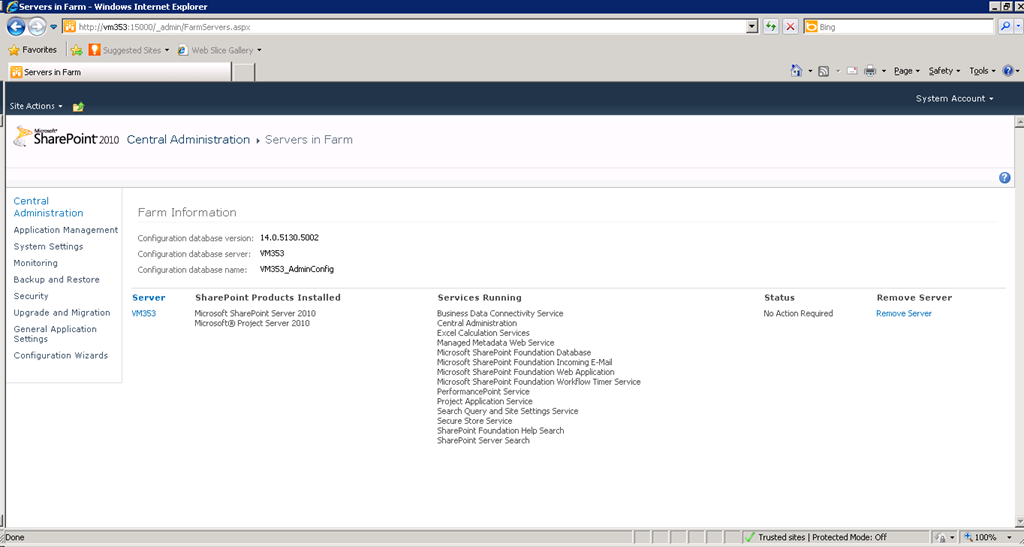
The farm configuration database version can also be checked on the “Manage Servers in this farm” page:
You can also check the SQL databases directly just running the query below:
select version
, ID
, UserName
, TimeStamp
from versions
Or if you want to see everything:
Select * from versions
This query can be executed against most of the SharePoint 2010 databases and all of the Project Server 2010 PWA databases. Worth noting is that not all SharePoint databases have a versions table, also not all of the versions tables get updated with every update, it usually depends if there is a schema update.

SQL Alias vs DNS Alias for Project Server 2010 install #PS2010 #EPM #ProjectServer
When installing Project Server 2010 it is always best practice to use an alias name for the SQL server as this makes life easier should you want to move SQL servers at a later date. This raises the question, SQL alias (using SQL cliconfg utility – pic below) or a network DNS Alias name (CNAME or HOST Record).

Pic1: SQL Server Client Network Utility (cliconfg)
For Project Server 2007 I would have said there weren’t really any advantages for one method over the other but for Project Server 2010 it’s different. For Project Server 2010 I would always recommend using a network DNS Alias, the reason being is to do with creating Excel Services reports.
When a user either creates a new or edits an existing report in Excel, their Excel client will connect directly to the data source (either Reporting database, custom database or OLAP cube). The ODC file will contain the connection details, SQL server name (alias name if Project Server was installed with an Alias for SQL), and database or cube name. If you installed Project Server 2010 with a SQL Alias on the Application Server, the user’s client machine will not know anything about the SQL Alias name unless you set up the same SQL Alias on all users machines who will create Excel Reports. This is because SQL Alias are only local to the machine that is it created on. Using a network DNS Alias to alias the SQL server will remove this issue.
Paul Mather

Some links to capacity planning tools and advice #in #SP2010 #PS2010 #ProjectServer #SharePoint #MSProject
Microsoft Guides:
Capacity management and sizing for SharePoint & Project Server 2010
http://technet.microsoft.com/en-us/library/cc261700(office.14).aspx
Software Boundaries and Limitations for SharePoint & Project Server 2010:
http://technet.microsoft.com/en-us/library/cc262787.aspx
Storage and SQL Server capacity planning and configuration (SharePoint & Project Server 2010):
http://technet.microsoft.com/en-us/library/cc298801(office.14).aspx
Further Resources & Links – SharePoint 2010:
http://technet.microsoft.com/en-us/sharepoint/ff601870
Further Resources & Links – Project Server 2010:
http://technet.microsoft.com/en-us/projectserver/ee263909
HP Tools
http://h20338.www2.hp.com/activeanswers/Secure/548230-0-0-0-121.html
Tihomir Ignatov Blog
Custom Excel spread sheet for sizing High Availability environments:
http://tihomirignatov.blogspot.com/2010/12/sharepoint-2010-capacity-planning-and.html
Choirul Amri Blog
Further storage considerations:

Microsoft 2011 WPC Award Winners & Finalists #in #SharePoint #SP2010 #PS2010 #MSProject #Project Server
Just a quick blog to list all the winners and finalists of the Microsoft Worldwide Partner Conference Awards for 2011.
Unfortunately my entry didn’t place in the Project and Portfolio Management area, maybe next year.
For now, take a scan through the companies, future employers perhaps 
More blog updates soon, including examples on Office 365 done (the working examples are done, just need to write about them)
Source: http://finance.yahoo.com/news/Microsoft-Announces-2011-prnews-3488435555.html?x=0&.v=1
About the awards: http://www.digitalwpc.com/awards#fbid=xQVAZ-mZXra
Award Event Dates: 10th – 14th July 2011
|
Alliance ISV Industry Partner of the Year
Alliance Partner of the Year —Advanced Infrastructure
Alliance Partner of the Year — Application Platform
Alliance Partner of the Year — Innovation
Application Integration Partner of the Year
Application Lifecycle Management Partner of the Year
Authorized Distributor Partner of the Year
BizSpark Partner of the Year
Business Intelligence Partner of the Year
Communications Sector Partner of the Year
Content Management Partner of the Year
Data Platform Partner of the Year
Desktop Partner of the Year
Digital Marketing Partner of the Year
Exceptional Sales Management Partner of the Year
Hosting Partner of the Year
Identify and Security Partner of the Year
Innovative Customer Advocacy Partner of the Year
ISV/Software Industry Partner of the Year
ISV/Software Line of Business Partner of the Year
Learning Competency Innovation Partner of the Year
Learning Competency Marketing Acceleration Partner of the Year
Microsoft Dynamics Cloud Business Excellence Partner of the Year
Microsoft Dynamics CRM 2011 Solution of the Year
Microsoft Dynamics CRM Partner of the Year
Microsoft Dynamics Distribution Partner of the Year
Microsoft Dynamics ERP ISV Solution of the Year
Microsoft Dynamics ERP Partner of the Year
Microsoft Dynamics Financial Services Partner of the Year
Microsoft Dynamics Manufacturing Partner of the Year
Microsoft Dynamics Marketplace Solution Excellence Partner of the Year
Microsoft Dynamics Professional Services Partner of the Year
Microsoft Dynamics Public Sector Partner of the Year
Microsoft Dynamics Retail Partner of the Year
Mid-Market Solution Provider Partner of the Year
|
Mobility Business-to-Business Application Partner of the Year
Mobility Business-to-Consumer Application Partner of the Year
Mobility Partner of the Year
OEM Hardware Reseller Partner of the Year
OEM Hardware System Building Partner of the Year
Online Services Commercial Partner of the Year
Online Services Solution Partner of the Year
Outstanding Sales Operations Partner of the Year
Portals and Collaboration Partner of the Year
Private Cloud Partner of the Year
Project and Portfolio Management Partner of the Year
Public Sector, Education Partner of the Year
Public Sector, Government Partner of the Year
Public Sector, Health Partner of the Year
Public Sector, Public Safety and National Security Partner of the Year
Sales Specialist of the Year
Search Partner of the Year
Server Platform Partner of the Year
Small Business Specialist Partner of the Year
Software Asset Management Innovation Partner of the Year
Software Asset Management Marketing Acceleration Partner of the Year
Software Development Partner of the Year
Sustainability Partner of the Year
Systems Management Partner of the Year
Technical and High Performance Computing Innovation Partner of the Year
Unified Communication Innovation Partner of the Year
Unified Communications Market Acceleration Partner of the Year
Virtualization Partner of the Year
Visio Partner of the Year
Volume Licensing Partner of the Year
Web Development Partner of the Year
Windows Azure Platform ISV Partner of the Year
Windows Azure Platform SI Partner of the Year
|

Project Server 2007 / 2010 scheduled tasks not running #PS2010 #ProjectServer #EPM #PS2007
Scheduled jobs such as the daily scheduled backup in project server not running but work when you run them manually? I have seen this at many clients and the resolution is usually simple.
All of the scheduled jobs in Project Server 2007 / 2010 run from a SharePoint Timer Job, if you look in Central Administration at the timer job definitions you will see your project server jobs. These include:
- Project Server Cube Admin Job
- Resource Capacity Job
- Scheduled Backup Job (one for each item)
These jobs are created in Central Administration when you set up the scheduled jobs in PWA. If you find that some of the scheduled jobs no longer run automatically, editing the time of the job will usually resolve the issue. So for example, if your daily Project backup that scheduled to run at 02:00 is not working automatically, try editing the time of the job to 03:00 and check the following day to confirm it has worked. To confirm it has run you can check the queue history and add in the “Success” job completion state. You can always set the job to run again at 02:00 for the following night and that should still work. You would need to repeat this for all of the scheduled jobs that were not running automatically.
Office 365 Home – What is this about???

You may have noticed the Office 365 Home link in the top menu and wondered what it is about. While Office 365 has been in beta, I have been setting up an example / showcase site that will allow me to demonstrate some of the functions and custom solutions talked about on this very blog.
I may move the entire blog over at some point, but for now please take a look around and see what you think. I will be posting examples and linking to them in my posts, so stay tuned!
My experience of installing #SP2010 & #PS2010 SP1 + June 2011 CU #in #msproject
So I have been working on a client solution for over a year now, lots of customisations and a global solution, implementing SharePoint 2010 and Project Server 2010.
It has been quite the journey of initially not needing to support FireFox in Project Server 2010 (not available in its RTM guise) but after various meetings and discussions it was deemed half way through the project that FireFox was a requirement.
This lead to all sorts concerns for the project, but luckily I was able to be part of the Service Pack 1 beta programme with my client as a tester.
It just so happens that one of the new features of Service Pack 1 allows for Task and Timesheet entry in FireFox and all other SharePoint 2010 supported browsers.
So last week came the day of Service Pack 1 being finally released alongside June 2011 Cumulative update. (Which is just as well, as we have another client with fixes in June 2011 CU)
Then all the blog posts in the community started talking about the best way to install the updates and I guess this post is just another one of those. I suppose the difference here is that I can confirm that with these steps, it works on, on a system that has been heavily customised (in accordance with best practice) and upgraded without issues.
Feature Set:
SharePoint 2010
Project Server 2010
Office Web Apps
Update level before the upgrade: April 2011 Cumulative Update
Installation steps taken:
Binary install of:
SharePoint Foundation 2010 SP1
SharePoint Server & Project Server 2010 SP1
Office Web Apps SP1
Run the product wizard configuration
Restart the server
Binary install of:
SharePoint Foundation 2010 – June 2011 CU
SharePoint Server & Project Server 2010 – June 2011 CU
Office Web Apps – June 2011 CU
Run the product wizard configuration
This is probably a very long winded way of doing it, as a fair amount of advice on the internet suggests you don’t need to install the SharePoint Foundation files for Cumulative Updates, but just in case I went for the full cycle and it worked without a hitch.
Please watch out of user profile errors while it is upgrading the database during its service startup process, this can be misleading but is not actually a problem.
Let me know in the comments how you got on also.
Kind Regards
Giles
Microsoft Project Server 2010–Service Pack 1 released #in #SP2010 #SharePoint #MSProject #ProjectServer
And here is the SharePoint and Project Server 2010 Download and Detail Links.
Details:http://support.microsoft.com/kb/2460047
Download: http://www.microsoft.com/download/en/details.aspx?id=26636
FireFox compatibility for Tasks and Timesheet entry – woo hoo!
I have a client desperate for this, so shall be testing tomorrow.
Microsoft SharePoint 2010–Service Pack 1 released #in #SP2010 #SharePoint
Finally!!!
Details Here (Live soon I expect): http://support.microsoft.com/kb/2460045
Download Here: http://www.microsoft.com/download/en/details.aspx?id=26623
Happy downloading.


 SharePoint (and Project Server) Shenanigans
You must be logged in to post a comment.