Presenting @HSPUG Transitioning from #SP2013 to #PS2013 for #EPM / #PPM November 20th 2013 #MSProject #ProjectServer
One of my first tasks at BrightStarr is getting myself known in the area and what better way than to start presenting at the local user groups. So without further ado:
Transitioning from SP to PS for Enterprise Project Management
Presenter: Giles Hamson
As a Project Manager, challenges exist with determining what are the best tools to use to help you be most effective. Project Server and SharePoint are two different tools for Project Management that include their advantages and disadvantages.
In this session, you will come away with the following information:
- A high level understanding of how SharePoint and Project Server work together
- The benefits of enterprise project management
- Project management maturity expectations as solutions become increasingly more complex
About Giles Hamson
Giles Hamson has been working with collaboration technologies since 2001 and has been implementing SharePoint solutions from 2004; starting with SharePoint Portal Server 2003 whilst working in the Microsoft Dynamics division in Reading, UK.
Giles has worked in multiple roles throughout his career working as a business analyst, moving into system analysis and development roles.
After gaining experience across Linux, Solaris and Microsoft disciplines, Giles moved into consultancy within the education market creating learning platform solutions based on SharePoint and integration with 3rd party vendors. After several successful implementations Giles moved into consultancy in SharePoint and Project Server across multiple industry verticals.
- Giles has recently moved from the UK to Austin, TX and joined BrightStarr.
Also being presented at the November H-SPUG meeting is:

Bringing it all together with the Content Search Web Part
Presenter: Paul McCollum
Finally take full advantage of the power of search. Construct powerful IT Pro solutions using the Content Search Web Part, Keyword Query Language and the new query builder. Gain perspective on enterprise-wide events and content from a single location.
About Paul McCollum
A very early computing adopter, Paul has been programming for more than 30 years, writing his first lines of code in the 2nd grade. The past 20 years have been focused on the Portal space starting by hand with Notepad and Vi.  He hopped over to SharePoint in 2007 and hasn’t looked back. More recently his role is as an Enterprise Solution Architect and Platform Manager at 7-Eleven. His current focus is around empowering power users and IT pros with rapid development solutions without code or with highly accessible JavaScript and jQuery. In his spare time, Paul contributes to technology forecasting news sites and coaches volleyball
Location
Microsoft Office, 2000 West Sam Houston Parkway South, #350, Houston, TX 77042 (http://binged.it/17PdJ46)
Date & Time
20th November 2013 – 17:30 till 20:00
Registration
If you manage to make it, come up and say hello 

New Country, New Job! #SharePoint #MSProject #SP2013 #PS2013
Ok, so it has been a while since I have been engaged with SPandPS.com and I see that lots of posts are still happening on a regular basis.
It is now time to fill you all in on why I have been so quiet and to promise that more posts will be forthcoming now that things have settled down.
So before the quiet period, I was Giles Hamson, living and working in the UK for Corporate Project Solutions as a SharePoint and Project Server Architect.
I am now Giles Hamson, living and working in the US (Austin / Round Rock, Tx) for BrightStarr as a Principal Consultant.
 |
So the last 6 / 9 months has been dialing down existing projects and selling / packing all my stuff in the UK, getting married to my gorgeous wife Michele (don’t mean to embarrass hunny but it is true, you are beautiful!), buying a house, emigrating to Round Rock, Tx, filling the house with furniture, driving tests, visas and all the rest of the stuff that comes with moving your world across the pond (don’t worry the cat made it safely!)
So, let the good times roll and the SharePoint (and Project Server) knowledge be shared!
You will see announcements and me turning up at the Austin and Houston User Groups whenever my schedule allows. I appreciate all the visitors who come to the site and I look forward to posting on a regular basis again!

#ProjectServer #PS2013 #Project Site permission sync clarification #SP2013 #SharePoint #ProjectOnline
   I am a Project Server and SharePoint consultant but my main focus currently is around Project Server.
I have been working with Project Server for nearly five years since 2007 for a Microsoft Gold Certified Partner in the UK, I have also been awared with the Microsoft Community Contributor Award 2011. I am also a certified Prince2 Practitioner. This article has been cross posted from pwmather.wordpress.com (original article) |
Just a quick post to make you aware of a design change in the Project Server 2013 project site sync when in Project Server permission mode. The only issue is that you may find project team members without assignments are granted edit access to the associated project site rather than read access – this is now by design.
In Project Server 2010 if a user / resource was added to the project team but not assigned to any tasks they were added to the Readers (Microsoft Project Server) SharePoint group on the associated project site. This is different in Project Server 2013, when the users / resources are added to the project team but not assigned to tasks they are added to the Team Members (Project Web App Synchronized) SharePoint group rather than an equivalent Readers (Microsoft Project Web App) group. This is working as designed as there are now only two SharePoint groups on the Project Sites used in the permission sync:
Project Managers (Project Web App Synchronized)
Users who have published this project or who have Save Project permission in Microsoft Project Web App.
Team Members (Project Web App Synchronized)
Users who have assignments in this project in Microsoft Project Web App.
This could be misleading if you used 2010 and also if you view the SharePoint permission level descriptions. The Project Server 2013 Project Site permission levels can be seen below:

The “Readers (Microsoft Project Web App)” states “Users who have been added to this project in Microsoft Project Web App, but not assigned to tasks.”
Also the “Team Members (Project Web App Synchronized)” SharePoint group permission description is not quite accurate as it should states that it also includes project team members without assignments:
“Users who have assignments in this project in Microsoft Project Web App”

Hope that helps.


Am speaking at #SPSUK next week
Just a quick post since I forgot to mention that I will be speaking at SharePoint Saturday UK next week, this is the 9th November and in the middle of Leicestershire (I had to check on Google Maps myself again).
To make the session a bit more lively I will be presenting with my friend and Sharepoint Architect Ben Ahmed the latest in Business Intelligence and open data stream from Enterprise Systems such as CRM.
Anything that has “power” prefixed is on the menu: PowerQuery, PowerPivot, PowerView and even PowerMaps 3D). A very exciting subject to make boring data actually beautiful and interesting in just a few clicks !
SharePoint Saturday is usually a great day where subject-matters people sacrifice one family day to learn and socialise with others, this one is going to be really cool as we are now getting the benefits of months of real business stories of SharePoint 2013 and Office 365.
More info about the event here http://lanyrd.com/2013/spsuk.

via François on Sharepoint http://sharepointfrancois.wordpress.com/2013/11/02/am-speaking-at-spsuk-next-week/
 French native Sharepoint Consultant living in London. A crossway between a designer, developer and system architect. Prefers stretching the limit of out-of-the-box features rather than breaking them into code. When not working with Microsoft Sharepoint François is often found on Web2.0 News sites and related social networking tools.
This article has been cross posted from sharepointfrancois.wordpress.com/ (original article) |

Changing #SharePoint Central Admin Regional Settings stops the #PowerPivot Dashboard timer job #SP2013 #PS2013
|
I am a Project Server and SharePoint consultant but my main focus currently is around Project Server.
I have been working with Project Server for nearly five years since 2007 for a Microsoft Gold Certified Partner in the UK, I have also been awared with the Microsoft Community Contributor Award 2011. I am also a certified Prince2 Practitioner. This article has been cross posted from pwmather.wordpress.com (original article) |
Take care when updating the Central Admin regional settings as certain things stop working. The link to update the region settings doesn’t exist on the Site Settings menu probably for this reason but you can type the URL manually and access the page. Just add _layouts/15/regionalsetng.aspx to the URL.
Central Admin region settings were updated to English (United Kingdom), which is ID 2057.
An example of functionality that stops working is the PowerPivot Dashboard Processing Timer Job:

For the benefit of the search engines:
‘The Execute method of job definition Microsoft.AnalysisServices.SPAdding.UsageProcessingTimerJob(ID 5144359a-e86d-429f-8a5c-8c06cca109ee) threw an exception’
The following error is thrown in the URL logs:

For the benefit of the search engines:
Failed to load ‘http://sp13:15000/PowerPivot%20Management/567b4062-7a0b-4b24-a7f5-994bbed90cf1/2057/Server%20Health.xlsx’ with error: ‘The workbook does not exist at the specified location’
This error lead us to the fix. Notice the 2057 in the URL. Navigating the the PowerPivot Management library, there was no 2057 folder, only a 1033 folder.
A 2057 folder doesn’t exist, on 1033 – for English (United States):

At this point you can either create a a new folder for the correct locale in this case 2057 for English (United Kingdom), then copy the 3 documents shown below from the 1033 folder to the 2057 folder:

The timer job will now run successfully and the dashboard will update. The other option is to set the regional settings for Central Admin back to English (United States) – probably the recommended fix!
The the Dashboard will update and show data:


Search Issues with SharePoint 2010
I was recently asked to take a look a SharePoint 2010 UAT server that was showing some very odd search behaviour. The rest of SharePoint was working fine but search results were only bringing back web pages, no other content was appearing in the search results.
We tried the normal trouble shooting steps such as clearing the config cache and resetting the search indexes but nothing seemed to help, we checked the crawl, event and ULS logs but nothing seemed to point to an problem.
We finally resorted to creating a new search application and adding to the default group. After running a full crawl we had a full set of results back as expected, the only step left was to move the existing crawl rules from the old search application to the new one.
After moving the crawl rules across from the original search application to the the new one the same result issues appeared, so it was obvious that one of the 10+ crawl rules in operation was causing the issue, we removed the rules one at time and reran a full crawl each time to check the results, we finally found the offending rule (below) with a URL exclusion of ‘http://*/forms’ , this seemed to have the effect of stopping the crawler component going into the hidden forms folder and crawling content via that route.


Don’t be fooled by InfoPath login prompt
A short sharing since I was amazed of the quality of feedback I received today from InfoPath and could have spent hours on this.
Steps:
- Create an infopath form (here 2013, but may be the same in previous versions as it hasn’t moved that much at all since 2007)
- Publish it to Sharepoint (2013) as a Content Type
- Bang ! Infopath prompts for a login/password for the Webs.asmx web service

- Entering any login still fails.
After a bit of thinking I went back a few step on that Publishing dialog box and noticed that I pasted some text that my client wanted to see displayed and it was just that: InfoPath didn’t like to transform the Description of the form or Sharepoint refused it because some characters were incorrectly formatted.

So don’t be fooled by InfoPath / Sharepoint, the error doesn’t always lays where you think it is.

via François on Sharepoint http://sharepointfrancois.wordpress.com/2013/10/18/dont-be-fooled-by-infopath-login-prompt/
|
French native Sharepoint Consultant living in London. A crossway between a designer, developer and system architect. Prefers stretching the limit of out-of-the-box features rather than breaking them into code. When not working with Microsoft Sharepoint François is often found on Web2.0 News sites and related social networking tools.
This article has been cross posted from sharepointfrancois.wordpress.com/ (original article) |

Take care when deleting the #Project Ideas list in #ProjectServer #PS2013 #SP2013 #SharePoint #ProjectOnline #PPM
|
I am a Project Server and SharePoint consultant but my main focus currently is around Project Server.
I have been working with Project Server for nearly five years since 2007 for a Microsoft Gold Certified Partner in the UK, I have also been awared with the Microsoft Community Contributor Award 2011. I am also a certified Prince2 Practitioner. This article has been cross posted from pwmather.wordpress.com (original article) |
Just a quick blog post to ensure you take care when deleting the project ideas list and to let you know of potential issues with deleting projects that were created via the deleted project ideas list.
This post covers the issues you will see when trying to delete a project from Project Server that was created from a project ideas list after the list was deleted.
Example Project Ideas list:

Project created in Project Server from the Project Ideas list above:

Delete the Project Ideas list from the “List Settings” > “Delete this list” option.
Now try to delete the project that was initiated from the Project Ideas list, in this example delete the PM Test Project from the Delete Enterprise Objects menu in server settings. Navigate to the Project Server queue and you will notice that Project Delete job fails:

The key error is:
Microsoft.Office.Project.Server.BusinessLayer.QueueMsg.RemoveIdeaListLinkMessage‘ messageID=’8′ stage=” blocking=’Undefined’
You will see the the project still exists in the Project Center:

But trying to access the project details gives an error:

Checking the Delete Enterprise Objects page shows that the project is not visible when selecting “Delete draft and published projects”:

Change to “Delete only published projects” shows the project:

Attempting the delete again throws the same error.
My advice at this stage is to recover the deleted Project Ideas lists if possible. In this example I still had the Project Ideas list in the PWA site recycle bin. After restoring this deleted list, the subsequent delete job for the “PM Test Project” completed successfully.
With this in mind, I would recommend that you do not delete any PWA lists that have been used to create projects in Project Server.


Project Challenge 2013 #ProjectServer #PS2013 #SP2013 #projchallenge #pmot
|
I am a Project Server and SharePoint consultant but my main focus currently is around Project Server.
I have been working with Project Server for nearly five years since 2007 for a Microsoft Gold Certified Partner in the UK, I have also been awared with the Microsoft Community Contributor Award 2011. I am also a certified Prince2 Practitioner. This article has been cross posted from pwmather.wordpress.com (original article) |
Just a quick post to let you know that we (CPS) will have a stand at Project Challenge 2013. We will be on stand 72. CPS are also presenting, details below:
Wednesday 16 October 2013 – 14.00
Title: Portfolio management – how do I even get this on the executive agenda?
Speaker: David Dunning, Professional Services Director, CPS
http://www.projchallenge.com/case_studies_expertise.cfm
Tuesday 15 October 2013 – 11.30
Title: Microsoft Portfolio and Project Management made simple! Discover how effortless online and on-premise deployments are now a reality
Speaker: Ivan Lloyd, Product Lead, Corporate Project Solutions
Wednesday 16 October 2013 – 12.30
Title: Microsoft Portfolio and Project Management made simple! Discover how effortless online and on-premise deployments are now a reality
Speaker: Ivan Lloyd, Product Lead, Corporate Project Solutions
http://www.projchallenge.com/presentations.cfm
I will also be around at the exhibition on Wednesday – come and say hello 


Improvise #ProjectServer 2013 #CU installation time #SP2013 #PS2013 #CU
Just before this blog, a normal time i have experienced to install any CU on Project Server 2013 servers, were some where between 4-5 hrs and some time more than that as well 😦 and this duration is for 1 CU only, imagine if you have to install more than 1 CU which is common as March CU is a pre-requiste for any new CUs to be installed.
Which means, that either you plan to start the installation at day end, so that next day when you will resume work you only have to wait for configuration wizard to be finished
you can sit idle and stare at that progress bar on your screen, moving as slowly as any slowest turtle exist on planet earth, and curse yourself that why have you started the installation at this time.
I have been look for ways to improvise the duration of installation of CU, and the good news is that there is a way to install the same CU with the duration time of between 30-45 mins … yea you are reading it rite, its mins NOT hrs 🙂
Credit for this goes to Russ Maxwell, who brought this solution forward. And i am re-posting this good to spread to Project server community, because its equally painful for us as well 🙂
From the start the suspect in this whole case, i.e. why CU takes so long, are the SharePoint services running on the server such as App fabric/search etc. As they consume most part of CPU, and push windows installer to a lower priority to consume CPU time.
So here is a Power-Shell script to automate and speed up the installation process by disabling SharePoint server services gracefully. The scirpts performs the following steps:
- Disable the IISAdmin and SPTimerV4 service
- Shut down IIS Admin and Timer Services if they are running
- Give you the option to Pause the Search Service Application (see search notes below)
- Stop Search Services (see search notes below)
- Install the patch in passive mode (No user interaction required but will witness the patch install in the UI). Note: Power Shell should remain open in the background while patch is running.
- Upon completion of the patch, the Power Shell script, services in step 1 are set to Automatic
- Starts up IIS Admin and Timer Services
- Starts up Search Services
- Resume the Search Service Application if it was paused
- Finally, the script will display the Start Time and End Time for patch install
The script can be downloaded from the script gallery below:
http://gallery.technet.microsoft.com/scriptcenter/Server-2013-automate-and-833aeb0b
A walkthrough using the script is below:
Copy the script and CU in the same folder, note that only one CU should be placed in the folder and file extension should be .exe.
Open the power shell and run the script, i recommend to pause search service application here by choosing 1. The screen shots below are of Project Server 2013 JUN CU installation on my server:
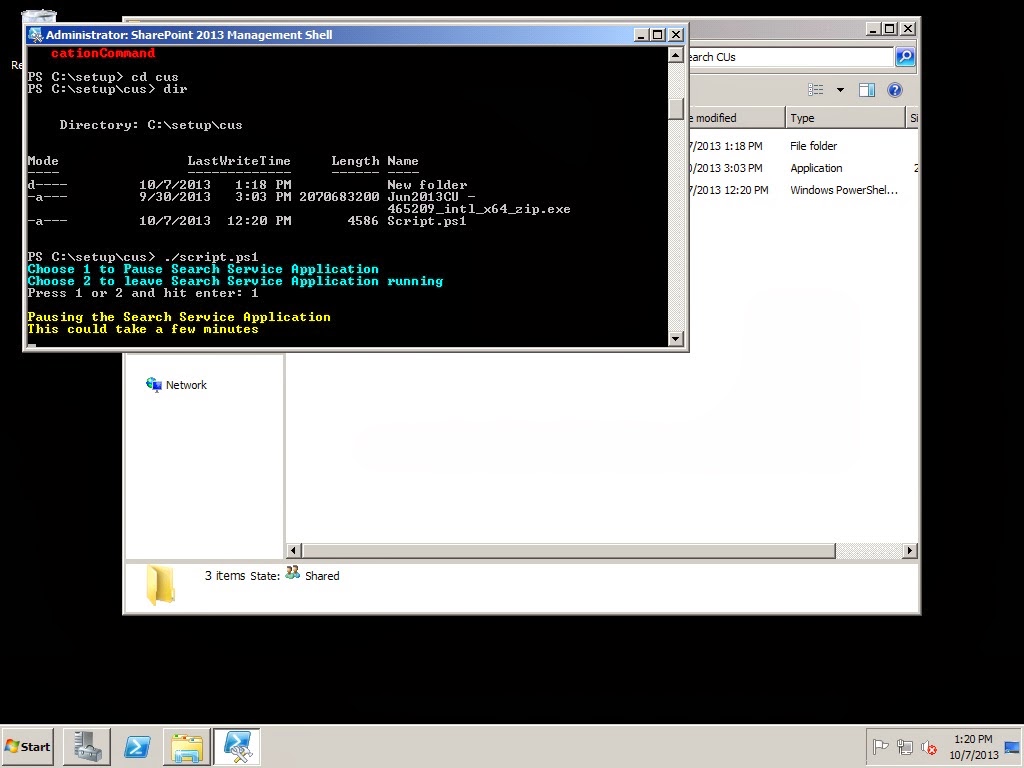
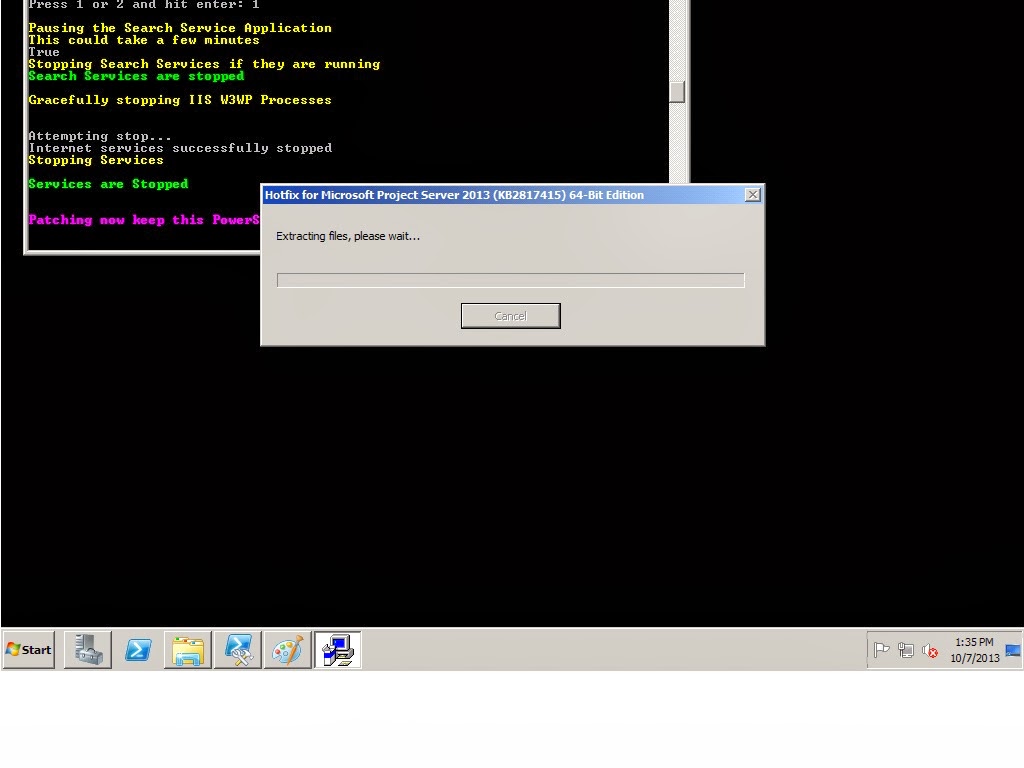
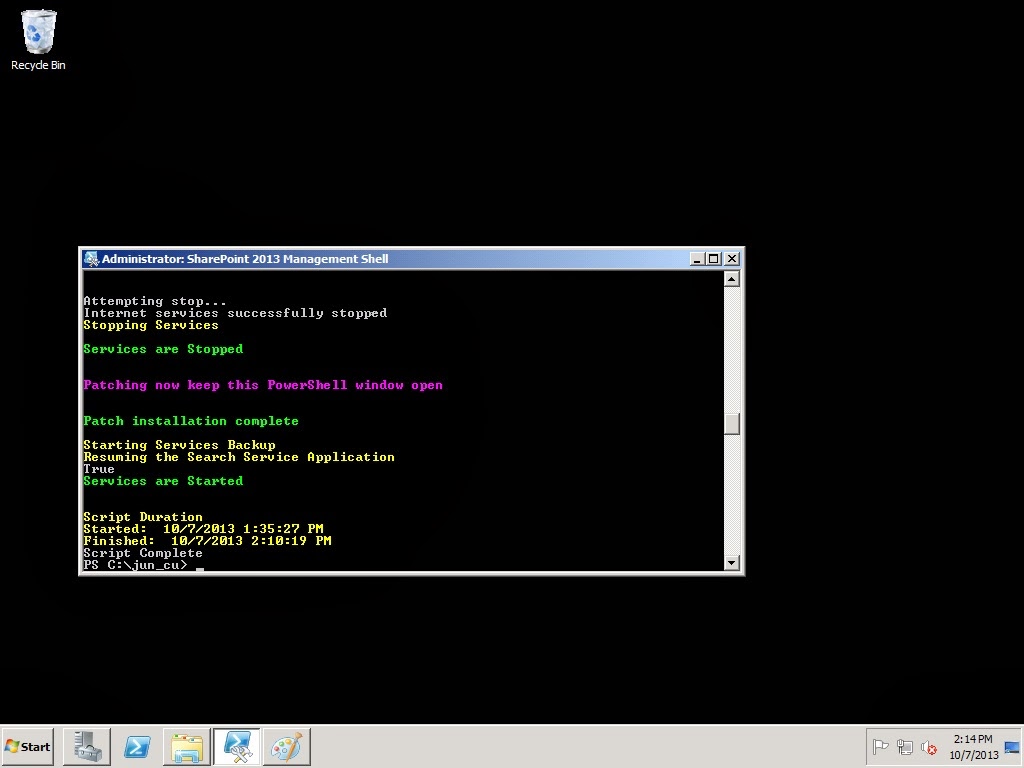
Notice the installation time of JUN CU, 35 mins, voila 🙂
Happy patching.
via All about Enterprise Project Management (EPM) http://khurramjamshed.blogspot.com/2013/10/improvise-projectserver-2013-cu.html
 The author of the blog has an extensive experience of working as an EPM Consultant. Currently he is located in Dubai, UAE and working for Microsoft partner organization as Project Server specialist. He has a thorough experience of providing Project Management technical/functional consultancy to all sort of organizations. He is a certified PMP, a Project Server MCITP, and also received a MS community contributor award 2011.
This article has been cross posted from khurramjamshed.blogspot.com/ (original article) |


 SharePoint (and Project Server) Shenanigans
You must be logged in to post a comment.