#ProjectServer 2010 #Excel Services Reports fail to Refresh #Office2013 #SP2010
   I am a Project Server and SharePoint consultant but my main focus currently is around Project Server.
I have been working with Project Server for nearly five years since 2007 for a Microsoft Gold Certified Partner in the UK, I have also been awared with the Microsoft Community Contributor Award 2011. I am also a certified Prince2 Practitioner. This article has been cross posted from pwmather.wordpress.com (original article) |
A quick post to highlight an issue you may face if you have upgraded to Office / Excel 2013. I recently created some Excel reports for Project Server 2010 using Excel 2013. These reports failed to refresh in Excel Services. After a quick check on the connection string in Excel, the provider is MSOLAP.5 rather than the usual MSOLAP.4 provider when using Excel 2010. See below
Excel 2010:

Excel 2013:

The ULS log error is:
The workbook ‘http://vm730:81/pwa/ProjectBICenter/Reports/Actual Work.xlsx’ attempted to access external data using the unsupported provider ‘Provider=MSOLAP.5
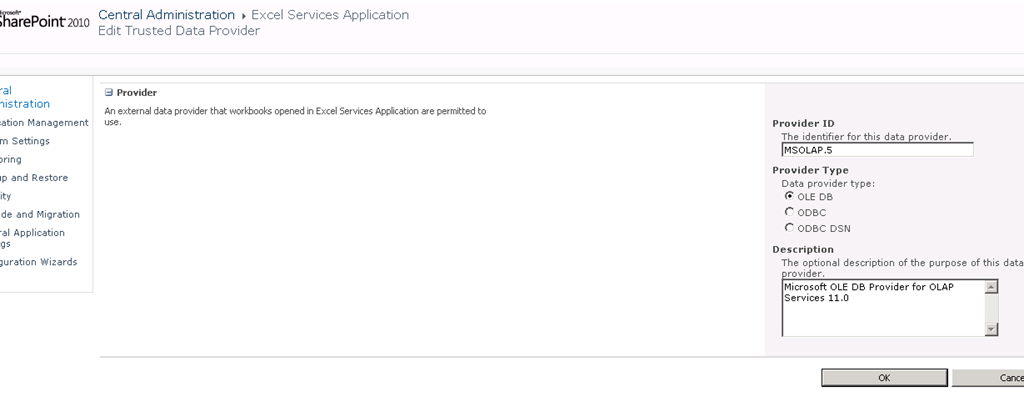
The fix is very simple, navigate to Central Admin > Manager Service Applications > Excel Services > Trusted Data Providers then add the MSOLAP.5 provider as below:


How to hide the SharePoint ribbon
Here is a quick post to show you how you can hide the SharePoint ribbon on a page using JavaScript. This was created by one of my colleagues so I am not sure of why the ribbon needed to be hidden but here is how.
function hideEditRibbon() {
           var ribbon = SP.Ribbon.PageManager.get_instance().get_ribbon();
           // Set the tab to the “Browse” tab
           SelectRibbonTab("Ribbon.Read", true);
           // Remove the “Edit” tab from a list from from the ribbon.
           ribbon.removeChild('Ribbon.ListForm.Edit');
     }

     SP.SOD.executeOrDelayUntilScriptLoaded(function() {

           var pm = SP.Ribbon.PageManager.get_instance();

           pm.add_ribbonInited(function() {
                hideEditRibbon();
           });

           var ribbon = null;
           try {
                ribbon = pm.get_ribbon();
           }
           catch (e) { }

           if (!ribbon) {
                if (typeof(_ribbonStartInit) == "function")
                      _ribbonStartInit(_ribbon.initialTabId, false, null);
           }
           else {
                hideEditRibbon();
           }
     },
     "sp.ribbon.js");
Just add this code to a page using the content editor web part and it will work.

via Buzz Blog http://paulbuzzblog.wordpress.com/2012/11/23/how-to-hide-the-sharepoint-ribbon/
 Paul is a an expert SharePoint and Project Server developer and is responsible for designing and implementing custom solutions on client systems using the latest SharePoint and .NET technologies.
Paul has extensive experience with SharePoint systems across all sizes of implementation, ranging from small to large farms and has an excellent understanding of all the elements of SharePoint. This article has been cross posted from paulbuzzblog.wordpress.com (original article) |

Add the SharePoint Version Number to a Word Document
A client asked me today how he could insert the Version of a file stored in a Sharepoitn Library into a word 2010 document, my initial response was “use Quick Parts” but I tested and to my surprise it’s not showing in the list of QuickParts.
Nor in the column value “[Version]” can be used in a different column: the value is being saved only after the item is processed and therefore any calculated value will not take the change and display 0.
Thanks to those simple no-code steps by CodebyCody it’s a quick fix which gets you to start using Sharepoint Information Management Policy Settings. Enabling this label at a Content Type level for instance “Document” will fix all document library in one shot.

via François on Sharepoint http://sharepointfrancois.wordpress.com/2012/11/21/add-the-sharepoint-version-number-to-a-word-document/
 French native Sharepoint Consultant living in London. A crossway between a designer, developer and system architect. Prefers stretching the limit of out-of-the-box features rather than breaking them into code. When not working with Microsoft Sharepoint François is often found on Web2.0 News sites and related social networking tools.
This article has been cross posted from sharepointfrancois.wordpress.com/ (original article) |
SP.UI.ModalDialog.showModalDialog with margin and notification
If you ever add HTML to a SharePoint modal dialog box you might notice that adding a left-margin is also necessary. Remember, the HTML option uses DOM not a string.
Style margin Property
Get the code
Adding SP.UI.ModalDialog.showModalDialog to a content editor webpart
Client Object Model: SP.UI.ModalDialog.showModalDialog(options)
Opening a hyperlink in a dialog box in SharePoint 2010
#SharePoint Conference 2012 Opening Keynote #SP2013 #PS2013 #MSProject #ProjectServer
Just a quick email to say that the Opening Keynote from the SharePoint Conference 2012 is now available online.
SPD 2010 Workflow Form Error
While working on a migration project recently, we had reason to republish the OOTB Approval workflow to update the owner.
After this update we found that the OOTB Approval Workflow would not submit anymore.

After much head-scratching and googling I came across this social thread that covers the fault in some detail, the issue is caused by having KB2553322 installed on the PC with SPD2010 installed, as soon as we removed the patch and republished the workflow normal service was resumed.

How do I: Add new values to a drop-down list from the new item form
If you want to have the ability to add new values from new form item you have two options. (that I know of) First you could use $().SPServices.SPLookupAddNew. Or, you could use the technique I have demonstrated in the video below.
Related videos:
How do I: Set the ID attribute of a table row using jQuery and SharePoint Designer
While customizing an “add new item” form, you might find yourself needing to manipulate form elements via jQuery. However, before you can do that you must and an #id or .class to the elements in question. I will be adding an #id in this demonstration. But why would I want to manipulate form elements in the first place? If you wanted to hide/show a textbox based on the user selection of a checkbox you could use this technique.
How do I: Implement $().SPServices.SPLookupAddNew
Using jQuery to hide/show form elements based on checkbox value
How can I validate a textbox using the PreSaveAction()
How do I: Create a simple form to collect data in SharePoint 2010
How can I hide/show a textbox based on a radio button selection?
How can I hide/show a textbox based on a drop-down value?
#ProjectServer and #SharePoint 2010 October 2012 Cumulative Update #PS2010 #SP2010 #MSProject
|
I am a Project Server and SharePoint consultant but my main focus currently is around Project Server.
I have been working with Project Server for nearly five years since 2007 for a Microsoft Gold Certified Partner in the UK, I have also been awared with the Microsoft Community Contributor Award 2011. I am also a certified Prince2 Practitioner. This article has been cross posted from pwmather.wordpress.com (original article) |
The Office 2010 October 2012 Cumulative Updates are now available, please see the links below:
http://support.microsoft.com/kb/2757117
Project Server 2010 Server Roll up package October 2012 CU (Recommended) – delayed for a couple of weeks:
http://support.microsoft.com/kb/2687565
Project Server 2010 October 2012 CU (Included in the Server Roll up package):
http://support.microsoft.com/kb/2687615
Project 2010 October 2012 CU:
http://support.microsoft.com/kb/2687612
Remember SP1 is a pre-requisite for the October 2012 CUs.
For more details please see:
http://blogs.technet.com/b/projectadministration/archive/2012/11/05/microsoft-project-server-and-sharepoint-server-2007-and-2010-october-2012-cu-announcement.aspx
As always, test these updates on a test environment before deploying to production


SharePoint Designer 2013 #SPD2013
I have seen a lot recently about the changes to SPD 2013 and especially the removal of the Design View from page editing and the impact that would have on peoples normal daily SharePoint work. The rational for the change is here on the SharePoint team blog, some of the responses on End User SharePoint are worth a read, and non of them are very positive. So I thought I would take a look a couple of typical End User style visual solution and see it can see be used in the brave new world of SPD2013.
Using calculated columns to add colour coding to your SharePoint lists
This excellent solution comes from Sarah Haase. I won’t cover the steps for 2010, but will go straight into 2013.
The 1st step is to grab a copy of SPD2013 preview from the MS download site and get this running in your SP2013 world, then setup your list and calculated column and open your site in SPD2013, at first glance a site in SPD2013 looks exactly the same as an SPD2010, but when you open the list-view you have the option of code view or code view, nice !
So how do we make appropriate change now that we have no visual representation of the page ?
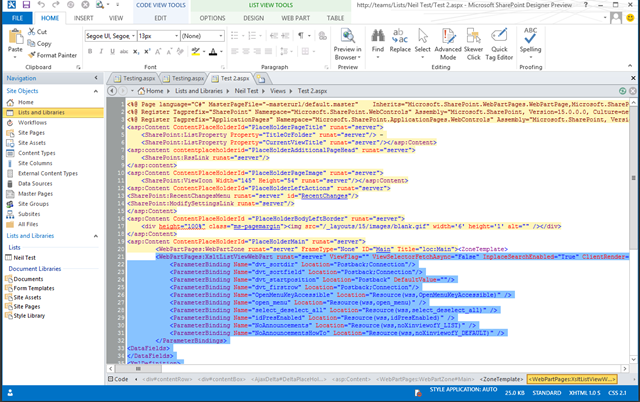
If we go to the List View Tools tab section and select the Design tab, we have the option to Customize the XLST for the entire view (this is available in SPD2010 as well)

Now its a case of searching for the tag
<xsl:value-of select="$thisNode/@*[name()=current()/@Name]"/>
and updating it to read
<xsl:value-of select="$thisNode/@*[name()=current()/@Name]" disable-output-escaping="yes"/>
Save the page view, preview in a browser and voila, a colour coded column in SharePoint 2013.
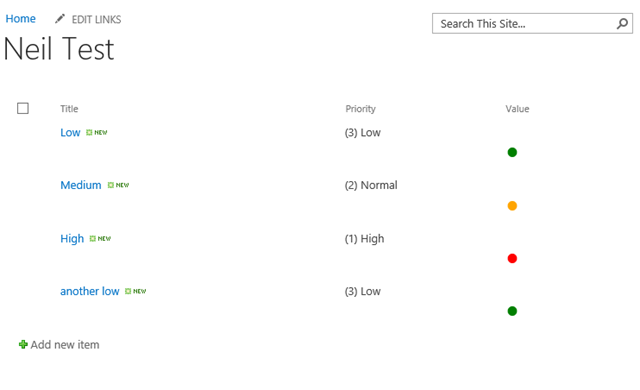
So was this more difficult then 2010 ?, The answer is Yes and No, without the visual representation of the page it would have been much more difficult to figure out which tag to update, but once you know that, the actual change is no more difficult, but I think that is the crux of the issue, features like conditional formatting are now going to be much much more difficult to apply in SPD2013 when we are going to have to work through the entire list view code.


 SharePoint (and Project Server) Shenanigans
You must be logged in to post a comment.