#SharePoint Slide Libraries #SP2010
At a recent meeting of all the consultants, we were talking about the various tools that we use and how we use them. These can include various PowerPoint presentations. One of the more senior people in the room asked; “Wouldn’t it be great if we could have one central repository of all the PowerPoint slides that might want to use? It would be even better if we were told automatically when these slides are updated and we can be sure that we are using the most up to date slides in our presentation.”
I thought about this for a brief moment and then said “That sounds like SharePoint slide library to me. I’m pretty sure you can do all those things from a slide library”.
And, as it turns out, you can.
Adding slides to the library
To add one more slides from a presentation to the slide library:
- From within PowerPoint, right click on any slide to display the context men.
- Click on the Publish Slides option

Publish slides
- This will open the Publish Slides dialogue box. The slide that was right clicked on in the previous step will already be selected. Use the checkboxes to the left of the thumbnails to select other slides. Alternatively use the Select All button to select all the slides.

Select files to publish
-
Use the Browse button to locate the slide library:
- Clicking on the Browse button will open the “Select a slide library” dialogue box

Browse to locate the slide library
- Enter the address of the slide library in the address bar. Alternatively enter a top level address such as http://cps.co.uk and then navigate to the required slide library
- Click the Select button
- Clicking on the Browse button will open the “Select a slide library” dialogue box
- Once the required slide library has been selected, click on the Publish button
- The required slides will be added to the slide library


Using slides from a slide library in a presentation
To add slides from a slide library to a presentation:
- Open the slide library that contains the required slides.
- Use the check boxes to the left of the slide thumbnails to select the required slides
- Click on the link to copy the required slides to a presentation

Select files and Copy slides to presentation
- If PowerPoint is not already open then it will be opened a dialogue box will prompt you to add the selected slides to a new presentation

-
Copy slides to PowerPoint
- If there is already a presentation open then there will be the option to add the selected slides to a new presentation or the existing one.

- In either case the second check box should be selected. The next time the presentation is opened a dialogue box will appear, prompting the user to check for changes.
- Clicking on the Check button will compare slides in the current presentation to slides in the slide library. If PowerPoint detects that the latter have been changed then a dialogue box will appear giving the user the chance to updates slides in the presentation.


Et Voila! One central repository for slides and notification of changes!
   After beginning my career in pharmaceutical sales I moved into IT training, initially in the pharmaceutical sector but then moved across to the NHS to teach basic computer skills and the ECDL. I then changed companies and moved into a primarily Microsoft Office training and support role. I joined CPS in 2008 as a training consultant and now provide configuration as well as training services.
This article has been cross posted from carlsprake.wordpress.com/ (original article) |

#PS2013 #MSProject Online CSOM documentation links #ProjectServer #Office365
So as I continue my investigations into the CSOM for Project Server 2013 and Project Online (Office 365), I came across the following articles on MSDN.
Hopefully others will find these articles useful also:
High level project CSOM details
What’s new for developers in Project 2013 – CSOM
Client-side object model (CSOM) for Project Server 2013
Project Server CSOM – Sample Code – JavaScript and .NET
Getting started with the Project Server 2013 JavaScript object model
Getting started with the Project Server CSOM and .NET
How to: Create, retrieve, update, and delete projects by using the Project Server 2013 JavaScript object model
Project Professional 2013 CSOM – Sample Code – JavaScript
Project 2013 client programming
Task pane apps for Project Professional 2013
Task pane apps for Project
How to: Create your first task pane app for Project 2013 by using a text editor
JavaScript API for Office
Understanding the JavaScript API for Office
Schema map (apps for Office)

Retrieving the Project GUID with JavaScript CSOM #PS2013 #PS2010 #MSProject #Office365 #in
So the Microsoft Office preview is out and unfortunately my colleagues and I are still consulting on current and previous versions, so only limited time around client work allows for play. Luckily we have had access to earlier versions for several months now so as a company Corporate Project Solutions is prepared for 2013 and we are even running knowledge sessions and upgrade validation checks.
Moving on… whilst in the hotel, we started playing with Napa and the possibilities around what can and can’t be done.
Although this example is not relevant to Napa (due to the environment the apps run in), we did manage to product some code that would be useful for Sandbox Solutions or Composite solutions using the Content Editor Web Part in Project Online, Project Server 2013 and potentially Project Server 2010.
In this example, we use the SharePoint Client Side Object Model to view the property bag within a Project Site to retrieve the following:
- Internal Project UID
- Project Wep App URL
- Project Web App Site UID.
NB: The Project UID is for the plan associated within to the site in Project Server.
The Result

SharePoint CSOM code running within a Project Site in Project Online (Office 365 Preview)

Closer look at the output
So you may be wondering, why we need this information. Well with the introduction of Project Online / Project Server 2013, the client side object model can interact with the PSI to return Project and Resource data.
In many cases you will need the Project UID as a starting point!
Here are the details of getting things up and running in the IE Development Toolbar  and trust me, there is much more CSOM goodness to come.
Final Code Example:
function getWebProperty() {
    var ctx = new SP.ClientContext.get_current();
    this.web = ctx.get_web();
    this.props =  this.web.get_allProperties();

    ctx.executeQueryAsync(
       Function.createDelegate(this, gotProperty),
       Function.createDelegate(this, failedGettingProperty)
    );
}

function gotProperty() {
    alert("Project UID: " + this.props.get_fieldValues()["MSPWAPROJUID"]
     + "\nPWA URL: " + this.props.get_fieldValues()["PWAURL"]
     + "\nPWA Site UID: " + this.props.get_fieldValues()["MSPWASITEUID"]
    );
}

function failedGettingProperty() {
    alert("failed");
}

getWebProperty();
Debug Code Example:
To get this detail out, me and my colleague had to do some digging in the object model using debug code to alert out to the console values at the Web and Property object areas:
function getWebProperty() {
    var ctx = new SP.ClientContext.get_current();
            for(var p in ctx)
            {
                        console.log("T: " + p);
            }
    this.web = ctx.get_web();
    this.props =  this.web.get_allProperties();
    ctx.load(this.web);
    ctx.load(this.props);

    ctx.executeQueryAsync(
       Function.createDelegate(this, gotProperty),
       Function.createDelegate(this, failedGettingProperty)
    );
}

function gotProperty() {
            //alert(props.isPropertyAvailable('allowdesigner'));
            for(var itm in this.web){
                        console.log(itm);
            }
            for(var prop in props){
            console.log(prop);
            }
            for(var fv in this.props.get_fieldValues())
            {
                        console.log(fv);
            }
            alert(this.props.get_fieldValues()["MSPWAPROJUID"]);
}

function failedGettingProperty() {
    alert("failed");
}

getWebProperty();
Example References
Just in case you need to add sources for JavaScript frameworks. Here are some references below:
<script type="text/ecmascript" src="/_layouts/SP.Core.js" />

<script type="text/ecmascript" src="/_layouts/SP.Debug.js" />

<script type="text/ecmascript" src="/_layouts/SP.Runtime.Debug.js" />

<script type="text/javascript"
     src="http://ajax.googleapis.com/ajax/libs/jquery/1.3.2/jquery.min.js" />

#ProjectServer 2013 online change permission mode #Office365 #PS2013 #SP2013
 I am a Project Server and SharePoint consultant but my main focus currently is around Project Server.
I have been working with Project Server for nearly five years since 2007 for a Microsoft Gold Certified Partner in the UK, I have also been awared with the Microsoft Community Contributor Award 2011. I am also a certified Prince2 Practitioner. This article has been cross posted from pwmather.wordpress.com (original article) |
Quick post to detail the steps to change permission mode for Project Server 2013 online. The default permission mode is the SharePoint permission mode, to change this to Classic permission mode (Project Server mode) see the steps below:
Open PWA and click Admin > Project:

Select the PWA site and click Project Web App > Settings from the ribbon:

Check the Classic permission management radio button, specify an administrator and click OK.

Please note, switching between permission modes deletes all security related settings.


First Look at #ProjectServer online #Office365 #PS2013 #SP2013
|
I am a Project Server and SharePoint consultant but my main focus currently is around Project Server.
I have been working with Project Server for nearly five years since 2007 for a Microsoft Gold Certified Partner in the UK, I have also been awared with the Microsoft Community Contributor Award 2011. I am also a certified Prince2 Practitioner. This article has been cross posted from pwmather.wordpress.com (original article) |
As you are probably all aware the preview for next version of Office was released earlier this week. http://pwmather.wordpress.com/2012/07/16/projectserver-2013-preview-sharepoint2013-msproject/
In this post I will give a brief intro to the new version of Project Server 2013. I will cover the look and feel and highlight some of the new features. The screen shots from the post are from the Project online version as I haven’t got around to installing the on-premise version yet. For this example I have created a simple example project called PM Test Project 1.
Firstly lets take a look at the default PWA homepage:

The reminders web part has been updated with the cool new metro style “Track your work” web part to summarise your work. Clicking one of the icons takes you to that page to see the details, for example the Tasks page:

This page looks the same as it did in 2010.
The project centre now has the timeline view available:

You will also see a new button on the Projects tab, Add SharePoint sites:

When you click this button a new window will pop up populated with a list of the SharePoint sites based on the SharePoint Project Site template, below you can see the example site I created on the PWA site collection.

Once these SharePoint project sites are added they are visible in Project server but I will create a separate post for this soon!
The Project sites have nice new Project Summary web part where you can switch between the timeline or upcoming and late tasks:


All the project task are visible but not editable on the project site in the Tasks list:

There is also a notebook on the project site, this uses OneNote:

Project 2013:

The built in reports have been updated, take a look at the Project Overview report:

The report is editable, with new charts and tables etc.


The existing charts are all editable:

These are just a few examples of the new features in Project Server 2013 and Project 2013. I will be posting more details in the coming weeks.


Office 15 preview announcement notes #SharePoint #SP2010 #MSProject #PS2010 #ProjectServer
Well, just as the rumours predicted, Microsoft has officially announced the Office 15 Preview.
The live webcast announcement has just finished and I took some notes whilst I was watching.
Before I get to the notes, the Office 365 preview is available now to all users to try out:

I’ve just signed up for a preview enterprise account and the preview appears to include:
- Exchange
- SharePoint
- Lync
- Office 15
- Just for showmanship here are the new icons of the Office 15 suite:
 |
 |
 |
 |
 |
 |
 |
 |
 |
Just as you would expect from an Office 365 preview.
** Update **
On further searching, all the various previews including Project, Microsoft Project Server Online! and Visio is available here:
http://www.microsoft.com/en-gb/officepreview/try-more-products
** Update 2 **
Office Preview Feature Pages:
- Project / Project Online: http://www.microsoft.com/project/en-us/preview/default.aspx
- SharePoint: http://sharepoint.microsoft.com/en-us/preview/default.aspx
- Office 365 Enterprise: http://www.microsoft.com/office/preview/en/office-365-enterprise
- Office 365 Pro Plus: http://www.microsoft.com/office/preview/en/office-365-proplus
- Office 365 Small Business Premium: http://www.microsoft.com/office/preview/en/office-365-small-business-premium
- Office 365 Home Premium: http://www.microsoft.com/office/preview/en/office-365-home-premium
- Visio: http://visio.microsoft.com/en-us/preview/default.aspx
- Word: http://www.microsoft.com/office/preview/en/word-2013-preview
- Excel: http://www.microsoft.com/office/preview/en/excel-2013-preview
- PowerPoint: http://www.microsoft.com/office/preview/en/powerpoint-2013-preview
- OneNote: http://www.microsoft.com/office/preview/en/onenote-2013-preview
- Outlook: http://www.microsoft.com/office/preview/en/outlook-2013-preview
FAQ Link: http://www.microsoft.com/office/preview/en/faq (Includes specifications etc…)
** Update 3 **
IT Pro / On-Premise Downloads + Useful links:
- SharePoint Server 2013: http://technet.microsoft.com/en-US/evalcenter/hh973397.aspx?wt.mc_id=TEC_121_1_33
- SharePoint Foundation 2013: http://www.microsoft.com/en-us/download/details.aspx?id=30345
- Project Server 2013: http://technet.microsoft.com/en-US/evalcenter/hh973403
- Project Professional 2013: http://technet.microsoft.com/en-US/evalcenter/hh973401.aspx?wt.mc_id=TEC_119_1_33
- Exchange 2013: http://technet.microsoft.com/en-US/evalcenter/hh973395.aspx?wt.mc_id=TEC_116_1_33
- Lync Server 2013: http://technet.microsoft.com/en-US/evalcenter/hh973393.aspx?wt.mc_id=TEC_118_1_33
- Office Web App Server 2013 (Separate SKU now); http://www.microsoft.com/en-us/download/details.aspx?id=30358
- Visio 2013: http://technet.microsoft.com/en-US/evalcenter/hh973399.aspx?wt.mc_id=TEC_122_1_33
- SharePoint Designer 2013: http://www.microsoft.com/en-us/download/details.aspx?id=30346
- SharePoint 2013 SDK: http://www.microsoft.com/en-us/download/details.aspx?id=30355
- SharePoint 2013 Requirements:
http://sharepoint.microsoft.com/en-us/Preview/sharepoint-requirements.aspx
- How to install by Eric Harlan:
- What you need to know about 2013 by Andrew Connell:
http://www.andrewconnell.com/blog/archive/2012/07/16/sharepoint-2013-what-you-need-to-know.aspx
** Update 4 **
Discontinued Features
Microsoft Support have posted the following article on discontinued features:
** Update 5 **
Setting up team development environments for SharePoint 2013
** Update 6 **
Useful Links from Jeremy Thake (http://wss.made4the.net/archive/2012/07/16/office-2013-preview-announced-today.aspx)
- Microsoft Office 365 Marketplace (the rumoured App Store for SharePoint is true!!!): http://officepreview.microsoft.com/en-us/store/
** Update 7 **
Training Material
- Microsoft Office 2013: http://officepreview.microsoft.com/en-us/support/training-FX101782702.aspx
- Ignite Training Material: http://www.microsoft.com/en-us/download/details.aspx?id=30361&WT.mc_id=rss_alldownloads_all
- SharePoint 2013 Training Videos: http://www.microsoft.com/resources/technet/en-us/office/media/video/video.html?cid=stc&from=mscomSTC
- How to build Apps + Samples: http://msdn.microsoft.com/en-us/office/apps
Announcement Notes:
Now on to my notes taken during the keynote announcement and more blog posts will follow as I try things out the Customer Preview version:
Office 365
- new website capabilities
- new social capabilities
- new office web access with inline preview
- mentions of yammer for a more social enterprise including future social connectors
- annotation built in to Microsoft Office
PowerPoint
- full touch interface
- pinch and zoom
- hide / show ribbon including pin
- new animation (1 of many) – “drape”
Presentation editing updates
- finger swipe or tap to switch slides
- pinch and zoom available
- inking used for annotation
Presentation mode updated
- shows next slide (very useful addition)
- slide notes (as standard)
- metro style
- clock / timer still present
Outlook
- same ribbon capability
- full touch
- quick actions tab on right for easy touch based control
- inline reply, no more multiple pop-ups required
Peek functionality
- hover over calendar or tasks for a window to appear showing current calendar or todays tasks
- Double click on the section to open calendar or tasks
Office developer model (Codename: Agave)
Outlook used as the example but it is available across the suite of Office applications.
can be hosted anywhere (Azure, Amazon and other web services for example)
Example shown:
- Bing maps and suggested appointments – scans current email and shows maps or appointment suggestions
OneNote
- updated to metro style
- full touch, slide between notebooks
- ink enabled
- radial menu enables style changes easily with touch (font size like a spinometer)
- integrated camera support in windows 8 (full touch cropping)
Word
- metro ui
- office live sign in
- shared settings
- uses skydrive to save and share templates between devices
- by default it will store it in the cloud
- live layout with touch enabled (Allows you to drag pictures around the screen for positioning)
Reading mode
- inverse colours for reading modes
- presence within comments
- collapse and expand sections
Cloud integration
- embed youtube clips into word now
- flickr and other picture services integrated
- share document capability – skydrive, social networks, publish to blog
- Shared device capability (pick up where you left off – remembers exact document position no matter the device)
- settings and documents sync’d via sky drive
- windows mobile 7.5 and 8 works the same way
SharePoint
Social
- follow documents, sites, tags and people
- suggestions on what you should follow
- activity feed
- like capability
- document previews (Office web apps)
- inline video playback (including youtube)
- tag creation with #tags
- people suggestions as you type
- news feed and presence + pictures inline
- feed appears in sharepoint, office and includes facebook, twitter, yammer via social connectors (coming soon i’d expect)
Skype
- presence built into office just like lync
Excel
flash fill – assumes formulas on the fly
- based on typing it analyses the columns in the sheet and suggests what you are trying to do
- chart suggestions intelligent based on the data in the sheet
Windows 8 scales
- perceptive pixel (company recently bought by Microsoft)
- 80+ inch screen with multi touch
Lync
- touch aware also
- drag users to tele or video conferences
- live meeting functionality built in with touch capability
- open one note from lync and meeting details are automatically brought in.
- Using windows 8 you can pin it for side by side conferencing
- NB: All the above shown on the perceptive pixel screen
- Now for all those excited about the announcement, what are you doing reading this? Go get on the preview and started learning!

#ProjectServer 2013 preview #SharePoint2013 #MSProject
|
I am a Project Server and SharePoint consultant but my main focus currently is around Project Server.
I have been working with Project Server for nearly five years since 2007 for a Microsoft Gold Certified Partner in the UK, I have also been awared with the Microsoft Community Contributor Award 2011. I am also a certified Prince2 Practitioner. This article has been cross posted from pwmather.wordpress.com (original article) |
The next version of Project Server is now available as a preview, see the links below:
Project Server 2013 preview:
http://technet.microsoft.com/en-gb/evalcenter/hh973403.aspx
Project Professional 2013 preview:
http://technet.microsoft.com/en-gb/evalcenter/hh973401.aspx
Other links:
http://technet.microsoft.com/en-gb/projectserver/fp123546
http://technet.microsoft.com/en-gb/projectserver/default
http://www.microsoft.com/project/en-gb/preview/


#ProjectServer Active Issues and Risks on PWA Reminders Web Part #PS2010 #SP2010 #SharePoint
|
I am a Project Server and SharePoint consultant but my main focus currently is around Project Server.
I have been working with Project Server for nearly five years since 2007 for a Microsoft Gold Certified Partner in the UK, I have also been awared with the Microsoft Community Contributor Award 2011. I am also a certified Prince2 Practitioner. This article has been cross posted from pwmather.wordpress.com (original article) |
The Project Server reminders web part contains key information relating to all projects that the logged on user is involved in. This includes new task assignments, timesheet information, pending approvals and active issues and risks assigned to the logged on user. This post focuses on the issues and risks count as I have seen a number of queries relating to the issues and risks not showing on the reminders web part.
Firstly I will detail where this web part gets the data from and then show working / non working examples. This web part reads data from the Project Server Reporting database, two stored procedures create the dataset for the web part then the code on the web part counts how many of those issues and risks are active. The status value is key to the issues and risks count on the reminders web part, this will be shown in the examples later on. In the image below you can see that I have 3 active risks and 2 active issues assigned to me on my test system:

Lets now take a look what the two stored procedures return from the Reporting database. Firstly I need to get my ResourceUID to pass into the stored procedures using the simple query below against the Reporting database:

The two stored procedures are MSP_WSS_ReadResourceIssues and MSP_WSS_ReadResourceRisks. These two stored procedures require a RES_UID value, in this example I will use my ResourceUID C5733575-2C0A-4B40-A367-E33B82A1CB33 as shown below:

As you can see I have 3 risks and 4 issues assigned to me. Notice on the PWA reminders web part it shows 3 active risks which matches the SQL dataset and 2 active issues which doesn’t match the SQL dataset. The issues SQL dataset returns four issues, 3 of which are active in the lists and one which is postponed.
For active issues and risks to appear on the reminders web part it is key that the Status value is (1) Active, notice that the 4th issue has a value of Active without the (1).
If I change the issue list settings for the PM Testing Assn project site so that the Status choice value includes (1) Active then edit the item, the reminders web part will correctly show 3 active issues.
The current Status choice values on the PM Testing Assn project site are shown below:

Once this choice list has been updated to include the correct Active value and the issues edited the SQL dataset will contain the correct values and therefore so will the reminders web part. The choice values updated to the correct values shown below:
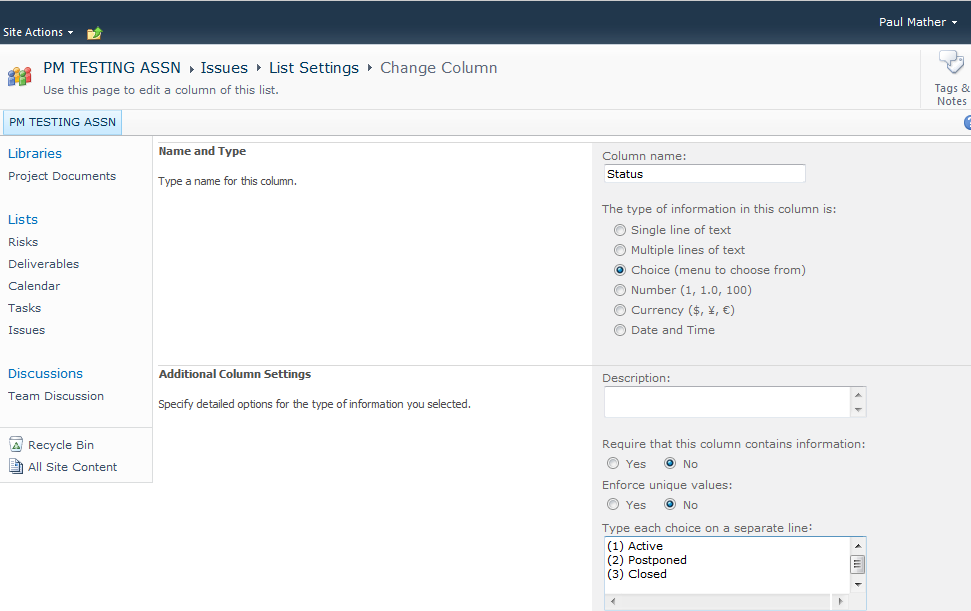
Now after editing the issue item the correct active Status value will appear:

The SQL stored procedures return the correct values after the Reporting (Project Sync) job has successfully completed in the Project Server queue:

Refreshing the PWA homepage now also shows the correct count on active issues and risks:

So the keys things to remember to make sure the reminders web part shows the correct counts for the active issues and risks are:
- ensure the Issues and Risks list default status values are not updated
- ensure the Reporting (Project Sync) jobs completed successfully
When updating the project site template it might be worth testing all default functionality, a useful project site smoke test can be found here:


#SharePoint 2010 #List does not exist #Server Error
While working on a customers development system I was quite surprised to get the error below while working with a list.

I was creating a custom list and wanted to add a lookup to an existing site list, as soon as I selected the ‘Lookup’ radio button, BANG – SharePoint errored.

Normally when you select Lookup, the Addition Column Settings pane show all the lists available on your site in the Get Information from dropdown.

When we checked the list of lists from All Site Content, a couple of the lists would not open, the <SiteName>/Lists/ListName/AllItems.aspx page was giving a 404 error

It was clear we had a couple of duff lists on our hands, we tried deleting them via SharePoint Designer, Stsadm & PowerShell, none of which would work. I even tried running an stsadm –o databaserepair with the deletecorruption switch, but still no joy.
Finally I decided to take a look in SQL, normally you would never do this, and certainly never on a live system, but as this was development I thought it would be okay.
The first thing to do was run a quick backup just in case !, then break open the database, fortunately all the lists in a contentDB are entries in the table AllLists 
So as a starter Select * from dbo.AllLists order by tp_Title

Shows the references to all the lists in your ContentDB in name order

also quite fortunately you can search by list name which is the tp_title field


so was quite easy to track down which lists were the ones in question, all the entries looked okay, so I took the rather brave (so I thought)decision to simply delete the entries in question as we had a SQL backup to fall back to.
Once deleted, the references to the duff lists disappeared from All Site Content and we could carry on with our work, albeit now several hours behind schedule.
If this had been a production system it might have needed a call into Microsoft Premier Support, even then I suspect the answer may have been similar.
Happy SharePointing !

SharePoint 2010 #Information Management Policy
Working with a client recently, we had a requirement to develop a solution to allow process documents to be expired every six months and sent for approval to ensure that the process is still current.
As the client was running SharePoint 2010 this seemed a good opportunity to see what could be achieved with the Information Management Policy.
The IM Policy allows a number of different actions to taken on different types of content, the actions can be things like
- Run a workflow
- Delete an item
- Transferring to another location
- Declaring an item to be a record
- Delete all previous versions or drafts.
To get these settings, you can either go to Site Collection Administration, –> Site Collection Policies, to see the site collection level policies

or from a library go to Library setting –> Information management Policy settings

to see policies for an individual library or list.
In this instance we used a library level policy attached to a custom content type.

Then set a retention policy stage, to cause the document to expire after a set amount of time and run a custom workflow I created in SharePoint Designer.
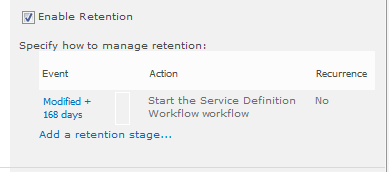
The workflow was a simple one that kicked off an approval for the content owner value set in the library.

The only thing that caught us out was the testing. We tested the workflow manually on a document and it worked fine, then forced a document to expire and nothing happened, we waited overnight and still nothing happened, nothing in the logs, just plain nothing, I checked and rechecked the settings, still nothing.
According to the SharePoint 2010 Timer Job Reference on technet http://technet.microsoft.com/en-us/library/cc678870.aspx, the Information Management Policy job runs Daily, but we finally noticed that this job was configured to run Weekly, and once it had run the solution worked fine !
Checking a few other client systems those were configured to run weekly as well, so a nice little Gotch there !
Happy SharePointing
Follow @NeilKing41


 SharePoint (and Project Server) Shenanigans
You must be logged in to post a comment.