Archive
#ProjectOnline #PowerApps using the Project Online Connector #PPM #Apps #MSProject #O365 Part1
   I am a Project Server and SharePoint consultant but my main focus currently is around Project Server.
I have been working with Project Server for nearly five years since 2007 for a Microsoft Gold Certified Partner in the UK, I have also been awared with the Microsoft Community Contributor Award 2011. I am also a certified Prince2 Practitioner. This article has been cross posted from pwmather.wordpress.com (original article) |
I recently published two articles on creating a navigation type app for Project Online using PowerApps, here is a screen shot of the project details screen from that example app:

For those of you that missed those posts, the links are below:
That particular example used a SharePoint list as the data source as there were certain properties I needed such as the Project Site URL that are not available in the native Project Online connector for PowerApps. I also stored project images in that source SharePoint list and displayed those in my example app. I used a custom process to populate the SharePoint list with the Project Online data and kept that data in sync. In this series of blog posts we will look at how to use the native Project Online PowerApps connector: https://docs.microsoft.com/en-us/connectors/projectonline/.
This connector allows us to perform certain actions in PowerApps such as read the list of Projects directly from the PWA site collection: https://docs.microsoft.com/en-us/connectors/projectonline/#List_projects or creating a new project: https://docs.microsoft.com/en-us/connectors/projectonline/#Creates_new_project for example.
This series of blog posts wont build a full PowerApp using this connector but it will show snippets on how to use some of the Project Online PowerApps connector functions.
The first one we will look at is displaying a list of projects in PowerApps using the list projects function.
This series of posts assume that you have set up a Project Online Connection to Project Online:

If you haven’t set up a Project Online connection yet, it is very simple, just click the + New Connection link and find Project Online then add.
Using the PowerApps studio, either desktop or web, we will start with a blank app:

The first thing to do is to add the Project Online data source, click “connect to data”. This will load all of your connections you have added to PowerApps / Flow, select the Project Online connection:

Then close the Data window. Now decide on the visual that you need to display the projects, I inserted a gallery:

Then set the layout to just Title as I only will just display the project name for the purpose of this blog post:

Click Advanced on the Gallery settings pane and you will notice it states “CustomGallerySample” in the DATA > Items field. Update this to:
ProjectOnline.ListProjects("{PWASiteURL}").value

Now you can select a property to display on the gallery, in this example I will select Name:

Now all of your projects will appear in the gallery directly from Project Online:

In the next post we will look at how to use the ListTasks function in the Project Online PowerApps connector.

#ProjectOnline workaround for Project app link on #O365 waffle app launcher #PPM #PMOT #Office365
|
I am a Project Server and SharePoint consultant but my main focus currently is around Project Server.
I have been working with Project Server for nearly five years since 2007 for a Microsoft Gold Certified Partner in the UK, I have also been awared with the Microsoft Community Contributor Award 2011. I am also a certified Prince2 Practitioner. This article has been cross posted from pwmather.wordpress.com (original article) |
For organisations that only have one Project Web App (PWA) instance and use /PWA, today using the Project app link on the Office 365 waffle app launcher works as expected. For those organisations that have multiple PWA instances this can be an issue. The link I am talking about can be seen below:

This points to /MyProjects as seen above but when Project Online is present on the tenant it will always redirect to /sites/PWA as seen below:

This can be a problem for those customers that either have multiple PWA instances or do not use the default /PWA instance. Unfortunately the Project link on the waffle app launcher is not configurable so one workaround we have done for clients before is to not use the /PWA instance at all apart from using it as a landing page for the other PWA instances in the organisation. If you are in the planning stage for rolling out Project Online and know that you will have multiple PWA instances on the same Office 365 tenant, this might be a good option for you to consider and explore.
Firstly create the following css file that will be used to remove the PWA quick launch menu:

Save this on the /PWA site somewhere such as the Style Library:

Now edit the PWA homepage and delete the “Track your work” web part and add a content editor web part, in the content editor web part reference the .css file and change the chrome type to None:

Click Apply then click OK and the quick launch will disappear. Add another content editor web part and update the Title to “Project Web App sites” or a more appropriate name as required:

Click the new content editor web part where is states click here to add new content then add in the links to all the PWA instances that you have on the tenant using the content editor web part controls – you have lots of options and can make it look as nice as you like. In this example I have just used a simple table:

Click Stop editing on the Page tab and you will see the following:

Then ensure all users of Project Online have read access to the /PWA site (do not grant higher access as you do not want them incorrectly creating projects here):

This way if a user clicks the “Project” app link on the Office 365 waffle app launcher they can at least then easily navigate onto the correct PWA instance.
You could take this even further and have multiple content editor web parts on the page, one for each PWA instance then use SharePoint’s audience targeting feature to show the correct PWA instance/s for the logged on user.

#ProjectOnline / #ProjectServer display Project Detail Page web parts using tabs #PPM #MSProject #JavaScript #jQuery
|
I am a Project Server and SharePoint consultant but my main focus currently is around Project Server.
I have been working with Project Server for nearly five years since 2007 for a Microsoft Gold Certified Partner in the UK, I have also been awared with the Microsoft Community Contributor Award 2011. I am also a certified Prince2 Practitioner. This article has been cross posted from pwmather.wordpress.com (original article) |
Got lots of web parts on a Project Detail Page in Project Online? Lots of fields that you want to group or display in a better way without navigating between pages? If so, this might be your answer, a simple JavaScript and jQuery solution to add tabs to your Project Detail Pages as seen below:


The solution starter code has been published for download but it will need updating to work on your PWA configuration but it is very simple and this blog post covers the changes needed. The download will just save a lot of typing and includes the full source code. The solution starter code can be downloaded from the Microsoft Gallery using the link here: https://gallery.technet.microsoft.com/Online-Server-PDP-tabs-c8012555
Once downloaded, open the file to edit in your chosen editor (notepad will do if you have nothing else, I use Visual Studio Code or Notepad++). This solution starter is set to work with two web parts, the web parts seen below in my Project Online DEV instance.

In this post we will walkthrough adding in a 3rd web part to the script as that will provide the steps needed to get the correct web part references to update the script:

Firstly we need the web part div ID, to do this, when on the Project Detail Page in PWA press F12 and this will load the browser dev tools:

Using the element selector:

Select the web part, one at a time like below and click:

The DOM Explorer will then update and show you the web part div. You need to copy the div id as outlined in red below:

Repeat this for all the web parts on that page with you wish to move to use tabs then the browser dev tools can be closed.
In this example I just need to update the JavaScript file to add another item to the HTML list, add another div, move the web part to my new div, update the functions and add another function for my new list item. These changes can all be found in the screen shots below. The before images are the base script as downloaded. Before:

After:

Now I need to update the JavaScript in the file. Before:

After:
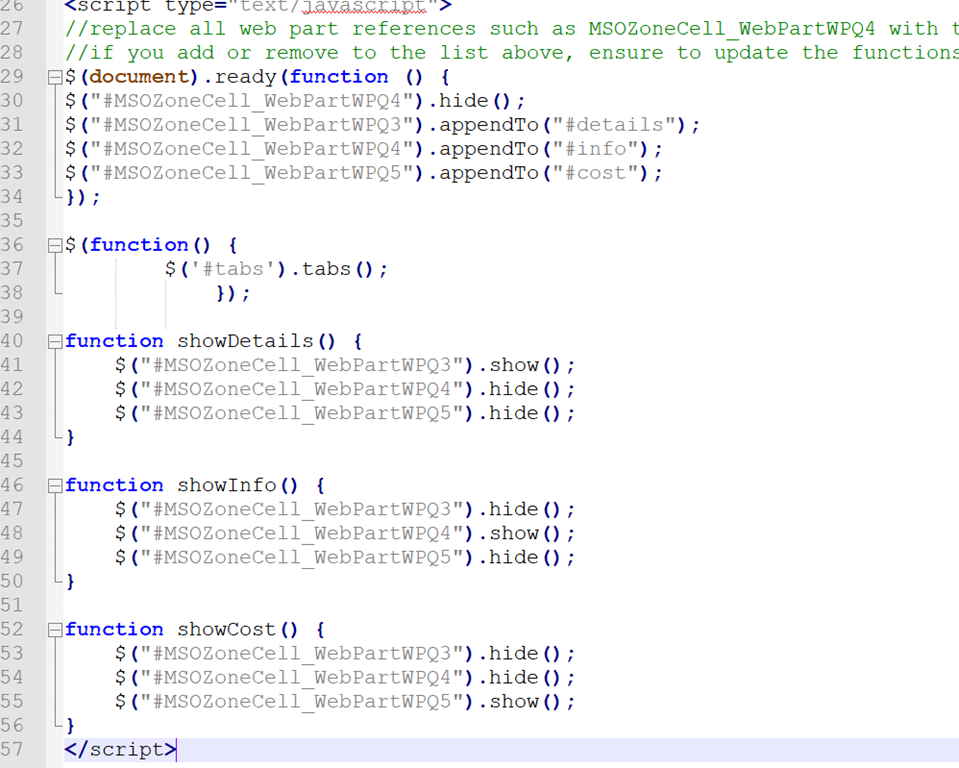
Save the file and upload to a library in the PWA Site, for example mine is uploaded to the Shared Documents library. Then add a Content Editor Web Part to the target Project Detail Page in PWA at the top of the page and edit that new web part:

In the content link, put a link into the JavaScript file, expand Appearance, give it a title and change the Chrome Type to None. Click Apply then click OK and stop editing the page. Your page will then display the web parts on the tabs:

Simple! This can easily be extended to add icons to the tabs etc. This simple example uses jQuery UI tabs: http://jqueryui.com/tabs/ that provides may options. In this example I also use the base jQuery UI theme CSS file but there are a few to choose from: https://code.jquery.com/ui/ I load the jQuery files in from the jQuery CDN but you might want to download them and store them locally etc. Also, the solution starter file contains HTML and JavaScript, for production you might want to split out the HTML and JavaScript into the separate files, reference the JavaScript file in the HTML file and link to the HTML file in the content editor web part but as this is so small having one file will be fine and is easier!
Fully test on a DEV / TEST PWA instance first before using in Production. The script is provided "As is" with no warranties etc.
Enjoy 

#ProjectOnline #PowerShell to keep #PPM data in sync on #SharePoint list #PMOT #O365
|
I am a Project Server and SharePoint consultant but my main focus currently is around Project Server.
I have been working with Project Server for nearly five years since 2007 for a Microsoft Gold Certified Partner in the UK, I have also been awared with the Microsoft Community Contributor Award 2011. I am also a certified Prince2 Practitioner. This article has been cross posted from pwmather.wordpress.com (original article) |
Following on from my two PowerApps posts on creating an example Project Online PowerApps app, I thought I would publish the example PowerShell script that I used to populate and update my SharePoint list in the Project Web App site collection. For those that missed my Project Online PowerApps posts, please find the links below:
The script sample can be downloaded from the Microsoft Script Gallery here: https://gallery.technet.microsoft.com/Keep-Online-data-in-sync-06a1bf8d
This PowerShell script will use the Project Reporting OData API to get all of the published projects in the Project Online PWA Site Collection, then for each project it will then create or update a list item on the specified SharePoint list. If the project has already been created on the SharePoint list on a previous run, the items will be updated rather than creating a new item.The user setting up the script will need to make some changes to the script, this is covered in the blog post.
The account used will need access to the OData API in PWA and contribute access to the target SharePoint list. The SharePoint list will also need to be created beforehand with the required columns.
To get the script to work you will need to reference the DLL as seen in the image below:

This can be installed from the SharePoint Online Client components / management shell. I used the dll from the SharePoint Online Management Shell in this example.
Firstly decide what project level fields you want to include in your PowerApp / SharePoint list, this will determine the list column requirements. Then create the SharePoint list in the PWA site collection with the required columns, for this example I created a list called ProjectData with the columns below:

Title is used for my Project Names in this example. You will then need to update the list item update / creation part of the sample script to map to the correct SharePoint column names you created and the project fields:

Also ensure the variables have been updated correctly, placeholder values seen below:

Save and run the PowerShell script (fully test on a non-production PWA site collection before Production) to ensure the data is captured correctly in the target SharePoint list. This script could be run manually on demand or on schedule using a scheduled task if running on a server or a scheduled Azure Function or other methods. This script could also be updated to work based on the project publish event using a combination of Flow / Logic App and an Azure Function based on previous examples I have blogged: https://pwmather.wordpress.com/2017/08/01/running-projectonline-powershell-in-azure-using-azurefunctions-ppm-cloud-flow-logicapp-part2/
Whilst the purpose of this script was to enable us to get the data into a SharePoint list and keep the data in sync for our PowerApp, it can be used for other purposes. For example, you could use this example script to modified the last script I published for HTLM fields to update existing items rather than creating new items each run. Do keep in mind that this SharePoint list would not be security trimmed like a Project Center view though, so you might want to restrict access to the SharePoint list depending on your data / security policies for your PPM data.
The script is provided "As is" with no warranties etc.

#ProjectOnline #PowerApps example #Office365 #PPM #PMOT #Apps #MSProject #SharePoint Part2
|
I am a Project Server and SharePoint consultant but my main focus currently is around Project Server.
I have been working with Project Server for nearly five years since 2007 for a Microsoft Gold Certified Partner in the UK, I have also been awared with the Microsoft Community Contributor Award 2011. I am also a certified Prince2 Practitioner. This article has been cross posted from pwmather.wordpress.com (original article) |
In part 2 of this series we look at continuing with the example PowerApp for Project Online for project details and project navigation. For those of you that missed part 1, a link to the post can be found below:
In part 2 we will update the detail screen to display the data we want and include links to PWA for the associated project. If you are following, open the app you started in part 1:

Using the tree view on the left, click DetailScreen1 to load the detail screen or click the chevron next to a project from the browse screen:

Firstly I updated the screen label to “Project Details” and deleted the delete and edit icons:

Next two buttons were added to the top bar, one for the Site and one for the Tasks. The Site button will launch DataCardValue8 which in my case is the Project Site URL as seen below:

The Tasks button will launch the Project Schedule PDP but concatenating the PWA URL for the schedule PDP (or whatever PDP you want to link to) then using the ProjectID, in my case DataCardValue2, from the detail screen for the projuid URL parameter:

The buttons were added to the screen using the insert menu:

As you can see, there are lots of options on the insert ribbon! Other quick links could easily be added such as Issues, Risks, New Risk etc. That is it for the detail view, we have some project details and two buttons that link out to PWA for the associated project:

Just for fun I also added a new screen in for a chart. I inserted a bar chart and created a project count by progress chart:

For the Items, I entered the following formula to count the number of projects Completed, Not Starter or In Progress:

The formula is below for my data, ProjectData is the name of my SharePoint list and Progress is the column on my SharePoint list that contains the % complete value for each project:
Table(
    {Column: "Completed", Value: CountIf(ProjectData, Progress = 100)
    },
    {Column: "Not Started", Value: CountIf(ProjectData, Progress = 0)
    },
    {Column: "In Progress", Value: CountIf(ProjectData, Progress <> 0 && Progress <> 100)
    }
)
Then set the item colours:

I then added the back arrow to navigate back to the main browse screen:

The final change was to add an icon to the main browse screen that enabled navigation to the chart screen:

To preview your app in PowerApps, press F5:
Main screen: list of projects with search and sort using project name, link for each project to project detail screen, access to chart screen, refresh the data and link to create a new project in Project Online

Details screen: project details with button links to the project site or schedule PDP in Project Online PWA and a back button to the main screen

Chart screen: bar chart display project count by progress for Completed, Not Started and In Progress with a back button to the main screen

Once you are happy with your app you can share it to your organisation. Before you do, access the App Settings view and give it a name, set the icon and description:

Then click Save and save it to your organisations PowerApps environment then share the app:

For details on Saving, publishing and sharing your apps see the links here: https://docs.microsoft.com/en-us/powerapps/save-publish-app & https://docs.microsoft.com/en-us/powerapps/share-app Users can then access your app using the browser, PowerApps Studio or the PowerApps mobile app!
Hopefully that has given you enough to get started or given you some ideas for Project Online PowerApps. There are so many features to PowerApps, they are very powerful! For getting started guides on PowerApps start here: https://docs.microsoft.com/en-us/powerapps/getting-started
Have fun!

#ProjectOnline #PowerApps example #Office365 #PPM #PMOT #Apps #MSProject Part1
|
I am a Project Server and SharePoint consultant but my main focus currently is around Project Server.
I have been working with Project Server for nearly five years since 2007 for a Microsoft Gold Certified Partner in the UK, I have also been awared with the Microsoft Community Contributor Award 2011. I am also a certified Prince2 Practitioner. This article has been cross posted from pwmather.wordpress.com (original article) |
PowerApps aren’t a new feature in Office 365 but not one that I have blogged about before, mainly due to the lack of native support for Project Online, but I have created apps before using PowerApps – it’s an awesome application! PowerApps provide a great way for users to create powerful business apps without writing code. You can use the same connectors that have use for Flow etc. so there is great support for SharePoint Online but no so much for Project Online. To get around this, the easiest approach is to have your Project Online data in a SharePoint list, I have covered a few examples with code samples before:
In this series of posts, we will create a simple navigation type app for Project Online using PowerApps. In part 1 we look at getting started and creating / updating the browse / home screen. To do this we will need the Project Online data in a SharePoint list using a similar process as the examples above. This post assumes you already have your Project Online data available in a SharePoint Online list and a process to keep this updated as your Project Online changes, similar to the list below:

Access PowerApps from the Office 365 app launcher:

This will launch PowerApps:

If you haven’t used SharePoint Online in Flow or PowerApps before, firstly you will need to click Connections > New Connections > Type SharePoint in the Search bar and add the SharePoint connection:

Once you have the connection you can create the app. To create the PowerApp you can either use the web based PowerApps Studio that can be accessed on the Apps page:

Or there is an App available in the Microsoft Store:

For the purpose of this blog post I will be using the Windows 10 App but the steps are the same.
Once the App launches, you can Open existing apps:

Or create a new one, click the New button:

From here you can create an app starting with your data, start from a blank canvas or start from a template. The templates options will present you with template previews to select from:

For the purpose of the this blog post and to keep the blog post shorter, we will start with our SharePoint data, if this is your first PowerApp this might be the best option to start with until you’re familiar with PowerApps:

Type the URL of the site that contains the list:

Press Go then select the correct list and press Connect, in this example it is ProjectData:

PowerApps will then build a working app for you based on the data in your SharePoint list:

Once finished, home / browse screen is displayed:

Clicking the chevron for a project loads the detail screen:

That might be good enough for some scenarios – pretty awesome given it was a click of a button! As mentioned, we will look to make a navigation type app that displays some high level project information so we will make some minor tweaks to the base app PowerApps kindly created for us.
Clicking on different areas on the canvas will enable different settings or you can click the elements using the left hand tree view. The first item we will change is the ProjectData label which by default takes the source list name. This property is the LblAppName1:

Moving down the screen, we want to change the search feature so that the search box and sorting work on the Project Name. To do this, select BrowseGallery1 from the left hand tree view, then click Advanced, finally update the Data items. Replace ComplianceAssetId with Title as seen below in two places:

The search box and sort icon will now work on the Project Name – in our case this is Title on the source SharePoint list.
Next up we want to see Project Name and Project Owner on the project summary section. Using the left hand tree view, click Title1 then access the Advanced menu. In the DATA section under the Text property, update this to “ThisItem.Title”:

Notice the Project Name now appears. Repeat for Subtitle1 and select a different project property or multiple properties, I will set the Project Owner and % complete:

I will also change the Body1 property to display the Project Start and Finish Dates:

The final change for the browse screen in part 1 of this blog post is to change the IconNewItem1, this is the + symbol in the top right corner. In the default app, this will load the edit screen to create a new list item, for this example we will point this to load the create project page in Project Online. Select the IconNewItem1 from the left hand tree view, replace the OnSelect “NewForm(EditForm1;Navigate(EditScreen1, None) with Launch(https://PWASiteURL/_layouts/15/PWA/Wizards/CreateProject.aspx) and update the tooltip as seen below:

The browse screen should look something like this now:

With the ability to search and sort on Project Name:

Worth noting is that this project data will not be security trimmed etc.
We have barely touched the surface of PowerApps but that is it for Part 1. In Part 2 we look at updating the detail view and adding in links to navigate to the project in PWA.

#ProjectServer and #SharePoint 2013 / 2016 February 2018 Cumulative Update #PS2013 #SP2013 #PS2016 #SP2016 #MSProject
|
I am a Project Server and SharePoint consultant but my main focus currently is around Project Server.
I have been working with Project Server for nearly five years since 2007 for a Microsoft Gold Certified Partner in the UK, I have also been awared with the Microsoft Community Contributor Award 2011. I am also a certified Prince2 Practitioner. This article has been cross posted from pwmather.wordpress.com (original article) |
The Office 2016 February 2018 updates and cumulative updates are now available, please see the links below:
https://support.microsoft.com/en-us/kb/4077965
Project 2016 February 2018 update:
https://support.microsoft.com/en-us/kb/4011672
SharePoint Server 2016 / Project Server 2016 February 2018 update:
https://support.microsoft.com/en-us/kb/4011680
The Office 2013 February 2018 updates and cumulative updates are now available, please see the links below:
https://support.microsoft.com/en-us/kb/4077965
Project Server 2013 February 2018 CU Server Roll up package:
https://support.microsoft.com/en-us/kb/4011694
Project Server 2013 February 2018 update:
https://support.microsoft.com/en-us/kb/4011701
Project 2013 February 2018 update:
https://support.microsoft.com/en-us/kb/4011679
Also worth noting, if you haven’t done so already, install Service Pack 1 http://support2.microsoft.com/kb/2880556 first if installing the February 2018 CU for 2013.
As always, fully test these updates on a replica test environment before deploying to production.

#MicrosoftForms and #MicrosoftFlow for #ProjectOnline #PPM project reviews #O365 #SharePoint #PMOT
|
I am a Project Server and SharePoint consultant but my main focus currently is around Project Server.
I have been working with Project Server for nearly five years since 2007 for a Microsoft Gold Certified Partner in the UK, I have also been awared with the Microsoft Community Contributor Award 2011. I am also a certified Prince2 Practitioner. This article has been cross posted from pwmather.wordpress.com (original article) |
Most projects at some point have some kind of review such as a stakeholder review or project closure review. As Project Online is built on SharePoint there are many ways that this can be achieved but in this blog post we will look at making use of Microsoft Forms to design those reviews, Microsoft Flow to capture the responses for the reviews and SharePoint Online to store the data in a list in the Project Web App site collection. As Project Online is built in the Microsoft Office 365 cloud there are lots of great features that you can make use of, Forms seemed a good fit for a project review.
Firstly access https://forms.office.com/ to get started with your review form. Please note Forms is currently in Preview. Click the New Form button:

This will load the form designer:

You can use the Theme button to select a theme or upload your own:

Enter a form title and description:

Then click the Add question button:

Select the type of response your question requires, notice the two additional options on the ellipsis at the end. Depending on the type of question selected, that will determine the control used on the form. Design the form as required, for this blog post, here is my very simple form:

Now on my Project Online PWA site in SharePoint Online I have created a list that contains columns for each of my questions:

The next step is to access Microsoft Flow and click create from template:

This blog post assumes you have already set up the connection to your SharePoint Online tenant in Microsoft Flow.
Search for forms and the existing templates for Forms will be loaded:

For this example we just need the first one “Record form responses in SharePoint”, click Continue:

Give the Flow a name then select the correct form in the “When a new response is submitted” Flow action:

Then again in the “Get response details” Flow action:

Then select / type / paste the SharePoint site URL and select the list created in the “Create item” Flow action:

Then map the responses from the form to the SharePoint list columns in the “Create item” Flow action:

Save the Flow.
Now back in Forms, access the Form then click the ellipsis then Settings:

On the form settings, set who can respond to the form, in this example I only want people in my organisation to response and I set it to record their name:

Now click the Share button to get the form URL to send to the relevant users or add in the Project Web App site. For example, if you were creating a project closure review form or stakeholder review form you might add this to a certain Project Detail Page that is only visible at a certain stage of the project lifecycle.
Once users respond you will see the flow runs in the run history and you will also see the responses on the target SharePoint list. See some example responses below:

Do be aware of the SharePoint list access – you might want to restrict access to this list!

#ProjectOnline Project level #HTML fields to a #SharePoint list #PowerShell #PPM #Office365
|
I am a Project Server and SharePoint consultant but my main focus currently is around Project Server.
I have been working with Project Server for nearly five years since 2007 for a Microsoft Gold Certified Partner in the UK, I have also been awared with the Microsoft Community Contributor Award 2011. I am also a certified Prince2 Practitioner. This article has been cross posted from pwmather.wordpress.com (original article) |
Following on from my previous mini series of posts for including the HTML formatting in Project Online Power BI reports, this post is a supporting blog post for the PowerShell script I used in the 3rd post. For those that missed that mini series of posts, the links are below:
This blog post is the supporting blog post for the script sample published to the Microsoft Script Gallery: https://gallery.technet.microsoft.com/Online-Level-HTML-fields-5dc31a38
This PowerShell script will use the Project Reporting OData API to get all of the published projects in the Project Online PWA Site Collection, then for each project it will get the project level multiple lines of text fields that include the HTML from the REST API and then create a list item on the specified SharePoint list. The user setting up the script will need to make some changes to the script , this is covered in the blog post.
The account used will need access to the OData API in PWA, at least full read access to all projects and contribute access to the target SharePoint list. The SharePoint list will also need to be created beforehand with the required columns.
To get the script to work you will need to reference the DLL as seen in the image below:

This can be installed from the SharePoint Online Client components / management shell. I used the dll from the SharePoint Online Management Shell in this example.
Firstly decide what project level multiple lines of text fields you want to include, this will determine the list column requirements. Then create the SharePoint list in the PWA site collection with the required columns, for this example I created a list called ProjectMutliLineFields with the columns below:

I used the default Title field for the Project Name, ProjectId for the Project GUID then I created four multiple lines of text columns for my example project multiple lines of text fields. Set up the list and columns as required then update line 45 in the sample script to change the select query to include the correct project fields you need:
$url = $PWAInstanceURL + "/_api/ProjectServer/Projects(guid'$projectID')/IncludeCustomFields?`$Select=Name,Id,Custom_x005f_4d0daaaba6ade21193f900155d153dd4,Custom_x005f_3f9c814ca2ade21193f900155d153dd4,Custom_x005f_a801708ea5ade21193f900155d153dd4,Custom_x005f_70534c6aa2ade21193f900155d153dd4"
You will at least need to change all of the custom field GUIDs to be the correct GUIDs for your project fields. If you are unsure on how to get the correct custom field GUIDs, see post 2 in the HTML reporting series.
You will then need to update the list item creation part of the sample script to map to the correct SharePoint column names you created and the project fields:

Also ensure the variables have been updated correctly, placeholder values seen below:

Save and run the PowerShell script (fully test on a non-production PWA site collection before Production) to ensure the data is captured correctly in the target SharePoint list. This script could be run manually on demand or on schedule using a scheduled task if running on a server or a scheduled Azure Function or other methods.
Once the script is run you will see the data in the SharePoint list (data from our sales demo instance):

Whilst the purpose of this script was to enable us to get the data easily in Power BI in a such a way that supported refreshing in the Power BI Service, as you can see in the screen shot above, this list includes all of the HTML formatting in a central view – something you can’t get in a PWA Project Center view! Do keep in mind that this SharePoint list would not be security trimmed like a Project Center view though, so you might want to restrict access to the SharePoint list depending on your data / security policies for your PPM data.
Running the script multiple times will create multiple items for each project so you might want to set up grouping on the view or update the script to modify the SharePoint list item with the updated data so that you only have one list item per project.
The script is provided "As is" with no warranties etc.

#ProjectOnline #PowerBI Report – Include #HTML formatting #PPM #PMOT #PowerQuery #OData #REST Part 3
|
I am a Project Server and SharePoint consultant but my main focus currently is around Project Server.
I have been working with Project Server for nearly five years since 2007 for a Microsoft Gold Certified Partner in the UK, I have also been awared with the Microsoft Community Contributor Award 2011. I am also a certified Prince2 Practitioner. This article has been cross posted from pwmather.wordpress.com (original article) |
Following on from my 2nd post in this mini series on reporting including HTML formatting in Power BI, in this post we will look at a couple more options that will refresh in the Power BI App Service. If you missed the previous posts, the links are below:
The options we will look at in this post require a process to get the Project HTML data into a source that can be queried from Power BI with one call. Firstly I will demonstrate a simple PowerShell script that will get the data and write this to a SharePoint list on the PWA site. This is process is very similar to a Project Online snapshot solution starter script I published back in August 2016: https://pwmather.wordpress.com/2016/08/26/projectonline-data-capture-snapshot-capability-with-powershell-sharepoint-office365-ppm-bi/ Once you have a script running to capture the data on the defined scheduled you will see something similar to the screen shot seen below:

Here you can see my process has run twice, once back in August when I first wrote this script and just now when I ran it again. As this is based on sales demo data, you can see in the two expanded examples the data has not changed but in a real world usage I’d like to think the data would have changed / been updated! Having the data in one list enables a SharePoint OData call from Power BI, as I have included the ProjectId in the data on the list, this can easily be joined with the data from the main Project OData Reporting API. As this data is in a SharePoint list you might need to consider the user permissions / access to the list. If this was running on a schedule, either from a Windows Scheduled task if on-prem or maybe a scheduled Azure Function if you wanted to make use of Azure PaaS, set the schedule to run before the reports were due allowing time for this process to complete. I won’t cover the PowerShell script in detail here as I will create a dedicated post for that in a week or two, but I will highlight the changes required if you were to start with the OData snapshot example.
- The first API called was updated in this example to change the select query to just return the ProjectId:

- After the while statement, the script will start a foreach loop and set the ProjectId to a variable:

- Then the REST URL is constructed and the ProjectId is passed in. The select query includes the Project Name, Project ID and the Multiline custom fields that I want to include. I then make the various REST calls in a try / catch block, firstly to get the data:

- Then to write the data to the SharePoint list:

Once that runs successfully with an account that has full access to all projects and edit access the the SharePoint list, your target list will contain all of the projects along with the selected fields. As mentioned, I will post this full script in a week or two once I get a chance to tidy a few bits up in the code sample but hopefully the screenshots of the changes along with the snapshot example PowerShell script, there will be enough pointers to get started. Now the data is in a single source, it is very simple to use in Power BI.
In Power BI Desktop add a new OData feed, in the URL field enter the SharePoint list REST URL for the source list, for example the REST URL I used is: https://tenant.sharepoint.com/sites/PWA/_api/web/lists/getbytitle(‘ProjectMutliLineFields’)/Items where ProjectMutliLineFields is the name of my SharePoint list. Edit the query to launch the Power BI query editor. In this example, my source SharePoint list contains duplicate projects but in my report I want to only see the latest. The steps below will transform the data so that the report only has the latest version for each project record. Rename the query to IDandDate then remove all columns except for the ProjectId and Created columns:

Now group by ProjectId and get the Max Created value, I called this column “Latest”:

That will give you a list of unique Project IDs using the latest record. Now add a 2nd OData feed and use the same SharePoint list REST URL as in the previous step. Remove columns that are not required, I removed all expect for Title, ProjectId, Created and the multiline fields. Then rename the columns to meaningful names if required:

This query will currently contain the duplicate project records based on my example list, next I will merge this query with the IDandDate query using the ProjectId column and the Created/Latest column:

Hold down the Ctrl key to select more than one column per table for the merge.
This will add the new column into the table:

Click the double arrow on the column heading to expand the column then select the aggregate radio button. On the dropdown menu next to Latest select Maximum:

This will show a date value for the latest records, where a null is displayed, there is a duplicate record with a later date:

Filter out the null records from the Max of Latest date column and that is it. For the purpose of this blog post, I also added a 3rd query to the Project OData API to show data from the two sources. Close and Apply the data then ensure the relationships are correct, I also set the IDandDate query to be hidden in the report view:

Then design your report as needed making use of the same HTML Viewer custom visual:

As you can see, this is just a simple example like the others just to highlight the HTML formatting being rendered in Power BI.
Another option without having to write and maintain any custom code or write the data to a SharePoint list does make use of a 3rd party tool that extracts the Project Online data into an Azure SQL database as the data changes in Project Online. This particular tool is developed by the Product Dev team I lead at CPS and is called DataStore. This product is part of our edison365 product suite but is available on its own. This isn’t sales pitch so I won’t go into details here but I just wanted to give another option as some people prefer no code solutions. There are also other software vendors that do similar products for Project Online but I’m not sure if they include the multiline project level fields with the HTML. So using this tool or similar (check they include the HTML fields), you can get all of your Project Online data into an Azure SQL database, as mentioned, the DataStore tool will also include the HTML data as displayed below in the example SQL query below:
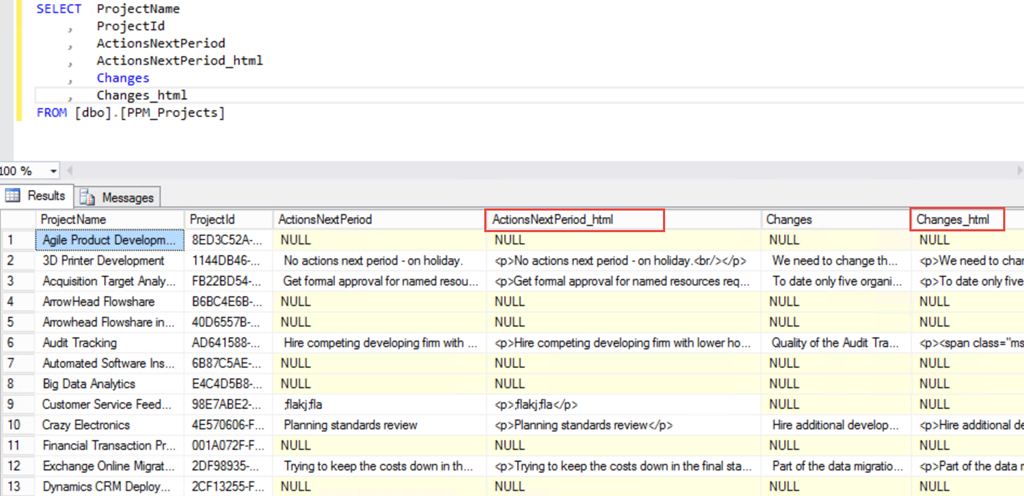
Power BI can get data from the Azure SQL Server and this data will also refresh in the Power BI App Service.
Feel free to contact me if you have any queries or questions but hopefully that gives you some ideas on including the HTML formatting in your Project Online reports using Power BI!


 SharePoint (and Project Server) Shenanigans
You must be logged in to post a comment.