Archive
Using jQuery to find the current logged in user #in #SP2010
Problem:
In MOSS 2007, we had methods to get the current logged in user by accessing some of the properties found in the Welcome Menu.
Although this is still the case in SharePoint Server 2010, there are some fundamental changes to the code and the way the Welcome Menu is rendered in SPS 2010 that means we have to do something slightly different to get the same result.
I have recently had a requirement to achieve this in my current project and thought I would share the basics with you.
Essentially we are still retrieving the information from an HTML element property in the Welcome Menu, but the menu itself is rendered in AJAX and therefore is not necessarily available as soon as the page is rendered and the DOM document ready state is set.
As a result of this, running JavaScript / jQuery on the page at either:
- $(document).ready
- _spBodyOnLoadFunctionNames
will not return the required result, since the menu elements we need to interrogate have not been rendered yet.
Solution:
- Set a timer to keep running a particular function to wait until the menu is rendered
- Stop the timer
- Interrogate the DOM as required using jQuery
Code Example:

#SP2010 Content Organizer, Incoming Email and Multi-function Printers #in #SharePoint
A very interesting post about the Content Organizer in SharePoint 2010, Incoming Email and integrating the solution with multi-function printers.
I know one day I will be dealing with this issue too.
#SharePoint Solution Installer–#SP2010 version #in
A colleague of mine has just pointed me in the direction of this:
http://netindonesia.net/blogs/andriyadi/archive/2010/02/27/sharepoint-2010-solution-installer.aspx
The SharePoint 2010 version of the SharePoint Solution Installer.
I haven’t tried it yet, but I shall re-package up my CodePlex solutions for 2010 to test them out.
Stay tuned.
Employee Absence Form + email notification to manager #in #SP2010 #SharePoint
This post shows you how to utilise a little known workflow action in SharePoint Designer 2010, which allows a workflow to fire off an email to a user’s manager.
Note that your AD hierarchy needs to be correct for this to work.
Step 1 – Create a Custom List (Absence Log)
Here I created a basic custom list, adding the columns you see below;
- Member of Staff (Person or Group)
- Date of Absence (Date and Time)
- Reason for Absence (Single Line of Text)
- Estimated Duration (Choice)
- Line Manager (Person or Group)
Step 2 – Create List Workflow (SharePoint Designer 2010)
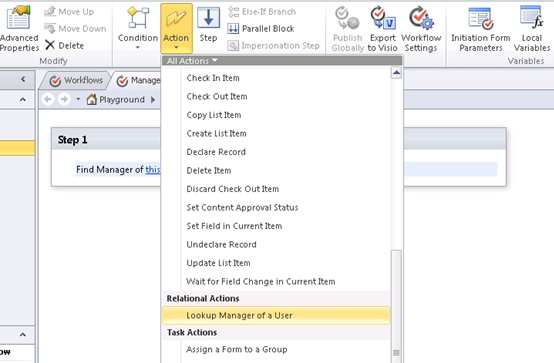
Now open up SharePoint Designer 2010, choose ‘Workflow’ on the left hand navigation and then create a new ‘List Workflow’ – selecting the Absence list.
- Create a New Action –> LOOKUP MANAGER OF A USER

I just won a free MSDN subscription… SharePoint Home Drive Web Part #in #SP2010 #SharePoint
A while ago I entered a competition that Liam Cleary (MVP) was running about Web Part contributions in the community. (Link)
Turns out I won. (Link) 
Thanks Liam, I shall be using the subscription for some new web part ideas I have.
The web part in question was my SharePoint Home Drive web part. This was developed for IT Administrators in schools to give access to Teacher’s & Student’s home drives within their intranet to aid SharePoint adoption.
It was released a couple of years ago and has been used in various educational institutions. It has also recently been tested in SharePoint 2010.
Competition Entry:
1. What the original problem was
Ensuring that users can access their home drives within SharePoint to aid adoption of the SharePoint Portal within the education establishment.
2. Why SharePoint was chosen
SharePoint was chosen due to its flexibility and support from third party vendors for the various applications currently in use.
SharePoint’s educational licensing costs allows schools to user enterprise scale solutions for a fraction of the cost.
3. What the solution was (end-to-end)
To aid education establishments in providing a single collaboration portal connecting all appropriate solutions into one place including:
- File Shares
- Cashless Catering
- MIS integration
- E-Learning
- + others
4. How it helped
Although all the 3rd party vendors provided web parts etc. for the various applications, users were still having to go away from the solution to access their personal files.
Document libraries will be used for future years of children as the architecture catches up with the change in solution, however for current student data, financials did not allow for the required increase in storage in the SQL database.
Training of document libraries for non-IT staff in terms of uploading files and the understanding of metadata was troublesome and take up of the collaboration solution was slow among some staff and students.
Shared folders on the network were easily integrated using the Page Viewer Web Part in File / Folder mode and a Search Server Content Source of the Network Share.
However, this method could not easily be implemented for a user’s home drive, due to the dynamic nature of the UNC path.
Typically, this is set up in Active Directory using the user’s ADUserName (SAMAccountName) as the folder name for the share.
To solve this, I created a Web Part that allows administrators to specify the UNC path of the file share; it will then inject the AD username after the UNC path.
This provides a File Explorer view of the user’s home drive within the SharePoint Portal.
This was developed to be an interim solution until Document Libraries were fully adopted by end users and the SQL storage could be bought with future budget.
The SharePoint Home Drive web part was released to the community via CodePlex in June 2009 and has recently been tested in SharePoint 2010 environments also.
Compatibility of the Web Part also includes WSS 3.0 and SharePoint Foundation 2010.
Web Part URL: http://gileshhomedrive.codeplex.com/

Site Asset List View and jQuery issue and resolution #in
So recently I have been working on a project where we make use of the new Site Asset library capabilities in SharePoint 2010.
The Site Asset library comes with new functionality including pop-up previews of images and videos.
In particular, we are taking advantage of the fact that by uploading an image into the site library, 2 thumbnail versions are created for the list view preview and the pop-up preview.
This provides some good unique user experiences previously not seen in SharePoint out of the box before.
Anyway, to the jQuery issue:
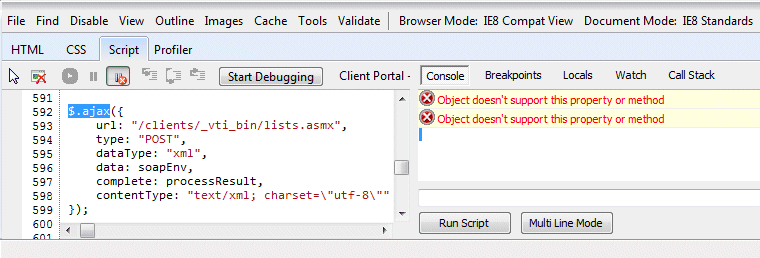
It would appear that the Site Asset library (standard list view) uses the $ call for its JavaScript functions. This obviously conflicts with the standard way to call jQuery functionality:
This results in the error:
- Object doesn’t support this property or method
Resolution:
jQuery being implemented onto the master page doesn’t pose a problem since the SharePoint code is obviously called afterwards.
So by referencing jQuery in its longhand method:
you can use both the site asset functionality as well as any jQuery customisations that you may need to do.
Hopefully that helps out fellow SharePoint customisers out there.

Excellent SharePoint JavaScript function reference #in
Just found this post:
http://ruudheemskerk.net/archive/2010/08/03/helpful-sharepoint-javascript-functions.aspx
Which lists a lot of the useful functions I have been using recently.
I was going to write a post about it, but it would appear there is no need.
Enjoy.
Video Showcase – Home Drive #in #SP2010
SharePoint Home Drive 1.2
Provides a file explorer view to a home drive by appending the current users login name (SAMAccountName) to the UNC Path provided.
Utilised with Audiences (MOSS/SPS2010 only) this can by used based on user role.
Compatibility:
- Windows SharePoint Services 3.0
- Microsoft Office SharePoint Server 2007
- SharePoint Foundation 2010
- SharePoint Server 2010
#SP2010 Group List Items by External Data field–Field Display Missing #in
On an intranet I have been working on recently I came across a bug where the display of an External Data field in the 1st and 2nd level grouping is not shown when grouping by the BCS based item(s).
To provide a short term fix I created the following JavaScript to run on the page to solve the problem.
Essentially the values do exist in the DOM / HTML, but they are not displayed in the tags presented by the grouping.
NB: Please be aware that this solution relies upon JQuery.
#SP2010, #Project Server – Reporting Technologies vs. Data Sources
Recently I have been teaching myself PerformancePoint 2010 and connecting it to the Analysis Services cube as part of Project Server 2010.
During my investigation, I started thinking about all the Business Intelligence options that are available within the SharePoint / Microsoft stack and thought I would map out what I know so far.
Please bare in mind this is work in progress based on what I have personally used as part of my projects over the years and research on MSDN / TechNet and other sources.
I will be gradually updating this as I learn more about the technologies and I welcome any input from the SharePoint / EPM community.

Notes against the items can be found in the attached Excel spread sheet below:


 SharePoint (and Project Server) Shenanigans
You must be logged in to post a comment.