Finding a SharePoint Farm build version
At some point you will need to know the build version of your SharePoint 2010 system, this might be for patching, feature checking or even raising a ticket with Microsoft.
In the world of SharePoint 2007 you could get the build number from any site collection administration page, (not really, that’s the content database schema build number, if you have a 2007 farm and the build number changes between site collections then some of your content db’s have not been updated and you need to rerun the config wizard)
In the world of 2010, build versions are now displayed in Central Administration under Upgrade and Patch Management > Check Product and Patch Installation Status.

You are then presented with a list of the installed components in your farm and their installed version and install status, from this list you will look for the highest install version number, and that will be your build, Service Pack or CU number depending on your patch status.
There is also a neat little link at the top of the page that will take you to the SharePoint 2010 updates page.

but there is also a neat way to get the same information from Power Shell with 3 simple lines
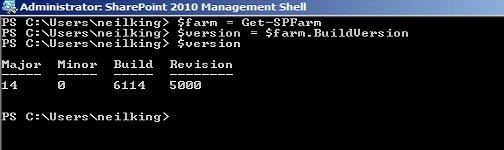
Simply open the SharePoint 2010 Management Shell and type the 3 lines as above, to simplify matters even further you can put the 3 lines into a notepad file, save this with a .ps1 extension in your documents folder and you call it directly from within Power Shell.
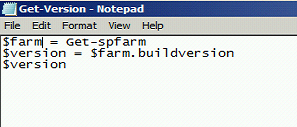
In this example I called the script Get-Version.ps1, then I can call it directly from PowerShell
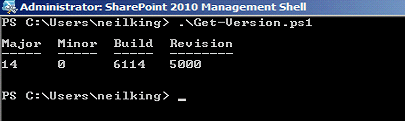
Simple.


 SharePoint (and Project Server) Shenanigans
Great find, I’m going to have to check this one out. Thanks for sharing.
Very informative….
An even shorter PowerShell command from the SharePoint Management Shell would be:
Get-SPfarm | select buildversion