Archive
#ProjectServer and #SharePoint 2010 / 2013 June 2014 Cumulative Update #PS2010 #SP2010 #PS2013 #SP2013 #MSProject
|
I am a Project Server and SharePoint consultant but my main focus currently is around Project Server.
I have been working with Project Server for nearly five years since 2007 for a Microsoft Gold Certified Partner in the UK, I have also been awared with the Microsoft Community Contributor Award 2011. I am also a certified Prince2 Practitioner. This article has been cross posted from pwmather.wordpress.com (original article) |
The Office 2013 June 2014 Cumulative Updates are now available, please see the links below:
Project Server 2013 June 2014 Server Roll up package:
http://bit.ly/1mL5VBn
Project Server 2013 June 2014 CU:
http://bit.ly/1lpfuJ4 & http://bit.ly/1mL5W8d
Project 2013 June 2014 CU:
http://bit.ly/1lpfwRh
Also worth noting, if you haven’t done so already, install the March 2013 Public update: http://bit.ly/1lR8IgK if installing the June 2014 CU.
The Office 2010 June 2014 Cumulative Updates are now available, please see the links below:
Project Server 2010 June 2014 Server Roll up package:
http://bit.ly/1mL5W8h
Project Server 2010 June 2014 CU:
**** No individual Project Server 2010 packages for June 2014 ***
Project 2010 June 2014 CU:
http://bit.ly/1lpfwRn
Remember SP1 or SP2 is a pre-requisite for the Office 2010 June 2014 CUs.
As always, test these updates on a replica test environment before deploying to production.
For more details see the following webcast on June 24th 2014:

Supporting post for #ProjectServer 2013/ #ProjectOnline project fields displayed on project site #JavaScript #jQuery
|
I am a Project Server and SharePoint consultant but my main focus currently is around Project Server.
I have been working with Project Server for nearly five years since 2007 for a Microsoft Gold Certified Partner in the UK, I have also been awared with the Microsoft Community Contributor Award 2011. I am also a certified Prince2 Practitioner. This article has been cross posted from pwmather.wordpress.com (original article) |
As mentioned when I published the JavaScript code that displays project level information on the project site, here is the supporting blog post. The quick post that references the script is below:
The script can be downloaded from the Microsoft Script Gallery below:
Firstly, as with the other JavaScript files I have published you will need jQuery:
jquery-1.8.3.min.js – jQuery download
A later version of this library may work but this was the one I used / tested with.
Upload this library to your PWA site collection then update the script file with the correct location. I uploaded this file to the site assets library as you can see in the code below:
Like the Project Milestone JavaScript file I wrote, you will also notice the reference to the default SharePoint JS files and the two references to the Data tables CSS and JS files. I just referenced the hosted files but you could download these and host them yourself – if hosting the data table files yourself you will need more than just the two files reference here. For a production environment I would probably recommend downloading and hosting the jQuery data tables locally.
Once the script has been downloaded you will notice that I have used 6 default project level fields and 2 custom fields. The two custom fields are Programme and RAGPMStatus. These can be seen on the select below:
Programme and RAGPMStatus are custom to my test environment but I added these to show that default and custom project level fields can easily be added. To get the script to work you can either add these fields to your configuration – probably fine for a test environment, or modify the script to remove the custom fields or add your own. Here I will assume you want to add 2 of your own project level custom fields. Below are parts of the script that will need to be modified to accept your own 2 project level custom fields. For simplicity we will assume that the two new fields are Project Location and Project RAG. Project RAG is associated to a lookup table with the following 3 values: Green, Amber, Red.
Starting from the top of the script file here are all the places you will need to modify to get the two new fields in the code.
- In the table, update the two column headers, replace Programme with Project Location and replace RAG Status with Project RAG.
- Update the select query, replace Programme with ProjectLocation and replace RAGPMStatus with ProjectRAG.
- On the first if statement replace Programme with ProjectLocation and replace RAGPMStatus with ProjectRAG.
- In the data table processing section, replace Programme with ProjectLocation and replace RAGPMStatus with ProjectRAG for the aoColumns parameter
- In the data table processing section for the aoColumnDefs parameter update the fnCreatedCell if statement with the correct lookup table values for the Project RAG field. So in this example replace On schedule [Green] with Green and Slipping but can mitigate [Amber] with Amber. You might also want to change the cell and font colors.
Once updated, add the script to your PWA site collection, I uploaded this to the Style Library. Then add a content editor web part to the project site and reference the uploaded project information JS file. If you want this to be on all project sites then you would need to create a new project site template with the JS file added.
Once added to a project site the project information will be visible for that project:
SharePoint 2010 Designer Issues
While it is always good to work with the latest and greatest versions of everything, there are still solutions running on 2010 that need maintenance.
So recently I found myself having to update a SharePoint 2010 solution that was made up of an SPD2010 workflow, a content type and library template. I had to update the content type, workflow and library template with some new and updated columns.
The library template was using a custom Edit form with some of the content type fields hidden, so I had to update the Edit form to show some new fields. To add a new field to a form you would normally edit the form table to and new rows where needed then select the field from the data source and select as ‘Insert as List Form Field’, unfortunately this option was no available; updating an edited form seems to be a common problem with SPD2010, as the same issue is outlined here.
My solution was as follows:
Select a field in the form where I wanted the new field and insert a new row into the form table, copy an existing control and insert into the new row, using the Common FormField Tasks control select the new control from the Data Field picker

Now Pick ‘List Form Field’ from the Format as picker

In the Quick Tag Selector bar the new field will be called <SharePoint:FormField#FormField1>
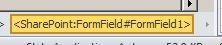
From the Quick Control select Edit Tag…

The Tag code is now displayed with the ID value of “FormField1”

Now check the other fields and find the control with the highest ID value and set the new tag value the be higher in the format “ff<id>{$Pos}”, ensure both references to the ID value are set

If the ID numbering is incorrect a duplicate

Once completed the new control will be available on the form.

CPS’ #ProjectServer Plus solution is an Award Finalist at the #Microsoft Partner Awards #WPC14 #ProjectOnline
|
I am a Project Server and SharePoint consultant but my main focus currently is around Project Server.
I have been working with Project Server for nearly five years since 2007 for a Microsoft Gold Certified Partner in the UK, I have also been awared with the Microsoft Community Contributor Award 2011. I am also a certified Prince2 Practitioner. This article has been cross posted from pwmather.wordpress.com (original article) |
I am pleased to announce that CPS’s Project Server Plus solution was an Award Finalist in the recent Microsoft Partner of the Year Awards 2014 in the Project and Portfolio Management Competency.
For a full list of winners and finalists see:
#ProjectServer 2013 / #ProjectOnline project fields displayed on project site #JavaScript #jQuery
|
I am a Project Server and SharePoint consultant but my main focus currently is around Project Server.
I have been working with Project Server for nearly five years since 2007 for a Microsoft Gold Certified Partner in the UK, I have also been awared with the Microsoft Community Contributor Award 2011. I am also a certified Prince2 Practitioner. This article has been cross posted from pwmather.wordpress.com (original article) |
Just a quick post to highlight a new script I have published this evening. This displays project fields on the associated project site. A full blog post will be coming soon that explains how to use the script and what would need modifying for your environment (custom fields etc.). The script can be downloaded below:
A screen shot of the output is below:
The RAG Status background colour and font colour update based on the custom field value.


 SharePoint (and Project Server) Shenanigans