Archive
#ProjectOnline Resource Managements Feature rolling out #PPM #PMOT #PMO #Office365 #Office2016
|
I am a Project Server and SharePoint consultant but my main focus currently is around Project Server.
I have been working with Project Server for nearly five years since 2007 for a Microsoft Gold Certified Partner in the UK, I have also been awared with the Microsoft Community Contributor Award 2011. I am also a certified Prince2 Practitioner. This article has been cross posted from pwmather.wordpress.com (original article) |
The new Project Online Resource Managements feature might now be available on your Project Online tenant – if it is not yet then it probably will be soon! It hasn’t quite made it to my test tenants yet but when it does I will create a few posts on this new feature. For now see the links below for details:

Uploading an Existing Local Git Repository to BitBucket.
I use BitBucket for all my recreational, educational, and at home programming projects. I like that fact that you can have free, private repositories. BitBucket supports Git as well as Mercurial.
Typically, I will create a new BitBucket repository and then use the Git Bash shell or Visual Studio to clone the project from BitBucket and simply add files to the new local repository. However, there are times when I will start a local repository first and later decide that I like the project and want to save it off to BitBucket.
This is the procedure I use to upload an existing local Git repository to BitBucket.
Step 1 – Create a New Git Repository on BitBucket.
Step 2 – Open your Git Bash Shell and Navigate to the Location of your Git Repository
Note: The location to the .git file is the path we are looking for.
$ cd Source/Repos/MyProject/
Step 3 – Add the Remote Origin
Note: You will need to the remote path to your repository you created on BitBucket. You can find this URL on the Overview screen for your repository in the upper right corner of the page.
$ git remote add origin http://bit.ly/1PuVrG7
Step 4 – Push your Repro and All its’ References
$ git push -u origin –all
You will be prompted to enter your BitBucket password.
Step 5 – Ensure all Tags get Pushed as Well
$ git push -u origin –tags
Again you will be prompted to get your BitBucket password.
If all goes well you will see the “Everything up-to-date” message displayed in the Git Bash shell.
The procedure above will move the entire repository. That means if you created local branches, the those are moved up as well. It’s pretty cool really. Once the remote origin is set you can commit changes locally and then use Visual Studio’s built in Git support, or the Git Bash to Sync your changes “to the cloud”.
Happy Coding!
|
I am a senior software developer and development team lead in Houston Texas. I am passionate about the “art” of software development. I am particularly interested in software design patterns and the principles of SOLID object-oriented code. I am an evangelist for test driven development. I love to think and write about my day-to-day experiences in the trenches of enterprise IT. I relish the opportunity to share my experiences with others.
From the wire to the presentation, I am holistic solutions guy. I have broad experience in client side technologies such as Javascript, Ajax, AngularJS, Knockout, and Bootstrap. I have extensive experience with MVC, MVVM, and ASP.NET Web Forms. I am strong in SQL Databases, performance tuning, and optimization. I also have a background in network engineering, wide-area and inter-networking. This article has been cross posted from jcclements.wordpress.com/ (original article) |
#O365 #SharePoint Online–Information Rights Management #IRM–what works, what doesn’t in a business context-Part 3
This article is part of a series:
In the first article of this series we discussed what IRM was, some scenarios and high level device supportability.
In the second article we covered file type support.
Welcome to the third article in this series about the IRM implementation in SharePoint. This post will be mostly focusing on how Windows Explorer interacts with Document Libraries with IRM enabled.
The Scenario
We are maintaining the same settings as the previous two articles, but using a document library instead of a list.

As stated previously, behavior is the same but of course with a document library you can interact with it via Windows Explorer, drag and drop, in application via Word etc. as well as the standard upload process. Let’s see if it maintains the protection that we have put in place…
To recap the supported file types:
- Word, Excel, PowerPoint 2003 to 2016
Now as part of my ongoing research I have found mentions of XPS and InfoPath as well, so we shall give those a go as well.
In these tests I shall try all variants of the files for doc to docx and the macro and template versions in between.
Also unlike the previous articles I shall widen the uploads to include Excel and PowerPoint in the examples.
So without further ado…
Standard Upload
- Supported File Type (Word, Excel, PowerPoint, PDF, XPS,)
- Unsupported File Type (PNG, InfoPath)
- From my standard upload testing the results are as follows:
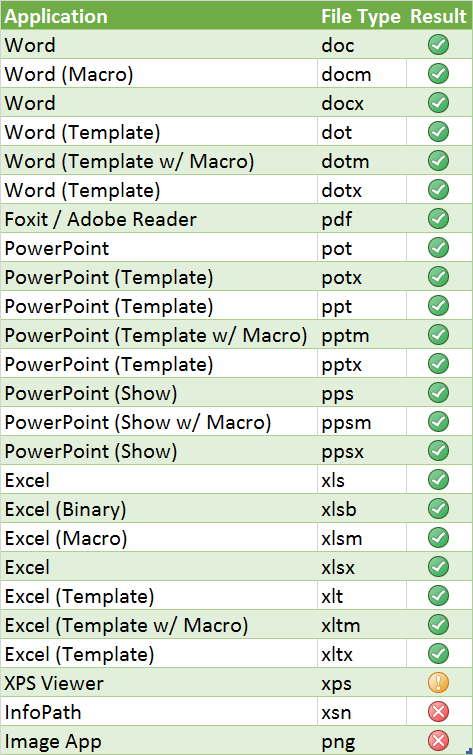
Document Library Screenshot:

XPS files uploaded fine and were protected by SharePoint IRM however, my client was not configured and could not access the IRM server in my setup.
Furthermore, I got this result when trying to open a protected XPS in the browser (IE11):

The client result was:

PS. I found that InfoPath was not supported in SharePoint Online (as of 2015-09-23 – not surprising given that it is not part of Office 2016 anymore. (Office 2016 was released this week by the way – yay  )
)
Drag and Drop
In true scientific experiment fashion, same files, different upload method…
- Supported File Type (Word, Excel, PowerPoint, PDF, XPS,)
- Unsupported File Type (PNG, InfoPath)
- For this I shall be using the drag and drop capability that was introduced in SharePoint 2013 and is still available in 2016. I shall drag and drop all files (supported and unsupported at once)
It is good to say that the result is the same as the standard upload method and the error messages it returns for unsupported file types make sense.

Just remember the issues with XPS I experienced this time round and the PDF IRM supportability issues from the last post are still present in the document library. See Part 2 for details.
Windows Explorer
One more time around…same files, different upload method…
- Supported File Type (Word, Excel, PowerPoint, PDF, XPS,)
- Unsupported File Type (PNG, InfoPath)
Like the drag and drop method to the document library I shall be dragging all files into the Windows Explorer view that opens up when you click this button on the library ribbon:

Dragging the files into Windows Explorer view… in progress:

So everything was going will until I got to the unsupported files:

So as you would expect, it definitely stopped the file getting into the library as you would expect. You have the option to skip the file which moves on to the next file and processes it based on the same rules.
The good news is, we have stayed in compliance!
The bad news is that error message:
An unexpected error is keeping you from copying the file. If you continue to receive this error, you can use the error code to search for help with this problem.
Error 0x80070021: The process cannot access the file because another process has locked a portion of the file.
Now as a techy, I would totally expect that error from Windows Explorer… after all, it doesn’t know what SharePoint is, it just knows that it has failed.
From a business user perspective, this is confusing and will no doubt start calls to the help desk. The help desk may not know the answer either and it will result in an escalated call to the SharePoint Admins / Operations teams.
Not much to be done, but adds credence as to why I am blogging on this subject. Hopefully some google’rs / bing’rs will find this post and have a bit more information about what could be going on.
Conclusions
So there you have it, whatever way you get files in, it works… I can confirm that in each case, opening the files showed that they were protected with IRM. Windows Explorer for unsupported files is a bit messy but not surprising.
Next Post(s)
- I will eventually get to how to deal with unsupported file formats with the desktop RMS client but as I dig deeper, more and more topics become more appropriate to discuss
- IRM permissions vs. SP Library permissions
- Client Experience – Protect & Unprotected…
- Anyway, till the next one… stay SharePointin’

#Microsoft #Office365 Planner – #Task Management Tool #PMO #PMOT
|
I am a Project Server and SharePoint consultant but my main focus currently is around Project Server.
I have been working with Project Server for nearly five years since 2007 for a Microsoft Gold Certified Partner in the UK, I have also been awared with the Microsoft Community Contributor Award 2011. I am also a certified Prince2 Practitioner. This article has been cross posted from pwmather.wordpress.com (original article) |
A quick post to highlight a new tool that is going to be released soon called Office 365 Planner. This tool is great for organising team work with projects, tasks, assignments, documents in a visual way. For more details and screen shots see the link below:
#ProjectOnline / #ProjectServer 2013 update #Project Name description on PDP #JavaScript #jQuery
|
I am a Project Server and SharePoint consultant but my main focus currently is around Project Server.
I have been working with Project Server for nearly five years since 2007 for a Microsoft Gold Certified Partner in the UK, I have also been awared with the Microsoft Community Contributor Award 2011. I am also a certified Prince2 Practitioner. This article has been cross posted from pwmather.wordpress.com (original article) |
Some times organisations want to update the Name description on the PDP to something else. This simple script will do that, the example in the script will work for the Enterprise Project EPT but could easily be updated for other EPTs. The script can be downloaded here:
The script is very similar to the one I created to change the Owner label: http://bit.ly/1e8QwhB
This code will replace “Specify a name for the Enterprise Project” with “Enter a name for the project” but can easily be updated. All it does is replaces the string, so if you had multiple different EPT’s where you wanted to update the Name description the script would need to be modified to suit as the EPT name is used in the description.
To get the script to work you will need to download the following jQuery library: jquery-2.1.1.min.js – jQuery download Another version of this library may work but this was the one I used / tested with. Upload this library to your PWA site collection then update the script file with the correct location. I uploaded this file to the Shared Documents library as you can see in the code below:
Alternatively you can reference a CDN if preferred.
Once the script is downloaded, upload this to the PWA site collection, in this example it was uploaded to the shared documents library. Select the PDP that has the Name field displayed, then reference the uploaded script using the content editor web part:
Once loaded, “Specify a name for the Enterprise Project” with “Enter a name for the project”:
This is a very simple script but do test this before rolling out to production etc.
The script is provided “As is” with no warranties etc.
#O365 #SharePoint Online–Information Rights Management #IRM–what works, what doesn’t in a business context-Part 2
This article is part of a series:
In the first article of this series we discussed what IRM was, some scenarios and high level device supportability.
Let’s dig a bit deeper with what works in SharePoint Online:
Setup within SharePoint Online.
So I could talk about the Tenant Administration side of things but honestly, its not difficult, and these articles are more business focused. If you are interested, take a look here:
Assuming you have Information Rights Management (IRM) turned on in your Office 365 tenant, you will have the following options in the settings of your lists and libraries:

Do not get confused with Information Management policy settings at the bottom, this is entirely different involving audit trails, bar coding etc.
Once you click, you get a screen as follows (pre-filled in for my example in this blog series)

Most of these are fairly self explanatory, but allow me to get into specifics on some of these items:
Set additional IRM library settings > Do not allow users to upload documents that do not support IRM
Seems, kind of vague and initial Google (Bing…) searches did not help me, after some digging however, we find something… only certain file types are supported within SharePoint:
- The 97-2003 file formats for the following Microsoft Office programs: Word, Excel, and PowerPoint
- The Office Open XML formats for the following Microsoft Office programs: Word, Excel, and PowerPoint
- The XML Paper Specification (XPS) format
And in my further research, for Word, Excel and PowerPoint, your standard office suite has been supporting this capability since Microsoft Office 2003 on Windows and since Office for Mac 2011 on OSX.
But what about Multi-factor Authentication I hear you cry out…
Well that was supported in Office 2013 in an update around November 2014 (last year): https://blogs.office.com/2014/11/12/office-2013-updated-authentication-enabling-multi-factor-authentication-saml-identity-providers/
The end result of this is fairly painless to the user. They upload unprotected files (that are supported). SharePoint protects the files and when you open them from SharePoint, you get this:

Word opens the file, checks the RMS server for the permissions against the user opening the file and if you have the rights, you can see the document.
If you don’t have the rights, you get this:

Further Gotcha’s / Things we need to know: PDF Support
Essentially what we are seeing here is that we need to have a level of support for IRM in both the server (to set the policy) and on the client (to enforce the policy)
As stated above, Microsoft Office has been supporting this in some form since 2003 for Windows and 2001 for the Mac.
On the Adobe Reader side of things, it is a little different.
Adobe Reader does not support IRM protected PDF’s unfortunately and when you try you get this response:

So for the well initiated or hacker minded, I know what you are thinking… Microsoft Word can open PDF’s… what happens then:
Well they thought of everything:

Thankfully you can use some alternative PDF Readers. Here is the run down on supportability:

Foxit Reader (Free) does display the PDF but with a suggestion that you should buy the RMS plugin:

I can confirm that you can view the whole document with the free product with the IRM restrictions in place. However the watermark shown above appears on every page.
Lastly, just to confirm the security Foxit supports for IRM PDF files:
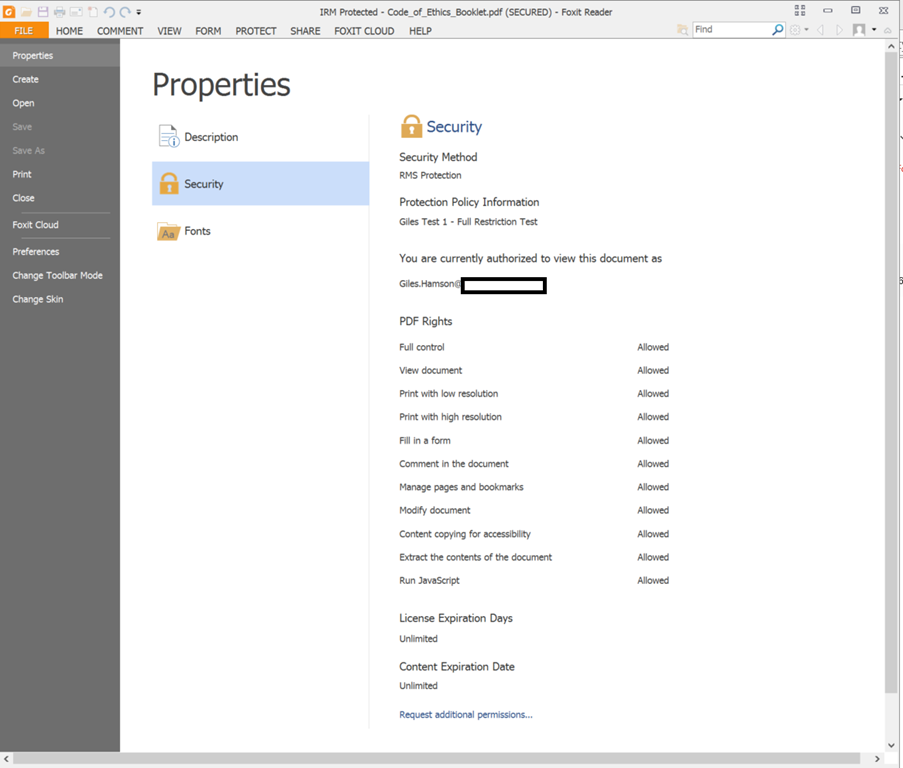
Further Gotcha’s / Things we need to know: Other / Unsupported File Types
If you attempt to upload a file that is unsupported, you get the following message from SharePoint.

File Type Conclusions
So bottom line is, if you need to protect Word, Excel & PowerPoint files than this solution provides a way to protect content without much trouble to the end user.
If you want to use PDF files as well then you will need to use Fixit or NitroPDF on Windows and unfortunately for OSX, it won’t be supported.
Lastly, all examples so far shown are using a standard custom list with attachments. The functionality in a document library is the same in 99% of cases.
The Next Post
As I look further and further into this topic, more and more questions are unraveling. In the next post(s), I shall be exploring:
- What happens when we use Windows Explorer view with a document library?
- How does the Microsoft RMS plugin help us for unsupported file types?
I am sure there will be more questions as I look further, but as this is a pressing concern for my company, you will see more posts soon. Till the next time…
Useful Links:
Microsoft Office Compatibility (older information): https://technet.microsoft.com/en-us/library/dd772650(v=ws.10).aspx
Microsoft Office 2007 IRM support: https://support.office.com/en-ca/article/Information-Rights-Management-in-the-2007-Microsoft-Office-system-afd5c5a9-e6fb-4ce7-b24c-eadcc9ee3fe8
Microsoft Office 2003 IRM support: https://support.office.com/en-au/article/Information-Rights-Management-in-Microsoft-Office-2003-495d2755-3c0d-44fb-9fcd-451c1c0e8c9e
Microsoft Office 2013 MFA Support: https://blogs.office.com/2014/11/12/office-2013-updated-authentication-enabling-multi-factor-authentication-saml-identity-providers/

#O365 #SharePoint Online–Information Rights Management #IRM–what works, what doesn’t in a business context-Part 1
I know I said I would get to the new features of Document Management in SharePoint 2016, and the plan is still do to that… but at work I have come across the need to use IRM for one of my internal customers. So without further ado…
The Scenario
Migrating a site with Restricted Confidential data from On-Premise to SharePoint Online. Everything within the network is nice and secure requiring two factor authentication to connect to the VPN from a domain connected laptop. It is nice and secure! Couple that with strict password and domain communication policies, security within the network seems good.
Of course, now as a company we want to take advantage of the great savings offered by Office 365. Office 365 doesn’t require a VPN to connect any more and suddenly the need for information rights management feels way more important than ever.
Multi Factor Authentication
So combat some of this, we can require multi-factor authentication to connect to the Office 365 tenant. If you do this properly, then you will have a nice, unhindered experience within your corporate network and a multi-factor authentication login from outside your network. (Please note you will need Microsoft Office 2013 as a client for outside your network).
This is all well and good but that doesn’t stop you logging into your personal PC and downloading the file using your corporate account. That is where IRM comes in…
Information Rights Management (IRM)

As a brief overview, IRM essentially controls what a user can do in a client application regarding a document based on who they are logged in as and the group they belong to.
For Example:
Corporate Network
You have a protected Word document and you are authenticated inside your corporate network. You have permissions to View, Print, Edit the file etc…
vs.
You have a protected Word document and you open the file on your personal computer. You cannot View, Print or Edit the file regardless of how you received the file (link to a SharePoint site, an Email Attachment or perhaps via a USB drive).
Personal Computer
So ideally what we are looking for is this:
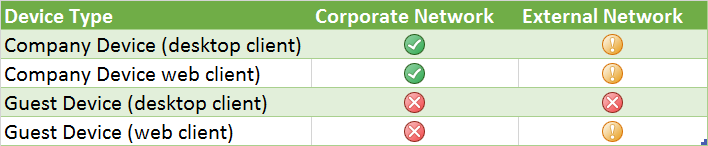
And just so we know what I mean by the Red, Amber, Green symbols above…

Guest Devices
Of course in this very modern bring your own device to work world, guest devices means a lot of different platforms and form factors.
- iPhone
- iPad
- Android
- Windows Phone
- Windows RT (Maybe…)
- Windows
- Mac OSX
- + others no doubt (blackberry for example…)
- SharePoint specifics such as setup, file type support, unsupported file types…
- What you can do about unsupported file types etc.
Thankfully, thanks to Microsoft view on being portable in this world is not tied to device, they have for the most part covered all devices with their Microsoft Office suite which fully covers IRM protection standards across the above listed platforms.
- However, in this changing world, there are always some caveats… this series of articles will begin to discuss…
Stay tuned for the next article when we talk about:
Useful links for learning…
- High Level Overview: https://blogs.office.com/2012/11/09/whats-new-with-information-rights-management-in-sharepoint-and-sharepoint-online/
- RMS Client Install: https://portal.aadrm.com/home/download/ (Windows, Mac, Windows Phone, iOS, Android)
- Information Worker training: https://technet.microsoft.com/en-us/dn308546
- Overview Videos: http://blogs.technet.com/b/rms/archive/2013/11/25/free-rms-training-videos-an-interview-with-synergy-advisors.aspx

#ProjectServer and #SharePoint 2010 / 2013 September 2015 Cumulative Update #PS2010 #SP2010 #PS2013 #SP2013 #MSProject
|
I am a Project Server and SharePoint consultant but my main focus currently is around Project Server.
I have been working with Project Server for nearly five years since 2007 for a Microsoft Gold Certified Partner in the UK, I have also been awared with the Microsoft Community Contributor Award 2011. I am also a certified Prince2 Practitioner. This article has been cross posted from pwmather.wordpress.com (original article) |
Just a quick update to the post below:
The Project Server 2013 September 2015 CU Server Roll up package also known as the Uber packer is now available:
#ProjectServer 2016 Preview is now officially available #PS2016 #MSProject
|
I am a Project Server and SharePoint consultant but my main focus currently is around Project Server.
I have been working with Project Server for nearly five years since 2007 for a Microsoft Gold Certified Partner in the UK, I have also been awared with the Microsoft Community Contributor Award 2011. I am also a certified Prince2 Practitioner. This article has been cross posted from pwmather.wordpress.com (original article) |
Project Server 2016 preview is now officially available (it has been in the SharePoint 2016 preview for a few weeks). See the link below for details:
Download today and take a look.
#ProjectServer and #SharePoint 2010 / 2013 September 2015 Cumulative Update #PS2010 #SP2010 #PS2013 #SP2013 #MSProject
|
I am a Project Server and SharePoint consultant but my main focus currently is around Project Server.
I have been working with Project Server for nearly five years since 2007 for a Microsoft Gold Certified Partner in the UK, I have also been awared with the Microsoft Community Contributor Award 2011. I am also a certified Prince2 Practitioner. This article has been cross posted from pwmather.wordpress.com (original article) |
The Office 2013 September 2015 updates and cumulative updates are now available, please see the links below:
Project Server 2013 September 2015 CU Server Roll up package:
***There is no cumulative / server roll up package this month*** See: http://bit.ly/1K7feXI
Project Server 2013 September 2015 update:
http://bit.ly/1OcxULz
Project 2013 September 2015 update:
http://bit.ly/1K7fg1N
Also worth noting, if you haven’t done so already, install Service Pack 1 http://bit.ly/1uorn2C first if installing the September 2015 CU.
The Office 2010 September 2015 updates and cumulative updates are now available, please see the links below:
Project Server 2010 September 2015 CU Server Roll up package:
http://bit.ly/1K7feXJ
Project Server 2010 September 2015 update:
http://bit.ly/1OcxW6g
Project 2010 September 2015 update:
http://bit.ly/1K7ffdW
SP2 is a pre-requisite for the Office 2010 September 2015 updates.
As always, fully test these updates on a replica test environment before deploying to production.


 SharePoint (and Project Server) Shenanigans
You must be logged in to post a comment.