Archive
#SharePoint2010: Error 7043 Load control template file /_controltemplates/TaxonomyPicker.ascx failed
Load control template file /_controltemplates/TaxonomyPicker.ascx failed: Could not load type ‘Microsoft.SharePoint.Portal.WebControls.TaxonomyPicker’ from assembly ‘Microsoft.SharePoint.Portal, Version=14.0.0.0, Culture=neutral, PublicKeyToken=71e9bce111e9429c’.

Although i cannot find any particular reason for this error, neither it will affect any of your services, but it would be better if you can find a solution and resolve it, so that it wont bother you while looking to your event log 🙂
Eventually i have found cause to this error from Microsoft support site as:
To get rid of this error, follow the simple steps:
- Navigate to /14/TEMPLATE/ControlTemplates/TaxonomyPicker.ascx user control
- Open the user control in a text editor and locate the first line
- Find the character string , and replace with a comma ‘,’ (without quotes).
- Save the user control.
Hope this helps.
via All about Enterprise Project Management (EPM) http://khurramjamshed.blogspot.com/2013/01/sharepoint2010-error-7043-load-control.html
   The author of the blog has an extensive experience of working as an EPM Consultant. Currently he is located in Dubai, UAE and working for Microsoft partner organization as Project Server specialist. He has a thorough experience of providing Project Management technical/functional consultancy to all sort of organizations. He is a certified PMP, a Project Server MCITP, and also received a MS community contributor award 2011.
This article has been cross posted from khurramjamshed.blogspot.com/ (original article) |

Create #ProjectServer 2010 #MSProject 2010 accounts with #PowerShell #PS2010 #SP2010 #MSOffice
 I am a Project Server and SharePoint consultant but my main focus currently is around Project Server.
I have been working with Project Server for nearly five years since 2007 for a Microsoft Gold Certified Partner in the UK, I have also been awared with the Microsoft Community Contributor Award 2011. I am also a certified Prince2 Practitioner. This article has been cross posted from pwmather.wordpress.com (original article) |
Quite often system administrators want a way to automate tasks, creating the Project Server Project Professional accounts is usually one of these tasks. This blog post shows an example of creating a Project Professional 2010 account.
The script can be downloaded from the Script Center following the link below:
http://gallery.technet.microsoft.com/scriptcenter/Create-Server-2010-dfb0fbba
When creating an account, a registry key is created here:
HKEY_CURRENT_USER\Software\Microsoft\Office\14.0\MS Project\Profiles\<Profile Name>

After running the script, a new registry key will appear:
Script:

Before running the script you will need to update two variables, $accountName and $pwaURL with the correct values.
New Key after executing the script:

As you can see, the script on creates three string values, the rest get created when you launch Project Professional 2010 and connect to the new account:
New account:

Additional string values:

A simple solution for creating Project Professional 2010 accounts.
I recommend that this script is tested thoroughly on a test workstation before using within a production environment.
This script is just an example, use this script at your own risk. Remember to always backup the Registry before making any changes.
This script is probably a better approach to the Registry key export detailed in a post I wrote a while back:


The moral of this story is…

A nice and quick post on one of my experiences at a client.
This client was having problems with their SharePoint & Project Server 2010 environment. All resources in Project Server where not able to click on Timesheets without the following error coming up:

Now the environment itself was not up to date with updates only running SharePoint 2010 SP1 with the August 2010 CU. Before I could troubleshoot the problem I wanted to get the environment to a decent service level. I chose the December CU of 2012 as it mentioned an issue solved that is very similar to the issue my client is experiencing.
Now I wanted to install the CU and got the following error:

I had troubles understanding why this happens until I came across a statement that said the entire environment needs to have at least SP1. Since my last visit the client had installed a language pack which I didn’t know off and the client did not update the languague pack to SP1. To solve my issues I downloaded and installed service pack 1 for the language pack. Then I was able to run the SharePoint & Project Server 2010 December 2012 CU.
Luckily for me the SharePoint & Project Server 2010 December 2012 CU solved the issue of the view of the timesheet not being able to load. Getting the environment updated and solving the issue is like killing two birds with one stone yeah me!
So the moral of this story is: When installing new components to your SharePoint & Project Server farm always make sure you’ve installed the correct version with the correct updates this also includes language packs!
The next time I am getting the error “The expected version of the product was not found on the system” I will know where to look first.
That is it for me see you next time.

via SpeakingSilent » Robin Kruithof http://speakingsilent.wordpress.com/2013/01/14/the-moral-of-this-story-is/
 I am Robin Kruithof. I am working at CXS in the Netherlands as a Microsoft Project Consultant. My passion lies in Project Management and everything in the Project Management domain.
This article has been cross posted from speakingsilent.wordpress.com/ (original article) |

#SharePoint Integration Mode and no Data Driven Subscriptions #SP2013 #SP2010 #SSRS
Just come back after the New Year and was posed with an interesting problem.
SharePoint 2010, SSRS in integration mode but under the manage subscriptions link within a report, the Add Data Driven Subscription button was missing from the screen.
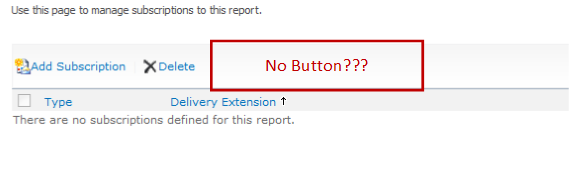
So after some googling / binging around, I found that the answer was because we were using SQL Server 2008 Standard and Data Driver Subscriptions require the Enterprise version of SQL Server.
Anyway, just a quick post in case I forget in future. Useful links below:
- SSRS Feature Support – Integration Mode: http://msdn.microsoft.com/en-us/library/bb326290(v=sql.100).aspx
- How to use Data Driven Subscriptions within SharePoint: http://blogs.devhorizon.com/reza/2008/10/26/ssrsdata-driven-subscriptions-in-integrated-mode-part-1/
- Required versions for Data Driven Subscription support: http://msdn.microsoft.com/en-us/library/ms159150(v=sql.100).aspx
Although in this scenario I am talking about SQL Server 2008, the same is true of SQL Server 2008 R2. In SQL Server 2012, Enterprise or Business Intelligence editions are required:

The365project

Just a small announcement.
Not so long ago the blog the365project launched. This blog has been created to provide tips around SharePoint, Project and Project Server. These tips are provided by MVP’s and all kind of members of the community including me.
Every few days a new tip will be posted. There is already a lot of useful tips on there that you can take advantage of. So go take a look if you are interested http://the365project.net/


via SpeakingSilent » Robin Kruithof http://speakingsilent.wordpress.com/2013/01/03/the365project/
|
I am Robin Kruithof. I am working at CXS in the Netherlands as a Microsoft Project Consultant. My passion lies in Project Management and everything in the Project Management domain.
This article has been cross posted from speakingsilent.wordpress.com/ (original article) |

Preconfigured #ProjectServer solution – Project Server Plus from CPS #PS2010 #PS2013 #SP2013 #Office2013
|
I am a Project Server and SharePoint consultant but my main focus currently is around Project Server.
I have been working with Project Server for nearly five years since 2007 for a Microsoft Gold Certified Partner in the UK, I have also been awared with the Microsoft Community Contributor Award 2011. I am also a certified Prince2 Practitioner. This article has been cross posted from pwmather.wordpress.com (original article) |
Just a quick post to highlight a product from CPS, Project Server Plus. This is a quick start preconfigured Project Server solution includes best practice fields and lookup tables, Views, RAG calculations and indicators, many great dashboards / reports and an enhanced Project Site template – all out of the box.
For details see:
http://www.cps.co.uk/What-We-Do/Pages/Project-Server-Plus.aspx


2012 in review
Well it is the end of the year and whilst I am on holiday at Surfside, Texas (near Houston), I have been reflecting on the past year for the blog. During this time, WordPress kindly shared the annual report for the blog and we have had a very successful year. You can see all the glorious details below…
I would personally also like to take the time to thank you all for taking interest in the site, happy holidays to all new and existing authors and I can assure you that in the companies we work at, 2013 based projects for clients and internally are well under way, so expect lots more posts from all the authors as we find more interesting tidbits on SharePoint, Project Server, Office 365 and Project Online + anything else of relevance.
We are also starting to look at more thought piece posts in the coming year on project management as well as other relevant subjects, so stay tuned and we will bring you lots more content.
As always, if you have suggestions, questions or comments, get in contact and we actively encourage new authors to come on board either as the occasional guest author or something more that can add value to the community.
I hope everyone has had a wonderful Christmas and I look forward to interacting with you all in the new year.
So… Without further ado…
The WordPress.com stats helper monkeys prepared a 2012 annual report for this blog.

Here’s an excerpt:
19,000 people fit into the new Barclays Center to see Jay-Z perform. This blog was viewed about 130,000 times in 2012. If it were a concert at the Barclays Center, it would take about 7 sold-out performances for that many people to see it.

England, Project Server 2013 and learning

Before I begin I hope everyone had a great Christmas and I wish you all a great 2013!
A lot of great things will happen in 2013. SharePoint & Project Server 2013 are out and I will be playing around with that and off course Project Online the cloud version of Project Server is on the horizon. Happy times I would say.
Now in December I had the pleasure of going to England to our Partner/Colleagues Corporate Project Solutions. The purpose of this visit to play and learn everything I could within three weeks of Project Server 2013. I want to take this opportunity to thank everyone at CPS for this great experience. It was a honor to work with such a talented bunch of people.
So what did I learn?
I tried to learn as much as I can on some of the below topics:
- Installing Project Server 2013.
- Configuring new Exchange features (Task aggregation and Out of Office Sync)
- ADFS and Office365 integration (Interesting topic with the coming of Project Online)
- The new Project Server SharePoint Permission Model
- The Transition from SharePoint Task List to Enterprise Projects
- New Timesheet enhancements
Off course I did a lot more but these are the highlights. I’ll will blog about all these subjects as soon as I get around to it to give some more insight in the installation and new features.
In this post Ill talk a little about my experience when installing Project Server 2013.
One of the first things I started with at CPS was the installation of Project Server 2013. If you are familiar with the installation of SharePoint and Project Server 2010 you quickly realize that the core installation process of SharePoint 2013 and Project Server 2013 is almost identical.
So I won’t bore you with that except one note. I was building my environment on Windows Server 2012 and SQL Server 2012. Strangely you still need to install the SQL Server Native Client 2008 and SQL Server 2008 ASAMO10 for the cube to build successfully.
So what else?
Well there are some small changes like when you provision a Project Web App by default it will have the SharePoint Security Model. (I’ll talk about this model in a different post.) It can be turned back to the Project Server classic mode but only via PowerShell.
Project Server Mode (Classic)
Set-SPProjectPermissionMode –URL http://servername/pwa -AdministratorAccount domain\accountname -Mode ProjectServer
And if you wish back to SharePoint Mode. Note: Switching between SharePoint permission mode and Project Server permission mode deletes all security related settings.
SharePoint Mode
Set-SPProjectPermissionMode –URL htt://servername/pwa –AdministratorAccount domain\accountname –Mode SharePoint
With the coming of Project Online Microsoft has chosen to move some of the web functionality from the server setting to SharePoint Central Administration.

General Queue Settings also have been moved from PWA Server settings to the Project Server Service Application.

Is this it?
Well from what I learned these are the most notable. Off course there are some other additions but those are more SharePoint related then Project Server.
This is it for now in my next post I’ll talk about the new SharePoint permission model.
As for now I am done, again I wish you a good 2013 see you next year!


via SpeakingSilent » Robin Kruithof http://speakingsilent.wordpress.com/2012/12/31/england-project-server-2013-and-learning/
|
I am Robin Kruithof. I am working at CXS in the Netherlands as a Microsoft Project Consultant. My passion lies in Project Management and everything in the Project Management domain.
This article has been cross posted from speakingsilent.wordpress.com/ (original article) |

#ProjectServer and #SharePoint 2010 December 2012 Cumulative Update #PS2010 #SP2010 #MSProject
|
I am a Project Server and SharePoint consultant but my main focus currently is around Project Server.
I have been working with Project Server for nearly five years since 2007 for a Microsoft Gold Certified Partner in the UK, I have also been awared with the Microsoft Community Contributor Award 2011. I am also a certified Prince2 Practitioner. This article has been cross posted from pwmather.wordpress.com (original article) |
The Office 2010 December 2012 Cumulative Updates are now available, please see the links below:
http://support.microsoft.com/kb/2789671
Project Server 2010 Server Roll up package December 2012 CU (Recommended) – delayed:
http://support.microsoft.com/kb/2596956
Project Server 2010 December 2012 CU (Included in the Server Roll up package):
http://support.microsoft.com/kb/2553504
Project 2010 December 2012 CU:
http://support.microsoft.com/kb/2553188
Remember SP1 is a pre-requisite for the December 2012 CUs.
For more details please see:
http://blogs.technet.com/b/projectsupport/archive/2012/12/19/microsoft-project-server-and-sharepoint-server-2007-and-2010-december-2012-cu-announcement.aspx
As always, test these updates on a replica test environment before deploying to production


Creating and adding Projects to #ProjectServer 2013 #PS2013 #SP2013 #Office365 Part 2
|
I am a Project Server and SharePoint consultant but my main focus currently is around Project Server.
I have been working with Project Server for nearly five years since 2007 for a Microsoft Gold Certified Partner in the UK, I have also been awared with the Microsoft Community Contributor Award 2011. I am also a certified Prince2 Practitioner. This article has been cross posted from pwmather.wordpress.com (original article) |
Following on from Part 1, this post will look into the SharePoint Task List and Connected SharePoint sites. As mentioned in part 1, I did create a post on this for the Preview release of Project Server 2013.
For those of you that missed Part 1:
This post will revisit the SharePoint Task List and Connected SharePoint site functionality. Similar but simpler SharePoint Task List functionality does exist in Project Server 2010 with the New > From SharePoint List option in the Project Centre. This functionality has been improved and extended in Project Server 2013.
In Project Server 2010 you had to create the SharePoint task list before adding the project to Project Server, in Project Server 2013 this has changed and improved. Clicking the New > SharePoint Tasks List from the Project Centre button will now prompt you for a project name:


Clicking Create will create the SharePoint site, with a Tasks list and then take you to the newly created tasks list.
As you can see the project now exists in the Project Centre also:

Clicking the project name from the Project Centre view will take you to the tasks list on the SharePoint site, as you can see I have created two tasks:

You can also import other SharePoint sites to Project Server 2013 using the Add SharePoint Sites button on the Project tab in the Project Centre:

Clicking this button will load a new window displaying all SharePoint sites within the PWA site collection that contain a Tasks list:

In this example I am going to add the “Design new theme” site, the tasks can be seen below:

At this point it is worth noting that Paul Mather already exists in the Project Server resource pool but User H doesn’t. Also there are only 5 Apps on this site:

I will now select the “Design new theme” project and click Add, the pop will now advise you that the project is being created:

After a short amount of time you will see the project is in the Project Centre:

Now this project is in Project Server, you will notice any users that were assigned to tasks on the tasks list that didn’t previously exist in the Project Server resource pool now exist as resources in the enterprise resource pool. Also the other thing I highlighted, the Apps on the site. After adding the SharePoint site to Project Server you will see the familiar lists from the Project Site:

This is because the Project Web App Connectivity site feature is activated when the site is added to Project Server.
Using both methods to add SharePoint Task lists to Project Server will sync the task list data with Project Server. At the time you add a SharePoint task list site to Project Server, that data will be synchronised instantly. Additional changes to the tasks on the tasks lists such as adding new tasks, updating % complete etc. is not updated in Project Server instantly. This synchronisation is triggered by a SharePoint Timer Job called “Project Server: Task List Synchronizer for SharePoint Tasks List Projects job for Project Services Application”

Once changes have been made to the connected SharePoint sites and the timer job has run, all data in Project Server will be correct and in sync with the task list. This includes the resource assignments / availability views, Project Centre Gantt charts and the Reporting tables / views in the Project Server database.
The connected SharePoint site task lists can either be updated from the sites using the web browser or using Project Professional 2013. When using Project Professional 2013, connected SharePoint site projects are opened the same way as a full Enterprise Project. When editing a connected SharePoint site in Project Pro you only have the option to save, no publish. Saving this type of project from Project Professional automatically fires off a publish job keeping the data in the system in synch – you don’t have to wait for the Timer Job.
Connected SharePoint sites can become full Enterprise Projects and full Enterprise Projects can become just a SharePoint task list connected site. This is update in Server Settings > Connected SharePoint Sites:

Converting a SharePoint Task list project to an Enterprise Project will disable editing of the tasks list from the SharePoint site, the tasks can only be modified via the Project Web App or Project Professional 2013. Converting an Enterprise Project to a SharePoint Task list project will disable editing of the schedule in PWA and enable tasks to be edited in a SharePoint task list or Project Professional.
Overall a great way to manage simple lightweight projects and gain visibility of these projects in Project Server! 


 SharePoint (and Project Server) Shenanigans
You must be logged in to post a comment.