Archive
SSRS Web Part Performance 2008 R2 vs. 2012 Initial Results #SharePoint #SP2010 #in
On one of my client projects, we heavily use SQL Server Reporting Services in SharePoint integration mode.
The benefits in comparison to Native mode are primarily around the RS SharePoint Add-in which allows us to use query string (URL) filter web parts to pass parameters to reports and create powerful dynamic dashboards as well as using SharePoint to permission and store the reports.
There is an issue however. Performance in this mode is not amazing, as detailed here:
- http://sqlcat.com/sqlcat/b/technicalnotes/archive/2010/11/03/reporting-services-performance-in-sharepoint-integrated-mode-in-sql-server-2008-r2.aspx
- http://connect.microsoft.com/SQLServer/feedback/details/635080/ssrs-2008-r2-and-sharepoint-2010-performance-issues
- http://www.sqlchick.com/entries/2011/1/25/whats-up-with-the-slow-ssrs-r2-rendering-in-sharepoint-2010.html
- http://blogs.msdn.com/b/prash/archive/2011/06/11/performance-of-ssrs-in-sharepoint-mode-reports-in-full-page-view-in-sharepoint-2010.aspx
Now that SQL Server 2012 has gone to RTM, we can start to get a measure of how well the new web part performs and I am pleased to say that the improvements appear to be great so far…
The Scenario
- SharePoint Version: 2010 SP1 – December 2011 CU with Project Server
- DB Server: SQL Server 2008 R2 SP1
- SSRS Version: 2008 R2 SP1
- SSRS Add-in: 2012 (Denali) – RTM
- Server Architecture: 1 x WFE / App Server (Virtual) + 1 x SQL Server (Virtual)
NB: All testing has been carried out on our DEV server, please always try out new software on a development / test environment first to ensure the benefits and to safe guard production from issues.
The Reports:
Table based reports rolling up Project Server and SharePoint data based on parameters provided by the end user (Cannot show due to client confidentiality I’m afraid).
The Results:
Now this is just a teaser really since we will be doing full testing on our master development environment, but for now…
Project Portfolio Table Report
- Number of returns items: 17 rows
- Number of parameters: 1 (Portfolio ID)
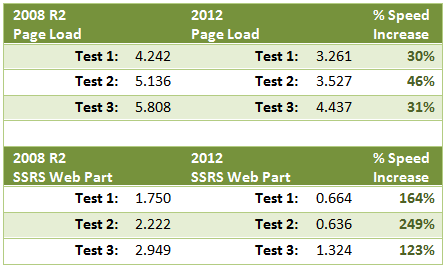
NB: All time taken in seconds using Fiddler2
 |
 |
 |
 |
As you can see, we are seeing significant time increases with the new web part and within my client we have the go ahead to carry out further testing.
More useful links:
- SSRS 2012 Installation – Liam Cleary: http://blog.helloitsliam.com/Lists/Posts/Post.aspx?ID=66
- Installing SSRS 2012 without upgrading your DB Server: Todd Klindt: http://www.toddklindt.com/blog/Lists/Posts/Post.aspx?ID=324
- MSDN: http://technet.microsoft.com/en-us/library/hh231671.aspx

#SP2010 web part rounded corners #SharePoint #PS2010 #ProjectServer #MSProject #in
At one of my clients I was asked to document how we achieved rounded corners on web parts. So as a result, I figured a blog post about it would be useful.
Now when I first implemented this (almost 2 years ago!) as the 2010 product RTM’d, I based it on the only blog post around at the time:
- The end result looks like this:

NB: Please note that this version is slightly modified from the version supplied on the blog link above.
In my implementation I was using the jQuery version available at the time:
- jQuery 1.5.1
- jQuery UI 1.8.13
Although jQuery UI is not required, it is always good to have for those awesome calendar pop-ups just in case.
This may work with the newer versions of jQuery, but I haven’t tried it out yet.
Example CSS, JavaScript and rounded corner image files are provided at the bottom of the post.
So without further ado, lets go through how to achieve the rounded corners in SharePoint 2010:
What does the code actually do?
With every page refresh, the JavaScript code, determines where all the web parts on the page are and injects appropriate mark up (<DIV>) above and below each web part, ready to be styled by CSS.
Step 1. Upload your reference files
Personally I like to store all my custom files within the Style Library within SharePoint, but they can live anywhere within SharePoint as long as all users have read access to them.
So lets take a look at what we are storing.
Standard Plug-In Files:
- jquery-ui-1.8.13.custom.css
- jquery-1.5.1.min.js
- jquery-ui-1.8.13.custom.min.js
You can download this version here:
- jQuery: http://docs.jquery.com/Downloading_jQuery#Past_Releases
- jQueryUI: http://jqueryui.com/download
The latest versions are available here:
Custom Files
- <custom JavaScript file>.js
- <custom CSS file>.css
These files are where we will implement the JavaScript and CSS code to produce the rounded corners on each web part.
Corner Image Files
The following files are used to create the rounded corner affect. To keep multi-browser support we are using this method, but you could replace them with CSS3 styling by changing the CSS code to achieve the same result.
- WPBottomLeft.gif
- WPBottomRight.gif
- WPTopLeft.gif
- WPTopRight.gif
Example files are provide below.
Step 2. Add your Master Page file references
Initially add the following references into <head> section of your Master Page, preferably just before the end tag </head>
<link type="text/css" href="/Style Library/jquery-ui-1.8.2.custom.css"
rel="Stylesheet" />

<script src="/Style Library/jquery-1.4.2.min.js"
type="text/javascript"></script>

<script src="/Style Library/jquery-ui-1.8.2.custom.min.js"
type="text/javascript"></script>
Now the above references are just standard plug-ins available from the jQuery website, but we also need to add some of our own JavaScript / jQuery magic, which of course needs its own reference file.
<script src="/Style Library/<customJavaScriptFile>.js" type="text/javascript"></script>
We also need to reference a custom CSS file, so that we can associate the corner images we will be using etc…
Publishing Feature enabled?
Now if you are using the Publishing feature, you can place your custom CSS via the Site Settings interface:
Site Actions > Site Settings > Under Look and Feel – Click “Master Page”
- (http://<server url>/_Layouts/ChangeSiteMasterPage.aspx)
Under the “Alternate CSS URL”, enter the URL for your custom CSS file, for example:
- /style library/<customCSSFile>.css
- NB: This will ensure it is the last CSS file referenced within the Master Page to allow for overrides.
Publishing Feature not-enabled?
If you you do not have the publishing feature enabled (Office 365 P1 or SharePoint Foundation 2010 for example), you can add the reference into the Master Page also.
<link type="text/css" href="/Style Library/{customCSSFile}.css"
rel="Stylesheet" />
Step 3. Adding the code
So now that we have our JavaScript, jQuery and CSS files setup in the Master Page, we can edit out custom files with the following code:
CSS Code (customCSSFile.css)
/* Web Part Chrome Styles – START */
.wpContainer {
padding-bottom:0px !important;
}
.wpTitleBorder, .wpBorderOnly {
background-color:#fff !important;
border-left:1px solid #c6c6c5 !important;
border-right:1px solid #c6c6c5 !important;
}
.ms-WPHeader td {
background-color:#ffffff !important;
border:0 !important;
padding:0 !important;
padding-top: 3px !important;
border-bottom: 1px #CECFCE solid !important;
}
h3.ms-WPTitle {
/* color:#36424a !important; */
font-size:15px !important;
font-weight:normal !important;
margin:-3px 0 0 0px !important;
padding:0 14px 4px 4px !important;
}
h3.ms-WPTitle a {
/* color:#36424a !important; */
font-size:15px !important;
font-weight:normal !important;
}
h3.ms-WPTitle nobr {
white-space:normal !important;
}
.ms-WPHeader td div.ms-HoverCellInActive {
margin:0 !important;
*padding:0 0 2px 0 !important; /* IE <8 fix */
}
.ms-WPHeader td .ms-HoverCellInActive {
margin:0 !important;
*padding:0 0 2px 0 !important; /* IE <8 fix */
}
.ms-WPHeader td .ms-HoverCellInActive img {
margin:0 0 2px 0 !important;
*margin:0 !important; /* IE <8 fix */
}
.ms-WPHeader img.ms-HoverCellInActive { /* Firefox */
padding:0 0 2px 0 !important;
}
.ms-WPHeader td .ms-HoverCellActiveDark {
border:0 !important;
margin:0 !important;
padding:0 0 2px 0 !important;
}
td.ms-WPBorder, td.ms-WPBorderBorderOnly {
border:0 !important;
padding:0px 0px !important;
}
.ms-WPBody {
font-family:Tahoma, arial, sans-serif !important;
font-size:11px !important;
padding:0 !important;
}
.ms-WPBody td, .ms-WPBody TD DIV, .ms-WPBody TD DIV A {
font-family:Arial, Tahoma, sans-serif !important;
font-size:11px !important;
}
.wpCornersTop {
background:url('/blog/Style Library/Images/WPTopRight.gif')
 top right no-repeat !important;
height:10px !important;
padding-right:10px !important;
}
.wpCornersTop div {
background:url('/blog/Style Library/Images/WPTopLeft.gif')
 0 0 no-repeat !important;
height:10px !important;
}
.wpCornersBtm {
background:url('/blog/Style Library/Images/WPBottomRight.gif')
 bottom right no-repeat !important;
height:11px !important;
padding-right:11px !important;
}
.wpCornersBtm div {
background:url('/blog/Style Library/Images/WPBottomLeft.gif')
 0 0 no-repeat !important;
height:11px !important;
}

/* Web Part Chrome Styles - STOP */
JavaScript / jQuery Code (customJavaScriptFile.js)
function wrapWebParts() {

//Find all divs (div.ms-WPBody) with an ID beginning
//with "WebPart". All web parts have unique IDs assigned
//to them, and they begin with "WebPart". Then traverse up
//the HTML document 4 levels and add the class "wp".

  $('td[id*=MSOZoneCell_WebPart]').children("table").addClass("wp");

//For web parts with the Title and Border chrome,
//add the class "wpTitleBorder" to the element
//with class "wp".

  $(".ms-WPBorder").parents(".wp").addClass("wpTitleBorder");

//For web parts with the Border Only chrome, add the class
//"wpBorderOnly" to the element with the class "wp".

  $(".ms-WPBorderBorderOnly").parents(".wp").addClass("wpBorderOnly");

//Find all table cells that have an ID beginning with
//'"MSOZoneCell" and add the class "wpContainer".

  $("td[id^=MSOZoneCell]").addClass("wpContainer");

//For web parts with the chrome type Title and Border or Border Only,
//add containers that can be used for rounded corners and other
//treatments

  //alert($(".wpTitleBorder").length);
  $(".wpTitleBorder").before('<div class="wpCornersTop"><div></div></div>')
     .after('<div class="wpCornersBtm"><div></div></div>');

  $(".wpBorderOnly").before('<div class="wpCornersTop"><div></div></div>')
     .after('<div class="wpCornersBtm"><div></div></div>');

  $("img[src*=/_layouts/images/blank.gif]")
    .attr("style", "display: none;");

  $('div[class=wpCornersBtm]').each(function() {
    var mainWPTable = $(this).prev();
    var inlineWidthStyle = mainWPTable.attr("style");
    var realWidthSplit = "";
    var realWidth = "";

    if (inlineWidthStyle != undefined) {
      realWidthSplit = inlineWidthStyle.split(":");
       realWidth = realWidthSplit[1].toLowerCase();
       realWidth = realWidth.replace("px", "");
       realWidth = parseInt(realWidth, 10);
       realWidth = realWidth + 13;

       $(this).attr("style", "width: " + realWidth + "px");
       $(this).prev().prev().attr("style", "width: "
          + realWidth + "px");
    }

  });

}

$(document).ready(function(){
   wrapWebParts();
});
And Finally…
The end result is this:

If we break this down, the jQuery code has discovered each web part on the page, added a <div> above and below the web part and then the CSS has styled it with the supplied image files referenced in the style sheet.

The code also takes into account the chrome type being used on the web part:
This results in the following:
Chrome Type: None

Chrome Type: Title and Border

Chrome Type: Title Only

Chrome Type: Border Only

Code Downloads:

SPD 2010 Cannot insert this action #SP2010 #SharePoint #PS2010 #MSProject #ProjectServer #in
Just a quick blog to go over which features should be enabled for Approval tasks in SharePoint Designer 2010 Workflows.
Scenario:
Project Server – PWA. Workflow being created within a Project Site.
Features enabled at the site collection (PWA):
- Standard
- Enterprise
- Publishing
Features enabled at the site (PWA):
- Standard
- Enterprise
- Publishing
- Features enabled at the site (Project Site):
- Standard
- Enterprise
However, we were getting the following error appear when trying to use the “Start Approval Workflow” action:
Cannot insert this action. To use task process actions, the Office SharePoint Server Standard Site features must be enabled for this site by an administrator.
Interesting error message given that the Standard features were enabled at both the Site Collection and Site level.
On further inspection, it turns out (rather obviously) that the Workflow feature needs to be enabled at the Site Collection level.
It caught us out for a little while, but a quick Google and thanks to this MSDN Forum post, we got the result we needed:
Hopefully, this post helps somebody out.

SQL Server 2012 beta exams are up #SharePoint #SP2010 #ProjectServer #PS2010
Here are CPS we are looking at our objectives for the next year and as part of this process we are looking at upcoming exams and certifications.
It would appear that 3 days ago the SQL Server 2012 exams have gone into Beta and you can try them out and provide feedback between now and April 13th.
Full details are on the link below:
Exam Overview:
|
Exam number |
|
Exam 70-461: Querying Microsoft SQL Server 2012 |
|
Exam 70-462: Administering Microsoft SQL Server 2012 Databases |
|
Exam 70-463: Implementing a Data Warehouse with Microsoft SQL Server 2012 |
|
Exam 70-464: Developing Microsoft SQL Server 2012 Databases |
|
Exam 70-465: Designing Database Solutions for Microsoft SQL Server 2012 |
|
Exam 70-466: Implementing Data Models and Reports with Microsoft SQL Server 2012 |
|
Exam 70-467: Designing Business Intelligence Solutions with Microsoft SQL Server 2012 |
Have fun and let me know how you get on!
** UPDATE **
We have now managed to get two exams booked, 70-466 and 70-467. Be quick though, spaces are limited and are going quickly.
** UPDATE 2 **
This post covers the specialisms in more detail:
http://www.jamesserra.com/archive/2012/03/sql-server-2012-new-certification-info/
In particular, the following details are key (Quoted from the above blog):
The seven exams for SQL Server 2012 are:
- Querying Microsoft SQL Server 2012 (70-461) [BI and DP] (info) (course)
- Administering Microsoft SQL Server 2012 Databases (70-462) [BI and DP] (info) (course)
- Implementing a Data Warehouse with Microsoft SQL Server 2012 (70-463) [BI and DP] (info) (course)
- Developing Microsoft SQL Server 2012 Databases (70-464) [DP] (info) (course)
- Designing Database Solutions for Microsoft SQL Server 2012 (70-465) [DP] (info)
- Implementing Data Models and Reports with Microsoft SQL Server 2012 (70-466) [BI] (info) (course)
- Designing Business Intelligence Solutions with Microsoft SQL Server 2012 (70-467) [BI] (info)
I have indicated which certification (“Business Intelligence” [BI] or “Data Platform” [DP]) each exam fits into).
So if you have the three MCITP certifications (Business Intelligence Developer, Database Administrator 2008, and Database Developer 2008) and want to get both the Business Intelligence certification and the Data Platform certification, you will need to take five of the seven exams (all but 70-461 and 70-462).
#MSPC12 Day Two and Three Further Sessions, Networking and Outer Space! #MSProject #ProjectServer
So on to the last two days of the conference…
Keynote Day Two
Initially Chris Crane discussed further how important partners are to the Microsoft Project eco-system.
Then Ludovic Hauduc, General Manager of the Project Business at Microsoft (Who has been involved with Project since 1994) discussed how he has moved from developer to his current role and how Microsoft themselves use Project, Project Server and its Portfolio Management capabilities to manage the future development of the product.
As part of his speech, he highlighted that Portfolio Management within EPM solutions was once seen as a technique for those with high project and portfolio maturity, causing an ivory tower affect. Now, however with Project Server 2010, Microsoft has successfully brought this functionality to the masses in an easy to use interface improving the maturity, focus and success of project run on the SharePoint and Project Server 2010 platform.
Other parts of the presentation discussed the ease of use connecting Microsoft Project 2010 to the cloud with Office 365. This was demonstrated to the audience…

Keynote Day 2 – Office 365 integration with Project 2010
(featuring Christophe Fiessinger as the “Geek”)
Sessions Attended
Wednesday
- Beyond the Basics: Business Intelligence Reports
- Take Your Project Reporting To The Next Level: Dashboards And Other Tools
- Cloud Bursting Techniques with SharePoint Online
Thursday
- UMT Project Essentials Pro – Effectively deploy a best practice Financial Governance framework for Project Server 2010
- Building advanced Project Server workflows with Nintex Workflow for Project Server
- Extending and Customizing the Project Server 2010 Timesheet to Drive Adoption and Achieve Business Results
A big thank you to all the presenters, the sessions were excellent. I will definitely be downloading them for future reference.
Evening Events
On the Wednesday evening of the conference, Microsoft and Shark Pro software fired out the Arizona Space Center for the evening 

My colleagues and I enjoyed the even very much, playing with all the experiments throughout the place including going into the planetarium
Overall the Project Conference was a massive success and I hope to be attending the next one!

Key takeaways and useful links from the #PC324 #MSPC12 integrating #SP2010 and #PS2010 presentation
For those who attended my presentation yesterday and of course anyone else who is interested, here are the key takeaways and further reading links from the session:

Further Reading:
Project Server Capacity Planning:
Plan Browser Compatibility:
Reporting with Project Server 2010:
- And if you attended my session and haven’t done so already, please fill out the Session Evaluation via the MyPC portal. All feedback is welcome.

#MSPC12 Experiences Day One and the CPS presentations #PC324 #PC301
I’m sitting in my hotel room right now totally buzzing from the day I have just experienced at the Microsoft Project Conference 2012.
A whole host of emotions and states have run through from nerves and waking up at 3am this morning to joy and more academic interest in the sessions that I have attended today.
Nerves? you may ask. Well you see today was my first ever presentation to an audience at a conference! Now I am a consultant by trade and do presentations at clients all the time.
We even run seminars, where I am backed by sales people and colleagues from my company.
But this is different. This is the Microsoft Project Conference!
It runs every three years. I have been preparing for months with dry run after dry run. Presentation tweaks left, right and centre.
So how did it go you may be wondering… Well I will come to that later…
Initially there was breakfast…
Phil, Sacha, Chris and myself sitting in the conference centre wearing our speaker shirts feeling tense about our mission ahead.
Philip Stanbury-Jones (ARM)

Giles Hamson (CPS)

The Keynote
First up was the Microsoft Project Conference key note.
DJ at the beginning of the session really brining the vibe of the conference build up to a head.
Discussions about the focus areas of SharePoint and Project Server 2010 including an excellent demo involving Project Server 2010, Portfolio Management, Windows 8 (On a Samsung slate), MS Project 2010, iPhones in one seamless demo!
Videos on successful implementations at Revlon
Further details can be found on Chris Crane’s blog post (link) and for the time being the Microsoft News Center has links to case studies, videos etc… here:

Presentations I attended
So after the keynote all 1,200 attendees of the conference filtered to their chosen sessions. My chosen sessions were:
- EPM@EPA: Accelerating Maturity in the Cloud – Richard Warren (U.S. Environmental Protection Agency)
- Practical TFS and Project Server integration in mid size enterprise – Piotr Prussak, Richard Ng (Revlon)
Both excellent presentations and case studies of real world applications of core Project Server functionality with integration of other key Microsoft technologies such as Report Services, Private Cloud Technologies with Project Hosts and Visual Studio 2010 – Team Foundation Server.
Then at 15:15
Both presentations sponsored by my company, Corporate Project Solutions started: Philip Stanbury-Jones
8 Billion Reasons Why ARM Chose Project Server 2010 (#PC301)
A good attendance and well received presentation detailing the project I have been working on for the last 2 years integrating Project Server 2010, SharePoint Server 2010 and Reporting Services 2008 R2 with other LOB applications such as SAP and other internal tools.
This presentation discussed the business benefits of the approach taken.

#PC301 feedback on Twitter
Giles Hamson
Integration SharePoint and Project Server 2010 – Deployment Approaches, Integration Options and Making the Most of the Enterprise Features (#PC324)
As for my session… attendance was excellent, audience appeared to be engaged with questions throughout the session and lots of questions at the end.
I was so excited, I had to take a picture…

#PC324 Audience
The session, related to Phil’s presentation, discusses a more high level view on deployment approaches, pros and cons, some gotchas and examples of Enterprise features to really leverage the power of the SharePoint and Project Server 2010 platform.

Many of these experiences were learnt on implementing the solution discussed in Phil’s presentation, so I urge you to seek you the details at the MS Project Conference 2010 website.
The Wrap Up
So to finish the day, we attended the ClubPC event for networking, socialising and generally calming down from the excitement of the sessions before a group of us split off to eat at the prestigious Hyatt revolving restaurant.

Excellent food, great company.

#MSPC12 Experiences–Day Zero #MSProject #ProjectServer #PC301 #PC324
So I am sitting here in the Conference on the 1st day of the event and it has been so busy that this is the first chance I have had to write about my experiences.
Now this is the first conference I have been to where Microsoft Project and Project Server is the primary subject matter and of course I am here on behalf of my company (CPS).
You may be wondering what I mean by: Day Zero.
Well as part of being a Microsoft Partner with a Gold Competency in Project and Portfolio Management and one of the leading PPM partners in the UK we get involved in the various Microsoft meetings etc… One of which is a partner appreciation pre-day to get everyone deep into Project Server together to discuss key ideas and network.
Community Recognition
Now I have been running this blog for a while now (October 2010 if I recall), but I am also a consultant by trade, so I am busy all the time and never quite know the impact of what I am putting out into the world.
Sure there are comments and I help a few peeps. I can see daily stats which look fairly healthy, but to truly know whether you are connecting to the community; coming to an event like the Microsoft Project Conference 2012 has really hit it home that I am reaching my intended audience.
Face to face:
I walk into the partner pre-day and grab a coffee before the session starts and Andrew Lewinsky (UMT) comes up to me and says “Giles, nice to meet you, I’m …”.
Now I have never met or spoken to him in my life, but I of course know who he is. Project MVP, works for UMT and most importantly the author of the white paper Reporting with Project Server 2010.
Not only am I recognised, but so is my company and other fellow blogger colleagues also: “Is Paul Mather here also, he keeps beating me to the punch on the MSDN forums, but his responses are sooooo good…”
Another highlight is being recognised by Christophe Fiessinger, including being mentioned in his presentation:

Christophe on stage discussing the importance of community

Focusing on the importance of PowerShell (post by Paul Mather)
Now I won’t go into the details of the Partner Appreciation Day but I would like to thank the Microsoft Project team including Jan Kalis and Christophe Fiessinger for all the arrangements, it was a useful day which I took a lot from.
I will create further posts with my further experiences of the conference with myself, Sacha Cohn (@sachacohn), Chris Pond (@ccpond) and my client Philip Stanbury-Jones including an update on how Phil and my presentations go today.
Presentations start at 15:15:
- Philip Stanbury-Jones – 8 Billion Reasons Why ARM Chose Project Server 2010 (#PC301)
- Giles Hamson – Integration SharePoint and Project Server 2010 – Deployment Approaches, Integration Options and Making the Most of the Enterprise Features (#PC324)
If you are reading this from the conference and see me, come and introduce yourself 
Have fun!

#SP2010 and #PS2010 versions and the associated KB articles #SharePoint #ProjectServer #in
Following on from my colleagues post on finding the SharePoint Build Version via PowerShell (Link), I would just like to draw your attention to a list of SharePoint / Project Server versions that I maintain.
Links to the KB articles are also available along with the build version and the Cumulative Update / Service Pack that they are associated with.
How to access:
In the top menu of the site:

Screenshot:

I know that other people maintain similar lists, this is just my way of keeping on top of the versions for SharePoint and in particular Project Server.
Hopefully this is useful for others also.
Enjoy!

Project Conference 2012 Sessions List in Excel! #MSPC12 #PC324 #PC301 #in #MSProject #ProjectServer
So I am sitting here this evening announcing my new Windows Phone 7 app and starting to look at the sessions in the Project Conference myself, my colleagues (Chris Pond @ccpond, Sacha Cohn (webcast session) and my client (Philip Stanbury-Jones – ARM #PC301) are going to in just over a weeks time.
I have ended up collating this spread sheet with links to all the twitter feeds for use during the conference.
Hopefully others will find it useful also, You can download the spread sheet here:

Or you can view it online here:

Enjoy!


 SharePoint (and Project Server) Shenanigans
You must be logged in to post a comment.