Archive
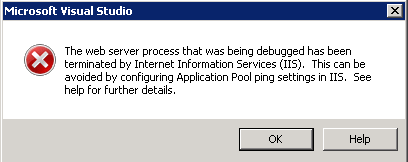
The web server process that was being debugged has been terminated by Internet Information Services (IIS)
Recently I was working on a project that required some debugging. I found myself getting the following error. Watch the video to see how I “fixed” the problem.

Client Object Model: SP.UI.ModalDialog.showModalDialog(options)
SharePoint 2010 has introduced a client object model. Now you can use JavaScript to access SharePoint data. Visit MSDN to have a look at the JavaScript API
http://msdn.microsoft.com/en-us/library/ee538253.aspx

Extracting the value of a SharePoint 2010 DateTimeControl using JavaScript
The Type or namespace name “DateTimeControl” does not exist in the namespace “Microsoft.SharePoint.WebControls”
If you create an empty SharePoint 2010 project in Visual Studio 2010 and then add a visual Web Part (Sandboxed) you will get an error when you try to debug.
The Type or namespace name “DateTimeControl” does not exist in the namespace “Microsoft.SharePoint.WebControls”
However you can add the DateTimeControl to a farm solution visual web part.
Create a SharePoint 2010 list using JavaScript client object model
Create a SharePoint 2010 list using JavaScript client object model. Get the .wsp here.
Publishing an Administrator-approved form template
If you add custom code to InfoPath 2010 form template you will need to publish the form as an “administrator-approved” form template. Publishing an administrator-approved template is not an intuitive process (in my humble opinion). So, I create a video that will give a step-by-step of how this is done.
How to upload a .wsp solution in SharePoint 2010
Have you ever gotten a .SharePoint 2010 wsp file and thought “Now what?”. Well there are two ways to do this. You can upload the .wsp to the solution gallary within the site collection and the create a sub-site based on the .wsp. The videos below shows this technique.
You can also create an entire site collection based on the .wsp. The video below shows this technique.
How do I: Install SharePoint 2010 on Windows 7
I recently installed SharePoint 2010 on a Windows 7 VM. I referenced this MSDN article http://msdn.microsoft.com/en-us/library/ee554869.aspx
SharePoint 2010 #RSS Feeds
One of the SharePoint configuration items that I tend to asked about is getting external RSS feeds to work, there are quite a few articles and blogs on the web that talk through specific problems, but I thought I would share my experiences with SharePoint & RSS.
So what is an RSS feed and why might we want to consume it, simply put and RSS (Really Simple Syndication) feed is a way used to publish often updated content in standard format that can be easily consumed. To find out if a site publishes an RSS feed, simply go to it and look for the RSS Feed symbol in Internet Explorer turn from Grey  to Orange
then just click on the feed button to view the feed address ( examples below use BBC News)

and then then view and subscribe to the feed.

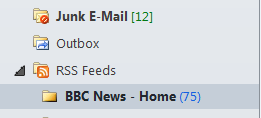
Also if you are using Outlook and sync with the Common Feed List (the one that Internet Explorer keeps)

then the feed will appear in your mailbox as well.
What does all this have to do with SharePoint I hear you ask, in a perfect world you would go to your SharePoint site, edit a page, add the RSS viewer webpart, edit the RSS Feed URL property…

… and as if by magic the shopkeeper appeared, no sorry wrong story, as if by magic your feed will be displayed…

but more often then not you get the error below… or something similar.

or if you are using the free and rather excellent Bamboo Solutions World Clock and Weather web part http://store.bamboosolutions.com/ps-55-5-world-clock-and-weather-web-part.aspx you might see the error below.

This is normally caused by one of 2 problems
Location of Proxy
Type of Windows Authentication used
Location of Proxy
If your SharePoint Web servers are located behind a proxy, they will need to know where the proxy is that traffic needs to go through, to do this updated your web.config for the site in question (if you have multiple WFE’s don’t forget to update each one)
Backup, then edit the <defaultProxy> section to make it look like this.
<defaultProxy useDefaultCredentials="false">
<proxy proxyaddress=”http://YourProxyServer” bypassonlocal="true" />
</defaultProxy>
Type of Windows Authentication
Once you have the settings about in place, the type of authentication in use at the web application level comes into play. If you are using NTLM, then you still may have a problem as your client side credentials will not be passed on your proxy server due the ‘double hop’ issue of NTLM so you can either set a bypass rule on your proxy to allow unauthenticated traffic out or configure your web app to use Kerberos authentication, once that is resolved your web parts should work as per below.


SharePoint Page Performance
Recently I have been asked to take a look a couple of client SharePoint systems that have been experiencing a few random performance issues with the odd slow page load times. So I thought I would highlight a few tools that can be used to help with this.
Task Manager
The first and most simple tool to use is Task Manager, run this on your servers to monitor general CPU and memory usage also drill down into individual process memory and CPU usage, if you show processes from all user, you will be able see the w3wp.exe processes and user names (Managed accounts) running those processes. This can help you in a multi-server, multi-web environment, where an app pool on a single server may not have started.
From a command line run c:\Windows\System32\Inetsrv\appcmd list WP to see the app pools currently running, each of these will have a PID.

If you add the PID column in task manager you can tie both together and see what’s going on with your app pools on each server.

Developer Dashboard
The developer dashboard is a real bonus in SP2010 for looking at page load issues, run it in ‘OnDemand’ mode, and use the icon next to your name to view the output.

This will tell you everything about your page execution time
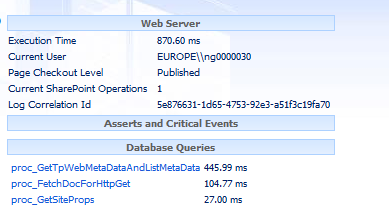
to enable the developer-dashboard run
Stsadm –o setproperty –pn developer-dashboard –pv “OnDemand”
An excellent article about the developer dashboard is here
Output Cache
SharePoint server can use the ASP.NET output cache, which can help can help improve page response times by caching ASPX pages in memory, this only works for Publishing pages, use Site Collection Administration settings to get to the Output cache settings page.

Once you have enabled the cache switch on “Enable debug cache information on pages” this will add an extra comment at the end of the HTML markup of a web page indicating if the cache has been used.
<!– Rendered using cache profile:Extranet (Published Site) at: 2012-06-07T12:11:42 –>
or not used
<!– 8 Output cache not used. Reason: User can view an unpublished version of the current page. –>
Object Cache
Enabled by default at 100 MB, you can make this larger but remember your memory allocations !
Blob Cache
This is probably the most over looked, but most useful cache available in SharePoint
The BlobCache this is disabled by default, but it allows files and images to be stored in a folder on your WFE server rather then being fetched from the SQL Server for each request.
This is of particular value for large image and movie files, to enable the BlobCache pick a non-system drive on your WFE for your store, then locate the line below in the web.config for the Web App in question and update the drive location and set the enabled value to true
<BlobCache location="C:\BlobCache\14" path="\.(gif|jpg|jpeg|jpe|jfif|bmp|dib|tif|tiff|ico|png|wdp|hdp|css|js|asf|avi|flv|m4v|mov|mp3|mp4|mpeg|mpg|rm|rmvb|wma|wmv)$" maxSize="10" enabled="false" />
Don’t forget to backup your web.config before making changes as it a quick way to break SharePoint, also no need for an IIS reset as SharePoint will re-read the web.config as soon as its saved.
for more information about SharePoint caching, see the white paper at this location.
http://www.microsoft.com/en-us/download/details.aspx?id=12768
Happy SharePointing !
Follow @NeilKing41


 SharePoint (and Project Server) Shenanigans
You must be logged in to post a comment.