Archive
#O365 #SharePoint Online–Information Rights Management #IRM–what works, what doesn’t in a business context-Part 2
This article is part of a series:
In the first article of this series we discussed what IRM was, some scenarios and high level device supportability.
Let’s dig a bit deeper with what works in SharePoint Online:
Setup within SharePoint Online.
So I could talk about the Tenant Administration side of things but honestly, its not difficult, and these articles are more business focused. If you are interested, take a look here:
Assuming you have Information Rights Management (IRM) turned on in your Office 365 tenant, you will have the following options in the settings of your lists and libraries:

Do not get confused with Information Management policy settings at the bottom, this is entirely different involving audit trails, bar coding etc.
Once you click, you get a screen as follows (pre-filled in for my example in this blog series)

Most of these are fairly self explanatory, but allow me to get into specifics on some of these items:
Set additional IRM library settings > Do not allow users to upload documents that do not support IRM
Seems, kind of vague and initial Google (Bing…) searches did not help me, after some digging however, we find something… only certain file types are supported within SharePoint:
- The 97-2003 file formats for the following Microsoft Office programs: Word, Excel, and PowerPoint
- The Office Open XML formats for the following Microsoft Office programs: Word, Excel, and PowerPoint
- The XML Paper Specification (XPS) format
And in my further research, for Word, Excel and PowerPoint, your standard office suite has been supporting this capability since Microsoft Office 2003 on Windows and since Office for Mac 2011 on OSX.
But what about Multi-factor Authentication I hear you cry out…
Well that was supported in Office 2013 in an update around November 2014 (last year): https://blogs.office.com/2014/11/12/office-2013-updated-authentication-enabling-multi-factor-authentication-saml-identity-providers/
The end result of this is fairly painless to the user. They upload unprotected files (that are supported). SharePoint protects the files and when you open them from SharePoint, you get this:

Word opens the file, checks the RMS server for the permissions against the user opening the file and if you have the rights, you can see the document.
If you don’t have the rights, you get this:

Further Gotcha’s / Things we need to know: PDF Support
Essentially what we are seeing here is that we need to have a level of support for IRM in both the server (to set the policy) and on the client (to enforce the policy)
As stated above, Microsoft Office has been supporting this in some form since 2003 for Windows and 2001 for the Mac.
On the Adobe Reader side of things, it is a little different.
Adobe Reader does not support IRM protected PDF’s unfortunately and when you try you get this response:

So for the well initiated or hacker minded, I know what you are thinking… Microsoft Word can open PDF’s… what happens then:
Well they thought of everything:

Thankfully you can use some alternative PDF Readers. Here is the run down on supportability:

Foxit Reader (Free) does display the PDF but with a suggestion that you should buy the RMS plugin:

I can confirm that you can view the whole document with the free product with the IRM restrictions in place. However the watermark shown above appears on every page.
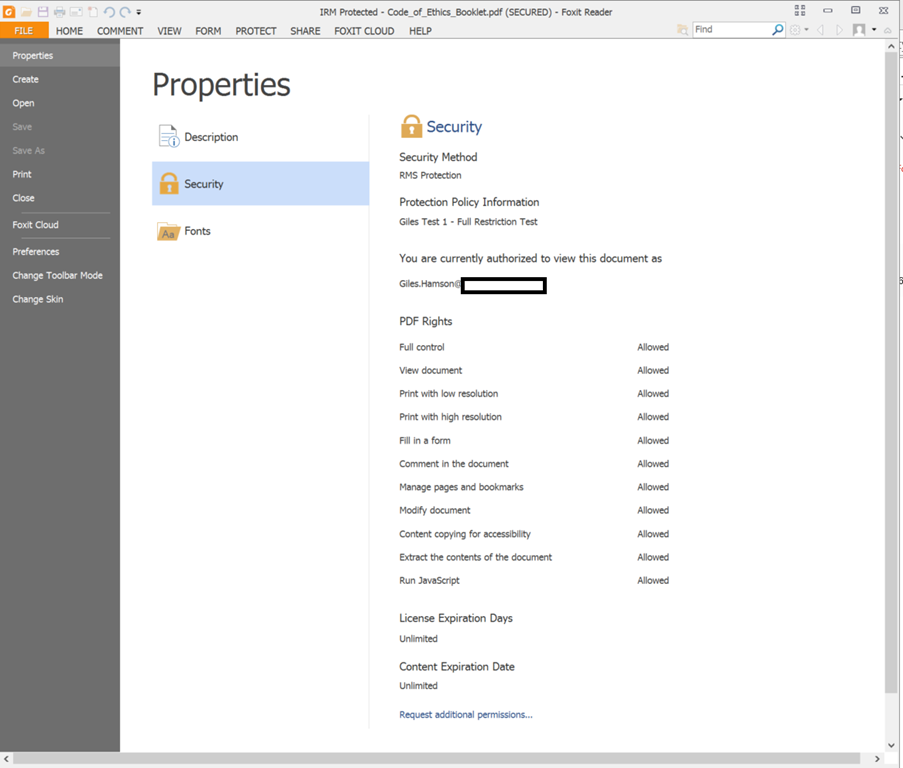
Lastly, just to confirm the security Foxit supports for IRM PDF files:
Further Gotcha’s / Things we need to know: Other / Unsupported File Types
If you attempt to upload a file that is unsupported, you get the following message from SharePoint.

File Type Conclusions
So bottom line is, if you need to protect Word, Excel & PowerPoint files than this solution provides a way to protect content without much trouble to the end user.
If you want to use PDF files as well then you will need to use Fixit or NitroPDF on Windows and unfortunately for OSX, it won’t be supported.
Lastly, all examples so far shown are using a standard custom list with attachments. The functionality in a document library is the same in 99% of cases.
The Next Post
As I look further and further into this topic, more and more questions are unraveling. In the next post(s), I shall be exploring:
- What happens when we use Windows Explorer view with a document library?
- How does the Microsoft RMS plugin help us for unsupported file types?
I am sure there will be more questions as I look further, but as this is a pressing concern for my company, you will see more posts soon. Till the next time…
Useful Links:
Microsoft Office Compatibility (older information): https://technet.microsoft.com/en-us/library/dd772650(v=ws.10).aspx
Microsoft Office 2007 IRM support: https://support.office.com/en-ca/article/Information-Rights-Management-in-the-2007-Microsoft-Office-system-afd5c5a9-e6fb-4ce7-b24c-eadcc9ee3fe8
Microsoft Office 2003 IRM support: https://support.office.com/en-au/article/Information-Rights-Management-in-Microsoft-Office-2003-495d2755-3c0d-44fb-9fcd-451c1c0e8c9e
Microsoft Office 2013 MFA Support: https://blogs.office.com/2014/11/12/office-2013-updated-authentication-enabling-multi-factor-authentication-saml-identity-providers/

#O365 #SharePoint Online–Information Rights Management #IRM–what works, what doesn’t in a business context-Part 1
I know I said I would get to the new features of Document Management in SharePoint 2016, and the plan is still do to that… but at work I have come across the need to use IRM for one of my internal customers. So without further ado…
The Scenario
Migrating a site with Restricted Confidential data from On-Premise to SharePoint Online. Everything within the network is nice and secure requiring two factor authentication to connect to the VPN from a domain connected laptop. It is nice and secure! Couple that with strict password and domain communication policies, security within the network seems good.
Of course, now as a company we want to take advantage of the great savings offered by Office 365. Office 365 doesn’t require a VPN to connect any more and suddenly the need for information rights management feels way more important than ever.
Multi Factor Authentication
So combat some of this, we can require multi-factor authentication to connect to the Office 365 tenant. If you do this properly, then you will have a nice, unhindered experience within your corporate network and a multi-factor authentication login from outside your network. (Please note you will need Microsoft Office 2013 as a client for outside your network).
This is all well and good but that doesn’t stop you logging into your personal PC and downloading the file using your corporate account. That is where IRM comes in…
Information Rights Management (IRM)

As a brief overview, IRM essentially controls what a user can do in a client application regarding a document based on who they are logged in as and the group they belong to.
For Example:
Corporate Network
You have a protected Word document and you are authenticated inside your corporate network. You have permissions to View, Print, Edit the file etc…
vs.
You have a protected Word document and you open the file on your personal computer. You cannot View, Print or Edit the file regardless of how you received the file (link to a SharePoint site, an Email Attachment or perhaps via a USB drive).
Personal Computer
So ideally what we are looking for is this:
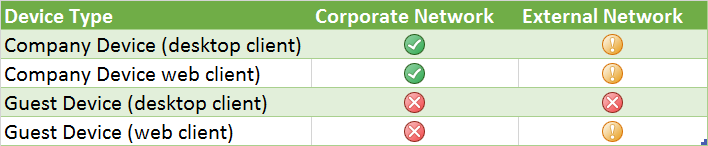
And just so we know what I mean by the Red, Amber, Green symbols above…

Guest Devices
Of course in this very modern bring your own device to work world, guest devices means a lot of different platforms and form factors.
- iPhone
- iPad
- Android
- Windows Phone
- Windows RT (Maybe…)
- Windows
- Mac OSX
- + others no doubt (blackberry for example…)
- SharePoint specifics such as setup, file type support, unsupported file types…
- What you can do about unsupported file types etc.
Thankfully, thanks to Microsoft view on being portable in this world is not tied to device, they have for the most part covered all devices with their Microsoft Office suite which fully covers IRM protection standards across the above listed platforms.
- However, in this changing world, there are always some caveats… this series of articles will begin to discuss…
Stay tuned for the next article when we talk about:
Useful links for learning…
- High Level Overview: https://blogs.office.com/2012/11/09/whats-new-with-information-rights-management-in-sharepoint-and-sharepoint-online/
- RMS Client Install: https://portal.aadrm.com/home/download/ (Windows, Mac, Windows Phone, iOS, Android)
- Information Worker training: https://technet.microsoft.com/en-us/dn308546
- Overview Videos: http://blogs.technet.com/b/rms/archive/2013/11/25/free-rms-training-videos-an-interview-with-synergy-advisors.aspx

#ProjectServer and #SharePoint 2010 / 2013 September 2015 Cumulative Update #PS2010 #SP2010 #PS2013 #SP2013 #MSProject
|
I am a Project Server and SharePoint consultant but my main focus currently is around Project Server.
I have been working with Project Server for nearly five years since 2007 for a Microsoft Gold Certified Partner in the UK, I have also been awared with the Microsoft Community Contributor Award 2011. I am also a certified Prince2 Practitioner. This article has been cross posted from pwmather.wordpress.com (original article) |
Just a quick update to the post below:
The Project Server 2013 September 2015 CU Server Roll up package also known as the Uber packer is now available:

#ProjectServer 2016 Preview is now officially available #PS2016 #MSProject
|
I am a Project Server and SharePoint consultant but my main focus currently is around Project Server.
I have been working with Project Server for nearly five years since 2007 for a Microsoft Gold Certified Partner in the UK, I have also been awared with the Microsoft Community Contributor Award 2011. I am also a certified Prince2 Practitioner. This article has been cross posted from pwmather.wordpress.com (original article) |
Project Server 2016 preview is now officially available (it has been in the SharePoint 2016 preview for a few weeks). See the link below for details:
Download today and take a look.
#ProjectServer and #SharePoint 2010 / 2013 September 2015 Cumulative Update #PS2010 #SP2010 #PS2013 #SP2013 #MSProject
|
I am a Project Server and SharePoint consultant but my main focus currently is around Project Server.
I have been working with Project Server for nearly five years since 2007 for a Microsoft Gold Certified Partner in the UK, I have also been awared with the Microsoft Community Contributor Award 2011. I am also a certified Prince2 Practitioner. This article has been cross posted from pwmather.wordpress.com (original article) |
The Office 2013 September 2015 updates and cumulative updates are now available, please see the links below:
Project Server 2013 September 2015 CU Server Roll up package:
***There is no cumulative / server roll up package this month*** See: http://bit.ly/1K7feXI
Project Server 2013 September 2015 update:
http://bit.ly/1OcxULz
Project 2013 September 2015 update:
http://bit.ly/1K7fg1N
Also worth noting, if you haven’t done so already, install Service Pack 1 http://bit.ly/1uorn2C first if installing the September 2015 CU.
The Office 2010 September 2015 updates and cumulative updates are now available, please see the links below:
Project Server 2010 September 2015 CU Server Roll up package:
http://bit.ly/1K7feXJ
Project Server 2010 September 2015 update:
http://bit.ly/1OcxW6g
Project 2010 September 2015 update:
http://bit.ly/1K7ffdW
SP2 is a pre-requisite for the Office 2010 September 2015 updates.
As always, fully test these updates on a replica test environment before deploying to production.
#SP2016 Technical Preview–testing the new stuff–part 1–Document Libraries–Accessibility
As part of the new features of SharePoint 2016 On-Premise there are some bold promises that have been causing issues with my customers for a long time that are supposedly fixed.
I intend to create some post that tries out these known limitations and see the results.
For this, I have created a standard Team Site out of the box and not turned on any features that are not turned on by default (yet…).
Here is a quick summary of what I shall be looking at for the next set of posts:
- Document Library Accessibility (https://msdn.microsoft.com/en-us/library/Mt346121(v=Office.16).aspx#doclib)
- Durable Links
- File names – expanded support for Special Characters (https://msdn.microsoft.com/en-us/library/Mt346121(v=Office.16).aspx#file)
- Image and Video Previews within a document library (https://msdn.microsoft.com/en-us/library/Mt346121(v=Office.16).aspx#preview)
- Large file support (https://msdn.microsoft.com/en-us/library/Mt346121(v=Office.16).aspx#largefile)
- Open Document Format (ODF) support (https://support.office.com/en-us/article/Set-Open-Document-Format-ODF-as-the-default-file-template-for-a-library-bf30a61d-1601-486e-8fa2-924bc5ea303e)
That’s quite a lot for a single post, so this may end up being a multi part situation, but you have probably already gathered, I tend to write these blogs as I try things out. So without further ado…
1. Document Library Accessibility
For this test I am using the standard Shared Documents, document library that is created with the team site by default.
Accessibility it always a hot topic for me as I used to work a lot in the education and charity / not for profit sectors when I was back in the UK. Accessibility mattered especially when working with the blind.
Keyboard shortcuts are provided for the following document tasks according to the documentation provided by Microsoft. Let’s give them a go:
- Alt + N – New – This worked with no issues and in a standard document library, I got the Upload Document dialog. This is dependent on the behavior of the default content type on the library. (Site Pages creates a new Wiki Page for example)
- Standard Document Library Example:

- Site Pages Example:

- Alt + E – Edit – In IE11, I could not get this to work as it kept invoking the edit menu in the browser. Tried CTRL + E, CTRL + Alt + E with a document selected and not selected but to no avail.
- Alt + U – Upload – Same functionality as Alt + N in the Shared Document library. Under the Site Pages library, it activated the upload dialogue. So it is slightly different.
- Alt + M – Manage
- Alt + S – Share – Either having a document selected or not, this always highlighted and set focus on the Search Box for me
- Alt + Y – Synchronization – Opened the One Drive for Business web dialog to start the sync
- Sync Example:

This is the Technical Preview, so maybe it will change with the full release or perhaps I am not doing something right. These tests were carried out with Accessibility mode turned on and off. The results were the same in both cases.
So I have had this post going on an off for a couple of days now, so it will definitely be multi part. Let’s get this one out there and we will work on Durable Links next time around.
Till the next time…

#SP2016 Technical Preview–SharePoint 2010 Workflows still available!
So I am running a project internally at the moment about moving away from a vended product to a capability in Office 365 / SharePoint Online using out of the box functionality as much as possible (cost saving exercise) – The Oil & Gas industry is hitting hard times if you haven’t seen commodity prices lately!
Anyway, this interim / temporary solution requires me to send an email to an external user.
With the SharePoint 2010 workflow engine, you could do this with a standard SharePoint Designer workflow.
In SharePoint 2013 they essentially deprecated the SharePoint 2010 workflow engine and introduced a new Azure based version.
This newer workflow engine requires the user that you send an email to an authenticated user with Active Directory / Azure Active Directory. This causes me an issue for my temporary solution in SharePoint Online!
Can Nintex Help?
I initially thought… perhaps Nintex Workflow for Office 365 Workflow can help?
Alas, it is based on the SP2013 Workflow engine, so no luck there…
(To be fair, you can’t really blame Nintex for supporting the current standard… I would do the same)
What are my options?
1. Add the external users to Azure AD – Not really an option in this case right now
2. Create a 2010 platform workflow with a single step – Email User. Call this workflow from the 2013 workflow and hope it stays supported – For this temporary solution, this may work but we all know how temporary often becomes permanent.
3. Create my own code / action to call a web service and send the email – This would work but for this temporary no code solution, it feels overkill. A good backup however, if the solution turns permanent.
4. Find a 3rd party product that can add actions. PlumSail has a package: https://plumsail.com/workflow-actions-pack/. $400 per year. – This is also a good option but there is of course this gotcha!
There isn’t going to be a SharePoint Designer 2016.
SharePoint Designer 2013 however still works.
Conclusions
Now that I have my newly installed SP2016 On-Premise environment and I can confirm that this is still currently available when you connect SharePoint Designer 2013 to a SP2016 On-Premise server.

I can also confirm that as of the time of writing, it is also still available in SharePoint Online.
So for this “temporary” project, this is likely the way we will go, knowing full well, it might go away at some point.
Stay tuned for more posts about SharePoint 2016 as I answer my own questions about the real business issues I face.

#SP2016 Tech Preview -web templates from Bill Baer
just a very short post as I know I will want to find this again during the lifecycle of SharePoint 2016.
Web templates for the SP2016 Technical Preview: http://blogs.technet.com/b/wbaer/archive/2015/09/07/sharepoint-server-2016-it-preview-web-templates.aspx
#SP2016 Technical Preview – The Wizard Completes…
As I am going about my Labor Day weekend, I am slowly installing SP2016 for my development box at home.
This is part 3 of this mini blog series as I detail what I encounter and find new and interesting things to explore…
Where we left yesterday was letting the configuration wizard run (usually a big no no for people, but you have to try these things now and again… I know it leaves your configuration databases with GUID’s etc… but for the sake of this testing period, I’m OK with it.)
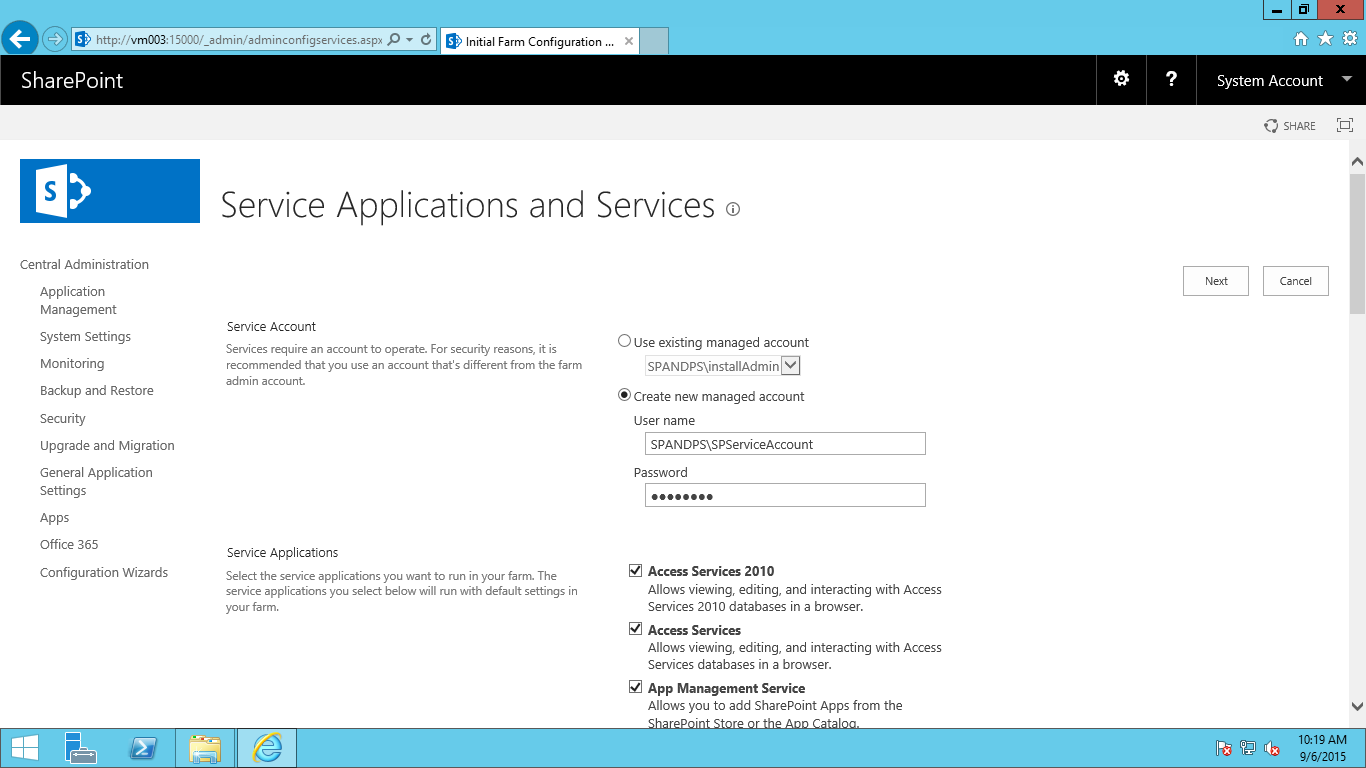

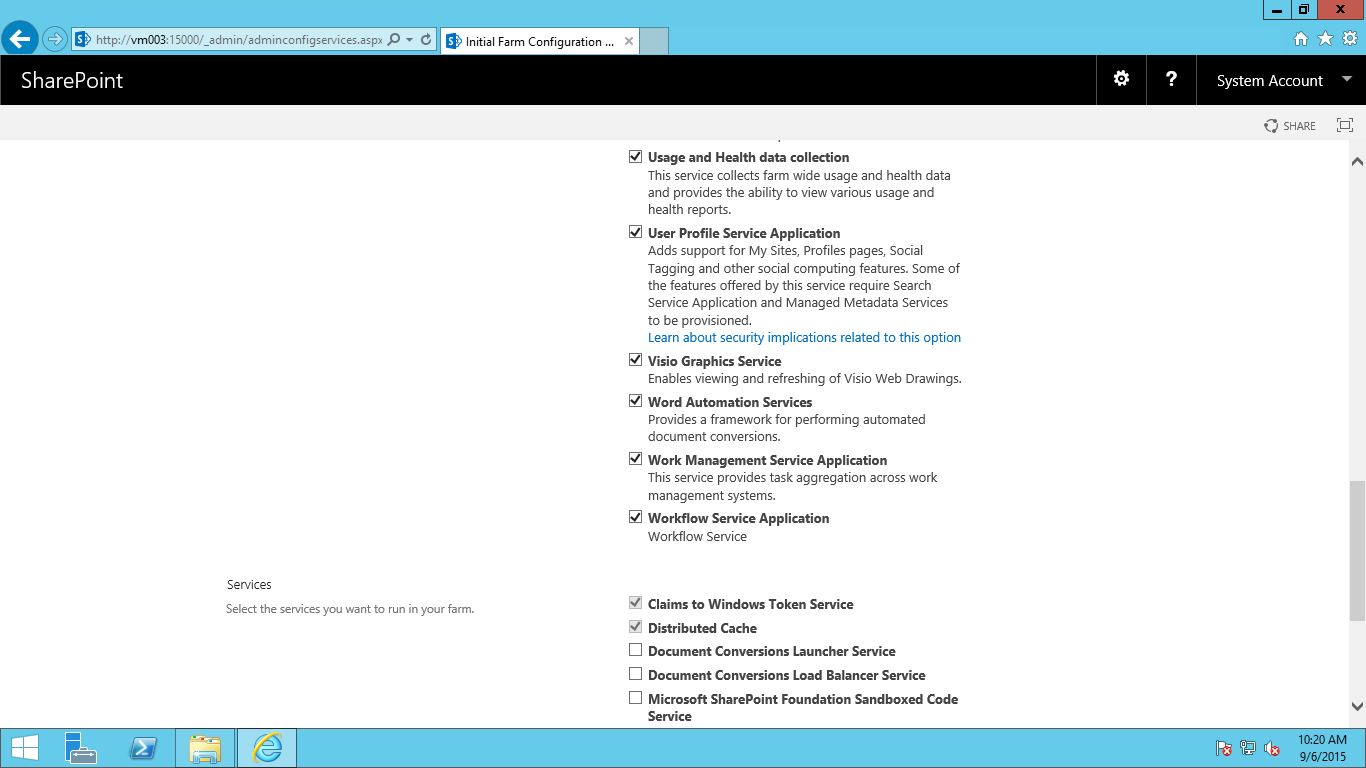
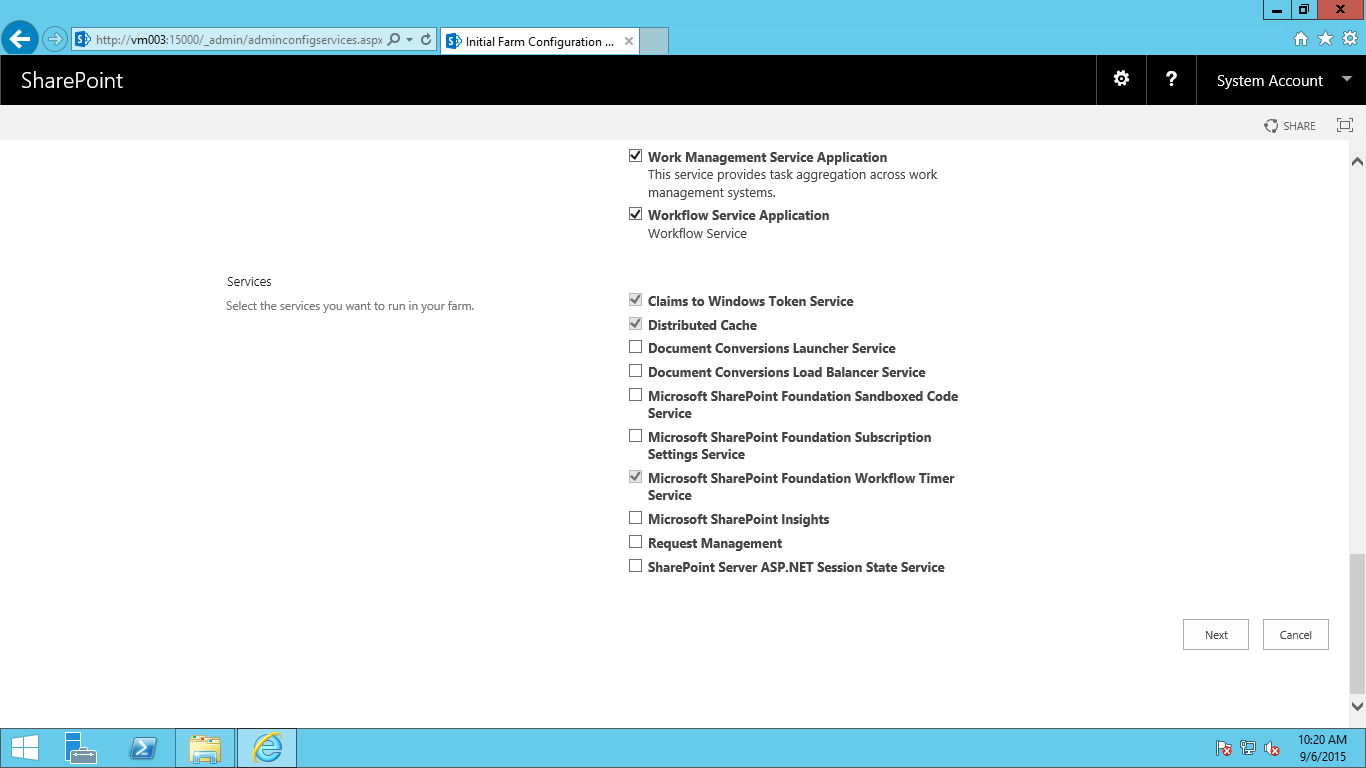
So to start with, we choose the services. I am keen to know how well the default runs so I am leaving the check boxes as they are.
We kind of have a new Managed Service:
- Project Server – Now part of the standard SharePoint installation. This should make patching and life in general easier! (Previously it was a separate install and quite easy to get the versions out of sync if you weren’t careful)
We also have the Services section at the bottom with something new…
- Microsoft SharePoint Insights – not too much to go on for this one with the documentation but Bill Baer suggests that future unannounced functionality is coming in this MSDN Forum post last week: https://social.technet.microsoft.com/Forums/office/en-US/b5d745f3-e4a0-4879-aaff-1cb157cb718a/the-service-instance-microsoft-sharepoint-insights-could-not-be-provisioned-because-of-the?forum=SP2016
I press Next and we get the familiar working on it screen from SharePoint 2013 and are then requested to create a site collection:

Once created, we get our success screen of all services:
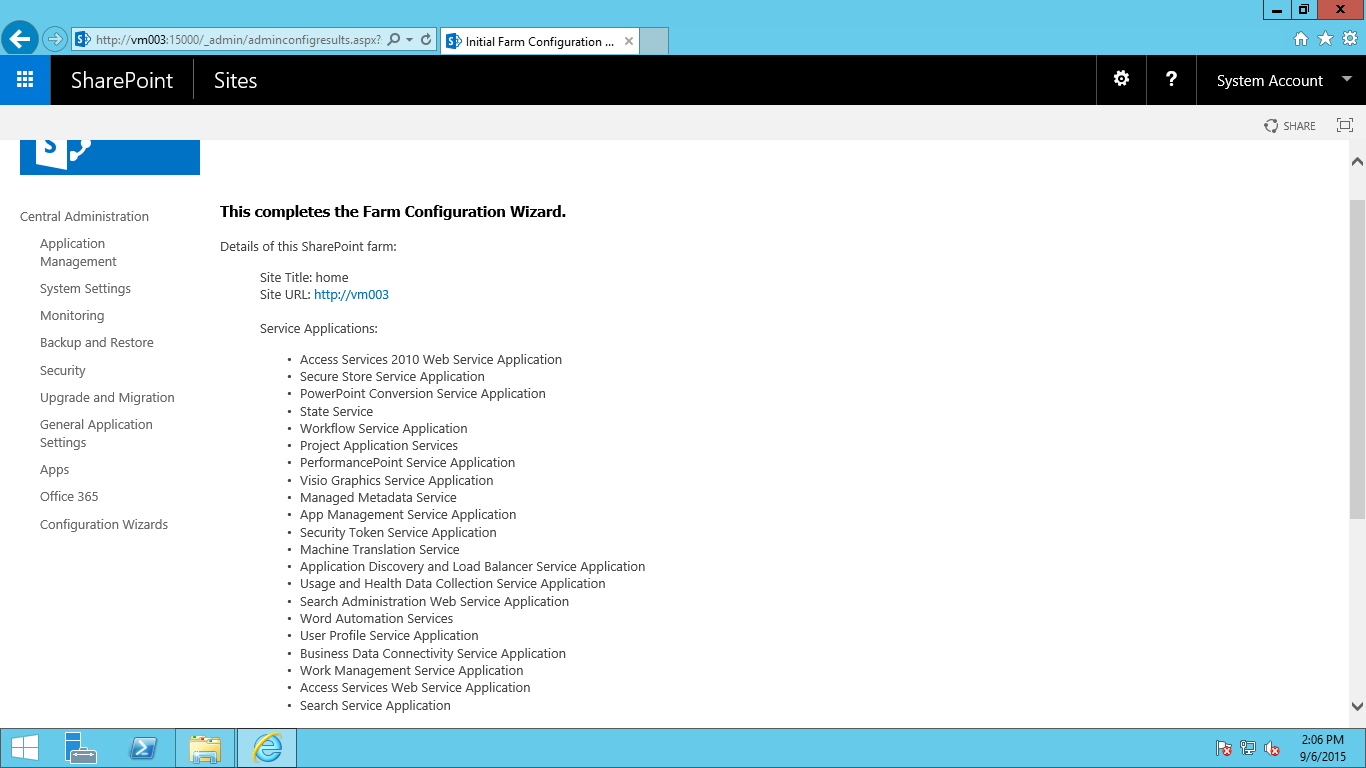

On this screen we have the ability to configure the new Hybrid features with Office 365 such as Search integration (via a new managed service) and OneDrive cloud integration (I shall investigate this in a later post)
Lastly, I check that the site collection worked as expected:
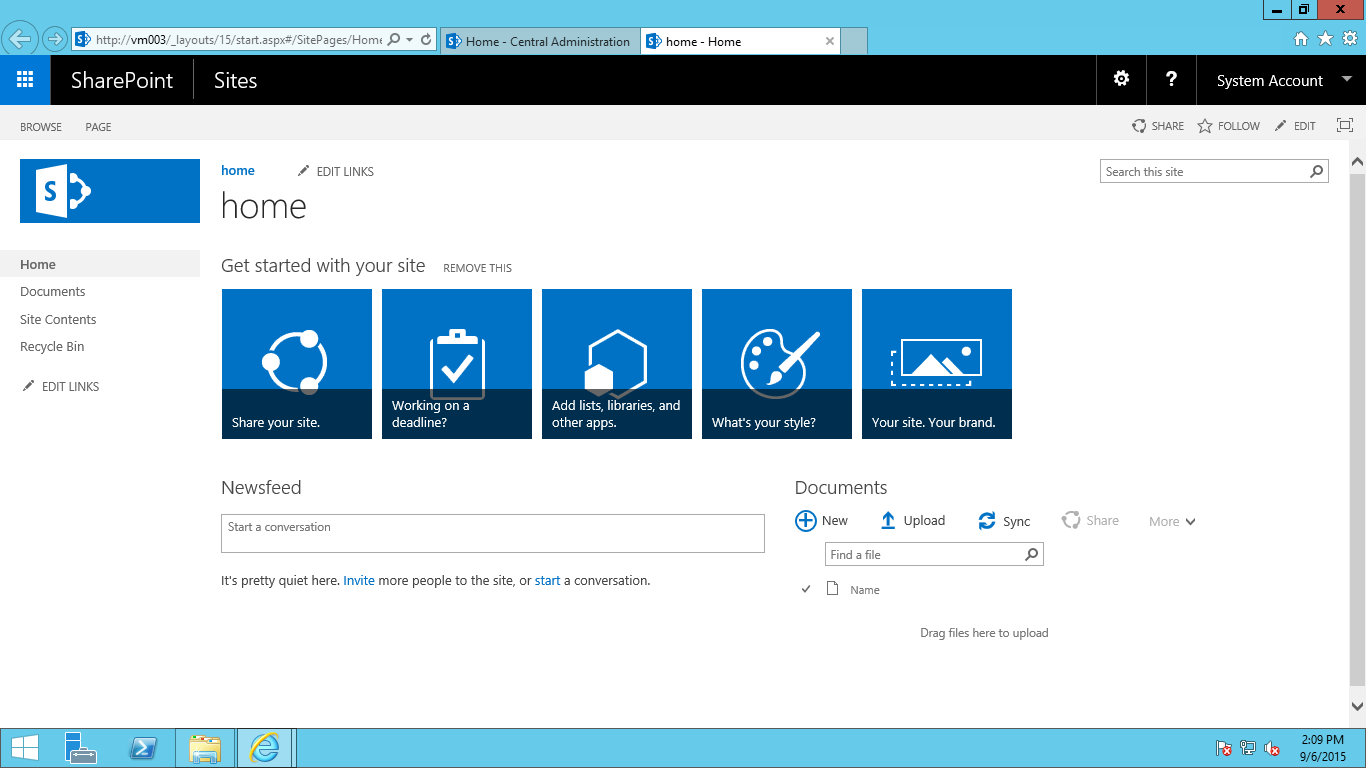
The site collection (team site) came up as expected with very little change apart from the top bar which has the app launcher on the left and the new site actions / user menus on the right. This resemble the ones that have been on Office 365 for a while now.
You can find out a bit more of the end user experience regarding the App Launcher for Office 365 in this blog here: http://epmsource.com/2014/12/07/customising-the-nav-bar-app-launcher-in-office-365/ (Thanks Alex :)). On initial inspection, the capability is not quite the same here but I will be investigating further.
In Office 365 they have just released the capability of adding your own icons via the tenant admin: https://support.office.com/en-us/article/Add-custom-tiles-to-the-My-apps-page-and-app-launcher-1136115a-75af-4497-b693-640c4ce70bc6 – I will confirm that this is available On-Premise also.
Lastly, if you want to code your own via an Azure App…https://msdn.microsoft.com/en-us/office/office365/howto/connect-your-app-to-o365-app-launcher – This is again for Office 365 but I suspect there is similar capability for On-Premise.
Looking at the site settings, we have a couple of new things (or perhaps things I hadn’t noticed in 2013 SP1…)

- Site Closure and Deletion policies – this will be useful for those operational cleanups and potential compliance requirements large enterprises have.
- Search and offline availability – Search availability is not new, but the offline availability I do not remember being in SP2013 via this menu (perhaps permission levels with remote interfaces). Again this could be good for compliance purposes, especially for Legal sites.
- Lastly, Site collection health checks… I need to start these running but if we can code our own health checks based on company governance… this could be awesome!
Anyway… I am off to a baseball game in an hour… one of the last games of the season for the Round Rock Express. They are playing the Iowa Hawkeyes! This is the first game I have seen since moving over here… exciting stuff!

VS.

#SP2016 Technical Preview – installed…
Part 2 of my mini blog posts as I install SP2016 Technical Preview over this Labor Day weekend.
We’re installed! I chose Single Server Install right now as I have limited resources on my host and it is my intention to turn this into a DEV box for future App Model (Add In) projects.

Click Finish and Central Administration starts to load…

by all means send my info to the Customer Experience Program… it’s what this early access is all about!
Lastly, as you can see, Central Administration looks pretty familiar. For this Single Server Install I shall kick off the configuration wizard and see which managed services it installs by default.

Stay tuned for the next post as I kick off this process and blog the results…


 SharePoint (and Project Server) Shenanigans
You must be logged in to post a comment.