Archive
Getting started with #ProjectOnline Part 6 #PS2013 #Office365 #Project #PPM #SharePointOnline #PM #SP2013
|
I am a Project Server and SharePoint consultant but my main focus currently is around Project Server.
I have been working with Project Server for nearly five years since 2007 for a Microsoft Gold Certified Partner in the UK, I have also been awared with the Microsoft Community Contributor Award 2011. I am also a certified Prince2 Practitioner. This article has been cross posted from pwmather.wordpress.com (original article) |
In part 6 of the getting started series we will look at creating a project plan template and a new project site template. This closely ties into the previous post on EPT’s:
Firstly we will look at creating a project plan template, this is done using Project Professional 2013. Launch Project Professional 2013 and connect to the Project Online instance. If you are unsure on how to connect Project Professional 2013 to the Project Online instance, see post 3 as we covered the required steps there. Once Project Professional is launched, a blank project (Project1) is loaded:
We will use this to create our project plan template. If you already have a project file (.mpp) that you wish to use as a template you can click File > Open to open this file and proceed to the steps where we save the template. Continuing with our blank Project1 file, we will create our plan structure, the details are not important for the purpose of this post so we will keep it simple. The following plan structure has been created:
Now click File > Save then click the Save button under Project Web App:
In the dialogue box, give the template a name and select Template from the Type menu:
Click Save then select the type of data you want to remove from the template:
Click Save. Now close the new template and click File > New > Enterprise and you will see the new template:
Selecting the template will launch a new project with the project plan schedule created in the previous steps. This is the project plan template created. We will now move on to the project site template, once they are both complete we will add them to the EPT.
The site template is a bit more involved than the project plan template. Firstly, launch your chosen browser and navigate to your Project Web App site:
We need to create a new site that will be modified to meet our requirements, this site will then be saved as a template. To create a new site click the settings cog in the top right hand corner then Site Contents:
Scroll down to subsites and click the + new subsite link:
Give the site a name and URL and select the template used to create your new site:
You will need to select Project Site so that Project Online recognises this as a valid project site. Scroll down and click create. You will then see the new site:
Now we have a site, we need to think about what we need to capture or see on this project site. For the purpose of this post we will just create one new example list and also modify the Issues list, that will give you the idea on how to customise the site as required. Firstly we will create the new list, this is going to be called “Marketing Ideas”. To create this list click the settings cog then Add an app:
Click Custom List then enter the list name:
Click Create and you will see the new list appear on the quick launch menu and the site contents page:
Now we need to think about the data we need to capture for each idea. For the purpose of this post we will keep it simple and have the following columns on the new list: Title, Marketing Area – this is choice field, Idea Description and Idea Cost Estimate. Before we create the new columns, there are several options here, create the columns locally (on the new list) or create them central and have the columns centrally managed. I know you would all prefer the centrally managed option so we will go with that! To make these centrally managed we will create the new columns as site columns on the Project Web App site. Navigate back to the Project Web App Site and click the settings cogs then site settings:
Click Site Columns under the Web Designer Galleries:
Click Create:
A new page will display:
Enter the column name, in this case it will be “Marketing Area” as Title will already exist on the list so we don’t need to create that. Change the type to Choice and scroll down to the group section, create a new group to hold all of the custom columns:
Now scroll down to the choice box and update the values as required:
Update other settings as required then click OK to create the new column and group. Click create again to create the other columns, type the name, choose the type and set it to the new custom group (select it from the list of existing groups), update any other settings and click OK. For this example I have three columns in the custom group:
That is the new site columns created for the new list, now we need to create a site content type to hold the new columns. Think of the content type as the container or wrapper. To create the content type click the Site Settings link on the settings cog menu then click Site Content Types under the Web Designer Galleries:
Click Create and complete the form:
Give the content type a name, selected the parent content type from as “List Content Type” then selected “Item” as the parent content type as we need this for list items. I also created a new group to hold this content type and any others i create. Click OK. The new content type will be created:
Click the Add from existing site columns link, we will now add the three columns created earlier. I changed the “Select columns from” menu to the custom site columns group so that only my custom columns are displayed then added the three columns:
Click OK. You can then change the column order if required using the “Column Order” link:
That is our new example content type created, we are now ready to add this to the new Marketing Ideas list. Navigate back to your new site where the new list was created and click the Marketing Ideas list (or the name of your new list):
Click the list tab then list settings:
Click Advanced Settings:
Select Yes for the management of content types:
Click OK. Now scroll down and click the “Add from existing site content types” link:
Change “Select site content types from” menu to your custom group then add your custom content type:
Click OK. Now click the “Change new button order and default content type” link. Set the item content type to not visible and set the new content type position to 1:
Click OK. Now go back to the advanced settings option and turn off the management of content types:
Click OK. Now set up any views you want on the list, this is done at the bottom of the settings page. For the purpose of this post I have just updated the All Items view and added my new columns:
This new list is now complete. Clicking the new item button on the list shows my new columns:
Now we will look at modifying the Issues list. Firstly we need to activate a site feature so that the default Project Server / Project Online project site lists are created. From the new site click the settings cog then Site Settings:
Click Manage Site Features and scroll down to the “Project Web App Connectivity” feature and click Activate:
Navigate back to the site homepage and you will see three new links appear on the quick launch under the Recent heading:
Now we have the Issues list we can modify it. The Issues lists will contain columns already, I would avoid changing any of the default columns as this can break some functionality in Project Online. For the purpose of this post, we will just create a new additional column called “Highlight”, this will be a yes / no column. Like the Marketing Ideas list, this new column will also be created as a site column on the Project Web App site then added to a new site content type on the Project Web App site. I wont cover those steps again as it is the same process as before when we created the three marketing ideas columns. We also need to create a new site content type for holding the new column/s. Again, I won’t document this as the process is the same, create a new site content type and add the highlight site column. Continuing with the Issues list changes (assuming you have set up the required columns and content type), click the Issues list then click the List tab followed by the List settings. Click advanced settings and allow the management of content types:
Click OK. Now scroll down to “Add from exiting content types” link, update the “Select site content types from:” menu to the custom site content type group you created (saves you scrolling to find your new content type) then add the Issues content type:
Click OK. Now scroll down and click your new content type to load the settings:
Click the link “Add from existing site or list columns” and you will see the page below:
These are the default Issues list columns, add all of the columns:
Click OK. This has added all of the local Issue list columns to the new custom Issues content type on the Issues list:
Click the Settings link at the top of the page to go back to the list settings page. As before with the custom list, click the “Change new button order and default content type” link. Set the Project Site Issue content type to not visible and set the new content type position to 1:
Click OK. Now go back to the advanced settings option and turn off the management of content types:
Click OK. The last thing to do is update / create any views. For this example I will create a new view based on the default “All Items” view but filter for items that are highlighted. To do this, scroll down to the bottom of the page and click “Create view”. Under the “Start from an existing view”, click “All Items”:
Once the new view page loads, give it a name, in this case I will call it “Highlighted Issues”. Add the new Highlighted column to the view by checking the check box, update the position as required. Scroll down to the filter settings and select the Highlighted column is equal to Yes as displayed below:
Click OK to save the new view.
That is my lists configured, well for the purpose of this post anyway. In reality you would probably make many more changes but that should give you a good idea / starting point. The next change that I will do to my site is update the navigate menu, currently it looks like this:
I want to change the order. To do this click the settings cog then Site Settings. Under the Look and Feel heading, click Navigation. Scroll down to the “Structural Navigation: Editing and Sorting” section and you will see something like the image below:
I want to move Issues, Risks, Deliverables and Marketing Ideas to the main part of the menu and remove them from the Recent heading. I will walkthrough updating the Issues link so you get the idea. Select Current Navigation:
Click the “Add Heading…” button and you will see a new pop-up:
Complete the details as required:
To add the correct URL if you are unsure, click Browse, then select the Issues list and click Insert:
Click OK and the new link will appear at the bottom:
With the new Issues link selected, click the “Move Up” button until the link is in the correct place:
Now select the original Issues links under the Recent heading and click “Delete”. Repeat these steps for the other lists / navigation links. Once complete it will look similar to the links below:
Once the links are all updated click OK on the navigation settings page. You will now see the quick launch menu updated:
There are two more changes that I want to do to this site before it is ready to save as a template, the next is to update the homepage. I want to remove the large “Get started..” web part and add my own. Firstly lets edit the page to remove the current “Get started…” web part. Click the settings cog then Edit Page, the page will now be in edit mode:
Click the drop down menu next the to “Get started..” web part and select Delete:
Click OK and the web part will be removed. Now I want to add my own tiles to the homepage. Firstly I need to create another custom lists called the “Promoted Links”. Lets stop editing the page, click the Page tab followed by Stop Editing:
Click the settings cog then Add an app. Scroll down the list and click “Promoted Links”:
Give the list a name such as Site Links and click create. You will now see the new list:
Click the list then click the “All Promoted Links” link and add your links. The links I have added are below:
Notice the use of relative links, don’t use absolute (full) URLs.
I have linked to my Issues, Risks and Marketing Ideas lists. The images are stored in the site collection image library so that they are centrally managed and can be updated easily. Now the list has been created we need to add the web part to the homepage. Navigate back to the site homepage and click the settings cog then Edit Page. Click the Add web part link:
You will then see the web part gallery at the top of the page:
In the Apps category you will see the name of the custom list you just created, in my case I see Site Links:
Select the app and click the Add button. You will now see the tiles (links) appear on the page. Move the web part to the correct web part zone as required. Just drag the web part to the desired zone. I have moved this below the Project Summary:
Click the Page tab followed by Stop Editing:
One last thing, you will notice I now has the “Site Links” under the Recent heading:
I want to remove this. Click the settings cog then Site Settings. Under the Look and Feel heading clicking Navigation. Scroll down to the “Structural Navigation: Editing and Sorting” section , select the link under the Recent heading and click Delete. Click OK then navigate back to the site homepage and it will look something like the image below (if you have been following):
I don’t want to see the Site Links title, so I will edit the web part,click Page then Edit Page or use the Edit Page option on the settings cog menu:
Click the “Edit Web Part” link on the drop down menu for the web part:
Expand the appearance section and change the Chrome to None:
Click Apply then click OK. Now click the Stop Editing link on the ribbon. The homepage will now look like this:
Finally I want to update the theme, to do this click the settings cog then “Change the look” and the following page will load:
Click the current design (or chose a different) then choose the updated theme using the controls on the left:
I went for the following:
Click “Try it out” then “Yes, keep it” if you are happy. Now the site will have updated:
That’s it my site is ready to be saved as a template. To so this, click the settings cog then Site Settings. Click “Save site as a template” under the Site Actions menu. Give the template a title and name. Also check the box to include content:
As we are including content make sure no lists or libraries have any data as this data will then be created on all sites created from this template. The only list on my site that will have data is the “Site Links” list, this is fine. Other lists or libraries are fine to have data too but as long as you are aware this data will get created on all sites that are created from this template. We have to include content for two reasons, one so our tiles on the homepage work and two so that the “Change the look” functionality works on new sites. If you don’t include content you will not have the tiles on the homepage and you will have an issue with the themes, the themes issue is described here. Click OK to save the template. After a short while you will see the success message:
Click OK. The template is now ready and available to use. The final steps is to add the project plan template and the site template to the new EPT. To do this navigate back to the Project Web App site and click the settings cog then PWA Settings. Under the Workflow and Project Detail Pages heading click Enterprise Project Types. Click your new EPT, mine is called “Product Design”, this will load the EPT settings. Scroll down to the bottom of the page to the Project Plan Template section. On the drop down menu select the project plan template. For the purpose of this post mine is called “Project Design Template”:
Scroll down to the last setting, the Site Template section and select the site template. Mine is called “Project Design Template v0.1”:
Click Save to apply the changes.
That comes to the end of this post, next up we look at getting data into the system, this includes populating our resource pool, giving users access and a guide on creating projects.

SharePoint 2013 on Windows Server 2012
There are quite a few articles about installing SharePoint 2013 on Windows Server 2012 around, but I thought I would share a real world experience.
Pretty much the first thing that the SharePoint 2013 Deployment Tool does during an install is try to add the Application and Web Server roles to Windows Server.
If your Windows 2012 Server has internet access then you should have no problems, but if your server does not have internet access then you will need a copy of the Windows server ISO and these instructions below as the server roles are now on demand with Windows Server 2012.
http://support.microsoft.com/kb/2765260
A couple of points to note, firstly there is a typo in the instructions for the Offline method.
This instruction
Add-WindowsFeature NET-WCF-HTTP-Activation45,NET-WCF-TCP-Activation45,NET-WCF-Pipe-Activation45-Source D:\Sources\sxs
should read
Add-WindowsFeature NET-WCF-HTTP-Activation45,NET-WCF-TCP-Activation45,NET-WCF-Pipe-Activation45 -Source D:\Sources\sxs
note the space before the –Source switch
secondly, the KB article states
Note Be aware that you can also copy the files locally or specify a UNC path where the installation files are stored.
We found that having the files copied locally or the ISO file mounted locally worked fine, but trying to run over a UNC path worked for the 1st set of features but failed for the 2nd set with a PowerShell error, as soon as we mounted the ISO locally the 2nd set worked fine.
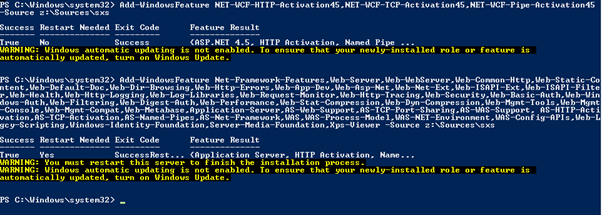
If your PowerShell works as it should, you will get a result as below.

Getting started with #ProjectOnline Part 5 #PS2013 #Office365 #Project #PPM #SharePointOnline #PM
|
I am a Project Server and SharePoint consultant but my main focus currently is around Project Server.
I have been working with Project Server for nearly five years since 2007 for a Microsoft Gold Certified Partner in the UK, I have also been awared with the Microsoft Community Contributor Award 2011. I am also a certified Prince2 Practitioner. This article has been cross posted from pwmather.wordpress.com (original article) |
In part 5 of the getting started series we will look at Enterprise Project Types (EPTs) and Project Detail Pages (PDPs). The last post, in case you missed it was looking at PWA Views:
Firstly we will look at PDPs and create a new PDP, we will then look at EPTs and create an EPT.
Project Detail Pages, known as PDPs are used use either display details or capture details for projects.There are several PDPs out of the box, lets look at creating a new one. As a PWA Admin navigate to PWA Settings and click Project Detail Pages under the Workflow and Project Details Pages heading:
Here you will see the PDPs that are included out of the box:
To create a new PDP click the Files tab > New Document > New Document:
Enter a name for the new PDP, choose the layout required and click Create:
You will then see a SharePoint web part page:
Click Add a Web Part and you will see the web part categories appear:
Scroll down to the Project Web App Category and you will see all of the Project Web App web parts. You can add any type of web part of these pages, it doesn’t have to be a Project Web App web part but for the purpose of this post I am going to add a Project Web App web part. The type of web part you add will depend on the purpose of the PDP, this example PDP is used for editing multiline project level custom fields so I will add the Basic Info web part. PDPs are the only place you can edit and view multiline project level fields in PWA. After selecting the required web part click Add and you will see the web part appear:
I have created two example multiline project level fields called “Project Status Summary” and “Project Actions”. These fields will be added to my example PDP. To add the fields, click the Edit Web Part option on the Basic Info web part:
Click the Modify button:
Add the fields that you want to see on the PDP, for the example I have added to the multiline custom fields I had created:
Click OK. Edit other web part properties as required, I have updated the title and the chrome then click Apply on the web part properties then click OK.
Click Stop Editing in the top left corner. Now click Edit Properties and enter a description:
The other properties can remain the same. The key property for PDPs is the Page Type, there are three options:
- New Project – this is used for creating a project
- Workflow Status – this is used to display the stage and status information
- Project – this is used for editing a project
Click Save. Now click the cog > PWA Settings:
Then click the Project Details Pages link and you will see the new PDP:
Now we have created a new PDP we need to be able to view this page, by default the users wont be able to use it or see it. This is where the Enterprise Project Types come into play.
Enterprise Project Types, known as EPTs are used as a container or wrapper if you like. The different project components are associated to the EPTs, for example any workflows, project plan templates, PDPs, project site templates. EPTs are used to create different types of projects, for example you might have a requirement for HR type projects and R&D projects, both of which have different requirements. HR projects might be required to capture different information for the project and project site compared to the R&D projects. R&D projects might require a project lifecycle workflow but the HR projects might not. All of this is possible using EPTs.
You get two EPTs out of the box, the SharePoint Task List and the Enterprise Project. The Enterprise Project EPT would be the default to use for full Project Online functionality. Lets look at creating a new EPT. As a PWA Admin navigate to PWA Settings and click Enterprise Project Types under the Workflow and Project Details Pages heading and you will see the table below:
You can see the two default EPTs. Click the New Enterprise Project Type button and you will see the new EPT form:
Enter a name, for this example we are going to create a Product Design EPT, so the name will be Product Design. Enter a description if required. Leave the other options as default and scroll down to the New Project/Project Detail Pages section and change the New Project Page to the Project Information PDP then add the other PDPs you wish to see for the type of project. For this example I have added the Schedule, Project Status Information and the Project Information PDPs. Project Status Information PDP was the PDP I created in the post:
Scroll down past the other settings until you get to the Image section, the others will be default. The Image setting allows you to set an image for the EPT, this can be seen when the user clicks the New button in the Project Center. For this example we will just use the default EPT image:
You have the option to change the order of the EPTs, for this example we will place this new EPT at the end. Scroll down to the Project Plan Template and Project Site Template sections:
This is where you can specify a plan template and a project site template. For now we are going to leave these as default because we do not have any plan templates in the environment or any custom project site templates. Click Save to create the new EPT. You will now see the new EPT:
That is it for the intro to EPTs until the next post. The next post in the series will look at project plan and project site templates, this will also touch on EPTs as we add our new templates to the Project Design EPT.
Getting started with #ProjectOnline Part 4 #PS2013 #Office365 #Project #PPM #SharePointOnline #PM
|
I am a Project Server and SharePoint consultant but my main focus currently is around Project Server.
I have been working with Project Server for nearly five years since 2007 for a Microsoft Gold Certified Partner in the UK, I have also been awared with the Microsoft Community Contributor Award 2011. I am also a certified Prince2 Practitioner. This article has been cross posted from pwmather.wordpress.com (original article) |
This is part 4 for the getting started with Project Online series. In the last post we looked at configuring the Enterprise Global:
In this post we will move back to PWA and continue with the configuration there. Next up are the PWA views, these are configured on the PWA Settings page. To access this page, click the cog menu and click PWA Settings:
Now click Manage Views under the Look and Feel heading:
You will see many preconfigured views here:
Above are the Project views, below are all of the view types that have preconfigured views:
As you can see there are quite a few different types of views in PWA, these are for different areas or functionality in Project Server. A summary for each view can be seen below:
|
View Type |
Description |
| Project | This type of view is used to view the tasks, assignments and resource details for a particular project. The views are found in the Project Detail Page, these are accessed after clicking the project from the Project Center. |
| Project Center | This type of view is used to view the project information in the Project Center. |
| Resource Assignments | This type of view is used to view information about specific resource assignments . These are accessed from the Resource Center in the resource assignments page. |
| Resource Center | This type of view is used to view resource information in the Resource Center. |
| My Work | This type of view is used by the team members to view and update their assignments. |
| Resource Plan | This type of view is used to build resource plans for projects. |
| Team Tasks | This type of view is used by team members to view tasks that their team is assigned to. |
| Team Builder | This type of view is used to build the team for a project. |
| Timesheet | This type of view is used by team members to complete their timesheets to report time against projects or admin time. |
| Portfolio Analyses | This type of view is used to view project proposals and review which best align to the organisations strategic goals. |
| Portfolio Analysis Project Selection | This type of view is used to approve the proposals as projects. |
For the purpose of this post we will create one Project view, one Project Center view and Resource Center view. Each view type has different settings and fields available, for example task level or assignment level fields are not available in a Project Center view. To create a new view we can either start with a blank view or copy an existing view, for the Project view we will copy the Task Summary view. To do this, select the Task Summary view:
The Copy View button is now enabled, click this button and a pop up will appear with a field to type the new view name, by default it will have “Copy of Tasks Summary”, update this with the name of the new view:
Click OK to create the new view, this new view will appear on the grid. Click the new view to load the edit view page:
Scroll down to the fields section and select a new field from the available fields, for the purpose of this post I am going to select the RAG Planned Work field that was created in post 2 and add this to the view.
Save the view. Now we will create a new Project Center view, click the New View button and select Project Center from the view type menu:
Type a name in the Name field and add a description if required. In the field section add the required fields, for the purpose of this post I will be adding the 3 custom project level fields created in post 2:
You have the option to set the field width and give the field a custom title / label.
Scroll down the the format view section and set the required options. For this example I have set the grouping format to Views, the group by to Programme and sort by to Project Name:
Now save the view. The third view we will create is a Resource Center view, click New View again and select Resource Center from the type menu and give the view a name:
Add in the required fields, in this example I will add some of the default fields plus the Employee Contract Type custom field created in post 2:
Scroll down to the Filter section and click the filter button, this will load a pop up for the custom filter:
Add the filter required, in this example it will be where the resources are full time:
Notice the filter is validate. Click OK and save the new view. That is it for the PWA views in this post but that should be enough to get you started. Next up we continue with other Project Online configuration to help you get the most out of your new environment.
How to hide fields for new items using InfoPath
A client had a fairly simple request to hide some fields when a new SharePoint list item is created but have these fields shown once the item has been created and people edit the form. The short version is that you can use the inbuilt ID field to see if an item is new or not. If the ID field is blank then it is a new form.
Here are the steps required so that you can hide fields when an item is being created. Make sure not to hide any required fields or the form cannot be saved.
These steps require InfoPath 2010 client to be installed
1. Navigate to the list
a. I have created a very simple list where users will ask a question. The goal is only to allow users to fill out the title field when an item is created
2. From the ribbon select the Customize Form option
a.
b. If this option is missing then following feature is probably not activated
c.
3. A form will now have opened in InfoPath 2010
a.
4. Each field can be hidden manually or all of the fields you want to hide can be added to a new section and then you just hide the section.
a. Select the Section control and add to the bottom of the form
b. Copy or cut the required rows or fields from the table into the section. It will look similar to the following screen shot
c.
5. Now we need to add a rule to the section to hide it.
a. Select the Manage Rules option from the ribbon
b.
c. Highlight the section (Click on it)
d.
e. From the Rules menu on the left hand side select New and then Formatting.
i. Change the name to be Hide Section
ii. Click on the None under condition and change it to the following
iii.
iv. Now select the Hide this control option
v. The whole rule should look like
vi.
6. Using the publish button in the very top left of InfoPath publish you changes back to the server.
a. You should receive an OK message once this is complete
7. Now navigate to the list and test to see if it has worked
Here is the new form
This is what the form looks like when an existing item is edited
This is just a very basic example. The overall style of the form can be changed using the formatting option within InfoPath.
Rule can also be applied directly to some fields so they do not have to be moved into a section if you do not want to. The attachment control must be added to a section as rules cannot be applied against this control directly.
via Buzz Blog http://bit.ly/LK0nvp
|
Paul is a an expert SharePoint and Project Server developer and is responsible for designing and implementing custom solutions on client systems using the latest SharePoint and .NET technologies.
Paul has extensive experience with SharePoint systems across all sizes of implementation, ranging from small to large farms and has an excellent understanding of all the elements of SharePoint. This article has been cross posted from paulbuzzblog.wordpress.com (original article) |
#ProjectServer #PS2013 access to Create Projects functionality #SP2013 #PM #Project #ProjectOnline
|
I am a Project Server and SharePoint consultant but my main focus currently is around Project Server.
I have been working with Project Server for nearly five years since 2007 for a Microsoft Gold Certified Partner in the UK, I have also been awared with the Microsoft Community Contributor Award 2011. I am also a certified Prince2 Practitioner. This article has been cross posted from pwmather.wordpress.com (original article) |
Just a quick post to detail the permissions required to be able to use the “Create Projects” button on a list in the PWA site collection. If you are not familiar with the button or functionality see the post below:
The permissions required for a user to be able to create a project from the SharePoint list in PWA when using the Project Server Permission mode are:
Global Permissions:
Manage Lists in Project Web App – this enables the button in the ribbon, without this permission the button remains greyed out / disabled even when you have an item selected in the list
New Project – this enables the user the see the form that pops up with the field mappings, without this the pop with display the message below:
Category:
Only included the Selected Projects + The User is the Project Owner or the User is the Status Manager on assignments within that Project
with Publish Project permission for that category, without the category and publish permission the create project button on the field mapping window will display the message below:
Getting started with #ProjectOnline Part 3 #PS2013 #Office365 #Project #PPM #SharePointOnline #PM
|
I am a Project Server and SharePoint consultant but my main focus currently is around Project Server.
I have been working with Project Server for nearly five years since 2007 for a Microsoft Gold Certified Partner in the UK, I have also been awared with the Microsoft Community Contributor Award 2011. I am also a certified Prince2 Practitioner. This article has been cross posted from pwmather.wordpress.com (original article) |
Part 3 of the “Getting started with Project Online” series looks at Project Professional 2013 Enterprise Global objects. Part 2 of the series looked at Project Online Enterprise Custom Fields:
Now that you have created your custom fields you need to make these visible to users. Views can be created for Project Web App (PWA) and Project Professional 2013. This post will look at the custom Project Professional 2013 Enterprise views and other custom Enterprise Global objects. These are stored in the Enterprise Global with the other default Enterprise Global objects. You do get a lot of views, groups and filters etc. with Project Professional 2013 that are stored in the local global file, these are known as local objects (views, filters etc.). The Enterprise Global is a file that is used to control what objects are standardised across the organisation for Project Professional when connecting to Project Online / Project Server 2013. When Project Professional is connected to Project Online / Project Server, the Enterprise Global and the local global file merge so that both the Enterprise objects and local default objects are available. The type of objects are views, tables, groups and filters. The next steps will create custom objects in the Enterprise Global for your environment.
Launch Project Professional 2013 and connect to the PWA instance. If you haven’t connected Project Professional to PWA before see the steps below:
- Launch Project Professional 2013
- Click File > Info > Manage Accounts
- Click Add
- Enter an account name – this is your reference
- Enter the Project Server PWA URL, it will be something like https://<tenantname>http://.sharepoint.com/sites/PWA
- Set as default account
- Click OK
- Check the box to choose an account
- Click OK then close and re-launch Project
- Now you will be prompted to choose an account
- Select the account that you just created
- Click OK
If you haven’t connected before you might be prompted for credentials, enter details for an account that has admin access to PWA. Your Project Professional client will now be connected to your Project Online PWA instance.
Once Project Professional is connected we can start the configuration of the Enterprise Global file. Close the blank Project 1 file and Click File > Info > Organiser > Open Enterprise Global
It will look like a blank project but notice the title “Checked-out Enterprise Global”:
We are now ready to add the custom enterprise objects. For the purpose of this post we will create 1 custom view that includes some of the default Project fields but also our custom RAG Planned Work field, we will also create a custom filter. Firstly we will look at creating the custom Enterprise Global view. Views are based on tables, so firstly we need to create a table, this table defines the fields and the layout in the view. In Project Professional, click the View tab then the Tables > More Tables:
Click New:
Enter a Name, I would recommend that you prefix all of the custom Enterprise Global objects with a set of characters so that you know they are custom. When you have many custom objects in the Enterprise Global you will be glad you did this! Then add the fields required, set the width and add a custom title plus any other settings you would need, see example below:
Click OK then Close. Now create the view, click Other Views > More Views on the View Tab:
Click New:
Select Single view and click OK. Single view will create just one view, a combination view will give you a split view. For example, for a combination view you might have the Gantt view at the top (Primary) and the Task Usage at the bottom (Details). For this example we will create a single view:
Give the view a name, remember the prefix tip, and select the other options as displayed below:
The Table is the name of the table we created in the previous step. Click OK then Close. That’s the view created, now lets create the custom enterprise filter. Click the Filter drop down and select More Filters:
Click New:
Enter a name then set up the filter, in this example I want the filter to display all tasks where the RAG Planned Work field has a value of “Planned Work Greater Than Baseline”:
This value is from the formula from the RAG Planned Work field.
Click Save then Close.
Now save the Checked-out Enterprise Global file, File Save. Close and check in the Enterprise Global file. Exit Project Professional then re-launch it and connect to the account we created in the first steps so that you are connected to the Project Online PWA instance. This process is required so that Project loads with the new Enterprise Global file. You will now see that the new view and filter are available:
View selected:
Notice only the fields we defined in the table are visible. The custom filter is also available:
Selecting this filter on a project will only show tasks that have more planned work than the baseline value, no filter:
Selecting the custom filter just created:
That covers the intro to custom Enterprise Global objects, in the next post we will look at further configuration entities in PWA.
Getting started with #ProjectOnline Part 2 #PS2013 #Office365 #Project #PPM #SharePointOnline #PM
|
I am a Project Server and SharePoint consultant but my main focus currently is around Project Server.
I have been working with Project Server for nearly five years since 2007 for a Microsoft Gold Certified Partner in the UK, I have also been awared with the Microsoft Community Contributor Award 2011. I am also a certified Prince2 Practitioner. This article has been cross posted from pwmather.wordpress.com (original article) |
This is part 2 of the “Getting Started with Project Online” series. If you didn’t see part one see the link below:
In summary this post covered creating the PWA site collection, we went from nothing to having a fully functional Project Online environment in around 45 minutes!
In this post we will look at what to do next now that we have a blank Project Online PWA site collection.
Before we move to the PWA site collection, there is a decision that needs to be made regarding the permission mode. With Project Server 2013 and Project Online there are two permission modes available. Either the SharePoint Permission mode or the Project Permission mode. By default the PWA site collection is provisioned using the SharePoint Permission mode. If you are just starting out with Project Online and you are not familiar with the classic Project Permission mode I would recommend you stick with the SharePoint Permission mode as this will simplify the configuration and administration. We wont go into details on the differences but to help you decide, see the following TechNet link:
Should you wish to change the permission mode if the SharePoint Permission mode doesn’t meet your organisations access security requirements, navigate to the SharePoint Admin Center. If you don’t know the URL the easiest way to access this is from the PWA site, in the top corner you will see an Admin drop down menu when logged in with an Office 365 tenant admin account:
Click SharePoint, that will take you to the SharePoint Admin Center:
From this page, select the PWA site collection (check box next to the PWA site collection) then click the Settings link under the Project Web App menu as displayed below:
This will load the Settings page for the Project Web App site:
As you can see, the SharePoint Permission Mode is already set. For the purpose of these posts, we will leave this set but this is where you can switch your PWA site collection to use the Project Permission mode. You can switch permission modes at any time but bear in mind the settings will be reset so you will need to reconfigure the permissions / add users to the PWA site collection again – best to decide the permission mode from day one to avoid a lot of work on a live system! Also another key piece of information on this page is the Project Database Usage, you get 10GB for Project Online so worth monitoring / checking this.
Now we have covered the permission mode, we can move the the PWA site collection and start the configuration. Load the PWA site collection with the PWA Administrator account that you specified on the site creation and you will see the following site as we saw in the previous post:
The first part of the configuration we need to consider is the PWA custom fields as the other configuration elements require these to be in place so lets find these. To access the PWA custom fields, navigate to the PWA Settings page. Click the settings cog in the top left corner:
Click PWA Settings and you will see the following page:
This page is where you configure all of the PWA settings. So we are looking for custom fields, under Enterprise Data you will see “Enterprise Custom Fields and Lookup Tables”, click that link and you will see the custom field page:
You will notice there are custom fields and lookup tables already in place, these are the default fields that are created with the Project Online / Project Server PWA instance. This doesn’t include the intrinsic fields, for a reference of these fields see the following link:
One thing I will point out at this stage as it is the first time we have seen any locale specific data (Last Updated column), you will notice this has the US date format. To change this to the correct locale for your users, click the settings cog again then Site Settings:
Now click Regional Settings under the Site Administration heading:
On this page select the correct locale and other region specific settings:
Then Click OK and navigate back the PWA Settings page from the site cog menu then click the “Enterprise Custom Fields and Lookup Tables” link and notice the date format is now correct for the UK:
Before we look at creating custom fields lets have an overview of the types of fields available. We can create Project, Resource and Task level fields that are one of the following types of field: Cost, Date, Duration, Flag, Number or Text. You also have Lookup Tables that can be associated with the text based custom fields if required. Customs fields based on lookup tables are used to “tag” the data with a certain value or values, this can then used for grouping, filtering and sorting in views or reports. Other fields can be used for grouping, sorting and filtering but generally the fields based on lookup tables or formulas are used as you know the possible values that are available. You can also create your own calculated fields by choosing the Formula attribute. Also you have other attributes that can be set such as the rollup for summary rows and roll down for assignment rows, this settings is only available for Resource or Task fields. There is also the option to either show the value of the field or display a graphical icon. Graphical icons would only really be set on fields that are either based on a lookup table or a formula as you know all the possible values.
Full details on custom fields can be found here:
We will now walkthrough creating a few custom fields. At this stage I would hold off creating these on your PWA environment as now is a good time to sit down with your peers and discuss / review the fields your organisation needs. The best way to start is to think about what do you want out of the system, what data do you want to capture, what data do you want to report on etc. We will continue here though and create a couple of Project, Resource and Task fields.
We will create the project level fields first, from the custom fields page click the New Field button:
The new field page will look like this:
This field is going to be a “Project Code” field to sort a project code against each of our projects. I have set the following settings:
Name: Project Code
Description: Enter the project code
Entity and Type: Entity: Project Type: Text
Custom Attributes: Single line of text
Department: NA – left empty
Behaviour: Require that this field has information: Yes | Other settings default
Before we move on I just want to mention a couple of the field attributes, Department and Behaviour. The department field is used to departmentalise the configuration and data in PWA. We aren’t going to use this functionality here but it can be very useful if you want to change what custom fields are visible to users / projects as it might be that not all fields are applicable to all users / projects. There are a few blogs out there that cover this topic quite well if you want to look at using this feature. The other attribute is Behaviour, a field can be controlled via a workflow as part of the project lifecycle, we aren’t setting up a project lifecycle workflow so will leave this unchecked.
Once the settings have been completed, click Save on the new custom field page and you will be taken back to the custom field admin page and see your new field:
The next project level field is going to be a text field based on a lookup table, the field is going to be called Programme. When you want to use a lookup table on a field the lookup table needs to be created first. Click the “New Lookup Table” button and the following page will load:
A lookup table as a few attributes, Name, Type, Code Mask and the Lookup Table. Choose the type of lookup table, the options are Cost, Date, Duration, Number and Text. The Code Mask is only applicable for text based lookup tables as these can be hierarchical with different levels, the code mask set the levels available and the separator. For this example I am using a text based lookup table with 2 levels set on the code mask then populated the table with my Programme values:
Use the toolbar functions on the lookup table to outdent, indent, delete and insert rows etc. Once you are happy with the lookup table click save. At this point the lookup table is validated against the code mask, in this example all is fine and saves ok. If you see this error on save, the code mask is not correct for the levels you need or you have enter to many characters as 255 is the limit for one value (row):
“The lookup table could not be saved due to the following reason(s): One or more code values in the lookup table either do not match the mask defined for the code or contain more than 255 characters.”
Now that we have a lookup table we can create the associated project level custom field. Click the “New Field” button. Enter the field name, leave this as a Project Text field. On the custom attributes, check the Lookup Table option:
Change the lookup table to the Programme lookup table we just created, in this example the other options for the lookup table will be left as default. We will set this field to display the data rather than an indicator and leave the behaviour attributes as default so this field is not required. Click Save and you will see the new field on the custom field table:
The final project level field we will create is a Project Status field, this will also use a lookup table. Create a new text based lookup table called “RAG Status” with 3 values Red, Amber and Green. Then create a new field called “Project Status”, in the description state this is a manually set RAG field, set the Lookup table attribute to use the “RAG Status” lookup table that was just created:
Scroll down and set the field to use graphical indicators and you will see another table appear:
Populate the table as follows:
The important part is the Test and the Value, the value must match the value in the associated lookup table otherwise the image will never be displayed. I have also set the data value to be displayed in a tooltip. Once the settings are complete, click Save. We now have 3 custom project level fields.
Next we will look at creating a Task level formula based field called RAG Planned Work, click the New Field button, set the name and select Task then Text. Check the Formula custom attribute then type the required calculation. For this example the nested if statement below will be used:
IIf([Work] = 0, "No Planned Work", IIf([Baseline Work] = 0, "No Baseline Work", IIf([Work] <= [Baseline Work], "Work Within Baseline", "Planned Work Greater Than Baseline")))
If you are new to Project formulas, notice the IIF, it is an immediate if.
This can be seen here:
For this example we will set the summary row calculation to use the formula but the assignment row calculation will be set to none. We will also set this to use graphical indicators as follows:
The values for the graphical indicators match the possible values in the formula. Once completed click Save. At this point the formula will be validated and not let you save the page if there are errors.
The final field we will create is a resource level field called Employee Contract Type, this will use a lookup table. As before, first create a text based lookup table called Contract Type with the contract values. This will include values like Full Time, Part Time, Contractor and 3rd Party as seen below:
Save the new lookup table and click the “New Field” button and set the name, then choose Resource from the Entity menu and Text from the Type menu. On the custom attributes menu select Lookup Table and choose the Contract Type lookup table:
Set the field to be required in the Behaviour section and click Save. We now have our example enterprise custom fields and lookup tables created:
Hopefully now you are comfortable with the options available to create the remaining fields your organisation requires. That brings us to the end of the first part of the configuration, in the next part we will continue with the other elements of the configuration.
PowerBI price model revealed
The pricing of the Business Intelligence on the Cloud (Office365) #PowerBI that we demonstrated a few months ago has now been revealed : http://bit.ly/1ctzceg.
Only US pricing for now.
With 3 licence models to choose and a price per user, it is fair to say that if you have 1 or 2 “main BI developers” you just need 1-2 licences and all users will be able to see your beautiful BI.
But be wary looking at the prices as explained here by ZDNet Mary JoFoley:
Andrew Brust, founder of Blue Badge Insights (and “Big on Data” blogger on ZDNet), was a bit less bullish on the Power BI pricing.
“The ‘full boat’ package of Power BI + Office ProPlus is $624/user/year, which is almost exactly 25% more than Tableau Online, at $500/year. Even the Standalone package is $480/user/year which is only a little less than Tableau,” Brust said.
On a side note, there are some really cool PowerBI examples taking part of the PowerBI Contestbeing submitted so keep an eye on the line-up (interestingly on Facebook, not Yammer or Office365 site : link here). Last submission was 15/01/14 and final judging : 01/03/14.
check out this short video “Ivonne’s story” or how to show-off some BI in a few minutes and make someone’s day.
Ivonne’s Story
By: Carlos De Leon
via François on Sharepoint http://bit.ly/1aOkN09
|
French native Sharepoint Consultant living in London. A crossway between a designer, developer and system architect. Prefers stretching the limit of out-of-the-box features rather than breaking them into code. When not working with Microsoft Sharepoint François is often found on Web2.0 News sites and related social networking tools.
This article has been cross posted from sharepointfrancois.wordpress.com/ (original article) |
PowerBI price model revealed
The pricing of the Business Intelligence on the Cloud (Office365) #PowerBI that we demonstrated a few months ago has now been revealed : http://www.microsoft.com/en-us/powerBI/pricing.aspx.
Only US pricing for now.
With 3 licence models to choose and a price per user, it is fair to say that if you have 1 or 2 “main BI developers” you just need 1-2 licences and all users will be able to see your beautiful BI.

But be wary looking at the prices as explained here by ZDNet Mary JoFoley:
Andrew Brust, founder of Blue Badge Insights (and “Big on Data” blogger on ZDNet), was a bit less bullish on the Power BI pricing.
“The ‘full boat’ package of Power BI + Office ProPlus is $624/user/year, which is almost exactly 25% more than Tableau Online, at $500/year. Even the Standalone package is $480/user/year which is only a little less than Tableau,” Brust said.
On a side note, there are some really cool PowerBI examples taking part of the PowerBI Contest being submitted so keep an eye on the line-up (interestingly on Facebook, not Yammer or Office365 site : link here). Last submission was 15/01/14 and final judging : 01/03/14.
check out this short video “Ivonne’s story” or how to show-off some BI in a few minutes and make someone’s day.
Ivonne’s Story
By: Carlos De Leon


 SharePoint (and Project Server) Shenanigans
You must be logged in to post a comment.