Archive
#ProjectServer #ProjectOnline example report #PS2013 #SP2013 #Office365 #BI #Excel #PowerPivot
   I am a Project Server and SharePoint consultant but my main focus currently is around Project Server.
I have been working with Project Server for nearly five years since 2007 for a Microsoft Gold Certified Partner in the UK, I have also been awared with the Microsoft Community Contributor Award 2011. I am also a certified Prince2 Practitioner. This article has been cross posted from pwmather.wordpress.com (original article) |
Following on from a post I wrote last month where I detailed creating a highlight type report for Project Online using ODATA and Excel 2013 / Power View, below details another simple example for a project cost / work dashboard with cumulative totals. The highlight report post can be seen below:
Firstly add the required ODATA feeds into the Excel workbook as described in the previous post (link above), you can see my connections below:

The two Project feeds need to contain the correct fields – the fields you wants to see on the report. As a minimum the project baseline feed should contain ProjectId, Project Name, Project Baseline Finish Date, Project Baseline Cost, Project Baseline Work and the project feed ProjectId, Project Name, Project Finish Date, Project Cost, Project Work. The TimeSet feed should look like this:
ProjectData/TimeSet()?$filter=day(TimeByDay) eq 1 and TimeByDay gt datetime’2013-01-01T00:00:00′ and TimeByDay lt datetime’2018-01-01T00:00:00′&$select=TimeByDay
The date range can be changed to suit.
The next section uses PowerPivot to create the calculated field for the TimeSet feed join – this is required for the cumulative totals. Credit goes to Andrew Lavinsky for this method. Click the PowerPivot tab then Manage. On the Projects table, add a calculated field with the formula below and rename it to Total Date:
=[ProjectFinishDate]-Day([ProjectFinishDate])+1-TimeValue([ProjectFinishDate])

Do the same on the ProjectBaselines table but using the following formula:
=[ProjectBaselineFinishDate]-Day([ProjectBaselineFinishDate])+1-TimeValue([ProjectBaselineFinishDate])
Now Click the Design Tab > Manage Relationships and set up the following relationships:

Close PowerPivot and rename the first Excel sheet to Pivottables and add another sheet, call this Charts. On the Pivottables sheet insert 2 Pivot tables as shown below:
Cost:

Work:

Notice the cost, baseline cost, work and baseline work values have been added twice. Rename the duplicate values to Cumulative Work, Cost etc. as seen below:

Currently both values will show the same data as the running totals have not been set up, this is completed next using the Cumulative Cost as an example. Load the field settings and click the “Show Value As” tab:

Select “Running Total In” and choose the Total Date Field:

Click OK. Repeat this for the 3 other cumulative fields.

Now create charts from both Pivot Tables and copy the charts to the Charts sheet:

Due to the lack of data in my test instance, the charts don’t look that great but you get the idea!
With a bit of time and patience you can get the charts to look presentable (better than mine do anyway!):

As you can see above, I have also added a slicer to enable filtering, in this example we can filter by Programme.


Always open Visual Studio 2012 in admin mode
So i have just started again using windows server 2012 and Visual Studio 2012. I had forgotten that you always have to run as an admin or lots of things don’t work. After this i forgot this twice i figured there must be a better solution.
Google to the rescue and all credit to the answer from this stack overflow question. These steps work great.
In Windows 8, you have to right-click devenv.exe and select "Troubleshoot compatibility".
1. select "Troubleshoot program"
2. check "The program requires additional permissions"
3. click "Next", click "Test the program…"
4. wait for the program to launch
5. click "Next"
6. select "Yes, save these settings for this program"
7. click "Close"

via Buzz Blog http://paulbuzzblog.wordpress.com/2013/09/13/always-open-visual-studio-2012-in-admin-mode/
 Paul is a an expert SharePoint and Project Server developer and is responsible for designing and implementing custom solutions on client systems using the latest SharePoint and .NET technologies.
Paul has extensive experience with SharePoint systems across all sizes of implementation, ranging from small to large farms and has an excellent understanding of all the elements of SharePoint. This article has been cross posted from paulbuzzblog.wordpress.com (original article) |

#ProjectServer #PS2013 / #SharePoint #SP2013 site template issue
|
I am a Project Server and SharePoint consultant but my main focus currently is around Project Server.
I have been working with Project Server for nearly five years since 2007 for a Microsoft Gold Certified Partner in the UK, I have also been awared with the Microsoft Community Contributor Award 2011. I am also a certified Prince2 Practitioner. This article has been cross posted from pwmather.wordpress.com (original article) |
When creating new site templates in SharePoint 2013, ensure you check the box to include content. If you don’t do this, any sites created from your new template will have the “Change the look” functionality missing, it will load a blank page as shown below:

To resolve this, include the content when saving the new site template. Ensure that there is no test data on the lists / libraries etc.
Include content enabled:

After creating a site from this new template, the “Change the look” functionality will work as expected:


Create a #ProjectServer #PS2010 #PS2013 project from a template and update the EPT #SP2013 #SP2010 #PowerShell
|
I am a Project Server and SharePoint consultant but my main focus currently is around Project Server.
I have been working with Project Server for nearly five years since 2007 for a Microsoft Gold Certified Partner in the UK, I have also been awared with the Microsoft Community Contributor Award 2011. I am also a certified Prince2 Practitioner. This article has been cross posted from pwmather.wordpress.com (original article) |
I have been meaning to publish this PowerShell script for a few months but finally got around to it today. The PowerShell script creates a project from a template then updates the Enterprise Project Type (EPT). I did write a post over a year ago on how to create a project using PowerShell but this didn’t update the EPT:
The issue is that even if your Project Plan Template is associated to an EPT in Project Server, the project created from the CreateProjectFromTemplate method is associated to the default EPT regardless. This script will prompt for the project name, the project plan template name and the EPT name. It will create the project then update the project to associate it to the desired EPT. The script can be downloaded from the script gallery below:
http://gallery.technet.microsoft.com/scriptcenter/Create-Server-2010-2013-19bd3cc7
Once downloaded, the script will need to be updated with the correct PWA URL, the lines that need updating are 9 and 23. These can bee seen below:


Update the http://vm753/pwa part of the URL for your PWA URL.
A walkthrough using the script is below.
Open Windows PowerShell and navigate to the PowerShell file, in this example it is on the desktop:

Press Enter and complete the details:

The new Project will be called “CPS Test Project by Paul Mather”, it will use the “PMTemp1” template and then associate the new project to the “PM TEST” EPT.

The project is created as you can see in the Project Center:

It is also associated to the specified EPT:

The default EPT on this PWA instance is “Enterprise Project”:

When using the CreateProjectFromTemplate method only, this new project would have been associated to the Enterprise Project EPT as this is the default EPT.
This is just an example of what can be done, many improvements could be made, certainly around error handling but it provides a working example for you to build on. 


#PowerShell scripts for #ProjectServer #PS2013 #SP2013 #PPM
|
I am a Project Server and SharePoint consultant but my main focus currently is around Project Server.
I have been working with Project Server for nearly five years since 2007 for a Microsoft Gold Certified Partner in the UK, I have also been awared with the Microsoft Community Contributor Award 2011. I am also a certified Prince2 Practitioner. This article has been cross posted from pwmather.wordpress.com (original article) |
I haven’t posted for a while due to work commitments and just generally being too busy – I am hoping this will change after the summer!
Anyway, just a quick post today to let you know that I have tested some of the key PowerShell scripts I wrote for Project Server 2010 on Project Server 2013. These also work for Project Server 2013. I have since updated the script gallery and associated blogs posts for these scripts listed below:
Publish All Projects:
http://gallery.technet.microsoft.com/scriptcenter/Server-2010-Publish-all-45ba385b
Publish Specified Projects:
http://gallery.technet.microsoft.com/scriptcenter/Server-2010-Publish-537857d8
High-level Audit example:
http://gallery.technet.microsoft.com/scriptcenter/Server-2010-High-level-e9c6ad09
Updating Project Server Lookup Tables:
http://gallery.technet.microsoft.com/scriptcenter/Update-Server-Lookup-table-bb1ae14f
My other scripts are available for download here:
http://gallery.technet.microsoft.com/scriptcenter/site/search?f%5B0%5D.Type=User&f%5B0%5D.Value=PWMather
Look out for more scripts coming soon.
Enjoy 


#ProjectServer and #SharePoint 2010 / 2013 August 2013 Cumulative Update #PS2010 #SP2010 #PS2013 #SP2013 #MSProject
|
I am a Project Server and SharePoint consultant but my main focus currently is around Project Server.
I have been working with Project Server for nearly five years since 2007 for a Microsoft Gold Certified Partner in the UK, I have also been awared with the Microsoft Community Contributor Award 2011. I am also a certified Prince2 Practitioner. This article has been cross posted from pwmather.wordpress.com (original article) |
The Office 2013 August 2013 Cumulative Updates are now available, please see the links below:
http://support.microsoft.com/kb/2873346
Project Server 2013 Server Roll up package August 2013 CU (Recommended):
http://support.microsoft.com/kb/2817615
Project Server 2013 August 2013 CU (Included in the Server Roll up package):
http://support.microsoft.com/kb/2817508
Project 2013 August 2013 CU:
http://support.microsoft.com/kb/2817502
Also worth noting, if you haven’t done so already, install the March 2013 Public update: http://support.microsoft.com/kb/2768001 if installing the August 2013 CU.
The Office 2010 August 2013 Cumulative Updates are now available, please see the links below:
http://support.microsoft.com/kb/2869757
Project Server 2010 Server Roll up package August 2013 CU (Recommended):
http://support.microsoft.com/kb/2817573
Project Server 2010 August 2013 CU (Included in the Server Roll up package):
http://support.microsoft.com/kb/2817580 & http://support.microsoft.com/kb/2817587
Project 2010 August 2013 CU:
http://support.microsoft.com/kb/2817584
Remember SP1 or SP2 is a pre-requisite for the Office 2010 August 2013 CUs.
For more details please see:
As always, test these updates on a replica test environment before deploying to production


#Office365 Two Factor Authentication (Preview) (Phone Factor) #O365
So I am about to embark on a client who is interested in two factor authentication in their existing Office 365 environment.
 With the speed Microsoft is going at these days, surely there is a solution to this and speaking to some contacts with Oliver Stickley, Microsoft helped us out.
What is Two Factor Authentication?
Single factor authentication is via a single method such as a Username and Password.
Two Factor Authentication adds an extra measure into the mix to ensure that you are who you say you are. This could be an RSA Security Key or more recently the market is shifting towards using mobile phones as the security key with the use of automated phone calls, text messaging (SMS) or mobile apps.
The Solution
In October 2012, Microsoft acquired a company called PhoneFactor (more info) which has been developing two factor authentication solutions in the cloud for a while now and recently the capabilities have been added to Office 365 in the form of a preview which is free to try for Administrators.
NB: Please be aware that this is currently in preview, so they are still working out the kinks, pricing model, release schedules etc..
Given that we are in preview, not everything will be perfect, but there is still options that you can try out now assuming you have an Enterprise plan.
Three options are available:
- Cloud Identity

- Directory & Password Synchronisation
- Federated Identity (ADFS)

- The various pros and cons of each option are described below in the video presentation.
NB: I can confirm that this is not available on the P1/P2 plans but unsure about the small business plans.
How does it work?
As part of my research I came across this excellent presentation from Microsoft Consulting Services which goes into detail about how the solution works.

Ignite Webcast – Understanding Identities and Single Sign On
NB: Please note that some limitations exist with non-ADFS setups and local client software (Outlook, Office etc.). (it is a preview after all)
2nd Factor Authentication Options
So we know what two factor authentication is all about and we have seen how it is likely to work within Office 365, lets explore the options we have available to us:
Phone Call & SMS
Using any mobile phone (smart, non-smart or event an office phone), you can log-in with an automated phone call from Microsoft or an SMS Text Message which provides and authentication code.

Mobile App – Windows Phone 7 & 8
If you don’t have phone signal, then you can use generated no. authentication methods via a mobile app. Microsoft of course support their own platforms
 |
 |
- Release Details: PhoneFactor Extends Comprehensive Line of Authentication Solutions with App for Windows Phone
- App Download Link: http://www.windowsphone.com/en-gb/store/app/multi-factor-auth/0a9691de-c0a1-44ee-ab96-6807f8322bd1
- NB: Apps were originally called PhoneFactor but are now called Active Authentication
- Name Change Details: PhoneFactor Becomes Windows Azure Active Authentication
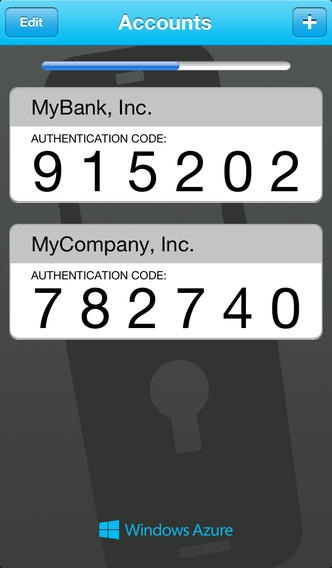
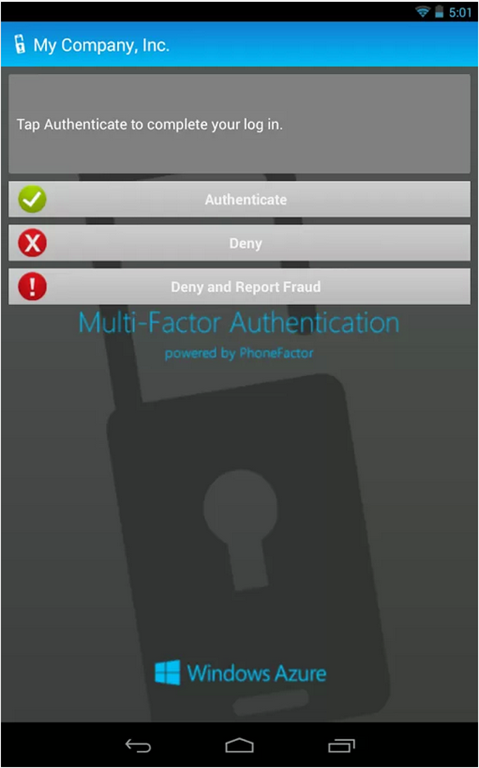
Mobile App – iOS / Android
The mobile app is also available for iOS and Android as well which pretty much covers most of the mobile market. Search for Active Authentication from the Microsoft Corporation or use the links provided below.
iPhone Screens:
 |
 |
 |
iOS (iPhone / iPad) App Download: https://itunes.apple.com/gb/app/active-authentication/id475844606?mt=8
Android Screens:
 |
 |
Android App Download: https://play.google.com/store/apps/details?id=com.phonefactor.phonefactor&hl=en
That’s great, how do I get started?
Excellent question, it’s available in your Office 365 admin panel right now and is incredibly easy to setup without ADFS…
Login to your Office 365 admin portal, click Users and Groups:
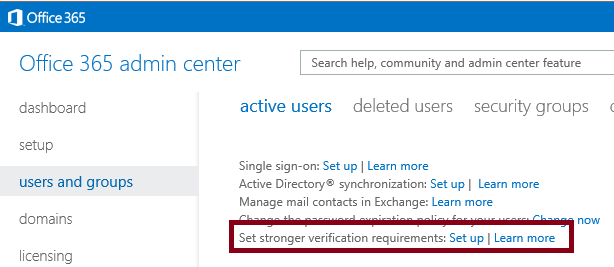
Click the set up link shown above.
Now select the name you want to use two factor authentication with and click enable.

Please keep at least one admin account with single factor authentication whilst you are using this preview version.
NB: Admins are free to use the capability, standard users require a license.
Once you have turned it on against your admin user account. Log out and log back in. You will be asked to initially verify your second type of authentication.
Choose your preferred option from below:

NB: You will find this link useful later as in the preview there doesn’t appear to be a link within the Office 365 interface:
Even though it is Windows Azure based, login with your Office 365 account details.
That is it. You are setup and working.
Preview documentation is available on TechNet here:

- If you would like to use ADFS, take a look at the links above and perhaps contact your favourite Microsoft partner (hint: CPS (http://www.cps.co.uk) to help you out.
- Ok, v.long post today but hopefully you will all find it useful. Till the next time…

#ProjectServer #ProjectOnline highlight report example #PS2013 #SP2013 #Excel #BI #Office
|
I am a Project Server and SharePoint consultant but my main focus currently is around Project Server.
I have been working with Project Server for nearly five years since 2007 for a Microsoft Gold Certified Partner in the UK, I have also been awared with the Microsoft Community Contributor Award 2011. I am also a certified Prince2 Practitioner. This article has been cross posted from pwmather.wordpress.com (original article) |
A common requirement for clients is to have a report that highlights key information about each project. This usually includes any key project level fields, up and coming tasks / milestones and any active issues or risks. For previous versions of Project Server, in my opinion, the best reporting technology for this was SQL Server Reporting Services (SSRS). For Project Server 2013 on-premise installations SSRS is probably still the best option for most reports due to the flexibility around formatting, layout etc. For Project Online, unfortunately SSRS is not an option, a nice option for a project highlight type report is Power View. This blog post will walkthrough creating a project highlight report using OData and Power View for Project Online. This example report contains key project level data, key milestones due to complete this month, future key milestones, active issues and active risks. The OData feeds used are:
https://<serverurl>/pwa/_api/ProjectData/Projects()?$filter=ProjectType ne 7&$select=ProjectId,ProjectName,ProjectOwnerName,ProjectStartDate,ProjectFinishDate,ProjectWork,ProjectCost,TotalCost,ProjectQuality,ProjectSchedule,ProjectCost,ProjectResource
https://<serverurl>/pwa/_api/ProjectData/Tasks()?$filter=TaskFinishDate gt datetime’2013-08-01T00:00:00′ and TaskFinishDate lt datetime’2013-09-01T00:00:00′ and KeyMS eq ‘Yes’&$select=ProjectId,TaskIndex,TaskName,TaskStartDate,TaskFinishDate
https://<serverurl>/pwa/_api/ProjectData/Tasks()?$filter=TaskFinishDate gt datetime’2013-09-01T00:00:00′ and KeyMS eq ‘Yes’&$select=ProjectId,TaskIndex,TaskName,TaskStartDate,TaskFinishDate
https://<serverurl>/pwa/_api/ProjectData/Issues()?$filter=Status eq ‘(1) Active’&$select=ProjectId,IssueId,Title,Discussion,Resolution,Owner,DueDate
https://<serverurl>/pwa/_api/ProjectData/Risks()?$filter=Status eq ‘(1) Active’&$select=ProjectId,RiskId,Title,MitigationPlan,ContingencyPlan,Owner,DueDate
These feeds need to be added to Excel 2013 using the “From OData Data Feed” option found on the DATA tab:

Paste the feed URL into the Link or File field:

Click Next
Select the Projects table:

Click Next

Click Finish

Select Only Create Connection and Click OK
Repeat these steps to add the other OData feeds using the same steps.
Once all of the feeds have been added, the table relationships need to be created. On the DATA tab in Excel click Relationships. This can be found in the Data Tools group.

Click New

Set up the relationships required, for this example the relationships are:

Click Close
On the INSERT tab click Power View

Design the report as required, in this example we are using Project Name as a slicer to filter the data on the other tables, this can be seen below:

Once the report layout meets your requirements, save this to Project Online. The report can then be accessed and refreshed in the browser:

Clicking a different project on the slicer will filter the data:

Enjoy 


So… you want to print a List Item (dispform.aspx) in #SP2010 #SharePoint do you? We’ll see about that!
As my project continues to go through UAT, it is always when you let your projects loose onto the world that you find the niggles and the minor issues.
So having worked out the email issues (previous post) and a few other bits and bobs. This issue came along and flumuxed me for a sec.
Scenario:
Browser: IE8, IE9
Environment: Microsoft SharePoint Server 2010 Enterprise SP1
When opening the view item value from a list (dispform.aspx), those with a large body of text in any multiple lines of text fields appeared fine on the screen.
However on print preview / paper the text stopped at the end of the page, then it moves on to the next field.
Frustrat-icon!
I hear you say.
What on earth could that be?
I checked the previous system that I was migrating from (SharePoint 2007) and the issue was not present there. So it had to be something to do with the HTML markup right?
Well I compared the SharePoint 2010 dispform.aspx markup with the SharePoint 2007 output and apart from more divs to encase it in, the output is pretty much the same.
So I tried to override with my own print CSS but to no avail.
After Further Investigation…
 It appeared to be the doc type. By default, in SharePoint 2010, this is set to IE8, where as in SharePoint 2007 it is set to IE7. This combined with IE8 or IE9 caused the issue.
Internet Explorer 10 and Chrome however, no issues.
How did we resolve?
At the moment we are potentially going to set the doc type to IE7 for this web application. We are lucky that in this scenario, this may work as a quick fix.
However, as for the full solution, that is still to work out!
Useful Links:
Group Policy reference for IE8: http://www.microsoft.com/en-us/download/details.aspx?id=3648

#ProjectServer #PS2010 / #PS2013 Add a background image to homepage #SP2010 / #SP2013 #ProjectOnline
|
I am a Project Server and SharePoint consultant but my main focus currently is around Project Server.
I have been working with Project Server for nearly five years since 2007 for a Microsoft Gold Certified Partner in the UK, I have also been awared with the Microsoft Community Contributor Award 2011. I am also a certified Prince2 Practitioner. This article has been cross posted from pwmather.wordpress.com (original article) |
Quite a nice personal touch for a PWA instance is to add the company logo as the background image. This is very simple to do for both 2010 and 2013, 2013 is even easier than 2010.
Firstly we will look at 2010, the quickest way to add an image to the PWA homepage is to use CSS, an example is below:

Update the image URL to the correct image, save the CSS in notepad or preferred editor, for this example I called the file backimage.inc. Then upload the file to PWA, in this example it was uploaded to the Shared Documents library. Edit the PWA homepage and add a content editor web part, then link to the backimage.inc file:

Apply the change and click OK, then save the page and you will see your image set as the background:

For 2013 you just click Change the Look from the settings cog, click current:

Click Change and browse to the image and add. Click Try it out, if you are happy with the image, click Yes keep it:

This will add the image to all pages in 2013. 


 SharePoint (and Project Server) Shenanigans
You must be logged in to post a comment.