Archive
Dynamic Timeline image on #ProjectServer Project Site #PS2010 #SP2010 #MSProject #VBA
   I am a Project Server and SharePoint consultant but my main focus currently is around Project Server.
I have been working with Project Server for nearly five years since 2007 for a Microsoft Gold Certified Partner in the UK, I have also been awared with the Microsoft Community Contributor Award 2011. I am also a certified Prince2 Practitioner. This article has been cross posted from pwmather.wordpress.com (original article) |
One question we have from many clients is, can we have the project timeline image on the project site. The answer is yes, but this will not update automatically in Project Server 2010. On a side note, it is possible to have the timeline view in Project Server 2013 PWA!
This blog post covers a workaround to this limitation in Project Server 2010 using VBA. At this point I will state that I am no VBA expert, my VBA knowledge is very limited to say the least. This is a simple macro but I’m sure it could be improved 
For this to work a custom DLL is required on the workstations as there is no option to save a clipboard image to a file in VBA (as far as I know!). The DLL can be downloaded here: http://www.vbforums.com/showthread.php?585616-clipboard-activex-for-vba-vbs-etc Use this at your own risk as I do not know the code behind this DLL!
For this example, I created a file share to store my images \\vm353\ProjectSiteTimeLineImages. All users will need read / write access to this share.
The VBA code can be seen below, add this to the Enterprise Global:
Private Sub App_ProjectBeforePublish(ByVal pj As Project, Cancel As Boolean)
Dim clip As Object
Dim proj As Project
Set proj = ActiveProject
Dim path As String
path = "\\vm353\ProjectSiteTimeLineImages\"
Dim file As String
file = ".bmp"
Dim fileName As String
fileName = path & proj & file
Application.ViewApply Name:="Timeline"
Application.TimelineExport SelectionOnly:=0, ExportWidth:=1000
Application.ViewApply Name:="Gantt Chart"
Set clip = CreateObject("clipbrd.clipboard")
SavePicture clip.GetData, fileName
Set clip = Nothing
End Sub
Before a project is published the timeline image will be saved as a file to the share. See the example / walkthrough below:
File share before publish:

Create a new project, save and publish:

File share after publish:

Image:

Now we have the timeline as an image, this needs to be added to the project site – I won’t go into the details as this is basic SharePoint end user config task. See the Project site below with the image:

Notice only 3 tasks are added to the timeline, lets add some additional tasks.
I have added task T5 and added this to the timeline:

After publishing this project, refresh the project site:

A nice simple solution to a dynamic timeline image on the Project Server 2010 Project Sites. After publishing more projects, more timeline images will appear in the shared folder:

As mentioned, the VBA could be improved with error handling etc. Use this and the custom DLL at your own risk and fully test on a test workstation and PWA instance first.


SharePoint 2010 Site relocation
A project I have recently worked on involved moving an Internet facing hosted SharePoint 2010 site from one hosting provider to another.
The actual moving of the site was quite straight forward but did involve quite a lot prep work, the broad steps are covered below.
The site was made up of custom components deployed as WSP’s, a content-db backup and some farm configuration tasks.
To build the new platform we started with a vanilla SharePoint 2010 build, created an empty web application, restored the supplied content-db to the SQL server and ran a test upgrade check against the database
Test-SPContentDatabase –Name SP_Test_Content –WebApplication http://TestApp
http://technet.microsoft.com/en-us/library/ff607941(v=office.14).aspx
We used the output of this to cross check which features the content database was expecting to find in the farm, these were added with powershell cmdlet
Add-SPSolution <wsp name>
The Test-SPContentDatabase cmdlet was run again to ensure nothing had been missed.
Once the site was running extensive testing was performed to identify any missing components or settings, most were identified as missing at the Farm level, such as content sources and search scopes
One of the issued noticed was accessing the site via an iPhone browser was redirecting to the mobile version, this was easily resolved by updating the browser definition file compat.browser file in the location
C:\inetpub\wwwroot\wss\VirtualDirectories\<site folder>\App_Browsers
http://technet.microsoft.com/en-us/library/ff393836(v=office.14).aspx
The section
<!– iPhone Safari Browser –>
has the value
<capability name="isMobileDevice" value="false" /> set to
<capability name="isMobileDevice" value="true" />
This has to be replicated on all web-servers in the farm
Once testing has finished the Internet facing site was set to anonymous authentication and the site was extended to another zone with Windows authentication to allow authoring to take place.
I hope these broad steps help someone else faced with this task.

Visual Studio 2012 templates for SharePoint 2013
So I just fired up Visual Studio 2012 and went to create a new SharePoint 2013 App just to play around with. Only to find that Visual Studio only has the 2010 templates available.
The search to find out what I needed to install wasn’t as quick and simple as I was hoping so now that I have worked it all out i may as well share with the rest of you.
Assuming you have Visual Studio 2012 installed. Go to
http://msdn.microsoft.com/en-us/office/apps/fp123627
Scroll down and under the tools section there is a web downloader (Direct Link). Download and run it, it will download everything you are missing.
After a couple of restarts you can then create 2013 projects in visual studio

Hope that helps

via Buzz Blog http://paulbuzzblog.wordpress.com/2013/01/23/visual-studio-2012-templates-for-sharepoint-2013/
 Paul is a an expert SharePoint and Project Server developer and is responsible for designing and implementing custom solutions on client systems using the latest SharePoint and .NET technologies.
Paul has extensive experience with SharePoint systems across all sizes of implementation, ranging from small to large farms and has an excellent understanding of all the elements of SharePoint. This article has been cross posted from paulbuzzblog.wordpress.com (original article) |

Create #ProjectServer 2010 #MSProject 2010 accounts with #PowerShell #PS2010 #SP2010 #MSOffice
|
I am a Project Server and SharePoint consultant but my main focus currently is around Project Server.
I have been working with Project Server for nearly five years since 2007 for a Microsoft Gold Certified Partner in the UK, I have also been awared with the Microsoft Community Contributor Award 2011. I am also a certified Prince2 Practitioner. This article has been cross posted from pwmather.wordpress.com (original article) |
Quite often system administrators want a way to automate tasks, creating the Project Server Project Professional accounts is usually one of these tasks. This blog post shows an example of creating a Project Professional 2010 account.
The script can be downloaded from the Script Center following the link below:
http://gallery.technet.microsoft.com/scriptcenter/Create-Server-2010-dfb0fbba
When creating an account, a registry key is created here:
HKEY_CURRENT_USER\Software\Microsoft\Office\14.0\MS Project\Profiles\<Profile Name>

After running the script, a new registry key will appear:
Script:

Before running the script you will need to update two variables, $accountName and $pwaURL with the correct values.
New Key after executing the script:

As you can see, the script on creates three string values, the rest get created when you launch Project Professional 2010 and connect to the new account:
New account:

Additional string values:

A simple solution for creating Project Professional 2010 accounts.
I recommend that this script is tested thoroughly on a test workstation before using within a production environment.
This script is just an example, use this script at your own risk. Remember to always backup the Registry before making any changes.
This script is probably a better approach to the Registry key export detailed in a post I wrote a while back:


The moral of this story is…

A nice and quick post on one of my experiences at a client.
This client was having problems with their SharePoint & Project Server 2010 environment. All resources in Project Server where not able to click on Timesheets without the following error coming up:

Now the environment itself was not up to date with updates only running SharePoint 2010 SP1 with the August 2010 CU. Before I could troubleshoot the problem I wanted to get the environment to a decent service level. I chose the December CU of 2012 as it mentioned an issue solved that is very similar to the issue my client is experiencing.
Now I wanted to install the CU and got the following error:

I had troubles understanding why this happens until I came across a statement that said the entire environment needs to have at least SP1. Since my last visit the client had installed a language pack which I didn’t know off and the client did not update the languague pack to SP1. To solve my issues I downloaded and installed service pack 1 for the language pack. Then I was able to run the SharePoint & Project Server 2010 December 2012 CU.
Luckily for me the SharePoint & Project Server 2010 December 2012 CU solved the issue of the view of the timesheet not being able to load. Getting the environment updated and solving the issue is like killing two birds with one stone yeah me!
So the moral of this story is: When installing new components to your SharePoint & Project Server farm always make sure you’ve installed the correct version with the correct updates this also includes language packs!
The next time I am getting the error “The expected version of the product was not found on the system” I will know where to look first.
That is it for me see you next time.

via SpeakingSilent » Robin Kruithof http://speakingsilent.wordpress.com/2013/01/14/the-moral-of-this-story-is/
 I am Robin Kruithof. I am working at CXS in the Netherlands as a Microsoft Project Consultant. My passion lies in Project Management and everything in the Project Management domain.
This article has been cross posted from speakingsilent.wordpress.com/ (original article) |

#SharePoint Integration Mode and no Data Driven Subscriptions #SP2013 #SP2010 #SSRS
Just come back after the New Year and was posed with an interesting problem.
SharePoint 2010, SSRS in integration mode but under the manage subscriptions link within a report, the Add Data Driven Subscription button was missing from the screen.
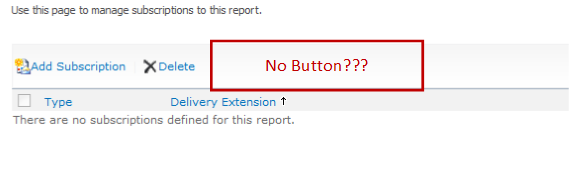
So after some googling / binging around, I found that the answer was because we were using SQL Server 2008 Standard and Data Driver Subscriptions require the Enterprise version of SQL Server.
Anyway, just a quick post in case I forget in future. Useful links below:
- SSRS Feature Support – Integration Mode: http://msdn.microsoft.com/en-us/library/bb326290(v=sql.100).aspx
- How to use Data Driven Subscriptions within SharePoint: http://blogs.devhorizon.com/reza/2008/10/26/ssrsdata-driven-subscriptions-in-integrated-mode-part-1/
- Required versions for Data Driven Subscription support: http://msdn.microsoft.com/en-us/library/ms159150(v=sql.100).aspx
Although in this scenario I am talking about SQL Server 2008, the same is true of SQL Server 2008 R2. In SQL Server 2012, Enterprise or Business Intelligence editions are required:

The365project

Just a small announcement.
Not so long ago the blog the365project launched. This blog has been created to provide tips around SharePoint, Project and Project Server. These tips are provided by MVP’s and all kind of members of the community including me.
Every few days a new tip will be posted. There is already a lot of useful tips on there that you can take advantage of. So go take a look if you are interested http://the365project.net/


via SpeakingSilent » Robin Kruithof http://speakingsilent.wordpress.com/2013/01/03/the365project/
|
I am Robin Kruithof. I am working at CXS in the Netherlands as a Microsoft Project Consultant. My passion lies in Project Management and everything in the Project Management domain.
This article has been cross posted from speakingsilent.wordpress.com/ (original article) |

Preconfigured #ProjectServer solution – Project Server Plus from CPS #PS2010 #PS2013 #SP2013 #Office2013
|
I am a Project Server and SharePoint consultant but my main focus currently is around Project Server.
I have been working with Project Server for nearly five years since 2007 for a Microsoft Gold Certified Partner in the UK, I have also been awared with the Microsoft Community Contributor Award 2011. I am also a certified Prince2 Practitioner. This article has been cross posted from pwmather.wordpress.com (original article) |
Just a quick post to highlight a product from CPS, Project Server Plus. This is a quick start preconfigured Project Server solution includes best practice fields and lookup tables, Views, RAG calculations and indicators, many great dashboards / reports and an enhanced Project Site template – all out of the box.
For details see:
http://www.cps.co.uk/What-We-Do/Pages/Project-Server-Plus.aspx


Traffic light indicators for schedule
One query that we receive a lot from our clients is about setting up automatic traffic light (or RAG) indicators for their project schedule. This is a very well documented request, but a recent client wanted a slight variation – the project schedule indicator to have its tolerance based on a percentage, instead of a hard-coded value. The following formula solves this issue:
IIf([Baseline Duration]=0,"No Baseline",
Switch([Baseline Start]=ProjDateValue(‘NA’) Or [Baseline Finish]=ProjDateValue(‘NA’),"No baseline",
[Duration Variance]<=0,"On schedule",
[Duration]/[Minutes per day]>([Tolerance for schedule in percent]/100)+([Baseline Duration]/[Minutes Per Day]),"Outside tolerance",
[Duration]/[Minutes per day]<=([Tolerance for schedule in percent]/100)+([Baseline Duration]/[Minutes Per Day]),"Within tolerance"
))
This is for the task schedule RAG, and will return values based on a number field called “Tolerance for schedule in Percent” to indicate whether the task duration has increased beyond its allowed tolerance.
You will also need to set up RAG graphical indicators for this field as well, with the following values, as per the screenshot below:
No baseline = Question Mark
On schedule = Green
Within tolerance = Amber
Outside tolerance = Red

Of course, your indicators could be different to those that I have chosen, as well as the text. Just make sure to update the formula if you want to change the returned text.
Hopefully this will shorten your chin-scratching time when attempting to do something similar!
Lester

SharePoint Timer Job Servers
Recently, while helping out a client, they asked a question about timer jobs running on their Farm.
The client in question has a large farm with multiple servers, web applications and content databases and was concerned about multiple servers appearing to run the same timer jobs on the same web application at different times.
If you have a web application with multiple content databases, or a farm with multiple servers it will be completely normal to see the servers running timer jobs changing, you can try to override this behaviour by setting a preferred timer server in Central Administration for a content database even thought this setting doesn’t even seem to be mentioned in TechNet.
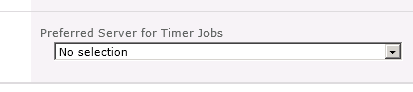
As each content database can have a different server assigned to run its timer jobs on of the ways to determine this is to have a look in SQL at contentDB in the TimerLock table
In SharePoint 2007 the actual timer server name was in the contentDB, but in 2010 this was changed to a GUID that represented the object, so you have to join the contentDB to the ConfigDB, the following SQL allows you tell which server currently has the timer lock for a contentDB.
select a.lockedby, b.name
from <contentdb_Name>.dbo.TimerLock a inner join SharePoint_Config.dbo.Objects b
on a.lockedby = b.Id
Happy SharePointing in 2013
Follow @NeilKing41


 SharePoint (and Project Server) Shenanigans
You must be logged in to post a comment.