Supporting post for #ProjectServer 2013/ #ProjectOnline project fields displayed on project site #JavaScript #jQuery
|
I am a Project Server and SharePoint consultant but my main focus currently is around Project Server.
I have been working with Project Server for nearly five years since 2007 for a Microsoft Gold Certified Partner in the UK, I have also been awared with the Microsoft Community Contributor Award 2011. I am also a certified Prince2 Practitioner. This article has been cross posted from pwmather.wordpress.com (original article) |
As mentioned when I published the JavaScript code that displays project level information on the project site, here is the supporting blog post. The quick post that references the script is below:
The script can be downloaded from the Microsoft Script Gallery below:
Firstly, as with the other JavaScript files I have published you will need jQuery:
jquery-1.8.3.min.js – jQuery download
A later version of this library may work but this was the one I used / tested with.
Upload this library to your PWA site collection then update the script file with the correct location. I uploaded this file to the site assets library as you can see in the code below:
Like the Project Milestone JavaScript file I wrote, you will also notice the reference to the default SharePoint JS files and the two references to the Data tables CSS and JS files. I just referenced the hosted files but you could download these and host them yourself – if hosting the data table files yourself you will need more than just the two files reference here. For a production environment I would probably recommend downloading and hosting the jQuery data tables locally.
Once the script has been downloaded you will notice that I have used 6 default project level fields and 2 custom fields. The two custom fields are Programme and RAGPMStatus. These can be seen on the select below:
Programme and RAGPMStatus are custom to my test environment but I added these to show that default and custom project level fields can easily be added. To get the script to work you can either add these fields to your configuration – probably fine for a test environment, or modify the script to remove the custom fields or add your own. Here I will assume you want to add 2 of your own project level custom fields. Below are parts of the script that will need to be modified to accept your own 2 project level custom fields. For simplicity we will assume that the two new fields are Project Location and Project RAG. Project RAG is associated to a lookup table with the following 3 values: Green, Amber, Red.
Starting from the top of the script file here are all the places you will need to modify to get the two new fields in the code.
- In the table, update the two column headers, replace Programme with Project Location and replace RAG Status with Project RAG.
- Update the select query, replace Programme with ProjectLocation and replace RAGPMStatus with ProjectRAG.
- On the first if statement replace Programme with ProjectLocation and replace RAGPMStatus with ProjectRAG.
- In the data table processing section, replace Programme with ProjectLocation and replace RAGPMStatus with ProjectRAG for the aoColumns parameter
- In the data table processing section for the aoColumnDefs parameter update the fnCreatedCell if statement with the correct lookup table values for the Project RAG field. So in this example replace On schedule [Green] with Green and Slipping but can mitigate [Amber] with Amber. You might also want to change the cell and font colors.
Once updated, add the script to your PWA site collection, I uploaded this to the Style Library. Then add a content editor web part to the project site and reference the uploaded project information JS file. If you want this to be on all project sites then you would need to create a new project site template with the JS file added.
Once added to a project site the project information will be visible for that project:

SharePoint 2010 Designer Issues
While it is always good to work with the latest and greatest versions of everything, there are still solutions running on 2010 that need maintenance.
So recently I found myself having to update a SharePoint 2010 solution that was made up of an SPD2010 workflow, a content type and library template. I had to update the content type, workflow and library template with some new and updated columns.
The library template was using a custom Edit form with some of the content type fields hidden, so I had to update the Edit form to show some new fields. To add a new field to a form you would normally edit the form table to and new rows where needed then select the field from the data source and select as ‘Insert as List Form Field’, unfortunately this option was no available; updating an edited form seems to be a common problem with SPD2010, as the same issue is outlined here.
My solution was as follows:
Select a field in the form where I wanted the new field and insert a new row into the form table, copy an existing control and insert into the new row, using the Common FormField Tasks control select the new control from the Data Field picker

Now Pick ‘List Form Field’ from the Format as picker

In the Quick Tag Selector bar the new field will be called <SharePoint:FormField#FormField1>
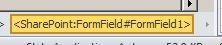
From the Quick Control select Edit Tag…

The Tag code is now displayed with the ID value of “FormField1”

Now check the other fields and find the control with the highest ID value and set the new tag value the be higher in the format “ff<id>{$Pos}”, ensure both references to the ID value are set

If the ID numbering is incorrect a duplicate

Once completed the new control will be available on the form.

CPS’ #ProjectServer Plus solution is an Award Finalist at the #Microsoft Partner Awards #WPC14 #ProjectOnline
|
I am a Project Server and SharePoint consultant but my main focus currently is around Project Server.
I have been working with Project Server for nearly five years since 2007 for a Microsoft Gold Certified Partner in the UK, I have also been awared with the Microsoft Community Contributor Award 2011. I am also a certified Prince2 Practitioner. This article has been cross posted from pwmather.wordpress.com (original article) |
I am pleased to announce that CPS’s Project Server Plus solution was an Award Finalist in the recent Microsoft Partner of the Year Awards 2014 in the Project and Portfolio Management Competency.
For a full list of winners and finalists see:
#ProjectServer 2013 / #ProjectOnline project fields displayed on project site #JavaScript #jQuery
|
I am a Project Server and SharePoint consultant but my main focus currently is around Project Server.
I have been working with Project Server for nearly five years since 2007 for a Microsoft Gold Certified Partner in the UK, I have also been awared with the Microsoft Community Contributor Award 2011. I am also a certified Prince2 Practitioner. This article has been cross posted from pwmather.wordpress.com (original article) |
Just a quick post to highlight a new script I have published this evening. This displays project fields on the associated project site. A full blog post will be coming soon that explains how to use the script and what would need modifying for your environment (custom fields etc.). The script can be downloaded below:
A screen shot of the output is below:
The RAG Status background colour and font colour update based on the custom field value.
Increase the width of a #ProjectServer text field on a PDP #PS2013 #ProjectOnline #JavaScript #jQuery #SharePoint
|
I am a Project Server and SharePoint consultant but my main focus currently is around Project Server.
I have been working with Project Server for nearly five years since 2007 for a Microsoft Gold Certified Partner in the UK, I have also been awared with the Microsoft Community Contributor Award 2011. I am also a certified Prince2 Practitioner. This article has been cross posted from pwmather.wordpress.com (original article) |
While working on a client site today the client wanted to increase the input box for a single line of text field on the PDP to help when typing data / viewing what you have already typed. As the box is quite small the text at the start of the box disappears as you type. See below:
Text entered:
“This is a new comment in a single line of text field. As I type the text disappears from view making it difficult to review”
One option is to increase the width of the input box. You can do this with JavaScript / jQuery. The jQuery to do this is below. As you can see you will need the input box id.
1 <script type="text/javascript" src="/PWA/SiteAssets/jquery-1.8.3.min.js"></script>
2 <script>
3  $(document).ready(function(){
4 $("#idCF_41396333-22dd-e311-9430-00155d15d1fe").width(750);
5 });
6 </script>
To get the ID, use the browser dev tools and select the correct element:
In the highlighted html you will see a property called ID, shown below in bold:
<input name="ctl00$ctl40$g_e2fda013_167b_4aa4_96c8_3c3437803054$ctl00$pfp_Repeater$ctl24$idCF_41396333-22dd-e311-9430-00155d15d1fe" title="Test Single Lint of Text" id="idCF_41396333-22dd-e311-9430-00155d15d1fe" type="text" size="50" maxlength="255" GUID="41396333-22dd-e311-9430-00155d15d1fe"/>
Copy the ID value and update the script below with the correct ID:
<script type="text/javascript" src="/PWA/SiteAssets/jquery-1.8.3.min.js"></script>
<script>
$(document).ready(function(){
$("#idCF_41396333-22dd-e311-9430-00155d15d1fe").width(750);
});
</script>
Add to the script to the correct PDP either using a script editor web part directly or save the js file, upload to PWA and reference the file using a content editor web part. The script will also need access to the jQuery library. Once complete you will see the wider input box:
#ProjectServer #project milestones on the project site #ProjectOnline #PS2013 #SharePoint #JavaScript #jQuery #SP2013 #Office365
|
I am a Project Server and SharePoint consultant but my main focus currently is around Project Server.
I have been working with Project Server for nearly five years since 2007 for a Microsoft Gold Certified Partner in the UK, I have also been awared with the Microsoft Community Contributor Award 2011. I am also a certified Prince2 Practitioner. This article has been cross posted from pwmather.wordpress.com (original article) |
This is another script I have written and published yesterday. It will display any project milestones on the associated project site. This JavaScript file can be downloaded from the Microsoft Script gallery:
To get the script to work you will need to download the following jQuery library:
jquery-1.8.3.min.js – jQuery download
A later version of this library may work but this was the one I used / tested with.
Upload this library to your PWA site collection then update the script file with the correct location. I uploaded this file to the site assets library as you can see in the code below:
Also notice the reference to the default SharePoint JS files and the two references to the Data tables CSS and JS files. I just referenced the hosted files but you could download these and host them yourself – if hosting the data table files yourself you will need more than just the two files reference here.
Add the script to your PWA site collection, I uploaded this to the Style Library. Then add a content editor web part to the project site and reference the uploaded project milestones JS file. If you want this to be on all project sites then you would need to create a new project site template.
Once added to a project site the milestones will be visible for that project:
The table can be sorted using the controls on the table.
If no milestones exist in the associated project then the table displays the default no data available message:
Create a milestone in that project and you will see that appear on the associated project site after publishing:
A nice simple script to allow your users to see project milestones on the Project Site. Download today and try it
Most Business Value #App for #Office #Project 2013 just got better #Office365 #ProjectOnline
|
I am a Project Server and SharePoint consultant but my main focus currently is around Project Server.
I have been working with Project Server for nearly five years since 2007 for a Microsoft Gold Certified Partner in the UK, I have also been awared with the Microsoft Community Contributor Award 2011. I am also a certified Prince2 Practitioner. This article has been cross posted from pwmather.wordpress.com (original article) |
CPS’ free Task Auditor App for Project 2013 just got better. The App that won 1st place for Most Business Value in the recent App Awards now supports Dutch and Swedish locales. Download today:
See the blog post below for details on the app:
#ProjectServer and #SharePoint 2013 SP1 re-released #ps2013 #sp2013 #office2013
So let me kill all this unnecessary noise with the final announcement that Service Pack 1 is now available to download, and all the clarifications in a nut shell is that Just apply this SP1 to your environment even if you have applied the previously released SP, and also feel free to apply this SP1 if you have April 2014 CU in place. don’t forget to run the configuration wizard in the end 🙂
Also do not forget that unlike old times, this SP1 is not a roll up package, which mean you should install SharePoint 2013 SP1 + Project Server 2013 SP1 and then run the configuration wizard in the end.
Download links for updated SP1:
- SharePoint Foundation 2013 Service Pack 1
- SharePoint Foundation 2013 Language Pack Service Pack 1
- SharePoint Server 2013 Service Pack 1
- SharePoint Server 2013 Language Pack Service Pack 1
- Project Server 2013 Service Pack 1
- Office Web Apps Server 2013 Service Pack 1
For details please see Brian Smith post, you can find details of almost all the queries in your mind on his blog post.
Also see Stefan Bogner’s post for details related to Service Pack 1 release announcement and clarifications.
As always try any patches in your test environment prior to apply to production.
Happy patching 😀
via All about Enterprise Project Management (EPM) http://bit.ly/1nYGfDy
|
The author of the blog has an extensive experience of working as an EPM Consultant. Currently he is located in Dubai, UAE and working for Microsoft partner organization as Project Server specialist. He has a thorough experience of providing Project Management technical/functional consultancy to all sort of organizations. He is a certified PMP, a Project Server MCITP, and also received a MS community contributor award 2011.
This article has been cross posted from khurramjamshed.blogspot.com/ (original article) |
New Risk Matrix #App for #ProjectOnline & #ProjectServer #PS2013 #SharePoint 2013 #Office365 #PM #PMO #Project #BI #Risk
|
I am a Project Server and SharePoint consultant but my main focus currently is around Project Server.
I have been working with Project Server for nearly five years since 2007 for a Microsoft Gold Certified Partner in the UK, I have also been awared with the Microsoft Community Contributor Award 2011. I am also a certified Prince2 Practitioner. This article has been cross posted from pwmather.wordpress.com (original article) |
CPS’ 4th app is now available in the Microsoft App Store. The app is called “Risk Matrix” and can be downloaded here:
The Project Server Plus Risk Matrix app will give great visibility of project risks plotted on a 5 x 5 grid based on the impact and probability values.
This app will allow users to quickly visualize the risks and make management decisions. The user can quickly see the Lync presence and easily communicate to either the risk owner or the user who is assigned to the risk using the Lync integration feature.
The Project Server Plus Risk Matrix app integrates into the Project Web App via the Project Center, Project Details Page and in the Project Site.
From the Project Center:
In a Project Detail Page:
From a Project Site:
Full Lync integration:
Download today and take a look using the free trial.
To see the CPS app store click the link below:
Look out for more new apps coming soon.
#ProjectServer / #ProjectOnline Publish All projects #JavaScript #jQuery #SharePointOnline #Office365 #PS2013
|
I am a Project Server and SharePoint consultant but my main focus currently is around Project Server.
I have been working with Project Server for nearly five years since 2007 for a Microsoft Gold Certified Partner in the UK, I have also been awared with the Microsoft Community Contributor Award 2011. I am also a certified Prince2 Practitioner. This article has been cross posted from pwmather.wordpress.com (original article) |
This post covers a new script I have written that publishes all projects the user has access to. I do have a PowerShell script that does this perfectly but only works for Project Server on-premise. This is detailed here:
The new script is JavaScript so will work for Project Server 2013 and Project Online. The publish all JavaScript file can be downloaded here:
To get the script to work you will need to download the following jQuery library:
jquery-1.8.3.min.js – jQuery download
A later version of this library may work but this was the one I used / tested with.
Upload this library to your PWA site collection then update the script file with the correct location. I uploaded this file to the site assets library as you can see in the code below:
Also note the references to the default SharePoint / ProjectServer JavaScript libraries.
Once the script is uploaded, save this to the PWA site collection. I uploaded the JavaScript file to the style library:
Now create a new page, I called mine PublishAll and saved this in the Site Collection Documents Library library. The name of the page and the location of the page can be changed, just make sure the users have access to it. Then add a content editor web part on the page and reference the publishallprojects.js file. After clicking save you should see the following load:
Clicking the Publish Projects button will fire of a publish job for all the projects you have access to. You will see the following pop disappear once all the projects have been sent to the queue for publishing:
There are several publish all type apps available in the app store but this method does not require you to install and configure the app store or download and install an app.


 SharePoint (and Project Server) Shenanigans
You must be logged in to post a comment.