Setting up a shared mailbox on #Office365
I know it has been a while since I have posted to the blog personally. Alas life has been busy after sorting out my presentation for SharePoint Saturday UK last December, then my Christmas break. Now that I am back in the UK and have got back to work, normal service can resume.
As part of this busy time in my life, a number of changes have happened and I find myself setting up an Office 365 account for my partner to aid with her HR consulting business. Office 365 was an obvious choice and the E1 plan seemed to be the most useful for the least per user cost in our situation. It provides the following:
- SharePoint Online (Enterprise)
- Exchange Online
- Lync Online
- Public Website
Although I had setup an Office 365 P1 plan before with ghamson.sharepoint.com, it had no real purpose, therefore it has just kind of sat there being used as file storage for this blog + a few other things.
Now however, I have a real purpose. My partner needs an online presence, a professional email address and it needs to be in a form that she is useful.
This blog post and probably the next series of blog posts will cover what I do to provide the setup my partner needs to run her business. She doesn’t know SharePoint very well, has no idea what Exchange is really but has used Outlook and Lotus Notes for most of her professional life.
So without further a-do… Our first task after the initial setup is: Creating a shared mailbox:

So if you are used to On-Premise Exchange, this is a fairly simple task, so imagine my surprise when I found out that I needed to use PowerShell to create the mailbox and set the appropriate permissions.
Useful articles:
- Install the Office 365 PowerShell cmdlets: http://onlinehelp.microsoft.com/en-gb/office365-enterprises/hh124998.aspx
- Connect Windows PowerShell to the Exchange Online Service: http://help.outlook.com/140/cc952755.aspx
- Update your PowerShell script execution policy to Remote: http://technet.microsoft.com/en-us/library/ee176949.aspx (by default, the script execution policy is set to: Restricted)
- Setting up a Shared Mailbox in Office 365 via PowerShell: http://help.outlook.com/en-us/140/Ee441202.aspx (please note that you need to have connected to the Exchange Online Service first and downloaded the cmdlets as outlined in the second link above (Connect Windows PowerShell to the Exchange Online Service).
- GUI Tool for Shared Mailbox setup: http://community.office365.com/en-us/wikis/exchange/1712.aspx
Once you have done the initial mailbox setup, you can then assign a distribution / security group to allow access to the contact mailbox
These instructions are outlined here (also available in the link above):
Create a security group for the users who need access to the shared mailbox In the Exchange Control Panel, create a security group for the staff who need access to the shared mailbox for Corporate Printing Services.
- Select My Organization > Users & Groups > Distribution Groups > New.
- Specify a display name, alias, and e-mail address. In this example, we’ll use Printing Services Staff,corpprintDG, and corpprintDG@contoso.com.
- Select the Make this group a security group check box.
- In the Ownership section, click Add to add an owner, if necessary.
- In the Membership section, click Add.
- In the Select Members page, select the users you want to add. When you are finished, click OK.
- On the New Group page, click Save.
Note After you create a security group, the membership is closed. When membership is closed, only group owners can add members to the security group, or owners have to approve requests to join the group. Additionally, only group owners can remove members from the security group.
You can then run the final PowerShell commands to setup the access rights.
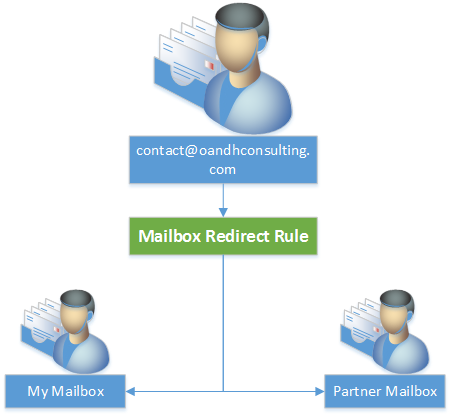
And apparently we are done, and in general we are. However, my partner will not want to log into a separate mailbox to deal with the emails. So I also setup a forwarding rule within the Exchange Online Administration interface to forward any email to go directly to her and myself.
Rule:
Sent to ‘O&H Consulting Contact Mailbox’
If the message…
Is sent to ‘contact@oandhconsulting.com’
Do the following…
Redirect the message to ‘<username>@oandhconsulting.com‘ and ‘<username>@oandhconsulting.com‘
For those interested in the total PowerShell script I used to achieve the above:
//Download the Office 365 PowerShell Cmdlets
Get-ExecutionPolicy
Set-ExecutionPolicy RemoteSigned
$LiveCred = Get-Credential
//You will be asked to sign in here
$Session = New-PSSession -ConfigurationName Microsoft.Exchange -ConnectionUri https://ps.outlook.com/powershell/ -Credential $LiveCred -Authentication Basic -AllowRedirection
Import-PSSession $Session
//Exchange Online Cmdlets will download within the PowerShell command prompt.
New-Mailbox -Name "O&H Consulting Contact Mailbox" -Alias contact -Shared
Set-Mailbox contact -ProhibitSendReceiveQuota 5GB -ProhibitSendQuota 4.75GB -IssueWarningQuota 4.5GB
//Setup your distribution group in the interface
Add-MailboxPermission "O&H Consulting Contact Mailbox" -User contactDG -AccessRights FullAccess
Add-RecipientPermission "O&H Consulting Contact Mailbox" -Trustee contactDG -AccessRights SendAs
//Setup the forwarding rule in the interface

Custom Navigation in a SharePoint Hosted App in SharePoint 2013
I have been playing round with a SharePoint hosted app to learn about how it all works. This has been going well but i ran into more problems than i though i would when trying to implement a menu for my App.
If you are using the auto hosted or developer hosted app model then this is easy (ish) you use the new chrome control, create you menu links in JS and you are done. MS have some documentation on this that works great.
But i am creating a SharePoint hosted app. So this causes a few “problems”. The first one being that if i add a chrome control to my page i get 2 menu which is just silly.
Google wasn’t much help although i did find this post here
http://www.intrateam.com/gb/blogpost/sharepoint-2013-app-master-page
which pointed me in the right direction.
My first issue was actually getting hold of a copy of the master page that app’s use. I could not work out how to do this only having an office 365 tenant. In the end I grabbed the app.master and default.master from the GLOBAL folder in the hive on a on premise install.
The first thing i worked out is that the reference to “~masterurl/default.master” seems to translate to the app.master from the GLOBAL folder in the HIVE.
So i made a copy of the app.master and added it to my project. Changing the elements.xml file as per the post linked above.
I also changed the link in my ASPX pages from ~masterurl/default.master to ~site/_catalogs/masterpage/<Name of my master page>.master
This assumes you have you elements file setup like

While doing this I noticed that there is a content place holder with an id of PlaceHolderLeftNavBar. This isn’t hidden.
So I added

into my Default.aspx page and loaded it into SharePoint.

Bingo I have a menu in the standard place in SharePoint. What is also nice is that if the user hits the “Focus on Content” button then the menu gets hidden.
But wait a minute we just setup our own master page, what was the point? Well at the moment you do not need you own master page but this does now mean you could move any of the other Content Place Holders to put a menu in a different location. It also helps get rid of some of the warnings in visual studio as it now knows the master you are using.
I do have an issue that have to copy my <asp:menu> content onto all the pages. I tried using the XML data source but this appears to not be supported but there may be another way to store the menu logic centrally.
The next problem to solve was that we need to pass the query string values around the system, so these have to be added to the menu.
This can be done with some simple jQuery.

Just make sure this will run on all of the pages and your querystring values will be maintained between page loads
Sorry for the images but my code plugin was not working.
Hope this helps someone.


via Buzz Blog http://paulbuzzblog.wordpress.com/2013/02/10/custom-navigation-in-a-sharepoint-hosted-app-in-sharepoint-2013/
   Paul is a an expert SharePoint and Project Server developer and is responsible for designing and implementing custom solutions on client systems using the latest SharePoint and .NET technologies.
Paul has extensive experience with SharePoint systems across all sizes of implementation, ranging from small to large farms and has an excellent understanding of all the elements of SharePoint. This article has been cross posted from paulbuzzblog.wordpress.com (original article) |

Disable social features in SharePoint 2010
For most deployments clients want to use all the social features that SharePoint 2010 offers, but on a recent project I was working on, the client wanted all the social features disabled including.
– MySite Creation
– Use of My Profile link
– Page Personalization
– The use of ‘I Like It’ and ‘Tags & Notes’

As I have never had to do this it took a bit of googling to find all the correct settings.
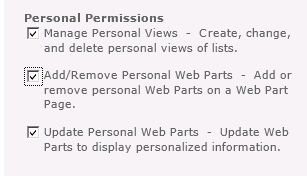
Page Personalization
From CA – > Pick the Web app in question –> User Permissions

Unticking the last 2 items and the ‘Personalize this Page’ menu item is removed, but the users still have the ability to create personal views on lists and libraries, removing ‘Manage Personal Views’ will remove this option as well.
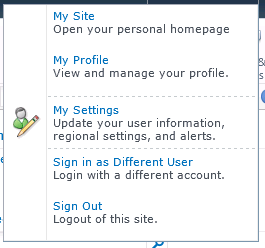
Another option to look at is ‘Edit Personal User Information’
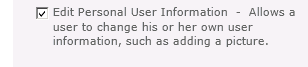
This removes the, Edit Item and My Regional Settings from the ‘My Settings’ link, via the ‘My’ Drop down menu.

My Site & My Profile
To Remove the My Site and My Profile links go to CA –> Manage service Applications –> User Profile Service Application –> Manage User Permissions
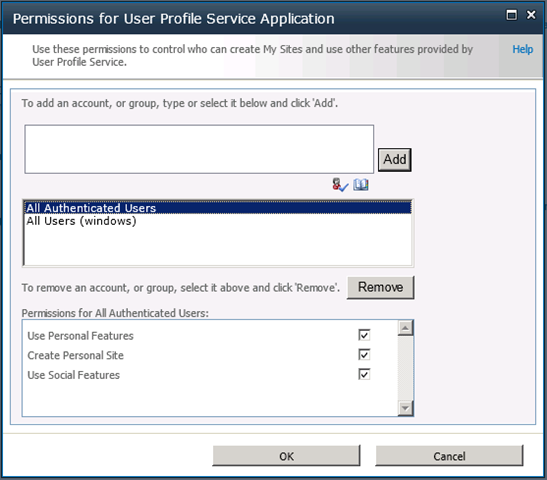
By default all authenticated users have access to all the ‘Personal’ features, see the link below for details on the specific feature sets.
http://technet.microsoft.com/en-us/library/ee721063(v=office.14).aspx.
Personally I quite like this feature as you can decide who has access to which feature set, for example you might not want external users or partners to be able to use these features.
A point to note here is that if you disable “Use Social Features”, any of the features that you might have deployed such as the Note Board or list ratings will disappear !
Finally, to remove the SocialRibbonControl (‘I Like It’ and ‘Tags & Notes’) it can be disabled at Farm Level as it is a Farm Scoped feature
http://technet.microsoft.com/en-us/library/ee721062(v=office.14).aspx
Now we have a very short ‘My’ menu.

Happy SharePointing !

SP.ClientContext.get_current is null or not an object
One of the reasons you might be getting this error is because you are trying to use the client object model without the sp.js file being loaded.
Other post regarding errors you might be getting related to the client object model and sp.js
You might need the ExecuteOrDelayUntilScriptLoaded method
Uncaught TypeError: Cannot read property ‘get_current’ of undefined

Dynamic Timeline image on #ProjectServer Project Site #PS2010 #SP2010 #MSProject #VBA
 I am a Project Server and SharePoint consultant but my main focus currently is around Project Server.
I have been working with Project Server for nearly five years since 2007 for a Microsoft Gold Certified Partner in the UK, I have also been awared with the Microsoft Community Contributor Award 2011. I am also a certified Prince2 Practitioner. This article has been cross posted from pwmather.wordpress.com (original article) |
One question we have from many clients is, can we have the project timeline image on the project site. The answer is yes, but this will not update automatically in Project Server 2010. On a side note, it is possible to have the timeline view in Project Server 2013 PWA!
This blog post covers a workaround to this limitation in Project Server 2010 using VBA. At this point I will state that I am no VBA expert, my VBA knowledge is very limited to say the least. This is a simple macro but I’m sure it could be improved 
For this to work a custom DLL is required on the workstations as there is no option to save a clipboard image to a file in VBA (as far as I know!). The DLL can be downloaded here: http://www.vbforums.com/showthread.php?585616-clipboard-activex-for-vba-vbs-etc Use this at your own risk as I do not know the code behind this DLL!
For this example, I created a file share to store my images \\vm353\ProjectSiteTimeLineImages. All users will need read / write access to this share.
The VBA code can be seen below, add this to the Enterprise Global:
Private Sub App_ProjectBeforePublish(ByVal pj As Project, Cancel As Boolean)
Dim clip As Object
Dim proj As Project
Set proj = ActiveProject
Dim path As String
path = "\\vm353\ProjectSiteTimeLineImages\"
Dim file As String
file = ".bmp"
Dim fileName As String
fileName = path & proj & file
Application.ViewApply Name:="Timeline"
Application.TimelineExport SelectionOnly:=0, ExportWidth:=1000
Application.ViewApply Name:="Gantt Chart"
Set clip = CreateObject("clipbrd.clipboard")
SavePicture clip.GetData, fileName
Set clip = Nothing
End Sub
Before a project is published the timeline image will be saved as a file to the share. See the example / walkthrough below:
File share before publish:

Create a new project, save and publish:

File share after publish:

Image:

Now we have the timeline as an image, this needs to be added to the project site – I won’t go into the details as this is basic SharePoint end user config task. See the Project site below with the image:

Notice only 3 tasks are added to the timeline, lets add some additional tasks.
I have added task T5 and added this to the timeline:

After publishing this project, refresh the project site:

A nice simple solution to a dynamic timeline image on the Project Server 2010 Project Sites. After publishing more projects, more timeline images will appear in the shared folder:

As mentioned, the VBA could be improved with error handling etc. Use this and the custom DLL at your own risk and fully test on a test workstation and PWA instance first.


SharePoint 2010 Site relocation
A project I have recently worked on involved moving an Internet facing hosted SharePoint 2010 site from one hosting provider to another.
The actual moving of the site was quite straight forward but did involve quite a lot prep work, the broad steps are covered below.
The site was made up of custom components deployed as WSP’s, a content-db backup and some farm configuration tasks.
To build the new platform we started with a vanilla SharePoint 2010 build, created an empty web application, restored the supplied content-db to the SQL server and ran a test upgrade check against the database
Test-SPContentDatabase –Name SP_Test_Content –WebApplication http://TestApp
http://technet.microsoft.com/en-us/library/ff607941(v=office.14).aspx
We used the output of this to cross check which features the content database was expecting to find in the farm, these were added with powershell cmdlet
Add-SPSolution <wsp name>
The Test-SPContentDatabase cmdlet was run again to ensure nothing had been missed.
Once the site was running extensive testing was performed to identify any missing components or settings, most were identified as missing at the Farm level, such as content sources and search scopes
One of the issued noticed was accessing the site via an iPhone browser was redirecting to the mobile version, this was easily resolved by updating the browser definition file compat.browser file in the location
C:\inetpub\wwwroot\wss\VirtualDirectories\<site folder>\App_Browsers
http://technet.microsoft.com/en-us/library/ff393836(v=office.14).aspx
The section
<!– iPhone Safari Browser –>
has the value
<capability name="isMobileDevice" value="false" /> set to
<capability name="isMobileDevice" value="true" />
This has to be replicated on all web-servers in the farm
Once testing has finished the Internet facing site was set to anonymous authentication and the site was extended to another zone with Windows authentication to allow authoring to take place.
I hope these broad steps help someone else faced with this task.
Visual Studio 2012 templates for SharePoint 2013
So I just fired up Visual Studio 2012 and went to create a new SharePoint 2013 App just to play around with. Only to find that Visual Studio only has the 2010 templates available.
The search to find out what I needed to install wasn’t as quick and simple as I was hoping so now that I have worked it all out i may as well share with the rest of you.
Assuming you have Visual Studio 2012 installed. Go to
http://msdn.microsoft.com/en-us/office/apps/fp123627
Scroll down and under the tools section there is a web downloader (Direct Link). Download and run it, it will download everything you are missing.
After a couple of restarts you can then create 2013 projects in visual studio

Hope that helps

via Buzz Blog http://paulbuzzblog.wordpress.com/2013/01/23/visual-studio-2012-templates-for-sharepoint-2013/
|
Paul is a an expert SharePoint and Project Server developer and is responsible for designing and implementing custom solutions on client systems using the latest SharePoint and .NET technologies.
Paul has extensive experience with SharePoint systems across all sizes of implementation, ranging from small to large farms and has an excellent understanding of all the elements of SharePoint. This article has been cross posted from paulbuzzblog.wordpress.com (original article) |

Hiding tasks from the Gantt Chart
Have you ever wanted to hide tasks from the Gantt Chart? The following technique is useful for tidying up a schedule – for example, if you want to show only pertinent Gantt information for a presentation, or take a screenshot of a plan for a client that contains some internal tasks.
To hide individual bars in the Gantt display, simply insert the “Hide Bar” field and set it to “Yes” for the requisite tasks:

After hiding:

You’ll notice that all incoming dependencies for the hidden bar are also hidden, so take care when looking at your predecessor/successor logic!
Lester

#SharePoint2010: Error 7043 Load control template file /_controltemplates/TaxonomyPicker.ascx failed
Load control template file /_controltemplates/TaxonomyPicker.ascx failed: Could not load type ‘Microsoft.SharePoint.Portal.WebControls.TaxonomyPicker’ from assembly ‘Microsoft.SharePoint.Portal, Version=14.0.0.0, Culture=neutral, PublicKeyToken=71e9bce111e9429c’.

Although i cannot find any particular reason for this error, neither it will affect any of your services, but it would be better if you can find a solution and resolve it, so that it wont bother you while looking to your event log 🙂
Eventually i have found cause to this error from Microsoft support site as:
To get rid of this error, follow the simple steps:
- Navigate to /14/TEMPLATE/ControlTemplates/TaxonomyPicker.ascx user control
- Open the user control in a text editor and locate the first line
- Find the character string , and replace with a comma ‘,’ (without quotes).
- Save the user control.
Hope this helps.
via All about Enterprise Project Management (EPM) http://khurramjamshed.blogspot.com/2013/01/sharepoint2010-error-7043-load-control.html
 The author of the blog has an extensive experience of working as an EPM Consultant. Currently he is located in Dubai, UAE and working for Microsoft partner organization as Project Server specialist. He has a thorough experience of providing Project Management technical/functional consultancy to all sort of organizations. He is a certified PMP, a Project Server MCITP, and also received a MS community contributor award 2011.
This article has been cross posted from khurramjamshed.blogspot.com/ (original article) |

Create #ProjectServer 2010 #MSProject 2010 accounts with #PowerShell #PS2010 #SP2010 #MSOffice
|
I am a Project Server and SharePoint consultant but my main focus currently is around Project Server.
I have been working with Project Server for nearly five years since 2007 for a Microsoft Gold Certified Partner in the UK, I have also been awared with the Microsoft Community Contributor Award 2011. I am also a certified Prince2 Practitioner. This article has been cross posted from pwmather.wordpress.com (original article) |
Quite often system administrators want a way to automate tasks, creating the Project Server Project Professional accounts is usually one of these tasks. This blog post shows an example of creating a Project Professional 2010 account.
The script can be downloaded from the Script Center following the link below:
http://gallery.technet.microsoft.com/scriptcenter/Create-Server-2010-dfb0fbba
When creating an account, a registry key is created here:
HKEY_CURRENT_USER\Software\Microsoft\Office\14.0\MS Project\Profiles\<Profile Name>

After running the script, a new registry key will appear:
Script:

Before running the script you will need to update two variables, $accountName and $pwaURL with the correct values.
New Key after executing the script:

As you can see, the script on creates three string values, the rest get created when you launch Project Professional 2010 and connect to the new account:
New account:

Additional string values:

A simple solution for creating Project Professional 2010 accounts.
I recommend that this script is tested thoroughly on a test workstation before using within a production environment.
This script is just an example, use this script at your own risk. Remember to always backup the Registry before making any changes.
This script is probably a better approach to the Registry key export detailed in a post I wrote a while back:


 SharePoint (and Project Server) Shenanigans
You must be logged in to post a comment.