Permissions delay when using Kerberos and Security Groups #SP2010 #SharePoint #in
At one of our clients recently we had a support issue concerning a delay in permissions being applied in a SharePoint 2010 environment.
Environment Details:
- SharePoint Server 2010 – Enterprise: SP1 – Dec 2011 CU
- Authentication: Kerberos
Scenario
- Site Administrators add an Active Directory security group into a SharePoint group for permissions.
- The security group has 9 users and permissions are applied accordingly.
- Later down the line a system admin adds a users into the security group giving it 10 members instead.
- No changes have been made to the SharePoint group security.
Problem
The 10th member is not immediately given the rights of the SharePoint group. However, after some time has passed (with no changes being made), the permissions are applied to the 10th member.
The amount of time is not fixed but is definitely no more than a standard working day.
Solution
After investigation and replicating the issue back at the office, we found this:
http://technet.microsoft.com/en-us/library/cc738673(v=ws.10).aspx
In particular, we found these settings:
| Maximum lifetime for user ticket | Determines the maximum amount of time (in hours) that a user’s TGT can be used. When a user’s TGT expires, a new one must be requested or the existing one must be renewed. By default, the setting is ten hours. |
| Maximum lifetime for user ticket renewal | Determines the longest period of time (in days) that a TGT can be used if it is repeatedly renewed. By default, the setting is seven days. |
So the issue is that the Kerberos token is being cached therefore the permissions are not being enforced until the token has expired.
Now, 10 hours to wait is a very long time but given that this is a forest wide setting, should we be changing this setting? In this case we also realised that the token is re-issued whenever a user logs back in.
So when these issues occur and a support issue comes in we ask them to just log off and log back in again and then we are back to where we should be!
All sorted then…
To see this in action, we took a video to prove the scenario:

Project Conference 2012 video presentations now available #PS2010 #ProjectServer #MSProject #in

Over the past couple of months, you may have seen posts about my presentation at the Project Conference held in Phoenix, AZ. Now that some time has passed, Microsoft has uploaded all the video presentations to the Project channel on Microsoft Showcase.
The Project team officially announced the availability here.

As part of the Microsoft Project Conference 2012, Corporate Project Solutions (my company) not only sponsored my presentation, but also the client I have been working for over the last couple of years, ARM.
So without further ado, I offer both video presentations for your consideration:

URL: http://www.microsoft.com/en-us/showcase/details.aspx?uuid=06fff348-8836-497b-a5eb-b5ed63a3b6c9

URL: http://www.microsoft.com/en-us/showcase/details.aspx?uuid=17a5610c-8d0f-49f2-869c-d6d1021d472a

If you would like to skim through the slides, I have uploaded them to SlideShare for your convenience:
Integrating SharePoint and Project Server 2010
8 Billion Reasons… Why ARM Chose Project Server 2010
Enjoy and if you have any questions about the above or would like to know more, please get in contact!

Excel formulas not auto calculating but F9 still works #in
As ever, when you work in IT you become the go to guy / gal for friends, family etc…
So today, whilst working on my TechEd Europe 2012 presentation, my girlfriend rang up, asked if I knew Excel and promptly forward me to a manager for a quick chat.
The problem
Excel is no longer auto calculating formulas for any spread sheet that is opened, yet if you press F9, suddenly the calculations kick into touch.
The solution
Essentially, automatic calculations have been turned off in the Excel client and we simply need to turn it back on again:
Excel 2003
- Menu: Tools > Options
- Click on the Calculation Tab and on the checkbox labelled Automatic, check it and click OK.
Excel 2007 / 2010
- Click on the Formulas ribbon
- Dropdown Icon: Calculation Options
- Check: Automatic

Problem solved 
Now you may be wondering what this is doing on a SharePoint (and Project Server) blog.
Well mostly it has nothing to do with the applications in this case, but you may just start pulling your hair out whilst working on an Excel Services spread sheet… you never know when this might come in handy.

Useful virtualisation links #SP2010 #SharePoint #in
Once again, writing tenders and needed to provide evidence of supported platforms for virtualisation:
Virtualisation support and licencing (SharePoint Server 2010)
Supported virtualisation platforms – listed here:
Virtualisation planning (SharePoint Server 2010)
Virtualisation notes (SharePoint Server 2010 – Bill Baer)
Create a New MySite Host Site
On a recent project we created a small SharePoint development farm using AutoSPInstaller.
The farm created perfectly, the Portal was working, UPS was working, mysites were working, all was good.
The My Site host Web app had been created on port 8080 with the URL http://ServerName/:8080/
We then decided to move this to a DNS addressable location with a (slightly) more user friendly URL of
http://DevMySite.domain.local on port 80
I looked at extending the mysite host Web Application, but I decided to create new Web Application with a host header value instead.
The first step is to create a new Web Application with the appropriate value in the Host Header field
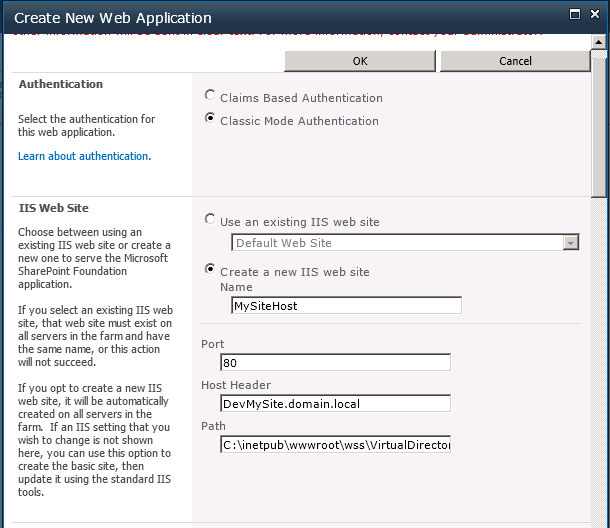
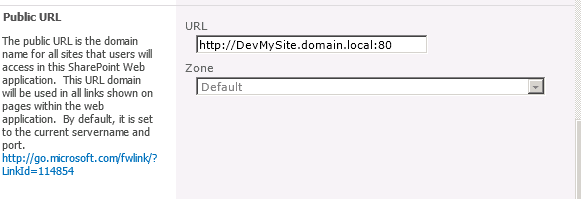
Make sure your Public URL is the same as the DNS A record
For this install I’m using an Alias for SQL, I like to add the word ‘Alias’ just to remind you in 6 months time how you built a system.

I’m also creating another content database, but if you have personal sites in an existing content DB, we can deal with that as well.
Now that our new web application has been created on port 80..

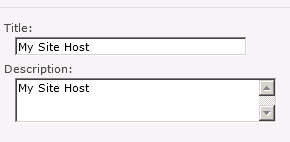
…we need to put in a root site collection, the name does not really matter but I used My Site Host
this needs to use the My Site Host Enterprise template.

Don’t forget to pick the Personal Site quota template

Once your site collection has been created, head over to your UPS and find the Setup My Sites link

The only thing you need to change here is the My Site Host location value, make this the URL of the new Web application you have created.

We are almost finished, run a quick IIS reset and try to create a mysite, you might get the error below, as the managed path personal is the location used to navigate to mysites, but you can change it to anything you want.

So head back over to your CA site and add the personal managed path to the new web application.
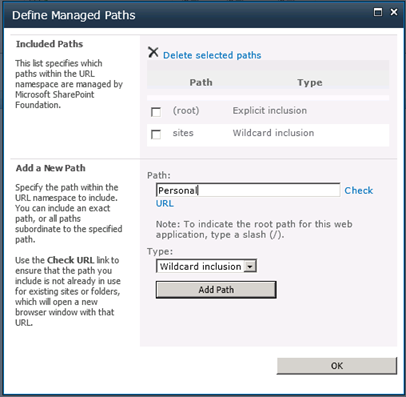
If you try to create a mysite now, you might get a different error, as each mysite is actually its own site collection.

So head back to CA and switch on Self-Service Site Collection Creation in your new Web Application.

Your new My Site host should be working.
If you want to bring in any mysites that you have created on another web app, go to CA-> Application Management –> Manage Content Databases.

Hit the Add a content database link

Pick the correct Web Application and enter the content database name that the other my sites exist in:

NOTE: The database you attach here cannot be attached to another web application in the same farm, but you can have more than one content database attached to any one web application.
Happy SharePointing !
Follow @NeilKing41
Office 365 / #SharePoint 2010 Accessibility Compliance Links #O365 #SP2010 #in
As part of responding to a tender, I needed to do some research on SharePoint 2010 / Office 365 and accessibility compliance. Here are some links that I found…
Office 365 / SharePoint 2010 – Accessibility Compliance
- http://blogs.technet.com/b/whymicrosoft/archive/2012/01/19/why-microsoft_3f00_-office-365-is-accessible.aspx
- http://sharepoint.microsoft.com/blog/Pages/BlogPost.aspx?PageType=4&ListId=%7b72C1C85B-1D2D-4A4A-90DE-CA74A7808184%7d&pID=431
Office 365 Help:
Conformance statement AA-level (SharePoint Foundation 2010)
Office Web Apps:
Using the “Inactivate Tasks” functionality
Inactivate task is a new feature for EPM2010; this feature enables the project manager to set certain tasks to inactive rather than deleting the tasks. This functionality is also useful for performing what-if analysis.
The following paragraph from Microsoft explains that intended usage of the inactivate task functionality:
“Microsoft Project Professional 2010 enables you to cancel a task but keep a record of the task in the project plan. This is called inactivating the task. The task remains in the project plan, but does not affect resource availability, the schedule or how other tasks are scheduled. Note: Inactivating a task is a feature available only with Project Professional.
Why would you want to inactivate a task? For one thing, it can help you model the effects of schedule or resource constraints on the project without deleting tasks permanently. Also, inactive tasks remain in the project plan, providing a record of cancelled tasks and enabling you to reactivate them if circumstances change.
Note: Inactivation is nor a good way to archive complete tasks, because it could have unanticipated effects on the remaining schedule. Instead, mark the tasks as completed.”
http://office.microsoft.com/en-us/project-help.inactivate-a-task-HA010370341.aspx
Please see the following best practise guidelines for using inactive tasks:
- When in the planning phase, if you decide that a task or tasks are not required, at this stage use the inactivate task feature to set tasks to inactive rather than deleting the tasks. this will give you the option to quickly make these tasks active at a later date if there is a requirement for these tasks.
- Inactive tasks do not affect resource availability. Baseline values that have already been taken are retained, but any new baselines taken will not include data for inactive tasks.
- Tasks that have actual work cannot be made inactive.
- Inactive tasks are not published, so inactive task assignments will not appear on a team member’s task list.
- Inactive tasks are available to report on via the Project Server OLAP cube, so care should be taken when reporting that these tasks are/aren’t included depending on the figures required. The “Task is Active” field can be used to include or exclude inactive tasks. If you do not see this field in your OLAP cube, it may be that the EPM administrator has not enabled inactive tasks in the cube.
Updating resource rates
Due to possible differences in calendars between EPM (Enterprise Calendars) and Microsoft Project (local project settings), resource rate changes using an effective from date may not be applied from the beginning of the working day. At one client in particular, where all resources in the Enterprise Resource Pool received an updated (increased) rate from the first of the financial year, this caused project financial information to be out by a couple of hundred to a few thousand pounds. Given that this particular client uses timesheet and therefore project actual work and cost figures to update their financial system for client billing, this is quite a big problem.
This article describes how to set the effective from time for the resource rate in order to ensure that it is applied from the beginning of the working day.
Setting Project Options
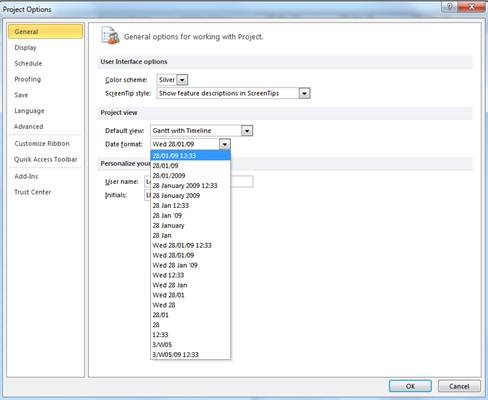
Open Microsoft Project and click on File > Options. Under the General tab, change the Date format to include the time, as below, and then click OK.
Updating resources
For resources that require a rate change, navigate to Resource Center in PWA. Select the resources for which the rates should be updated and click Open:

This will open the selected resources in Microsoft Project. To update the resource rate, double click on the resource and click on the Costs tab. The Effective Date will contain the time as well as the date. Ensure that the time is set to the same as the Enterprise Calendar for the start of the day.
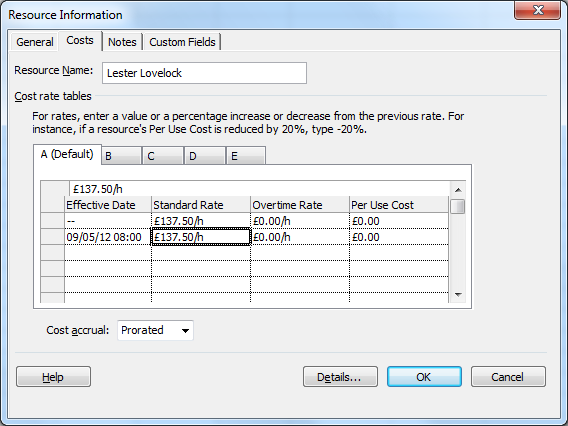
Repeat for all resources as required. When complete, save the changes to enterprise resources (File > Save) and close Microsoft Project.
If required, change the date display setting back to show only the date by repeating the steps above.

#SP2010 #PS2010 Performance Links
Some useful links for Capacity Performance and Management
SharePoint 2010
Capacity management and sizing overview
http://technet.microsoft.com/en-us/library/ff758647.aspx
Software boundaries and limits
http://technet.microsoft.com/en-us/library/cc262787.aspx
Performance and capacity test results / recommendations
http://technet.microsoft.com/en-us/library/ff608068.aspx
Performance and capacity technical case studies
http://technet.microsoft.com/en-us/library/cc261716.aspx
InfoPath Form Services – performance and capacity requirements
http://technet.microsoft.com/en-us/library/gg576954.aspx
Project Server 2010
Plan hardware architecture
http://technet.microsoft.com/en-us/library/hh297440.aspx
Software Boundaries (Project Server 2007)
http://technet.microsoft.com/en-us/library/cc197693(v=office.12).aspx
How to break a SharePoint list in less than minutes
My client asked me today the limitation of Sharepoint 2010 in terms of number of words per column types, lines and attachments.
I found the answers in Microsoft website and also this blog http://sharepointgadget.blogspot.co.uk/2010/05/limits-in-sharepoint-2010.html that has a good summary.
But then I wanted to prove myself what “Multiple Lines of Text : 192 Maximum Value” really meant for my end user language, so now is the reference to my title “how to break Sharepoint”:
– In a Sharepoint list, I create a Multi-lines column
– Add the value “0123456789” to have 10 characters, then copy and paste this value a few times to have a few hundreds.
– Now be crazy and copy and paste is a lot, I used Word to count my characters and I arrive to 1Mo.
– From here Internet Explorer (I was pasting in a Datasheet mode) crashed, I could have let it think for 30 minutes but decided to crash it after 5.
– Now re-open IE and this list….
– It cannot open ! to be precise: the page opens but doesn’t load anything (blank page).
– And worse: if the list is also showing in a webpart on a page that page won’t open either. Quite an issue if that page is a homepage right ?
Now I had a problem: the list default view cannot be opened because it contains my very large value in a column, and you can only point to the list settings if you know the unique ID of the list (url http://sharepointsite/_layouts/listedit.aspx?List=%7B3C68CBBE%2D3F51%2D402A%2DA584%GD61A0F8C5AFA1%7D)
To fix it: open the site in SharePoint Designer, then open the list gives the option to

The column are now editable and I can change my “Multiple lines of text” to be “Single line of text”

By doing this the long text value in the column will be truncated (and rich text lost if any).
Don’t forget to close the Column edit tab in Sharepoint designer and save the changes.
Now any page containing the view and the list itself can be opened again.


 SharePoint (and Project Server) Shenanigans
You must be logged in to post a comment.