Archive
#Office365 Two Factor Authentication (Preview) (Phone Factor) #O365
So I am about to embark on a client who is interested in two factor authentication in their existing Office 365 environment.
 With the speed Microsoft is going at these days, surely there is a solution to this and speaking to some contacts with Oliver Stickley, Microsoft helped us out.
What is Two Factor Authentication?
Single factor authentication is via a single method such as a Username and Password.
Two Factor Authentication adds an extra measure into the mix to ensure that you are who you say you are. This could be an RSA Security Key or more recently the market is shifting towards using mobile phones as the security key with the use of automated phone calls, text messaging (SMS) or mobile apps.
The Solution
In October 2012, Microsoft acquired a company called PhoneFactor (more info) which has been developing two factor authentication solutions in the cloud for a while now and recently the capabilities have been added to Office 365 in the form of a preview which is free to try for Administrators.
NB: Please be aware that this is currently in preview, so they are still working out the kinks, pricing model, release schedules etc..
Given that we are in preview, not everything will be perfect, but there is still options that you can try out now assuming you have an Enterprise plan.
Three options are available:
- Cloud Identity

- Directory & Password Synchronisation
- Federated Identity (ADFS)

- The various pros and cons of each option are described below in the video presentation.
NB: I can confirm that this is not available on the P1/P2 plans but unsure about the small business plans.
How does it work?
As part of my research I came across this excellent presentation from Microsoft Consulting Services which goes into detail about how the solution works.

Ignite Webcast – Understanding Identities and Single Sign On
NB: Please note that some limitations exist with non-ADFS setups and local client software (Outlook, Office etc.). (it is a preview after all)
2nd Factor Authentication Options
So we know what two factor authentication is all about and we have seen how it is likely to work within Office 365, lets explore the options we have available to us:
Phone Call & SMS
Using any mobile phone (smart, non-smart or event an office phone), you can log-in with an automated phone call from Microsoft or an SMS Text Message which provides and authentication code.

Mobile App – Windows Phone 7 & 8
If you don’t have phone signal, then you can use generated no. authentication methods via a mobile app. Microsoft of course support their own platforms
 |
 |
- Release Details: PhoneFactor Extends Comprehensive Line of Authentication Solutions with App for Windows Phone
- App Download Link: http://www.windowsphone.com/en-gb/store/app/multi-factor-auth/0a9691de-c0a1-44ee-ab96-6807f8322bd1
- NB: Apps were originally called PhoneFactor but are now called Active Authentication
- Name Change Details: PhoneFactor Becomes Windows Azure Active Authentication
Mobile App – iOS / Android
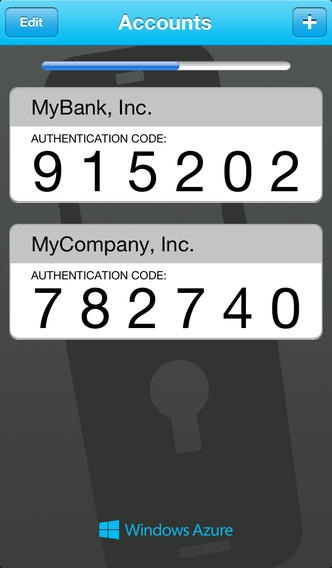
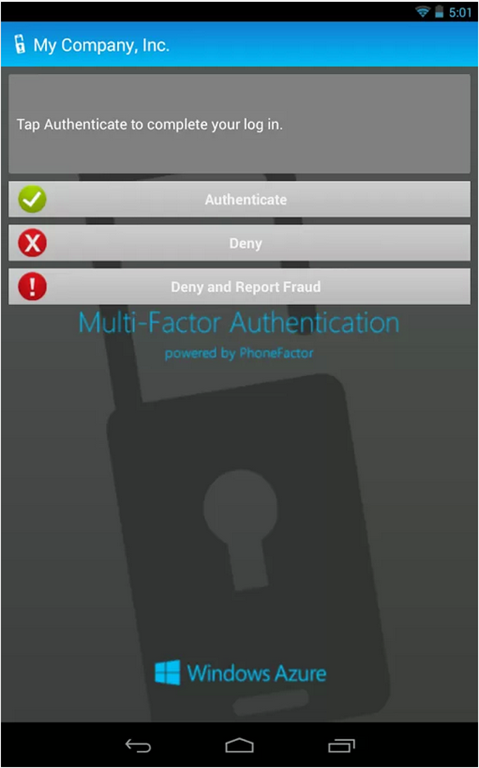
The mobile app is also available for iOS and Android as well which pretty much covers most of the mobile market. Search for Active Authentication from the Microsoft Corporation or use the links provided below.
iPhone Screens:
 |
 |
 |
iOS (iPhone / iPad) App Download: https://itunes.apple.com/gb/app/active-authentication/id475844606?mt=8
Android Screens:
 |
 |
Android App Download: https://play.google.com/store/apps/details?id=com.phonefactor.phonefactor&hl=en
That’s great, how do I get started?
Excellent question, it’s available in your Office 365 admin panel right now and is incredibly easy to setup without ADFS…
Login to your Office 365 admin portal, click Users and Groups:
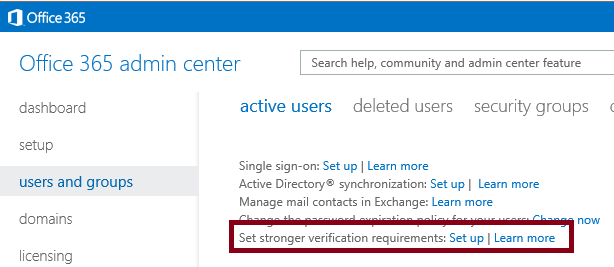
Click the set up link shown above.
Now select the name you want to use two factor authentication with and click enable.

Please keep at least one admin account with single factor authentication whilst you are using this preview version.
NB: Admins are free to use the capability, standard users require a license.
Once you have turned it on against your admin user account. Log out and log back in. You will be asked to initially verify your second type of authentication.
Choose your preferred option from below:

NB: You will find this link useful later as in the preview there doesn’t appear to be a link within the Office 365 interface:
Even though it is Windows Azure based, login with your Office 365 account details.
That is it. You are setup and working.
Preview documentation is available on TechNet here:

- If you would like to use ADFS, take a look at the links above and perhaps contact your favourite Microsoft partner (hint: CPS (http://www.cps.co.uk) to help you out.
- Ok, v.long post today but hopefully you will all find it useful. Till the next time…

Business Intelligence in the cloud, phew thank goodness… #Office365 #BI #SharePoint #PowerBI
So the Worldwide Partner Conference is going on in Houston at the moment and as much as I would love to be there, unfortunately projects here in London have to continue. Still early starts and watching the world go by in Pret (coffee shop for those outside of the UK) is always interesting before the hub-bub of the day starts.
Anyway, as with every year at WPC, there are always exciting announcements and this year is no different. We can hail this as official business intelligence in the cloud day!
Now many of the projects I work on consider Office 365 as a platform, however the more enterprise you go, the more the requirements tend to need some level of business intelligence. I was excited before with the release of SQL Reporting Services Online, however as functional as it is, limitations and costs current pose this solution to be only for the fully cloud invested.
My new hopes for BI in the cloud however seem to be starting to be answered in the form of Power BI for Office 365.
Using the capabilities already available on premise (Data Explorer, GeoFlow, Power Pivot and Power View) with tweaking, some re-branding and a little bit of mobile love (mobile apps to be available also (Windows 8, RT and iPad, HTML5) it looks like we may have an answer.
This to my mind almost completes the Office 365 capabilities to truly propel the cloud for use in the projects I get involved in. (Project Management, Business Intelligence, Intranets, ECM solutions).
I urge you all to read up on the following and register for the preview coming “later this summer”. I have a feeling this is going to be major!
Details:
- Main Announcement Blog: http://blogs.office.com/b/office-news/archive/2013/07/08/announcing-power-bi-for-office-365.aspx
- What powers Power BI in Office 365 (O365 Blog): http://blogs.office.com/b/office365tech/archive/2013/07/07/what-powers-power-bi-in-office-365.aspx
- Introducing Power BI (SQL Server Blog): http://blogs.technet.com/b/dataplatforminsider/archive/2013/07/08/introducing-power-bi-for-office-365.aspx
- Register your interest here: http://office.microsoft.com/en-us/excel/power-bi-FX104080667.aspx
- Download the preview add-ins for Excel here: http://office.microsoft.com/en-us/excel/power-bi-download-add-in-FX104087144.aspx
- Tutorial: http://blogs.msdn.com/b/powerbi/archive/2013/07/07/getting-started-with-pq-and-pm.aspx

As I try things out, I will post my findings and any limitations I come across, but hopefully with the new OData / REST capabilities of Excel and SSRS, we should be able to have some fun with SharePoint list data!
Enjoy…

#Skype and #Lync seamless harmony? My experience of getting them working #O365 #Office365
So I’ve come into work today all happy because I am actually on some time booked out for management time and learning.
Given that Microsoft have opened up the interoperability between Skype and Lync, what better thing to try for 20 mins. (Articles from Skype here and from Microsoft here)
I happen to be in a lucky scenario:
- My company has just moved to using Lync Online (as part of a general move to Office 365).
- We are also in a transition between Lync 2010 and Lync 2013.
- We also use Skype heavily for clients who do not have Lync.
- I also have a Windows Live Messenger account that is linked to Skype
- I have a personal version of Office 365 that I use as well.
- So pretty much, with no setup time, I can test all the scenarios without any of the pain.
Initial Setup – Server (Office 365)
So my initial setup in Office 365, Lync Online Admin is as follows:
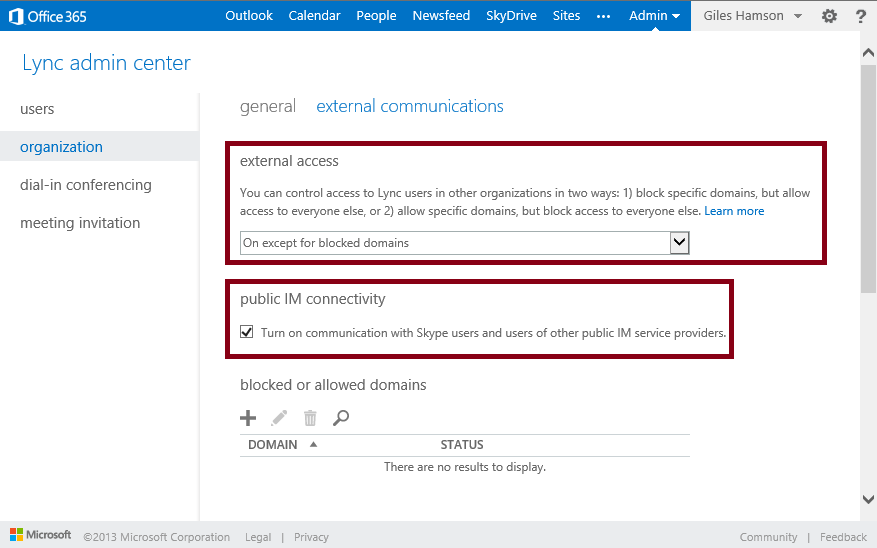
- External access: On except for blocked domains
- Public IM connectivity: checked (Turn on communications with Skype users and users of other public IM service providers)
- Initial Setup – Client
So after playing with it today, here are some facts that you need to know.
Ensure that you are logged into Skype as your Microsoft account.
|
|
|
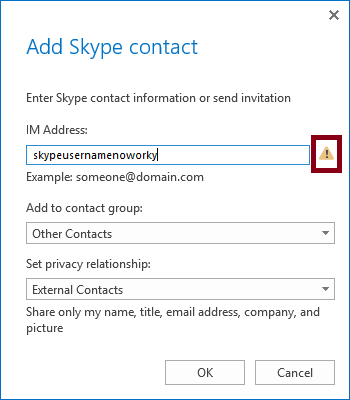
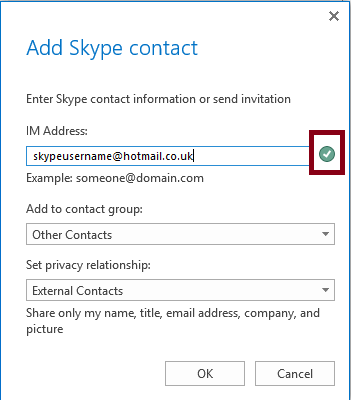
You do not appear to need to update your clients, I am using Lync 2013 (RTM) and haven’t updated Skype in a while (there is certainly an update pending, but it is working).
Other than that, we are good to go.
Scenario One – Lync 2013 to Skype
- So load up Lync as per normal and go to add a user:
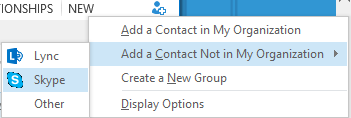
- Enter the Microsoft Account username and click OK:
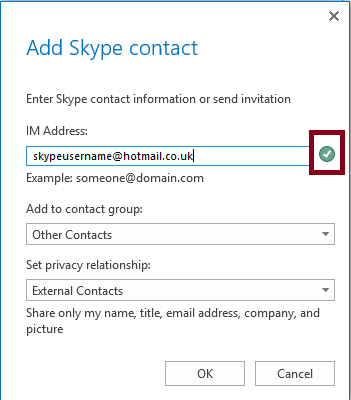
- On clicking ok, after a little while (couple of minutes), the Skype account will get a contact request:


- Click Add to Contacts and away we go…

Scenario Two – Lync 2010 to Skype
- Very similar to Scenario One, but instead of searching of a contact “Outside of your organisation”, just type in the Microsoft Account address, click the plus and add to the appropriate group.
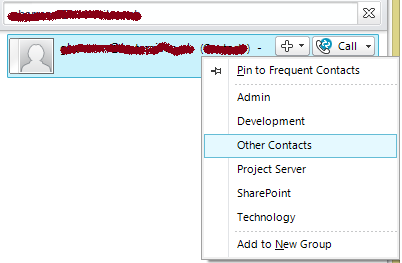
- Upon adding the user the group, a contact request is sent to Skype and after a couple of minutes you can chat away.
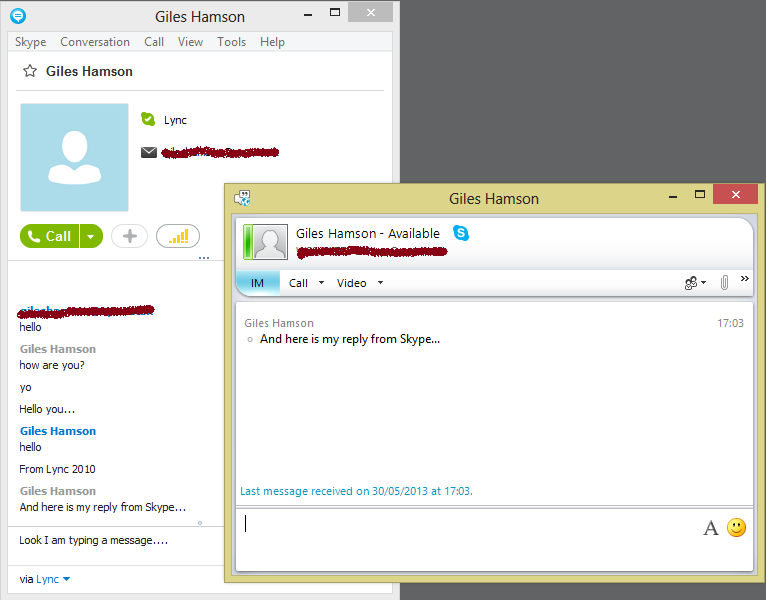
Scenario Three – Skype to Lync
- Fairly simple again in this scenario.
- Click Add Contact button
- Type the Office 365 Account Name
- Add them to the appropriate List in Skype

Now in order for it to kick in (and this maybe a timing issue), I had to send an instant message to receive a connection invite within Lync. Other than that, we are cooking on gas!.
Windows Live Messenger, Huh?
Why did you mention Windows Live Messenger, isn’t it supposed to be dead?
Well as an interesting thing to note, I used to separate my personal and business IM activities, therefore WLW was the personal and Skype / Lync was the business.
However, now that WLW is almost no more, I found that logging into my Skype account with my Microsoft Account brought my personal status message into the Lync contact list. Not the most professional thing I could have done, potentially.
So surely, we can just go into Skype and change it… right? Well apparently no, as this only controls the Skype status message… so I downloaded Windows Live Messenger, logged in and changed it and all was well with the world again.
And Finally…
So there you have it. Skype, Lync working together with a bit of Windows Live Messenger thrown in for good measure.
Voice calls work well too, as does IM via mobile.
Enjoy!

The #Office365 Upgrade Experience
So the magic email finally arrived recently. Microsoft have finished upgrading my Office 365 (2010 version) to the new 2013 (Wave 15) version (both the E1 and P1 plans that I have).

Now as some of you know already, I have created a new Office 365 tenant for my partner who has recently entered the world of HR consulting. It is just a small endeavour at the moment whilst we sort out other personal to do’s like weddings etc…
Anyway, we needed a good email system, Lync is useful and a site for document collaboration. Office 365 fits the bill perfectly.
I also created a very basic public website and sorted out all the DNS entries etc…
Anyway, enough of the background stuff – lets talk about the upgrade went?
Well Exchange & Lync is all done for you behind the scenes. This worked perfectly for us and the new Outlook Web App interface is great (very similar to Outlook.com) and now includes Lync presence information with the ability to control your online status.
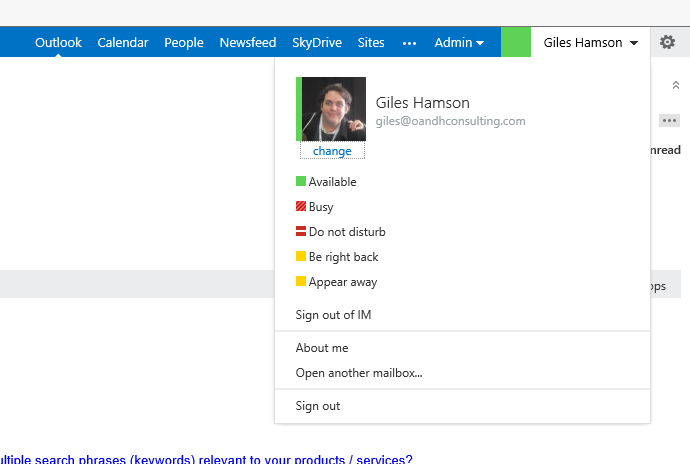
Lync is of course changed in look and feel and the user interface is certainly a lot nicer than Lync 2010 and Office Communicator 2007 R2.
It is nice to see this all working together. More on this in a minute!
Now for the interesting bit – The SharePoint Online upgrade:
So logging into any of your site collections you will see the following message on the top of the site:

Clicking on Start now takes you to this…

And given that I have a pretty much blank sites at this point (a few document libraries here and there), I went straight for the upgrade.
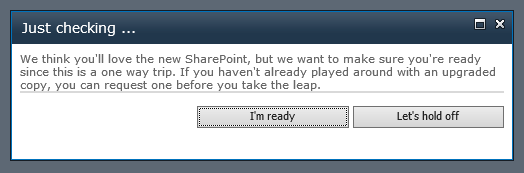
Even after this warning, you still get the chance to stop the process:

In my case, for the main site collection, there seemed to be a warning around task lists, which presumably is not upgraded from the 2010 version, since they are all new in 2013 with great integration with Microsoft Project 2013.
Now after all that, go back to the root of the site collection and you are done!
A few things to note
This needs to be done on every site collection. By every site collection, they mean every one – including:
- Team Site
- My Site (each individual)
- My photo had to be re-uploaded but otherwise details stayed the same. The photo also took quite sometime to propogate to Lync and Exchange, however this is a huge improvement. One picture to fit them all!
- My Site Host
- Interesting this had to be upgraded separately to the My Site Content
- Although technically this makes sense, I know that some of the non-technical business using Office 365 won’t understand this.
- Search
- Upgraded without issue but left old search symbol in place.
- Interestingly, search box is no longer centred but the page layout could be updated as required.
That is about it, so nothing major to an experienced SharePoint and Office 365 techy like myself but I know that a number of my friends who use their Office 365 for their small business will be giving me a call when the time comes.
Anyway… lets start talking about some of the new unexpected features that come with the upgrade:
New Features
We now have new Mobile Apps
- Lync 2013
- Works as per Lync 2010 but contains the new style and options about video / voice over 3G connections etc…
- SharePoint Newsfeed
- A new mobile app that relies upon My Sites being used. Here are some screenshots…
|
|
|
|
|
|




And last but not least…Outlook Web Access
New look and feel but mostly the same but some new capabilities that caught my eye:
- Lync presence capability is built in
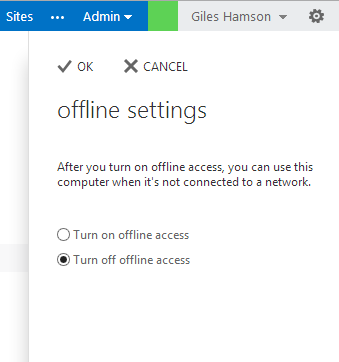
- Offline Access – which works a treat in IE and Chrome
 |
 |
That’s it for now, but expect more as I come across it!

Setting up a shared mailbox on #Office365
I know it has been a while since I have posted to the blog personally. Alas life has been busy after sorting out my presentation for SharePoint Saturday UK last December, then my Christmas break. Now that I am back in the UK and have got back to work, normal service can resume.
As part of this busy time in my life, a number of changes have happened and I find myself setting up an Office 365 account for my partner to aid with her HR consulting business. Office 365 was an obvious choice and the E1 plan seemed to be the most useful for the least per user cost in our situation. It provides the following:
- SharePoint Online (Enterprise)
- Exchange Online
- Lync Online
- Public Website
Although I had setup an Office 365 P1 plan before with ghamson.sharepoint.com, it had no real purpose, therefore it has just kind of sat there being used as file storage for this blog + a few other things.
Now however, I have a real purpose. My partner needs an online presence, a professional email address and it needs to be in a form that she is useful.
This blog post and probably the next series of blog posts will cover what I do to provide the setup my partner needs to run her business. She doesn’t know SharePoint very well, has no idea what Exchange is really but has used Outlook and Lotus Notes for most of her professional life.
So without further a-do… Our first task after the initial setup is: Creating a shared mailbox:

So if you are used to On-Premise Exchange, this is a fairly simple task, so imagine my surprise when I found out that I needed to use PowerShell to create the mailbox and set the appropriate permissions.
Useful articles:
- Install the Office 365 PowerShell cmdlets: http://onlinehelp.microsoft.com/en-gb/office365-enterprises/hh124998.aspx
- Connect Windows PowerShell to the Exchange Online Service: http://help.outlook.com/140/cc952755.aspx
- Update your PowerShell script execution policy to Remote: http://technet.microsoft.com/en-us/library/ee176949.aspx (by default, the script execution policy is set to: Restricted)
- Setting up a Shared Mailbox in Office 365 via PowerShell: http://help.outlook.com/en-us/140/Ee441202.aspx (please note that you need to have connected to the Exchange Online Service first and downloaded the cmdlets as outlined in the second link above (Connect Windows PowerShell to the Exchange Online Service).
- GUI Tool for Shared Mailbox setup: http://community.office365.com/en-us/wikis/exchange/1712.aspx
Once you have done the initial mailbox setup, you can then assign a distribution / security group to allow access to the contact mailbox
These instructions are outlined here (also available in the link above):
Create a security group for the users who need access to the shared mailbox In the Exchange Control Panel, create a security group for the staff who need access to the shared mailbox for Corporate Printing Services.
- Select My Organization > Users & Groups > Distribution Groups > New.
- Specify a display name, alias, and e-mail address. In this example, we’ll use Printing Services Staff,corpprintDG, and corpprintDG@contoso.com.
- Select the Make this group a security group check box.
- In the Ownership section, click Add to add an owner, if necessary.
- In the Membership section, click Add.
- In the Select Members page, select the users you want to add. When you are finished, click OK.
- On the New Group page, click Save.
Note After you create a security group, the membership is closed. When membership is closed, only group owners can add members to the security group, or owners have to approve requests to join the group. Additionally, only group owners can remove members from the security group.
You can then run the final PowerShell commands to setup the access rights.
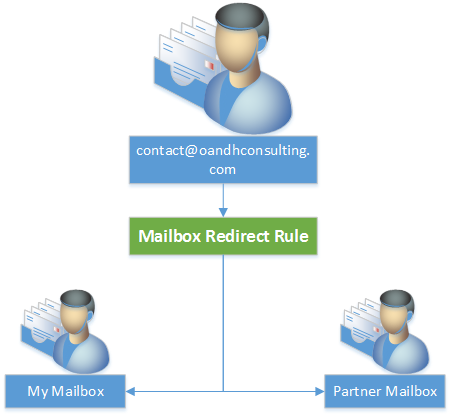
And apparently we are done, and in general we are. However, my partner will not want to log into a separate mailbox to deal with the emails. So I also setup a forwarding rule within the Exchange Online Administration interface to forward any email to go directly to her and myself.
Rule:
Sent to ‘O&H Consulting Contact Mailbox’
If the message…
Is sent to ‘contact@oandhconsulting.com’
Do the following…
Redirect the message to ‘<username>@oandhconsulting.com‘ and ‘<username>@oandhconsulting.com‘
For those interested in the total PowerShell script I used to achieve the above:
//Download the Office 365 PowerShell Cmdlets
Get-ExecutionPolicy
Set-ExecutionPolicy RemoteSigned
$LiveCred = Get-Credential
//You will be asked to sign in here
$Session = New-PSSession -ConfigurationName Microsoft.Exchange -ConnectionUri https://ps.outlook.com/powershell/ -Credential $LiveCred -Authentication Basic -AllowRedirection
Import-PSSession $Session
//Exchange Online Cmdlets will download within the PowerShell command prompt.
New-Mailbox -Name "O&H Consulting Contact Mailbox" -Alias contact -Shared
Set-Mailbox contact -ProhibitSendReceiveQuota 5GB -ProhibitSendQuota 4.75GB -IssueWarningQuota 4.5GB
//Setup your distribution group in the interface
Add-MailboxPermission "O&H Consulting Contact Mailbox" -User contactDG -AccessRights FullAccess
Add-RecipientPermission "O&H Consulting Contact Mailbox" -Trustee contactDG -AccessRights SendAs
//Setup the forwarding rule in the interface

Practice makes Perfect Pt 1 – Timeline #MSProject #ProjectServer #Office365
I am often asked “why should we upgrade from Project Professional 2007 to Project Professional 2010”. My answer would be “Why not” Project Professional 2010 has some new features/functions that can make a Project Managers live a lot easier.
In the first part of Practice makes Perfect I am going to talk about one of these new features; the Timeline.
“With the new office version Project Professional 2013 coming out in preview I used that to create most of the images. Remember this is still a preview version so things might change.”
The timeline is a new feature that allows a Project Manager to create a graphical presentation of his project. He can do this over his whole project or just select a few tasks he wants to show. This enable the Project Manager to use the timeline in presentations, documents or just put it against the wall.
The timeline looks something like this:

Click to enlarge.
Pretty neat i would say.
In the timeline you can do a couple of things.
You can change the format of all the task in the timeline. For instance you can color the most important task red. You can also change the format of the text styles to make something clear within the timeline.

Why would i use the timeline? Like I said it enables the Project Managers to create a easy to use view of the project in minutes. Easy to use in for example Word or PowerPoint. They way the data is presented it is also easier to read then a normal project Gant Chart.
There a numerous ways you can use this feature and I am not going sum up all of them. When you have access to Project Professional 2010 experiment with it. Trust me it will be worth your time.
So how do I use it?
There are two ways to you can add tasks into your timeline.
1. Right click your task and the one of the last commands you can give is “Add to Timeline”
2. Go to “Task Information” or double click your task and on the “General Tab” you will fine “Display on Timeline”.

Easy as that.
Enjoy your timeline!
   I am Robin Kruithof. I am working at CXS in the Netherlands as a Microsoft Project Consultant. My passion lies in Project Management and everything in the Project Management domain.
This article has been cross posted from speakingsilent.wordpress.com/ |

#PS2013 #MSProject Online CSOM documentation links #ProjectServer #Office365
So as I continue my investigations into the CSOM for Project Server 2013 and Project Online (Office 365), I came across the following articles on MSDN.
Hopefully others will find these articles useful also:
High level project CSOM details
What’s new for developers in Project 2013 – CSOM
Client-side object model (CSOM) for Project Server 2013
Project Server CSOM – Sample Code – JavaScript and .NET
Getting started with the Project Server 2013 JavaScript object model
Getting started with the Project Server CSOM and .NET
How to: Create, retrieve, update, and delete projects by using the Project Server 2013 JavaScript object model
Project Professional 2013 CSOM – Sample Code – JavaScript
Project 2013 client programming
Task pane apps for Project Professional 2013
Task pane apps for Project
How to: Create your first task pane app for Project 2013 by using a text editor
JavaScript API for Office
Understanding the JavaScript API for Office
Schema map (apps for Office)

Office 15 preview announcement notes #SharePoint #SP2010 #MSProject #PS2010 #ProjectServer
Well, just as the rumours predicted, Microsoft has officially announced the Office 15 Preview.
The live webcast announcement has just finished and I took some notes whilst I was watching.
Before I get to the notes, the Office 365 preview is available now to all users to try out:

I’ve just signed up for a preview enterprise account and the preview appears to include:
- Exchange
- SharePoint
- Lync
- Office 15
- Just for showmanship here are the new icons of the Office 15 suite:
 |
 |
 |
 |
 |
 |
 |
 |
 |
Just as you would expect from an Office 365 preview.
** Update **
On further searching, all the various previews including Project, Microsoft Project Server Online! and Visio is available here:
http://www.microsoft.com/en-gb/officepreview/try-more-products
** Update 2 **
Office Preview Feature Pages:
- Project / Project Online: http://www.microsoft.com/project/en-us/preview/default.aspx
- SharePoint: http://sharepoint.microsoft.com/en-us/preview/default.aspx
- Office 365 Enterprise: http://www.microsoft.com/office/preview/en/office-365-enterprise
- Office 365 Pro Plus: http://www.microsoft.com/office/preview/en/office-365-proplus
- Office 365 Small Business Premium: http://www.microsoft.com/office/preview/en/office-365-small-business-premium
- Office 365 Home Premium: http://www.microsoft.com/office/preview/en/office-365-home-premium
- Visio: http://visio.microsoft.com/en-us/preview/default.aspx
- Word: http://www.microsoft.com/office/preview/en/word-2013-preview
- Excel: http://www.microsoft.com/office/preview/en/excel-2013-preview
- PowerPoint: http://www.microsoft.com/office/preview/en/powerpoint-2013-preview
- OneNote: http://www.microsoft.com/office/preview/en/onenote-2013-preview
- Outlook: http://www.microsoft.com/office/preview/en/outlook-2013-preview
FAQ Link: http://www.microsoft.com/office/preview/en/faq (Includes specifications etc…)
** Update 3 **
IT Pro / On-Premise Downloads + Useful links:
- SharePoint Server 2013: http://technet.microsoft.com/en-US/evalcenter/hh973397.aspx?wt.mc_id=TEC_121_1_33
- SharePoint Foundation 2013: http://www.microsoft.com/en-us/download/details.aspx?id=30345
- Project Server 2013: http://technet.microsoft.com/en-US/evalcenter/hh973403
- Project Professional 2013: http://technet.microsoft.com/en-US/evalcenter/hh973401.aspx?wt.mc_id=TEC_119_1_33
- Exchange 2013: http://technet.microsoft.com/en-US/evalcenter/hh973395.aspx?wt.mc_id=TEC_116_1_33
- Lync Server 2013: http://technet.microsoft.com/en-US/evalcenter/hh973393.aspx?wt.mc_id=TEC_118_1_33
- Office Web App Server 2013 (Separate SKU now); http://www.microsoft.com/en-us/download/details.aspx?id=30358
- Visio 2013: http://technet.microsoft.com/en-US/evalcenter/hh973399.aspx?wt.mc_id=TEC_122_1_33
- SharePoint Designer 2013: http://www.microsoft.com/en-us/download/details.aspx?id=30346
- SharePoint 2013 SDK: http://www.microsoft.com/en-us/download/details.aspx?id=30355
- SharePoint 2013 Requirements:
http://sharepoint.microsoft.com/en-us/Preview/sharepoint-requirements.aspx
- How to install by Eric Harlan:
- What you need to know about 2013 by Andrew Connell:
http://www.andrewconnell.com/blog/archive/2012/07/16/sharepoint-2013-what-you-need-to-know.aspx
** Update 4 **
Discontinued Features
Microsoft Support have posted the following article on discontinued features:
** Update 5 **
Setting up team development environments for SharePoint 2013
** Update 6 **
Useful Links from Jeremy Thake (http://wss.made4the.net/archive/2012/07/16/office-2013-preview-announced-today.aspx)
- Microsoft Office 365 Marketplace (the rumoured App Store for SharePoint is true!!!): http://officepreview.microsoft.com/en-us/store/
** Update 7 **
Training Material
- Microsoft Office 2013: http://officepreview.microsoft.com/en-us/support/training-FX101782702.aspx
- Ignite Training Material: http://www.microsoft.com/en-us/download/details.aspx?id=30361&WT.mc_id=rss_alldownloads_all
- SharePoint 2013 Training Videos: http://www.microsoft.com/resources/technet/en-us/office/media/video/video.html?cid=stc&from=mscomSTC
- How to build Apps + Samples: http://msdn.microsoft.com/en-us/office/apps
Announcement Notes:
Now on to my notes taken during the keynote announcement and more blog posts will follow as I try things out the Customer Preview version:
Office 365
- new website capabilities
- new social capabilities
- new office web access with inline preview
- mentions of yammer for a more social enterprise including future social connectors
- annotation built in to Microsoft Office
PowerPoint
- full touch interface
- pinch and zoom
- hide / show ribbon including pin
- new animation (1 of many) – “drape”
Presentation editing updates
- finger swipe or tap to switch slides
- pinch and zoom available
- inking used for annotation
Presentation mode updated
- shows next slide (very useful addition)
- slide notes (as standard)
- metro style
- clock / timer still present
Outlook
- same ribbon capability
- full touch
- quick actions tab on right for easy touch based control
- inline reply, no more multiple pop-ups required
Peek functionality
- hover over calendar or tasks for a window to appear showing current calendar or todays tasks
- Double click on the section to open calendar or tasks
Office developer model (Codename: Agave)
Outlook used as the example but it is available across the suite of Office applications.
can be hosted anywhere (Azure, Amazon and other web services for example)
Example shown:
- Bing maps and suggested appointments – scans current email and shows maps or appointment suggestions
OneNote
- updated to metro style
- full touch, slide between notebooks
- ink enabled
- radial menu enables style changes easily with touch (font size like a spinometer)
- integrated camera support in windows 8 (full touch cropping)
Word
- metro ui
- office live sign in
- shared settings
- uses skydrive to save and share templates between devices
- by default it will store it in the cloud
- live layout with touch enabled (Allows you to drag pictures around the screen for positioning)
Reading mode
- inverse colours for reading modes
- presence within comments
- collapse and expand sections
Cloud integration
- embed youtube clips into word now
- flickr and other picture services integrated
- share document capability – skydrive, social networks, publish to blog
- Shared device capability (pick up where you left off – remembers exact document position no matter the device)
- settings and documents sync’d via sky drive
- windows mobile 7.5 and 8 works the same way
SharePoint
Social
- follow documents, sites, tags and people
- suggestions on what you should follow
- activity feed
- like capability
- document previews (Office web apps)
- inline video playback (including youtube)
- tag creation with #tags
- people suggestions as you type
- news feed and presence + pictures inline
- feed appears in sharepoint, office and includes facebook, twitter, yammer via social connectors (coming soon i’d expect)
Skype
- presence built into office just like lync
Excel
flash fill – assumes formulas on the fly
- based on typing it analyses the columns in the sheet and suggests what you are trying to do
- chart suggestions intelligent based on the data in the sheet
Windows 8 scales
- perceptive pixel (company recently bought by Microsoft)
- 80+ inch screen with multi touch
Lync
- touch aware also
- drag users to tele or video conferences
- live meeting functionality built in with touch capability
- open one note from lync and meeting details are automatically brought in.
- Using windows 8 you can pin it for side by side conferencing
- NB: All the above shown on the perceptive pixel screen
- Now for all those excited about the announcement, what are you doing reading this? Go get on the preview and started learning!

Office 365 / #SharePoint 2010 Accessibility Compliance Links #O365 #SP2010 #in
As part of responding to a tender, I needed to do some research on SharePoint 2010 / Office 365 and accessibility compliance. Here are some links that I found…
Office 365 / SharePoint 2010 – Accessibility Compliance
- http://blogs.technet.com/b/whymicrosoft/archive/2012/01/19/why-microsoft_3f00_-office-365-is-accessible.aspx
- http://sharepoint.microsoft.com/blog/Pages/BlogPost.aspx?PageType=4&ListId=%7b72C1C85B-1D2D-4A4A-90DE-CA74A7808184%7d&pID=431
Office 365 Help:
Conformance statement AA-level (SharePoint Foundation 2010)
Office Web Apps:


 SharePoint (and Project Server) Shenanigans