Archive
SP.ClientContext.get_current is null or not an object
One of the reasons you might be getting this error is because you are trying to use the client object model without the sp.js file being loaded.
Other post regarding errors you might be getting related to the client object model and sp.js
You might need the ExecuteOrDelayUntilScriptLoaded method
Uncaught TypeError: Cannot read property ‘get_current’ of undefined

Visual Studio 2012 templates for SharePoint 2013
So I just fired up Visual Studio 2012 and went to create a new SharePoint 2013 App just to play around with. Only to find that Visual Studio only has the 2010 templates available.
The search to find out what I needed to install wasn’t as quick and simple as I was hoping so now that I have worked it all out i may as well share with the rest of you.
Assuming you have Visual Studio 2012 installed. Go to
http://msdn.microsoft.com/en-us/office/apps/fp123627
Scroll down and under the tools section there is a web downloader (Direct Link). Download and run it, it will download everything you are missing.
After a couple of restarts you can then create 2013 projects in visual studio

Hope that helps


via Buzz Blog http://paulbuzzblog.wordpress.com/2013/01/23/visual-studio-2012-templates-for-sharepoint-2013/
   Paul is a an expert SharePoint and Project Server developer and is responsible for designing and implementing custom solutions on client systems using the latest SharePoint and .NET technologies.
Paul has extensive experience with SharePoint systems across all sizes of implementation, ranging from small to large farms and has an excellent understanding of all the elements of SharePoint. This article has been cross posted from paulbuzzblog.wordpress.com (original article) |

#SharePoint Integration Mode and no Data Driven Subscriptions #SP2013 #SP2010 #SSRS
Just come back after the New Year and was posed with an interesting problem.
SharePoint 2010, SSRS in integration mode but under the manage subscriptions link within a report, the Add Data Driven Subscription button was missing from the screen.
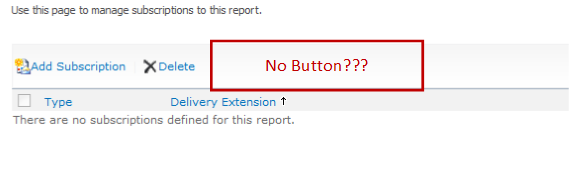
So after some googling / binging around, I found that the answer was because we were using SQL Server 2008 Standard and Data Driver Subscriptions require the Enterprise version of SQL Server.
Anyway, just a quick post in case I forget in future. Useful links below:
- SSRS Feature Support – Integration Mode: http://msdn.microsoft.com/en-us/library/bb326290(v=sql.100).aspx
- How to use Data Driven Subscriptions within SharePoint: http://blogs.devhorizon.com/reza/2008/10/26/ssrsdata-driven-subscriptions-in-integrated-mode-part-1/
- Required versions for Data Driven Subscription support: http://msdn.microsoft.com/en-us/library/ms159150(v=sql.100).aspx
Although in this scenario I am talking about SQL Server 2008, the same is true of SQL Server 2008 R2. In SQL Server 2012, Enterprise or Business Intelligence editions are required:

Building a Project Server app
EPMSource have just finished a very nice 4 / 5 part series on how to create an app for Project Online. It even walks through the submission process to the app store.
Here are the direct links to each post
Post 0
Building your first Project Server app – Part Zero–The introduction
Post 1
Building your first Project Server app – Part 1 – Getting Started – Setting up a development env
Post 2
Building your first Project Server app – Part 2 – Getting the basic app up and running
Post 3
Building your first Project Server app – Part 3 – Taking the app to the next level
Post 4
Building your first Project Server App – Part 4 – Submitting to the app store

via Buzz Blog http://paulbuzzblog.wordpress.com/2012/12/13/building-a-project-server-app/
|
Paul is a an expert SharePoint and Project Server developer and is responsible for designing and implementing custom solutions on client systems using the latest SharePoint and .NET technologies.
Paul has extensive experience with SharePoint systems across all sizes of implementation, ranging from small to large farms and has an excellent understanding of all the elements of SharePoint. This article has been cross posted from paulbuzzblog.wordpress.com (original article) |
Steps to format a SP2013 site differently depending on the device
This week I was doing some research on how to design to use the new Sharepoint 2013 “device channels” feature which allows designers to show a different MasterPage per device (link), as opposed to just enabling a unique mobile format for all devices.
How to make this
 looks like that
  took me a good part of the day !
I found a bit of help in various places and will say that JussionSharepoint probably has the most comprehensive steps however he doesn’t discuss designing the Master Page and Layout Page in HTML which is now the recommended way in SP2013, Sonja’s Sharepoint2013 blog also has some valuable reading, but because my brain tends to think in a bullet list kind-of-way so here are my quisksteps on the subject.
[warning] I was going to describe all the steps to configure so that you can navigate your site with a mobile device. However while I was doing so I couldn’t figure out why it still didn’t work on the homepage of my 2013 environment. So here are the pre-requisite before attempting any design. [/warning]
Pre-requisites
1- only works with Publishing Feature enabled

2- only works with Mobile Brower View Feature disabled (otherwise it takes over)

3- finally (this one too me even longer to figure out!) only works if Wiki Page Home Page feature is disabled.

So now that we got that figured out, we can proceed to the customisations.
My 5 or 6 Steps
| 1) | First of all you need to be able to access your Sharepoint site from an HTML editor (I used Notepad++) , so you need to map your computer to the Sharepoint site as a network drive. |
| 2) |
Open Site Designer
|
| 3) |
Create mobile master page
|
| 4) |
Create a new Channel for the mobile device (here you can see iPhone)
|
| 5) | Edit Site Master page settings  to assign the Channel to the mobile Master page  |
| 6) |
Optionally …. Create new Layout page, however in my case it showed an error in Design Manager:
To fix:
(same as for Master Page use Design Manager to add snippets of code to your HTML file that you will open from your client HTML editor and save again) |


I said Optionally for step 6, because there is not point creating a LayoutPage just for a certain device unless you are designing a site specific for a device OR you are going to create a page for each device.
Now open the site in Chrome or IE9 and you can change the user-agent so that it simulates you browsing from a mobile device. My preference at the moment is “User-agent Switcher for Chrome”.
Other tips to share
A few things I experienced that I would place in the “good to know” :
– rename the alternative MasterPage for a channel and it will break all channel (ie I renamed the masterpage for iPhone only, the home page errored when opening it using the defaut channel (IE or Chrome), until you edit the MasterPage settings and fix the missing MasterPage for that channel you renamed.
– after I edited the HTML of the Master page a few times, for no reason there was a large blank space that would be added between some DIV elements, even though they were not showing in the code. I had to remove the .master, it will get re-created form the .html within the same second but fixing the blank lines.
Conclusion
Now I have to say I am not impressed… Basically it would be great to build a LayoutPage for each device so that when you load the page one device A it will be LayoutPage A that opens. This way the webpart zone that have been defined horizontally for computer devices could be changed vertically for phone devices.
But that’s not the way it works, because each webpage uses a LayoutPage and that one is not dependant on the channel. The Master Page is the one that depends on the channel however MasterPage do not hold Webpart Zones but the Content Place Holder for the Layout Page.
Therefore there is still some good design work to do if you want to have a full any-devices-friendly sharepoint site.
In the meantime I will play more with the Mobile Browser View features that turns a site into mobile as it may just be the answer.
Of course it will not be adapted to all devices, and what would be nice is to use this feature “most of the time” and for a couple of page to create a layout that uses our special channel Master Page, but since both cannot co-exist it’s a no go for now.

via François on Sharepoint http://sharepointfrancois.wordpress.com/2012/11/27/steps-to-format-a-sp2013-site-differently-depending-on-the-device/
 French native Sharepoint Consultant living in London. A crossway between a designer, developer and system architect. Prefers stretching the limit of out-of-the-box features rather than breaking them into code. When not working with Microsoft Sharepoint François is often found on Web2.0 News sites and related social networking tools.
This article has been cross posted from sharepointfrancois.wordpress.com/ (original article) |

Getting changed field values from SPItemEventReceiver
has written a very interesting looking helper function for getting old values out of events.

via Buzz Blog http://paulbuzzblog.wordpress.com/2012/11/26/getting-changed-field-values-from-spitemeventreceiver/
|
Paul is a an expert SharePoint and Project Server developer and is responsible for designing and implementing custom solutions on client systems using the latest SharePoint and .NET technologies.
Paul has extensive experience with SharePoint systems across all sizes of implementation, ranging from small to large farms and has an excellent understanding of all the elements of SharePoint. This article has been cross posted from paulbuzzblog.wordpress.com (original article) |
Creating a Project Server 2013 App
The first in a series of posts about creating a Project Server app.
This will be interesting.

via Buzz Blog http://paulbuzzblog.wordpress.com/2012/11/26/creating-a-project-server-2013-app/
|
Paul is a an expert SharePoint and Project Server developer and is responsible for designing and implementing custom solutions on client systems using the latest SharePoint and .NET technologies.
Paul has extensive experience with SharePoint systems across all sizes of implementation, ranging from small to large farms and has an excellent understanding of all the elements of SharePoint. This article has been cross posted from paulbuzzblog.wordpress.com (original article) |
Technorati: YK3CCGWXYEC9
Service descriptions for SharePoint 2013
This post here http://modery.net/new-service-descriptions-for-office-365-wave-15/
has a list of all the services in SharePoint 2013 and what version they are available in.
The interesting one for me is that SSRS is available in the E3 and E4 Office 365 plans. Not seen anything about that and I am interested as to how it will work.

via Buzz Blog http://paulbuzzblog.wordpress.com/2012/11/26/service-descriptions-for-sharepoint-2013/
|
Paul is a an expert SharePoint and Project Server developer and is responsible for designing and implementing custom solutions on client systems using the latest SharePoint and .NET technologies.
Paul has extensive experience with SharePoint systems across all sizes of implementation, ranging from small to large farms and has an excellent understanding of all the elements of SharePoint. This article has been cross posted from paulbuzzblog.wordpress.com (original article) |
How to hide the SharePoint ribbon
Here is a quick post to show you how you can hide the SharePoint ribbon on a page using JavaScript. This was created by one of my colleagues so I am not sure of why the ribbon needed to be hidden but here is how.
function hideEditRibbon() {
           var ribbon = SP.Ribbon.PageManager.get_instance().get_ribbon();
           // Set the tab to the “Browse” tab
           SelectRibbonTab("Ribbon.Read", true);
           // Remove the “Edit” tab from a list from from the ribbon.
           ribbon.removeChild('Ribbon.ListForm.Edit');
     }

     SP.SOD.executeOrDelayUntilScriptLoaded(function() {

           var pm = SP.Ribbon.PageManager.get_instance();

           pm.add_ribbonInited(function() {
                hideEditRibbon();
           });

           var ribbon = null;
           try {
                ribbon = pm.get_ribbon();
           }
           catch (e) { }

           if (!ribbon) {
                if (typeof(_ribbonStartInit) == "function")
                      _ribbonStartInit(_ribbon.initialTabId, false, null);
           }
           else {
                hideEditRibbon();
           }
     },
     "sp.ribbon.js");
Just add this code to a page using the content editor web part and it will work.

via Buzz Blog http://paulbuzzblog.wordpress.com/2012/11/23/how-to-hide-the-sharepoint-ribbon/
|
Paul is a an expert SharePoint and Project Server developer and is responsible for designing and implementing custom solutions on client systems using the latest SharePoint and .NET technologies.
Paul has extensive experience with SharePoint systems across all sizes of implementation, ranging from small to large farms and has an excellent understanding of all the elements of SharePoint. This article has been cross posted from paulbuzzblog.wordpress.com (original article) |
Add the SharePoint Version Number to a Word Document
A client asked me today how he could insert the Version of a file stored in a Sharepoitn Library into a word 2010 document, my initial response was “use Quick Parts” but I tested and to my surprise it’s not showing in the list of QuickParts.
Nor in the column value “[Version]” can be used in a different column: the value is being saved only after the item is processed and therefore any calculated value will not take the change and display 0.
Thanks to those simple no-code steps by CodebyCody it’s a quick fix which gets you to start using Sharepoint Information Management Policy Settings. Enabling this label at a Content Type level for instance “Document” will fix all document library in one shot.

via François on Sharepoint http://sharepointfrancois.wordpress.com/2012/11/21/add-the-sharepoint-version-number-to-a-word-document/
|
French native Sharepoint Consultant living in London. A crossway between a designer, developer and system architect. Prefers stretching the limit of out-of-the-box features rather than breaking them into code. When not working with Microsoft Sharepoint François is often found on Web2.0 News sites and related social networking tools.
This article has been cross posted from sharepointfrancois.wordpress.com/ (original article) |


 SharePoint (and Project Server) Shenanigans
You must be logged in to post a comment.