Archive
How to hide the SharePoint ribbon
Here is a quick post to show you how you can hide the SharePoint ribbon on a page using JavaScript. This was created by one of my colleagues so I am not sure of why the ribbon needed to be hidden but here is how.
function hideEditRibbon() {
           var ribbon = SP.Ribbon.PageManager.get_instance().get_ribbon();
           // Set the tab to the “Browse” tab
           SelectRibbonTab("Ribbon.Read", true);
           // Remove the “Edit” tab from a list from from the ribbon.
           ribbon.removeChild('Ribbon.ListForm.Edit');
     }

     SP.SOD.executeOrDelayUntilScriptLoaded(function() {

           var pm = SP.Ribbon.PageManager.get_instance();

           pm.add_ribbonInited(function() {
                hideEditRibbon();
           });

           var ribbon = null;
           try {
                ribbon = pm.get_ribbon();
           }
           catch (e) { }

           if (!ribbon) {
                if (typeof(_ribbonStartInit) == "function")
                      _ribbonStartInit(_ribbon.initialTabId, false, null);
           }
           else {
                hideEditRibbon();
           }
     },
     "sp.ribbon.js");
Just add this code to a page using the content editor web part and it will work.


via Buzz Blog http://paulbuzzblog.wordpress.com/2012/11/23/how-to-hide-the-sharepoint-ribbon/
   Paul is a an expert SharePoint and Project Server developer and is responsible for designing and implementing custom solutions on client systems using the latest SharePoint and .NET technologies.
Paul has extensive experience with SharePoint systems across all sizes of implementation, ranging from small to large farms and has an excellent understanding of all the elements of SharePoint. This article has been cross posted from paulbuzzblog.wordpress.com (original article) |

Add the SharePoint Version Number to a Word Document
A client asked me today how he could insert the Version of a file stored in a Sharepoitn Library into a word 2010 document, my initial response was “use Quick Parts” but I tested and to my surprise it’s not showing in the list of QuickParts.
Nor in the column value “[Version]” can be used in a different column: the value is being saved only after the item is processed and therefore any calculated value will not take the change and display 0.
Thanks to those simple no-code steps by CodebyCody it’s a quick fix which gets you to start using Sharepoint Information Management Policy Settings. Enabling this label at a Content Type level for instance “Document” will fix all document library in one shot.

via François on Sharepoint http://sharepointfrancois.wordpress.com/2012/11/21/add-the-sharepoint-version-number-to-a-word-document/
 French native Sharepoint Consultant living in London. A crossway between a designer, developer and system architect. Prefers stretching the limit of out-of-the-box features rather than breaking them into code. When not working with Microsoft Sharepoint François is often found on Web2.0 News sites and related social networking tools.
This article has been cross posted from sharepointfrancois.wordpress.com/ (original article) |
#SharePoint Conference 2012 Opening Keynote #SP2013 #PS2013 #MSProject #ProjectServer
Just a quick email to say that the Opening Keynote from the SharePoint Conference 2012 is now available online.
#ProjectServer and #SharePoint 2010 October 2012 Cumulative Update #PS2010 #SP2010 #MSProject
 I am a Project Server and SharePoint consultant but my main focus currently is around Project Server.
I have been working with Project Server for nearly five years since 2007 for a Microsoft Gold Certified Partner in the UK, I have also been awared with the Microsoft Community Contributor Award 2011. I am also a certified Prince2 Practitioner. This article has been cross posted from pwmather.wordpress.com (original article) |
The Office 2010 October 2012 Cumulative Updates are now available, please see the links below:
http://support.microsoft.com/kb/2757117
Project Server 2010 Server Roll up package October 2012 CU (Recommended) – delayed for a couple of weeks:
http://support.microsoft.com/kb/2687565
Project Server 2010 October 2012 CU (Included in the Server Roll up package):
http://support.microsoft.com/kb/2687615
Project 2010 October 2012 CU:
http://support.microsoft.com/kb/2687612
Remember SP1 is a pre-requisite for the October 2012 CUs.
For more details please see:
http://blogs.technet.com/b/projectadministration/archive/2012/11/05/microsoft-project-server-and-sharepoint-server-2007-and-2010-october-2012-cu-announcement.aspx
As always, test these updates on a test environment before deploying to production


Quick Powershell to delete all items in my Sharepoint list
A quick post with a simple script I gathered a while back that comes in handy for data cleansing before releasing a site:
– how to delete the 100s of items in my list without doing it from the web interface (limited to the maximum displayed in a view)
Use the #powershell script below.
Warning: do this at your own risk, don’t get the wrong site/list or you will regret it 
<strong>
</strong> # script starts here…</div>
<div>[System.Reflection.Assembly]::Load(“Microsoft.SharePoint, Version=12.0.0.0, Culture=neutral, PublicKeyToken=71e9bce111e9429c”) | out-null
$oContentService = [Microsoft.SharePoint.Administration.SPWebService]::ContentService;
[Microsoft.SharePoint.Administration.SPWebApplicationCollection]$waColl = $oContentService.WebApplications;
$siteUrl = “http://SharepointSite”
$webName = “”
$spSite = new-object Microsoft.SharePoint.SPSite($siteurl)
$spWeb = $spSite.OpenWeb($webName)
$spList = $spWeb.Lists["List Name"]
foreach ($item in $spList.items)
{
$deaditem=$splist.GetItemById($item.ID)
$deaditem.Delete()
}</div>
<div>

via François on Sharepoint http://sharepointfrancois.wordpress.com/2012/10/31/quick-powershell-to-delete-all-items-in-my-sharepoint-list/
|
French native Sharepoint Consultant living in London. A crossway between a designer, developer and system architect. Prefers stretching the limit of out-of-the-box features rather than breaking them into code. When not working with Microsoft Sharepoint François is often found on Web2.0 News sites and related social networking tools.
This article has been cross posted from sharepointfrancois.wordpress.com/ (original article) |
Practice makes Perfect Part 8 – Customizing the Ribbon
 I have been working with Microsoft Project for a decent amount of time now and I go to a lot of clients during my Project Server implementations. One thing I noticed with the average Project Manager that they never use the feature to customize their ribbon. For the people that do not know what the ribbon is, it is the action bar where all the buttons reside in Office products.

While most buttons you use in Project are already present in the ribbon, they sometimes are not in the place you like them to be. It is my experience that when working on your project plan you mostly use the “Task” tab in your ribbon. What I like to do, is to add a few buttons I use on regular basis in the other tabs to have them in available in the “Task” tab.
Because I work with Project Server a lot I always like to have the “Publish” button in my ribbon, the same goes for the “Set Baseline”, “Entire Project” and “Team planner” buttons.
So how do you do this?
That is the easy part. Go to “File” and select “Options”. In the options menu you can find “Customize Ribbon” and “Quick Access Toolbar”. For this post I will only customize my ribbon.

When you selected the “Customize Ribbon” option you are able to add button to all tabs. Here we will customize the “Task” tab.

Expand the “Task” tab. Now I advise you to make a custom tab for the buttons you want to add. To do this click on “New Group”.


So that is the group. Now that we have our group lets populate it with the extra buttons we want shall we.

Select the button you want to add in my case that is “Publish” and press add. Now select other buttons you want and press ok. Go back to the tab you customized to see the result.

It is that easy. Above the result. Having these buttons all in the “Task” tab saves me the hassle to go the other tabs for them. Everything you need one click away.

via SpeakingSilent » Robin Kruithof http://speakingsilent.wordpress.com/2012/11/01/practice-makes-perfect-part-8-customizing-the-ribbon/
 I am Robin Kruithof. I am working at CXS in the Netherlands as a Microsoft Project Consultant. My passion lies in Project Management and everything in the Project Management domain.
This article has been cross posted from speakingsilent.wordpress.com/ (original article) |

#SP2013 #PS2013 and Business Intelligence TechNet links
Just a few useful links from the newly released / updated TechNet articles around SharePoint, Project Server and BI in 2013
SharePoint 2013
- Hardware planning support: http://technet.microsoft.com/en-us/library/cc262485(v=office.15).aspx
- Browser support including activex controls http://technet.microsoft.com/en-us/library/cc263526(v=office.15).aspx
- Mobile device support: http://technet.microsoft.com/en-us/library/fp161353(v=office.15).aspx
- Software Boundaries and Limitations: http://technet.microsoft.com/en-us/library/cc262787(v=office.15).aspx
- Capacity / Performance Management: http://technet.microsoft.com/en-us/library/ff758647(v=office.15).aspx
- IPv4 / IPv6 Guidelines: http://technet.microsoft.com/en-us/library/cc748826(v=office.15).aspx
Project Server 2013
- Hardware and Software requirements: http://technet.microsoft.com/en-us/library/ee683978(v=office.15).aspx
- Performance and Capacity: http://technet.microsoft.com/en-us/library/ff646967(v=office.15).aspx
- Plan User Access
- Good overview video of the two different permission models and why you would use one over the other: http://technet.microsoft.com/en-us/library/fp161361(v=office.15).aspx
Business Intelligence within SharePoint 2013
- Software Requirements: http://technet.microsoft.com/en-us/library/jj219634(v=office.15).aspx
Excel Services
- Remember with Office Web Apps as a seperate SKU and install, things are a little different this time around…http://technet.microsoft.com/en-us/library/ee424405(v=office.15).aspx
- BI functionality within Excel Services for SharePoint 2013, SharePoint Online and interestingly, SkyDrive: http://technet.microsoft.com/en-us/library/jj219751(v=office.15).aspx
PerformancePoint
- PerformancePoint 2013 overview including migration!!!: http://technet.microsoft.com/en-us/library/ee424392(v=office.15).aspx
- PerformancePoint Strategy Maps: http://technet.microsoft.com/en-us/library/ff535783(v=office.15).aspx
Visio Services
- http://technet.microsoft.com/en-us/library/ee663482(v=office.15).aspx
- Download: http://www.microsoft.com/en-us/download/details.aspx?id=30375
- NB: Remember this is not for production environments yet.
Reporting Services / Power View / PowerPivot
Reporting Services 2012 SP1 CTP3 or higher required for PowerPivot functionality
2012 SP1 CTP4 is out and RS2012 installation details here:
SQL Server 2012 BI – includes links to Report Builder, Power View and PowerPivot help
Reporting Services 2012 Developers Reference
Hardware and Software requirements for Reporting Services and Power View
Supported Reporting Services with SharePoint combinations
Reporting Services add-in locations
Feature support for rs2012 Native vs. SharePoint
Reporting Services 2012 feature availability comparison with different SQL Server 2012 editions
Colour Scheme Designer on the web to help you with your designs or perhaps #SharePoint themes
Whilst my colleague Paul was working with some InfoPath forms for a client, we decided we needed some complimentary colours for table cell shading.
After some searches on Google, we found the following: http://colorschemedesigner.com/
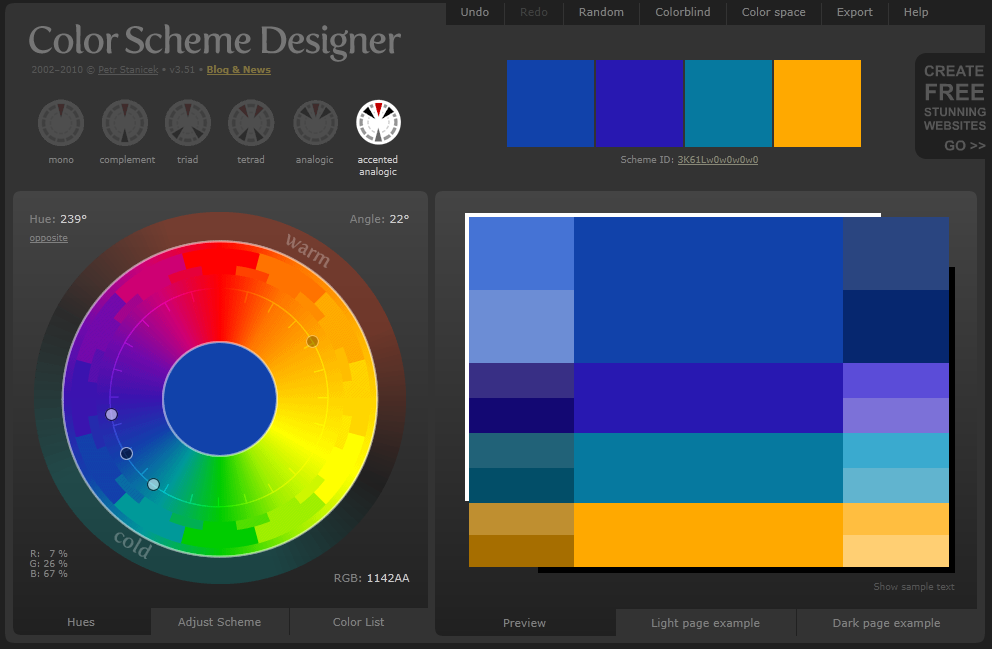
Very useful indeed.

My Outlook 2013 calendar is showing temperatures in Fahrenheit, but I want Celsius!
So, I have spent the day installing Office 2013 RTM onto my work laptop along with Visual Studio 2012 etc…
Now I haven’t used Outlook in earnest in the Technical Preview, but now that we are in RTM, it is full steam ahead to ensure the new interface becomes a part of normal working life.
So Outlook is installed (MSDN version) and I go to the calendar and the weather module is pointing to New York and is in Fahrenheit. This is no good at all, I am in the UK in “sunny” Marlow.
So changing the location was easy, clicking on New York and adding a location was all it took.

To change it Celsius, it is available in the options (Backstage (File) > Options) in the Calendar section right at the bottom.

Et voila! and we are back into a local state 


From Office 2013 Preview / Beta to RTM installation notes
Just a quick post to note down some of the things I noticed when upgrading my work laptop to the RTM version of Office 2013.
I chose to perform an upgrade rather than uninstall Office 2010 first since I am still working in a 2010 / 2013 environment for the time being.
Installation
- Download from MSDN
- Grab key for activation
- Click to run installations from Office 365 Preview and previous Preview installations need to be uninstalled first
MSDN Activation
- Go to backstage (File)
- Click Office Account
- Click activate product and on the pop up you are asked to sign in with your Windows Live account
- At the bottom of the pop up, there is activate via a product key (the windows live sign in, won’t work for MSDN subscribers)
- Enter the key and click ok
- Restart the product
- Product now activated
- Some foibles based on my company’s internal environment
Project Professional 2013
- We are currently running Project Server 2010 in the office, Microsoft Project 2013 will not connect to Project Server 2010
- You can run Project 2010 Professional side by side with Project 2013 Professional
- You cannot run Project 2013 Professional local with the click to run version (but you don’t need to
 )
)
Visio 2013
- Can run side by side with 2010
Lync 2013
- Installation is no longer separate install package
- Installed as part of Office 2013 Professional Plus
- Can connect to Lync Server 2010
SkyDrive 2013 Pro
- Can sync with SharePoint 2010


 SharePoint (and Project Server) Shenanigans
You must be logged in to post a comment.